|
||||||
Access Developer 1VBA Basics, MsgBox, OpenForm, SubroutinesWelcome to Access Developer 1. In this course you will learn the basics of VBA programming in Microsoft Access, including how VBA compares to macros and how to write your first code. We'll discuss the use of the message box command, building subroutines with multiple commands, and understanding the DoCommand OpenForm command. You will see how to recreate an Add Product button using If Then logic, work with the After Update event to update shipping addresses when billing information changes, and review key concepts from previous courses as needed. Lessons
Resources
Lesson SummaryWelcome! VBA Basics: Write Your First Code - Welcome to Microsoft Access Developer Level 1. In this course we will begin the Developer Series by introducing Access VBA programming and how it compares to macros. We will discuss building your first VBA program, using the message box command, and understanding the DoCommand OpenForm command. You will learn about creating subroutines with multiple commands, recreating an Add Product button with If Then logic, and working with the After Update event to update shipping addresses when billing information changes. This course assumes you have completed the Beginner and Expert Series, and we will review key concepts as needed.
Lesson 1: VBA vs Macros: Getting Started & Benefits - In Lesson 1, we will have an introduction to Access VBA, discussing what Visual Basic for Applications means, how it differs from other versions of Visual Basic, and the advantages of using VBA instead of macros for Access databases. We will talk about the relationship between Access VBA and VBA for other Microsoft Office programs, clarify the differences between VBA and Visual Studio, and explain when you might choose macros over VBA. We will also discuss the practical benefits of learning Access VBA for enhancing databases and potential opportunities for working with Access VBA in the workplace.
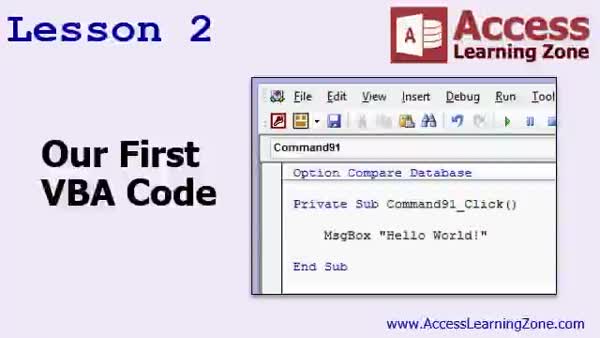
Lesson 2: First VBA: Show Hello World MsgBox - In Lesson 2, we will walk through writing our first VBA code by creating a simple "hello world" program using the MsgBox command in Microsoft Access. I will show you how to add a button to a form, access the VBA editor, and enter the code needed to display a message box. We will also discuss the basic structure of subroutines, the difference between statements and functions, and introduce key concepts like keywords, procedures, modules, and parameters. Using the hello world example, you will see how programming concepts are applied inside your database.
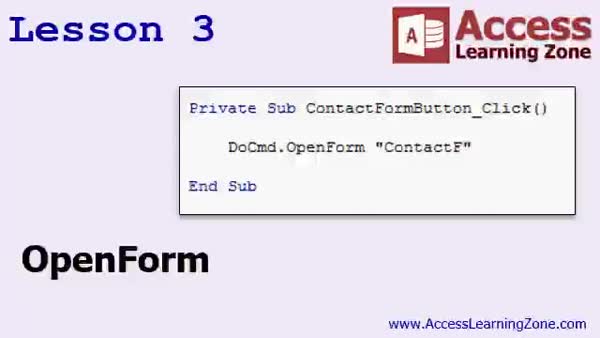
Lesson 3: OpenForm: Open & Filter Records - In Lesson 3 we will cover the basics of the DoCmd.OpenForm command in Access VBA. We will walk through how to open forms using both macros and VBA code, demonstrate how to use parameters like the Where Condition to filter records, and discuss best practices for naming buttons and avoiding duplicate code using Sub routines. We will also mention the available optional arguments for OpenForm and briefly discuss using filters and the OpenArgs parameter, which will be covered in more detail later.
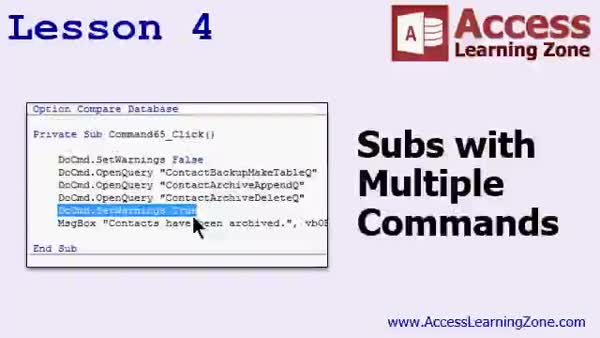
Lesson 4: Run Subroutines, Archive Data - In this lesson, we will explore subs with multiple commands by examining a VBA subroutine that archives old contacts from a primary table to a backup table in an Access database. I will walk through how to translate a macro with several action queries into VBA, including setting warnings off, running make-table, append, and delete queries, then turning warnings back on and displaying a confirmation message box. We will also discuss the importance of managing database warnings and organizing commands efficiently in your code.
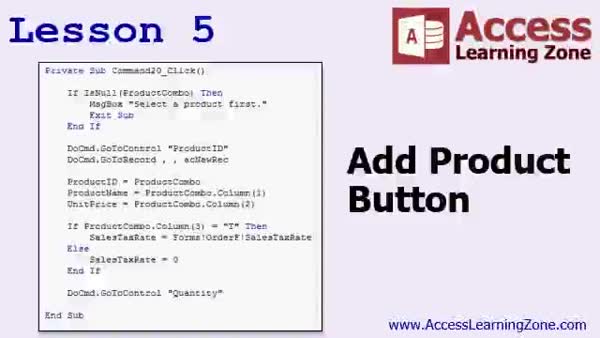
Lesson 5: Add Product Button: If-Then VBA - In Lesson 5, we will walk through recreating the Add Product button from the Expert Series, focusing on transitioning a macro-based approach to VBA code. We will cover using If Then statements, handling null values in combo boxes, utilizing DoCmd methods like GoToControl and GoToRecord, and replacing SetValue actions by assigning values from combo box columns to fields. We will also discuss basic logic structures such as If, Else, and ElseIf, and show how to check if a product is taxable to set the appropriate sales tax rate.
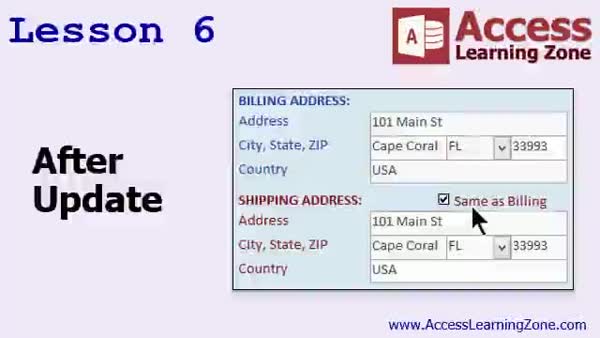
Lesson 6: Auto-Fill Shipping with After Update - In Lesson 6, we will learn how to use the AfterUpdate event in a Microsoft Access customer form. I will show you how to set up your form so that when you change the billing address fields, the shipping address fields are automatically updated if the "Same as Billing" option is checked. We will walk through setting default values in your table, adding a button to create new customers, and using simple VBA code to copy field values after updates. We will also briefly discuss the OnKeyPress event and how to set your system to always use VB code for event procedures.
Lesson 7: Review & Next Steps: VBA L1 - In this course we learned the basics of Microsoft Access VBA development as part of Developer Level 1. We reviewed options for continuing your learning with Developer Level 2 and older Access courses, discussed the differences between current and previous material, and mentioned ways to access support and forums. We also touched on available seminars, tech help options, student forums, and site licensing for organizations, along with a reminder about course usage policies.
NavigationKeywordsVBA programming, VBA vs macros, MsgBox, DoCmd.OpenForm, OpenForm filter, VBA subroutines, If Then logic, AfterUpdate event, auto-fill address, archive data, GoToControl, GoToRecord, combo box null check, SetValue replacement, sales tax rate
More InformationTranscriptWelcome to Microsoft Access Developer, Level 1, brought to you by AccessLearningZone.com. I am your instructor, Richard Rost. Welcome to the Developer Series of Classes. If you have made it this far, I assume you have been through my beginner classes that covered all the basics of using Access. The Expert Series covered more things like relationships, subforms, and all kinds of things that you can use to make your Access database a little more professional looking. The Advanced Series of Classes talked about macros and events. Now we are finally to the Developer level of classes. The Developer Series is going to focus on VBA programming, that is Visual Basic for Applications. So for all of you who want to learn how to program for Access, this is the series for you. It is strongly recommended that you have taken the Beginner, Expert, and Advanced series classes before taking this course. If you have not, that is okay, but you should have at least taken the Beginner and Expert classes. The Advanced Series went through macro programming and I understand not a lot of people are going to need to learn how to program macros and that is perfectly fine. I do talk about some things in there like events, such as the After Update event and the On Click event. I will be going through them again in this series so you do not have to worry too much if you did not take the Advanced Series of Classes. There are only six of them, so if you have any interest in macros whatsoever, give them a watch. If you have done no programming whatsoever, learning macros first can make learning how to program a little bit easier. So check it out. If you have any questions, let me know. I am using Microsoft Access 2016 to record this class with Office 365. Everything should work in 2013 as well as 2010, even 2007. In fact, if you go all the way back to 2003, I am going to say 99 percent of the commands that I am using, the Visual Basic language commands, are going to be almost exactly the same. One of the things I have been telling people for years before I came out with the Developer Series is that if you want to learn VBA, you can go back to watch my Access 2003 class. There are a lot of them out there. All of the VBA commands are pretty much the same. The interface is different, obviously. In the newer versions of Access, you will see the ribbon and all that, and they have changed the interface. But the Visual Basic language really has not changed that much since 2002 or 2007. The core language is the same. I will be using a database in class that we have been building since the beginning of Level 1. I recommend you watch all those classes and build the database yourself. But if you are lazy like me and you have not done that or you want to freshen up your database and use my copy, that is okay. You can find a copy of the database there on my website, www.fivelandincig.com/databases. You can download a copy there. You will need the password that you got when you purchased this class to download and install the database. Now I will take a quick look at what is covered in today's class. In lesson 1, we are going to have a little introduction to Access VBA, what it means, the different kinds of Visual Basics that are available, and the benefits of VBA over macro programming. In lesson 2, we are going to build our very first VBA program, write our first VBA code, and we are going to have the computer say Hello World with the Message Box command. In lesson 3, we are going to learn about the Do Command Open Form command. In this lesson, we are going to take a look at some subroutines with multiple commands, and there is some more advanced VBA programming coming your way. In lesson 5, we are going to recreate the Add Product button that we created back in our Expert Series. We are going to learn about the If Then statement and more. In lesson 6, we are going to learn about the After Update event. We are going to make events so that every time I change something like the address, the city, or the state in a customer's record, it automatically updates the shipping address if the Same as Billing is checked. IntroIn lesson 1 of Microsoft Access Developer 1, we will start with an introduction to Access VBA, discuss the differences between various types of Visual Basic, and cover the advantages of VBA over macros. You will get hands-on experience writing your first VBA program, learn to display a message box, use the DoCmd.OpenForm command, work with subroutines, recreate the Add Product button using If Then logic, and set up After Update events to automate updates in your database. This lesson uses Microsoft Access 2016 but the concepts apply to most recent versions. QuizQ1. What is the primary focus of the Developer Series of classes? A. Database relationships and subforms B. VBA programming for Microsoft Access C. Advanced macro techniques only D. Office 365 features Q2. What prior knowledge is strongly recommended before taking this Developer Series? A. Only the Advanced series B. Only the Beginner series C. Beginner, Expert, and Advanced series classes D. No previous knowledge is necessary Q3. What programming language will be taught in the Developer Series? A. Java B. VBA (Visual Basic for Applications) C. C++ D. Python Q4. What is described as a benefit of learning macros before VBA programming? A. Macros are more powerful than VBA B. Macros are the only way to program in Access C. Learning macros first can make learning VBA easier D. Macros replace the need for VBA Q5. Which Microsoft Access versions are mentioned as compatible with the course material? A. Only Access 2016 B. Only Access 2010 and newer C. Access 2003 and later versions (including 2007, 2010, 2013, 2016) D. Only Office 365 versions Q6. What has remained largely unchanged in Access from 2003 to newer versions? A. The user interface B. The VBA (Visual Basic) language commands C. The ribbon toolbar D. Database file formats Q7. What command will you use in Lesson 2 to display 'Hello World'? A. Print Statement B. Message Box (MsgBox) command C. Alert Notification D. Debug Console Q8. What event will be discussed in Lesson 6 to automatically update shipping addresses? A. On Click event B. On Load event C. After Update event D. Before Delete event Q9. In the Developer Series, what will you recreate using the If Then statement? A. Delete Customer button B. Edit Order button C. Add Product button D. Calculate Price button Q10. Where can you download a copy of the sample database used in class? A. On the instructor's YouTube channel B. www.fivelandincig.com databases section C. Only via email request D. Microsoft App Store Answers: 1-B; 2-C; 3-B; 4-C; 5-C; 6-B; 7-B; 8-C; 9-C; 10-B DISCLAIMER: Quiz questions are AI generated. If you find any that are wrong, don't make sense, or aren't related to the video topic at hand, then please post a comment and let me know. Thanks. SummaryToday's video from Access Learning Zone begins the Microsoft Access Developer Level 1 course. My name is Richard Rost, and I will be guiding you through this Developer Series. If you have reached this point, I am assuming that you have already completed my Beginner classes, which laid the groundwork by teaching the essential aspects of using Microsoft Access. The Expert Series took things a step further, tackling more advanced features such as relationships, subforms, and other tools to make your database more polished. In the Advanced Series, I introduced macros and events. Now, as we enter the Developer level, the focus shifts to VBA programming, or Visual Basic for Applications. This series is designed specifically for those interested in learning how to write code for Access and take their databases to a higher level of customization and automation. I strongly suggest that students complete the Beginner, Expert, and Advanced classes before starting this course. However, at minimum, you should have taken the Beginner and Expert levels. While the Advanced Series includes topics on macro programming, which might not be essential for everyone, it also covers useful concepts like events, including the After Update and On Click events. These will be revisited in this series, so you will not be left behind if you have not completed the Advanced Series. There are only six Advanced classes, so if you have any curiosity about macros, I would encourage you to take a look. For those with no programming experience, learning macros first can ease the transition into coding. If you have any concerns, feel free to ask questions along the way. I am using Access 2016, part of Office 365, to record these lessons, but the material is applicable to Access 2013, 2010, and even 2007. In fact, most of the Visual Basic commands I'll be discussing are nearly unchanged since Access 2003. The interface may have evolved, so you will notice differences such as the use of the ribbon in more recent versions, but the underlying Visual Basic language has remained consistent for many years. Throughout this course, I will be using a sample database that we have been building together since the very beginning of Level 1. I recommend building your own as you go through the lessons for the best learning experience. However, if you would like to use my copy instead or simply want to catch up, you can download the database from my website. Please note that you will need the password provided when you purchased this class in order to access the database. Let me give you a brief overview of what we will be covering in today's class: Lesson 1 introduces Access VBA, explaining what it is, the different forms of Visual Basic, and why VBA is a step up from macro programming. In Lesson 2, we will create our first VBA program, writing a simple piece of code to display the message "Hello World" with the Message Box command. Lesson 3 covers the Do Command Open Form procedure. We will continue by exploring subroutines that use multiple commands and dive deeper into more advanced VBA programming techniques. In Lesson 5, we will rebuild the Add Product button from the Expert Series, learn how to use If Then statements, and discuss additional programming concepts. Lesson 6 will focus on the After Update event. Here, we will set up an event so that when you update details like address, city, or state in a customer's record, the shipping address automatically refreshes if the Same as Billing box is checked. For a comprehensive video tutorial with detailed, step-by-step instructions on everything discussed here, please visit my website at the link below. Live long and prosper, my friends. Topic ListIntroduction to Access VBA and its benefits Writing your first VBA program in Access Using the Message Box (MsgBox) command Using DoCmd.OpenForm to open forms with VBA Creating subroutines with multiple VBA commands Recreating the Add Product button with VBA Using If Then statements in VBA Working with the After Update event Automatically updating fields based on user input Primary TopicsAccess VBA introduction, differences between macros and VBA, VBA benefits, writing first VBA code, message box command, DoCmd.OpenForm, basic subroutines, If Then statements, After Update event Secondary Topicsdatabase access/download instructions, legacy Access versions compatibility |
||||||||||||||||||||||||||||||||||||||
|
| |||
| Keywords: VBA programming, VBA vs macros, MsgBox, DoCmd.OpenForm, OpenForm filter, VBA subroutines, If Then logic, AfterUpdate event, auto-fill address, archive data, GoToControl, GoToRecord, combo box null check, SetValue replacement, sales tax rate PermaLink Microsoft Access Developer 1 |