|
||||||
Access Developer 11Test Timer, Question Counters, Custom DialogsWelcome to Access Developer 11. In this course you will learn how to enhance your test taker database by displaying question counters and adding a test timer, as well as managing multiple open forms for better usability. We will also begin building a customizable dialog box that lets you control fonts, colors, and timers, going beyond the standard Access message box. This course builds directly on concepts from previous Access Developer levels. Lessons
Resources
Lesson SummaryWelcome! Test Timer, Counters & Dialogs - Welcome to Microsoft Access Developer Level 11. In this course we will finish enhancing the test taker database started in previous developer levels, including adding features like displaying "Question one of two," implementing a timer, and managing multiple open forms. We will also begin building the universal dialog box, which will allow greater customization than the standard Access message box, such as controlling fonts, colors, and adding timers. You should be comfortable with Access Developer 9 and 10, as well as the earlier beginner, expert, and advanced series, since we build on those concepts throughout this course.
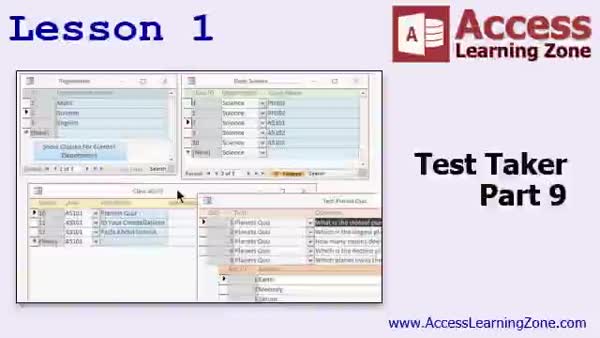
Lesson 1: Cascade Close, Hide Buttons, Show Status - In Lesson 1, we continue building the Test Taker database, focusing on enhancements to improve usability and functionality. We will walk through hiding buttons like Begin Test, displaying "question one of ten" status, determining if forms are open and cascading closures, and programmatically setting combo box values for easier navigation. I will show you several practical VBA techniques for managing form events, updating form fields dynamically, and handling potential errors when closing related forms. We will also discuss using DCount for totals and best practices for handling recordsets and form focus within your test taker database project.
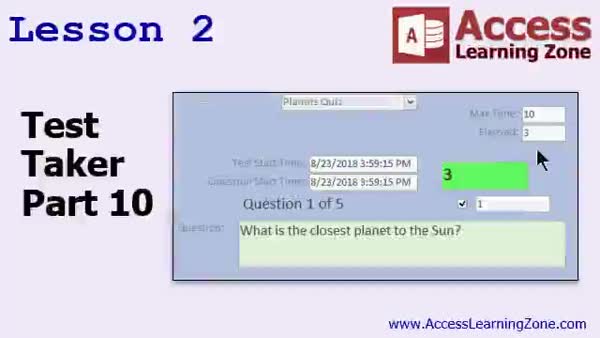
Lesson 2: Add Timers & Set Time Limits - In Lesson 2, we continue building the Test Taker 10 project by adding timers to our test form. We will walk through tracking both the overall test start and end times and the time taken to answer each individual question. I will show you how to set a maximum time limit for the test and display countdown timers on the form, as well as how to visually alert users when time is up. We will also discuss strategies for handling timing data in other types of databases and address some helpful VBA techniques for managing these timer events.
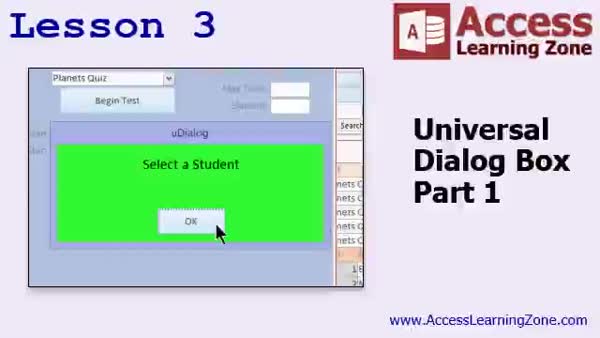
Lesson 3: Custom Dialogs: Prompts & Colors - In Lesson 3, we begin building a universal dialog box in Access that can be customized to control the prompt, title, background color, font size, and more. I will show you how to set up a basic version of the dialog form, design its layout, and create a global module to make it easy to reuse in any database. We will walk through creating flexible parameters for things like prompt text, title, background color, and font size. Additional features, such as custom button options and timers, will be discussed and added in future lessons.
Lesson 4: Review, Next Steps & Resources - In this course we learned how to continue building the Universal Dialog Box and explored what is coming up next in the series. We discussed future lessons on the dialog box, upcoming barcode topics, and resources for further study, including Access 2003 lessons and various seminars on related subjects like calendars, database security, accounts payable, SQL, loan amortization, relationships, and normalization. We also reviewed how to participate in the forums, find additional support, follow on social media, and provide feedback through surveys, as well as information about usage policies for this course.
NavigationKeywordstest timer, question counter, custom dialog box, cascade forms, close multiple forms, hide buttons, DCount, combo box navigation, VBA form events, countdown timer, time limits, track question duration, universal dialog box, custom prompts
More InformationTranscriptWelcome to Microsoft Access Developer Level 11, brought to you by AccessLearningZone.com. I am your instructor and personal Access expert, Richard Rost. In today's class, we're going to finish up with some enhancements in our test taker database that we started in Level 9 and worked on last class in 10. We're going to do things like display question one of two, put a timer on it, and add all kinds of cool enhancements to our test taker database. We're also going to start building a new project called the Universal Dialog Box, which is basically the message box on steroids. You can control the font and the color. We're going to put a timer on it later so you can have it pop up for a few seconds and go away. So that's going to start today with the Universal Dialog Box. You should definitely have taken Access Developer 9 and 10 if you want to avoid being lost today, because we started the test taker database in Access Developer 9 and continued with it in 10. Unless you're just interested in the Dialog Box stuff, if you just want to begin with the Dialog Box, go ahead and start today. Of course, you should also have under your belt all of my beginner, expert, and advanced classes. That will certainly help you when it comes to the developer series. For those of you who may not have taken any of my classes, there are nine beginner lessons. There are the expert classes, which go into more detail on relationships, advanced form design, reports, and similar topics. The advanced series mostly deals with macros and events, but there's also a bunch of stuff that, as we will discover in today's class, I covered having to do with form colors, the RGB function, and related topics in the advanced series. So don't just skip over advanced. There is some good stuff in there. This is the developer series, which focuses mostly on what we can do with VBA programming, which is really cool. Each one of the four series has different levels. Beginner has nine, expert has, I think, 32. Advanced only has six because I decided to switch right over to developer when Microsoft pretty much got rid of web macros and the whole web design stuff with Access. So I decided to cut the advanced series short and go right to developer. We are in level 11 of developer right now. I strongly recommend you build the databases with me on your own as you're watching the lessons. But if you get lazy like me, which I do from time to time, you can download the databases, both the test taker and the Universal Dialog Box. Actually, it's part of the same database right now at that web page. I'm using Access 2016. I have the subscription, the Office 365. I'm pretty sure everything I cover in today's class is the same going back to 2007. I don't know if the RGB function is in the older versions before that, like 2003 and before. They handle colors differently, but if you've got 2007 and up, you should be okay. I know they're transitioning to 2019 this fall, even though it's currently August 2018. They're always a year ahead with their version numbers. As long as you've got the subscription model, it should be pretty much the same. I strongly recommend it. Let's take a look at exactly what's covered in today's class. In lesson one, we're continuing with the test taker database that we started building in Access Developer 9 and worked with in Developer 10. We've got a couple more enhancements to do using some new techniques and a couple of new functions. We're going to hide the display button, hide the begin test button, and show "question one of ten." We're going to learn how to see if another form is open. If it is, we can then do things like close it or modify it. We'll learn how to cascade close multiple forms, so if this form closes, another closes, and so on. There are lots of new little techniques here. Even if you're not building the test taker database to use, build it as a test database. Build it as something to learn these techniques because the stuff that I'm teaching you will eventually be useful in your database. In lesson two, we're going to add some timers to our test form. We'll track the start time and end time of the test, along with the start and end time for each question. This way, you can see how long it took them to answer each question. We will also set a maximum time allowed to take the test, such as an hour limit where the test says, "Okay, that's it. Time's up. You're done after an hour. Put your pencils down." Again, you may not be building a test taker for your personal use, but this has applications in all kinds of different databases. For example, in telemarketing, you can have people track how long they are on the phone. You can have inventory staff track how long they spend checking products. There are many uses for this kind of timing functionality. We've done a little bit with timers before and dates and times, but I'll bring it all together in a lesson for you now. In lesson three, we're going to switch gears. We're still going to work in the test taker database, but we'll do something different. We're going to start building a Universal Dialog Box, our own version of the message box. Eventually, it will incorporate the input box function too, but I want to build a box I can control every aspect of: the font, the colors, the prompt, the title, the types of buttons, all that stuff, plus a timer. It will return a value to a form, among other features. We're going to start building it today, I'll show you how to get it set up, and we'll finish it in the next class. IntroIn lesson 11 of the Microsoft Access Developer series, you'll work on enhancing the test taker database started in previous levels by adding features like "question one of X" indicators, tracking time for the test and each question, and setting a maximum allowed time. You'll also learn useful VBA techniques for managing multiple Access forms and controlling their behavior. Additionally, this lesson introduces the Universal Dialog Box project, a customizable alternative to the default message box, where you can set the font, color, prompt, title, and more. The basics of building this dialog box begin in this lesson and will be expanded in the next class. QuizQ1. What primary project enhancement is being completed in this class for the test taker database? A. Adding question randomization B. Displaying question progress, adding timers, and form enhancements C. Implementing cloud backup D. Importing test questions from Excel Q2. What is the Universal Dialog Box intended to improve upon? A. Data typing accuracy B. The built-in Access message box by adding more custom controls C. Table normalization automation D. Query formatting options Q3. Why is it recommended to complete Access Developer Levels 9 and 10 before starting this lesson? A. They cover SQL Server integration required for Level 11 B. They teach the basics of user security C. They introduce the test taker database project that is enhanced in Level 11 D. They demonstrate export to PDF functions Q4. Which of the following is a new technique covered in the lessons for handling forms? A. Linking tables from SQL B. Checking if another form is open and cascading form closures C. Printing reports to multiple printers D. Splitting databases for network use Q5. What timer-related feature is added to the test taker form in this lesson? A. Countdown timer with sound alert B. Automatic grading timer C. Tracking start/end times for the test and each question, plus setting a maximum time limit D. Timer for automatic database backup Q6. According to the instructor, what is a broader application of timing functionality beyond test-taking? A. Encrypting database files B. Tracking time spent on various processes like telemarketing or inventory checking C. Validating foreign key relationships D. Scheduling automatic report emails Q7. The RGB function, used in this series, is available in which version of Access? A. All versions since 1997 B. Only Access 2019 and later C. Access 2007 and later D. Access 2003 only Q8. The Universal Dialog Box the class begins developing is eventually expected to have which of the following features? A. Data export capability B. Customizable font, colors, buttons, input, and a timer C. Multi-language spell checker D. Cloud synchronization support Q9. What advice does the instructor give about building the sample databases? A. Only review the final database and do not try building it yourself B. Build the databases with him while watching to enhance learning, or optionally download them C. Focus only on the beginner lessons first D. Avoid downloading sample databases due to security risks Q10. Which Access series focuses mostly on macros and events but also covers things like colors and RGB functions? A. Beginner series B. Expert series C. Advanced series D. Developer series Answers: 1-B; 2-B; 3-C; 4-B; 5-C; 6-B; 7-C; 8-B; 9-B; 10-C DISCLAIMER: Quiz questions are AI generated. If you find any that are wrong, don't make sense, or aren't related to the video topic at hand, then please post a comment and let me know. Thanks. SummaryToday's video from Access Learning Zone continues the work on our test taker database, which we originally started in Developer Level 9 and built on further in Level 10. My goal in this lesson is to bring some final enhancements to this database, such as displaying information like "question one of two," adding a timer, and introducing a range of new improvements to the test taker system. Today also marks the start of a brand new project: the Universal Dialog Box. This is a much more versatile alternative to the standard message box, giving you customization over font, color, and eventually even letting you include a timer so the box can appear temporarily and close automatically. We will begin setting up the Universal Dialog Box in this class. If you are following along with the test taker database, I recommend that you have already completed Access Developer Levels 9 and 10 to avoid getting confused, especially since the core of the test taker project was covered in those classes. If you are only here for the dialog box segment, though, feel free to start with this lesson. It's very helpful to already be familiar with my earlier beginner, expert, and advanced series as well. For those who are new to my courses, the beginner series consists of nine lessons and covers the fundamentals. The expert series goes further into building relationships, designing forms and reports, and other important topics. The advanced classes focus heavily on macros and events, and as you will see in today's lesson, there are even concepts around form color control and working with the RGB function that were discussed in the advanced series. Despite being shorter, the advanced material can be valuable, so I suggest you do not skip over those lessons. The developer series, which is where we are now, centers on what you can accomplish with VBA programming in Access. Each series has a different number of levels. The beginner series has nine, expert has about 32, and the advanced series has just six because I shifted focus to developer content when Microsoft dropped support for web macros in Access. We are now on Level 11 of the developer series. I encourage you to work through building these databases alongside me as you watch the lessons. However, if you would rather not type everything yourself, you can download the sample databases, both the test taker and the Universal Dialog Box, from my website. For anyone wondering about software versions, I am using Access 2016 with an Office 365 subscription. Most of what I demonstrate today should work in Access versions going back to 2007. The RGB function, for color control, may not be available in versions prior to 2007, so check your version if you are using something older. Let's break down the specific topics you'll learn in today's session: In the first lesson, we continue enhancing the test taker database. We will hide and control the display and begin test buttons as needed, and present clear indicators such as "question one of ten." I will explain how to check if another form is open and how you can close or modify forms based on their status. We'll go over cascading form closures so that when one form closes, others will follow suit if needed. You will come away with multiple new techniques. Even if you do not intend to use the test taker database in your actual work, following along will help you learn important practices that will serve you well in your own projects. In the second lesson, we will introduce timers to the test form. You will see how to track when a test begins and ends, along with recording the start and end times for each individual question. This enables you to review exactly how long someone took on each portion. We'll also cover how to impose a maximum test duration (for instance, limiting the test to one hour), so that the system automatically concludes the session when time is up. While this feature is demonstrated in a test database, it can be put to use in all kinds of applications. For example, you might want to keep track of how long telemarketing staff are on calls, or monitor how much time employees spend on inventory tasks. The timing functions you will learn can be reused in many areas across your database work. Lesson three shifts the focus to the Universal Dialog Box. While we will still be working within the test taker database, the main topic is starting to build this highly customizable dialog form. The goal is to create a form that can serve as a pop-up message or input prompt and that you can fully control: choose the font, background and text colors, customize the prompt and title, specify buttons, and even add a timer. It can return values to your forms and be adapted to suit many needs in your projects. This first lesson will guide you in setting up the Universal Dialog Box, and we will continue with its completion in the next class. For a complete walkthrough with step-by-step instructions about all the topics mentioned here, you can find the full video tutorial on my website at the link below. Live long and prosper, my friends. Topic ListHiding display and begin test buttons in the test form Displaying current question number out of total questions Checking if another form is open in Access Cascading form closures based on dependencies Adding timers to the test form Tracking test start and end times Tracking question start and end times Calculating time taken for each question Setting a maximum test duration Enforcing time limits with automatic test ending Beginning the Universal Dialog Box project Customizing font and color in a custom dialog box Controlling dialog box prompt, title, and buttons Returning values from the custom dialog box to forms Primary Topicstest taker database enhancements, form display techniques, cascading form closure, timers in forms, tracking question times, maximum test duration, building custom dialog box, VBA programming Secondary Topicsversion compatibility, RGB/colors in forms, using sample databases, broader application of timing functions |
||||||||||||||||||
|
| |||
| Keywords: test timer, question counter, custom dialog box, cascade forms, close multiple forms, hide buttons, DCount, combo box navigation, VBA form events, countdown timer, time limits, track question duration, universal dialog box, custom prompts PermaLink Microsoft Access Developer 11 |