|
||||||

|
|
||||||
|
Holiday CardsBy Richard Rost
 9 months ago
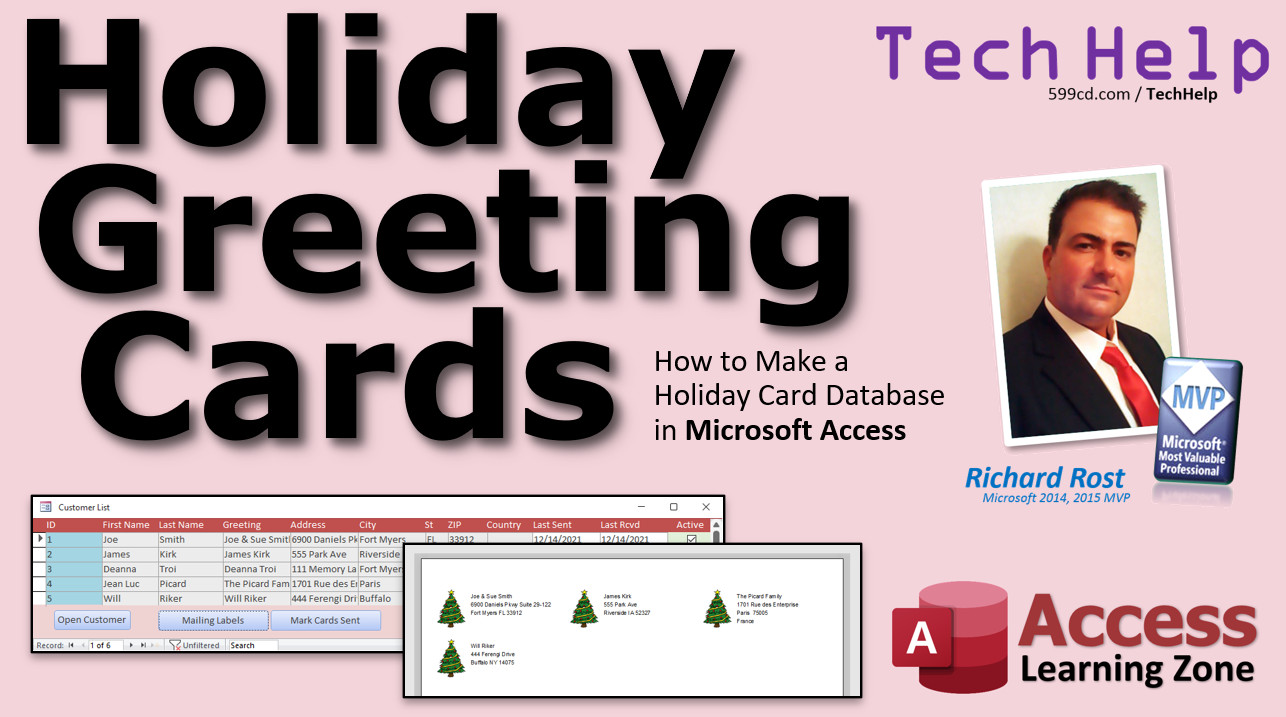
Holiday Greeting Card Mailing List Database Yes, I know this video is from 2021. It's an oldie but a goodie. And remember, not everyone who's here today was around back in 2021 when I released it, so they might have missed it. And no... this is not your TechHelp video for today. New one coming up shortly. So enjoy this repost in the mean time. In this video, I will show you how to track your Christmas Card list in Microsoft Access. We will modify my free customer database so you can see who is on your list. We'll make mailing labels for the people on the list. We'll use an update query to track the last date we sent cards out to each person, and we'll use an append query to put a note in their contact history so you can see all of the times in the past you've sent them cards. Cassidy from Lakewood, Ohio (a Platinum Member) asks: What's the best way to track my Christmas Card list in Access? I like to keep track of who is getting a card this year, when the last time I sent them a card was, when the last time they sent me a card was, and of course it would be nice to actually print the labels from inside of Access. MembersMembers will see how to create different greetings for card recipients, such as Joe Smith, Joe & Sue Smith, Joe Smith & Sue Jones, The Smith Family, or whatever else you'd like. You can customize the greeting for each recipient. We'll also use conditional formatting to easily see who is missing address data.
Silver Members and up get access to view Extended Cut videos, when available. Gold Members can download the files from class plus get access to the Code Vault. If you're not a member, Join Today!
Links
Keywordsmicrosoft access, ms access, ms access tutorial, #msaccess, #microsoftaccess, #help, #howto, #tutorial, #learn, #lesson, #training, #database, Holiday Cards, Christmas Cards, Hanukah Cards, Kwanzaa Cards, Festivus Cards, Solstice Cards, christmas card database, xmas card database, holiday cards, address labels, print christmas cards, christmas card list, address book, create Your Own Christmas Card Database Tutorial, christmas card template, Hanukkah cards, Kwanzaa cards, business holiday cards, How do you print Christmas cards at home
More InformationTranscriptWelcome to another TechHelp video brought to you by AccessLearningZone.com. I am your instructor Richard Rost. In today's video, I'm going to show you how to make a holiday greeting card database in Microsoft Access. Today's question comes from Cassidy in Lakewood, Ohio, one of my platinum members. Cassidy says, "What's the best way to track my Christmas card list in Access? I'd like to keep track of who is getting a card this year, when the last time I sent them a card was, when the last time they sent me a card was, and of course it would be nice to actually print the labels from inside Access." Thank you, Cassidy. This is something that's actually pretty easy to do in Microsoft Access. Let's see how. First, a few prerequisites. I want you to watch my Blank Database video. This is how I set up my blank database template that's got a customer form, a main menu, and it shows you all the settings that I like to use in my databases. Go watch that first and download a copy of my free sample template. You should know how to do query criteria. If not, go watch that video. These are all free on my website. When it comes time to mark your Christmas cards sent for this year, you're going to want to know how to do update queries and append queries. So go watch those videos. I'm going to use just a couple of lines of VBA code. Go watch my free Intro to VBA lesson. VBA is not difficult. Don't be scared of it. It's a 20-minute introductory video to teach you everything you need to know to start programming with VBA. Even if you don't plan on becoming a programmer, once you learn a little bit of VBA, you really make your databases a lot more powerful. So go watch that first. Here I am in a copy of my TechHelp free database template. You can download a copy of this off my website. It's absolutely free. It's got a simple customer list. It's got a customer form. These are basically the start of making our Christmas card list, or our holiday card list, whatever you want to call it. We already have a field in here called IsActive. It's a yes/no field, and we can use that to determine if this person is still on our card list. So we don't have to actually rename the field. You can leave it as IsActive if you want to, but I'm just going to change the label on Christmas card list, or whatever you want to call it. What that means and I'm going to take this Notes and just shrink it up a little bit. We don't need that big. So we have a field indicating whether or not they're on our Christmas card list. Now let's go back over here to the customer list. We'll use this as our master list. Let's design this guy. Now we really don't need State on here. We really don't need Credit Limits. Let's get rid of those for a minute here. And I am going to slide this over here. So let's put in here the Active field. We can just go over to the other form and copy it. Click on this guy, copy, and then paste. Paste it right in here. Slide it over. And we just want the check box. I'm going to actually take this label, cut it out, paste it up here in the header, and slide it over here. We'll just put "On List." And we want to make that white so we can actually see it. So let's format paint over this guy. Click. And you can go to the Format tab where I put it up here on my quick launch toolbar too. Either one works. There we go. So that's how we know if they're on our Christmas card list or not. We'll do something with customer sends. Let's close it. Close this one too. Looking pretty good. This is how we can keep track of who's on our Christmas card list. Now Cassidy also wants to track when the last time she sent the card out to this person was, and when they sent one in to us. It's always nice. Like one of my favorite comics, Sebastian Maniscalco, he's got in his routine, he's like, every Italian wedding, they keep that little book. When you go to a wedding, you know, what did they give us last time when one of our kids... the same thing here. Well, they haven't sent us a Christmas card in three years. So we've got Customer Sends as a date. We can use this as the date we last sent. We'll call it Last Sent. And we've got Last Received, too. So let's go back here. Let's go to the customer table, design view. I'll find Customer Sent; we don't need it for this. If you want to keep all these existing fields, leave them and just add new ones. I'll call this one LastSent (Date/Time). And we'll do LastReceived as a Date/Time. I like to keep like stuff together, so I'm just going to slide that up there. OK, close that. Back to the customer list, design view. Notice this automatically changed if you come in here. It changes the control source for you, but it leaves the name. I don't like that. That should be on my list of suggestions for Microsoft. I understand why they do that, but it's a little confusing for new users. I'm going to just change the name also to LastSent. And of course, we'll change the label at the top, "Last Sent." And we get to add our LastReceived. So we'll come over here, slide that over. And I'm just going to copy and paste this whole thing. Watch, copy, paste. Slide that over there like that. Slide that one next to it. This is the label. I'll just abbreviate "RCVD." And in here, we want to pick LastReceived and paste it over the name. Check our tab order while we're in here. Tab Order. Auto. OK, so they're all in that order. Sometimes I like to keep the checkboxes at one end or the other. Let's move this "On List" over to the end here. I just think it looks a lot better. Keep the checkboxes at one end instead of in the middle of a bunch of text boxes. Yeah, that looks better. I'm going to do the tab order again. Tab order, Detail, Auto, OK. Save it. Close it. Open it. Looks better. We're on a roll here. Let's add this LastReceived field to our single form, our main customer form here. Let's go to design view. Let me get the property sheet. Let me slide you over here a little bit. I'm going to shrink this Notes up even more. We don't need Notes for this example. So let's move you down here for a minute. CustomerSents is right there. That's our LastSent. And we need LastReceived now, too. Let's change the name of this guy, LastSent, and copy, paste. We'll make you LastReceived. Copy, paste. Paste. And we'll just put a little space in there. Family size, you might want to keep Credit Limit. You can use that for tracking a gift amount if you want to. Put in here "Gift Amount." You can rename the field if you want to. If you want to keep track of, for the kids or the cousins or the aunts and uncles, what size gift did you give them last year? $100, $200, whatever. That's up to you. Whatever you want to do. Have fun with it. Let's put Notes back up in here. We'll slide you over there. Line it up nice on top of each other. Save it. Here's one of those quick instances where, when I tell you, it makes it a whole lot better for your database if you learn just a teeny tiny bit of VBA. Watch this. Let's say you get a card in the mail. You want to open up this person's record and just mark that you received a Christmas card today. Wouldn't it be nice if you could just double-click on LastReceived and not have to type it all in or go to the calendar? Just double-click on it and set it to today. Watch this. Go to Events, find the On Dbl Click event. Hit the dot dot dot right there. That opens up the VB code window. Now, if you watched my Intro to VBA lesson, you'll see that there is an option you can set so it goes right into here instead of asking you what builder you want. Right in here, we're just going to say: LastReceived = Date That's it. It puts today's date in the LastReceived field. That's all, one line of code. I like to indicate anything you can double-click on and something happens, like back here. You can double-click on one of these to open up the customer form. I like to make it blue. So I'm going to come in here to the Format drop-down and pick that blue. That just tells you you can double-click on that and something happens. So I open up Jim Kirk, and I got a card today. Double-click. Boom. There it is. Puts today's date right in there. Look at that. So now we've got who's on the Christmas card list. So let's make some mailing labels. First, I'm going to make a query so that it just brings in people who are on the Christmas list. So let's go to Create, Query Design. I'm going to bring in CustomerT. We are going to say that I want the following on the address list: FirstName, LastName, Address, City, State, Country. And we want IsActive, and this is going to have to be true. This is where that query criteria comes into play. And I don't even need to see that in the query. Now when I run this, there's what we've got. Let's save this as MyCustomerActiveQ. CustomerActiveQuery, and we can use this to make our mailing labels. Go Create, Labels under the Report section. The little wizard pops up. Find the label that you use. Me personally, I use Avery labels, and the one I like is the 5160, which is 30 on a page. There's so many of them in here now. This list used to be a lot smaller. There you are. Thirty per page is three across, 10 up and down. You might want larger labels for Christmas labels. If you want to put them on a nice card or outside of an envelope or whatever, pick whichever one you want. Next. Here are the default font settings. These are all fine for me. Next. What do you want your prototype label to look like? I cover this, by the way, in my Access Beginner Level 1 class, so if you don't know how to make mailing labels, go watch my free Access Level 1 class. It's four hours long. It covers all the basics: tables, queries, reports, mailing labels, all that stuff. Absolutely free. It's on my YouTube channel. Go watch it. Now it's at this point, I'm looking at this thing thinking to myself, "Wait a minute. The customer ID should not be in here." I goofed. I actually had CustomerT selected when I clicked on Label. So by default, it's going to use the CustomerT instead of my CustomerActiveQ to make this set of mailing labels. But that's OK. We're going to do it anyway. The fields will be the same. I'm going to show you how to change it in just a minute. FirstName, space, LastName, enter, Address, enter, City, space (you can put a comma there if you want), State, space, Zip, enter, Country. There's your prototype label. Next. What do you want to sort by? Totally up to you. I'll go LastName and then FirstName. Next. See the labels as they will look printed, modify the design. Let's go to modify the design, then finish. There's my basic prototype label. It saves it for us as LabelsCustomerT. First thing I'm going to do is change that record source. Double-click right here. Go to Data. Change CustomerT to CustomerActiveQ. These fields are all the same, but it's only the active customers, that query we just made. So now let's save it, close it. I'm going to rename it because I don't like that name. First of all, no spaces. If you watch my Access Beginner 1 class, no spaces in our object names. Right-click, rename. We're going to call this ChristmasLabel. Whatever you want to call it. Right-click, Print Preview. This usually comes up. For some reason, the wizard always makes the label just slightly too wide, and it's another one of my pet peeves from Microsoft. Just hit OK, and then we're going to go into Design View and we're going to make this label just a teeny tiny bit more narrow, like one pip there. Now it should work just fine. Print Preview. There. That's one of my pet peeves, I know. Let's make this more Christmassy. Let's put a little Christmas tree in here. I'm going to make these labels smaller; they don't have to be that big. Let's close it up like that, just a little bit, resize those. I'm going to put a little tiny Christmas tree right there. Go to your favorite web-based clip art place, wherever you want to go. There are a whole ton of them. Find some royalty-free art. I found this nice picture of a Christmas tree, which I then shrank in Microsoft Paint. Now I'm going to take a little screen clip of it like this with my screen clip tool, then I'm going to paste it right here in the detail section. It made it nice and big. That happens every single time you bring in clip art. I don't know why, it just does. I'm going to slide this, make it a little bit smaller, like that, that's the spot I want it in. Then you've got to resize your label again. I know, it's a pain. Bring this up to right about there. Nope, that's not working. That's another kind of bug in Access: when you bring in clip art, it resizes the detail section. I don't know why. But I'm showing you all these little things that irritate me, so when they happen to you, you know it's not just you. These are little quirks of Microsoft Access. Now this guy, we're going to change the Size Mode to—I'm going to change it to Stretch. There's Center, Clip, Stretch, and Zoom. Let's go to Stretch. It will stretch to whatever your outline is there. We're going to go to the Format tab, and we're going to say the Shape Outline is transparent. The Shape Fill is transparent as well, even though you'll get your background copied. Save it now. Close it. Let's Print Preview one more time. There they go. It's not that bad. That looks nice. You've got three people on our Christmas list. There are your three little labels. It will look better when you print it out—it gives you a rough estimate in print preview—but that looks nice. Now we need a button on here to print this guy out. Now there is a button in the wizard that you can use to print or preview a report. I don't like using it and I'll explain why in just a minute. It's in the command button wizard. If you go to Form Design, you can add a button, drop it down here. Go to Report Operations. You can go Preview or Open a Report, whatever you want to do. Pick your ChristmasLabel. I'll just put in here "Christmas Label." We're going to delete this in a minute anyway, but I wanted to illustrate the problem. There's my button. Save it. Close it. Open up my customer list. It works just fine. There's my preview. But watch this: if I put Deanna Troi on the list and hit Christmas Label, I still only get three. Deanna is missing. Why is that? Notice the pencil there. This record is still dirty. I checked the box, but this record doesn't get saved unless you move off of it to another record. Now when I hit Christmas Label, you can see there are all four records. Same thing in reverse. When I click on that, the record's still dirty. I'm still seeing all four records. So we need to refresh these records before opening up the report. Now that's not something you can do with the wizard. You could tell your users, manually, "You have to make sure, when you do this, you move to a different record." But that's going to confuse people, especially if you're building a database for someone else or even yourself. If you've got hundreds of people on here, you might not notice that, and then you print out your labels and you're missing one. So that's why, again, I say learn some VBA. Delete that button. Let's grab a button, drop it down here. Cancel the wizard. Print Labels. I like to preview stuff first and just look it over before I send it right to the printer. If you want to send it right to the printer, that's fine, that's up to you. If you like to waste paper, you like to waste labels, go right ahead. Right-click. Build event. Oh, I forgot to name the button, it's Command20. I don't want Alex yelling at me. Let's go back. Sorry. I've been building databases with Access since the early 1990s, so almost 30 years, and I still forget this step. Come in here, give it a name—Command20 access doesn't care, I care though. Alex cares. Alex will yell at me. PrintLabelButton. Now we can go right-click, build event. That's because, when you're in here and you're looking down your code, now I know what this button is for. One or two lines of code. Two lines of code: DoCmd.OpenReport "ChristmasLabel", acViewPreview But we have to refresh before we do that. So right above it, go: Me.Refresh That's it. The refresh saves any changes you might have made to the current record, then previews the report. Save it. Back over here. Let's close that. Open it back up again. Four people on the list right now. I'm going to turn off Deanna Troi, hit Print Labels, and there we go. See, the record refreshed first and there we go. Very important. That's why it's important to learn a little tiny bit of VBA. If you want to learn more about printing mailing labels, by the way, I've got a seminar that I put together. It's about an hour long, but it covers some of the things that people always ask me about when they're doing mailing labels. For example, inserting blank fields on the top. If you've got those sheets of mailing labels and you've printed three already and you want to continue using that same sheet, but you don't want to waste a whole brand new one, and you don't want to use those first three spots, I'll show you how to skip spots. Making X copies of a label—if you want to make a whole full page of return address labels, for example, I do that all the time, you want to make 30 of them at one shot. Boom. There you go. All kinds of different stuff. I'll put a link to this in the description down below the video if you want to go check it out. Of course, we've got to pretty this up. This is a holiday thing. If you celebrate Christmas or Hanukkah or Kwanzaa or Solstice or Festivus, whatever you celebrate, make it look pretty. So we're going to Design View. I'll change this to Holiday Cards. I actually had a customer get mad at me once because I kept referencing holiday to Christmas. Yeah, I love Christmas myself, but this time of year, there are hundreds of different celebrations based on whatever your tradition or religion is. I try to be inclusive. I've got customers all around the world, so I like to make sure that everyone's included. Of course, my label resized. I covered this one in my previous TechHelps. I always forget to do it myself. If you resize this guy like this, if you want to change this caption without the label resizing, change it in the property sheet. There you go. Let's make this guy—let's go red background with white foreground, let's make this green. There are good Christmas colors. Here we go. Let's change this guy. Design View. Let's change this header up top. Let's go with the same red. Make the bottom red, too. We'll make the center green, too, let's do it like there. Don't forget to change that alternate background. I'm going to set that to no color. Save that. Close it. Take a peek. Open it back up. Holiday Cards customer list. Oh, it's looking festive. Save that. Open this one up. Change this one if you want to. Right-click, Design View. Maybe make this one light red as the background. There we go. That's good. Now, if you want to learn more about building a holiday greeting card database, in the extended cut for the members, I cover some more stuff. I'll show you how to make a custom greeting line for each person, for each customer. So, Joe Smith—you might have Joe and his wife, and they might be Joe and Sue Smith. Jim Kirk might be by himself. Jean-Luc Picard might be the Picard family. For example, if I come into Joe Smith's record, you can see we're going to add Person 1, Person 2, and then the greeting can be automatic or you can change it manually. The automatic is going to look at this and say, "OK, if the last names are the same, you can do 'Joe and Sue Smith.' If they're different, if this is Jones, for example, it'll change it to 'Joe Smith and Sue Jones.'" Or you can come in here and type in whatever you want: "Smith, Smith, wife and Joe," whatever they want to be called. There you go. So it's automatic or manual. Then we'll make conditional formatting to see missing data. You can see here, right away, with Jim Kirk, I'm missing his city. I'm missing a state here for this one. You can show active only or show all of them. If you only want to see the active ones, you don't want to see the people who aren't getting a Christmas card, there's that there. Before I let you leave, we've got some bonus material. Cassidy also wants to see how to mark that she sent all these Christmas cards out. We've got a way to track when we receive them—that field we added—but I just want, with one click, to mark everybody who's currently on the Christmas list that "OK, you got a Christmas card this year," set the date and just do it one click. How do you do that? This is your Christmas bonus. Are you ready? We've got this guy. We're going to create a query. We're going to create an update query to update this LastSent date for everyone who's currently on the list. That's why I wanted you to watch that update query video. Create, Query Design. Now we're going to be pulling in records from the customer table. We're going to change this to an update query. What are we going to update? We're going to update the LastSent field. We're going to change it to today's date — update to right there. Put the Date() function in there. What we need for criteria is IsActive has to be true. So that's how you make an update query. We're going to change all the records where IsActive is true. We're going to set LastSent equal to today's date. Save this as MarkCardSentQ. I'm going to copy that to my clipboard so I have it. Now I could just run this query if I wanted to right from here manually, but I want to put a button down here that says "Mark Cards Sent." Form Design, add a button. Drop it there. Cancel the wizard. You can run it from here; there's a run/open query from here, but no, we're not going to do that. Come in here. Now we're going to do a little bit of VBA because we're learning VBA. MarkAsSent. Right-click, Build event. Oh, I forgot to name my button again. I don't want Alex yelling at me. Sorry, got to keep doing it. MarkSentButton. Right-click, Build event. DoCmd.OpenQuery "MarkCardSentQ" You can MessageBox "Done" if you want to, or just Beep. Whatever you want to do to indicate that it's done. Save it. Control+S. Come back over here. Close this. Open it up again. Now let's hit Mark As Sent. There we go. Now these guys updated, but they didn't show us. We've got to requery this list, too. Sometimes you change records with a query behind the scenes; see, if you close and reopen this form, these records don't appear to have changed at all. Let me do this. Let me cheat. I'm going to go back to 1/1 on some of these dates here so I can show how this works. Let's go back to that code. When we're done running that query, I want to say: Me.Requery Now, there's Requery and there's Refresh, and I have a whole video on the differences between the two. Refresh is basically good for one record. You're on a record, you want to save any changes, refresh any calculations on that record, whereas Me.Requery is usually used to pull the information for the entire form out of the table, right back from the table. So, I've got a whole list of people here. Me.Requery tells this form, "Go to the table and bring all the records back in as if you were opening it up fresh." Refresh just refreshes that one record. Now that I have this in here, save it. Come back out here. Now, Mark As Sent—were all three of them, really. Right, whoever was on the list. Let me put this person on. Mark As Sent. Well, I've got to refresh that. I might need to put a Refresh in there first, too. Hold on. Yeah, we have to Refresh first. That's good that I brought that up. So, come in here, before we run that query, we have to Me.Refresh. If you're on a record that you're editing, you want to save that record first, then run the query, then requery the form. It's all about timing. If I come in here now, put them on the list, Mark As Sent, and it updated. Another bonus! It's a Christmas miracle—more bonus material. Sometimes it is nice to be able to go back through time and see, "Oh, I sent you a Christmas card last year or the year before or the year before that." If you watched the blank database template video, the one right after that—there are a couple that follow that that have more stuff. There's the customer database, then I add Contacts. You come over here and click on Contacts. A contact is basically, whenever you talk to this customer, you put the contact in there. Fought the Klingons, blew up the Enterprise, whatever—you can keep track of all of the stuff that you've talked to this customer about or things you did or whatever you want—contacts. Well, we can use this table to track when we send a Christmas card. And when we click this button of Mark As Sent, we can put a record in that contact history using an append query. Append says add a record to the end of a table—that's what an append query does. I have a whole video on that. I hope you watched it. It was in the prerequisites. If not, no big deal. I'm going to show you how to do it. Very similar to the other query: Create, Query Design. Where am I getting my records from? I'm getting them from the customer table. I'm going to get a list of customers, and I'm going to append records to the contact table. I'm pulling information—I want one record for each customer—and I'm going to add a record for each customer to the contact table. Which customer? IsActive has to be true, criteria. See that new "Append To" field there? Well, in the contact, we have to know who it is. So, in the customer ID, I'm going to append the customer ID to the customer ID in the contact table. That's why I put it down here under "Append To." If it sees the same name, it'll put the append in there for you. Then, in the description field—see down here, these are all fields from the contact table. These are all fields that you're adding to that table. You don't have to add all of them, because you're going to have default values for some of them, like the contact date is set in the table as a default value. But, I'm going to add to the description, just put some text in here: "Sent Christmas card." Hit Tab. Access calls it Expression1; it doesn't matter, that's fine. Save it. We're going to call this MarkCardSentContactQ. Close it. Go back to your code for that MarkSentButton. You can right-click, go to Build Event, or keep the VB window open over here. After you're done marking the card sent in the customer record, come down here and: DoCmd.OpenQuery "MarkCardSentContactQ" By the way, I should mention you might be getting warning messages when these things run. I have a whole TechHelp video on how to turn off warning messages like that. I'll put a link in the description down below if you want to go watch that. Or if you don't feel like turning off warnings on a system level, you can do this: DoCmd.SetWarnings False That turns warnings off. Don't forget to turn them back on when you're done: DoCmd.SetWarnings True It turns off all the system warnings, but whenever you run an action query—append, delete, make table, update—it'll pop up that warning message: "You're about to append six records, are you sure you want to do this?" I usually turn those off on a system level. I find them annoying. But you can turn them off per use with those. Save that. Now, ready? Mark As Sent. Now, these four records in here should have a contact. When I go to Deanna's record, I go to Contacts, "Sent Christmas card," today's date and time. If I go to me, "Sent Christmas card," there it is. What about Will Riker? No Christmas card for Will Riker. Will Riker's sad. Just kidding. You see how that works. It takes the customer table and your input, and says, "IsActive, got to be true," and adds a record to the contact table for each customer in their contact history. There you go. I hope you enjoyed your holiday greeting cards. Check out the extended cut if you want to learn more. I've got a template that I put together that's got even more stuff in it. I call it the Holiday Greeting Cards Template. It's a developer-level template, so there's programming involved, but it's not that tough. You don't have to get involved with the programming. If you just want to use the template, you want to modify it for your own needs, then, yes, you'll want to learn a little bit more programming. But, if you just want to use this, it works out of the box and has lots of extra features. You can actually print actual postcards. I've got them where you can do four on a page, but you can change the size easily if you want to. You can customize the design, move these around, and set multiple cards up. Obviously, I have to get the graphics from somewhere. There are lots of free, royalty-free graphics online. You can grab any of that stuff. You can specify what card each customer gets. So if you have a bunch of people who you don't want to send "Merry Christmas" cards to, you can send them "Happy Holidays" cards. If you've got a few people that are Jewish, you can send them "Happy Hanukkah" holiday cards. Whatever you want to make, it's totally up to you. You can have an unlimited number of cards in the system. You want to print them all out, there you go, send them all to people. You can manually position those fields, you can move the greeting, you can move the text down here, and then for each card template you set up, it's all inside Access. There's no Word or Publisher or any of that stuff. All in Access. You can manually position the fields, change fonts with the font dialog box, all kinds of stuff. Lots more. It's the Holiday Greeting Cards Template. I'll put a link in the links section down below. You'll find it on my website. I hope you learned some stuff today. Whatever you celebrate this year—Christmas, Hanukkah, Solstice, Festivus, Kwanzaa, whatever you celebrate—I hope you have a happy holiday. Thank you all very much for a great year for me so far. I've really enjoyed making these TechHelp videos for you. I'm not done yet. It's only the 18th of December, so you still have some time to get your Christmas cards out. Try to get them out before the 25th. There are five mailing days left. It usually takes three or four days for a postcard to get some places, so get on it. I'll have some more TechHelp videos coming up before the end of the year. I hope you learned some stuff and keep watching. How do you become a member? Click on the Join button below the video. After you click the Join button, you'll see a list of all the different membership levels that are available, each with its own special perks. Silver members and up will get access to all of my extended cut TechHelp videos, one free beginner class each month, and more. Gold members get access to download all of the sample databases that I build in my TechHelp videos, plus my Code Vault where I keep tons of different functions that I use. You'll also get a higher priority if you decide to submit any TechHelp questions to me, and you'll get one free expert class each month after you've finished the beginner series. Platinum members get all the previous perks, plus even higher priority for TechHelp questions, access to all of my full beginner courses for every subject, and one free developer class each month after you finish the expert classes. These are the full-length courses found on my website, not just for Access, too. I also teach Word, Excel, Visual Basic, and lots more. You can now become a Diamond Sponsor and have your name or company name listed on a sponsors page that will be shown in each video as long as you're a sponsor. You'll get a shout out in the video and a link to your website or product in the text below the video and on my website. But don't worry, these free TechHelp videos are going to keep coming. As long as you keep watching them, I'll keep making more, and they'll always be free. IntroIn this video, I will show you how to build a holiday greeting card database in Microsoft Access to keep track of your card recipients, record when cards are sent or received, and print your own festive mailing labels right from Access. You'll learn how to work with fields for tracking last sent and received dates, use simple VBA code to streamline data entry, create update queries to mark all cards as sent for the year, and add holiday-themed graphics to your labels. We'll also discuss how to log card-sending history in your contacts table and make your database look more festive for the season. QuizQ1. What is the main purpose of the holiday greeting card database demonstrated in the video? A. To track inventory of greeting cards for sale B. To manage and print labels for sending cards to contacts C. To schedule appointments for the holiday season D. To store only the names of people who sent you cards in the past Q2. Which field in the customer table is used to indicate whether someone is on the holiday card list? A. LastSent B. CreditLimit C. IsActive D. Notes Q3. What does the IsActive field represent in the context of the holiday card database? A. Whether the customer has paid outstanding dues B. Whether a customer is still on the holiday card list C. Whether the customer record is locked D. Whether the customer has responded to an email campaign Q4. What two types of dates does the database keep track of for each customer? A. LastBilled and LastContacted B. LastSent and LastReceived C. LastUpdated and LastLogin D. LastGifted and LastEmailed Q5. Why is learning some basic VBA recommended for this project? A. To write complex macros unrelated to the card list B. To create pop-up warning messages for data entry errors C. To automate tasks like marking cards received or refreshing records D. To generate SQL code for importing data from other databases Q6. In the context of forms, what is an On Dbl Click event used for in the video? A. To open a new form for editing customer details B. To run a macro that deletes the current record C. Set the LastReceived date to today with a double-click D. To filter the form by IsActive status Q7. What is the correct VBA code snippet used to set LastReceived to the current date on double-click? A. LastReceived = Now() B. Set LastReceived = "Today" C. LastReceived = Date D. LastReceived = Today() Q8. How are mailing labels generated for the active holiday card list? A. By exporting the full customer table to Excel B. By running a query to filter active customers and then using the Label Wizard on that query C. By printing straight from the customer form D. By manually typing addresses in Word Q9. Why is it sometimes necessary to refresh or requery a form before printing or updating records? A. To increase the database size B. To ensure all recent changes are saved and visible C. To change the user interface theme D. To reduce the print preview time Q10. What is the function of the Me.Refresh command in VBA as used in the project? A. It opens a new form window B. It refreshes all records from the table C. It saves changes to the current record D. It deletes unsaved changes Q11. What extra functionality does the Mark As Sent button add to the application? A. Deletes all inactive customers B. Updates the LastSent field for all active customers to today's date C. Prints a report of all customers D. Sends email reminders to customers Q12. What type of query is used to update the LastSent date for all customers currently on the list? A. Append Query B. Delete Query C. Make Table Query D. Update Query Q13. What does the MarkCardSentContactQ append query do? A. Deletes old contacts from the contact table B. Appends a new contact record indicating a Christmas card was sent for all active customers C. Updates the LastReceived field in all customer records D. Exports contact history to Excel Q14. Why might you want to use DoCmd.SetWarnings False and then DoCmd.SetWarnings True in your VBA code? A. To prevent printing errors on labels B. To show custom form warnings only C. To suppress and then restore system warning prompts during action queries D. To prompt users before opening forms Q15. In the video, what is the difference between the Me.Refresh and Me.Requery commands? A. Me.Refresh only affects one record, Me.Requery reloads all records from the source B. Me.Refresh is for appending records, Me.Requery is for deleting records C. Me.Refresh sorts the form, Me.Requery only updates a calculation D. Me.Refresh modifies labels, Me.Requery changes the color scheme Q16. What is one of the main advantages of making mailing labels directly in Access instead of exporting to Word? A. Access always produces higher-resolution graphics B. You can fully automate the label creation with queries, reports, and VBA inside Access C. Access automatically sends the labels to the recipients D. Word cannot handle address data from databases Q17. What are some ways to customize your holiday labels in Access, as demonstrated in the video? A. Add clip art like a Christmas tree and change colors B. Insert Excel charts for each label C. Use only black and white themes D. Add a barcode for postage tracking Q18. If you want to automatically create a family greeting line like "Joe and Sue Smith" on a card, what does the extended cut show you? A. Adding image fields for each family member B. Using calculated fields and conditional formatting for custom greetings C. Creating repeated subforms for each person D. Including a text field for their favorite holiday song Q19. Why is it better to use a query based on the active customers for labels rather than the full customer table? A. It loads faster with more data B. Only those who should receive cards are selected, avoiding unnecessary label printing C. It allows you to sort the labels alphabetically D. It lets you print one label per country Q20. How does integrating a Contact table enhance the holiday card database's functionality? A. It tracks and timestamps each card sent, forming a history per customer B. It lets you email all your contacts automatically C. It prevents duplicate addresses from being entered D. It combines customers and suppliers into one table Answers: 1-B; 2-C; 3-B; 4-B; 5-C; 6-C; 7-C; 8-B; 9-B; 10-C; 11-B; 12-D; 13-B; 14-C; 15-A; 16-B; 17-A; 18-B; 19-B; 20-A DISCLAIMER: Quiz questions are AI generated. If you find any that are wrong, don't make sense, or aren't related to the video topic at hand, then please post a comment and let me know. Thanks. SummaryToday's TechHelp tutorial from Access Learning Zone focuses on building a holiday greeting card database in Microsoft Access. This project is based on a question from one of my students, Cassidy, who wanted a way to track her Christmas card list in Access. She wanted to know who should receive a card each year, keep record of the last time she sent someone a card, when she last got one from them, and ideally, be able to print mailing labels directly from Access. First, there are a few skills you should have before starting. Make sure you've reviewed my Blank Database video. This will give you a good starting template, including a basic customer form, menu, and all of my preferred settings. Download the free sample template from my website to follow along. In addition, you'll want to be comfortable using query criteria, as well as understanding update and append queries. I recommend watching those introductory videos if you need a refresher. Finally, we'll use a little bit of VBA to give the database more powerful features, so be sure to check out my free Intro to VBA lesson. It's a quick introduction that can help even non-programmers add more functionality to their databases. We'll start with my TechHelp free database template, which you can download from my site. It comes with a simple customer list and a customer form. These serve as the basis for your holiday card list. There's already a field named IsActive, which is a yes/no field. We'll use this to indicate whether someone is currently on your card list. Instead of renaming the field, you can just change its label to something like "Christmas Card List" or any name you prefer. Next, we'll clean up the customer list form. Fields like State or Credit Limit may not be necessary for your card list, so feel free to remove or hide them. We'll make sure the Active field appears on the main list, using a checkbox on the form and a visible label, such as "On List." This helps you quickly identify who is included this year. Cassidy also wanted to track when each card was sent and received, so we'll need to add two new fields: LastSent and LastReceived, both set to store date values. Add these fields to your customer table. Then, update the corresponding forms—both the customer list and individual customer form—to show and label these fields appropriately. Keep your forms tidy by managing the tab order and organizing your fields so checkboxes and text boxes are arranged logically. Here's a handy trick: if you want to quickly record that you received a card from someone today, you can set up your form so that a double-click on the LastReceived field automatically updates it with today's date. This only takes a single line of VBA code in the double-click event. To visually indicate this feature to users, I like to color the label blue, signifying that there's a special action available. Printing mailing labels is next. First, create a query that filters your list down to only active card recipients. For example, your query can include fields such as FirstName, LastName, Address, City, State, and Zip, with the IsActive field set to True as a criterion. With this query ready, use Access's report wizard to generate mailing labels. You can pick your preferred label format—Avery 5160 is a common choice—and lay out the prototype label as you like, including first and last names, address, and country. Make sure to set your query as the label report's record source so only selected people appear. You can liven up your labels by adding a festive clipart, such as a Christmas tree. Use any royalty-free image you like, and paste it onto the label in design view. You might need to adjust the label and image sizes and set the image's borders and fill to transparent for a clean look. Adding a button for printing the labels directly from your form is very helpful for users. The wizard provides a simple solution, but that method does not refresh the current record, so any recent changes—like checking someone in or out of the list—might not be included until the record is saved. To handle this properly, create a button and use a little VBA to refresh the form and then open the report in print preview. This ensures your list of labels always matches your selections. If you're interested in more advanced label features, I also offer a mailing label seminar. It covers topics such as starting your print run further down the sheet (to avoid wasting label pages with missing labels) and printing multiple copies of the same label—for example, for return address labels. For your database interface, feel free to add some holiday cheer to your forms and reports. Change colors and backgrounds as you like to match your preferred celebration, whether that's Christmas, Hanukkah, Kwanzaa, Solstice, Festivus, or any other event. In today's Extended Cut, we go further. I'll show you how to create a custom greeting line for each customer—for example, "Joe and Sue Smith" or "Joe Smith and Sue Jones," depending on the family members or partnerships entered. You can have these greetings generated automatically or override them manually. We'll also cover conditional formatting to highlight missing information at a glance and add options for showing only active recipients. There are a few more advanced features worth mentioning. Cassidy wanted a way to mark that all her holiday cards for the year have been sent with a single click. To achieve this, you can create an update query tied to a button that sets the LastSent date for all active recipients to today. For cleaner user experience, combine this with a form requery to ensure the displayed data is current. Remember to use Refresh and Requery appropriately: Refresh saves and updates the current record, while Requery reloads the entire list from the table. You may also want to log whenever cards are sent. If you've watched my customer database template videos, you'll know about the Contacts table, which stores history or notes about customer interactions. By using an append query, you can add a line to each recipient's contact history indicating that you sent them a card. Run this append query after updating the LastSent dates to maintain a complete record. Sometimes, Access will prompt you with warning messages when running action queries like updates or appends. I have a video on disabling these warnings if they become a bother, or you can turn them off and back on in your VBA code for specific actions. For those who want an even more comprehensive solution, I have created a Holiday Greeting Cards Template, available on my website. It's designed for developer-level users but works out of the box for anyone who needs a powerful mailing solution. This template offers features like postcard printing, custom card designs, unlimited card types for different holidays, and the ability to assign specific cards to specific customers. It's all managed directly in Access, with no Word or Publisher required. You can move and resize text, customize greetings, and use any graphic you like for your cards. I hope you found this tutorial helpful for managing your holiday card lists in Access. No matter what or how you celebrate, I wish you a happy holiday season. For a detailed, step-by-step demonstration of everything described here, you can find the complete video tutorial on my website at the link below. Live long and prosper, my friends. Topic ListSetting up a holiday greeting card database in Access Using the IsActive field to manage card list membership Customizing form labels and layout for holiday card tracking Adding LastSent and LastReceived date fields to the customer table Modifying forms to include LastSent and LastReceived fields Using VBA to set LastReceived to today's date with double-click Creating a query to filter only active customers for mailings Building mailing labels with the Label Wizard in Access Switching the label report record source to an active customer query Customizing label design and formatting for holiday themes Adding clip art images to mailing labels Creating a button to print or preview the labels using VBA Refreshing form records to ensure data is saved before label generation Using Me.Refresh and Me.Requery to handle record updates Creating an update query to mark all cards sent for the season Adding a button to run the update query from the form Automating update of LastSent for all active customers Creating an append query to log "Sent Christmas card" in contact history Using VBA to run action queries and control warning messages Enhancing form appearance for a festive holiday look ArticleIf you want to create a holiday greeting card database in Microsoft Access, you can easily set one up to organize your contacts, track when you send or receive cards, and print mailing labels. Here is a step-by-step guide to designing and implementing such a database. Start by creating a blank Access database with a customer list. Make sure your customer table has basic fields like FirstName, LastName, Address, City, State, Zip, and Country. To know who is included in your holiday card list, add a Yes/No field, usually called IsActive. You can keep this name and change the label on your forms to something more descriptive like "On Christmas Card List" or "On List." This field helps you select only those people who should get a card this year. Next, track card-sending history by adding two Date/Time fields to your customer table: LastSent (for the date you last sent a card to them) and LastReceived (for the date you last received a card from them). Place these fields together for easier reference. Update your customer list form to include these new fields by adding textboxes for LastSent and LastReceived. Adjust the labels appropriately. To enhance ease of use, let's add functionality: if you receive a card from someone, you can simply double-click the LastReceived field, and today's date will automatically fill in. To do this, open the property sheet for the LastReceived textbox, find the On Dbl Click event, and enter the following VBA line: LastReceived = Date This one line sets the field to today's date whenever you double-click it. To further organize your contacts, you can rearrange the tab order in your form, grouping all checkboxes at one end and making sure the entry sequence is logical. Now, let's create a mailing label report. You want to print labels only for people currently on your card list. Start by building a query that shows only those with IsActive set to True. Go to Create > Query Design, add the customer table, choose essential fields (like FirstName, LastName, Address, etc.), and set IsActive criteria to True. Save this query as CustomerActiveQ. With your query ready, go to Create > Labels under the Reports group. Select the label type you use (like Avery 5160), pick the appropriate fields (FirstName, LastName, Address, City, State, Zip, Country), and arrange them as you want for your labels. You can sort by LastName, FirstName, or any field you like. Once the wizard generates the labels, open the report in design view and change its record source to CustomerActiveQ. This ensures only people currently active on your list appear. If you want to add some decoration, you can insert an image (like a small Christmas tree) onto the label report. Locate a suitable image online, save it on your computer, then insert it in the report's detail section. Adjust the size and position as needed, and set the image's Shape Outline and Fill to transparent. Now, place a button on your customer form that will open and print (or preview) your label report. Do not use the default command button wizard because it does not save any changes made to the current record before running the report, which can cause missing updates on your labels. Instead, add a button, cancel the wizard, name it PrintLabelButton, and then use this VBA for its On Click event: Me.Refresh DoCmd.OpenReport "ChristmasLabel", acViewPreview The Me.Refresh line saves the record before running the report, ensuring your latest changes are included. To add a festive touch, you can format your forms and reports with colors or custom labels to reflect any holiday—Christmas, Hanukkah, Kwanzaa, etc.—just use the property sheet to change backgrounds, fonts, and other visual elements. Suppose you want to mark all active customers as having been sent a card this year with a single click. Create an update query: Go to Create > Query Design, add the customer table, then convert this to an Update Query (on the ribbon). Set LastSent in the Update To box to Date(), and set criteria on IsActive to True. Save this as MarkCardSentQ. Now, add a new button named MarkSentButton to your form. In its On Click event, use: Me.Refresh DoCmd.OpenQuery "MarkCardSentQ" Me.Requery This sequence ensures that any changes are saved, the query marks all active customers with today's date in LastSent, and the customer list is refreshed to reflect those changes immediately. If you want to keep a history of card-sending activity, you can use an append query to add a record to a related ContactT table each time you mark cards sent. For the append query, design a query that pulls from CustomerT where IsActive is True, and set it to append CustomerID and a description like "Sent Christmas card" to your ContactT. Save it as MarkCardSentContactQ. Extend your button's VBA to include: DoCmd.OpenQuery "MarkCardSentContactQ" If you are bothered by confirmation warnings each time an action query runs, you can temporarily suppress warnings in your VBA with: DoCmd.SetWarnings False DoCmd.OpenQuery "MarkCardSentQ" DoCmd.OpenQuery "MarkCardSentContactQ" DoCmd.SetWarnings True This turns off those messages for the operation and restores them immediately after. Finally, always test your forms and reports to confirm that only the correct people appear on your labels, that dates update as expected, and that your interface is user-friendly. With these steps, you can set up a simple yet powerful database in Access to manage your holiday card list, track card exchanges over multiple years, and print labels efficiently. The techniques described here can be adapted for any holiday or for other kinds of event mailing lists, and with a bit of VBA and form/report design, you can make the process both effective and easy to use. Primary TopicsAccess database design, holiday card tracking, mailing label reports, VBA automation, update/append queries, customer/contact table management, conditional formatting, query-based filtering. Secondary Topicsform UI customization, template usage, label graphic insertion, Access quirks, multi-card template setup, Christmas/holiday inclusivity, beginner Access prerequisites. |
||||||||||||||||||||
|
| |||
| Keywords: TechHelp Access Holiday Cards, Christmas Cards, Hanukah Cards, Kwanzaa Cards, Festivus Cards, Solstice Cards, christmas card database, xmas card database, holiday cards, address labels, print christmas cards, christmas card list, address book, create Your PermaLink Holiday Cards in Microsoft Access |