Validate Email
By Richard Rost

 4 years ago
Validate Email Addresses in Microsoft Access
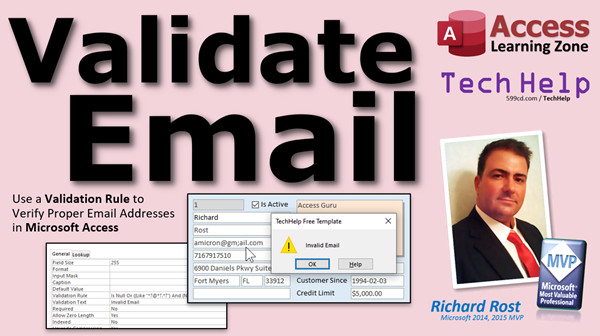
In this video, we'll discuss why you shouldn't use an Input Mask for email addresses. Instead, I'll show you how to use a Validation Rule to catch most incorrect email addresses.
Wade from San Francisco, California (a Platinum Member) asks: I just watched your video on Input Masks. It was very helpful. Thank you. Is there any way to set up an Input Mask for an email address? I've Googled a few things, but nothing seems to work. Thanks.
Members
Members will learn how a simple validation rule will catch the majority of bad email addresses, but not all. We will write a custom function in VBA to validate most possible email addresses using the rules from the majority of Internet mail servers.
Silver Members and up get access to view Extended Cut videos, when available. Gold Members can download the files from class plus get access to the Code Vault. If you're not a member, Join Today!
 Validation Rule Validation Rule
Is Null Or ((Like "*?@?*.?*") And (Not Like "*[ ,;]*"))
Suggested Course
Links
Keywords
microsoft access, ms access, ms access tutorial, #msaccess, #microsoftaccess, #help, #howto, #tutorial, #learn, #lesson, #training, #database, input mask for email, input mask email address, How to Set an Input Mask for Email in Microsoft Access, How do you create an input mask for email in access, Email address input mask, email address validation, Email address input mask, Access Email Input mask, validation rule for email address in access, email validate, Email Address Verifier
 Subscribe to Validate Email
Get notifications when this page is updated
More InformationTranscript Welcome to another TechHelp video brought to you by AccessLearningZone.com. I am your instructor, Richard Rost. In today's video, I'm going to show you how to validate email addresses. I'm going to show you how to set up a validation rule to verify that your users are entering proper email addresses in your Microsoft Access databases.
Today's question comes from Wade in San Francisco, California, one of my platinum members. Wade says, I just watched your video on input masks. It was very helpful. Thank you. Is there any way to set up an input mask for an email address? I've Googled a few things, but nothing seems to work. Thanks.
Well Wade, unfortunately, input masks are usually designed for things that are a little more structured and rigid than email addresses. For those of you who don't know what an input mask is, I have a video on it. There's the link right there. You'll also find it down in the description below the video. Go watch that if you don't know what an input mask is.
Input masks are good for things like phone numbers, social security numbers, zip codes, and things like that. Yes, there are some tricks you can play with them. In fact, I've got a video that I put together showing you how to put together input masks of varying lengths. For example, you can play a little trick if you're doing a zip code. United States is five digits, whereas Canada is six digits. So you can play a little trick there, but that's about the extent of it.
An email address can be wide and varied and has all kinds of different rules associated with it. So an input mask really isn't the best thing to use. What you want to use is a validation rule.
Again, I've got another video on how to use validation rules. There's a link. I'll put a link down below. You can click on it in the description below the video. You can set up validation rules in your tables. For example, you could say the credit limit must be below $2,000. You could set up a validation rule saying that it has to be greater than or equal to zero and less than $2,000. If the user enters something like negative five, they get a warning that says the credit limit must be below $2,000 or whatever you want it to say. That's more along the lines of something we're going to use to validate email addresses. So go watch both of those videos right now if you've never used input masks or validation rules, and then come on back and I'll show you some cool stuff.
Microsoft has on their website a pretty good formula to use for a validation rule for most email addresses. There's a link to it right there in the bottom of the screen. I'll put a link to this down below. You can just click on it to go get this if you want to. I'm going to walk you through how this works in just a minute, but be careful. Make sure you get a copy of it from Microsoft's site.
While I was doing my research for this video, I found a similar formula on a couple of different sites and they were wrong. I don't know if someone just copied and pasted them wrong from Microsoft or they tried to rewrite it themselves, but there are a couple that were just straight up wrong, and they had pretty good Google placement too. They were one of the first couple of sites I found. So get it straight from Microsoft.
Let's take a look at this in a little more detail now. Here's the validation rule and here's what you put in for the formula. There are a couple of different parts to it. First, we're saying "is null." In other words, if they don't put an email address in, that's okay. We're not requiring them to enter one, but if they do enter one, then it's got to match these rules. That's the "or" and then we've got two parentheses out here for this whole thing.
So what's this whole block say? Well, this is what it has to be like and this is what it can't be like. So, like this and not like that.
These are wildcard characters in here. If you've never worked with wildcards before, I have a video for that too. Wildcard searches and like; I'll put a link to this one down below. You can click on this one.
This says it has to be like any number of characters, but at least one character, an at sign, and then the same thing over here. Any number of characters, but at least one character, a period, and then the same thing again, at least one character and any number of characters. That forms the typical domain that we're used to seeing, the username at domain name.
You have to have at least one character out here, but any number of them. The rule technically, and I'll get into this, there are a lot more rules that we'll talk about in the extended cut with the members. Technically, that can only be 64 characters long. But again, whoever has a 64 character username? Then there's the at and then the domain name, like 595CD.com, accesslearningzone.com, whatever. So that's this part, and it can't be like this. It can't have a square bracket, either one, a comma, or a semicolon.
There are more disallowed characters. Those are the ones that are most popular that you'll see. There are other characters you can't use as well according to most email services. But those are the ones that Microsoft decided to put in their formula, so we're going to stick with them for right now. Again, members, we'll talk more about this a little bit later.
Where exactly do we put this? Let's go over to the database. Here I am in the TechHelp free template. This is a free database you can grab and copy up from my website if you want to. Don't worry if the version number isn't exactly the same. Someone mentioned it to me the other day. Sometimes I make little tiny upgrades. I think the one that's up on the web right now is 1.80. So I think I changed a few little things. I changed the date format.
Here's our customer form and here's the email address. Now you can put a validation rule in the email address if you want to under data validation rule, if you only want it to apply to this field here. I like to do it at the table level because then, if you have anywhere else where that email address can possibly be entered, other forms for example, then having a table-level validation rule will cover all of those.
I'm going to go into my customer table, right-click, design view. This is the email address, and this is where you're going to put the validation rule. As a quick review, if you want to go to something like credit limit and put a validation rule in here of less than 5,000. Now, every time you put a credit limit value in here, it has to be less than 5,000. That's what I covered in the other video.
For the email address, it's a lot more complicated. I'm going to go to Microsoft's website and grab this right here. Just copy this whole thing. Select all that text and copy it, Control-C. I'll put a copy of this on my website too, just in case. Microsoft sometimes takes the pages down and old articles and stuff; you'll find them in Google results. You'll click on one and then it's like this page doesn't exist. I'll put a copy of this on my website too.
Then we'll come back over here in the email address field, go to the validation rule and Control-V to paste that right in there like that. Hit tab. Validation text is what you want to appear in the message if the person puts an invalid email address in. This is not a valid email. Save it.
Now, data integrity rules have changed. Existing data may not be valid for the new rules. Do you want to check it out? Yep, let's check it out. Everything passes. If you had an email address in the table that violated those rules, you'd get some error messages. I talk about those in the other videos.
Let's close this down, go back to our customer form, and try to put something in here that's not right. Let's get rid of that dot, hit tab. This is not a valid email address. Put the dot back there. Let's say I didn't have a username, nothing in front of the ampersand. Not a valid email address. It seems like it's working pretty well so far. There we go.
Now, this is Microsoft's recommended formula. It's okay. It'll catch, I'm going to say, 90 percent of the bad email addresses people will enter. But it's not perfect. For example, if I came in here and put john.., it lets that fly. That's technically against email rules. You can't have special characters like the dot repeat twice. There are a whole bunch of weird rules. I'll talk about them in detail in the extended cut.
Certain characters like underscores are not allowed in domain names, but that formula allows it. The domain name can only have a dot for the top level, like .whatever, or a hyphen. So you could have in here like GM-GMAIL, that's valid, but an underscore isn't valid.
If you want to learn more about this stuff and you want to catch 99.9 percent of all bad emails instead of just 90, in the extended cut for the members, we will build a custom function to check most of these crazy rules. We'll build an IsValidEmail function. We'll check most of the common rules. There are a lot of weird esoteric ones that I'm not going to go through, but we'll write a function that will catch most of them and we'll allow a user bypass just in case the user says, no, that is my actual email address. I'll show you how to set up a bypass for it as well.
If you want to learn more about input masks and validation rules in general, I cover them in my Access Beginner Level 3 class. On my website, you can find a link to it right there. You'll also find a link down below. The extended cut is available for members. Silver members and up get access to all of them. I have hundreds now. Gold members get access to my code vault and you can download the source code that I build in these databases and the database files themselves.
That's the extended cut for the members. I hope you learned something and we'll see you next time.
How do you become a member? Click on the Join button below the video. After you click the Join button, you'll see a list of all the different membership levels that are available, each with its own special perks. Silver members and up will get access to all of my extended cut TechHelp videos, one free beginner class each month, and more. Gold members get access to download all of the sample databases that I build in my TechHelp videos, plus my code vault where I keep tons of different functions that I use. You'll also get a higher priority if you decide to submit any TechHelp questions to me, and you'll get one free expert class each month after you've finished the beginner series.
Platinum members get all the previous perks, plus even higher priority for TechHelp questions, access to all of my full beginner courses for every subject, and one free developer class each month after you finish the expert classes. These are the full length courses found on my website, not just for Access. I also teach Word, Excel, Visual Basic, and lots more.
You can now become a diamond sponsor and have your name or company name listed on a sponsors page that will be shown in each video as long as you're a sponsor. You'll get a shout out in the video and a link to your website or product in the text below the video and on my website. But don't worry, these free TechHelp videos are going to keep coming. As long as you keep watching them, I'll keep making more and they'll always be free. Intro In this video, I will show you how to validate email addresses in Microsoft Access using table-level validation rules. We will talk about why input masks are not well-suited for email addresses, review Microsoft's recommended validation formula, and I'll walk you through how to add the rule to your tables to help ensure your users enter properly formatted email addresses. You'll also see how the rule works in action on a sample customer form and learn about its strengths and limitations. Quiz Q1. Why are input masks NOT ideal for validating email addresses in Microsoft Access?
A. Email addresses have a wide variety of formats and rules that input masks cannot handle.
B. Input masks are only available for numeric data.
C. Input masks are outdated and no longer supported in Access.
D. Input masks require users to enter passwords.
Q2. What is a better alternative to input masks for validating email addresses?
A. Validation rules at either the field or table level.
B. Lookup fields in a related table.
C. Custom color formatting in the form.
D. Automatic spell checking.
Q3. Where should you ideally put the validation rule for email addresses to ensure it works everywhere the field is used?
A. At the table level in design view.
B. Only in forms.
C. Only in reports.
D. In macros only.
Q4. In the Microsoft recommended validation rule for emails, what does the "is null" condition allow?
A. It allows the email field to be left blank.
B. It requires an email address to always be entered.
C. It converts null values to zeros.
D. It adds a default email address if none is entered.
Q5. Which of the following would NOT be a valid reason to allow the email field to be blank using "is null"?
A. The email address is not required for each record.
B. You want to allow users to skip entering an email.
C. Email addresses are assigned automatically by the system.
D. You want to require everyone to have an email address.
Q6. What would happen if you applied a new validation rule and existing data in the table violated this rule?
A. Access would show error messages and prevent saving until violations are corrected.
B. Access would automatically correct the invalid records.
C. Invalid records would be deleted.
D. Access would ignore the validation rule.
Q7. According to Richard, why should you be careful where you get your email validation rule formula from?
A. Some sites contain invalid or incorrect formulas.
B. Microsoft has banned sharing these formulas.
C. All formulas online require payment.
D. Only the oldest websites have accurate formulas.
Q8. In the context of the validation rule formula, what does the "like" operator check?
A. It checks the pattern of the entered email address.
B. It counts how many emails are in the field.
C. It removes duplicates from the field.
D. It changes the case of the input.
Q9. What are some of the invalid characters in an email address according to the Microsoft rule?
A. Square brackets, commas, and semicolons.
B. Numbers and letters.
C. Periods and hyphens.
D. Spaces and digits.
Q10. If a user enters "[email protected]" and the validation rule does not catch this as invalid, what is a likely reason?
A. The default Access validation rule does not check for consecutive dots.
B. All email addresses with dots are invalid.
C. The form was not saved.
D. Input masks automatically correct this.
Q11. What does Richard suggest for people who want more in-depth email validation beyond what the Microsoft rule can provide?
A. Build a custom VBA function like IsValidEmail.
B. Use an input mask with special symbols.
C. Only accept Gmail addresses.
D. Use macros to auto-fill the email field.
Q12. What is one drawback of using only the Microsoft-provided validation rule?
A. It only catches about 90 percent of bad email addresses.
B. It prevents saving any record.
C. It requires online access every time.
D. It deletes records with invalid emails.
Q13. What additional advantage do Gold members get on AccessLearningZone.com?
A. Access to the code vault and the ability to download database files.
B. Free Microsoft Access installation.
C. Lifetime free technical support.
D. Automatic certification.
Q14. When does Richard recommend using table-level validation rules?
A. When you want the rule enforced in all forms and places the field appears.
B. Only when the rule is simple and short.
C. Only when using lookup tables.
D. When working in report design view.
Q15. What action should you take after pasting the validation rule formula in the table's field property?
A. Enter a clear validation text for user error messages.
B. Immediately run a compact and repair.
C. Restart Access.
D. Set the field to required.
Answers: 1-A; 2-A; 3-A; 4-A; 5-D; 6-A; 7-A; 8-A; 9-A; 10-A; 11-A; 12-A; 13-A; 14-A; 15-A
DISCLAIMER: Quiz questions are AI generated. If you find any that are wrong, don't make sense, or aren't related to the video topic at hand, then please post a comment and let me know. Thanks. Summary Today's video from Access Learning Zone focuses on how to properly validate email addresses in Microsoft Access. I want to show you how to set up validation rules that ensure your users are entering correct email addresses in your database fields.
The inspiration for this video came from a question about input masks. While input masks are useful for fields with a set structure, like phone numbers or social security numbers, they are not ideal for email addresses. Email addresses can vary a lot in structure and there are many specific rules governing what is considered valid. This variability makes input masks a poor fit for emails. If you have not worked with input masks before, I suggest reviewing some of my other tutorials to understand what they are and when to use them.
Input masks work well for fields of fixed length and format. For example, U.S. zip codes are five digits and Canadian postal codes are six characters, so input masks can help there. But when it comes to email addresses, which can include various lengths and characters, a validation rule is a much better approach.
Validation rules in Access allow you to set requirements for the data that can be entered into a field. You might already be familiar with using validation rules for things like restricting credit limits to a certain range. We can use a similar idea for email addresses. If you want a more in-depth introduction to validation rules, I recommend checking out my other videos that cover this topic.
Microsoft provides a widely accepted formula for validating email addresses. It's important to get this formula directly from Microsoft's website to make sure it's accurate, as I have found incorrect versions on other sites during my research. Some of these incorrect versions actually show up high in Google search results. So, it is best to use the formula provided by Microsoft if you want reliable results.
Let me describe how this formula works. The validation rule first allows for the field to be blank. That means if a user does not enter an email address, that's perfectly fine. However, if a user does enter an email, it needs to match a specific pattern. The rule checks for the presence of an at symbol, characters before and after the at symbol, a period, and then more characters to match the common structure of an email address. It also specifically disallows certain problematic characters like square brackets, commas, and semicolons, which are often not accepted in email addresses. There are actually more characters that should be disallowed, but Microsoft's formula covers the most common cases.
To apply this rule, you should set the validation rule at the table level rather than in a specific form. This ensures that the rule is enforced anywhere in your database where that field is used. To do this, open your table in design view, select the email address field, and paste the validation rule formula into the appropriate property. Add a validation text message to tell users if they have entered an invalid email.
When you save your table after entering the rule, Access may check your existing data to make sure it complies with the new rule. If there are records that don't comply, Access will notify you with an error. Once the rule is set, any new data that doesn't meet the criteria will also trigger your custom validation message.
For example, if you try to enter an address without a dot in the correct position, or without any username before the at symbol, Access will tell you the email is invalid. It is important to note that the rule provided by Microsoft is good, but not perfect. It will catch most obviously invalid email addresses, but there are still specific invalid formats that can slip through, such as repeated dots or invalid characters in the domain name. For more thorough validation, additional custom programming is needed.
In the Extended Cut available to members, I cover how to build a more robust custom function to thoroughly validate email addresses. We look at creating an IsValidEmail function, which can check for nearly all the common rules related to email address syntax. I also explain how to provide users with an option to bypass the validation if necessary.
For those interested in a solid foundation in topics like input masks and data validation, I recommend my Access Beginner Level 3 class, which covers these topics in depth. Membership options on my website provide access to additional content, including extended cut videos, source code downloads, and higher priority for questions.
You can find a complete video tutorial with step-by-step instructions on everything discussed here on my website at the link below. Live long and prosper, my friends. Topic List Explanation of input masks and their limitations for emails
Differences between input masks and validation rules
Overview of email address structure requirements
Using Microsoft's email validation rule formula
How to add a validation rule to an email field in Access
Setting validation text for invalid email entry
Demonstration of validation in the customer form
Discussion of limitations of Microsoft's email validation formula
How to update database table-level validation rules
Where to apply validation: form vs table level
Testing email validation rule with example entries Primary Topics Microsoft Access, email validation, validation rules, input masks, data integrity, table design Secondary Topics wildcard characters, domain name restrictions, data entry forms, validation text, error messages, user bypass |




