Database Title & Icon
By Richard Rost

 4 years ago
Change Application Title & Icon, Forms, Reports
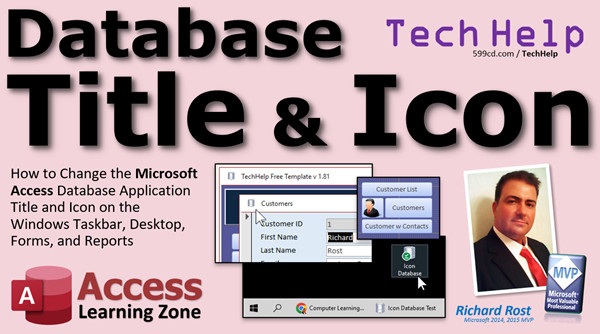
In this video, I'll show you how to change the application title and icon for your Microsoft Access databases. We'll set that icon for the forms and reports in our database, too. We'll also see how to create a desktop shortcut and change the icon for that. And as a bonus, I'll show you how to put icons on buttons in your menu forms.
Livia from Augusta, Maine (a Platinum Member) asks: Is there any way I can change the icon for my database on the taskbar? I don't mind people knowing it's Microsoft Access, but I'd like to replace that Access logo with something else, and maybe change the title so it doesn't say "Microsoft Access." Thanks.
Members
Members will learn how to set individual unique icons for any form or report in the database. This will involve a little VBA programming, but will allow you to customize your icons any way you want.
Silver Members and up get access to view Extended Cut videos, when available. Gold Members can download the files from class plus get access to the Code Vault. If you're not a member, Join Today!
 Suggested Course Suggested Course
Links
Gold Member Code Vault
Keywords
microsoft access, ms access, ms access tutorial, #msaccess, #microsoftaccess, #help, #howto, #tutorial, #learn, #lesson, #training, #database, icon, shortcut, application icon, form icon, report icon, desktop icon, button icon, change app icon, title, application title, database title, database icon
More InformationTranscript Welcome to another TechHelp video brought to you by AccessLearningZone.com. I am your instructor, Richard Rost.
In today's video, I'm going to show you how to change the application title and icon for your Microsoft Access databases. We'll set that icon for the forms and reports in our database too. We'll see how to create a desktop shortcut and change the icon for that. As a bonus, I'll show you how to put icons on buttons in your menu forms.
This question comes from Olivia in Augusta, Maine, one of my Platinum members. Olivia asks, Is there any way I can change the icon for my database on the taskbar? I don't mind people knowing it's Microsoft Access, but I'd like to replace that Access logo with something else and maybe change the title so it doesn't say Microsoft Access. Thanks.
Well, Olivia, it's not that hard to do. The first thing we have to do is go find some icon files. So the first thing you're going to do is Google, and I always get a kick out of the trending searches. Would you click on here? Liver hepatitis is trending? No, these are not things I have searched on. This is just when I clicked on Google.
I'm going to look for ICO files, icon files. That usually brings you up a couple of good results. Now ignore these. We're going to scroll down here, and icon-icons.com and iconarchive.com. I know these are two good ones. I've used these before. What you're looking for are ICO files.
Let's click on this first one here and search for whatever you like. Whatever your database has to do with, let's say you're doing drinks and restaurants. I'll click on this guy or you can search if you want to search. Click on restaurant. Search for that.
Let's say we want this. Now when you hover over these, you'll see different options here for the type of file. I'm going to pick the ICO file and that will download. It takes a second. If your download doesn't start automatically, click over here. There is my download. It's in my downloads folder now.
Let's go find that downloads folder. There you can click on that. There's the icon file. I'm going to rename that. It's kind of big. I'll call this plate.ico. Whatever you want to name it.
Now I'm going to head over to my desktop. Here's where I've got my TechHelp free template. I'll rename this just to My Icon Database or whatever you want to call it. Let's make a folder on the desktop here.
All right, Icon Database. Whatever you want to call it. I'm going to put this stuff inside my Icon Database folder. There's my database. Move that in there. Let's move that icon in there too. Drop it right there. If you want to put it in a subfolder, that's fine too.
I've got a folder on my desktop with my database and my plate icon. I can close the downloads folder.
Next step is let's open up our database.
Now to set the icon, you go up to File. Come down to Options. Go to Current Database. Here's where you can set the application title. So it appears on the taskbar on the bottom and also across the top in the title bar of your application. Let's call this RicksRestaurant Database.
Now here's the application icon. Go to Browse. I dropped this on my desktop. So I'm going to go to Desktop. There's my Icon Database. And oh, there's my plate.ico file. Click on that. And yes, you're going to see this little green check mark. That's from Google Backup and Sync, which I have running. It just tells you that, hey, that file is in backup. Don't worry about that. Hit OK.
Hit OK again. Now, Access will tell you if the closing reopen the database, but usually these changes take effect right away. Let's click on that. If I look down here on my taskbar, there's my database. You can see there's the icon. That's the database application icon now. You can also see it says RicksRestaurant Database there and up here across the top.
It's weird. People have asked me too, on some versions of Access, this title is centered and on others it's left aligned. I don't know why. I've got two different machines in my office running the exact same version of Access, the exact same version of Windows. All the updates are installed. Same business. 32/64. Yet one of them is left aligned and one of them is centered. I don't know why. I've Googled it and I can't figure it out. If anyone can figure it out, you get a prize. Post in the comments if you figure that one out.
Now what if you want to change this icon? See, that's the little Access form icon right there. If you go to an order, where's the report? You get the little report icon. You can make that guy, that little icon there in the upper left corner, change as well. Same thing. Go to File, Options, Current Database. That's what this check box right there is for. It will use this icon for your forms and reports as well.
Hit OK. Now it says you have to close and restart the database. Sometimes you do, sometimes you don't. I've seen it both ways. It's working now. Sometimes you have to shut down and restart. But there you go. You got that same icon there. If you open up an invoice, you can see there it is too.
Now can you change these for each form and report? Yes, you can. I will cover that in the extended cut for the members. It requires a little bit of VB code, and you can put a custom icon on each one of these things. It's really neat.
One more thing I'm going to show you. I'm going to close my database and come back here to my database folder now. I have a folder with my database on it, which is usually how I set up systems. I like to have my database in like a SQL\\Databases folder. Then I put a shortcut on the desktop to that file, to my front end if I've got it split.
I'm going to right-click and drag, drop this over here, and go Create Shortcuts Here. Now I have a shortcut to that file.
Once you have a shortcut, you can actually change the icon of this guy too. Right-click, go to Properties, go to Change Icon. Now this thing here is shell32.dll. This is a package of a whole bunch of different icons. You can scroll through here, and you can look for other ones that you might like or you can download and use your own like I just showed you.
Yes, there are icon extractor programs you can get to pull all these out and make them ICO files if you really want one of these guys. But I'm just going to hit Browse, and I have some other icons in here that I have. But I want that plate icon. So it's on my desktop under my Icon Database, and there's my plate. I'll hit Open. There it is. Hit OK. Look at that right there. Then hit OK again and there's your icon, and you can change the title here if you want.
All right, Ricks Restaurant Database. I always don't like putting single quotes in there. Now we can close that. We can move this out of the way. When I open up my Ricks Restaurant Database, there it says that there. You get that icon there. On your taskbar down here, you have the little icon on the top. There too, pretty cool.
Bonus lessons. Some people have asked me, how do you put that icon in a button? Here's what you can do. What I like to do is make a separate button for it. If you want to make it part of the same button, you can.
Let's take this customer form. Make the same customers. I'm just going to shrink that up like so. Let's make another button right about there. This will be Form Operations, Open a Form, a Customer F. Show all the records is fine. What do you want on there? I'm going to hit Browse. Go to your icon folder. Again, Desktop. Icon DB. It's not showing up there. But down here where it says bitmaps, change that to icon files. There it is.
I don't want that one. I have some other icons. Where did I put them? On my desktop. I think I put it in Test Database Icons. There's a person. That makes more sense. Just download a bunch of these if you want. Hit Open.
There it is. It's a little skewed. Next, give it a name, Customer Button or whatever you want to call it. Then Finish.
The button comes in nice and big. You can resize it, of course, but it looks like about that big. I think the shadow is what makes this guy not centered, but that's fine. Move these around, resize them, and you can put a different icon for each one. I like to have a separate button. You can just make just a picture. When you hover over it, you can give it a tool tip text, under Other, Control Tip Text. Let's go right there. You can say Customers like that.
Then when you close it, save it, and open it back up again, you hover over it, it says Customers. I like to have two separate buttons. I almost never use pictures, but I know a lot of people do.
So there's your custom icons, your database icon, your form icon, your shortcut icon. You change icons everywhere if you want to.
If you're interested in more along these lines, I have some different videos. A splash screen you can make so that when your database starts up, you'll see a splash screen appear. You can hide more of the way that Access looks and feels. If you want to prevent people from even knowing that it's a Microsoft Access application, there's a lot more you can do.
I don't know why you want to hide that it's Access. I love Access. Everyone should love Access. But people like to make them think that it's not an app. A lot of people have a bad taste in their mouth for Access. I don't know why. Those who don't know Access don't love Access, and they should.
I've also got a video on form design aesthetics so you can make all kinds of cool forms and buttons and stuff like that. I'll put links to all this stuff in the links section down below in the description. You can go ahead and click on that. These are all free videos.
You can do custom form backgrounds like this one here. It looks like Windows XP. There's all kinds of stuff you can do to change the look and feel of your database.
As I mentioned earlier, in the extended cut for the members, I'm going to show you how you can use unique icons for each form and report in your database. You have one for the main menu, and the database icon itself looks like a little database. Your customer form can have that little guy. Your order form and report could have that little invoice looking thing. It requires a little bit of VB programming, but don't be scared. I'll teach you what you need to know.
I'll cover this in the extended cut for the members. Silver members and up get access to all of my extended cut videos. I think we're about 260 now. Lots of stuff to watch. Gold members can download these databases and get access to the code vault with all my VB code in it too. So check it out. See you next time.
How do you become a member? Click on the Join button below the video. After you click the Join button, you'll see a list of all the different membership levels that are available, each with its own special perks.
Silver members and up will get access to all of my extended cut TechHelp videos, one free beginner class each month, and more. Gold members get access to download all of the sample databases that I build in my TechHelp videos, plus my code vault where I keep tons of different functions that I use. You'll also get a higher priority if you decide to submit any TechHelp questions to me, and you'll get one free expert class each month after you've finished the beginner series.
Platinum members get all the previous perks, plus even higher priority for TechHelp questions, access to all of my full beginner courses for every subject, and one free developer class each month after you've finished the expert classes. These are the full-length courses found on my website, not just for Access. I also teach Word, Excel, Visual Basic, and lots more.
You can now become a Diamond sponsor and have your name or company name listed on a sponsors page that will be shown in each video as long as you are a sponsor. You'll get a shout out in the video and a link to your website or product in the text below the video and on my website.
But don't worry, these free TechHelp videos are going to keep coming. As long as you keep watching them, I'll keep making more, and they'll always be free. Intro In this video, I will show you how to customize the application title and icon for your Microsoft Access databases. We will learn how to set a custom icon and title so they appear in the taskbar and title bar, use that icon for your forms and reports, and create a desktop shortcut with a unique icon. As an extra, I will demonstrate how to put icons on buttons in your menu forms. This video covers all the basics you need to personalize the look and feel of your Microsoft Access projects. Quiz Q1. What is the primary topic of this TechHelp video?
A. How to set up user permissions in Access
B. How to change the application title and icon in Access databases
C. How to import data from Excel into Access
D. How to write advanced VBA code in Access
Q2. Which file type should you look for when downloading custom icons for Access?
A. JPG
B. PNG
C. ICO
D. GIF
Q3. Where in Microsoft Access do you go to set the application title and icon?
A. Home tab
B. Database Tools tab
C. File > Options > Current Database
D. External Data tab
Q4. What must you sometimes do for the new application icon and title changes to take effect?
A. Run a repair on MS Access
B. Reinstall MS Office
C. Close and reopen the database
D. Log off Windows and log back in
Q5. What does the "Use as Form and Report Icon" checkbox do in Access options?
A. Sets the icon for the database only
B. Hides the form and report icons
C. Uses the application icon for forms and reports
D. Locks the database settings
Q6. Is it possible to set a unique icon for each individual form or report in Access?
A. No, only one icon per database is allowed
B. Yes, but only through advanced VBA Code
C. Yes, but only for reports
D. Yes, but only for forms
Q7. How do you create a desktop shortcut to your Access database file?
A. Use the Export function
B. Drag-and-drop the file with the right mouse button and select Create Shortcuts Here
C. Change the file extension to .lnk
D. Copy and paste the database file to the desktop
Q8. Which Windows system file is referenced when changing the icon for a shortcut?
A. shell32.dll
B. msaccess.exe
C. explorer.exe
D. win32.dll
Q9. What is a tip mentioned for using icons on command buttons in Access forms?
A. Use the icon's default size always
B. You cannot add icons to buttons in Access
C. Change the file filter to show icon files when browsing for images
D. Only use black and white icons
Q10. What feature can you use to display a tooltip message when hovering over an icon-based button?
A. Button Caption
B. Control Tip Text property
C. Font Style property
D. Tab Index property
Q11. Which membership level grants access to extended cut TechHelp videos and one beginner class each month?
A. Free
B. Silver
C. Gold
D. Platinum
Q12. What additional perk do Gold members receive?
A. Free sticker pack
B. Ability to edit TechHelp videos
C. Access to download sample databases and the code vault
D. Unlimited email support
Q13. What can Platinum members access that Gold members cannot?
A. Download functions from the code vault
B. One free developer class each month after finishing expert classes
C. Submit TechHelp questions
D. Access beginner classes
Q14. What can you create to make your database look less like a standard Access application?
A. Use wild colors
B. Add multiple tables
C. Design a custom splash screen and form backgrounds
D. Remove all forms
Answers: 1-B; 2-C; 3-C; 4-C; 5-C; 6-B; 7-B; 8-A; 9-C; 10-B; 11-B; 12-C; 13-B; 14-C
DISCLAIMER: Quiz questions are AI generated. If you find any that are wrong, don't make sense, or aren't related to the video topic at hand, then please post a comment and let me know. Thanks. Summary Today's video from Access Learning Zone covers how to change the application title and icon for your Microsoft Access databases. I'll walk you through the process of personalizing your Access database so that it displays a unique icon and custom title, both on the Windows taskbar and within Access itself. I'll also show you how to create a desktop shortcut using your own icon, and as an added bonus, I'll go over how you can place icons on buttons in your menu forms.
The inspiration for today's lesson comes from a question about replacing the familiar Microsoft Access logo on your database so that it appears with your own custom image instead, and how to set a custom title. Many people want to make their databases look a bit more professional or better match their organization or application, rather than sticking with the default Microsoft Access branding.
To get started, you first need to find or create an icon file in the ICO format. Good sources for free icons include sites like icon-icons.com and iconarchive.com. Try searching for an icon that fits the theme of your database, download the ICO file, and rename it as needed for your own reference.
The next step is to organize your files. I recommend creating a folder on your desktop (or wherever you prefer), placing your Access database file and your new icon file together inside this folder. Keeping your icon file alongside your database ensures you'll always be able to find it when changes are needed.
Once your files are organized, open your database and head over to the File menu. Go to Options and then select Current Database. Here, you can change the Application Title, which appears both on the taskbar and in the title bar at the top of your Access window. Enter a custom title that fits your project.
In the same section, you will see a spot to set the Application Icon. Browse to your icon file and select it. If you see a checkmark or other icon overlay, that is just a sign from backup software and is nothing to worry about. After setting your icon, hit OK. Sometimes Access asks you to close and reopen the database for your changes to take effect, but often you'll see your new icon and title right away.
The custom icon you set here appears not just in Windows but also at the top corner of your Access windows. There's also a checkbox that allows you to use this icon for all forms and reports within the database. Enabling this makes all your database windows carry the same custom branding.
If you want to use different icons for specific forms or reports, that is possible as well. Using a bit of VBA, you can assign unique icons to individual forms and reports, which can help better distinguish between them. This approach will be demonstrated in detail in the Extended Cut for members.
Now, when it comes to sharing your database or making it easier to access, you might want to create a desktop shortcut. Place the shortcut wherever you like, and you can set its icon just like you did for the application itself. Right-click on the shortcut, go to Properties, and use the Change Icon button to browse to your chosen icon file.
For further polish, you might want to add icons to buttons within your database forms, such as your main menu or navigation buttons. To do this, add a button in design view, and when selecting the picture for your button, change the file type selector to Icon Files so you can see your ICO files. Pick your desired image and adjust the size as needed. For added usability, set a tooltip (called Control Tip Text in Access) so that users can hover over the button and see a helpful description.
Making your Access databases look less like the default application and more like a professional or custom-built solution is a matter of a few simple tweaks. Through changing the database's icons, form buttons, and even adding splash screens or custom backgrounds, you can significantly improve the look and feel of your Access application. If you want to make your solution appear more unique, or simply want to hide that it's built with Access, these options give you the flexibility to do so.
For those interested in even more advanced options, I have videos available on creating splash screens, hiding more of Access's interface, designing attractive forms, and customizing form backgrounds to give your database a unique look reminiscent of other operating systems like Windows XP.
As mentioned, in today's Extended Cut for members, I'll demonstrate how to set individual icons for each form and report. This allows you to have refined icons for menus, customers, orders, invoices, and more, with just a bit of extra programming using VBA. If you're a Silver member or higher, you'll have access to all my extended cut videos, as well as other perks like sample databases, VB code collections, and priority for submitting TechHelp questions. Gold and Platinum members receive even more benefits, including downloads of all the databases and access to my full-length courses in other Microsoft Office products.
Remember, all the videos mentioned are available for free, and the TechHelp series will continue to be available to everyone. For step-by-step instructions and to watch the complete video tutorial covering everything discussed here, visit my website at the link below. Live long and prosper, my friends. Topic List Finding and downloading ICO icon files online
Renaming and organizing icon files for your database
Setting the application title in Microsoft Access
Setting a custom application icon in Access
Applying the icon to all forms and reports
Restarting the database to apply icon and title changes
Creating a desktop shortcut for your Access database
Changing the icon for a desktop shortcut
Customizing the shortcut title
Adding icons to buttons on Access forms
Choosing and applying icons to form buttons
Setting tooltips for Access form buttons Primary Topics Microsoft Access, application icon, application title, database customization, desktop shortcuts, forms, reports, button icons Secondary Topics database aesthetics, VB programming, splash screens, form design |







