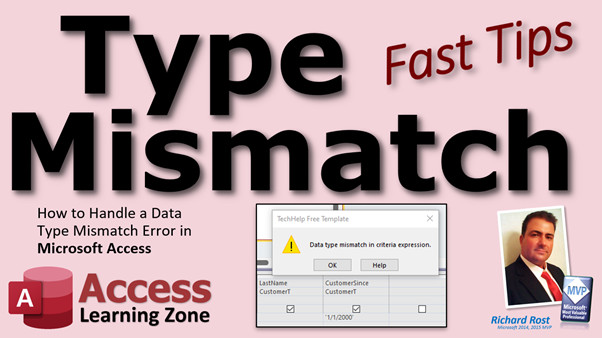
Type Mismatch
By Richard Rost

 4 years ago
How to Handle Data Type Mismatch Errors in Access
In this Microsoft Access tutorial, I'm going to teach you how to deal with data type mismatch errors in your database. We'll look at errors that come up in table design, query criteria, relationships, VBA, and more. Understand what "run-time error 13" means when you see it.
Pre-Requisites
Recommended Course
Links
Topics
- What is a Data Type?
- What is a Type Mismatch?
- Default Value of "N/A" in Number Field
- Number Field Criteria "1"
- Currency Criteria $5000
- Date Criteria '1/1/2000' - SQL Server Users!
- Relationships Window Joins
- Joining Wrong Fields in Ad Hoc Query Joins
- Run-Time Error 13 in VBA
Keywords
access 2016, access 2019, access 2021, access 365, microsoft access, ms access, ms access tutorial, #msaccess, #microsoftaccess, #help, #howto, #tutorial, #learn, #lesson, #training, #database, #fasttips, data type mismatch in criteria expression, MS Access Type Mismatch in Expression, 3615 Error, Error 3464, How to Deal with Type Mismatch Error, run-time error 13 – Type mismatch, type conversion failure
 Subscribe to Type Mismatch
Get notifications when this page is updated
More InformationTranscript Welcome to another FAS Tips video brought to you by AccessLearningZone.com. I am your instructor, Richard Rost.
In today's video, I'm going to teach you how to handle a Data Type mismatch error in Microsoft Access. First, let's talk about what a Data Type mismatch error is. In order to do that, we have to know what a Data Type is.
A Data Type is the kind of data that each field in your table stores. It's number, currency, yes/no, that kind of stuff. That's a Data Type. Short text is a lot different internally than a number is, for example. If you don't know about these different Data Types, go watch my free Access Beginner One class. There it is. You'll find the link down below; you can click on it. It's on my YouTube channel and my website. It's four hours long, absolutely free, and teaches you all about Data Types in Microsoft Access.
Now, what's a Data Type mismatch? That's when you do something (there are a bunch of different "somethings" - we're going to talk about all of them in a few minutes) involving two different Data Types. For example, you can see here I've got customer T (the customer table). I'm trying to join the customer ID with a description field in the contact table. Now, customer ID is an autonumber, my primary key. It's a number (long integer), whereas description is a short text field. Try to join those things together in a query and you get an error message. So that's a Data Type mismatch.
Let's see some different Data Type mismatches. I'm going to show you some of the popular ones that come up that people ask me about all the time.
Here I am in my TechHelp free template. This is a free database. You can download a copy up on my website if you want to; you can find the link down below. You can use any database that you want.
Let's start with the easy stuff. Let's go to Table Design. Let's go to Customer Table. Go to Design View. It used to be in the old days and old versions of Access, when I was a wee lad, if you had a number Data Type here and you put a default value that was a text string inside quotes like "1", Access used to yell at you. But it lets you do that now, which I don't really like. If you come in here and try to add a new record now, come down here to the bottom, it will actually convert that for you over to a one. That's okay, but I wish Access would yell at you at this point here and say "no, that's not allowed."
However, you will find, especially people who are used to Excel, will do this all the time. They'll put "NA" in here. Now if you try to save that, it's going to yell at you: mismatch in the default value because Access can't convert "NA" over to a number.
Remember, text values go inside of quotes. Numbers don't. Dates usually have to go inside pound signs (little hashtags). So this over here should be just a number, like 1.
You can also run into the same kind of problems if you do these things in currency values or date/time values that are of the wrong data type.
Let's go over to queries now. By far, the number one reason why people have a data type mismatch is because they use query criteria wrong. So let's create a query: Create - Query Design. We're just going to base a query off of one table - my customer table.
If you don't know what query criteria are, go watch this video (again, free video). Go watch it and come back.
If I bring in the customer ID, the first name, and a number field, such as family size, and come down here and put in "1" by itself as criteria, that's what I'm expecting. If you put in "1" inside of quotes and run it, you get the data type mismatch because it's supposed to be just a 1 without the quotes. Quotes are for strings; family size is a number value.
Another big one people get is they put a dollar sign for the criteria for a currency value. For example, here is credit limit. You want the credit limit less than 1000. That's acceptable. But a lot of people, especially beginners, will put the dollar sign there. When you run it, it says data type mismatch. People wonder why, because it's a dollar sign. No. What happens is Access puts quotes around that. If you put that dollar sign in there, Access throws those quotes around it. Again, something I don't particularly care for, but that's what Access does. I get emailed about this all the time.
Another big one: date fields. Let's say we have a customer census date. If you want less than January 1st, 2000, a lot of people put those inside single quotes, especially SQL Server users. In SQL Server, that's valid syntax: "where my date is less than '01/01/2000'." But you don't do that in Access. If you put less than '1/1/2000' and try to run it, you get a data type mismatch in criteria expression. Why? Because Access wants dates inside pound signs (#), also called hashtags or octothorpes. There are lots of names for them, but that's what Access wants. That will give you the valid date. And yes, I'm using ISO dates on my system, so Access flips it around for me.
Another issue you can get with queries is when you run an append query. If you try to append data that you've maybe imported from Excel into a temporary table, and then you want to append it into your main table, you get what's called a type conversion failure. That's basically the same thing as a data type mismatch. I talk about that in more detail in this video when I talk about append query mistakes. You'll find links to all this stuff down below in the notes.
That's pretty much most of the issues with a single table query. Let's take a look at using a query with multiple tables.
Now, to do this, you have to understand relationships. If you don't know relationships, go watch this video. I have lots of content about relationships, so start with that one. If you don't know how to relate two tables together, go watch it.
Now, I'll show you a mistake I see all the time. People do this often. Here's a customer ID - auto number, long integer. As we know, auto numbers are long integers.
Now, you want to make a related table for this customer. Let's say you want to make a pet table to store this person's pets. You're a vet clinic. Let's go to Create - Table Design.
You've got the pet ID, make that an auto number, no problem. Then you've got the pet name (short text). Then you need to relate it back to the customer, so you put in customer ID, but you leave it as short text accidentally because that's the default. A lot of people do that, then continue on with the favorite toy, training information, etc. People do this all the time; they accidentally leave that in short text.
Let's continue with this mistake. Save this as MyPetT (pet table). Everything's fine. You enter a pet name ("Max"), customer ("1"), favorite toy ("chew"). You add another pet ("Carter"), customer ("2"), favorite toy ("rope"). Everything looks great. You can even build forms around this with no problem.
Now, let's say you build a query and bring in your customer table and your pet table. The first thing you should notice here is that Access didn't automatically make that join for you. If it sees you have customer ID in both tables and the data types are the same, it will automatically make that ad hoc relationship - meaning right now, in this situation. It's not a permanent database relationship, just for this query. I actually use these a lot; I seldom use the actual relationships window. When you split your database into multiple backend tables, you lose that ability, so I don't usually rely on it.
Still, you can force this relationship by clicking, dragging, and dropping to create the join. No problem, no errors yet. Bring in the customer ID, first name, and pet's name with favorite toy. Run it, and there you go: Data type mismatch in expression.
Now you fire off the email to me, or you post in the forums, or in the comments and say it's not working. Give me details when you're going to post a problem: tell me what you did, tell me the exact error message you're getting, and I can help you better.
But that's why I make these videos. Hopefully, you can now see that that's what causes the type mismatch. Type mismatch means that this field is being matched against another of a different type, and it's wrong. If you also have a bad criteria in a field, try peeling back your changes in stages to diagnose the issue. Try taking criteria off or removing fields one at a time to see if you can figure out what the problem is.
The problem is that this does not match this. Now, let's close this.
Here's something else to note: If you go to the database relationships window and try to make that relationship (add tables, Customer, Pets, and link customer ID to customer ID), Access lets you do that. I wish it didn't; it should at least give a warning saying the data types don't match. I get tons of emails from people asking why this is not working.
We're not going to save this relationship because it's not right. Get rid of that. I don't usually rely on global relationships much unless I want to enforce something like cascade deletes - that's a topic for another video altogether.
How do we fix the problem? Go into your PetT (Design View), change your customer ID. Personally, I like to have all my IDs at the top (just a matter of style), then change this to a number type: long integer. Save it. It says some data may be lost. Access does a pretty good job of converting over those text values to number values as long as it can. If you have "NA" in one of them, it won't convert. Do you want to continue anyway? Say yes. Take a look; it was able to save everybody.
Here's another giveaway: Numbers always line up to the right side of the cell. In Access, this is a particular field in a record; in Excel, it's a column and row, a cell. Notice how that's lined up to the right; before, it was aligned left (like these here), which indicates text.
That's most (about 90 percent) of the emails I get for data type mismatches in Access in the development part itself. VBA has its own couple of tricky parts.
For you more advanced users: in VBA, go to the build event here. If you do something like
Dim L As Long
L = "Rick"
Save it, compile it (Debug - Compile); it compiles. There's nothing syntactically wrong with that, so it will compile. But when you go to run it: Error 13 - type mismatch. Debug: that means you're trying to assign a string value to a long integer.
If you replace "Rick" with 123 and then use
MsgBox L + 5
it works, because Access VBA does something called type casting. No, it's not the reason why Captain Kirk couldn't get any other roles after he left Star Trek (he did TJ Hooker, but that's not the point). Not that kind of type casting.
Type casting is when Access takes one data type and stores it in a different data type. For example, you can store a string that is itself numeric into a number field or variable. You can allow Access to do it automatically, or, in Access Expert 26, I cover all the type conversion functions. For example, if you want to convert to a double, use CDbl. If you want to convert to a long integer, use CLng. I'll put a link to Access Expert 26 down below in the link section.
This also works with dates, as long as you give it a value that it understands. For example:
Dim D As Date
D = 10/23/72
MsgBox D + 2
Save it, run it, and it worked because it was able to type cast that into a valid date.
Interestingly enough, if you flip it to 23/10 (since that's a valid date format in Europe), it will still work, which is kind of weird. But if you do something out of the ordinary, like 1980/10/23, it just gives you a type mismatch because it has no idea what you're talking about. As long as it's a valid date format, Access will type it for you.
I'm planning to put together a video on this too. I love my ISO date standard. But if you do this (use the ISO format), Access sometimes converts it, which I don't like. I want my code to read with the ISO standard. If you put the string in correctly, it'll stay put in your code. If you're using the ISO date standard, you can use that as a string, and then Access type converts it to a date, so you can keep that standard in your code (if that's how you want it), especially if you're sharing your database with people around the world who want a standard date format. Just be careful, because every now and then (and I haven't figured out why or when) it pops a little hashtag at the end there, which causes an error. So keep that in mind.
There you go. That's how you handle your type mismatch errors. That's most of them. I'm sure there are other circumstances that come up. If you have a type mismatch error that I haven't seen before, I'll be surprised. But post it in the comments down below. Let me know what you're getting and what you did, and I'll see if I can help you with it.
That's all for today. I hope you learned something. We'll see you next time.
How do you become a member? Click on the join button below the video. After you click the join button, you'll see a list of all the different membership levels that are available, each with its own special perks.
Silver members and up will get access to all of my extended cut TechHelp videos, one free beginner class each month, and more.
Gold members get access to download all of the sample databases that I build in my TechHelp videos, plus my code vault, where I keep tons of different functions that I use. You'll also get a higher priority if you decide to submit any TechHelp questions to me, and you'll get one free expert class each month after you finish the beginner series.
Platinum members get all the previous perks, plus even higher priority for TechHelp questions, access to all of my full beginner courses for every subject, and one free developer class each month after you finish the expert classes. These are the full-length courses found on my website, not just for Access. I also teach Word, Excel, Visual Basic, and lots more.
You can now become a Diamond sponsor and have your name or company name listed on a sponsors page that will be shown in each video as long as you're a sponsor. You'll get a shout out in the video and a link to your website or product in the text below the video and on my website.
Don't worry, these free TechHelp videos are going to keep coming. As long as you keep watching them, I'll keep making more, and they'll always be free. Intro In this video, we will look at how to handle Data Type mismatch errors in Microsoft Access. We'll talk about what Data Types are, review common scenarios that cause type mismatch errors in tables and queries, and demonstrate how to avoid these issues when working with numbers, text, dates, and relationships between tables. You'll also see how these errors can show up in VBA, and learn tips for troubleshooting and fixing them. Quiz Q1. What is a data type in Microsoft Access?
A. The unique identifier for a field
B. The kind of data each field in a table stores
C. The formatting style of a table
D. The default value of a field
Q2. What causes a "Data Type mismatch" error in Access?
A. Using a reserved word as a field name
B. Using different data types together in an operation or relationship
C. Forgetting to save the table
D. Exceeding the row limit in a table
Q3. Which of the following results in a data type mismatch in a query criteria for a Number field?
A. Entering 1
B. Entering "1" (with quotes)
C. Entering < 100
D. Leaving criteria blank
Q4. When specifying a date in query criteria in Access, what should you use?
A. Use dollar signs ($)
B. Use single quotes (' ')
C. Use pound signs (# #)
D. Use square brackets ([ ])
Q5. What happens if you try to set the default value of a Number field to "NA" (inside quotes)?
A. Access will automatically convert it to zero
B. Access will accept it as a valid entry
C. Access will give a mismatch in the default value error
D. Access will store it as text
Q6. If two fields named customer ID are of different data types in related tables, what problem will you encounter when trying to join these tables in a query?
A. Access will create a join automatically, but show duplicate rows
B. Access will throw a data type mismatch error
C. Access will convert one field to match the other automatically
D. No problem will occur
Q7. In Access queries, what happens if you enter $1000 as criteria for a Currency field?
A. Access accepts it as a valid amount
B. Access converts it to 1000 automatically
C. Access puts quotes around it, causing a type mismatch
D. Access ignores the dollar sign
Q8. What visual clue indicates that a field contains numbers in Access datasheets?
A. The value aligns to the left
B. The field is highlighted
C. The value aligns to the right
D. The field has a different font
Q9. In VBA, what kind of error occurs if you assign a string value to a variable declared as Long?
A. Syntax error
B. Data overflow error
C. Type mismatch error
D. Out of memory error
Q10. Which function converts a value to a long integer in VBA?
A. CDbl
B. CLng
C. CStr
D. CDate
Q11. When importing data from Excel and using an append query, a type conversion failure most likely indicates:
A. There are duplicate records
B. The field names do not match
C. The data types do not match between source and target fields
D. The source table is corrupted
Q12. What should you do first when troubleshooting a data type mismatch in a query?
A. Delete and recreate the entire query
B. Remove criteria and fields one at a time to isolate the problem
C. Restart Access
D. Turn off relationships
Q13. In Access relationships, what should match between two related fields?
A. Field names only
B. Data types only
C. Both field names and data types
D. Field sizes only
Q14. In Access, what are pound signs (#) used for in query criteria?
A. Currency
B. Text strings
C. Date values
D. Number values
Q15. What is "type casting" in Access VBA?
A. Assigning an object to a form
B. Automatically converting data from one type to another
C. Deleting a variable from memory
D. Assigning a value outside of a variable's range
Answers: 1-B; 2-B; 3-B; 4-C; 5-C; 6-B; 7-C; 8-C; 9-C; 10-B; 11-C; 12-B; 13-C; 14-C; 15-B
DISCLAIMER: Quiz questions are AI generated. If you find any that are wrong, don't make sense, or aren't related to the video topic at hand, then please post a comment and let me know. Thanks. Summary Today's video from Access Learning Zone focuses on addressing the common Data Type mismatch error in Microsoft Access. I want to explain what causes this error, how to identify it, and the best ways to resolve it.
First, let me define what a Data Type actually is. In Access, every field in your database table is assigned a Data Type, which dictates the kind of information it stores. This could be numbers, currency, yes/no values, or text. Each Data Type works differently under the hood. For those who are new to working with Access or unfamiliar with Data Types, I highly recommend going through my Access Beginner One course, which is free and covers Data Types in detail.
A Data Type mismatch error happens when an operation involves two data fields of different types. For example, you might try to join a numeric field, such as an AutoNumber primary key, with a Short Text field from another table in a query. Access cannot process this request since it expects both fields in a join to be of the same Data Type, and if not, it throws a Data Type mismatch error.
To demonstrate some common causes of this error, I use my free TechHelp template database. You can use any database you like for these examples.
One place where mismatches come up is in Table Design. In earlier versions of Access, if you assigned a default value of "1" (with quotes, making it a string) to a Number field, Access would have flagged it as an error. Now, Access will often accept it and convert the value to a number behind the scenes. However, using something clearly not numeric, like "NA," will result in an immediate error because Access cannot automatically convert "NA" into a number. Typically, you should only put actual numbers (without quotes) as default values for Number fields. Text values need quotes, numbers do not, and dates should be enclosed in pound signs.
The same principle applies to fields defined with other Data Types, like currency or date/time. Using a mismatched default value will result in a Data Type mismatch error.
Another common scenario is with query criteria. Many people use incorrect criteria syntax, which leads to this error. If you set criteria for a Number field with quotes, such as typing "1" instead of just 1, Access will treat "1" as a string and cause a mismatch. The same problem arises with currency fields when users include a dollar sign in the criteria; Access considers this a string and cannot compare it to a currency Data Type.
Date fields have their own common pitfalls. In Access, date values in criteria should be surrounded by pound signs, not quotes. Users with experience in SQL Server might instinctively use single quotes around dates, which works in SQL Server but not in Access. Mistakes like these in criteria expressions lead to Data Type mismatch errors.
Append queries can also suffer from Data Type mismatches. If you are appending data from one table to another and the Data Types do not align, Access may give you a type conversion failure error. This is essentially the same as a Data Type mismatch and usually happens when importing data from sources like Excel.
Problems grow when working with multiple tables, especially when defining relationships. For example, the customer ID in a customer table is usually an AutoNumber (long integer). If you are building a related table, perhaps for storing pet information in a veterinary clinic, and you accidentally set the customer ID field in the pet table as Short Text instead of Number, you will eventually run into errors. even though Access allows you to build the tables and enter data, problems arise when you attempt to join these tables in queries. Access will not automatically create a join between fields with mismatched Data Types, and attempting to do so manually will result in a Data Type mismatch error when you run the query.
To fix this, you simply need to change the field in the related table to match the Data Type of the primary key it refers to. In this case, change the customer ID in the pet table to a number (long integer). When Access performs the conversion, it succeeds if all existing values are valid numbers but will fail if there are entries like "NA" or other non-numeric values.
A helpful hint for checking Data Types visually: Numeric fields align to the right in Access datasheets, while Text fields align to the left. This can quickly indicate if a field is set up incorrectly.
Most Data Type mismatch issues in standard Access usage, at least during the development phase, are caused by the kinds of problems described above. For those working in VBA, there are additional considerations.
In VBA, trying to assign a string value to a variable declared as a different type will result in a run-time Data Type mismatch error. For example, if you declare a variable as a Long, and then try to assign it a string, Access will flag this as an error. However, when assigning a numeric string (like "123") to a long, Access will attempt to convert it automatically, which is called type casting. There are built-in functions for explicit type conversions, such as CDbl for converting to a double, or CLng for converting to a long integer. I discuss these conversion functions extensively in my Access Expert 26 course.
You may encounter similar issues with date fields in VBA. Assigning a properly-formatted string that represents a date to a Date variable will usually work, but if Access cannot interpret the format, it will raise an error. Using consistent date formats, such as the ISO date standard, is helpful, although Access may sometimes modify the format unexpectedly.
Overall, these examples cover most of the typical causes of Data Type mismatch errors in Access. If you run into an error that you do not see addressed here, let me know what actions led to the problem and what the exact error message says, and I will do my best to help.
If you are interested in learning more, becoming a member gives you access to additional extended cut videos, free classes, and many sample databases and code resources. There are multiple membership tiers, each offering different benefits.
You can find a complete video tutorial with step-by-step instructions on everything discussed here on my website at the link below. Live long and prosper, my friends. Topic List What a Data Type mismatch error is
Definition of Data Types in Access
Examples of Data Type mismatches in queries
Default value Data Type mismatches in table design
Correct use of quotes with numbers and text
Incorrect use of currency symbols in criteria
Correct format for date criteria in Access queries
Type conversion failures in append queries
Errors joining fields of different Data Types in queries
Diagnosing and fixing Data Type mismatches in table relationships
Identifying text vs number fields by alignment
Resolving Data Type mismatches by changing field types
Type mismatch errors in Access VBA code
Automatic type casting behavior in VBA
Using type conversion functions in VBA
Type casting issues with date values in VBA
Best practices for using ISO date formats in VBA Primary Topics data type mismatch error, Access table design, query criteria, field relationships, type conversion, VBA type casting
Secondary Topics default values, type conversion functions, date formats, database troubleshooting
|




