Verify Credit Cards
By Richard Rost

 4 years ago
Verify Credit Card Numbers & Expiration Dates
In this Microsoft Access video tutorial, I will teach you how to verify that a credit card number has been entered in a valid format. In addition, we will check the expiration date to make sure that it is also valid and not expired.
Harlan from Williston, North Dakota (a Gold Member) asks: We do a lot of business at farmer's markets and other rural areas without great cell service. I bring my laptop and get folks' credit card numbers and enter them in manually, then process them when I get back home. Sounds old-fashioned, I know. Not much else we can do. Everyone pretty much knows everyone so I'm not worried about fraud. One of my major problems, however, is entering in credit card number or expiration dates wrong. There are three of us using the database (myself, my wife, and my son) and sure enough every week we get a handful of card numbers where we have to call the customer and ask them to verify their number for us. It's a pain. Any way you can help cut this down?
Members
Members will learn how to make combo boxes for the expiration month and year. The year box will only be filled with valid years. We'll make a custom format based on the card type. We'll perform an checksum using the Luhn algorithm to make sure the card number is valid.
Gold Members will learn how to encrypt the credit card number in the table so in case anyone gets access directly to the table database, all they'll see is garbage. We'll make encrypt/decrypt buttons and add a password.
Silver Members and up get access to view Extended Cut videos, when available. Gold Members can download the files from class plus get access to the Code Vault. If you're not a member, Join Today!
Recommended Courses
Pre-Requisites
 Keywords Keywords
access 2016, access 2019, access 2021, access 365, microsoft access, ms access, ms access tutorial, #msaccess, #microsoftaccess, #help, #howto, #tutorial, #learn, #lesson, #training, #database, credit card verification, luhn algorithm, luhn check, validate credit card, verify credit card number, verify expiration date, validate expiration date, pci compliance, dont save cvv cvc codes, payment methods
More InformationTranscript Welcome to another TechHelp video brought to you by AccessLearningZone.com. I am your instructor Richard Rost.
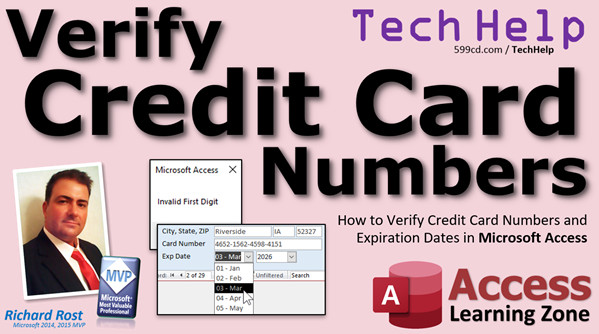
In today's video, I'm going to teach you how to verify credit card numbers and expiration dates in Microsoft Access.
Today's question comes from Harlan in Williston, North Dakota, one of my gold members. Harlan says, we do a lot of business at farmers markets and other rural areas without great cell service. I bring my laptop and get folks' credit card numbers and enter them in manually, then process them when I get back home. Sounds old-fashioned. Not much else we can do. Everyone pretty much knows everyone, so I'm not worried about fraud. One of my major problems, however, is entering in credit card numbers or expiration dates wrong. There are three of us using the database, myself, my wife, and my son, and sure enough, every week we get a handful of card numbers where we have to call the customer and ask them to verify their number for us. It's a pain. Anyway, you can help us cut this down.
Well yes, Harlan, I have this problem too on my website. I get a lot of people that type in their credit card numbers wrong on my order form. Now my main order form checks everything, but I've got some promotional order pages where I didn't put all the checks in, and every now and then I'll get one with a wrong digit and I have to email the customer.
So let's talk about a couple of things first. I know you said you're using your laptop, but if you are using any kind of online credit card processing like Square or PayPal here, what they call Zettle now, they do have an offline mode where you can still swipe the customer's credit card or insert it. And if it's an offline mode, it'll just store that information. Then when you get within cell service or back home, you can process all of them in a batch. That's one option for you if you want to stop using your laptop.
But if you are old school, maybe you have a terminal at home you like using and you want to stay with that, that's fine. So let's talk about verifying the card number.
So in your database to check the card number, basically, Visa, Mastercard, Discover is 16 digits long and it begins with a 4, 5, or 6. Four is Visa, 5 is Mastercard, 6 is Discover, but they all have the same format, so it really doesn't matter which is which. American Express had to be different, there are 15 digits and they begin with a 3.
Now when it comes to the expiration date, you want to make sure the month is valid, 01 through 12. You want the year to be greater than or equal to the current year, but not more than 10 years in the future. I have yet to see a credit card that is issued that expires more than 10 years from now, so I check that on my website. And of course, if the year equals the current year, then the month has to be greater than or equal to the current month. So it's 2022 right now. If someone types in an expiration date of 03/22, which is currently August, that would obviously be invalid.
One more thing we can do for the members, we're going to do what's called a Luhn check. It's an algorithm that checks the actual digits, it calculates a check sum, and that will sometimes catch if they put a number in the middle wrong, for example. This I get all the time. So that'll be covered in the extended cut for the members.
Now to be clear, we're not submitting anything to the bank, we're not online at all with this. This is just verifying the numbers that were entered are valid numbers as far as the formatting goes. We're not determining if it's a valid card, we're not authorizing anything, we're not checking to make sure they're under their limit, all that stuff.
Yes, I do know how to do all this stuff. I do it for my own website. If you want to see me make a video on this, post a comment below and I'll put something together.
I personally use PayPal for both my PayPal orders and all my credit card transactions. I've been using them for a while now, they're absolutely fantastic. They've got an API and a software development key that I can show you how to plug into Access and into your website. So if you want to see a video on that, let me know.
Before we get started, a couple of videos you need to watch first. You need to know what an input mask is and how to use it. You need to know what the format property is. You need to know your string functions: left, right, and those kinds of things. Go watch my year end reporting video if you don't know how to use the date functions like year, month, day, those kinds of things. Yes, we're going to be writing some VBA, so if you've never done any VBA programming before, go watch this video. All of these are free by the way. They're on my website, they're on my YouTube channel, I'll put links down below that you can click on.
A little bit of VBA is required today to do the cool stuff. I want you to know what the after update event is. We're going to use its cousin, before update, so go learn this one. You should know how to write an if, then, else, end if statement. If not, go watch this. I'm sure there's going to be a couple of other things popping up throughout the video that I'll point out to you, but these are the big ones.
Here I am in the TechHelp free template. It's a free database. You can download a copy up at my website. For those of you who follow along with all my videos and watch me every week, yes, I made some little minor updates. Version 1.82 now. Just changed color a little bit. Mostly I added a bunch of new customer records.
This came about when we were doing the email, automatic email thing, and I was like, there needs to be more data in here. So I got more stuff for credit limits and all this stuff. I just filled a bunch of customers in here and I added some extra contacts and stuff. But that's okay. It's meaningless for this particular video. I just wanted to point out because people are going, oh, wait, you changed the data. It's a tiny bit. A tiny bit.
The first thing we have to do is put fields in our customer table to store the credit card number. So we're going to put in here "credit card" and we're going to put in "expiration date." I like putting expiration date in a single text field, formatted mm-yyyy. That's my preference. If you want to keep those as separate fields, that's totally up to you.
Now as far as my understanding goes, you are not supposed to store anything else. The CVV number, all those things, you are allowed to use them for the first transaction and that's it. You're not supposed to store it in your database. Apparently from what I've read, and this seems to work fine for me, you use the CVV code for the first transaction and then somehow the bank and your processor or whatever, they remember that relationship and they know that you're allowed to charge that card if it's a recurring thing. If not, you have to tell the customer or the credit card company, "yeah, these people are okay." I don't know. It works for me. I get it for the initial one on my website, make that initial transaction and I don't save it, and future transactions without it seem to go through okay. So maybe the bank somehow knows there is a relationship there. I don't exactly know. If you have more information on this and you know more than I do, please post in the comments and let me know.
All I know is to be PCI compliant, you only store the credit card number and the expiration date, and only if you have a relationship where you have a recurring membership kind of thing. You're not supposed to save this stuff otherwise.
But Harlan, in your case, yeah, you're processing, you're collecting it offline and then processing when you get back. If it's a one time sale, you're technically supposed to delete this information after you make that one time sale unless it's a recurring thing, like if you are shipping a bushel of apples a week to them or whatever. I only keep credit card numbers for memberships on my website.
Anyways, let's set some input masks. Let's go to credit card and the input mask for this is going to be, it's got to be 15 characters or 16. So we're going to do 15 zeros, one, two, three, four, five, six, seven, eight, nine, ten, eleven, twelve, thirteen, fourteen, and 15, and a nine. Why the nine? Because that last digit's optional. Zero means you have to have a digit. Nine means you may have a digit. So I need at least 15, 16 if it's not American Express.
I'm not going to put the dashes there because I don't know what format it is. American Express is four followed by six followed by five characters, and then the rest of them are four, four, four, four. I cover how to do custom input masks based on the data that's in there in the extended cut for the input mask video, so go watch that if you really want to learn how to do that.
For expiration date, I will put in here 00-0000. Those are all required and the format's always the same.
That's all we need in the table. Let's save that, close it down. Let's go over to our form now. Here's our customer form in design view. I'm going to simplify this thing just for the purposes of this class. We don't need a lot of the stuff that's on here. Let's just delete all this junk. I'm just going to get rid of this, we'll just keep the address so it looks nice. Slide it up here. Let's put the credit card and expiration dates on the form. So add existing fields, credit card, expiration date, drag them, drop them right there. Slide them up. Credit card number can be bigger, little format painting, and of course, we'll make that say "credit card" and we'll make that say "expiration date." Close this, slide that over there, keep it nice and small.
Let's start with the update event for credit card. Go to the events tab. There's after update and before update. Now, I've got an after update video that I want you to watch. Basically, this is the event that runs after the user updates that number, but it's already been saved to the table. The nice thing about before update, and I actually have a video on before updates specifically coming out very shortly here, it's on my list, I haven't done it yet, but I'll just tell you what it is. The difference is before update goes after the customer has already typed in, or the user I should say, has already typed in the value but it has not yet been committed to the table, it's just in the form. That gives you the opportunity to cancel it. You can check the validity of what's been typed in, and if it's not a good value, like a bad credit card number, for example, you can say, hey, this isn't right and exit out without saving it. That's the benefit of before update.
So, go to before update, click on the ellipsis. That's going to bring up our Visual Basic editor, and now we're in the credit card before update, which can be canceled. It says in a subroutine, but you can set it to true or false. I always use true or false because it makes more sense.
So in here, what are we going to do? We're going to check all those conditions that I mentioned at the beginning of the video and see if everything works.
First thing I'm going to do is check that left digit on the credit card. Now the credit card number is a string, so we're going to treat everything as strings here. That's okay. I'm going to grab that and put it into a separate string, though. So, dim c as a string. I'm also going to need an L for the length of the string itself, so L as a long. I have a value called c and a value called L.
Now the first thing I'm going to do is allow the user to blank the credit card. You just come in here and delete it. If that's the case, no big deal. So if isnull(credit card), then exit sub. They've entered a blank one. If they have a bad one or whatever they want to cancel, no problem. Blank it out, don't worry about it.
Let's get that first digit. c = left(credit card, 1). That's the leftmost character. It's technically a character, but it's a digit. It's stored as a string, but it's actually a number. It's a number in a string. It's basically a string.
L = len(credit card). I'm just throwing these in their own value because it's easy to work with later on.
We're going to assume that everything's okay at first, and if any of these conditions fail, then we'll cancel the event. So I'm going to start off by saying cancel = false. The function starts off with cancel being false, but I never like to take that for granted, so I always explicitly declare my values. You never know.
So as of right now, we're not canceling the event. Everything's fine. If we come into a situation where something's bad, we'll just say cancel is true.
First, let's check to see if we have an invalid first digit. So it's got to be 3, 4, 5, or 6. So if it's 1, 2, 7, 8, 9, or 0, it's bad. For that, we can use the instr function, part of those string functions I wanted you to watch. If instr("127890", c) > 0, then cancel = true, messagebox "invalid first digit." Whether or not you want to give the user the specific reason why it's bad is up to you. I like to, because then they know, oh, it's supposed to be a three, for example. If you just want to say "bad credit card number," that's up to you. That's why you're writing your own software, so you can do what you want.
The reason why I'm using instr is it basically checks to see if this string appears anywhere in this string, and remember instr will return the position. If it's not found, it returns a zero. This just saves me from having to do a big long if-then block: if c = 1, or if c = 2, or if c = 7, etc. That's just a shortcut.
So that's the first condition that we have to check.
So if c = 3 AND l is not 15, then cancel = true, messagebox "invalid length for American Express." In other words, if the first character is 3, it's going to be an American Express card, and L has to be exactly 15 characters long.
Now let's check our other ones, our Visa and Mastercards. At this point, I shouldn't have to check the digit because the input mask handled that, right? The input mask requiring a digit means it's got to be a 0 through 9. So now I can just say else if l is not 16, then cancel = true, messagebox "invalid length." You can put "invalid length for Visa/Mastercard/Discover" if you want.
So that covers all the possibilities. And that's it. If it gets down to the bottom here, there's nothing else to do. What will happen is you'll get either a message box telling you why it's a bad number, or it'll just say cancel is false and exit out and save your value.
Stop the presses, I actually discovered an error in my code while I was recording the extended cut. I tried changing something on the fly when I recorded your video and I had it in my code, but I forgot to do it. If I do, for example, 33336666655555 and hit tab, that should be a valid number, but it's coming back "invalid length for American Express." Let me show you why.
In the source code, I'm missing something that I had in my original code, and I said, we probably don't need it, but we do need it. The problem is that if we have a number with a 3, it comes right here. It evaluates "is it 3 and the length is not 15?" That's not true, so according to this branch, it thinks it's valid. But then it comes here and says, "if it's not 16," it bumps it out. But we have to check this also to make sure it's a 4, 5, or 6. That's the problem. So we need to just copy this, stick it here, and then change this to 4, 5, and 6. Now it'll work.
So it's got to be 1, 2, 7, 8, 9, or 0, it's bad. If it's a 3 and it's not 15 characters, it's bad. Otherwise, it's valid. That's the little fix we had to add to that. Sorry for the goof. You may now continue with the rest of the lesson.
I'm not re-recording the whole rest of the videos, so just ignore anywhere else in the code where you don't see that because it's supposed to be there.
Let's give it a shot. Let's try it. Let's close this, open it back up again. Credit card number, there we go, see your input mask is right there.
7777-5555-whatever, "invalid first digit," okay. Let's try that again, leave it like that, so we got a 4 in the front but only 15 characters, "invalid length," okay. Let's start off with a 3 but type in all 16 characters, "invalid length for Amex." Very good. Finally, let's put one in that's a valid number, like 4444, 3333, 2222, 1111, and we're good, it lets us go to the next one.
So that's how you check the digits of the credit card. Like I said, there's a Luhn algorithm which actually does a checksum of all of the digits because someone might have typed in an 8 versus a 3 in here, which this will allow, but the Luhn algorithm catches 99 percent of that stuff. It's just one more way you can verify that's a valid number. It's basically a mathematical algorithm that looks at all the digits in here, adds up the values, and then tells you if it's okay or not. The goal is to try to catch the error before you actually submit the number to the credit card company.
So that's gold. Let's tackle the expiration date now. Same thing, come down here, open it up, go to the before update event, put some stuff in here.
What we're going to do, we're going to break up the M (month) and the Y (year), so dim m as a long. We're going to use the numeric values for these, all right? And then y as a long.
Same thing, if they want to blank it, that's fine: if isnull(expiration date), then exit sub. I caught that error just by looking at it because I noticed that "isnull" didn't capitalize. I missed the fact that I forgot to put an S in there. That's why when I'm typing, I type everything in lowercase, unless of course I'm declaring something.
Now let's get the value of m. So m is going to be left(expiration date, 2). That's still a string. Now technically, yes, Visual Basic should cast that into a long. Type casting is when you take a string and make it into a long integer, or a date and make it into a string—something like that. But I'm going to do it manually just to make sure: clng. That makes sure that we take that string value and convert it over to a numeric value.
All right, same thing for y. y = clng(right(expiration date, 4)). So now I have month and year separated into long integer values.
Same technique as before, we're going to start with cancel = false. Everything's good until it's not.
Let's check the month first. If m < 1 or m > 12, then cancel = true, messagebox "invalid month." If they typed in something like 13, for example.
Else if, what's next? Let's check the year. The year can't be earlier than today's date. So if y < year(date), "year" is a function that takes a date value. "date," for example, returns today's date, and then "year" gets just the year out of that. I should have put this in the prerequisites, I'm going to go back and do it retroactively now because you wouldn't even know until I just told you now.
Turns out I don't have a separate video on just the different functions like year, month, day, but I'll make one and put it on my list. I told you to watch my year end reporting video where I cover all that stuff. But basically, "date" returns the current date. "Year" gets the year part of that date as a number, so like 2022. If that is less than the current year, then we have a problem. But also, I don't want the year to be more than 10 years in the future because, like I said in the intro, I don't know of any credit cards that give you an expiration date more than 10 years from now. So if someone accidentally types in 2072, for example, you don't want that either: or y > (year(date) + 10), then cancel = true, messagebox "invalid year."
Else if, one more condition: If it's this year, but the month is less than this month, then it's also expired. So if y = year(date) and m < month(date), then cancel = true, messagebox "invalid month for this year."
And that should give you what you need to verify the expiration date.
Let's check it. Come back, close it, open it up. Let's put something in: 10/2001. Well, that's expired: invalid year. Let's put in 14/2023: invalid month. That's working. Let's put in letters. Good. Let's put in 11/2021. OK, let's put in 03/2022. Knowing it's August right now: invalid month for this year.
And there we go, perfect. See how it cycled to the next record? I hate that. I'm going to make that, I should make that the default in my templates: cycle current record under "Other." Yeah, other cycle: current record. I want to make that the default setting. Now I can't do that because sometimes I like it when it goes to the next record, but for this particular one, yeah, I want to go—tab, tab, tab, tab, tab.
Now again, I'm not going to put a format on this because everyone is different: if it's Visa/Mastercard/Discover, it's one format. If it's American Express, it's a different one. I will show that in the extended cut.
In the extended cut for silver members and up, we're going to make the combo boxes for the expiration date so you can actually drop these down and pick them instead of the user having to type them in, and we'll fill this one with only valid years, so it'll be like 2022 through, let's go 10 years up. We'll do the custom format by card type so you can see right here, this is formatted like a Visa/Mastercard number. If the user puts in a 3, it'll format that as an American Express number. Finally, we will do that Luhn check algorithm, so if you type in a number that doesn't match the checksum algorithm's expectation, you'll get a message saying "failed Luhn check," which basically tells you that you typed something in wrong. You probably transposed a digit; I get that all the time.
Then we're going to have a Gold Member bonus video. I haven't done this in a while. We're going to go beyond the extended cut—it's going to be an extended cut for the extended cut—for Gold Members. What we're going to do is we're going to have buttons to encrypt and decrypt the actual value, so if you look in the table, it looks like a jumble. At least, that's what anyone who goes into the table will see. You'll see this on the form: it's encrypted. It'll give you the first character and the last four. I like to do that for customers, so anyone can open the database and go, "Well, sir, we have your Visa card on file ending in 4151. Do you want me to use that?" But the manager can click decrypt, and anybody can type in a new number and hit encrypt, but only a manager can type in decrypt, type in a password, and then it will unscramble that and show you what the actual number is.
Why bother? I know there's a lot of you out there that aren't using database servers. The only real secure way to keep your data from anyone getting into it without authorization is to use something like SQL Server on your back end, but I know a lot of you don't. I didn't for many, many, many years. But you still want a way to encrypt your data, because anybody who has to use your database has to be able to get into that back-end table—right? They have to have rights to see what's in the table. This way, at least, if someone does go poke around on your network and gets into that back-end table, that's all they're going to see for the credit card number—it's a scrambled jumble of mess.
So I'm going to cover how to do this in the gold member extended cut. This is a lesson actually taken from my encryption seminar. I show you how to do that in my full encryption seminar. Here we actually use some really crazy algorithms to properly scramble the data, like seriously scramble it.
So there you go. There's your TechHelp video for today. I hope you learned something. I'll see you next time.
How do you become a member? Click on the Join button below the video. After you click the Join button, you'll see a list of all the different membership levels that are available, each with its own special perks.
Silver members and up will get access to all of my extended cut TechHelp videos, one free beginner class each month, and more.
Gold members get access to download all of the sample databases that I build in my TechHelp videos, plus my code vault where I keep tons of different functions that I use. You'll also get a higher priority if you decide to submit any TechHelp questions to me, and you'll get one free expert class each month after you've finished the beginner series.
Platinum members get all the previous perks, plus even higher priority for TechHelp questions, access to all of my full beginner courses for every subject, and one free developer class each month after you've finished the expert classes. These are the full length courses found on my website, not just for Access. I also teach Word, Excel, Visual Basic, and lots more.
You can now become a diamond sponsor and have your name or company name listed on a sponsors page that will be shown in each video as long as you're a sponsor. You'll get a shout out in the video, and a link to your website or product in the text below the video and on my website.
But don't worry, these free TechHelp videos are going to keep coming. As long as you keep watching them, I'll keep making more, and they'll always be free. Intro In this video, you will learn how to verify credit card numbers and expiration dates in Microsoft Access. I will show you how to set up fields and input masks in your table and forms, then use VBA to check for proper credit card formatting based on card type, validate the first digit and length, and ensure expiration dates are within a valid range. This tutorial is especially helpful if you manually enter credit card data and want to cut down on entry mistakes. Quiz Q1. What is the primary purpose of verifying credit card numbers and expiration dates in Access, as discussed in the video?
A. To confirm user identity for security
B. To ensure entered information follows valid formatting and catches entry errors before processing
C. To connect directly to banks for real-time verification
D. To automatically charge customers
Q2. Which of the following are valid starting digits for most major credit cards, according to the video?
A. 0, 1, or 2
B. 3, 4, 5, or 6
C. 7, 8, or 9
D. 2, 8, or 9
Q3. How many digits do typical Visa, Mastercard, and Discover card numbers have?
A. 14 digits
B. 15 digits
C. 16 digits
D. 17 digits
Q4. What special condition applies to American Express credit card numbers?
A. Start with 6 and are 17 digits long
B. Start with 3 and are 15 digits long
C. Start with 2 and are 16 digits long
D. Start with 4 and are 14 digits long
Q5. When storing expiration dates for credit cards, what format is recommended in the video?
A. dd-mm-yyyy
B. mm-yy
C. mm-yyyy
D. yy-mm-dd
Q6. What must be true about the expiration month and year to be considered valid?
A. Month must be 00–13, year can be any value
B. Month is 1–12, year is current or up to 10 years in the future, and if same year, month must not be in the past
C. Only that the date is a future date
D. Any numeric value is accepted for month or year
Q7. What input mask was suggested for the credit card field?
A. 16 ones and a zero
B. 16 zeros only
C. 15 zeros and a nine (making the last digit optional)
D. 10 asterisks
Q8. Why should you not store the CVV number in your Access database?
A. It is unnecessary for transactions
B. PCI compliance forbids it after the first transaction
C. Banks require it for every transaction
D. It can be used to track customer purchases
Q9. What is the purpose of using the 'before update' event for validation?
A. It runs before form loads to pre-fill data
B. It allows validation and cancellation before saving data to the table
C. It sends the data to the credit card company for approval
D. It auto-corrects any user errors automatically
Q10. What is the function of the Instr function in checking credit card numbers in this scenario?
A. To count total digits in the card number
B. To check if a value exists in a string (such as bad starting digits)
C. To add numbers together
D. To encrypt the card number
Q11. Which code structure is used to validate if a credit card number is American Express and the right length?
A. If c = 3 and l is not 16
B. If c = 3 and l is not 15
C. If c = 4 and l is not 15
D. If c = 6 and l is not 15
Q12. What VBA function is used to convert a string to a long integer for month and year validation?
A. cstr()
B. clng()
C. cint()
D. cdbl()
Q13. What happens if the year entered for expiration is more than 10 years in the future?
A. It is accepted
B. It triggers a validation error
C. It auto-corrects itself
D. Nothing, it is ignored
Q14. What benefit does encryption of credit card numbers in your table provide?
A. Allows automatic decryption by all users
B. Ensures data appears as a jumble in the table, improving security from casual browsing
C. Increases the database size unnecessarily
D. Makes it impossible for even authorized users to see the number
Q15. What additional verification method is covered for members in the extended cut?
A. Bank API check
B. Luhn algorithm checksum
C. PIN verification
D. SMS code check
Q16. What is recommended if you want to give users predefined expiration years to select from?
A. Use combo boxes filled with valid years only
B. Use a text box with free entry
C. Require them to enter the date in full words
D. Use a calendar date picker
Q17. What is the main reason to only store credit card details for recurring payments/memberships?
A. It is required for single sales as well
B. PCI compliance prohibits storing for one-time purchases after processing
C. Banks prefer to keep the details themselves
D. It improves the speed of the database
Answers: 1-B; 2-B; 3-C; 4-B; 5-C; 6-B; 7-C; 8-B; 9-B; 10-B; 11-B; 12-B; 13-B; 14-B; 15-B; 16-A; 17-B
DISCLAIMER: Quiz questions are AI generated. If you find any that are wrong, don't make sense, or aren't related to the video topic at hand, then please post a comment and let me know. Thanks. Summary Today's video from Access Learning Zone focuses on how to verify credit card numbers and expiration dates in Microsoft Access. This is a common concern for those who enter payment information manually, as mistakes can easily happen and require follow-up with customers.
I received a question from Harlan, who explained that he frequently collects credit card numbers at farmers markets in rural areas with unreliable cell service. He, his wife, and his son take turns entering the card information into a laptop, and then process payments later when they have internet access. While fraud is not a significant worry in their small community, errors during entry are a regular nuisance, necessitating time-consuming verification calls to customers. Harlan asked how he could minimize these mistakes.
I can relate to this issue—I've faced similar problems on my website when users enter incorrect credit card details. While my main order form checks for errors, some older or promotional forms still allow typos to slip through, causing extra work to troubleshoot.
Before we start, it's worth noting that some online payment processors like Square or PayPal (now known as Zettle) offer offline modes. You can swipe or insert a card when you are offline, and then later, when back within cell service, those payments will process in a batch. If moving away from your current laptop-based system is an option, these solutions might be worth considering.
However, if you prefer to stay with your existing setup, let's turn to validating card numbers within your Access database. Major cards such as Visa, Mastercard, and Discover use 16-digit numbers starting with 4, 5, or 6. Visa starts with 4, Mastercard with 5, and Discover with 6, but for our purposes they follow the same length and structure. American Express is the outlier, using 15 digits and a starting digit of 3.
For expiration dates, validation involves checking that the month is between 01 and 12, the year is at least the current year, and not more than ten years ahead. It's also important to ensure that if the card expires this year, the month is not earlier than the current month.
Additionally, for members, I'll show a technique called a Luhn check in the extended cut. The Luhn algorithm examines all the card digits according to a mathematical formula. This detects scenarios where digits might have been transposed or mistyped, which is a frequent problem.
Remember, none of this validation submits any data to banks or payment processors; we are simply making sure that user input fits the patterns of valid card numbers and dates. This does not check if the card is real, active, funded, or authorized.
If you want to see more advanced videos covering integration of payment APIs like PayPal's with Access or a website, let me know. I use PayPal extensively for my own business, and it's quite robust.
To prepare for this lesson, make sure you are familiar with input masks, the format property in Access, and string functions like Left and Right. You should also understand date functions such as Year, Month, and Day, and have some introductory knowledge of VBA. Specifically, know how the After Update and Before Update events work on Access forms, and be comfortable writing simple If...Then...Else logic. If these topics are new to you, I have free video tutorials on my website and YouTube channel.
For this tutorial, I'm working in the TechHelp free template database, which you can download from my website. I've recently updated it with more customer records, but for today's purposes, focus will be on adding fields for "credit card" and "expiration date" to the customer table. I prefer to store the expiration date as a single text field in the format mm-yyyy, but splitting it into separate fields for month and year is also a valid approach.
Bear in mind, PCI compliance standards generally restrict you to storing only the card number and expiration date. The security code (CVV) should not be saved—it's meant for one-time use during the initial transaction. If you're collecting data for one-time sales, remember to delete it after processing unless you have a recurring billing relationship.
Now, to improve data entry reliability, set up input masks. The credit card field should allow either 15 or 16 digits—fifteen zeros for the base, and then a ninth placeholder as optional. American Express card numbers (those starting with 3) are 15 digits; the others require 16. For simplicity, dashes or spaces are not included in the mask here, since card number grouping varies between different brands. If you want to create custom masks based on card type, I cover how to do that in the extended cut of my input mask video.
For the expiration date, a mask of 00-0000 ensures both month and year are present in the correct format. Once these fields are set, save your changes and move to your form design.
On the customer form, remove any unnecessary fields for clarity, then add the new credit card and expiration fields. Arrange them for ease of entry, increasing the size of the credit card box as needed, and adjust labels accordingly.
To implement validation logic, you'll use the Before Update event for each field. The Before Update event allows you to check data before it's saved to the table, and to cancel saving if you find bad input.
For card numbers, the procedure involves checking:
- If the field is left blank, that's allowed—just exit the validation.
- The first digit must be 3, 4, 5, or 6. If it's any other number, display an error.
- If the card starts with 3 (Amex), the number must be exactly 15 digits. If not, it's invalid.
- If the card starts with 4, 5, or 6, there must be exactly 16 digits.
- Any deviation is flagged with an appropriate error message.
I should point out that as I was recording, I discovered a mistake in the original code. The check for the leading digits needs to be stricter to ensure, for example, that a card starting with 3 only gets evaluated against Amex rules, while others are checked for length as Visa, Mastercard, or Discover. Make sure that you validate card numbers according to both starting digit and expected length.
Once implemented, test your form by entering various card numbers. You'll see error messages for first digits that are invalid, incorrect lengths, or other entry mistakes.
To further reduce input errors, especially cases where users transpose digits or make small typos, you should consider adding the Luhn check. This mathematical validation step is highly effective at detecting the majority of such mistakes. Details for implementing the Luhn check are provided in the extended cut of this video for members.
Now, let's move to validating the expiration date. In the Before Update event for the expiration field, extract the two-digit month and four-digit year from the entered string, converting them to numeric values. Check that the month falls within the range 1-12, the year is not before the current year or more than ten years ahead, and, if the year matches the current year, that the month is not in the past. Any failed check should prevent the record from being saved and display an explanatory error.
Test various cases to ensure your validation works: enter an expired date, a month past 12, non-numeric values, or a date with a year too far in the future. Your validation logic should correctly prevent invalid entries from being saved.
For further usability improvements, especially for frequent data entry, you can replace manual entry for expiration dates with combo boxes that offer only valid months and years. You can set up the credit card number box to display the card number in the correct format based on card type. These enhancements, along with the Luhn algorithm implementation, are covered in the extended cut for Silver members and above.
In the Gold Member bonus video, I take things a step further and show you how to encrypt and decrypt stored credit card values. Encrypted numbers are scrambled in the database, and you can display only the first character and last four digits on the form. Managers with the proper password can decrypt values as needed. This protects sensitive data even for databases that do not use highly secure back-end servers.
If you want to learn how to implement full-scale encryption, I have an entire seminar devoted to the topic, but you'll get a taste of those techniques in the extended material here.
That brings us to the end of today's TechHelp video. If you're interested in becoming a site member, you can access all of my extended cut videos and a variety of other courses and perks. Silver members receive access to extended cut TechHelp videos and a free beginner class every month. Gold members can download all sample databases, receive priority support, and get my code vault and expert-level classes. Platinum members get everything the previous levels do, plus more advanced courses and faster question response times.
Don't worry though, my free TechHelp videos will always be available as long as you support them by watching.
You can find a complete video tutorial with step-by-step instructions for everything discussed here on my website at the link below.
Live long and prosper, my friends. Topic List Adding credit card and expiration date fields to a table
Choosing format for expiration date field
Discussing PCI compliance and storage best practices
Setting input masks for credit card and expiration date fields
Placing credit card fields on a form in design view
Using the before update event for data validation
Writing VBA to check credit card starting digit
Validating credit card length for card type
Implementing input masks with optional digits
Testing various invalid and valid credit card entries
VBA logic for error messages and cancelling updates
Separating out month and year from expiration date
Converting string values to numeric with CLng
Checking expiration month and year for valid ranges
Ensuring expiration date is not in the past
Validating expiration month for current year
Testing expiration date field with edge cases
Overview of event cancellation with Cancel = True
Benefits of before update vs after update events in Access Primary Topics credit card validation, expiration date checks, Microsoft Access, VBA event procedures, input masks, database field setup, user input error handling
Secondary Topics database security, PCI compliance basics, encryption preview, data formatting, payment processing context
|







