Tax Brackets
By Richard Rost

 4 years ago
Calculate Your US Federal Income Tax w Access
Tax season is coming up. In this Microsoft Access tutorial, I'll teach you how to calculate your federal income tax based on your taxable income using a progressive tax bracket system.
Members
Members will learn how to calculate the other filing types: married jointly, married separate, head of household.
Silver Members and up get access to view Extended Cut videos, when available. Gold Members can download the files from class plus get access to the Code Vault. If you're not a member, Join Today!
Pre-Requisites
Links
Recommended Courses
 Keywords Keywords
access 2016, access 2019, access 2021, access 365, microsoft access, ms access, ms access tutorial, #msaccess, #microsoftaccess, #help, #howto, #tutorial, #learn, #lesson, #training, #database, calculating tax brackets, Tax Calculation, Income Tax Brackets, 2022, 2023, dlookup, dmax
 Subscribe to Tax Brackets
Get notifications when this page is updated
More InformationTranscript Welcome to another Fast Tips video brought to you by AccessLearningZone.com. I am your instructor, Richard Rost.
In today's video, I am going to show you how to calculate your US Federal Income Tax with Microsoft Access using the Progressive Tax Brackets. A little bit earlier, I did the same exact video using Microsoft Excel. In that video, I explain how the whole tax system works. We went over the tax brackets. I show you how to calculate all that stuff.
Go watch this video if you are not sure how a Progressive Tax system works. There is a link to the video right there. I will put it in the description down below the video window so you can click on it, watch that, and then come back.
Here I am in my Access database. I am not going to make you watch me rebuild the table. This is all simple stuff. We have the tax bracket table that has our income level, the tax base pay that you pay, and then the tax rate. I have added a tax ID because the way we are going to simulate the XLOOKUP is by using DMax and DLookup.
If you do not know how to use DMax, go watch this video. Of course, DMax is a cousin of DLookup, so if you have never done that either, go watch DLookup first, then go watch DMax, then come back here.
If we take a look at the design real quick, we have tax bracket, autonumber, income level (currency), base tax paid (currency), and then tax rate is a number formatted as a percent.
This is nice because this is very easy to update in the future. If you want to change it for the following year, you just come in here, type in the new data, and you do not have to recode anything.
Now for the actual amount of taxes, I have a customer table and in that customer table, I have a currency value called the credit limit. We are just going to use that to simulate their income.
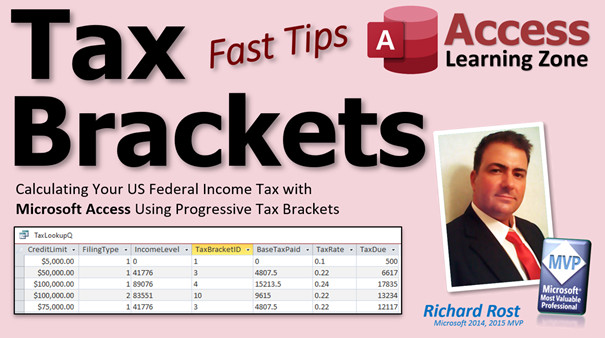
We are going to make a query. Here is my query, TaxLookupQ. You have the income amount - that is that credit limit value from the other table. I am just substituting that for the actual income. Then we have the income level. We are going to look that up in the tax bracket table. Here is a tax bracket table.
What I want to do is take a look at that number. Let's find 32,000 in this list. Let me put these side by side so you can see them both.
I want to find the largest value in this column that is smaller than that. To find the largest value, we are going to use DMax. So I want to DMax the income level that is less than this amount. That will bring back that value right there, 10,276.
Now, knowing 10,276, I can say, what bracket is that? We are going to bring back the ID then, right there. That brings back ID 2. Now that I know ID 2, the other two values are simple DLookups. That is the tax base paid, and then the tax rate is right there. Then I can do my math and calculate the tax due.
The top part is figuring out that income level. Let's take a peek at how that's designed.
Income is real simple. That is just an alias field. I am calling credit limit "income" for this example. That is whatever your dollar value is representing your total income.
Figuring out the income level is the tricky part. This is where the DMax comes in. This says income level is going to be DMax. Find the largest value. Find the largest income level in the tax bracket table where that income level is less than the income value. If the income value is 32,000, find the largest value from this column that is less than 32,000. That happens to be 10,276. The largest value less than the number we are looking up is essentially what XLOOKUP does.
Now that I know 10,276 is my target income level, I know I am on that level there, so now I can go get the tax bracket.
Tax bracket ID is easy now. That is just the DLookup of the tax bracket ID from that table where the income level equals the income level I just found, 10,276. I will bring back the 2. There is the 2. I know I am in bracket 2.
Base tax paid and tax rate are simple DLookups with that ID. We have the ID now. Now that we have the ID, it is simple. DLookup to base tax paid from that table where the bracket ID is the ID we just found, and the same thing for the tax rate.
Now we have all that, we can calculate the actual tax due, which is rounded to zero decimal places. The base tax paid plus income minus the income level (to give us the difference) times the tax rate.
There you go. Once you know how to figure out what level you are in, what your tax bracket ID is using DMax, the rest of it is easy.
This shows you how to calculate a single tax bracket system, which is the year 2022 for single filers. If you want to learn how to do it for other types of filers, I will cover that in the extended cut for the members.
For the members, only Silver members and up get access to all my extended cut videos for Fast Tips and for TechHelp. We will add a filing type field where one will be single, two will be married filing jointly, three will be separate, and four will be head of household. Using the same technique I am going to show you for this, you could also add the tax year in there if you want to have the big table so you have every tax year. If you are a CPA, I can see that being handy.
We will cover this for the members. If you are not a member, now is a great time to join. It is cheap. It is not expensive at all. You help me out and I make more videos for you.
Hope you learned something. See you next time. Intro In this video, I will show you how to calculate US Federal Income Tax using Microsoft Access and progressive tax brackets. We will use a tax bracket table and a customer income value, then walk through how to use DMax and DLookup functions to identify the correct tax bracket and compute the tax due. I will demonstrate how to design the necessary tables and queries, set up the logic for finding the right income level, and perform the calculation for a single tax filer for 2022. Quiz Q1. What is the main purpose of the video tutorial?
A. To demonstrate how to set up Access security
B. To calculate US Federal Income Tax in Access using Progressive Tax Brackets
C. To design forms in Microsoft Access
D. To import data from Excel into Access
Q2. What database table contains the tax information used for calculations?
A. Customer table
B. Employee table
C. Tax bracket table
D. Payments table
Q3. What function is used to find the largest income level less than the specified income?
A. DLookup
B. DSum
C. DMin
D. DMax
Q4. What field is used in the customer table to simulate income for tax calculation?
A. Employee number
B. Credit limit
C. Tax ID
D. Address
Q5. How is the appropriate tax bracket ID found in the tutorial?
A. By sorting the table manually
B. Using DLookup with the income value
C. Using DLookup for tax bracket ID where income level equals result from DMax
D. With a direct query from user input
Q6. What are the base tax paid and tax rate fields used for?
A. To determine filing status
B. To calculate the final tax due
C. To update employee records
D. To set account access levels
Q7. Once the correct tax bracket is found, how are the base tax paid and tax rate values retrieved?
A. By manual data entry
B. By using DSum
C. By using DLookup with the bracket ID
D. By using DMin on the tax bracket table
Q8. What is the formula described to calculate the actual tax due?
A. Base tax paid plus tax rate times income level
B. Base tax paid minus tax rate
C. Base tax paid plus (income minus income level) times tax rate
D. Base tax paid divided by tax rate
Q9. What does the tutorial mention as a benefit of using this method for future years?
A. You do not need to recode anything; just update the data
B. You must redesign all queries
C. You must create new tables each year
D. You need to change the SQL every year
Q10. What does the extended member version of the video cover?
A. Adding a filing type field and tax year to handle other filer types and years
B. Eliminating the tax bracket table
C. Handling tax refunds
D. Integrating with payroll software
Answers: 1-B; 2-C; 3-D; 4-B; 5-C; 6-B; 7-C; 8-C; 9-A; 10-A
DISCLAIMER: Quiz questions are AI generated. If you find any that are wrong, don't make sense, or aren't related to the video topic at hand, then please post a comment and let me know. Thanks. Summary Today's video from Access Learning Zone demonstrates how to calculate US Federal Income Tax with Microsoft Access using progressive tax brackets. Previously, I showed how to do this using Microsoft Excel, and in that tutorial, I explained the details of the progressive tax system and walked through how the brackets and calculations work. If you do not understand how progressive taxes work, I recommend reviewing that earlier video first. It covers the background and structure that will help you understand what we are doing here.
In my Access database, I have already set up a table containing the tax brackets. This table stores each bracket's minimum income level, the base tax to pay at that level, and the tax rate. I also included a unique tax ID, which will help us simulate the XLOOKUP functionality you find in Excel, but here we will use DMax and DLookup. If you are not familiar with DMax, you can refer to my previous video on the topic. For those new to DLookup, watch that tutorial first so you have a good grasp of how both functions operate.
Looking at the table design, each tax bracket entry includes an autonumbered ID, the income level (as currency), the base tax paid (as currency), and the tax rate (as a percentage). One benefit of this setup is how easy it is to update in future years: simply enter new rates or brackets, and you will not have to change any code.
For the purposes of this demo, I have a customer table with a field called credit limit, which we will use as a stand-in for the customer's income. We will create a query to perform the tax lookup and calculation. In this query, called TaxLookupQ, we take the simulated income amount from the credit limit and compare it against the tax bracket table.
The challenge is to find the largest income level from the tax brackets that is less than the customer's income. This is where DMax comes in. It returns the maximum value of income level from the brackets table that is still below the given income. For example, if the income is 32,000, DMax finds 10,276, which is the appropriate bracket lower bound.
Once we have this income level match, we use DLookup to find the corresponding bracket ID. After that, getting the base tax paid and tax rate is straightforward: both are simple DLookup operations using that bracket ID.
With those values in hand, the tax calculation is also straightforward. The formula takes the base tax paid, adds the difference between the individual's income and the base income for that bracket, and multiplies that difference by the tax rate. The final result is rounded to the nearest dollar.
This approach covers how to perform a progressive tax calculation for a single type of filer - in this case, single filers for 2022. If you want to calculate taxes for other filing types, I will be covering that for members in the extended cut. In that extended lesson, we will add a filing status field so the database can handle single, married filing jointly, married filing separately, and head of household filers. The same techniques will apply, and you could even extend the process to track different tax years if needed, making this useful for professionals such as CPAs.
Silver-level members and above have access to all my extended cut videos for both Fast Tips and TechHelp, where you will find further details about adding filing types and making your table handle multiple years.
I hope you found this lesson helpful. You can find a complete video tutorial with step-by-step instructions on everything discussed here on my website at the link below. Live long and prosper, my friends. Topic List Creating a tax bracket table in Microsoft Access
Setting up tax bracket fields and formatting
Using DMax to find the appropriate income level
Simulating XLOOKUP with DMax and DLookup
Extracting tax bracket ID with DLookup
Retrieving base tax paid and tax rate using DLookup
Calculating federal tax due with Access queries
Using a customer table to simulate income values
Creating a query to compute tax for individual records
Applying progressive tax brackets in Access for 2022 single filers Primary Topics US federal income tax calculation, progressive tax brackets, Microsoft Access, DMax function, DLookup function, mapping income to tax brackets
Secondary Topics simulating XLOOKUP in Access, updating tax tables for future years, using query alias fields, Access table design
|




