Double Lookup
By Richard Rost

 4 years ago
Double Lookup in Access with Multiple Criteria
In this Microsoft Access tutorial, I'll teach you how to perform a double lookup with DLookup using multiple criteria.
Pre-Requisites
Links
Recommended Courses
Keywords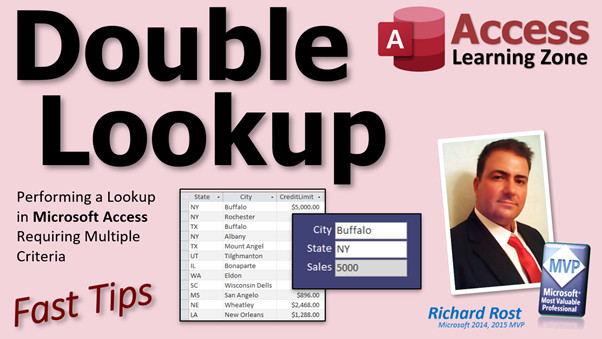
access 2016, access 2019, access 2021, access 365, microsoft access, ms access, ms access tutorial, #msaccess, #microsoftaccess, #help, #howto, #tutorial, #learn, #lesson, #training, #database, DLookup with 2 lookup values, lookup in Access based on 2 criteria, Access Lookup formulas with multiple criteria, lookup a value based on multiple criteria, helper column, Double DLookup
 Subscribe to Double Lookup
Get notifications when this page is updated
More InformationTranscript Welcome to another Fast Tips video brought to you by AccessLearningZone.com. My name is Richard Rost, your instructor.
In today's video, I'm going to show you how to do a double lookup, a double DLookup, which is a DLookup looking up a value based on multiple criteria. Two or more criteria make up the result.
Earlier today, I did the same thing in Microsoft Excel using something called a helper column. You do not have to use a helper column in Access because in Access, the DLookup function itself can take a criteria string that has Boolean values in it like And and Or. We actually, I think, have an easier time doing this in Access. Go watch this if you're curious how to do it in Excel. I'll put a link down below.
Essentially, we're looking up the sales based on state and city. You've got a bunch of cities and a bunch of states, but you've got to have Buffalo, New York, Buffalo, Illinois, Buffalo, Texas. We have to be able to look up a combination of those two things and then bring back the sales.
Before we get started, you need to know how to use the DLookup function. If you don't know how to use DLookup, go watch this first. Otherwise, you're going to be completely lost because I'm not going to go over explaining how DLookup works again. Go watch this video, then come on back.
Also, if your criteria involve using string values, you're going to have to know how to use the double double quotes, which is double quotes inside of double quotes to make double quotes in your string. What's all that about? Go watch this video. I'll explain that in more detail.
Here I am at my TechHelp free template. You can download a copy of this off my website if you want to. In here, I've got a customer table and we'll just cheat and use this to replicate that sheet that I had in Excel. There's state and there's city. Again, of course, this would be a table where there are no two duplicates of this stuff.
For example, Fort Myers, Florida, Riverside, Iowa. We'd have another one here. Let's say New York Rochester. Might even be one of those down below. Let's get rid of Paris just for the sake of class. There's a Buffalo, New York. Let's do a Buffalo, Texas. I think that's good. If there are any other duplicates in there, not a big deal. For the monetary value that we're bringing back, we can use credit limit.
So there's our value. We're going to look up city and state combination and bring back the credit limit.
Let's close that. Save changes. Sure. We'll just do it right here on our main menu.
Let's take this and make this the state field, which means we're going to come over here and name it state. We're going to get rid of the control source and get rid of the format. We'll make the data default value be, let's say, New York. Then we'll copy and paste that and we'll make the next one the city. Let's go up here and we'll change the name of this to city. Data will make the default value Buffalo.
This is what the user is going to type in. Then we'll have our calculated field right below here, which will be the credit limit, which will be returned. I'm going to gray this out because this will be a calculation. I want the user to know that the database is going to calculate that one for him.
We'll come in here. We're going to name this guy CreditLimit. I just saw that data value. Let's get rid of that, because for this, we're going to use a control source.
Shift F2 to zoom in. What's the control source going to be? Here's where our DLookup function goes. I want to DLookup the credit limit from the customer table where the city equals the city that's typed in and the state equals the state that's typed in. Now, those criteria can get crazy.
First, I'm going to type it in and I'm going to hard code the criteria. It's easier to understand this way.
So it's going to be equals DLookup. What am I looking up? The credit limit from the customer table. Where? Let's say the state equals New York like that. But I'm inside a string right now, so these have to be replaced with double double quotes. That will say state equals New York inside the quotes. And city equals Buffalo. Close those quotes and then close the whole string.
So that will translate into a double quote inside that whole string. This is one string right here. I know it's confusing. That's why I'm going over it again and I want you to watch that other video too. This comes up a lot, and you have to have that if your criteria are string values.
If I hit OK, let me save this and close it and then open it back up again. There we go. That works unless, double check, 2997 is Buffalo, New York. 2997 looks good.
So it's working. The top part is just getting this criteria down.
Now, I don't want to hard code that criteria. I want to use whatever is in the city and state text boxes on this menu form. So I'm going to replace New York with the state text box.
Now, here's where it gets crazy. You've got to close that quote, ampersand state ampersand, and then open up the next quote again. See that? So it's going to be quote, New York quote, and that's all inside of that. Then the same thing over here with Buffalo. Sometimes it's easier to do it with X's. Just go quote ampersand X ampersand quote like that and then replace that X with whatever you want to go there. In this case, it's city.
Remember, if you've got spaces in your text box and field names, you have to remember to put these around them. But we don't, so in this particular case, we don't have to. Access will anyways in a second. Watch. When I hit OK, it'll just do it for me. Sometimes Access does it. But that is now how you do it with multiple criteria. This could be an or. You could have multiple of these. You can use parentheses in here and have a bunch of ands and ors together. Those are all different Boolean statements.
Close this, save it, open it up now. Now I can change this to Buffalo, Texas. As soon as I hit tab, it updates the DLookup statement.
Yes, you can use the DLookup statement in a query if you want to, although I recommend against using DLookup statements in queries because they get really, really, really slow. DLookup is your best for like one off like that. You can do it in a query. You can use a join.
This will also work with the other domain functions too - DMin, DMax, DSum. The bottom line is just using the multiple criteria over here. You can see how this is actually easier than doing it in Excel because we don't have to put together a fake helper column. The criteria support that and and or.
There you go. That's it. I get asked this a lot. I see this come up a lot in the forums. I know I've covered it in my classes many times, but here's a specific video to show you how you can do it with multiple criteria.
I hope this helps you. If you have any questions or comments, feel free to post them down below. If you want to learn more about the DLookup function and all kinds of criteria and cool stuff like that, I cover it in Access Expert Level 10. I strongly recommend my full course. I go over stuff in a lot more detail than I do in these TechHelp videos and Fast Tips videos and all that good stuff.
That is your fast tip for today. I hope you learned something and I'll see you next time. Intro In this video, I will show you how to perform a double lookup using the DLookup function in Microsoft Access based on multiple criteria, such as city and state, without the need for a helper column like in Excel. We'll use a sample customer table to create a calculated field that returns values like credit limit by matching both city and state from form input. I will also cover how to build the proper criteria string using double quotes, and give tips for working with the DLookup function when your criteria are string values. Quiz Q1. What is the main topic of this video tutorial?
A. Using DLookup with multiple criteria in Microsoft Access
B. Creating a helper column in Excel
C. Importing data from Excel to Access
D. Adding new records in Access tables
Q2. Why does the instructor say Access is easier than Excel for this task?
A. Access can handle multiple criteria in DLookup without a helper column
B. Access automatically normalizes data
C. Access requires less data entry
D. Access can only use numeric criteria
Q3. Which of the following is brought back in the example used in the video?
A. State field
B. Credit limit
C. Phone number
D. Email address
Q4. What function is primarily used to retrieve a value based on more than one criterion?
A. DMin
B. DSum
C. DLookup
D. DSQ
Q5. When constructing a DLookup with string criteria, which technique is necessary to insert the string values into the criteria?
A. Using a helper column
B. Joining fields with commas
C. Double double quotes for embedded strings
D. Writing all field names in uppercase
Q6. What should you do first if you don't already know how DLookup works?
A. Continue with the video anyway
B. Watch a separate DLookup tutorial first
C. Skip DLookup altogether
D. Use only numeric criteria
Q7. What did the instructor use as the example value to bring back from the table?
A. Customer name
B. State abbreviation
C. Credit limit
D. Phone number
Q8. If you want to reference the value a user types in on a form, what do you use in the criteria string?
A. A fixed value in quotes only
B. Ampersand to join text box values into the string
C. Comma-separated values only
D. Curly brackets
Q9. What keyword is used in DLookup criteria when both conditions must be met?
A. Or
B. Between
C. And
D. Not
Q10. Can DLookup functions be used in queries according to the instructor?
A. No, DLookup can only be used in macros
B. Yes, but it is not recommended due to speed
C. Yes, and they run very fast in queries
D. No, DLookup is only for reports
Q11. Which other domain aggregate functions can use multiple criteria as shown?
A. Only DLookup
B. Only DMax
C. DMin, DMax, DSum, and DLookup
D. None except DSum
Q12. What are Boolean statements like And and Or used for in this context?
A. Formatting the output field
B. Making the form read-only
C. Defining complex criteria in DLookup
D. Calculating totals
Answers: 1-A; 2-A; 3-B; 4-C; 5-C; 6-B; 7-C; 8-B; 9-C; 10-B; 11-C; 12-C
DISCLAIMER: Quiz questions are AI generated. If you find any that are wrong, don't make sense, or aren't related to the video topic at hand, then please post a comment and let me know. Thanks. Summary Today's video from Access Learning Zone shows how to perform a "double DLookup" in Microsoft Access. This refers to using the DLookup function to retrieve a value based on multiple criteria, such as when you need to look up a record using more than one field.
Earlier, I covered how to accomplish a similar task in Microsoft Excel by using a helper column. In Access, however, you do not need this extra step because DLookup can accept a criteria string that supports Boolean operators like And and Or, making it more straightforward. The goal today is to look up a sales value based on both city and state. For example, you might have cities like Buffalo in multiple states, so the combination of city and state identifies the correct record for Buffalo, New York versus Buffalo, Texas.
To follow along, you should already know how to use the DLookup function. If you are not familiar with DLookup, I recommend reviewing a previous lesson covering its basics before proceeding with this material. Additionally, if your criteria involve string values, you must understand how to properly include double quotes inside string expressions—a technique often referred to as using "double double quotes." If that concept is new to you, I also suggest watching my lesson on that topic for a more in-depth explanation.
In my demonstration, I am working with the TechHelp free template, which you can find on my website. For this example, I use a customer table, which contains city and state fields. Each combination of city and state should appear only once. By setting up examples such as Buffalo, New York and Buffalo, Texas, this allows you to see how data is distinguished by both fields. The value I want to look up based on city and state is the credit limit assigned to the customer.
First, I create two unbound text boxes on a form for the user to enter the state and city. I set appropriate names and default values for each, making it simple to test different combinations. Directly below these, I add another text box that will display the credit limit returned by the DLookup. I format this calculated field so that users understand it is updated automatically by the database.
For the control source of the credit limit field, I enter a DLookup function that looks for the credit limit in the customer table where the city and state match the values entered. Initially, I use hard-coded criteria to explain the process clearly. This involves specifying both the state and city as required, and because criteria are strings, you need to use double quotes appropriately inside the overall string expression.
After confirming this setup works, I modify the DLookup expression to use the values from the state and city text boxes on the form rather than fixed strings. This requires careful use of ampersands to concatenate the parts of the criteria string, inserting the values dynamically as users change their selections. If your text box or field names contain spaces, you need to handle them accordingly, but for this basic example, the simple names suffice. Access generally adds brackets as needed.
Once set up, changing the values in the text boxes updates the calculated credit limit instantly. This DLookup approach works in a form and can technically be used in queries, but I advise against using DLookup in query designs because it becomes slow with large data sets. For queries, it is usually better to use joins. The same technique with multiple criteria can also be applied to other domain aggregate functions such as DMin, DMax, or DSum.
The key takeaway is that Access allows you to specify multiple criteria with Boolean logic directly in your DLookup, making these types of lookups much easier than in Excel, where helper columns are often required.
I receive many questions about this technique and see it often asked in various forums. While I have covered similar scenarios across different classes, I wanted to provide a focused summary in this Fast Tips video.
For a step-by-step video tutorial on everything I have explained here, visit my website at the link below.
Live long and prosper, my friends. Topic List Double criteria DLookup in Access forms
Building a DLookup to search with AND criteria
Using double double quotes in DLookup criteria
Referencing form text box values in DLookup
Setting up state and city fields for lookup
Creating a calculated control for results
Testing DLookup with hardcoded criteria
Constructing dynamic criteria with user input
Combining multiple AND/OR conditions in DLookup
Applying DLookup in forms versus queries
Using DMin, DMax, and DSum with multiple criteria Primary Topics DLookup function, multiple criteria, Boolean logic, Access calculated controls, string criteria formatting Secondary Topics double double quotes, domain aggregate functions, performance tips, form design |




