Change Combo Sort
By Richard Rost

 3 years ago
Change Combo Box Sort w One Click in Access
In this Microsoft Access tutorial I'm going to teach you how to dynamically change the sort of a combo box based on whichever field you want with just one click.
Pre-Requisites
Members
Here's my database if you want to play with it... why? I dunno. It's only 2 lines of code. But... have fun. :)
Links
Recommended Courses
Keywords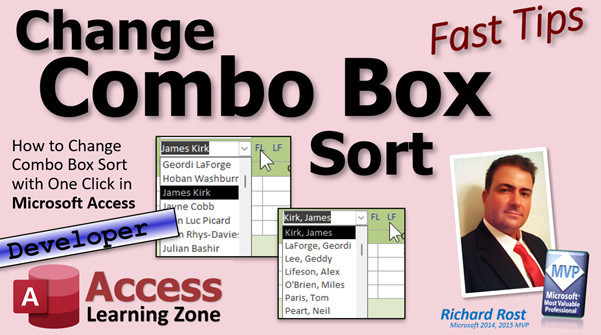
access 2016, access 2019, access 2021, access 365, microsoft access, ms access, ms access tutorial, #msaccess, #microsoftaccess, #help, #howto, #tutorial, #learn, #lesson, #training, #database, resort combo box, resort list box, change combo box sort, change list box sort, ms access change sort of combo box, Sorting Data in Combo Box
More InformationTranscript Welcome to another FastTips video brought to you by AccessLearningZone.com. I am your instructor Richard Rost.
In today's video, I'm going to show you how to dynamically change a combo box's sort so you can sort by first name last name or last name first name just by clicking on a little label there. See it? Click on a little FL or LF, or however you want to handle it.
Now, I am going to mark this as a developer level tip because you're going to need two lines of code. Just two. That's it. Two lines of source code. But you got nowhere to put it. That's what I'm going to show you. So if you've never done any VBA programming before, don't panic. It's not hard.
Go watch this first. It's my intro to VBA video. It's free. It's on my website and my YouTube channel. It's about 20 minutes long. It'll teach you everything you need to know.
Also, you need to know a little bit of SQL as it pertains to Access. Just a little bit. So go watch this video first. You need to know what a SELECT statement is and an ORDER BY. It's not scary.
Here I am in my TechHelp free template. This is a free database. You can grab a copy off my website if you want to. And if you have not watched my invoicing video where I make this guy, the order form, and we have this drop-down combo box right here, this is what we're going to be changing.
You might want to sort this last name, first name, or first name last name depending on your whim of that day. This is a simple example, but you could do it with any kind of combo box you want.
Some people have a product combo box that's got part number and serial number and unit number. All kinds of different numbers. You want to sort it differently depending on what you're trying to find.
Normally, when we designed this, we used the combo box wizard. If you open up the properties for that combo box and go to data, you're going to see a row source right there. I'm going to zoom in, SHIFT+F2.
This row source gets the stuff that goes in the box. Since the stuff is only coming from one thing, that customer last name, first name query, I can get rid of some of this stuff. We can get rid of that. We can get rid of the brackets because we don't have any spaces or odd characters in our names. So we can get rid of all that and clean this up a little bit.
That, in its simplest form, is what this SQL statement is. It says SELECT. Go get me the customer ID and LF, which is the last name, first name that we put together, from that query, and then ORDER BY LF.
Here's my customer_LFQ. It's right here. That's all that does. That query puts together first name and last name in that order.
Now, what we can do is we can totally ignore this query and write that SQL statement ourselves in a little event.
We need different ways to fire this event off, so the user does something - click something, double click something, whatever you want to do. You can make a button. I like to use little labels.
I'm just going to make some room here and I'm going to put two little labels right here for last name and first name. I just copy this label, copy-paste. See, it hides behind the subform here. That's one of the quirks in Access. Things will hide behind subforms.
We'll change this to LF. We'll make that a little smaller and we'll copy that and paste it again. We'll make this guy FL. Get down there. FL.
I like to color these guys blue. It tells the user, hey, you can click on this and something happens.
Let's give them good names. I'm going to slide this over here. Let's give these guys good names. We don't want them called label 14. Never leave your stuff called label 14. This will be the LF label. And this one will be the FL label.
Now we're ready to add events to these guys. So click on the first one. We're going to go to events. Basically, for a label, you have On Click and On Double Click. We're going to use On Click. Open up this guy, my VB code editor.
We're going to come right in here and say customer_combo - that's the name of my combo box - .RowSource. Combo boxes and list boxes will work the same way, by the way - the same thing.
Combo box .RowSource equals... Now, in here, you could put a table. You could put just customer_T. You could put a query if you want to. We're going to put SELECT customer_ID - that's our hidden column, that's the bound column, it's where we get our ID for the value to save in the table. So SELECT customer_ID, comma.
Now we have to put in here - this is last name, first name. We want to stick together last name and first name. So last name, and we want the comma. Last name, comma space, and first name. There's our second field. So: SELECT customer_ID, and then last name comma, first name FROM customer_T ORDER BY last name, first name.
When you want your sort, turn this thing off, we don't need that. Order by last name, first name.
Now, something is wrong with that command. What's wrong with that? Since these double quotes are inside of a string, these have to be double double quotes. If you don't know all about that, go watch my double double quote video. I'll put a link to that down below as well. We want this to literally be last name and quote, comma, quote and first name.
Now, let's do the other one. Come back out here, we're going to click on the first name last name label. On Click. Dot, dot, dot. Up here, these are alphabetical. That's why it goes FL and then I and then LF.
Same thing. In fact, we can copy that. Well, now let's just retype it.
Customer_combo.RowSource = "SELECT customer_ID, first name & ' ' & last name FROM customer_T ORDER BY first name, last name;"
Customer ID always has to be first, comma, first name and a space and last name. We don't want a comma there. It's just Richard Rost, James Kirk, whereas the other one's going to be Kirk, comma, James.
From customer_T ORDER BY first name, last name.
Again, if I press enter, you'll see that that's invalid because these need to be double double quotes. In fact, lots of people have problems with that double double quote thing. I have two different videos on problems with double double quotes. I'll often just write the string out like I just did and then go back in and find the spots where I have to make double double quotes.
Now we're ready to test. So let's save it. Give it a quick debug compile. Just make sure everything's good. Let's come back out here. Close this. Close this. Open it back up again.
Let's drop the box down. Now we're last name, comma, first name.
Let's click on the FL button. Click. Nothing appears to happen. But let's drop the box down. Look at that. The records have changed. It's now first name, last name in there.
Now, why is this one still that? Well, it doesn't actually change what's in the box. To do that, we'll have to requery the box. You'll see it in just a second. Let's click on this one now, LF. Click. Now it goes back to last name, first name. Look at that.
So it's working. We just now have to update this guy. That's why I said it's going to be two lines of code. Because here we need a little customer_combo.Requery. Then I will copy and paste. We'll put that one right down here too.
If you want, you could drop the box down too. But now we're getting ahead of ourselves. That's why last name, first name, click. First name, last name, click. See, it changes in the box down this time too.
So you click and now you can drop this down, and it's handy. Now, if you want to search for Tom, it brings you right to the Toms. Or if you know his last name, you can click on last name first and type in Paris, and it brings you right to the Parises. See? That's why it's handy to sometimes be able to change that.
If you don't want these little buttons here, you can put them down at the bottom somewhere. Change customer sort or whatever you want to do. You can make a right-click menu and say, change sort that way. The sky's the limit with Access. There's all kinds of stuff you can do.
This method works with combo boxes and list boxes. I've got another video that shows you how to do it with a continuous form. Here's that video. Click the sort. I'll put links to all this stuff down below.
This week we can click on the column header, which is just a label again. Instead of changing the row source, though, we're changing the record source. It's different for forms. It's called a record source.
I've also got a search and sort template that covers that plus it changes the colors of these. You can type in search parameters above that in these little boxes. All kinds of stuff in that one.
I've got my big long search seminar, which covers all that stuff plus a ton more. If you want to learn about searching, sorting, all that stuff, I'm your guy. I have hours and hours and hours and hours of training on how to do this kind of stuff.
If you want to learn VBA programming with Access in general, I have, I don't know, hundreds of hours of developer training. I have so much, I can't even keep track of it anymore. I think I'm up to developer 42 or 43, somewhere up there. There's lots of them.
There you go. There is your fast tip for today. I hope you learned something. I hope you enjoy learning with me. Post your comments down below. Let me know what you thought of this video.
Of course, if you want to learn more, there's lots more on my website. I'll see you next time. Intro In this video, I will show you how to dynamically change the sort order of a combo box in Microsoft Access using just a couple of lines of VBA code. You'll learn how to let users switch between sorting by first name last name or last name first name just by clicking labels on your form. I'll explain how to set up the row source SQL for the combo box, create clickable labels to control sorting, and update the combo box display in real time. This easy developer tip helps make your Access forms more flexible and user-friendly. Quiz Q1. What is the main goal demonstrated in the video?
A. Create a combo box that adds new customers
B. Dynamically change a combo box's sort order between first name, last name and last name, first name
C. Filter a list box using VBA
D. Change the colors of combo box rows
Q2. When modifying a combo box to switch the sort order, what user interface approach did Richard use in the video?
A. Radio buttons
B. Checkboxes
C. Clickable labels (LF and FL)
D. A drop-down menu
Q3. Which property of the combo box is programmatically changed to alter the sort order?
A. ControlSource
B. RowSource
C. ListRows
D. Value
Q4. What must be done after changing the RowSource property so that the combo box updates its display?
A. Restart Access
B. Use the Requery method on the combo box
C. Change the column widths
D. Save and close the form
Q5. Why is it necessary to use double double quotes inside the VBA string statements for the RowSource?
A. To escape spaces in SQL
B. To concatenate field names properly
C. To include quotes inside a string in VBA code
D. To fix a bug in Access
Q6. In the given SQL used for sorting by last name, first name, what is the correct structure of the SELECT statement?
A. SELECT first_name, last_name FROM customer_T ORDER BY customer_ID;
B. SELECT customer_ID, last_name & ', ' & first_name FROM customer_T ORDER BY last_name, first_name;
C. SELECT customer_ID, first_name & ' ' & last_name FROM customer_T ORDER BY first_name, last_name;
D. SELECT * FROM customer_T ORDER BY last_name;
Q7. According to the video, which control types can utilize this dynamic sorting method?
A. Only combo boxes
B. Only list boxes
C. Both combo boxes and list boxes
D. Only continuous forms
Q8. What mental model does Richard advise for understanding the double double quotes issue?
A. Double quotes separate SQL statements
B. Each quote inside quotes must be doubled in VBA strings
C. SQL does not use quotes
D. Only use single quotes in Access VBA
Q9. If a user wants to add an alternate way to select the sort order besides the label buttons, what suggestion was mentioned in the video?
A. Add a radio button group next to the combo box
B. Create a right-click context menu option
C. Use a toggle button
D. Use a separate subform
Q10. What is the purpose of the combo box's bound column in this example?
A. To store the customer's full name
B. To display the customer's address
C. To hold and store the customer_ID value for use in the table
D. To format the display text
Answers: 1-B; 2-C; 3-B; 4-B; 5-C; 6-B; 7-C; 8-B; 9-B; 10-C
DISCLAIMER: Quiz questions are AI generated. If you find any that are wrong, don't make sense, or aren't related to the video topic at hand, then please post a comment and let me know. Thanks. Summary Today's video from Access Learning Zone covers how you can dynamically change the sort order of a combo box in Microsoft Access using a simple VBA technique. Specifically, I explain how to let users switch between sorting by last name first or first name first just by clicking a small label next to the combo box. This kind of flexibility is not only useful for names but also can be applied to any combo box, whether you are dealing with products, serial numbers, or anything else you might want to sort differently on the fly.
Before jumping into the specifics, I want to mention that this tip is geared towards developers, or those who are becoming more comfortable working with VBA code in Access. The entire technique only requires two lines of VBA, but it helps to know where and how to use them. If you have not tried any VBA programming before, don't worry. It is a manageable process. I suggest you check out my introductory video to VBA, which is available for free on my website and YouTube channel. It runs about 20 minutes and will get you up to speed with the basics you will need for tips like this.
A basic understanding of SQL, specifically SELECT statements and ORDER BY clauses, is also valuable before proceeding. I have a free training video dedicated to SQL in Access as well, which you can find on my site. Knowing how to structure queries will make this whole process much clearer.
Now, using my TechHelp free template as an example (which you can download from my website), I'll demonstrate the process with the order form's customer combo box. Traditionally, when you design one of these combo boxes using the wizard, Access sets up a row source based on a query — often sorting by last name, first name. But what if you want to let your users toggle between that and first name, last name? That's exactly what I'm going to walk you through.
First, you want to provide a simple interface for the user to trigger the change. Instead of a button, I prefer using two small labels — one labeled "LF" (for last name, first name), and the other "FL" (for first name, last name). By giving these labels meaningful names, like lfLabel and flLabel, it's easier to keep your project clean.
For functionality, you set up an On Click event for each label. This is where you place one line of VBA code that assigns a new SQL statement to the combo box's RowSource property. For example, if you want to sort by last name, first name, the SQL statement selects the customer ID and a concatenation of last name, a comma, and first name. It sources the data from your customers table and sorts it as needed. The structure for first name, last name is almost identical, just with the order of the columns switched.
It's very important to use the right string structure in VBA. When writing SQL inside VBA, you need to watch out for quote marks, especially if you are building strings that themselves contain quotes. I recommend reviewing my video on handling double quotes if you run into problems.
After updating the RowSource, you'll also need to add a second line of code that requeries the combo box so the changes appear right away. That's the two lines of VBA you need for each label — one to set the RowSource, and one to requery the control.
Once you've set this up, clicking one label switches the combo box to display and sort by last name, first name, while clicking the other reverses it to first name, last name. The update is immediate and reflected in the list as soon as you use the combo box.
You do not have to use labels if you prefer other methods. You can provide this choice as menu options, command buttons, or even in a right-click menu. The important part is that anything that can trigger a VBA event can be used to swap out the RowSource SQL.
This method can also be applied to list boxes and is similar to techniques for sorting continuous forms, where instead of RowSource, you use RecordSource. If you are interested in those topics, I have other videos and templates that cover search and sort features, including ones that let you change colors and provide more advanced interactivity.
For those looking to master VBA, searching, or more complex sorting and filtering techniques in Access, I have a wide variety of tutorials, seminars, and in-depth courses available on my site. There are hundreds of hours of developer training, so feel free to explore those if you want to expand your skills further.
To see this process step-by-step, including all the details discussed here, you can find the complete video tutorial on my website at the link below. Live long and prosper, my friends. Topic List Dynamically changing combo box sort order in Access
Using VBA to modify a combo box's RowSource
Creating clickable labels to trigger sort changes
Writing SQL SELECT statements for combo box sorting
Concatenating names in SQL for display formatting
Assigning events to labels for interactivity
Handling double quotes in VBA SQL strings
Applying the Requery method to update combo box data
Sorting by last name, first name versus first name, last name
Naming controls properly for code clarity
Customizing combo box sorting for user needs
Integrating sort options in user interface design Primary Topics combo box sorting, VBA in Access, dynamic row source, user interaction, SQL in Access, label-driven events
Secondary Topics double double quotes, combo box vs list box, Access UI tips
|






