Data Types
By Richard Rost

 3 years ago
Microsoft Access Data Types for Beginners
In this Microsoft Access tutorial I'm going to walk you through all of the different data types that you should know as a beginner, and we're going to talk about some of the mistakes I see beginners make all the time. There are data types you should definitely learn and use. There are some data types that you shouldn't bother concerning yourself with and there are others that you shouldn't use at all. We're going to talk about all of them in this lesson.
Links
Recommended Courses
Keywords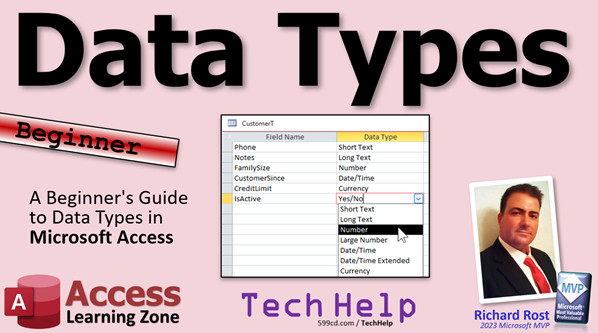
access 2016, access 2019, access 2021, access 365, microsoft access, ms access, ms access tutorial, #msaccess, #microsoftaccess, #help, #howto, #tutorial, #learn, #lesson, #training, #database, Data types, short text, long text, numbers, double, decimal, long integer, long into, date, time, datetime, currency, autonumber, yes/no, ole objects, hyperlinks, attachments, evil, calculated value, lookup wizard
 Subscribe to Data Types
Get notifications when this page is updated
More InformationTranscript Welcome to another TechHelp video brought to you by AccessLearningZone.com.
I'm your instructor, Richard Rost, and in today's video, I'm going to walk you through all the different data types that you should know as a beginner. We're going to cover some of the mistakes that I see beginners make all the time when setting up their tables. There are some data types you should definitely learn and use, and there are some data types that you shouldn't bother concerning yourself with until you're much more advanced. There are others that you shouldn't use at all, ever at any time. Don't. Just don't do it. I'll tell you which ones they are in just a few minutes.
Even if you are an advanced user, you might benefit from my almost 30 years of wisdom doing this stuff.
First up, short text. Most of the fields that you're going to make are going to be short text fields. Even if you think something should be stored as a number, like a phone number or a zip code, or a social security number, a lot of things that have the word number in them aren't necessarily numbers. As far as the database is concerned, these things should be stored as short text.
My litmus test is, are you ever going to be doing math on this field? Are you going to ever add together a bunch of phone numbers, or take the average of some zip codes? No. If you're not going to be doing math or calculations on it, store it as text. Why? Because it's going to be easier to deal with text in a lot of situations than it is with numbers.
Since this is a beginner video, a lot of what you're going to hear is just "trust me, you'll thank me later." It's a short video. I'm not going to go into all the details. I cover a lot more details in my full course.
You will have the option to change the field size. In older versions of Access, it was important to keep that field size smaller. For example, a first name would never be 255 characters long, so you would want to bring that down to something like 20. That's back when Access wasn't great with managing the space of the files on the hard drive, and it could waste space if that number was too big.
Now that's not a problem. Leave it at 255. Just leave it. Access will utilize that space properly now. Unless you have a reason to keep that smaller—like, for example, a social security number. That's always going to be nine digits and not different. Actually, I think there is a situation where you can have a 10-digit social security number, so there are some situations where you might want to bring that down. But generally, especially now when you're a beginner, don't worry too much about that field size. Just leave it at 255. You can worry about that later. You can always make it smaller later.
Next up, long text. These are for fields that store lots and lots of information, like notes. Use them sparingly, but use them if you need to. Just don't take things that should be in short text and put them in long text, because long text fields aren't as efficient as short text fields. There are some things you can't do with long text fields, like you can't put them in combo boxes. So if you absolutely are sure that you need more than 255 characters, put it in long text, but use them sparingly. If you are going to use a lot of long text fields in your tables, make sure you compact and repair your database often. If you don't know what that is, I have a separate video on compact and repair. I'll put a link down below. You can go watch that.
Next up is numbers. There are two kinds of numbers you're going to use right now as a beginner: long integer and double. That's it. Don't worry about any of the other data types. Don't use decimal. This guy right here—lots of people get in trouble using decimal. Decimal has its own rules, and yes, it's pretty cool, but it's a more advanced thing.
If you need counting numbers, single numbers, integers, 0, 1, 2, 3, 4, that kind of thing, use a long integer. Don't worry about byte. Don't worry about integer. Use long integer always. If you need floating points or decimal points, like 3.2 for example, always use double. Don't worry about single. Don't use decimal and don't worry about this thing called a replication ID.
What do you use? Long integer, double. That's it. I cover the other ones in my expert classes. You don't need to worry about them right now.
Date and time fields are very useful. One thing to remember as a beginner is that a date/time field stores both a date and a time in the same field. You don't need a separate one for the day and then the time. It's together. A value of 1 equals 1 day. I have a whole separate video on date math. It's really cool. You should watch that. I'll put a link down below.
It's really handy because if you take a date, like January 1st, and you add 1 to it, now you go 1 day in the future. Knowing that little rule is very helpful. Skip the extended date/time. You don't need that. I think I put it in two spots: date/time extended.
A question a lot of beginners ask: if you want to put a default date in there, there are two functions that are handy. There's "Date" and there's "Now," and you put them right here in the default value under the date/time field. Date gives you today's date at midnight. Now gives you today's date and time to the second. A lot of times, people, like when you have an order entry system, want to have the default order date be today's date or right now if you want. That's why you really have to worry about dates and times.
There are millions of functions that are available for dates and times, like calculating the difference between two dates, all kinds of stuff. I have videos on all of that. For now, date/time is date/time.
Currency value, pretty straightforward. It's a special optimized number that is designed for currencies. Use it. It's especially designed to work with currency values, and that's pretty much all I have to say about that.
Auto numbers. Big deal. I've got probably a dozen videos on auto numbers. I'll put a link down below because auto numbers are one of the most misunderstood things in all of Access. Since you're a beginner, every table should have an auto number. Customer table should have a customer ID. An order table should have an order ID. An employee table should have an employee ID. Every table should have an auto number. That's called your primary key. It has two purposes.
Number one is so that every record can be uniquely identified. You only have one customer number five. The second reason is to make relationships between tables. That's a little more advanced. Don't worry about that right now. But those are the only two things you have to worry about.
Auto numbers are not for you. You should not care what they are. It doesn't matter if someone's customer number six or customer number 552. That is completely irrelevant. Can you add a different, like a customer code, if you've got an existing numbering system? Sure. Make that a second field. Put the auto number in there. Let Access handle it. Let Access do its thing. You don't worry about it.
Stick with long integer and increment down here. Don't try to change those settings. There are some different options. Don't mess with that. Just leave it alone. Go watch my auto number videos. Again, I'll put a link down below. We'll talk about all these extra videos in a few minutes. There are tons of videos on auto numbers. For expert users, there are some exceptions. For beginners, just do what I tell you to do. Just do it.
Yes/no values. These are fine. These are called Boolean values: yes, no, on, off. Change the format if you want. That's not going to affect much. I'm using PowerPoint, as you can tell from the little cursor there.
One thing beginners should know is that if you are going to use yes/no values in your queries, sometimes they will show up as zero for no and negative one for yes, which is different from some other database systems. In a lot of other database systems, like even SQL Server, yes is one. In Access, it's negative one. It's a long explanation. Don't worry about it. If you add up a bunch of yes/no fields, for example, you can take the sum of them and multiply by negative one to get the count.
Yes/no values are fine.
This brings me to my list of all the things you should avoid in Access. Even though they're there, I don't want you to use them. If you're going to be learning Access with me and following along with my courses, I don't use these. You're not going to use them with me. Some of them, you don't need to worry about right now. Others are just plain evil.
Large number and date/time extended: those are good, but for more advanced users. Those are largely for compatibility with SQL Server. You don't need to worry about those right now.
OLE objects. I used to use those back in the day before I knew better, but an OLE object stands for Object Linking and Embedding. That's where you can take any other kind of object, like a file, a Word document, a picture, or a PDF file, and you can actually store that inside your database. That's bad, because that will blow out your database. It causes it to run slower. It's a bad idea to do that.
What you want to do is store those objects as external files in a folder somewhere and keep a link to them in the database. I have a whole separate video on imaging, which shows you how to do that with images. Other file types work pretty much the same way.
Hyperlinks? Hyperlinks are okay, but I don't like using them because hyperlinks are basically email addresses or web page links, things like that, where when you click on them, it opens up your web browser or your email program to send an email. I don't like those because they are stored as text inside the table, but there's some weird formatting and some rules that are associated with it, and to break those apart later is a pain.
So I've got a better way. I want you to store hyperlink things like URLs and email addresses just as short text fields. Then I have other videos that can teach you how to click on them and launch your web browser or click on them and send an email. Don't use the hyperlink data type. I don't like it.
Attachments, just like OLE objects, are a big no-no. You can actually attach files to your tables and store files inside your database. Do not do it. I do not like it. I cannot like it, Sam I am, or however that goes. I do not like green eggs and ham. I do not like attachments.
Calculated values. Sometimes for advanced users, a calculated value in a table has some use, but try not to use those. I prefer calculated values to be performed in queries. Don't store those in your tables. I have a whole separate set of videos on why you want to do that. I'll put a link to my calculated query fields down below. Use queries to do your calculations. Don't store those in your tables.
Finally, the lookup wizard. The lookup wizard is basically a crutch. It is to take what should be done with relationships in two tables and do it in one table. It's like looking up a value, such as picking from a list of states or from a list of employees. That should be done properly by using two tables with a relationship between them and a combo box. The lookup wizard lets you put all that inside of a table field, which is not the way you properly build databases. It's basically a crutch for beginner users to be able to do that.
It's something that does take a little more work, but you should do it properly because to take something that's done wrong with a lookup wizard and to fix it later on is a pain in the butt. So just don't use the lookup wizards. You want to use what's called a relational combo box. I'll put a link to that video down below as well.
A lot of times, people come to me and say, Rick, I don't really want to be an advanced Access developer. Why can't I use these crutch features like calculated fields in tables, attachments, and lookup wizard? That's fine. Microsoft added a lot of these features to Access to make it easier for beginners to do things, but in so doing, they wrapped up these features in what's not considered proper database design by a lot of the experts, myself included. That's why we don't like doing things like using table lookup wizards.
If you don't want to ever be an advanced Access developer and you just want to use these features, that's fine. I've had a lot of my students say this to me, and then come back a year or two later, looking for me to help them fix it because they didn't listen to me the first time. They come back and say, yeah, I should have listened to you. Then I have to help them get all the calculated fields out of their tables.
So just trust me. A lot of people think they're not going to get deep into Access, but honestly, when you start working with it and using it and seeing what it can do, you get hooked. I didn't have any designs on being an Access expert when I started using it back in 1994. After working with it for a couple of years, I fell in love with it. That's all I've pretty much been doing for the past nearly 30 years now. It grows on you, so just take it from me, avoid those features.
Now, there are some links down below in the links section in the description below the video. There's a whole bunch of interesting things that I want you to go watch or read. First is my Evil Access Stuff page, which covers all the things you shouldn't do, like spaces in your table names, using reserved words for fields, and things like that. I've got videos that go with most of these. If not, I'll have videos that go with them soon, so check that out first.
You'll also find links down below for a lot of the things that I mentioned in this video, like compacting and repairing your database. It's very important to do this on a regular basis. Of course, it depends on how much you use your database. I'd say once a month is good. Go watch this one. These are all free videos, by the way. All the things I'm mentioning right now—they're all free. They're on my website. They're on my YouTube channel. Go watch them.
If you want to learn more about how dates work in Access—dates and times—go watch my date math video. Lots of cool tricks on that one. I have a bunch of videos on auto numbers, different ones. Here they are. Are they good or bad? They're not for you. How do you restore a deleted one? All kinds of stuff.
If you want to learn to work with images in your database, don't use OLE objects or attachments. My images video will show you how to do it. My hyperlink fields video will teach you the proper way that you should store hyperlinks in your tables. Here's the video I mentioned on calculated fields, which should be done in queries or sometimes directly on forms. You could put a form footer calculation in there, but don't put them in the tables.
Here's that video on a relational combo box. This is the proper way to handle a lookup. You're going to have two tables involved, and you're going to look the values up from a different table, and that requires knowing relationships. Of course, I have a good video—free to watch—on relationships.
Go watch all of those things, and they'll make you a better Access developer.
Here's the run down again. Good stuff: short text, long text, numbers (long integer and double only), date/time, currency, yes/no, auto number. Avoid everything else. Don't use them, and if you want to learn why, watch those other videos. I'll explain why in more detail in those other videos.
For now, if you're just getting started off with Access, stick to this list over here—this stuff.
In my Access beginner lessons, I spend a lot of time going over all the different stuff as far as data types, building tables, and all that great stuff. Level one is free—it's four hours. Level two, we go over a lot more stuff, and then level three and beyond covers all kinds of field properties, field size, decimal places, input masks, all the different things about building tables in the next couple of lessons.
Now, those of you who have been working with Access for a while, do you disagree with me? Do you have some different ideas on data types? Did you not agree with some of the stuff that I said? I want to hear from you in the comments. I can just go from my experience, having been doing this for nearly 30 years, but if you have some ideas or things that I didn't think about, let me know. Post them in the comments down below.
I love learning this stuff too. I don't claim to know everything there is to know about Access. I still learn something every week. If I don't learn something new, that's, to me, a bad week.
That is your TechHelp video for today. I hope you learned something. Live long and prosper, my friends. I'll see you next time. Intro In this video, we'll talk about the different data types available in Microsoft Access, focusing on which ones you should use as a beginner and which ones to avoid. I'll show you the recommended data types for storing information like text, numbers, dates, currency, and yes/no values, and explain why certain fields, like phone numbers or zip codes, should be text instead of numbers. We'll also cover common mistakes beginners make, discuss why you should skip certain features like OLE Objects, Attachments, Hyperlinks, and the Lookup Wizard, and provide tips for setting up efficient and reliable tables in Microsoft Access. Quiz Q1. According to the video, which data type should you use to store a phone number in Access?
A. Short text
B. Long integer
C. Double
D. Currency
Q2. What is the main criterion you should consider when deciding whether to store a value as text or a number?
A. Whether it contains only digits
B. Whether you will perform math/calculations on it
C. The length of the value
D. If the value is unique
Q3. What is a recommended default length for short text fields in modern versions of Access?
A. 20
B. 50
C. 100
D. 255
Q4. When should you use a long text field instead of a short text field?
A. When you want to store phone numbers
B. When you need to store more than 255 characters in a field
C. When you want to store only numbers
D. When you want to create a primary key
Q5. What is a disadvantage of using long text fields?
A. They cannot store more than 255 characters
B. They cannot be included in combo boxes
C. They are the most efficient fields in Access
D. They can only store numbers
Q6. As a beginner, which two numeric data types does Richard recommend you use in Access?
A. Byte and Integer
B. Integer and Double
C. Long Integer and Double
D. Decimal and Replication ID
Q7. When should you use a long integer in Access?
A. For decimal or floating-point numbers
B. For text-based codes
C. For integers like 0, 1, 2, 3, etc.
D. For currency values
Q8. What is the primary advantage of using the currency data type in Access?
A. It stores text well
B. It is optimized specifically for currency values
C. It stores phone numbers efficiently
D. It is seldom used and not recommended
Q9. What is unique about the date/time data type in Access?
A. It stores only the date
B. It stores only the time
C. It can store both date and time in the same field
D. It cannot be used in queries
Q10. What default value would you use to insert today's date with the current time in a date/time field?
A. Date
B. Today
C. Now
D. CurrentTime
Q11. What is the purpose of an auto number field in an Access table?
A. To store user passwords
B. To uniquely identify each record and help with relationships
C. To store currency values
D. To hold long text notes
Q12. Why should you not worry about the actual values of auto number fields?
A. They are meant for storing phone numbers
B. Their values must be manually entered
C. They are only meaningful to Access for identification and relationships
D. Their format is always meaningful to users
Q13. When performing sums on yes/no (Boolean) fields in Access, what value does 'Yes' represent?
A. 1
B. 0
C. -1
D. True
Q14. Which of the following data types should you AVOID as a beginner in Access?
A. Long text
B. OLE Object
C. Currency
D. Yes/No
Q15. What is a major reason to avoid storing files like images or PDFs inside the Access database?
A. It makes data entry faster
B. It improves database performance
C. It makes the database file very large and can slow it down
D. It allows searches for file contents
Q16. How does Richard recommend storing email addresses or URLs in Access tables?
A. As hyperlinks
B. As short text fields
C. As auto number fields
D. As attachments
Q17. Why should calculated fields generally NOT be stored in tables?
A. Queries are more suitable for storing calculated values
B. Calculated fields require OLE objects
C. Calculated fields are only needed for dates
D. Auto number fields perform calculations automatically
Q18. What is the problem with using the Lookup Wizard in table design as explained in the video?
A. It makes it too easy to create relationships
B. It stores the lookup list as long text
C. It creates a "crutch" that hides proper relationships, making future maintenance difficult
D. It requires using auto number fields
Q19. What should you use instead of a lookup wizard to relate two tables?
A. Single field with text values
B. Hyperlink field
C. Relational combo box built on proper relationships
D. Attachment field
Q20. Why does the video discourage using attachments in Access?
A. They are required for relational databases
B. They make the database smaller and more efficient
C. They store files inside the database, making it large and prone to performance issues
D. They can only hold text files
Q21. What maintenance task does Richard recommend doing regularly if you use many long text fields or make frequent changes?
A. Delete old tables
B. Compact and repair the database
C. Rename your database file
D. Clear all queries
Q22. Which of these is a GOOD list of recommended data types for beginners from the video?
A. Short text, currency, auto number, attachment
B. Short text, long text, long integer, double, date time, currency, yes/no, auto number
C. Short text, OLE object, hyperlink, calculated
D. Short text, date time extended, decimal, replication ID
Answers: 1-A; 2-B; 3-D; 4-B; 5-B; 6-C; 7-C; 8-B; 9-C; 10-C; 11-B; 12-C; 13-C; 14-B; 15-C; 16-B; 17-A; 18-C; 19-C; 20-C; 21-B; 22-B
DISCLAIMER: Quiz questions are AI generated. If you find any that are wrong, don't make sense, or aren't related to the video topic at hand, then please post a comment and let me know. Thanks. Summary Today's TechHelp tutorial from Access Learning Zone covers the essential data types in Microsoft Access that every beginner should understand. My goal is to help you set up your tables correctly from the start and avoid many of the common mistakes I see people make when first getting started. Even if you have some experience with Access, you might benefit from my nearly three decades of working with the program.
Let me begin with short text. Most fields in your tables should be short text, even in cases where the data includes the word "number," such as phone numbers, zip codes, or social security numbers. The reason is simple: if you are not performing mathematical operations on the data, it almost always belongs in a short text field. You are never going to total up phone numbers or average zip codes. Keeping these as short text fields makes your database easier to handle in many situations.
When it comes to field size, earlier versions of Access required some attention to how long your text fields were, because space management used to be an issue. For example, first names would never require the default 255 characters, so you used to shorten it. With current versions and modern computers, you can safely keep it at 255, unless you have a special reason to shorten it, such as for a field that always has a fixed length. For most beginners, you do not have to worry about this detail right away.
Long text fields are designed for notes or other information that exceeds 255 characters. Use them when necessary, but do not create long text fields unless you really need the extra space. Long text fields are less efficient than short text fields, and you will find certain features, such as combo boxes, do not work with them. If your database relies heavily on long text fields, remember to compact and repair your database regularly to keep it running smoothly.
When it comes to numbers, there are only two types you need to concern yourself with as a beginner: long integer and double. Use long integer for counting and whole numbers, and double if you need decimals. Ignore other numeric types like byte, integer, and especially decimal for now. Decimals have specific quirks and are reserved for advanced topics.
Date and time fields work together in Access; a single field stores both the date and the time. There is no need to separate them. One useful fact is that the number 1 represents one day in a date/time field, so you can easily calculate dates by adding numbers. Skip over options like date/time extended for now. If you want to set a default value for a date/time field, the Date function returns the current date at midnight, while Now includes the current time as well. These are helpful for things like setting the order date to "today" automatically.
Currency fields are straightforward—they are optimized specifically for handling money values. Use them whenever you need to store financial data.
Auto numbers are crucial in Access. Every table should have an auto number field, such as CustomerID, OrderID, or EmployeeID. This field serves as your primary key, ensuring that each record is uniquely identified. It also makes setting up relationships between tables much easier later on. Auto numbers are for Access to handle, not for users to worry about. Let Access manage these values for you, and do not try to customize or override how they work.
Yes/No fields, also known as Boolean fields, are perfect for storing values like true/false or on/off. One detail to note is that within Access, a "yes" value is actually stored as -1, and "no" as 0. While this is different from other database systems, it is entirely normal in Access. Just be aware of it if you are using yes/no fields in your queries or calculations.
Now, let's discuss data types and features you should avoid as a beginner. While these options show up in Access, I recommend you stay away from them:
Large number and date/time extended are fine for advanced users who need compatibility with SQL Server, but beginners do not need them.
OLE objects should be avoided. Storing files or images inside your database using this method can balloon your file size, slow down performance, and cause unnecessary headaches. Instead, store files in an external folder and keep a link to the file in your database.
Hyperlink fields are technically okay, but storing URLs or email addresses as short text is far simpler and avoids unnecessary complications, since hyperlinks in Access use odd formatting that is difficult to work with later.
Attachments are just as problematic as OLE objects. They let you store files inside your database, but this is rarely a good practice. Instead, use links to external files.
Calculated values inside tables can seem convenient, but calculations should be done in queries rather than in the table itself. This gives you much more flexibility and keeps your data structure clean.
Finally, avoid using the Lookup Wizard in table design. It tries to mash together what should be a relationship between two tables into a single field, which goes against good database design. Set up proper relational tables and use combo boxes on forms instead. While these shortcuts may seem useful now, if you continue with Access and want to improve your data management skills, following the correct approach from the start will save you countless hours down the line.
Microsoft added these features to make things easier for beginners, but after working in Access for so many years and helping countless students, I can assure you that these shortcuts often lead to bigger problems later. Many people start out thinking they will not need to become advanced users, but once you get familiar with Access, you may find yourself wanting to do more and more with it. Laying a solid foundation now will make it easier for you to grow your skills in the future.
In the links section on my website, you will find resources discussing mistakes to avoid (such as spaces in table names or using reserved words for field names), as well as links to in-depth free videos on topics like compact and repair, working with images, creating proper hyperlink fields, making calculated queries, creating relational combo boxes, and establishing relationships between tables.
To summarize, here are the data types you should stick to as a beginner: short text, long text (when you need more than 255 characters), numbers (long integer and double), date/time, currency, yes/no, and auto numbers. Stay away from everything else for now. As you grow as a developer, you will learn which advanced features you can safely incorporate.
In my Access beginner courses, we go into much more detail about data types, field properties, and building tables. Level one is free and covers four hours of instruction. Levels two and three move into even more detail on field properties and building out your tables.
If you are an experienced Access user and have different opinions about some of what I covered here, I encourage you to share your thoughts. I enjoy learning new things myself, and fresh perspectives are always welcome.
You can find a complete video tutorial with step-by-step instructions on everything discussed here on my website at the link below.
Live long and prosper, my friends. Topic List Short text data type and its uses
Selecting proper field size for short text
Storing phone numbers and zip codes as text
Long text data type and when to use it
Drawbacks and limitations of long text fields
Benefit of compact and repair when using long text
Number data type overview
Difference between long integer and double
Recommended settings for number fields
Avoiding the decimal number data type
Date and time data type explanation
How date and time values are stored
Using Date and Now functions as default values
Currency data type purpose
Advantages of currency fields
Auto number data type for primary keys
Purpose of auto number fields in linking tables
Importance of ignoring actual auto number values
Using long integer for auto numbers
Yes no (Boolean) data type
How Access stores Boolean values
Problems with yes no representations in queries
Data types to avoid in Access tables
Why to avoid OLE object fields
How to store external files with database links
Why not to use the hyperlink data type
Storing URLs and email addresses as short text
Why not to use attachments in tables
Drawbacks of calculated fields in tables
Recommendation to use queries for calculations
Why to avoid lookup wizard fields
Pitfalls of using the lookup wizard for relationships
Best practices for beginner Access table design Primary Topics Access data types, table design, field properties, primary keys, best practices, beginner mistakes, data storage, database normalization Secondary Topics relationships, linking files, query calculations, data type compatibility, compact and repair, expert-level features |




