Email Report
By Richard Rost

 3 years ago
Use SendObject to Email a Report in MS Access
In this Microsoft Access tutorial I'm going to teach you how to use the SendObject command to email an invoice or any other report with just one click.
James from Cheyenne, Wyoming (a Platinum Member) asks: Is it possible to send an invoice directly to a customer by just clicking on a button on the order form itself. Right now I've got a click to open the invoice report and then click the send the button and then copy and paste their email address and type in a little message and a subject and it's just a big pain. Can all of this be automated?
Update
Please note that this technique only works with the original Microsoft Outlook application that comes with Office, not the new Outlook app found in the Microsoft App Store. Nor does it work with the online-only version of Outlook. They fundamentally changed the way it sends emails for "security" purposes.
Members
Members will learn how to customize the invoice so that the attachment has a custom file name, check to make sure there is an email address for this customer before sending, and deal with the error if the user cancels sending.
Silver Members and up get access to view Extended Cut videos, when available. Gold Members can download the files from class plus get access to the Code Vault. If you're not a member, Join Today!
Prerequisites
Links
Recommended Courses
Keywords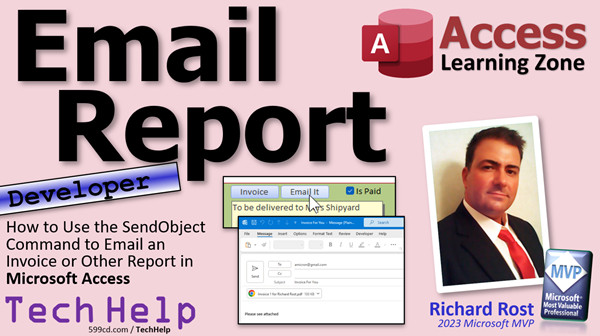
access 2016, access 2019, access 2021, access 365, microsoft access, ms access, ms access tutorial, #msaccess, #microsoftaccess, #help, #howto, #tutorial, #learn, #lesson, #training, #database, email report from ms access, email ms access report using outlook, docmd.sendobject, sendobject, acformatpdf, email pdf file from ms access, ms access send report via email as pdf
 Subscribe to Email Report
Get notifications when this page is updated
More InformationTranscript Welcome to another TechHelp video brought to you by AccessLearningZone.com. I am your instructor, Richard Rost.
In today's video, I'm going to show you how to use the SendObject command to email an invoice or any report you want to in Microsoft Access with just one click. Well, it's one click to generate everything and pop up the email form, where you can edit it and then send it. You will see what I'm talking about.
Today's question comes from James in Cheyenne, Wyoming, one of my Platinum members. James asks, "Is it possible to send an invoice directly to a customer by just clicking on a button on the order form itself? Right now, I've got to click to open the invoice report and then click the send button, then copy and paste their email address, type in a little message and subject line, and it's all just a big pain. Can all this be automated?"
Yes, James, it can. There are lots of different things you can do. In fact, I've covered a different method to do this in my other send email video, which we'll talk about at the end of class, but I'm going to show you a really simple way to do it that literally involves one line of code.
So this is a developer video. We will need some VBA, but like I said, just one line, so don't be scared of it. If you've never done any VBA programming before, go watch this video first. It's about 20 minutes long and covers everything you need to know to get started. VBA is easy. It's not scary, and I'm going to show you exactly what you have to do, but go watch this first to get a little background.
You should also know how to get a value from an open form. We're going to get the customer's email address from the open customer form, so go watch this video too.
Here I am in my TechHelp free template. This is a free database. You can download a copy off my website if you want, and you'll find the links down below.
Right now, if I want to send someone an email with their invoice in it, I've got to open up the customer form, open up the order form, find the invoice, click the invoice button that generates the invoice, and then I've got to click. I can either save it as a PDF or click the email button right here to send it through Outlook, pick PDF, click OK, and then Outlook should open and there's my email. But I've still got to copy and paste their email address, which means I've got to switch back over here and find it. I can't click behind it because this guy is in the front and is keeping the focus, so I can't click on it. It's just a pain. You have to have a subject too. Let's automate this.
I'm going to cancel this. What I want is just a button where I can click on it here and it says just email this. It will populate all that stuff for me and send it out.
Right-click, Design View. Let me get ready. Slide here. Let's make this a little smaller. I'm going to copy and paste, Control-C, Control-V. Slide you over here and we'll put in here "Email It". Give the button a good name, not Command14. I'll call it EmailButton or whatever.
Right-click, Build Event. That will bring up your code editor. You're in the EmailButton_Click. Now, what we want is DoCmd.SendObject.
SendObject lets you send any object from the database to someone by email. Come down here and pick acSendReport.
What's the object name? In this case, it's the OrderInvoiceR, the name of my report. You can see it right down there: OrderInvoiceR.
Now, output format. They don't give you a list of output formats like they do with the object type. I don't know why. There should be some intelligence for this. But it's acFormatPDF that you want. If you press Enter right now, that should capitalize properly like that. See the camel case: acFormatPDF. That's right. I'll show you where I got this from in a little bit.
Continuing on, there's even more stuff in here. Now we are on the To argument. The "To" is the email address of the recipient. So, if you have the customer form open and the customer's email address is visible right here, you can get that by grabbing Forms!CustomerF!Email.
We can put a check to make sure this is something before we click on this button, and I'll cover that in the extended cut. For now, just make sure that this form is open and there's the email address right there.
So, what would this be here? It would be Forms!CustomerF!Email (the name of the field).
Comma, now I'm going to go down to the next line. The next one is CC, then BCC, but I'm going to just ignore those. You can, if you want, like CC a copy of it to your accounting department every time you send it, or BCC it to yourself. Sometimes, if I'm sending stuff that I want to follow up on myself, I'll BCC it to myself. That way it'll come in my inbox and I can just snooze it.
I'm going to go comma comma. Subject is next, so I'm going to go to the next line. Line continue, enter, tab in. What's the subject? "Invoice Attached." If you want to get fancy, you could put the invoice number in here, right? "Invoice " & OrderID & " Attached." You get the OrderID off of the report that you're on, or actually from the order form. Both should have the OrderID.
Comma, MessageText is for what you want to be in the body of the message. "Please find your invoice attached."
The EditMessage is the default. You want Outlook to pop up so you can edit it, make changes to it, add other attachments, and change details. I like that option. If I'm sending one-off invoices one at a time, I want that on. You can set it to False, and if you do, Outlook will just send it in the background and you won't see it. That's completely up to you. I'm going to leave the default as it is.
Don't worry about the template file; it's a more advanced setting. I'll cover that in my full course. But that's all you need right there.
Save it, and now give it a quick Debug > Compile. Always a good idea to do that once in a while.
Close that.
Open it up. Orders. Oh, I moved it down here and saved it. Let's put it back up. If you make changes to a form and then save it, it'll save its position. Move it right there and hit Control-S to save it in that spot. Close it. Open it up again, and click "Email It." There it goes and boom, there it is. Perfect.
It says Invoice 1 attached. That 1 is the OrderID. "Please find your invoice attached." You can put whatever you want down here. And there's my OrderInvoiceR.pdf, which is a copy of the invoice.
Now, at this point, all you have to do is hit Send, and it will go out. I'm not going to send it. I'm going to hit Close and that will generate an error message. It says, "The SendObject action was canceled." If you cancel it, you can just hit End and it stops. I will teach you how to deal with that in the extended cut.
I'm also going to show you in the extended cut how to customize this, so instead of "OrderInvoiceR.pdf," you can put something more like "Invoice1234ForJoeSmith.pdf" as the file name. That will be covered in the extended cut as well.
So, where did I get that acFormatPDF from? Well, I went to Google and typed in "MS Access SendObject format," and you will find the Microsoft SendObject method documentation. Most of this stuff is on Microsoft's website. Scroll down and there's a list of output formats right there. You can output as HTML, RTF, SNP (the old snapshot format, which I don't think they support anymore), plain text, XLS, and a bunch of other ones. There's acFormatPDF, which is pretty much the only one I ever use. Maybe once in a while I'll use Excel format if it's just table based, but I usually stick to PDFs if I'm going to send email. Here are all the rest of those arguments that we talked about before down here too.
That's where I got that from. Honestly, I got it from a book probably 10 or 15 years ago, but that's where you can find it. I'll put a link to this page down below.
If you want to learn more about sending email, I have another TechHelp video where I go through a different method for sending email through Outlook. In this one, I go through a lot more programming, but I use a different method. It's a little more difficult, but it sometimes has better results if you want a more in-depth solution.
In the extended cut, I show you how to send mass email to multiple contacts using a loop. So you can send an invoice to everybody in the database who has not paid it - send all the latest invoices out. I cover that in the extended cut of this video.
I've also got my Access Email Seminar where I cover everything you could possibly want to know about sending emails from Access. We even build an email server in here, so you can create mass emails, send them out in batches, put merge codes in them, send them through Outlook, Gmail, or any mail server, any SMTP server that you want. There is a lot of stuff covered in this one. We even build an email server so you can have one machine sitting over there in the corner that gets all of the email from everybody on your network that needs to send email. It just goes in and out through one machine, so everyone's machines aren't busy sending emails. Lots of stuff covered in this one. That is the Email Seminar. I'll put a link to that on my website as well.
In the extended cut for the members, I'm going to show you how to specify that custom PDF file name. So right there on the PDF, we'll give it a custom file name. We'll deal with that error if the user cancels this. So, if this opens up and they're like, "No, I don't want to send it, I want to make some changes first," and they hit Cancel, we won't get that error message. We'll also make it so that it verifies their email address, so if the customer report or customer form doesn't have an email address showing, then we won't send the email. That's all covered in the extended cut for the members.
Silver members and up get access to all of my extended cut videos. Gold members get access to the databases that I build and my code vault. You all get free classes every month, and there are so many reasons to join.
That will be your TechHelp video for today. I hope you learned something. Live long and prosper, my friends. I'll see you next time. Intro In this video, I will show you how to use the SendObject command in Microsoft Access to email an invoice or report directly from your database with a single click. You'll learn how to automate the process so the customer's email address, subject line, and message body are all filled in automatically, making it much easier to send documents right from your order form. I will walk you through setting up a button and using one simple line of VBA code, along with tips for working with output formats and getting values from your forms. Quiz Q1. What is the primary function of the SendObject command in Microsoft Access as demonstrated in the video?
A. To export data tables to Excel format
B. To send database objects such as reports via email
C. To encrypt Access databases for security
D. To generate backups of Access databases
Q2. Which VBA object type is used to send an invoice report as an email attachment?
A. acSendForm
B. acSendQuery
C. acSendReport
D. acSendTable
Q3. What output format does the video recommend for emailing reports through SendObject?
A. acFormatHTML
B. acFormatXLS
C. acFormatRTF
D. acFormatPDF
Q4. How does the system retrieve the customer's email address for the SendObject command?
A. By querying the Orders table directly
B. By accessing Forms!CustomerF!Email
C. By using a parameter input box
D. By extracting emails from an Excel spreadsheet
Q5. What happens if you set the EditMessage parameter of SendObject to False?
A. The email is saved as a draft instead of sent
B. Outlook opens and allows you to edit the email before sending
C. The email is sent automatically without popping up the email editor
D. The email is sent only after user confirmation
Q6. Why is compiling the code using Debug > Compile recommended after adding VBA code?
A. It encrypts the VBA project for security
B. It clears all previous VBA errors automatically
C. It checks the code for syntax errors and helps prevent runtime issues
D. It runs the code to ensure it performs as expected
Q7. What is a suggested improvement for the PDF filename in the extended cut of the video?
A. Always use "OrderInvoiceR.pdf"
B. Use a random number for the file name
C. Customize the PDF file name to include information like invoice number and customer name
D. Use the current date as the file name
Q8. What is an example of using the CC or BCC fields in SendObject, as mentioned in the video?
A. To hide all recipients from each other
B. To send a copy to the accounting department or to yourself for follow-up
C. To attach a second PDF file
D. To encrypt the email contents
Q9. What are some alternative output formats for SendObject besides PDF?
A. Only HTML
B. HTML, RTF, and XLS
C. XLSX only
D. CSV only
Q10. What advanced feature related to sending emails does the Access Email Seminar cover?
A. Updating Access database schemas automatically
B. Building an email server for mass and batch email sending
C. Integrating Access with third-party cloud storage
D. Importing customer data from web forms
Answers: 1-B; 2-C; 3-D; 4-B; 5-C; 6-C; 7-C; 8-B; 9-B; 10-B
DISCLAIMER: Quiz questions are AI generated. If you find any that are wrong, don't make sense, or aren't related to the video topic at hand, then please post a comment and let me know. Thanks. Summary Today's TechHelp tutorial from Access Learning Zone covers how to use the SendObject command in Microsoft Access to quickly and efficiently email an invoice or any report with a single action. I am Richard Rost, your instructor, and today I'll show you how to automate the process of sending invoices by email right from your order form.
This question originally came from one of our users, who asked if it was possible to send an invoice directly to a customer by clicking a single button on the order form. Currently, the process of manually opening the invoice, clicking Send, copying and pasting the email address, and typing out the subject and message can be tedious and time-consuming. The goal is to automate as much of this process as possible.
The good news is that, yes, this process can be streamlined significantly using VBA in Access. If you've never worked with VBA before, don't worry. For this task, you only need to write a single line of code. However, if you're new to VBA, I recommend that you start by reviewing my introductory video on VBA programming in Access, which covers all the basics you'll need to get started.
Additionally, you'll need to understand how to retrieve values from open forms in Access, such as getting a customer's email address from an open customer form. There is another video available that covers this specific concept in more detail.
For this demonstration, I'm using my free TechHelp template database, which you can download from my website if you'd like to follow along.
In the current workflow, to send an email with a customer's invoice, you'd typically have to open the form for the customer, the form for the order, locate the correct invoice, generate the report, and then either save it as a PDF to attach manually or use the built-in email option. After that, you would still need to switch back to the customer record to copy the email address and fill out the subject and body of the message. This process is not very user-friendly and leaves plenty of room for improvement.
To make things easier, I set up a new button on the order form. You can label it something clear like "Email It" and give it a meaningful name in the properties for easier maintenance. The VBA code for this button uses the SendObject method.
With SendObject, you can email any database object. You simply specify the type of object to send, such as a report, the name of the report (in this case, something like "OrderInvoiceR"), and the format for output. The recommended format for most reports is PDF, using the acFormatPDF constant, which ensures the report remains visually consistent for the recipient.
For the recipient's address, you can pull the customer's email directly from the currently open customer form, referencing the appropriate field. If needed, you can also specify carbon copy (CC) and blind carbon copy (BCC) addresses, which might be useful if you want a copy of the message sent to yourself or another department.
You can personalize the subject line, for example, by including the invoice number, and set the body text to something like "Please find your invoice attached." The EditMessage option allows Outlook to open the email for you so you can make any last-minute changes or add attachments before actually sending it. If you set this option to False, the email will be sent silently in the background.
For more advanced features, such as using an email template, you would need additional steps, but for now, this simple version will get the job done quickly and efficiently.
Be sure to run a quick Debug > Compile in the VBA editor to make sure everything is correct. Once saved, open the order form, and when you click the new button, the email window will open with the invoice attached as a PDF, the recipient's email prefilled, a subject line referencing the order, and a message body. All you need to do is review and hit Send.
If for any reason you cancel the sending process, you might see an error message indicating the SendObject action was canceled. In the extended cut of this tutorial, I will show you how to handle this error properly so it does not disrupt your workflow.
Additionally, in the extended cut, I will demonstrate how you can customize the PDF file name when it's attached, for example including the customer name or invoice number in the file name. This makes it clear and personal for your recipients.
If you're wondering where to find constants like acFormatPDF, Microsoft provides this information in their online documentation for the SendObject method. There you'll find a list of all available output formats and additional details on all the other arguments and settings you can use.
For those interested in more advanced email solutions, I have another video that explains a different method of sending emails through Outlook, which allows for more flexibility and customization, though it does require more programming. In the extended cut of that video, I also introduce using loops to send batch emails to all customers who still owe an invoice, making it easy to perform mass email operations.
If you want to become an expert in Access email automation, consider my Access Email Seminar, where we cover everything from creating and sending mass emails to building an in-house mail server that can distribute emails via Outlook, Gmail, or any SMTP server you need. This allows for large-scale automation and management, centralizing your email processes and removing the email load from individual machines.
To summarize, the extended cut for members will cover how to specify custom file names for PDF attachments, how to handle cancellation errors gracefully, and how to ensure that emails are only sent when the customer record contains a valid email address.
Silver members and higher get access to all of my extended cut videos, while Gold members get access to the code vault and databases I build. Membership comes with several additional benefits, such as free monthly classes.
You can find a complete video tutorial with step-by-step instructions on everything discussed here on my website at the link below. Live long and prosper, my friends. Topic List Using DoCmd.SendObject to email Access reports
Automating invoice emailing with a button
Adding a command button in form design view
Naming and organizing form controls
Writing VBA code for the button click event
Specifying acSendReport as the object type
Setting the report name in SendObject
Using acFormatPDF as the output format
Grabbing recipient email from an open form
Customizing the email subject with order details
Customizing the email body text
Allowing message editing before sending
Saving and compiling VBA code in Access
Testing the automated email process
Accessing Microsoft documentation for SendObject formats Primary Topics Microsoft Access, VBA, SendObject command, emailing reports, automating Outlook email, form controls
Secondary Topics acFormatPDF, report output formats, basic error handling, customizing filenames, member features
|




