Crosstab Sort
By Richard Rost

 3 years ago
Sort Your Crosstab Query Row/Column Headers
In this Microsoft Access tutorial I will teach you how to sort the row and column headers in your crosstab queries in either ascending or descending order.
Debra from Northport, New York (a Platinum Member) asks: When I run my crosstab query it is pulling the dates as column headers, but they are all out of order. How can I fix this?
Prerequisites
Update
- Remember, if you manually move (click and drag) the columns around in query view, that layout will sometimes save and cause problems later if your data changes. Don't move the columns around, especially if they're date based. If you want to make manual adjustments, I recommend copying and pasting that data into Excel.
Links
Recommended Courses
Keywords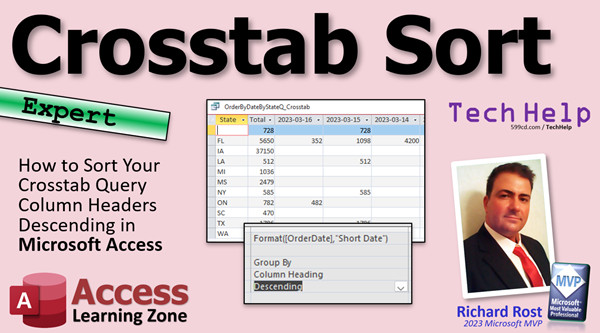
access 2016, access 2019, access 2021, access 365, microsoft access, ms access, ms access tutorial, #msaccess, #microsoftaccess, #help, #howto, #tutorial, #learn, #lesson, #training, #database, How can I sort the columns in a crosstab query, sorting columns in a crosstab query, How to change the Sort Order of Column Headings, column display order, How to Order the Rows in an Access Crosstab Query, Arrange Columns in Required Order in CrossTab
 Subscribe to Crosstab Sort
Get notifications when this page is updated
More InformationTranscript Welcome to another TechHelp video brought to you by AccessLearningZone.com. I am your instructor Richard Rost, and yes, I still have my cold, but we are powering through this. In today's video, I am going to show you how to sort your crosstab query either ascending or descending in your Microsoft Access database.
Today's question has actually been on my list for a while, but Deborah just posted this in the forums on my website today, so I figured I would cover this today. She says, when I run my crosstab query, it is pulling the dates as column headers, but they are all out of order. How can I fix this? She says she is getting like January 1st, January 2nd, January 15th, January 4th.
If you are using the wizard, which I recommend because doing a crosstab query by hand is a pain even for me, it does not ask you if you want to sort. Normally it gets your sort, but not always. So you can manually add a sort if you want to. Let me show you how.
First, some prerequisites. This is an expert level video, which is more difficult than beginner, but not quite developer. We don't need any programming, but watch my invoicing video. This is the database I am going to be using in class if you want to know how this database was built. If you don't know what crosstab queries are, go watch this video first. It explains it in a lot of detail. Basically, what Deborah is saying is she is getting dates across the top that are out of order, and we will take a look at that.
Here I am in my TechHelp free template. This is a free database you can download from my website if you want to. In here we have customers, and customers have orders, and orders have order details. We add all of these up to get the order total. Then we can put that all together in another query to figure out all of our customers and their total orders. Then we can crosstab it with state, so we get state across the row headers, the data across the column headers.
Let's start by making a query that brings together just the information that we need. I do not like making crosstab queries with a bunch of stuff in them, so we are going to keep this simple. We are going to need OrderT, we need our CustomerT so we can get the state, and we need our OrderDetailQ because OrderDetailQ has that calculation in it where we figure out the extended price. That is why I wanted you to watch the invoicing video first so you know what this is. Basically, each line item has a quantity and a unit price. We multiply those with a query to get the total for each line.
Now I can bring down here the order date, I can bring down the state from the customer table, and then I can bring down the extended price. I have got this.
If you have times in your order date, you can use the DateValue function if you want to or just allow the crosstab query to group it for you. You do not have to do that here. Obviously, if you are doing a real database, you would probably want to have your order table set with IsPaid and set the criteria to True, but for class, I am going to leave that off so I have more data.
So I have got plenty of data here to work with. Save this. This is going to be OrderByDateByStateQ. That is how I do my crosstab queries. Yes, I try to keep everything singular if possible, just so later on if you are doing some programming, you do not have to stop and look back and go, OK, was it orders by date? Or was it order by date? So I just try to keep everything singular. That is just one of my tricks. You do not have to do that if you do not want to, but the first time you pull your hair out because you did not, you will thank me.
Now we are ready to make our crosstab query. We have got all of our dates, all of our states, and our extended price. We are going to let the query wizard do all the grouping and all that stuff for us.
I am just so used to hitting query design that I miss query wizard right there. We are going to use a crosstab query. Hit OK.
Where is your data coming from? Go to queries and pick that query we just built. Next. What do you want for the row headings? Pick state, bring that over here. Now your state is going to be over here. Next. What do you want for the column heading? That is the order date. Next. What do you want to group it by? We are going to group it by date. You can group by whatever you want.
Yes, it is going to default to the short date format on your computer. I use the ISO date standard. I strongly recommend the ISO date format for everybody. I am going to change the world. I want everyone to use this date format. I started putting it on my checks and everything when I write a check, the once a month I write a check, because it is unambiguous. Everyone knows what it is around the world, and it sorts perfectly. Even if somehow your dates got translated over to text, they will still sort right. That is one of the major problems I see with people with queries. When they tell me their query is sorting out of order, it is because they are doing month/year or day/month/year, and somehow they use a function that converted that to text. That is why it is not sorting correctly. Even if you do that, ISO will still sort correctly.
This here is just a preview. We are not in the year 2000 anymore. We need to update that.
Next. What function do you want for sales totals? We will pick sum. I want to sum the price. Do you want the row sum on there? Yes, sure, whatever. That is fine. Next.
Going to save it as this. I am just going to take the word crosstab and move it before the Q, like that. OK. And hit finish. There is my query.
Now notice that the wizard did not ask us to sort anything. It is just kind of guessing. It is sorting this ascending, sorting the other ascending. If for some reason these dates are all jumbled up, I bet you have them somehow saved as text. You converted them somehow in a previous query and they are stored as text, so that could be the problem.
If your dates are sorted in proper ascending order, then we can go into design view. Come down here, find the field. Here is my column heading, my column header, whatever, and there is the sort row. Just change that to descending. Save it, run it, and now notice they are in descending order. Look at that: 3/16, 3/15, 3/14, and so on.
What that does is if you go to SQL view, it inserts this line right there. This is one of the reasons I do not write crosstab queries by hand myself. I rarely use them, and I would never remember that, so I just do it in the designer with the wizard and then I just pop that in there.
If you want to change that back to ascending, you could try forcing it to ascending here. Normally, there is no sort in there, so if you want to force an ORDER BY to go in there, that could fix your problem right there. Same thing if you want to change the row headings. Let's say you want to make these descending. There you go.
If you want to learn more about this cool crosstab query stuff, I cover it in detail in my Access Expert Level 18 class. We go over this, criteria, fixed column headings, duplicate queries, unmatched queries, all the other types of queries, Cartesian products, and all that stuff that you cannot really easily do by hand.
There you go. There is your TechHelp video for today. I hope you learned something. Live long and prosper, my friends. I will see you next time.
If you enjoyed this video, please give me a thumbs up and post any comments you may have below. I do try to read and answer all of them as soon as I can. Make sure you subscribe to my channel, which is completely free. Click the bell icon and select all to receive notifications when new videos are posted.
Want to learn more? Click the Show More link below the video to find additional resources and links. YouTube does a pretty good job of hiding it. It is right down there. See this part of the description here. The name, the video is up here. There is a little show more down there right at the bottom. It is kind of hard to find, but once you click on that, you will see a list of other videos, additional information related to the current topic, free lessons, and lots more.
YouTube no longer sends out email notifications when new videos are posted like they used to. But if you would like to get an email every time I post a new video, click on the link to join my mailing list. You can pick how frequently to get emails from me, either as they happen, daily, weekly, or monthly.
If you would like to become a paid member of my channel and receive all kinds of awesome perks, click on the join button. You will see a list of all the different membership levels that are available, each with its own special perks, including my extended cut videos, access to my code vault, lots of VBA source code in there, template downloads, and lots more. I will talk more about these perks at the end of the video.
Even if you do not want to commit to becoming a paid member and you would like to help support my work, please feel free to click on the tip jar link. Your patronage is greatly appreciated and will help keep these free videos coming. I have got some puppies to feed. But do not worry, no matter what, these free TechHelp videos are going to keep coming, as long as you keep watching them, I will keep making more, and they will always be free.
Now, if you really want to learn Access, and you have not tried my free Access Level 1 course, check it out now. It covers all the basics of Microsoft Access, including building forms, queries, reports, and more. It is over four hours long. You can find it on my website or on my YouTube channel. I will put a link down below you can click on. Did I mention it is completely free? The whole thing, free, four hours. Go watch it.
A lot of you have told me that you do not have time to sit through a four-hour course, so I now have a quicker Microsoft Access for Beginners video that covers all the basics faster, in about 30 minutes. No, I did not just put the video on fast forward. I will put a link to this down below as well.
If you like Level 1, Level 2 is just a dollar. That is it, one dollar, and that is another whole 90-minute course. Level 2 is also free for paid members of any level, including supporters. So if you are a member, go watch Level 2, it is free.
Want to get your question answered in a video just like this one? Visit my TechHelp page and send me your question there. Members get priority, of course. While I do try to read and respond to all of the comments posted below in the comments section, I only have time to go through them briefly a couple of times a month, and sometimes I get thousands of them. So send me your question here on the TechHelp page and you will have a better chance of getting it answered.
While you are on my website, be sure to stop by my Access forum. We have got lots of lively conversations about Microsoft Access and other topics. I have a fantastic group of moderators who help me answer questions. Shout out to Alex, Kevin, Scott, Adam, John, Dan, Juan, and everybody else who helps out on the site. I appreciate everything you do. I could not do it without you.
Be sure to follow my blog, find me on Twitter, and of course on YouTube. I am on Facebook too, but I do not like Facebook.
Now, let's talk more about those member perks if you do decide to join as a paid member. There are different levels: Silver, Gold, Platinum, and Diamond.
Silver members get access to all of my extended cut TechHelp videos, one free beginner class every month, and some other perks.
Gold members get all the previous perks plus access to download the sample databases that I build in my TechHelp videos, plus access to my code vault where I keep tons of different functions that I use, the code that I build in most of the videos. You will also get higher priority if you submit any TechHelp questions. Answers are never guaranteed, but you do go higher in the list for me to read them, and if I like your question, you have a good chance of it being answered. You will also get one free expert level class each month after you have finished the beginner series.
Platinum members get all the previous perks plus even higher priority for TechHelp questions. You get access to all of my full beginner level courses for every subject, and I cover lots of different subjects like Word, Excel, VBA, ASP, and lots of different stuff, not just Access. These are the full length courses found on my website. You get all the beginner ones. In addition, once you finish the expert classes, you get one free developer class per month, so lots of training.
Finally, you can also become a Diamond sponsor. You will have your name or your company name listed on a sponsors page that will be shown on each video as long as you are a sponsor. You will get a shout out in the video and a link to your website or product in the text below the video and on my website.
Once again, my name is Richard Rost. Thank you for watching this video brought to you by AccessLearningZone.com. I hope you enjoyed it. I hope you learned something today. Live long and prosper, my friends. I will see you again soon. Intro In this video, I will show you how to sort a crosstab query in ascending or descending order in Microsoft Access. We'll look at a common issue where date column headers appear out of order, discuss how to address sorting problems, and walk through building a crosstab query step by step using the query wizard. You'll also learn tips for working with dates, using proper naming conventions, and adjusting sort order in design view or SQL view. Quiz Q1. What was the main problem Deborah asked about in the video?
A. Her crosstab query column headers (dates) were out of order
B. She could not find the crosstab query wizard
C. Her queries would not display any data
D. She wanted to group by customer instead of state
Q2. What is a key reason the video recommends using the crosstab query wizard?
A. It automatically removes duplicate records
B. It makes building crosstab queries less complicated
C. It enforces referential integrity in tables
D. It always formats the output as a report
Q3. In the example shown, which fields are used to create the base query for the crosstab?
A. Order date, state, and extended price
B. Customer name, product category, and cost
C. Order ID, product name, and payment status
D. Customer phone, discount rate, and order year
Q4. What is the suggested solution if dates appear out of order because they are being sorted as text?
A. Use the ISO date format to ensure correct sorting
B. Change the font size of the query view
C. Split the date into day, month, and year fields
D. Sort by order ID instead of date
Q5. Where can you change the sort order of column or row headings in a crosstab query?
A. In query design view, using the sort row for the relevant field
B. Only in the report wizard
C. In table design view
D. In the export dialog box
Q6. What is one notable drawback of the crosstab query wizard according to the video?
A. The wizard does not ask about sorting the results
B. The wizard always sorts by descending order
C. The wizard does not allow column headers
D. The wizard cannot save the query structure
Q7. Why does the instructor recommend keeping table and query names singular?
A. It makes programming easier when referencing object names
B. It is required by Access syntax rules
C. Plural names cause errors in queries
D. Singular names are automatically indexed
Q8. According to the video, what function is commonly used to sum up prices in a crosstab query?
A. Sum
B. Average
C. Count
D. Min
Q9. What benefit does using the ISO date format provide in crosstab queries?
A. Unambiguous interpretation and natural sorting even as text
B. It is preferred by Access for formatting columns
C. It removes duplicate dates from queries
D. It displays dates in local time zones
Q10. If you want to sort dates in descending order in your crosstab query, what should you do?
A. Change the sort row for the date field to descending in design view
B. Convert the date to text and sort alphabetically
C. Rearrange the table manually every time you run the query
D. Apply the filter option in the export menu
Q11. What is the primary purpose of the ORDER BY clause in the SQL view of a crosstab query?
A. To explicitly control the display order of rows or columns
B. To enforce relations between tables
C. To limit the number of records returned
D. To automatically total all numeric fields
Q12. If your crosstab query column headers are not sorting as expected and you suspect a type issue, what is likely the problem?
A. The dates were converted to text at some point
B. The query contains too many fields
C. The database is corrupt
D. The sort option is set to random
Q13. What can paid members of the instructor's channel access depending on the membership level?
A. Extended cut videos, downloadable databases, code vault, priority question answers, classes, and sponsor perks
B. Only public YouTube content
C. Attendance to live in-person seminars only
D. Unlimited one-on-one support sessions
Q14. Why might someone use the DateValue function when working with order dates in a query?
A. To strip the time portion off and group by date only
B. To convert numbers to text
C. To create random date values for testing
D. To filter dates by fiscal year
Q15. What does the instructor say about responding to comments and answering questions?
A. He reads them but cannot always reply immediately, and TechHelp webpage submissions have higher priority
B. He guarantees a reply to every YouTube comment within 24 hours
C. Only paid members can get answers to questions
D. He never reads YouTube comments
Answers: 1-A; 2-B; 3-A; 4-A; 5-A; 6-A; 7-A; 8-A; 9-A; 10-A; 11-A; 12-A; 13-A; 14-A; 15-A
DISCLAIMER: Quiz questions are AI generated. If you find any that are wrong, don't make sense, or aren't related to the video topic at hand, then please post a comment and let me know. Thanks. Summary Today's TechHelp tutorial from Access Learning Zone focuses on how to sort the columns in a crosstab query, either in ascending or descending order, using Microsoft Access.
This question comes up frequently, and recently Deborah posted it again in the forums, so I thought it was a great time to address the issue. Deborah mentioned that when she runs her crosstab query, dates are being used as column headers, but they are not showing up in the correct order. She noticed the dates are scrambled, such as January 1st, January 2nd, January 15th, January 4th, and so on, which makes interpreting the data difficult.
If you use the Access crosstab query wizard, which I usually recommend since setting up a crosstab by hand is tedious even for experienced users, you might expect it to handle the sort order for you. However, the wizard does not always prompt you about sorting, and it is not guaranteed to sort your column headers the way you want. Fortunately, you can adjust the sort order manually if necessary.
Before walking through the solution, let me mention that this lesson is at an expert level. It is more advanced than beginner tutorials, but it does not require any programming. If you have not seen my invoicing video, I suggest watching that first because I will be referencing that database in this lesson. Also, if you are unfamiliar with crosstab queries, I highly recommend catching up with my crosstab queries tutorial to understand the basics. Essentially, the challenge here is that dates across the top of the crosstab are not always ordered as you might expect.
For this demonstration, I will be using my free TechHelp template database, which you can download from my website. Within the sample, there are customers, each with orders, and those orders have details. Those order details are used to calculate order totals, and you can aggregate this information in queries to analyze data by customer or by state. Then, you can use a crosstab query to pivot the data, placing states as row headers and dates as column headers.
To begin, I like to keep any crosstab queries simple by first preparing a basic query containing only the data I need. I avoid creating a crosstab query directly from tables with lots of extra fields. In our case, we need the orders table, the customers table to pull in the state, and a calculated query for order details where we calculate the total per line item by multiplying quantity by unit price. This calculation is set up in the order detail query and was covered in the invoicing lesson.
Within the new base query, you want to include the order date, state from the customer table, and the extended price (which is the line item total). If any of your order dates include a time component, you may want to use the DateValue function to strip out the time or simply let Access handle the grouping automatically. For simplicity, and to have more data in our class example, I will skip the usual paid status filtering.
Once your query is ready, save it and give it a clear, consistent name, such as OrderByDateByStateQ. I personally prefer to use singular names for queries, like Order instead of Orders. This helps avoid confusion later, especially if you do any programming or build lots of queries, as you will not have to keep checking back on your naming conventions.
Now you can use the crosstab query wizard to build your crosstab. Start by selecting the query you just created as your data source. For your row headings, select the state field; for your column headings, pick the order date. For the value to summarize, use the extended price, and set the aggregation function to sum. Access typically applies the default short date format from your local computer settings, but I recommend using the ISO date format (YYYY-MM-DD). This standard is unambiguous around the world and always sorts consistently, even if the data type is text. Many sorting problems can be traced back to using other date formats or converting dates to text, which is why I always advocate for ISO dates when working with queries.
After finishing the wizard, you will notice it does not ask about sorting the columns. Sometimes your columns might still be in the right order, but not always. If you find that your dates are not sorted correctly, especially if they have been stored or converted to text in an earlier query, the result might be out of order in your crosstab.
If your column headers are in the proper ascending order (for example, dates running from oldest to newest), but you want them descending (from newest to oldest), simply open the crosstab query in design view. In the grid, find your column heading field (the order date in this example) and set the sort row to descending instead of ascending. Save and run the query. You'll now see the columns arranged from the most recent to the oldest date. If you check the SQL view, you will notice that Access inserts the appropriate ORDER BY clause to control the sorting.
You can change things back to ascending just as easily by adjusting the sort property again, or force the row headings into a specific order by making similar changes. If you are not seeing your headers sort as expected, double-check that your date fields are still stored as dates, not text.
If this topic interests you and you want to go even further, I go much deeper into crosstab queries in my Access Expert Level 18 course. In that class, I cover advanced topics like setting criteria, using fixed column headings, working with duplicate and unmatched queries, exploring Cartesian products, and other scenarios that are not easily managed by hand.
You can find a complete video tutorial with step-by-step instructions on everything discussed here on my website at the link below. Live long and prosper, my friends. Topic List Creating a crosstab query using the query wizard
Selecting row and column headings for crosstab queries
Grouping data by date in a crosstab query
Applying date formats for sorting column headers
Using the ISO date format for proper sorting
Identifying and handling text-converted dates
Manually adding sorting to crosstab queries
Adjusting sort order of crosstab column headings
Editing crosstab queries in design view
Changing column date sort order to descending
Switching between ascending and descending order in queries
Viewing SQL to confirm ORDER BY in crosstab queries
Changing sort order of row headings in crosstab queries Primary Topics Access crosstab queries, sorting columns, column headers, date formatting, query wizard usage, SQL view, order of results
Secondary Topics best practices for query naming, ISO date standard, troubleshooting text vs date, Access templates
|




