Insert Shapes
By Richard Rost

 2 years ago
Shapes with Transparent Backgrounds in MS Access In this Microsoft Access tutorial, I will show you how to insert and customize shapes with transparent backgrounds in your forms and reports. Learn how to utilize PowerPoint to create shapes and import them as transparent images into Access, making your form designs more visually appealing. Lucas from Garland, Texas (a Gold Member) asks: I'm trying to add some shapes, like arrows, to my form, but I'm having trouble making the background transparent. Can you help me with this? MembersThere is no extended cut, but here is the database download: Silver Members and up get access to view Extended Cut videos, when available. Gold Members can download the files from class plus get access to the Code Vault. If you're not a member, Join Today!
Prerequisites
Keywords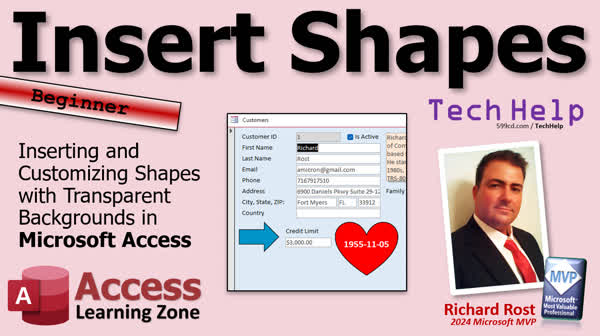 TechHelp Access, inserting shapes, customizing shapes, transparent backgrounds, inserting shapes in Access, transparent GIF, PNG transparency, save as picture feature, design view techniques, shape formatting, Access form design, Access reports design
 Subscribe to Insert Shapes
Get notifications when this page is updated
More InformationTranscript Welcome to another TechHelp video brought to you by accesslearningzone.com. I am your instructor, Richard Rost. We've got one for the beginners today. We're going to talk about inserting shapes into your Microsoft Access forms and reports. It works with both forms and reports, same thing. And even if you are an expert user or even a developer, you might not know this trick that I'm going to show you. So you might find this interesting, even if you're one of the advanced guys.
Today's question comes from Lucas in Garland, Texas, one of my gold members. Lucas says, "I'm trying to add some shapes like arrows to my form, but I'm having trouble making the background transparent. Can you help me with this?" Well, of course, Lucas, let's take a look at how I do it. There's lots of ways to do this. This is my preferred method.
All right, so first off, if you're using Microsoft Access, you should know that there is no way to directly put shapes in your form design or even in your reports. All we really have are lines, and you got rectangles and that's it. You can't put any of the fancy cool arrows and other shapes that you have in the other office applications like Word, Excel, and PowerPoint. The reason being is because Access literally is the red-headed stepchild of the Microsoft Office family. So what we're going to do instead is we're going to go over and borrow those shapes from one of the other apps. Personally, I prefer using PowerPoint.
So it's no secret. I use PowerPoint for these slides. Even this thing here, that's a PowerPoint slide. Okay? And in PowerPoint, as well as in Word and Excel, you can go to Insert and then Shapes, and you get all these cool shapes you can put in there. Okay? Let's say you want to do one of these block arrows here, this guy. All right, just click and draw it in here. Right? And then you can change the format. You can change the fill. You can make it purple. You can change the whatever, the size.
Okay. Here's the thing. If you just try to copy and paste this guy, watch what happens. Copy, Ctrl C. I'll switch back over to Access. All right, and I'll try to paste this end down here on the bottom of the form. Oops, someone's beaming in. Hold on. Someone's beaming in. Who is it? Well, just click on. Okay, so here we go, paste, boom. I get this thing. The OLE server isn't registered. But no, I don't know. I don't want all this. Click, click, click. All right, it finally comes in. But it doesn't have a transparent background. So that looks nasty. I don't like that.
Now, in the old days, what you could do is you could, let me get rid of this first of all. You could go to form view here. You could screen grab this color. Right? Like this. I'm using my screen capture tool. Come back over to here. Paste that in as like a background. I'll send it to back now. Okay. And now you could screen grab this. So you got the purple arrow with that background. And now if I paste it over here in design view, it comes in nice as an arrow, and it looks decent. You can turn off the border and make it all, you know, pretty.
All right, that's the old way. Using basically a fake background. The problem with that is, if you do change the background color later on of your form, let's say you want to go with that, well, now this background doesn't match. So we don't want that. We want to use an actual transparent background.
Now Microsoft Access does support transparent images as long as it's a format type that supports it like GIF or PNG. In fact, if you go out to the Google machine and look for GIF with transparent background, you get a bunch of these. Don't save these. These are the thumbnails. But if you click on one of these, like this guy here. You see this? See the checkered background? That means you got a transparent GIF there. This you can save. Now you're not going to get the animations and access, but at least it will come in with a transparent background.
Right click, save image as, all right, I'll save it as loading 198 transparent. Okay, fine. Close this, and now come back into here, insert image, browse. You can see I downloaded one earlier to try browse and then insert that guy and then click and drag. And there's your transparent image. See, it's got a transparent background. Like I said, you're not going to get animations, but it's better than nothing. Come in here now. There you go.
The same trick can be done with shapes and other objects from PowerPoint or Word. So let me get rid of this background. Let's take just this arrow here. Okay, instead of copying and pasting it, watch what you can do. Right click and then come down to save as picture. That will actually save that object as a picture. All right, we're going to save it as, all right, picture four, that's fine. Now come back in here, design view. Same thing, insert image, browse, picture four.png, and then click and drag. There you go. There's your transparent shape or whatever you want it. Right?
Right, you can do all kinds of stuff. You can draw a heart. I think I did a heart in my previous example. You can use, like I got this thing here for the different parts. You can do multiple objects. Let's say you want part nine. Click on the part and then hold down the shift key. Click on that nine. Now you got two items in there. Right click, save as picture. Picture five, that's fine.
Now come back over to here, all right? And then insert down here, insert, browse, picture five, click and drag. And there you go, part nine. Right? You can put that wherever you want. And of course, you can change all the other picture options over here, zoom, clip, stretch, zoom looks best. Right? And notice how it's transparent. So now when you go into form view, that's pretty neat.
But that's how you get nice, crisp, clean shapes and other objects like that from PowerPoint into Access. That's all. I did the same thing with this guy. It's a little heart. All I did with that was I drew a heart, which is under the shapes, insert, shapes. Where's the heart? Where are you at? Right there, draw the heart, make it red. Where's the fill shape fill make it red. Right click, save as picture. We'll call this the heart.
All right, come back over to Access, design view, let me get rid of this stuff. Goodbye, goodbye. Don't forget also if you're done with those images, clear them out of here too. You can right click, delete these because these are all still saved in the database in your gallery. If you don't want them, I got a whole separate video on the image gallery.
All right, let's say we want to leave this one in there for the future. Let's browse, we'll add the heart. All right, I put the heart in like that. And then all you got to do is take something to whatever field you want, like credit limit. All right, I'm going to get rid of the label, put this over the top of it like this. And it's going in behind it. So we're going to have to click on this guy, right click, position, send to back, that'll put the heart in the background. Slide this guy right over the front of it, maybe make it a little bigger.
All right, go to format, we're going to make the background transparent, we'll make the shape outline, transparent, so we don't have a box around it. Center it, make the text white and bold and 22 point. And 22 point and save it, close it, open it. There you go. Doing all kinds of cool stuff you can do. So that's about it. That's what I'm going to do it for today. I cover a lot more with form design and objects like that and making your forms look good and pretty. The same technique, by the way, works in reports. All right, obviously you're going to probably want a white background for a printed page, unless you're printing on colored paper or something like that. I don't know. You can do the same, trick the same technique with reports.
All right, so that's going to do it. That's your TechHelp video for today. Hope you learned something. Live long and prosper, my friends. I'll see you next time.
TOPICS:
Inserting shapes into Access forms and reports
Using PowerPoint to create shapes
Copying and pasting shapes from PowerPoint
Creating transparent shape backgrounds
Inserting images with transparent backgrounds
Saving PowerPoint objects as pictures
Importing images into Access
Using transparent shapes in Access forms
Combining multiple shapes into one image
Formatting and positioning images in Access
Using shapes in Access reports
COMMERCIAL:
In today's video, we're going to learn how to insert shapes with transparent backgrounds into your Microsoft Access forms and reports. Whether you're a beginner or a seasoned developer, you'll discover a new method using PowerPoint to add eye-catching elements like arrows and hearts. We'll show you how to save these as images with transparent backgrounds, ensuring they blend seamlessly, unlike the older methods that had limitations. Enhance your forms with clean, vibrant shapes for a more professional look. You'll find the complete video on my YouTube channel and on my website at the link shown. Live long and prosper my friends. Intro In this video, we'll talk about how to insert shapes with transparent backgrounds into your Microsoft Access forms and reports. I'll show you how to use PowerPoint to create and save shapes as images, then import them into Access so they look clean and professional. We'll discuss how to combine multiple shapes, format them, and position them in your forms and reports, as well as the differences between the older methods and this improved technique. Quiz Q1. What problem did Lucas from Garland, Texas encounter when trying to add shapes to his forms in Microsoft Access?
A. He could not find the shape tools in Access
B. He was unable to resize the shapes properly
C. He had trouble making the background transparent
D. He couldn't change the colors of the shapes
Q2. What types of shapes can you directly add to Microsoft Access forms and reports?
A. Any shapes available in PowerPoint
B. Only lines and rectangles
C. All shapes available in Word and Excel
D. Triangles and circles
Q3. Which Microsoft Office application does Richard prefer to use for creating and inserting shapes into Access?
A. Word
B. Excel
C. PowerPoint
D. Publisher
Q4. What issue arises when you directly copy and paste a shape from PowerPoint to Access?
A. The shape is automatically resized
B. The shape loses its color
C. The shape appears with a non-transparent background
D. The shape cannot be pasted at all
Q5. What is an advantage of using GIF or PNG format images in Access?
A. They automatically convert to PDF
B. They support animated backgrounds
C. They allow for transparent backgrounds
D. They come with watermark images
Q6. What is the correct method to preserve a transparent background when exporting a shape from PowerPoint to Access?
A. Use the "Save As Document" feature
B. Use the "Save As Picture" feature
C. Use the copy and paste method
D. Use the "Export to Access" feature
Q7. What should you do if you no longer want saved images in the Access gallery?
A. Ignore them; they disappear automatically
B. Manually clear them by right-clicking and deleting
C. Rename them to hide them
D. Transfer them to another database
Q8. Why might you not want to use a fake background with your shapes in Access?
A. It cannot be printed
B. It doesn't allow resizing
C. It may not match if the background color changes later
D. It cannot include multiple shapes
Q9. When preparing Access forms for print, what is typically recommended?
A. Use colorful backgrounds
B. Stick to complex shapes
C. Use a white background
D. Only use Excel for printing needs
Answers: 1-C; 2-B; 3-C; 4-C; 5-C; 6-B; 7-B; 8-C; 9-C
DISCLAIMER: Quiz questions are AI generated. If you find any that are wrong, don't make sense, or aren't related to the video topic at hand, then please post a comment and let me know. Thanks. Summary Today's TechHelp tutorial from Access Learning Zone focuses on a task useful for beginners: incorporating shapes into your Microsoft Access forms and reports. This method will work for both forms and reports, and even experienced users might discover something new.
The topic arises from a question by Lucas, who wants to add shapes like arrows to his form but is struggling with making their backgrounds transparent. I will guide you through my preferred approach to this issue.
Access doesn't include a direct way to add diverse shapes like arrows into forms or reports; it only offers lines and rectangles. Unlike other Office applications such as Word, Excel, and PowerPoint which provide various shapes, Access lacks this feature likely because it isn't prioritized within the suite.
To remedy this limitation, I suggest borrowing shapes from a program like PowerPoint. Within PowerPoint, you can insert a shape - for example, a block arrow - adjust its size, color, and other attributes, and then attempt to incorporate it into Access. However, copying and pasting it directly into Access will result in losing the transparent background feature, leaving an unsatisfactory appearance.
Traditionally, one would place a shape over a screenshot that matched the form's background. This approach has the downside of not adapting to future color changes in your form's background, leading to mismatched elements.
Instead, leverage Microsoft's support for transparent images by using formats like GIF or PNG. You can search for transparent images online, ensuring it's in a compatible format like PNG, then save and insert it into your form. This approach provides a cleaner result with a transparent background.
Similar techniques apply to shapes from PowerPoint. Instead of a mere copy-paste, save the shape as a picture and insert it into Access. This saves the shape with its transparency intact, ensuring it integrates seamlessly with your form's design.
In Access, delete any unnecessary images from your database to maintain organization. When incorporating your saved shape, you can layer it appropriately—such as sending it to the back—adjusting form details to fit your design. Once formatted correctly, you enjoy precise, appealing visuals without borders unless desired.
These strategies help enhance the visual appeal of your Access forms and can be similarly applied to reports, where a clean, usually white, background is essential for printed outputs.
You can find a complete video tutorial with step-by-step instructions on everything discussed here on my website at the link below. Live long and prosper, my friends. Topic List Inserting shapes into Access forms and reports
Using PowerPoint to create shapes
Copying and pasting shapes from PowerPoint
Creating transparent shape backgrounds
Inserting images with transparent backgrounds
Saving PowerPoint objects as pictures
Importing images into Access
Using transparent shapes in Access forms
Combining multiple shapes into one image
Formatting and positioning images in Access
Using shapes in Access reports Primary Topics inserting shapes in Access, transparent backgrounds, importing images, PowerPoint integration, Access form design, report design, image formatting, image gallery management Secondary Topics screen capture workaround, multiple shapes in one image |




