Remove Time 2
By Richard Rost

 2 years ago
Remove Time from Date in MS Access Part 2 In this Microsoft Access tutorial, we will learn how to automate the process of removing the time part from a DateTime field using VBA. This second part of the series focuses on using SQL and VBA code to streamline data import and update tasks, transforming them into a seamless, button-click operation. This is part 2. MembersThere is no extended cut, but here is the file download: Silver Members and up get access to view Extended Cut videos, when available. Gold Members can download the files from class plus get access to the Code Vault. If you're not a member, Join Today!
PrerequisitesLinksRecommended Courses
Keywords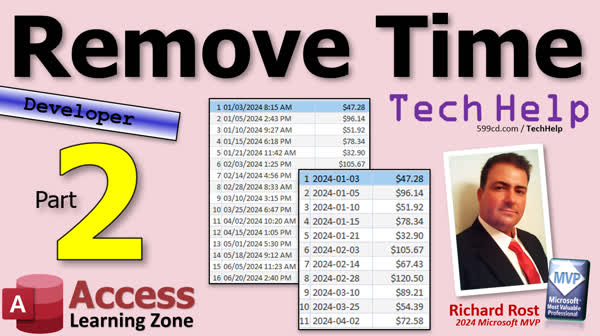 TechHelp Access, Remove Time from DateTime in Access, VBA Automation, Access Developer Tips, Update Query with VBA, Access Import Table, TransferSpreadsheet Method, VBA Execute SQL
 Subscribe to Remove Time 2
Get notifications when this page is updated
More InformationTranscript Welcome to another TechHelp video brought to you by Access Learning Zone.com. I'm your instructor Richard Rost. Today is part two of removing a time part from a date time field. In part one on Friday, we learned how to do this manually. In today's class, we're going to see how to automate it with a little VBA. So we're going to switch this to a developer level class.
What does developer mean? Well, that means we're going to use a little VBA. If you've never done a VBA program before, you might want to go watch this video first. It's about 20 minutes long and teaches you everything you need to know to get started. Also, watch this video, which teaches you the basics of SQL. We're going to use a little bit of SQL today to automate some of this stuff. These are both free videos on my YouTube channel and website. Go watch those. And of course, watch part one first if you haven't yet watched that one, so you know what we're doing.
In part one, we imported data into our import table, and then we ran an update query to fix that. The whole point is to be able to automate this with a click of a button. We want to use VBA code to automate this stuff.
I recommend you run the import once manually like I showed you, and then come in here and fix those fields to whatever you want them to be. This would be a number type of long integer if you want. It's a double now. I'm going to change that to a long integer just because if it's coming from any kind of SQL server or another access database, it's going to be a number. But of course, use whatever you need. If you need text in here, that's fine too. Change this to a date/time, change this to a currency. Get your fields the way you want. Just make sure that the field names still match the column headers in the spreadsheet. That is important. They got to match. If they change the spreadsheet on you, just come in here and change these.
So what we're going to do is first we're going to use a little bit of SQL to clear the data out of this table, the import table. If you want to save it, you can save it too, that's fine. Do whatever you want with it. Move it to another table, I don't care. Then we'll run the import, which is one line of code, and then we'll run the update query.
You can either run this one with a DoCmd.OpenQuery or you can just do it yourself with another line of code and get rid of this query. I like to remove these queries whenever possible. I mean, if you need them, great, these queries over here are fine. You don't have to get rid of all of them. I have a bunch in my database still. These are really good for doing queries with subqueries. If you've got a query that's complicated, you got to break it down to three or four steps. One query does this, the next query takes that data and does something else. That's fine, that's what these are here for. I use them in SQL Server too. They're called views. But if it's a simple one like this and I can replace it with a single line of code, I prefer doing that.
I'm going to leave this one in here for you guys so you have it for the sample database. But I don't really need it. Let's go into our VB here, and I'm going to hijack this Hello World button. We'll call this the DoImport button. I'm going to right-click and build event, and it'll go into my code builder. Let me just move this thing over here. I was doing some work earlier. We don't need the Project Explorer there. I almost never need that with Access. I was working with Excel earlier, and Excel, I use it all the time.
So we're down here in our Hello World button click. You can rename the button if you want to. I'm not going to bother. We're going to start off with Status "Processing Import."
The first thing we're going to do is clear out the import table. It's going to be CurrentDb.Execute, and then our SQL statement to delete the data from the import table. It's really simple: "DELETE FROM ImportT". That's it. It deletes all the records from that table. We're good. Save it. If you want to test it and see how it works, close it, open it, hit the button, and if you check the table, everything's gone.
The next line of code is going to be to actually do the import. For that, we're going to use DoCmd.TransferSpreadsheet. I have a whole separate video on TransferSpreadsheet. If you want to learn more about it, this is it here. Go watch that, and I cover it in a bunch of my classes too. TransferSpreadsheet, we're going to go acImport, comma. It's going to ask you for what version of Excel you want. I just hit comma for that and use the default. It will always update to the most recent one. The table name is going to be ImportT. That's why I like running it first, so you got it there and it's defined. The file name is going to be the full name of where your file is. For me, that looks like that: it's G:\\My Drive\\Spreadsheet Sample Orders.xls. And finally, HasFieldNames is the last parameter there. You want to make sure that's true. I believe true is the default. The last two options are Range and UseOA. Don't worry about those. That will import the data into the table from the spreadsheet.
You want to test that? Let's go back over here, hit the button, open it up, and it looks good. There's the data, and it's got all the times in it. Now we just got to run another step to clear out all those times. Again, you could do DoCmd.OpenQuery and run this guy, or you could just do what's in this query. Watch this, right-click, SQL View. There's your command right there. If you don't want to learn all the SQL, you can just build it with the query builder, and just copy this. Watch, copy this, copy. Close that, come back to your VBA editor right here. CurrentDb.Execute, and then paste that inside the string just like that.
Now, I would clean this up just a little bit because we don't need the "ImportT." because we only have one table in here, so I can get rid of that. I don't need the brackets around "OrderDateTime" because we don't have any spaces in it, so you can get rid of that. If you really want to, you can delete that semicolon since there's only one statement in this. That makes it a little easier to read. When you're all done, we'll do a Status "Done" and a beep. How's that sound? Save it. Debug, compile once in a while. I just maximized it, didn't mean to, just double-clicked there by accident. Close that. Save it. Close it. Open it. Whatever. Here we go. Ready? Click. Let's take a look. There it is. It's nice and clean. Did that. See that? Is that going to save you some time? What do you think?
Now, of course, this assumes that you save the file in the same spot every day. I used to do this. I had files I used to get when I used to sell computers. I would download the file that had all the product pricing updates from my distributors. It would have all the, you know, it was basically a spreadsheet that had the product, the product ID, the name, the current price. I would just go to there, log on to their website, download the spreadsheet. It always had the same file name and it was always in my downloads folder. So I could hard code that into my Access database. It was perfect. One click, after I download the file, one click, and it updated all my pricing. That's it. That's not hard to do. You can see how just technically one, two, three lines of code can save you, you know, even if this only saves you five minutes a day, three minutes a day. Over the course of a year, that's what? Three minutes a day, times five days a week, times, let's say, 50 weeks a year, that's 750 minutes divided by 60. That's 12 hours I just saved you over the course of a year just from having a button you can click on to do that. Before, that was taking you three minutes a day. That's the kind of stuff that Access is amazing for and it was real easy to set up too.
So you've seen today, and in a lot of my other videos, how much Access can save you time. Time is the most precious commodity we have. I look for ways I can save time every day in the things I do. I've got tons of developer lessons on my website where I teach you all kinds of cool stuff like this that will make your job easier, make your business more efficient, save you some time. Every hour that you invest in learning will save you weeks worth of your life not having to do things manually. So check it out. There's a link to my developer courses. You'll find links to all this stuff down below in the description. Check it out. That's going to be your TechHelp video for today. Hope you learned something. Live long and prosper, my friends. I'll see you next time.
TOPICS:
Automating a process with VBA
Executing SQL queries in VBA
Clearing a table with SQL in VBA
TransferSpreadsheet command in VBA
Running an import with VBA
Executing UPDATE SQL with VBA
Renaming and using VBA buttons
Modifying SQL statements in VBA
Error checking when importing data
Using DoCmd for query execution
COMMERCIAL:
In today's video, we're continuing with removing the time part from a date-time field, now moving into automation with VBA. If you've never programmed with VBA, we suggest checking some beginner tutorials first. You'll learn how to clear data using SQL commands, automate data import with TransferSpreadsheet, and simplify tasks by replacing queries with lines of code. Plus, I'll show you how a simple button click can save you valuable time in your work routine. Such automation can save you hours over the year. You'll find the complete video on my YouTube channel and on my website at the link shown. Live long and prosper my friends. Intro In this video, we continue working with Microsoft Access to remove the time part from a date-time field, now focusing on automating the process with VBA. I will show you how to use SQL commands in VBA to clear tables, run imports with the TransferSpreadsheet command, and update your data with a single button click. We'll cover customizing buttons, running queries directly in code, and offer tips for making imports faster and more reliable. This is part 2. Quiz Q1. What was the primary focus of today's TechHelp video?
A. Learning how to create complex databases from scratch
B. Automating the removal of the time part from a date-time field using VBA
C. Understanding the basics of Access table relationships
D. Designing user interfaces for Access applications
Q2. Before automating the process with VBA, what initial step does Richard suggest performing manually?
A. Delete existing records from all tables
B. Change the file name of the spreadsheet
C. Run the import process manually
D. Create backup copies of all Access tables
Q3. Which programming language is used in the video to automate the process?
A. VBA
B. Python
C. JavaScript
D. C#
Q4. What does the DoCmd.TransferSpreadsheet VBA command do in the context of the video?
A. It exports data from Access to a spreadsheet
B. It transfers records between two Access tables
C. It imports data from a spreadsheet into an Access table
D. It creates a new spreadsheet with imported Access data
Q5. When editing the SQL query within VBA, what does Richard suggest removing for simplicity?
A. The use of SELECT *
B. The inclusion of WHERE clauses
C. Unnecessary table prefixes and brackets around field names
D. Joins between multiple tables
Q6. What is an important consideration Richard mentions when automating the import process?
A. Always ensuring the VBA code is commented thoroughly
B. Verifying that the file path and name are consistent each time
C. Using the latest version of Access for compatibility
D. Ensuring that the database is secured with a password
Q7. What is the final output message displayed after the VBA script successfully completes its task?
A. Import Complete
B. Update Successful
C. Processing Finished
D. Done and a beep
Q8. How does Richard quantify the potential time savings from automating this process over a year?
A. By comparing manual entry time to automated processing time
B. By calculating minutes saved each day multiplied across weeks and years
C. By estimating productivity increase in percentage terms
D. By assessing reduced error rates in data entry
Answers: 1-B; 2-C; 3-A; 4-C; 5-C; 6-B; 7-D; 8-B.
DISCLAIMER: Quiz questions are AI generated. If you find any that are wrong, don't make sense, or aren't related to the video topic at hand, then please post a comment and let me know. Thanks. Summary Today's TechHelp tutorial from Access Learning Zone.com focuses on removing the time part from a date-time field using automation in Microsoft Access with VBA. I'm Richard Rost, your instructor, here to guide you through this process. In our first session, we covered manual methods on a Friday, and today we'll explore how to automate this task using VBA.
When we move to a developer-level class, we start using a bit of VBA. If you're new to VBA, I recommend watching a basic tutorial on VBA programming. This introductory video, available for free on my YouTube channel and website, is about 20 minutes long and provides a foundational understanding necessary for today's class. Additionally, understanding SQL will be beneficial, as we'll utilize it for some automation tasks. It's also advisable to review part one of this series to familiarize yourself with what we have done so far.
Previously, we imported data into an import table and executed an update query to adjust the data manually. Today, we'll automate this process with VBA. Start by running the manual import, then modify the fields as needed, ensuring their types match your requirements—be it number, text, date-time, or currency. An essential step is to keep the field names aligned with the spreadsheet's column headers. Any changes in the spreadsheet should be mirrored in your database.
Our first task will be to clear the existing data from the import table using an SQL command. You'll execute a simple SQL statement to delete all records, which allows you to start with a clean slate before running the import process again. The import process uses a single line of code with the DoCmd.TransferSpreadsheet command. This imports your data from a specified spreadsheet directly into your import table in Access.
After importing, the next step is to remove the time portion from the date-time field. You can achieve this by running a query or incorporating SQL commands directly into your VBA code. When simplifying queries, it's efficient to remove unnecessary elements and run essential commands directly through VBA to streamline the process.
It's also worth noting the practical benefits of automation. By saving your files consistently in the same location, your database can automatically retrieve data and update fields, as it did in my previous experience with distributor pricing updates. This method of automation doesn't just save a few minutes each day—it accumulates to significant time savings over months and years.
Today's session highlights the convenience and efficiency Access's automation can bring to your workflow. By investing in learning these techniques, you can significantly reduce manual tasks and increase productivity in your business operations. More resources and developer lessons are available on my website, offering deeper insights into enhancing your Access skills.
You can find a complete video tutorial with step-by-step instructions on everything discussed here on my website at the link below. Live long and prosper, my friends. Topic List Automating a process with VBA
Executing SQL queries in VBA
Clearing a table with SQL in VBA
TransferSpreadsheet command in VBA
Running an import with VBA
Executing UPDATE SQL with VBA
Renaming and using VBA buttons
Modifying SQL statements in VBA
Error checking when importing data
Using DoCmd for query execution Primary Topics Access VBA automation, SQL execution in VBA, data import automation, TransferSpreadsheet usage, table data clearing, update queries, modifying SQL in VBA, button event handling Secondary Topics database field types, best practices with queries, demo structure, workflow efficiency |




