Customer Report
By Richard Rost

 21 months ago
Convert Access Customer Form to Report Quickly
In this Microsoft Access tutorial, I will show you how to quickly convert your well-designed customer form into a professional report without starting from scratch. Learn to efficiently move form elements to a report, manage page setup, adjust design elements, and optimize printing. Perfect for beginners looking to save time and effort.
Adriana from Paramus, New Jersey (a Platinum Member) asks: I just spent an hour getting my customer form looking perfect. Is there a quick way to turn this into a report without starting from scratch or spending another hour redoing everything?
Template Download
Update
- There is a feature where you can save a form directly as a report. Open the form. Go to File, Save As, Save Object As, click Save As and then pick Report from the options. Thanks to Donald Blackwell for pointing this out. Personally, I think it's faster and easier to have a blank report template that has all of your settings that you like for reports (page size, margins, etc.) and then copy and paste the controls you want from the form, rather than saving the form as a report and then having to customize the report settings from scratch. Six of one, half-dozen of another.
Prerequisites
Links
Recommended Courses
Keywords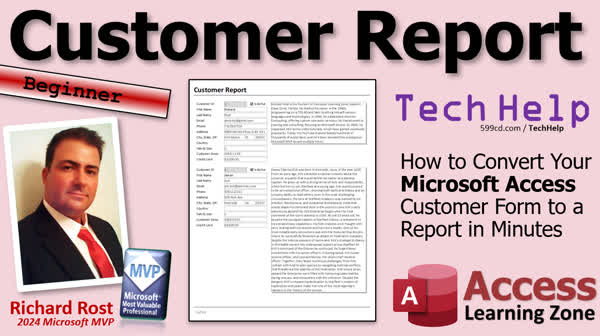
TechHelp Access, convert form to report, Microsoft Access reports, customer report creation, Access report formatting, print preview settings, report header and footer, can grow can shrink property, report design view, page numbering setup, converting Access forms, Access report layout, AccessLearningZone
More InformationTranscript Welcome to another TechHelp video brought to you by AccessLearningZone.com. I'm your instructor, Richard Rost. Today, we're going to make a customer report without reinventing the wheel. In other words, we're going to take the customer form that we built in an earlier video and use the pieces from that to quickly make a customer report.
Today's question comes from Adrianna in Paramus, New Jersey, one of my platinum members. She says, I just spent an hour getting my customer form looking perfect. Is there a way to turn this into a report without starting from scratch or spending another hour redoing everything? Well, yes, of course there is. We can basically use most of the parts from that customer form and put them right on a report.
Now, this video is for the beginners, but I have a couple of videos I'd like you to watch first. If you haven't watched my free Microsoft Access Beginner Level 1 course, watch this now. This will give you all the foundational understanding that you need to work with access.
I've got a blank database template that I use for most of my videos and I'd like you to watch this video where I teach you how I set up my main menu, my customer form, and that kind of stuff. In that video, I teach you all the basics, so I don't have to reinvent the wheel every time I do a video. In this video and my invoicing video, I create a blank invoicing template. It's basically just a blank invoice with all the settings that I like for my margins and things like that. If you want to see how I built that, watch this video too. These are all free videos. I'll put links to them below.
This is my tech health free template. This is the database that I built in those videos and you can get a free copy off my website if you want to. In here, I've got a customer form that's got all the basic information for my customers: first name, last name, and so on. I'm going to take this and make a report out of it. You can print forms if you want to, but we generally don't. Forms are used on the screen for data entry and viewing. Reports are used for printing or sending them in a format like a PDF file.
Now, with reports, you can right-click on them and go print preview or print. You can't do that with a form, but you can go up to file and then print. And here's the print options for that form. If I click print preview, as you can see here, that's what you get. It's going to look just like the form. You're going to get all the records here. You can filter it beforehand to see just one record if you want to. But no, we don't print forms unless it's just for you and it's something quick. To make a nice printout, you want to make a report out of it.
In my invoicing video, I created this thing here called the blank R. This is just a blank report. I set up my margins, put header sections on, and all that. I covered that in that invoicing video. But you could start with just a blank report if you want to. Now one thing that I wish they had, and Sammy, we can add this to the list. We have a list going of our wish list of things we'd like to see in Access. One thing that'd be nice is if you could right-click on a form and go save as or change to a report.
There are some things you can do with objects in here. For example, if you have a text box, you can right-click and go change to and change it to something else. This would be a nice feature for them to add for changing forms into reports. But unfortunately, they don't have that option. But we can do it ourselves.
The first step we're going to do is take this blank R and copy and paste it. Control C, Control V, we'll call this my customer R, my customer report. I like to add all my reports with an R, forms with an F, all that good stuff. So right-click, design view.
Now we're going to make design changes to this guy. I'm going to get rid of the text box that I have in here. And what I'm going to do is basically copy the objects off the customer form. So I'm going to come in here, right-click, design view on the form. And I am going to grab all of this stuff. Don't need to grab those buttons. Just select all that stuff, copy, back over to the report, click in the detail section and hit paste. And there they are. I'm just going to slide them down a little bit. There we go. So there's all of our objects from the form.
Let's save this and close it. I'm going to close this down too and let's take a look at what we got in the customer report. Right-click and then print preview is way down on the bottom. It's off my screen recording but print preview is down here. And there's my report.
Now if I zoom in and see it, it says pound name. What does that pound name mean? That means that the report has no idea what these fields are. I want to show you this because this is a mistake a lot of people make. Let's go back to design view. We never bound this report to a data source. All of these fields have control sources called first name, last name, email, but the report itself doesn't have one. Double click here to bring up the properties for the report. And in the data tab find record source. This is where you're getting your records from. Drop that down, pick customer T, save it and then we're going to close it, close it. And now we can do a right-click print preview and we can see there's some data in there. Great.
Now we got to make a couple more changes. First thing I'm going to do is I'm going to move these fields down over under here and we're going to expand this notebook. We got a lot of room over here. We can make this bigger if you want to. So again, right-click design view. I'm going to open up this detail section a little more, make it taller. We're going to take these guys here, click and drag and drop them right under there. Then I'm going to take these labels and resize those to the left. See how I did that? If you want to make these bigger, you can, but these fields are large enough for the data that's in there.
Now, this comes all the way out here just shy of eight because we have eight and a half inches across and I have, I think it's a quarter-inch margin. You can see that under page setup and then go to margins and I'm under narrow. Yes. Point two five. So we got a half-inch margin. So we want to come just shy of eight inches over here, which means this thing can go all the way out to about there before it runs onto the next page. I'm going to make that as tall as that section is right there. Look good.
Now, you might not want this to print in yellow. That's understandable. Just come over here. Format. And then drop this down and pick white if you want to, or you can make it transparent. That's fine too. In fact, all these are white. You might want to change these to transparent too in case you decide to put a background color or something on there. Page setup. Oh, sorry. Format. Drop this down. Transparent. There we go. Everybody's transparent except the customer ID. We're going to leave that as gray.
Save it. Let's close it. Right-click. Print preview. And okay. Looks good. Notice how down here this guy is getting cut off. That's because this thing's hitting its max limit vertically and it can't get any bigger. For that, we're going to use a property called can grow, can shrink. We're going to go back to design view. We're going to pick this guy. This object here we're going to double click on the border, so it brings up the properties. I'm going to find format and we're going to find can grow, can shrink. Where are you? Can grow and can shrink. They're both on here. They're set to no because on forms can grow, can shrink doesn't work. There is a property on the form, but it doesn't work unless you're printing the form which we don't do. So set that to yes, set that to yes. I'm just double-clicking it changes it for a yes no field. Don't forget you also have to set the can grow property of the detail section itself. Otherwise, this detail section will be locked at that height. Can grow is also yes. You can make it can grow if you don't want it to grow. Or can shrink if you don't want it to shrink.
Save it. Close it. Open it back up again right-click print preview and there we go. You can see now it's growing as tall as it needs to be to fit the data and it'll push whatever is below it down to page two and page three and page four and so on.
It'd be nice to see those page numbers at the bottom wouldn't it? Well, let's come in here. We're going to design view and in the page footer. Right down here this goes on the bottom of every page. Remember what our sections do right page header page footer go on the top of each page. Report header goes once at the beginning of the report and it actually goes under the page header which is weird the way they've got it but that's how it works. Then the report footer goes at the end of the report once but again it'll go above the bottom page footer so maybe this should be flipped. I don't like this but that's just you have to get used to it. Down here in the page footer, we can add a page number. Now there's a way to do it up here. There's something on the menu but I just do it manually. I'm going to copy this guy here, copy paste, and I'm going to now move it down into the page footer. Get rid of the label and now take this text box put it where you want it and open it up.
All right, let's go to the all tab. Roll to the top. Now control source we're going to come in here and say equals page ampersand quotes of with some spaces around the of and pages like that. I'm going to zoom in so you can see that better. It's going to be equals page and you don't have to type those brackets if you don't want to. And then it's ampersand for some concatenation that's putting multiple strings together of with some spaces in there inside the double quotes and then pages page is a is a keyword. It's a special word that says put the current page number that you're at right there and pages will put the total number of pages. This will say one of three or six of 15. Hit OK and give this a good name too instead of text two right page num box or whatever you want to call it. Save it. Close it. Open it back up again right-click print preview. And there we go. And you can see down there it's in a box. Let's turn that box off. One thing I don't know about all those boxes. You can turn all the boxes on all of these off if you want to literally it's just click on the box. Go to format. Drop down the shape outline and pick transparent. And if you want to do them to the rest of them you can I kind of like them in this one. Close it. Open it back up again print preview. And there we go. I'm going to close this. And you can see down there you got one of 13, two of 13, three of 13, and so on.
There's one more thing in here. I'm going to put customer report across the top for a page, excuse me for a report header. We're not going to have a page header. We're going to have a report header though. So I'm going to grab a label, you can grab one off here and just copy and paste it, or you can come back up here to report design. I'm going to copy and paste right there. We're going to come in here and make this bigger. This is just a label now. That's going to say customer report. I'm going to go to format. Let's make it big. 24-point. Now maybe 22-point. We'll make it bold. That looks pretty good. Let's put a line underneath it. Go to report design grab the line tool which is this guy. We're going to click underneath here and go right across. Maybe put a line on the bottom too. Let's copy this and I'm going to click on the page footer and paste it. Now be very careful. It's right up against the top of the page footer. We're going to just move the mouse right there and grab it and drag it down a little bit. There we go. Some of this is a lot more of an art than a science. I don't know. Make this a little bit smaller. Save it. Close it. Right-click print preview. There we go. It looks pretty good. And the header only shows up on the first page.
If you want to learn more about some of the things I just covered, I'm going to put some links down below. I've got a video on the Can Grow Can shrink properties. This video talks more about the page numbering. This one talks a lot more about string concatenation, putting those different strings together into one.
Now how do I open this? I like to give my users a way to open the customer report. Let's put a button right here on the main menu. Right-click design view. And I'm going to go up here form design. Sorry. Get a command button. Drop it down here. Report operations. Preview report. If you do open report, it'll open it in regular mode. If you go print report, it'll send it right to the printer. I like preview report. I also send it to a file. If you want to send it to a PDF, you can mail it directly with email. I'm just going to use preview report because on preview report, you get all those other options too, but you can see the report before you print it. That's what I like.
Which report are you printing? I'm printing the customer report. Next. Change this to text and customer report. It's like that. Next. Give it a meaningful name, customer report button. It's the name of the button and then finish. And we'll put it right underneath here. Customer report. Just like that. And I'm going to close. My main menu, save changes. Yes. Open it back up again. And there we go. There's my customer report and it print previews it for you. Now you can see all the other options are up here too. You can send it to a PDF file. You can print it.
When you open this report up, it's going to open up a report for all people, all users, and all customers in your system. Right?And a lot of people ask me, well, how can I open this just for one customer? Like if I'm on a particular customer's record like me, can I have a button over here that opens up just the customer report for this specific customer? Yes, you can do it. I've got a whole separate video where I explain how to do that. There are a few steps involved. Go watch this video, it'll explain that.
The last thing I'm going to do is update my TechHelp free template. I'm going to update the blank template, so now we're going to make this version 1.96. I like having this customer report, and I'm going to use it in future videos. Then I can just tell you to come and watch this instead of showing you how to reinvent the wheel every time.
I like to change the background color of this just a little bit. Let's go to Format, look on the detail section, and drop down. There we go. I like that it's just a little change. Maybe a little more than that. Let's see. Let's go like that. Yeah, there we go. Let's make this darker. Okay. Save it. Close it. Open it back up again. There we go. Version 1.96.
If you like learning with me and want to learn more, I have tons of different lessons on my website. I have nine levels of beginner lessons, 32 expert lessons, and six advanced lessons. I think I'm up to 48 developer lessons right now. In the beginner lessons, I cover all the beginner stuff, like a lot of the stuff we covered today. Level 1 is free, which you can watch on my website and my YouTube channel.
In level 9, I think it is beginner level 9, we talk more about reports with the can grow and can shrink properties. Lots of different stuff with reporting. If you want to learn more about reports, this is the one for you: beginner level 9.
I cover a little bit of reporting in various levels because I'm not one of those guys who tells you that you have to learn all about reports now and all about forms later. I teach a little bit of this and a little bit of that. It's kind of how you learn better, using the breadth-first learning approach.
But that is going to do it for today. Folks, that's your TechHelp video. I hope you learned something. Live long and prosper, my friends. I'll see you next time.
TOPICS:
Creating a customer report from a customer form
Using form components for reports
Setting up a blank database template
Difference between forms and reports
Copying form objects to a report
Binding a report to a data source
Adjusting field sizes and layout in reports
Setting margins and page layout in reports
Using the Can Grow and Can Shrink properties
Adding page numbers to reports
Customizing report headers and footers
Using a command button to open a report
Previewing reports instead of printing directly
Filtering reports for specific records
Changing background colors in reports
Updating template versions
COMMERCIAL:
In today's video, we're going to learn how to create a customer report in Microsoft Access without starting from scratch. We'll take elements from a perfected customer form and repurpose them to quickly generate a professional report. I'll share step-by-step instructions on copying form objects into a report, ensuring fields are bound to data sources, and utilizing properties like Can Grow for dynamic layouts. Plus, we'll add useful features like page numbers and headers. Finally, you'll learn how to link this report to your main menu, making it accessible with the click of a button. You'll find the complete video on my YouTube channel and on my website at the link shown. Live long and prosper my friends. Intro In this video, I will show you how to create a customer report in Microsoft Access by reusing elements from an existing customer form, saving time and effort. We'll walk through copying form controls to a report, binding the report to its data source, adjusting layouts and margins, setting Can Grow and Can Shrink properties for flexible fields, adding page numbers, customizing headers, and linking the report to your main menu with a command button. This tutorial covers everything you need to turn your well-designed customer form into a printable and professional report. Quiz Q1. What is the main goal of this video tutorial?
A. To create a new customer form from scratch
B. To convert an existing customer form into a customer report
C. To delete unnecessary components from a customer form
D. To update the database with new customer data
Q2. What does the "pound name" error in a report usually indicate?
A. The report has too many fields
B. The report is incorrectly formatted
C. The report fields are not correctly bound to a data source
D. The report font is not supported
Q3. Why is it not recommended to print forms in Access?
A. Forms have too many decorative elements
B. Forms are meant for data entry and viewing on screens, not for printing
C. Forms require too much ink to print
D. Forms do not support color printing
Q4. What are the "Can Grow" and "Can Shrink" properties used for in a report?
A. To hide fields when printing
B. To adjust the size of controls to fit the data they contain
C. To change the font size dynamically based on data
D. To enable additional formatting options for reports
Q5. When you add a page number to a report's footer, what does the "Pages" keyword represent?
A. The number of items on the current page
B. The total number of pages in the report
C. The number of chapters in the report
D. The section number in the report
Q6. Which section of the report is only displayed once, at the very beginning?
A. Report Footer
B. Page Footer
C. Report Header
D. Page Header
Q7. When setting up a report from an existing form, why is it necessary to adjust the margins under Page Setup?
A. To make sure the entire form fits within the printable area
B. To enhance the aesthetic appearance of the report
C. To align with regulatory printing standards
D. To increase the printing speed
Q8. In the tutorial, how is a new report created based on an existing form?
A. By using a wizard in Access
B. By copying and pasting components from the form to a report
C. By converting the form directly to a PDF
D. By exporting the form data into Excel
Q9. How can you ensure that a report only prints for a specific record rather than all records?
A. Change the report's source to a static record
B. Use a filter before opening the report
C. Manually delete all other records from the database before printing
D. Adjust the print settings to print current page only
Q10. How does the tutorial suggest organizing different objects within a database (such as reports and forms)?
A. By alphabetical order of object names
B. By separate folders for each object type
C. By appending specific letters to object names (e.g., 'R' for reports, 'F' for forms)
D. By assigning different colors to each object type
Answers: 1-B; 2-C; 3-B; 4-B; 5-B; 6-C; 7-A; 8-B; 9-B; 10-C
DISCLAIMER: Quiz questions are AI generated. If you find any that are wrong, don't make sense, or aren't related to the video topic at hand, then please post a comment and let me know. Thanks. Summary Today's TechHelp tutorial from Access Learning Zone focuses on creating a customer report using an existing customer form. I'm your instructor, Richard Rost. Adrianna from Paramus, New Jersey, asked if there's a way to convert a perfected customer form into a report without starting over. Yes, indeed! You can take elements from the customer form and utilize them directly in a report.
Before proceeding, I'd recommend watching my free Microsoft Access Beginner Level 1 course for foundational knowledge. I use a blank database template that sets up primary structures like the main menu and customer form. These resources are free and linked on my website.
In our database, we have a customer form containing basic customer details. Although you can print forms, it is more typical to design a report for better print quality and formatting like PDFs. With reports, right-clicking provides print preview options, unlike forms, which you typically use for on-screen data entry.
For creating a report, I've previously set up a blank template called 'blank R'. While Access could benefit from a feature to directly convert forms into reports, this isn't currently available. However, we can do most of it ourselves.
To create a report, start by copying the blank report template and renaming it, for example, 'my customer R'. Replace unnecessary elements within the template and copy objects from your customer form to your new report. Be sure to bind your report to a data source to avoid errors like '#Name?' messages.
Adjust placements and properties of these elements, so they line up and fit aesthetically. You can adjust the background color, margins, and layout to suit your needs. Additionally, make sure to employ the 'Can Grow' and 'Can Shrink' properties to ensure all your content displays fully in the report.
Including page numbers is useful, especially for multi-page reports. You can add page numbers manually by placing a text box in the footer and using equation functions like 'Page' and 'Pages' to display the current page out of the total number of pages.
To give users easy access to the report, you can add a button on the main menu to preview the report. This button integrates with your form operations and allows users to generate the report directly.
Finally, if you ever need to generate a report for a single customer, additional steps are necessary, which I cover in another video. For now, I've updated my TechHelp free template, adding this customer report for future reference.
For further learning, visit my website where I have an extensive array of lessons from beginner to developer levels. Beginner Level 9 covers more on reporting, including features such as 'Can Grow' and 'Can Shrink'.
That sums up today's tutorial. You can find a comprehensive video tutorial with all these instructions and more on my website at the link below. Live long and prosper, my friends. Topic List Creating a customer report from a customer form
Using form components for reports
Setting up a blank database template
Difference between forms and reports
Copying form objects to a report
Binding a report to a data source
Adjusting field sizes and layout in reports
Setting margins and page layout in reports
Using the Can Grow and Can Shrink properties
Adding page numbers to reports
Customizing report headers and footers
Using a command button to open a report
Previewing reports instead of printing directly
Filtering reports for specific records
Changing background colors in reports
Updating template versions Primary Topics converting forms to reports, copying form controls to report, report design view, data source binding, report formatting, can grow/can shrink, page numbers, report headers and footers, command button for report access Secondary Topics margins and page setup, background color customization, template updates, filtering report for single record |






