Kill Access
By Richard Rost

 18 months ago
Auto Kill Frozen MSACCESS.EXE Task with Batch File
In this tutorial, I will show you how to create a simple batch file to quickly terminate problematic instances of Microsoft Access without needing the Task Manager. We'll explore how to use the "taskkill" command to efficiently shut down any running Access databases and streamline your workflow, especially if Access tends to freeze or not close properly. You'll learn to create a batch file and place it on your desktop for easy access. We also touch on visual feedback for batch file execution, to ensure smooth and hassle-free operations, leaving you more time to focus on your work.
Lucas from Knoxville, Tennessee (a Platinum Member) asks: How do I deal with Microsoft Access when it keeps freezing or not shutting down properly? I seem to have a database issue where Access just won't close sometimes and is still running in the background. I end up having to open Task Manager and manually end the task, which is a bit frustrating to do multiple times a day. Is there a simple way to create something like a batch file or program that can automatically kill Access when it starts acting up, so I can get back to what I was doing without all the hassle?
Members
In the extended cut, we will learn how to create a more user-friendly script using VBScript. I will show you how to display messages such as "Are you sure you want to kill Microsoft Access?" followed by a confirmation message "Access killed" upon execution.
Silver Members and up get access to view Extended Cut videos, when available. Gold Members can download the files from class plus get access to the Code Vault. If you're not a member, Join Today!
Prerequisites
Links
Recommended Courses
Keywords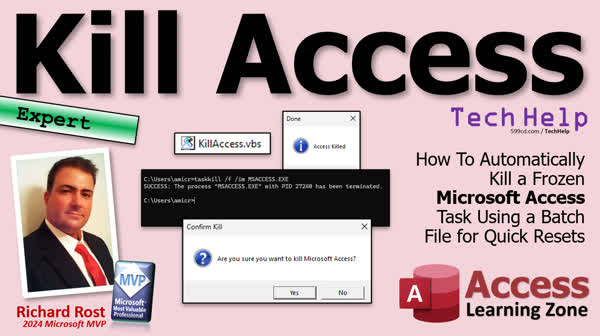
TechHelp Access, kill Access batch file, kill Access process, Access freezes, taskkill command, automate task killing, Access background process, batch file tutorial, Windows Task Manager alternative, batch file creation, Access freezing issue, Access database automation, MSACCESS.EXE, Access troubleshooting, VBScript example, Access Watchdog, restart Access database, batch file shortcut creation
 Subscribe to Kill Access
Get notifications when this page is updated
More InformationTranscript Welcome to another TechHelp video brought to you by accesslearningzone.com. I am your instructor Richard Rost. Today, we're gonna talk about how to kill Access. I'm like Kill Bill. If you got a database misbehaving and it's just behaving often and you can't figure out why it locks up, well, we're gonna make a quick little batch file that you can use to kill any and all running instances of Access. You can really use this to kill anything you want, any many Windows processes that are running, instead of having to open up the Task Manager. Let's see what the question is.
Today's question comes from Lucas in Knoxville, Tennessee, one of my platinum members. Lucas says, "How do I deal with Microsoft Access when it keeps freezing or not shutting down properly? I seem to have a database issue where Access just won't close sometimes and is still running in the background. I end up having to open Task Manager and manually end the task, which is a bit frustrating to do multiple times a day. Is there a simple way to create something like a batch file or a program that can automatically kill Access when it starts acting up so I can get back to what I was doing without all the hassle?"
Yeah, I seem to have this recurring problem too. It's like every other time I do an Office update, they introduce something that causes some of my even simple databases to just not shut down. You close Access and it looks like Access shuts down, but MSACCESS.EXE is still running in the background, and I have to go in there and kill it. I've had this happen myself too. It's random. It happens once in a while, but yeah, it'd be nice to have a little shortcut on your desktop that you can just double-click, and there it goes. It'll kill Access for you.
Alright, so before we do this, for anyone who is not familiar with how to use the Windows Task Manager, go watch this. It's basically a program in Windows, part of Windows 10, 11, goes way back, and you can use it to see all of the tasks that are running, all the programs that are running, and you can right-click on it and end the task to kill one of them. But you have to do it manually.
Alright, so we're gonna see how to do it with a command with a batch file. Alright, so let's say I got my database running. It's just sitting here minding its business, and let's pretend it locked up. It's hard to actually make it lock. I mean, I could make it lock up with an endless loop and some VBA, but we don't need to go that far. Let's just pretend it locked up.
So you can either run it—I keep an icon for it on my taskbar all the time, but it's Control Shift Escape, or you can go Control Alt Delete and select Task Manager, or you can find it on the start menu, whatever works for you. There are millions of ways to do the same thing in Windows and Access, and here it is right here, Microsoft Access. It's running. You can see in here TechHelp free template.
Now, what you have to know is the actual name of this application. If you right-click on it, go to properties, this thing pops up. That's what you're looking for right there: MSACCESS.EXE. Right, that's the name of that application. Alright, so now that we know that, we can open up a command prompt and then we can kill it with the taskkill command. Again, I keep a shortcut to a DOS prompt on my taskbar, but you can just open up any Windows Explorer folder, go to where you want to put this file, and type CMD. And that'll open up a nice little command prompt. It opened up on my other window. It's right there.
Okay, now I'm gonna minimize that guy. Here is what the command looks like. You ready? You run this from anywhere: it's taskkill space /F. That means forcefully kill this task. Alright, so it won't bother you with prompts or ask any questions or blah blah blah. Then it's /IM, the name of the image, basically the name of the file you want to kill, right? And it's gonna be MSACCESS.EXE. Ready? Boop, gone. Okay, that's it. It terminated all of your Access databases that are running. I just did it again with two databases open, two copies of the database, same thing.
Is there a way to kill a specific one? Yes, but it's a lot more complicated. If you guys really want to see that, let me know, maybe I'll make an extended cut with that information. Now, I don't know about you, but I'm not gonna remember that unless I look it up. So that's why it's handy to put that inside a little batch file.
So I'll go back to that folder, right-click, we'll go to new and then text document down the list where you have to find it. Alright, I'm gonna call this killaccess, and it's a not text file for now. That's fine, I'll rename it in a second. Open it up. Alright, and in here, put the same thing I just told you to put in there before: right taskkill /F /IM MSACCESS.EXE. Right, save it. Close it and we're just gonna rename this guy .BAT batch file. Okay, rename yeah, okay, that's fine. Alright, now we have a batch file. I'll do the same thing, ready double click and okay Windows protect it. I'm gonna do it, more info, and then run anyway.
The first time you run that you're gonna see that—it's Windows being cautious because you're running a batch file that could potentially delete files and do harmful things. After you run it the first time you shouldn't be bothered again. Now, it is running. It's just running on my other screen and it happens so fast and then it goes away. If you want to be able to actually see some kind of confirmation, right in here just put pause.
Alright, so I'll save that, close it, and now when I run it there's the window—it opened up on my other screen—there it is right now. This time it says the process MSACCESS.EXE can't be found because it's not running. Then press any key to continue, press enter, there you go. Let me launch my database again and move it over here, and then I'll run my little batch file, and boop, gone, and there it is. Yeah, this is opening up on my primary screen which is down off the video window, but that's it. That's all you have to do. Now you can just take this little guy, drop a shortcut to it—great shortcut right there on your desktop wherever you want it—and now you can just run this, and then anytime you want it will just quickly kill Access, and you could even restart your database if you want to.
You can put it in here to restart the database. Right, just put another line after that one that says MSACCESS.EXE, you need the full path to it, space, and then the full path and file to your database if you want to restart it. I'm not gonna do that right now.
Now, would you like something a little more user-friendly, like maybe—let me drop this over here—maybe something like this and it says, "Are you sure you want to kill Microsoft Access?" Then you say yes, and then it says Access killed. Well, that we could do with a little more coding and something called VBScript, and I'll show you how to do that in the extended cut for the members. Silver members and up get access to all of my extended cut videos. And yes, I know some of you are probably thinking if you've heard VBScript is going away eventually. It's got a few years left. You can do something similar to this using PowerShell. It's a little more complicated, but if you guys really want to see it in PowerShell too, let me know. Maybe I'll do another video.
And if you have a Microsoft Access database that runs around the clock and does some important stuff like I do, I still have a database in my office that runs. It does things like sending emails out, it checks my website, and it does maintenance-type stuff. It's running 24/7 on a timer on a loop, which I showed you guys how to do. Well, if that thing locks up I want to know about it, but first I have this thing that I built called the Access Watchdog that watches the database, makes sure it's running. If it stops running, it'll try shutting it down and then restarting it. So that's the Access Watchdog. Yes, those are my puppies right there. That's Carter and that's Cooper. They're good boys. Do you want to learn more about this? Here's the link right there.
But there you go, that's how you kill Access with a simple little batch file. That's gonna be your TechHelp video for today. Hope you learned something. Live long and prosper, my friends. I'll see you next time.
TOPICS:
Creating a batch file to kill Microsoft Access
Using taskkill command in Windows
Determining process name for Access
Converting text document to batch file
Running a batch file in Windows
Using 'pause' in a batch file for confirmation
Creating a desktop shortcut for the batch file
COMMERCIAL:
In today's video, we're discussing how to handle a misbehaving Access database that just won't close. If Access keeps freezing or isn't shutting down properly, don't worry, we've got a fix. You'll learn how to create a simple batch file to kill any running instances of Access without opening Task Manager. Additionally, we'll discuss how to make a more user-friendly tool via VBScript for those who want a polished solution. If you're interested, I'll also touch upon the Access Watchdog for databases running 24/7. You'll find the complete video on my YouTube channel and on my website at the link shown. Live long and prosper my friends. Intro In this video, we'll talk about how to deal with Microsoft Access when it freezes or won't close properly. I'll show you how to create a simple batch file using the Windows taskkill command to quickly end any running instances of Access, saving you the hassle of using Task Manager. We'll cover how to find the correct process name, turn a text file into a batch file, use the pause command for confirmation, and create a handy desktop shortcut for easy access. Quiz Q1. What is the primary purpose of the batch file described in the video?
A. To prevent Access from freezing
B. To kill any running instances of Microsoft Access
C. To close all open applications on Windows
D. To update Microsoft Access automatically
Q2. What command is used in the batch file to terminate Access?
A. shutdown /s
B. endtask /f /im MSACCESS.EXE
C. taskkill /f /im MSACCESS.EXE
D. kill process MSACCESS.EXE
Q3. What additional action can be added to the batch file for confirming the killing of Access?
A. Add a "stop" command
B. Include a "wait" function
C. Insert a "pause" line
D. Add a "restart" command
Q4. What alternative script language is mentioned for creating a more user-friendly version of the batch file?
A. Python
B. VBScript
C. PowerShell
D. JavaScript
Q5. What does the Access Watchdog tool do according to the video?
A. Optimizes database performance
B. Sends alert emails for database errors
C. Monitors and restarts a database if it stops running
D. Automatically updates Access templates
Q6. What does the option '/F' in the taskkill command signify?
A. Fully delete the task
B. Forcefully terminate the task
C. Facilitate the task execution
D. Finalize the task completion
Q7. Why is it necessary to use the full path in the batch file to restart the database?
A. To ensure the database has administrator privileges
B. To specify exactly which instance of Access to kill
C. To locate the exact file location for the execution
D. To allow the batch file to run on startup
Q8. What does the presenter suggest doing to easily access the batch file?
A. Pin it to the Start menu
B. Schedule it in Task Scheduler
C. Create a shortcut on the desktop
D. Add it to the context menu
Answers: 1-B; 2-C; 3-C; 4-B; 5-C; 6-B; 7-C; 8-C
DISCLAIMER: Quiz questions are AI generated. If you find any that are wrong, don't make sense, or aren't related to the video topic at hand, then please post a comment and let me know. Thanks. Summary Today's TechHelp tutorial from Access Learning Zone focuses on managing misbehaving Access databases. I'm Richard Rost, your instructor, and we're going to tackle how to effectively close Microsoft Access when it's causing trouble, akin to the 'Kill Bill' approach. If your database locks up and you can't figure out why, I'll demonstrate a method to create a batch file that can terminate any running instances of Access, and you can extend this to many other Windows processes, sparing you the need to manually use Task Manager.
Lucas from Knoxville, Tennessee, asked about handling situations where Access freezes or doesn't shut down correctly. It seems his database sometimes remains running in the background, and he finds it cumbersome to frequently use Task Manager to close it. Lucas is looking for a simpler method to automate this task.
I too have encountered this issue. Often after an Office update, Access might not close completely, even when it appears to do so. This leaves MSACCESS.EXE running in the background, forcing the use of Task Manager to close it. It would be convenient to have a desktop shortcut that can be double-clicked to kill Access quickly.
For those not familiar with Windows Task Manager, it's a built-in program available in Windows 10, 11, and earlier versions that allows you to view and manually end running tasks. But performing this manually every time can be tiresome.
Instead, we'll automate this with a batch file. Imagine your database is running but suddenly locks up; we'll simulate this and see how to handle it. You can open Task Manager through several methods, such as Control Shift Escape, Control Alt Delete, or the start menu. The goal is to use Command Prompt for an automatic solution.
By knowing the application name (MSACCESS.EXE), we can use Command Prompt to end the task via taskkill command, which forcefully terminates the process without asking questions. This command will close all running Access databases. For advanced users interested in targeting specific instances of Access, that requires a more complex setup. Let me know if there's interest in an extended tutorial for that.
Since remembering such commands can be challenging, especially when under pressure, placing them in a batch file is practical. Create a new text document, insert the taskkill command, and then rename the file to .BAT. This allows you to execute it easily from a desktop shortcut.
To see confirmation of the execution, adding a 'pause' command in the batch file helps. Once ready, running it will demonstrate its effectiveness by immediately closing Access. A shortcut on your desktop makes frequent use straightforward, and you can even extend it to relaunch your database automatically by adding another command line.
For those seeking a more interactive interface, consider using VBScript, which can display prompts like "Are you sure you want to kill Microsoft Access?" and confirm the action. This involves more coding and will be covered in an extended cut available to Silver members and above. Although VBScript is slowly being phased out, alternatives like PowerShell can achieve similar results.
If you operate a Microsoft Access database that functions continuously for tasks such as sending emails or performing website maintenance, it's crucial to ensure uptime. I developed something called the Access Watchdog, which monitors and attempts to restart any locked-up databases, ensuring constant operation.
So, here you have it, a straightforward method to deal with stubborn Access instances using a batch file. For further details and step-by-step instructions, visit my website. Live long and prosper, my friends. Topic List Creating a batch file to kill Microsoft Access
Using taskkill command in Windows
Determining process name for Access
Converting text document to batch file
Running a batch file in Windows
Using 'pause' in a batch file for confirmation
Creating a desktop shortcut for the batch file Primary Topics batch file creation, taskkill command, MSACCESS.EXE process, handling frozen Access, Windows Task Manager alternatives, desktop shortcuts Secondary Topics adding pause to batch files, restarting Access from batch file, using VBScript for user prompts, Access Watchdog overview, PowerShell potential |




