Toggle Hover
By Richard Rost

 18 months ago
Fix Hover Color on Pressed Toggle Buttons in Access
In this Microsoft Access tutorial I will show you how to fix the issue with toggle button hover colors not working after the button is pressed. We will learn how to use unbound toggle buttons and some VBA code to swap buttons and maintain the hover effect regardless of the button state, allowing you to display different colors for pressed, unpressed, and hover states.
James from Wichita, Kansas (a Learning Connection Member) asks: I'm trying to set up a toggle button that changes from green to red depending on its state, and shows yellow when the mouse hovers over it. The hover effect works fine when the toggle is in its default (unpressed) state, but it doesn't work once the button has been selected. The text on the toggle changes correctly between "Rehire" (green) and "Do NOT Rehire" (red), but the yellow hover color stops working after the button is pressed.
Members
There is no extended cut, but here is the file download:
Silver Members and up get access to view Extended Cut videos, when available. Gold Members can download the files from class plus get access to the Code Vault. If you're not a member, Join Today!
Prerequisites
Links
Recommended Courses
Keywords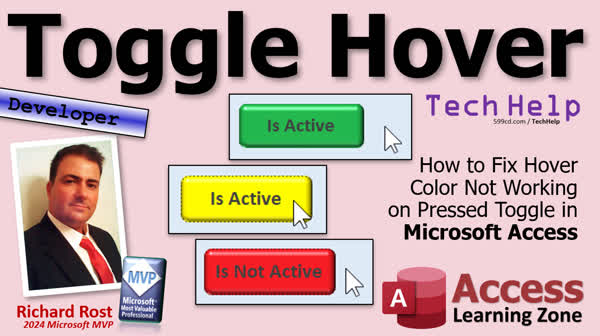
TechHelp Access, toggle button hover fix, VBA hover color, toggle button color change, Access toggle button hover, hover not working after click, toggle button VBA code, VBA toggle button hover effect, toggle button events, unbound toggle button, Form Current event, SetFocus VBA, visible toggle buttons, toggle button custom colors, toggle button after update, two toggle button method, toggle button usability, VBA button swap, pressed hover workaround, toggle button properties
 Subscribe to Toggle Hover
Get notifications when this page is updated
More InformationTranscript Today, I'm going to show you how to fix the hover color not working when you press the button in Microsoft Access.
In other words, when you've got a hover button and you're setting a hover color, like, let's say normally it's green, if you hover the mouse over it turns yellow, if you click it, you can set it to another color like red. But guess what? Once it's clicked, once it's pressed down, the hover effect no longer works. So that's what we're going to deal with in today's video.
Today's question comes from James in Wichita, Kansas. By the way, if you're ever in Wichita, Kansas, go to the Tanganyika Wildlife Park. They have penguins that you can swim with. My wife and I did it last year. It was fantastic. We love penguins.
James is one of my Learning Connection members. James says, I'm trying to set up a toggle button that changes from green to red depending on its state and shows yellow when the mouse hovers over it. The hover effect works fine when the toggle is in its default, un-pressed state, but it doesn't work once the button has been selected. The text on the toggle changes correctly between Rehire Green and Do Not Rehire Red, but the yellow hover color stops working after the button is pressed.
Unfortunately, James, that's the default behavior of Microsoft Access. That's how toggle buttons behave. When you hover over them when they're un-pressed, they'll go to that yellow color or whatever you set it to. When they're pressed down, hover stops working. Why? I don't know. This is something that the Access team should probably fix. But with a little VBA, we can fix it ourselves. It's a tiny little bit of work, but I'll show you how to make it happen.
Now, since you're already able to change the toggle text from Rehire to Do Not Rehire, I'll assume you know a little bit of VBA because you're going to need some VBA to do this. This will be a developer-level lesson. What does that mean? If you've never taken any VBA classes before or you want to learn how, go watch my Intro to VBA video. It's about 20 minutes long. It'll teach you everything you need to know to get started. There will be a couple of other videos that I'm going to recommend as we're going along, but you don't need to know them beforehand. I'll give you the details.
Here I am in my TechHelp Free Template. This is a database you can grab off my website if you want a copy. Let's go to the customer form. On here, I've got a checkbox for Is Active. Let's make a toggle button that'll do pretty much the same thing. I'm going to put it down here at the bottom so it's not in anybody's way.
If you've followed my videos for any length of time, I'm not a huge fan of toggle buttons. I've never really liked them, but that's just me. That's a personal preference. Toggle buttons are right there. Click it, drag one down here.
By default, if you want colors to work, you have to use toggle button themes. If you go to the Format tab over here, you'll see there's a use of the theme. You have to use a theme. You can turn that off and then it looks like a boring button. But you've got to turn that on if you want to change the colors.
The first thing is, let's give this guy a good name, not just Toggle30. I'm going to call this IsActiveToggle, because we already have an IsActive. That's the checkbox. I'm going to leave the checkbox there so you can see that it works when this guy is checked.
Normally, we'd set the control source to what we want this button to be bound to. In this case, IsActive. Yes, you can have two controls that are bound to the same field. The caption in it is "Is Active." That goes in there. Let's make it a little bit bigger. Let's go up, maybe 18 point or whatever. There are some colors you can play with.
Now, you've got four foreground colors and background colors. For the purposes of this class, I'm not going to mess with the foreground colors. I'm going to leave it all black. We're just going to change the background color of the button. Back Color is when the button is not pressed, in other words, it's false, it's a zero state, just like when this thing is not checked. When this is not active, I want to make that red. So for the back color, we're going to make it red. Click this button here and come down to red.
I like to use standard colors because if you use theme colors and the user changes the theme, if you allow them to, then your button colors will change. I like to stick with standard colors. Again, this is a preference; it's what I like to do. So I'm going to go with red for the back color for the button if it's not pressed.
The pressed color is here. When they press it down, let's make it go to green. Then you've got the hover color. When the user hovers over the button, that'll be yellow.
Let's see what that looks like. Save it. Close it. Open it. "Is Active" is green because this one's checked on. If I hover over it, oh, nothing happens. If I check it off, look at that. The hover is working now. The hover effect only works when the button is not pressed, which I think is dumb. But that's what the problem is. That's what we're dealing with today.
Now here's the situation. There are all kinds of events you can try using. There are mouse over events and all that. None of them work well. I've tried this before in years past. None of them work well. The only thing that I have found that works well is to use two toggle buttons and swap them. You're always going to have one that's not pressed, so you always get the hover effect. As soon as you click this one, you make the other one visible, but it's un-pressed. You just change the caption. The user won't be able to tell the difference once it's finished.
It's really cool. Here we go.
The first thing we have to do is unbind this thing. We have to use unbound toggle buttons so that we're not bound to the field. We're going to set the field value ourselves.
Come over here into the Data tab and get rid of the control source. So it's an unbound button, which means now you can do all you want to. You can check it, you can uncheck it, but it's not setting that value. So we'll have to set the value ourselves in code.
Since this guy has the hover effect when it's red, I'm going to make this the IsNotActive button. We're going to change its name to IsNotActiveToggle, just because we already set the colors.
Make a copy of this button. Copy, paste. Control-C, Control-V. Put it right over here. This will be our IsActive button. Change the name to IsActiveToggle. Oh, IsActive is already in use. The default is IsActiveToggle. Then we're going to flip the colors. So the back color is going to be green. The pressed back color is going to be red. We just flip them basically. Save it, close it, take a look.
Now we've got two buttons. No matter what, their hover is always working, as long as they're not pressed.
The first thing we have to do is show or hide the appropriate button depending on the value of IsActive. You probably don't even need to have the checkbox on the form, but we're going to hide or show whichever button we need to in our Form Current event as we move from record to record, so we display the appropriate button.
That's the first step. Go to the form's properties, go to Events, find On Current.
We're going to come in here and we're going to say the IsActiveToggle.Visible property is going to be equal to IsActive. So if IsActive is true, this button shows up. If not, IsNotActiveToggle.Visible equals Not IsActive. So if it's not active, the other button will show up. It'll show or hide the appropriate button in the form's current event, which fires when you move from record to record.
If you want to learn more about the On Current event, go watch this video.
Let's see what we've got. Save it, close it, open it and OK, active. Move to the next one. See, not active. So we're getting there. We're showing the appropriate button. That's step one.
Now these buttons are not bound to anything. So if I click on the button, nothing happens. There's nothing going on with the IsActive value. We have to set that value ourselves.
So in the IsActive button, if they click on that, we have to set IsActive to false and vice versa. Let's go into its After Update event. You can use On Click or you can use After Update. I prefer After Update in case the button is changed by any other means.
So in here, we're going to say IsActive equals false. Then at the other button's After Update event, we're going to say IsActive equals true.
Save it and then come back up here.
Now, I'm not active. If I click that, I just set IsActive, but I'm not seeing the other button though because it's hidden. After this guy is clicked, I want to then show the other button.
Come back to your code. By the way, what I do, folks, since you can't see this, so it's off the screen, but whenever I'm working between Access and the VBA window, I'll leave them overlapping just a little bit like that. So when you see me over here and I'm on the Access screen and I say go back to your code window, all I'm doing is just sliding my mouse over a little bit and clicking on the code window. That's not evident in a lot of my videos, but it's one of the tricks we have to do to make things seamless. I also put a button up here so I can flip back and forth. I leave this a little bit smaller than the Access window so I can just click on the title bar.
So, what were we doing? Oh yes, we're showing the other button.
So if IsActiveToggle is clicked, we set IsActive = False, and IsNotActiveToggle.Visible = True. We'll do the same thing down here in reverse. The IsActiveToggle.Visible = True.
Save that. Debug Compile once in a while. Make sure everything's good.
Come back over here. Close it. Re-open it. Yes, every time I make a code change, I close and reopen my form to give everything a chance to reset.
IsActive is good. Click. There's the IsNotActive button. The value changed. Click over here. That worked. Everything's looking fine. Except now I have to hide the other button, the one that I just clicked on.
Let's go do that next.
Let's come back over here. So, in this one, when they click on IsActiveToggle, we have to show the other button and then hide this one. So IsActiveToggle.Visible = False.
Let's try this. Save that.
Let's open it up. Click and, "You can't hide a control that has focus." What does that mean? Well, the IsActiveToggle is the button I just clicked on, so it has the focus. If you're tabbing around, that's where it's at. So you can't hide a control that has focus, but we can move the focus.
Hit End. Before we do that, we have to say IsNotActiveToggle.SetFocus. That will move the focus to that button. Then we can hide the button we just clicked on.
Makes sense? If you want to learn more about SetFocus, go watch this video.
Let's do the same thing down here. Now we've got to say IsActiveToggle.SetFocus and then IsNotActiveToggle.Visible = False. We have to hide the button after we move off of it.
Now, let's try it. Click. Oh, that is active. Now it's not active. Now it's not active. Now it's not active.
But wait, it doesn't look right. The colors are not quite right. When I click on this ... OK, hold on.
IsNotActive is red. Click. IsActive is green. Click. But wait, now IsNotActive is green and IsActive is red. They're flipping values. Why is that? They're flipping colors. Well, the reason is because when we click on that button, we're changing its value. The invisible toggle button has been toggled. So we basically have to untoggle the button.
It's one more step. How do we untoggle the button? Well, the one we just hid, we say IsActiveToggle.Value = False, and down here IsNotActiveToggle.Value = False. We just untoggle the button that we clicked on so it goes back to its unpressed state, because only in the unpressed state will that hover property work.
Wait, wait, wait, someone's beaming in. Hold on. I think it's more tribbles. Got a transporter pad full of tribbles again. Get those out of here. Set them over to the clean ones.
Let's see what we have now. Ready? Click. Click. Oh, IsActive is green. Click. IsNotActive is red. Click. IsActive. IsNotActive. IsActive. And then look at this. It's working. It's working. It's working pretty well.
We don't want the user to have to jump between two different locations to click these buttons.
All we have to do now is literally just move one button over the top of the other one like that. Save it. Close it. Open it.
Now we've got IsActive, and with the hover, click, IsNotActive. The hover still works. Click. Isn't that cute? Look at that. We fixed it. We fixed it.
It only took one ... we won't count that one ... one, two, three, four, five, six, seven, eight, nine, ten, eleven, twelve. It only took 12 lines of code to fix what should be a built-in property of the hover button. I'm sorry. It should work that way.You should be able to hover over a button that's pressed. Access team, get on that one. They're cool guys too. I met three of them at the MVP Summit in Redmond. They're really awesome guys and they listen to user feedback. They just have so much on their plate and there's only a couple of them, so they can't possibly cover all the things on my list. But this is one of them. This is a basic usability thing.
But it's working. You can actually change another property in here. If you take the opposite button, you are not going to see them when they're pressed because the other one becomes visible now. So what you could do is, if you want to make the pressed color something different, you could set the pressed color to black with a pressed fore color of white and do that for both buttons. You'll see a cool effect here.
Set the pressed fore color to white, and then the pressed color to black or whatever you want it to be. You can make them different too. Now, what happens is since that button is going to disappear, you get a cool effect. Watch. When they actually click it, it goes black. Hover off. Click. You get that black-on-white color or white-on-black color. That's me holding the mouse button down. See? So it actually gives you another option for what to display on the button when they are clicking on it.
So that's pretty cool. We just enhanced toggle buttons, people. Did you like this stuff? Do you like learning with me? Do I make VBA easy for you? Yeah? Cool.
So you can get on Developer 50 right now. You have 50 developer lessons, lots and lots of lessons, all kinds of stuff. The first ones were kind of boring because I didn't put detailed screenshots together. This was back in like 2013 or whatever. But as I went on, I started adding more notes to them, so the slides got better and better. But the content is all still great, even though the slides aren't fantastic. You can see all the stuff. We have lots and lots of lessons for you to learn VBA the right way.
And what did I have to get? Transactions. We did transactions in Developer 49. We do SQL transactions. Those are good for things like bank transfers where you want to make sure that both transactions took place. So, cool stuff.
But there you go. That's how you fix your toggle buttons in your TechHelp video for today. Hope you learned something. Live long and prosper, my friends. I'll see you next time.
TOPICS:
Explanation of toggle button hover color issue
Demonstrating setting toggle button back color
Demonstrating setting toggle button pressed color
Demonstrating setting toggle button hover color
Explanation of theme usage for button colors
Creating and naming unbound toggle buttons
Creating duplicate toggle buttons for state control
Switching toggle button visibility with VBA
Using the Form On Current event to manage visibility
Synchronizing button state with a table field
Updating the field value on button click with VBA
Using the After Update event for toggle actions
Setting focus programmatically with SetFocus
Hiding the active button after focus changes
Untoggling the hidden button to reset state
Overlaying buttons to mimic a single toggle
Customizing pressed colors and forecolors for effect
COMMERCIAL:
In today's video, we're going to learn how to fix the hover color issue with toggle buttons in Microsoft Access. If your button's hover color stops working after it's pressed, you're not alone, and I'll show you a step-by-step way to make that hover effect work every time. We'll use some simple VBA and a creative trick involving two toggle buttons to let you keep your colors no matter what. I will walk you through setting up your buttons, handling the form's events, writing a dozen lines of code, and even adding a little extra flair with the pressed color settings. You'll find the complete video on my YouTube channel and on my website at the link shown. Live long and prosper my friends. Intro In this video, I will show you how to fix the issue where the hover color stops working on toggle buttons in Microsoft Access after the button is pressed. We will talk about why this happens, walk through setting up and customizing toggle buttons, and use some simple VBA code with two overlapping unbound toggle buttons to keep the hover effect working correctly regardless of the button's state. I'll demonstrate managing button colors, visibility, and focus, and explain how to update your field values when toggling, so your buttons always look and behave just the way you want. Quiz Q1. Why does the hover effect stop working on a Microsoft Access toggle button once it has been pressed?
A. It is a limitation in the default behavior of Access toggle buttons
B. It is due to a hardware issue with the mouse
C. It happens only when using theme colors
D. It is caused by incorrect VBA code
Q2. What is the proposed workaround to enable the hover effect for toggle buttons in both pressed and unpressed states?
A. Use VBA to update the theme of the button
B. Use two unbound toggle buttons and swap their visibility
C. Use a regular button instead of a toggle button
D. Add a timer event to reset the color
Q3. What must you do to the toggle buttons for this workaround to function properly?
A. Bind both buttons to the IsActive field
B. Unbind both buttons and manually set the field value in code
C. Use only theme colors for background and hover
D. Remove captions from both buttons
Q4. In the workaround, how do you determine which toggle button to show based on the current record?
A. Use the On Click event of the form
B. Use the On Current event to switch between buttons
C. Use the Lost Focus event of the button
D. Use the Got Focus event of the form
Q5. What VBA property is used to make a button visible or hidden?
A. Enabled
B. Value
C. Visible
D. Color
Q6. What is required before hiding a button that was just clicked (and has focus)?
A. Give focus to another control using SetFocus
B. Set the button's value to Null
C. Refresh the form
D. Save the record
Q7. Why do the toggle buttons' colors appear reversed after clicking, before additional code is added?
A. The user did not set the theme correctly
B. The invisible button's value was toggled and it remains pressed
C. Only the fore color was changed
D. The buttons are out of alignment
Q8. What step is necessary to restore the correct hover effect after toggling between buttons?
A. Set the value of the button being hidden to False so it is unpressed
B. Reapply the theme in the Format tab
C. Change both buttons to checkboxes
D. Re-bind the button to the IsActive field
Q9. For the hover and pressed colors to look correct, which of the following is true?
A. Both buttons must use only theme colors
B. Both buttons must remain in the pressed state
C. The pressed color and pressed fore color properties can be customized for extra effect
D. The hover color should be set to black only
Q10. What is the main advantage of using two overlapping unbound toggle buttons as described?
A. It allows pressing and hover effects to function as desired in all states
B. It eliminates the need for VBA code
C. It saves space on the form by using only one button
D. It automatically saves changes without user input
Answers: 1-A; 2-B; 3-B; 4-B; 5-C; 6-A; 7-B; 8-A; 9-C; 10-A
DISCLAIMER: Quiz questions are AI generated. If you find any that are wrong, don't make sense, or aren't related to the video topic at hand, then please post a comment and let me know. Thanks. Summary Today's TechHelp tutorial from Access Learning Zone will cover how to fix the issue where the hover color stops working after a toggle button is pressed in Microsoft Access.
Many people set up toggle buttons in Access with different colors for each state. For example, a toggle button might be green by default, turn yellow when you hover the mouse over it, and turn red when it is pressed. The problem is that once you've pressed the button, the hover effect no longer works. Today I am going to explain why this happens, and how you can work around it.
To set the scene, let's imagine you have a toggle button that should visually indicate three different states: green for active, yellow for hover, and red for inactive. You might notice that the hover effect works as long as the toggle button is unpressed, but as soon as it is pressed, hovering the mouse over the button no longer displays the hover color. Even though the toggle text may change as expected, it can be frustrating that the yellow hover color disappears for the pressed state.
Unfortunately, this is the default behavior in Microsoft Access. When a toggle button is not pressed, hovering over it displays the hover color. However, once the button is pressed, the hover state becomes unavailable. While this is just how toggle buttons are designed to work in Access, we can use a little bit of VBA code to address this shortcoming.
Since changing the toggle text with VBA already shows some familiarity with programming, I will treat this as a developer-level tutorial. If you have not worked with VBA before or need a refresher, I recommend starting with my introductory video, which covers the basics of VBA in about 20 minutes.
Let me describe the setup for this solution. I use a TechHelp Free Template database, available on my website. In the customer form, I have a standard checkbox for a field called Is Active. To demonstrate, I add a toggle button to do the same job as the checkbox, and place it on the form. Personally, I am not the biggest fan of toggle buttons, but they can be useful in some cases.
To customize the colors of a toggle button, you need to use the theme settings in the format tab. You can turn off themes if you want, but then you lose out on these color options. For this tutorial, I name the toggle button IsActiveToggle. Typically, you would set the control source of the toggle button to bind it to a field, such as IsActive, and set the caption as "Is Active." I prefer to use standard colors rather than theme colors, to ensure button appearance stays consistent even if the form's theme changes in the future.
For demonstration purposes, I set the default background color to red (inactive), the pressed color to green (active), and the hover color to yellow. After saving and testing this, you'll notice the hover color only appears when the button is not pressed. As soon as the button is pressed, the hover effect disappears. This is the problem we are solving today.
You might try various mouse events like MouseOver, but they do not work properly for this specific issue. Through experience, I have found that the most reliable solution is to use two toggle buttons, each unpressed. This way, you always have a toggle button available to display the hover effect, and you simply swap which button is visible for active and inactive states. The user never realizes that two separate buttons are at work.
Here are the steps to achieve this:
First, both toggle buttons need to be unbound. This means you remove their control source, so they do not link directly to any data field. Instead, you will update the record manually using VBA.
Start by renaming the first button to IsNotActiveToggle, since it displays the inactive state with its appropriate colors. Then, copy this button, and rename the copy to IsActiveToggle for the active state. Then, swap the color settings on the second button so it shows green when unpressed and red when pressed.
Next, you need logic to show or hide the proper button based on the current record's value. Typically, this logic goes in the form's On Current event. In the code, set IsActiveToggle to visible if IsActive is true, and set IsNotActiveToggle to visible otherwise. As you move through different records, you will see the correct toggle button for each state.
Because the buttons are unbound, clicking them does not change the underlying data by default. Therefore, you must add code to each button's After Update event. When the IsNotActiveToggle is clicked, set IsActive to true; when the IsActiveToggle is clicked, set IsActive to false. This updates your field in the underlying table.
However, switching only the visible button is not enough. You have to ensure that when you make one button visible, you hide the other. So after making changes to IsActive, you also show and hide the appropriate toggle button immediately. There is a minor issue to tackle though: Access does not allow you to hide a control that currently has focus. To solve this, first set the focus to the button you are about to show using SetFocus, then hide the old button.
There is one more important adjustment: After swapping buttons, you might see the hover or pressed colors flip in unexpected ways. This occurs because the previous button gets toggled, even though it is made invisible. The solution is to programmatically untoggle the button you just hid right after switching to the other. Doing so ensures the hover effect works as intended.
Once everything is functioning, position one button directly on top of the other, so the user always clicks in the same spot regardless of which state the toggle is in. At this point, you can test your form and see the hover color work reliably whether the button is pressed or not.
If you want to go a step further, you can customize the pressed appearance by setting the pressed color and text color to something bold, like white text on a black background, so it stands out even more when actively clicked.
This solution takes around a dozen lines of VBA code, but it solves a basic usability problem that ideally should be handled natively by Microsoft Access. In the meantime, this method allows you to get the behavior you want for your toggle buttons.
If you found this lesson useful and enjoy learning from my materials, consider exploring my full Developer lessons series, which covers many other advanced Access and VBA topics in detail.
You can watch a complete video tutorial with step-by-step instructions for everything discussed here on my website at the link below. Live long and prosper, my friends. Topic List Explanation of toggle button hover color issue
Demonstrating setting toggle button back color
Demonstrating setting toggle button pressed color
Demonstrating setting toggle button hover color
Explanation of theme usage for button colors
Creating and naming unbound toggle buttons
Creating duplicate toggle buttons for state control
Switching toggle button visibility with VBA
Using the Form On Current event to manage visibility
Synchronizing button state with a table field
Updating the field value on button click with VBA
Using the After Update event for toggle actions
Setting focus programmatically with SetFocus
Hiding the active button after focus changes
Untoggling the hidden button to reset state
Overlaying buttons to mimic a single toggle
Customizing pressed colors and forecolors for effect Primary Topics Microsoft Access toggle buttons, hover color bug, button color properties, VBA solutions, button visibility control, form event handling, unbound controls, user interface UX fix, SetFocus method, synchronization with table fields Secondary Topics customizing pressed states, developer preferences, theme color limitations |




