|
||||||
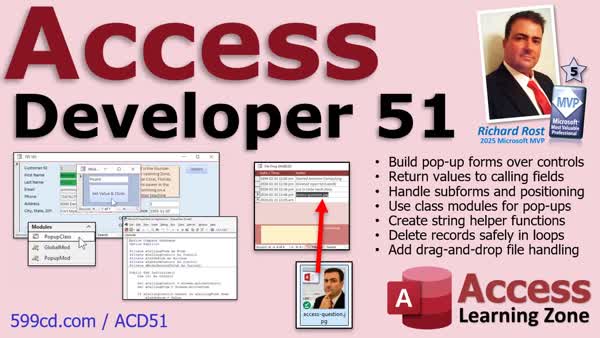
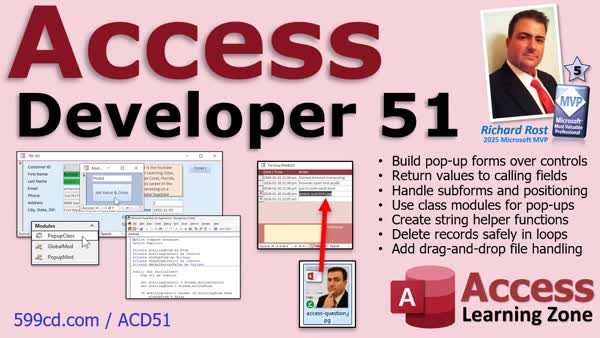
Access Developer 51Popup Forms, File Drag Drop, Safe DeletesWelcome to Access Developer 51. In this course you will learn how to build a reusable modal pop-up form system that works across forms and subforms, create helpful string helper functions like LeftMost and RightMost, safely delete or archive records using recordset loops, and begin developing a drag-and-drop file management system in Microsoft Access. We will discuss best practices for encapsulating pop-up logic with class modules, handling continuous forms, organizing your file system, and preparing your database for more advanced file operations in future lessons. Lessons
AddendumDatabase FilesLinks
Resources
NavigationLesson SummaryReusable Popups, Safe Deletes, and Drag-and-Drop Files - In Microsoft Access Developer 51, we will cover building a reusable modal pop-up form system that works seamlessly across different forms, handling subforms and continuous forms, and using class modules to encapsulate your pop-up logic. You will also learn how to create handy string helper functions, safely delete or archive records within recordset loops, and start building a drag-and-drop file management system for your Access database. This overview sets the stage for lessons that follow and highlights best practices for taking your Access development skills to the next level.
Open a Modal Popup Over Active Control & Set Position - In lesson 1, you will learn how to open a modal pop up form directly over the active control in Microsoft Access and position it correctly every time. I'll walk you through setting up a system where you can click on any field and have a custom pop up form appear above it, laying the groundwork for returning values to that control. We'll cover how to determine screen coordinates, use VBA to automate the process, and make the solution reusable for multiple controls with minimal code changes.
Send Values to Controls via TempVars & Pop Up Forms - In this video, we continue working with Microsoft Access to enhance our pop-up over control feature. I will show you how to store calling form and control information using TempVars, set up your modal form to return a value back to the original control, and convert the functionality into a reusable public function for use across multiple forms and fields in your database. We'll also cover best practices for naming controls and discuss how to make this process more efficient throughout your Access applications.
Open Modal Popup Forms Over Subforms w Row Focus - In lesson 3 of my Microsoft Access Developer 51 series, I will show you how to handle subforms when working with pop-up controls in Access forms. We'll walk through improvements to the code, how to find a control's position on both main forms and subforms, and deal with issues like continuous forms and multiple subforms. You'll learn some key techniques for calculating control coordinates and see how the logic changes depending on where the control is located. This lesson builds on previous videos, focusing on the challenges unique to subforms.
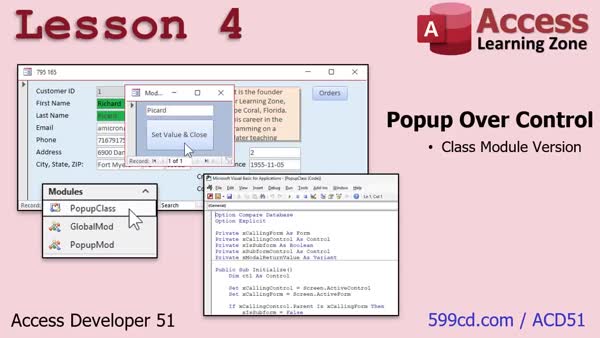
Class Modules for Popup Forms and Subform Detection - In lesson 4, we will review a real-world example of using class modules in Microsoft Access by walking through the database created with class modules to handle pop-up forms and control interactions. We will talk about how to set up class modules, properties, encapsulation, and methods, as well as how to detect subform usage, manage pop-up coordinates, and simplify your forms by consolidating logic into classes. This lesson ties together topics from Developer 50 and demonstrates how to apply these techniques to make your Access applications more efficient.
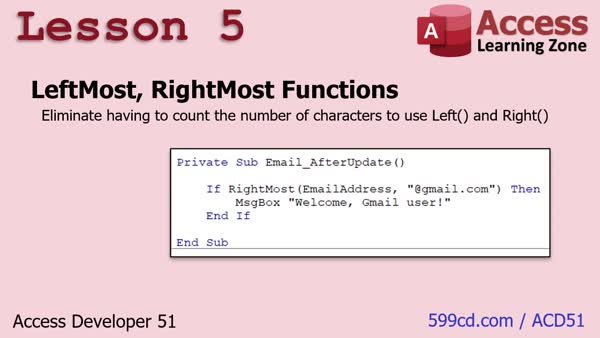
Create Left and Right Helper Functions for Strings - In lesson 5, you'll learn how to create two helper functions, LeftMost and RightMost, in Microsoft Access to simplify working with strings without needing to manually count characters as with the standard Left and Right functions. I'll show you how to build these functions step by step, handle common issues like nulls and empty strings, and discuss practical use cases such as checking email domains, file extensions, and name prefixes in your applications.
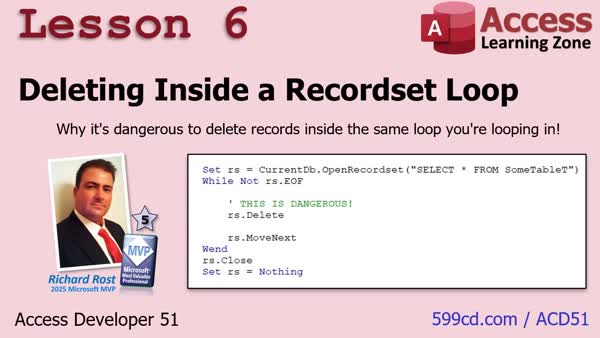
Safely Delete Records in a Loop Without Skipping Errors - In lesson 6, you will learn the safe and recommended way to delete records from a table inside a record set loop in Microsoft Access, and why deleting directly within the loop can cause problems such as skipped records and cursor issues, especially when working with SQL Server or ODBC connections. I will show you how to process each record through a separate SQL delete statement after checking it with custom business logic, how to archive records efficiently, how to pass the record set to a function for cleaner code, and discuss important best practices like transactions, logging, error handling, and multi-user considerations.
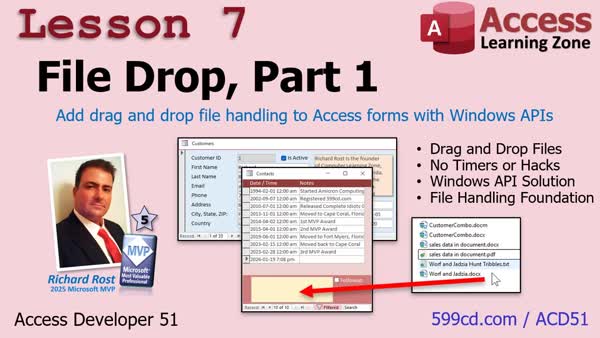
Enable Drag and Drop File Uploads in VBA Forms - In lesson 7, we will start building a drag and drop file system in Microsoft Access. I will show you how to let users drop files directly onto a form, set up a listener using Windows APIs to detect dropped files, and capture the file paths for use in your VBA code. You will learn how to wire the listener to a specific form and confirm file drops are being received, laying the groundwork for creating a more complete file management system in future lessons.
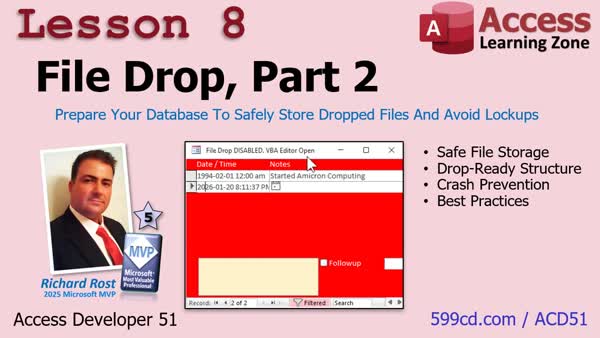
Safely Store Dropped Files and Prevent Lockups - In lesson 8, we will prepare the file drop system in Microsoft Access for real-world use by organizing the folder structure, setting up subfolders for storing dropped files, and adding safety checks to prevent Access from locking up. You'll learn how to ensure the file drop feature only works when it is safe, such as verifying a customer ID is present and making sure the VBA editor is not open. These steps will help get your database ready to reliably handle file drops before we move on to saving and managing files in upcoming lessons.
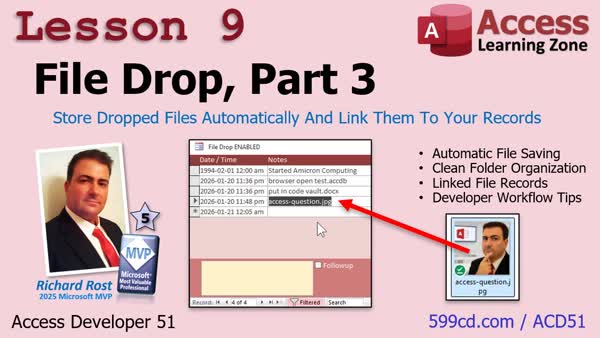
Auto-Link Drag-and-Drop Files to Records - In lesson 9, we will take the Microsoft Access file drop system we have been building and make it fully functional by copying dropped files into a structured folder system, generating unique file names, ensuring the necessary folders exist, and saving these files as linked records in the database. I will show you how to improve the user experience by refreshing the form and setting the focus to the newly added file, making the file drop feature practical and seamless to use inside Access.
Recap of Dev 51 and What's Next in Future Lessons - We will wrap up Microsoft Access Developer Level 51 by previewing what's coming in the next level, including opening dropped files, creating an open link or file function, building a recycle bin feature, showing file icons and image previews, and possibly covering topics like recursive folder creation, multi-file drag and drop, importing all files from a folder, and creating a drag-and-drop class module. I'll also talk about class modules, survey feedback, using the new topic index and search features on the website, Access Day 2026, announcements about my Captain's Log, new merch, and my Access Beginner Level 1 book on Amazon.
Addendum: Moving Forward w Developer Lessons - Notes about moving forward with developer lessons and share my renewed focus on providing more advanced content for developer students. We will discuss the shift from making everything perfect to putting out useful, higher-end programming techniques, database refinements, and tips that you can apply in your own projects. I explain how content will be partitioned between developer and other student levels going forward, preview upcoming programming exercises like leftmost and rightmost functions, and invite your feedback on developer topics you would like to see covered next.
NavigationKeywordsdrag and drop file upload, VBA file drop, drag files onto form, Windows API VBA, file paths VBA, API file listener, file drop Access form, file management VBA, capture file path VBA, detect dropped files VBA
More InformationTranscriptWelcome to Microsoft Access Developer Level 51 brought to you by AccessLearningZone.com. I am your instructor Richard Rost. In today's class, we're going to build a really slick, reusable pop-up form system that can open a modal form directly over the active control, return values to the calling field, and work cleanly across different forms with minimal code changes. We'll take it further by handling the tricky stuff like subforms, continuous forms, and calculating control coordinates no matter where the user clicks. You'll also get a solid, real-world example of using class modules to encapsulate the pop-up logic, simplify your forms, and make the whole system easier to maintain and expand. Along the way, we'll build a couple of handy string helper functions. I'll show you the safe, professional way to delete or archive records inside a recordset loop without running into skipped records or cursor issues. Finally, we'll start building a drag-and-drop file management system where users can drop files right onto a form, and we will wire up the folder structure, safety checks, unique file naming, and database linking to make it reliable and practical in real-world Access applications. Today's class follows Access Developer Level 50. Do you need it? Well, yes, the first four lessons today are all based on class modules, so you should go watch that. Unless, of course, you are not interested in those lessons, then you could skip them. I strongly recommend you finish all my previous classes: beginner, expert, advanced, and developer lessons before continuing with today's class. My lessons are designed to be followed one after the other, so do not skip levels. See this page for all the reasons why. This class is recorded with Microsoft Access as part of a Microsoft 365 subscription, which I strongly recommend. It's currently January 2026, so if you're using the retail version, this is roughly equivalent to Access 2024. The lessons today should work with any version of Access going back to 2007, I think. But if you're still using 2007, it's time to upgrade. If you have any questions regarding the material covered in today's class, just scroll down to the bottom of the page that you're on and post your questions there. Take a minute to read through any other questions that have been posted, as your question may have already been answered. Make sure you click on the subscribe button to get notified if other questions or comments are posted for this class. If you have any other Access questions not related to today's class, post them in the general Access forum. This way, other users who may not be signed up for today's class can join in the conversation. Let's take a closer look at what's covered in today's class. In lesson one, you learn how to open a modal pop-up form directly over the active control in Microsoft Access and position it correctly every time. I'll walk you through setting up a system where you can click on any field and have a custom pop-up form appear above it, laying the groundwork for returning values to that control. We'll cover how to determine screen coordinates, use VBA to automate the process, and make the solution reusable for multiple controls with minimal code changes. In lesson two, we continue working with our pop-up over control feature. I'll show you how to store calling form and control information using temp vars. Set up your local form to return a value back to the original control and convert the functionality into reusable public functions for use across multiple forms and fields in your database. We'll also cover best practices for naming controls and discuss how to make this process more efficient throughout your application. In lesson three, I'll show you how to handle subforms when working with pop-up controls. We'll walk through improvements to the code, how to find a control's position on both main forms and subforms, and deal with issues like continuous forms and multiple subforms. You'll learn some key techniques for calculating control coordinates and see how the logic changes depending on where the control is located. This lesson builds on previous videos focusing on challenges unique to subforms. In lesson four, we'll review a real-world example of using class modules to simplify working with forms, controls, and pop-up logic. We'll see how to set up properties, encapsulation, and methods in a class module, determine if a control is in a subform, calculate pop-up form coordinates, and use a helper module to streamline your code. This lesson brings together concepts from Access Developer 50 and shows how everything integrates, providing a practical demonstration of building and using class modules for forms in Access. In lesson five, we're going to create two helper functions: leftmost and rightmost. We'll use these to simplify working with strings without needing to manually count characters as with the standard left and right functions. I'll show you how to build these functions step by step, handle common issues like nulls and empty strings, and discuss practical use cases such as checking email addresses, file extensions, and name prefixes in your application. In lesson six, you'll learn the safe and recommended way to delete records from a table inside a recordset loop in Microsoft Access, and why deleting directly within the loop can cause problems such as skipped records and cursor issues, especially when working with SQL Server or ODBC connections. I'll show you how to process each record through a separate SQL statement after checking it with custom business logic and how to archive records efficiently and how to pass the recordset to a function for cleaner code. We'll discuss important best practices like transactions, logging, error handling, and multi-user considerations. In lesson seven, we'll start building a drag and drop file system in Microsoft Access. I'll show you how to let users drop files directly onto a form. I'll set up a listener using Windows APIs to detect dropped files and capture the file path for use in your VBA code. You'll learn how to wire the listener to a specific form and confirm file drops are being received, laying the groundwork for creating a more complete file management system in the next couple of lessons. In lesson eight, we're going to prepare the file drop system in Access for real-world use by organizing the folder structure, setting up subfolders for storing dropped files, and adding safety checks to prevent Access from locking up. You'll learn how to ensure the file drop feature only works when it's safe, such as verifying a customer ID is present and making sure the VBA editor is not open. That will lock you right up. These steps will help get your database ready to reliably handle file drops before we start moving on to saving and managing the files in the next lesson. In lesson nine, we'll take the Microsoft Access file drop system we've been building and make it fully functional by copying dropped files into a structured folder system, generating unique file names, ensuring the necessary folders exist, and saving these files as linked records in the database. No, we do not store files in our database. We store links to where they're located. I'll show you how to improve the user experience by refreshing the form and setting the focus to the newly added file, making the file drop feature practical and seamless to use inside Access. That is what is covered in Access Developer Level 51. Now sit back, relax, get your snacks, and get ready for lesson one. IntroIn Lesson 51, you will learn how to build a reusable pop-up form system in Microsoft Access that can open modal forms over active controls and return values seamlessly, even when dealing with subforms and continuous forms. We will walk through calculating control coordinates, using class modules to simplify your pop-up logic, and creating handy string helper functions. You will also learn the safest method to delete or archive records inside recordset loops and start building a drag-and-drop file management system that lets users drop files directly onto forms, set up folder structures, run safety checks, and link files to your database for real-world applications. QuizQ1. What is the main feature being built in this class? A. A reusable pop-up form system that works over the active control B. A new database report formatting tool C. An advanced relational database design structure D. A form navigation bar for Access forms Q2. Which Access element does the pop-up system specifically interact with to appear over it? A. The database navigation pane B. The active control on a form C. The status bar at the bottom of Access D. The table datasheet view Q3. Handling the position of controls on which types of forms is emphasized in the class? A. Table datasheets only B. Main forms and subforms, including continuous forms C. Query design views D. Only single forms Q4. What approach is demonstrated to make the pop-up logic reusable and maintainable? A. Using embedded macros in each form B. Utilizing VBA class modules for encapsulation C. Copying and pasting code to each control D. Storing scripts as text files in the database Q5. According to the class, how should records be deleted or archived in a recordset loop to avoid skipping records? A. Delete directly inside the loop B. Use separate SQL statements after processing each record C. Delete manually from the table datasheet D. Use the Access Query Wizard Q6. What is the purpose of the string helper functions "leftmost" and "rightmost" built in lesson five? A. To randomize database entries B. To simplify working with strings without manually counting characters C. To generate complex passwords for users D. To encrypt user data in forms Q7. What essential best practices are mentioned regarding deleting records in a loop? A. Skipping error handling and logging B. Manually refreshing the table after each delete C. Using transactions, logging, error handling, and multi-user considerations D. Always deleting through the user interface only Q8. When starting to build the drag-and-drop file system, what technique is used to detect files being dropped onto a form? A. Standard Access macros B. Embedding Excel controls C. Using Windows API listeners in VBA D. Deploying a web-based add-in Q9. Before enabling the file-drop feature, which safety steps are suggested? A. Ensuring a customer ID is present and the VBA editor is closed B. Restricting all users from accessing the database C. Turning off all Access database warnings D. Disabling the mouse and keyboard input Q10. When dropped files are handled in Access, how are they stored according to the best practices in the class? A. Files are saved as OLE objects inside the database B. Files are linked in the database after being copied into a managed folder system C. Files are deleted after being reviewed D. Files are sent to an email recipient directly Answers: 1-A; 2-B; 3-B; 4-B; 5-B; 6-B; 7-C; 8-C; 9-A; 10-B DISCLAIMER: Quiz questions are AI generated. If you find any that are wrong, don't make sense, or aren't related to the video topic at hand, then please post a comment and let me know. Thanks. SummaryToday's video from Access Learning Zone focuses on Microsoft Access Developer Level 51. I'm your instructor, Richard Rost. In this class, I will show you how to build a versatile, reusable pop-up form system. The objective is to display a modal pop-up form centered over the active control on any form, return values directly to the calling field, and enable this feature to work seamlessly across your entire database with minimal modifications to each form. We will address some advanced scenarios as well, including handling subforms, continuous forms, and properly calculating the position of controls no matter where the user clicks. This ensures that your pop-up forms behave correctly even in more complex form designs. You will also get practical experience working with class modules—a feature that lets us encapsulate all the pop-up form logic in a central location. With this approach, your code will be far easier to maintain and update, and you'll see how efficient it is to use object-oriented principles in real Access applications. Along the way, we will build a couple of useful string helper functions. I will also walk you through the safest and most professional way to delete or archive records while looping through a recordset, so your code will not encounter the common problems of skipped records or cursor confusion. Another feature in this class is the start of a drag-and-drop file management system. Users will be able to drag files directly onto a form, and we will handle everything needed to organize those files, confirm that each file is uniquely named, and link entries to these files in the database safely and reliably. This class comes after Access Developer Level 50. If you have not seen that class yet, I highly recommend that you do, because the first four lessons here depend on a solid understanding of class modules. Unless you plan to skip those lessons, make sure you are up to speed by watching Level 50 first. My courses are meant to be taken in order, so I encourage you to complete the previous Beginner, Expert, Advanced, and Developer-level classes before taking this one. All of my lessons build on concepts taught earlier, so do not skip around if you want a smooth learning experience. I am using the latest version of Microsoft Access available with Office 365 as of January 2026. For those with the retail version, this is about the same as Access 2024. Most of the techniques in this class should still work even if you have an older version going back to 2007, though I would urge you to upgrade if possible. If you have questions about anything covered in the class, you can ask them at the bottom of the webpage for this lesson. Check to see if someone has already asked your question—the answer may already be there. Subscribe to get updates if there are replies or additional comments. For general Access questions that are not specific to today's lesson, use the general Access forum, so that other users who aren't taking this class can join the discussion. Now, I'll give you an overview of the lessons included in Developer Level 51: In the first lesson, I teach you how to display a modal pop-up form positioned directly over the current control. You'll see how to allow users to click any field and have a context-sensitive pop-up appear above it. We cover how to read screen coordinates, use VBA routines to automate this behavior, and make the feature work with different controls using just a few lines of code. Lesson two expands on this by showing you how to preserve the calling form and control with TempVars. We set up the pop-up form to return values to the right control, and I guide you through converting the logic into reusable public functions, so you can implement this across multiple forms. Best practices for naming and managing controls are included. In lesson three, we tackle the unique challenges of using pop-up controls inside subforms. I'll show you how to adjust the code for subforms and continuous forms, and how to determine a control's exact position, whether it's on a parent or a subform. These techniques are critical for handling more complex database layouts. Lesson four brings together all the earlier topics by showing a real-world implementation using class modules. You'll see how to define properties, encapsulate logic, and use class methods to manage forms and controls. We also look at determining subform status, calculating pop-up coordinates, and organizing helper modules for cleaner, more efficient code. Lesson five introduces two custom string helper functions, leftmost and rightmost, which simplify extracting text from the beginning or end of a string compared to using Access's standard left and right functions. I'll demonstrate the practical uses of these functions, including handling email addresses, file types, and name prefixes, as well as how to make them robust against empty strings and nulls. In lesson six, I explain the proper and safe way to delete records within a recordset loop. You'll learn why simply deleting directly inside the loop can lead to problems like skipped records and cursor errors, particularly with SQL Server or other ODBC data sources. I show you a reliable technique for processing and archiving records, sending recordsets to separate functions, and discuss practices such as transactions, logging, handling errors, and supporting multiple users. Lesson seven marks the beginning of our new drag-and-drop file management system. Here, you'll learn how to enable file dropping onto Access forms by leveraging Windows APIs to detect when files are dropped and capture their paths for use in VBA. We wire this up to specific forms and verify the integration works as expected, laying the groundwork for more advanced file handling. In lesson eight, we organize the new file drop capabilities for practical use. You learn how to create and manage a folder structure, set subfolders, add checks to guard against situations that would make Access unresponsive, and ensure that users only drop files when it is safe to do so. For example, we check for necessary customer identifiers and confirm the VBA editor is closed to prevent problems. Lesson nine brings this project together by making the file drop system fully operational. Dropped files will be copied into neatly organized folders, each with a unique filename, and the paths to these files will be linked inside the Access database. I explain how you can refresh your forms, set focus to the new files, and make the overall system efficient and easy to use. Please note that we do not store the files inside the database itself, but we do track where each one is saved. That is the full scope of Access Developer Level 51. Feel free to get comfortable and get ready to start with lesson one. A full video tutorial with all step-by-step instructions for everything discussed here is available on my website at the link below. Live long and prosper, my friends. Topic ListOpening a modal pop-up form over the active control Calculating and determining control screen coordinates Reusable pop-up system for multiple controls and forms Storing calling form and control info with TempVars Returning values from pop-up form to original control Creating reusable public functions for pop-up handling Best practices for naming controls when using pop-ups Handling pop-up forms with subforms and continuous forms Finding control position on main forms and subforms Calculating control coordinates in multiple subform scenarios Using class modules to encapsulate pop-up logic Setting up properties and methods in a class module Determining if a control is in a subform via class logic Building helper modules to streamline pop-up operations Creating leftmost and rightmost custom string functions Handling nulls and empty strings in string helper functions Practical uses for custom string helper functions Safely deleting records from a table inside recordset loops Avoiding skipped records and cursor issues in deletions Archiving records with custom business logic Passing recordsets to functions for cleaner code Processing deletions and archives using SQL statements Setting up a drag-and-drop file system in Access forms Capturing file paths using Windows API for dropped files Wiring a listener to detect file drops on a form Organizing folder structure for storing dropped files Safety checks before allowing file drops in forms Ensuring file drop system only runs when safe Copying dropped files to structured folders Generating unique file names for dropped files Linking copied files to records in the Access database Refreshing form UI and focusing on newly added file Primary Topicsmodal pop-up forms, class modules, subforms, control coordinates, helper functions, recordset deletion, drag-and-drop file system Secondary Topicserror handling, best practices, folder structure, file linking, VBA automation |
||||||||||||||||||||||||||||||||||||||||||||||||||||||||||||||||||||||||||||||||||||||||||
|
| |||
| Keywords: drag and drop file upload, VBA file drop, drag files onto form, Windows API VBA, file paths VBA, API file listener, file drop Access form, file management VBA, capture file path VBA, detect dropped files VBA PermaLink Access Developer 51 Lessons |