|
||||||
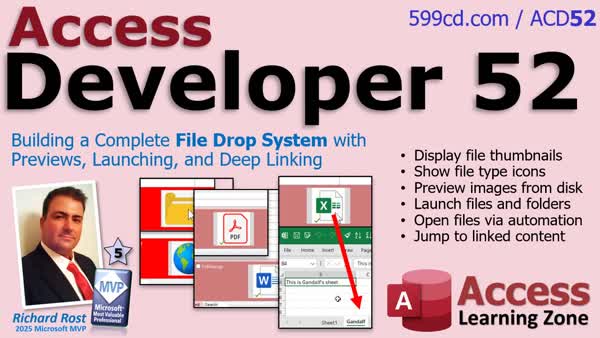
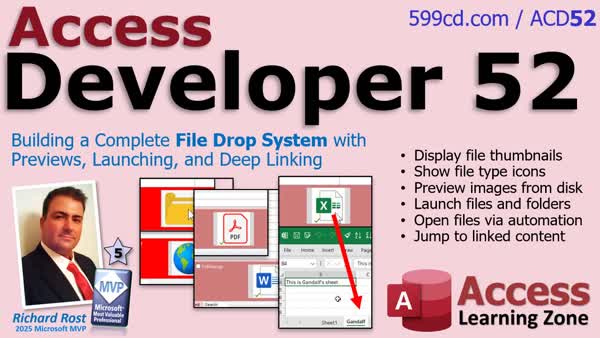
Access Developer 52File Drop System: Previews, Launch & Deep LinkingIn Developer 52, we continue building the file drop system introduced in Developer 51 by adding features such as image thumbnails, file type icons, and improved file previews within your Access database. We will walk through launching files and folders, handling web and database links, supporting more file types, and making preview performance more efficient. Additionally, I will show you how to automate tasks in Excel and Word, such as opening specific sheets or headers and running full text searches when files open. Be sure to watch the Welcome video for complete details. Lessons
Lesson SummaryAccess Developer 52: File Drop System, Continued - In this class, we continue developing the file drop system in Microsoft Access by adding image thumbnail previews and file type icons, building a function to open files or links directly from a thumbnail, and automating the opening of Excel and Word documents to specific locations. We will walk through adding a preview area to the form, launching various file types including Access databases, handling web links and folders, and using late bound automation with Excel and Word. This lesson builds on material from Developer 51.
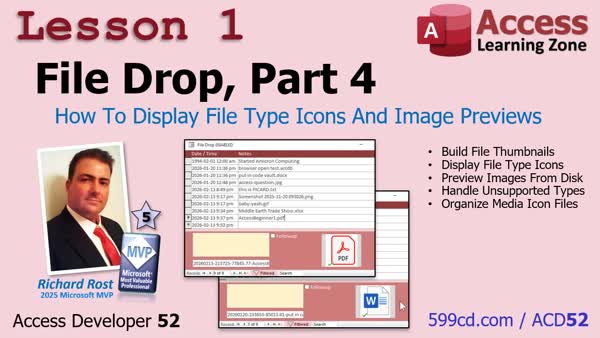
Lesson 1: Show File Type Icons and Image Previews - In this lesson, we will build file thumbnails and previews for uploaded files in the file drop system. I will show you how to display image previews for supported file types and use icons for files such as Word Docs, PDFs, Excel spreadsheets, and others that do not have previews. We will set up image controls in the database form, write a function to determine the correct preview or icon to display based on file type, and organize media files for these icons. We will also make some interface adjustments for a smoother workflow.
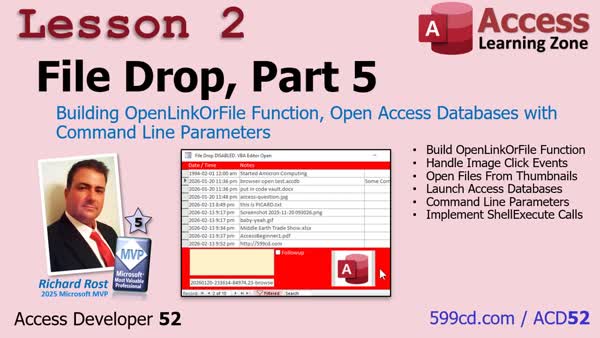
Lesson 2: Open Databases Using Cmd Line Parameters - In this lesson, we begin developing the Open Link or File function by setting up an image click event to open files from a thumbnail preview in Microsoft Access. We walk through storing the full file path in a hidden form field and discuss handling various file types, including how to open Access databases with command line parameters. We will discuss concepts for extending this to Excel and Word files, as well as considerations and challenges involved in generating Windows-style thumbnails programmatically.
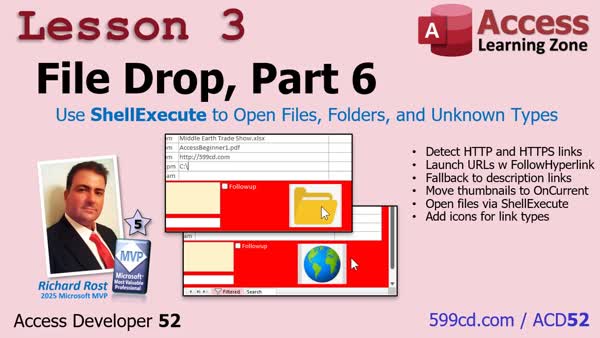
Lesson 3: Open Files, Folders, Unknown Types - In lesson three, we build out hyperlink handling and file launching in the file drop system. I show how to detect and launch web links, files, and folders, including handling cases where the file path is missing. We discuss improving thumbnail loading for better performance and set up opening files and folders using Windows File Explorer. We also talk about adding icons for web links and folders, and explain error handling for cases where files or descriptions are missing. At the end, you will see how to work with various file types right from the file drop system.
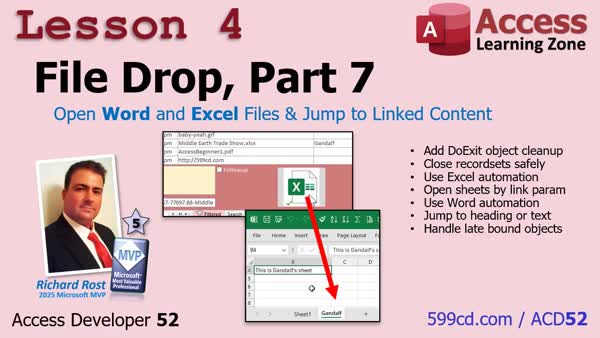
Lesson 4: Open Word, Excel Files & Jump to Content - In this lesson, we will extend the file drop system to open Word and Excel files automatically using late binding. For Excel, I will show you how to jump to a specific worksheet, and for Word, we will discuss how to jump to a heading or do a text search within the document. We will also talk about adding cleanup and error handling to ensure everything shuts down properly. Additional topics include feedback on object cleanup in code and ideas for upcoming features like a recycle bin and creating new Word documents from within the system.
Access Developer 52 Recap & What's Ahead in 53 - In this video, we review the updates made in Access Developer 52, including the addition of thumbnails, file type icons, and enhanced file opening functions. I also discuss plans for the next lesson, such as adding recycle bin support, exploring different delete methods, recursive folder creation, batch importing files from a folder, and possibly converting file drop logic to class modules.
NavigationKeywordsAccess Developer, access developer 52, file drop system, file previews, thumbnails, file type icons, launch files, command line parameters, hyperlink support, folder support, performance improvement, automate excel, automate word, file management interfac
More InformationTranscriptHi, this is Richard Rost with Access Learning Zone. I just released Access Developer 52, where we continue building out the file drop system that we started in Developer 51, and we take it to the next level with previews, launching, and deep file navigation right inside your database. In case you missed Developer 51, that's where we first started building the file drop system, a feature that lets you click and drag any kind of file right onto a form in your database and have it automatically stored and tracked in a file folder. In Developer 52, we keep building that database. We start by adding thumbnails and file type icons so you can preview images and instantly recognize documents like Word, Excel, and PDFs at a glance. We build an open link or file function so you can click on a thumbnail and launch files, folders, web links, or even other Access databases with command line parameters. Then we expand support for hyperlinks, folders, and unknown file types while improving performance so previews load faster and more efficiently. Finally, we automate Excel and Word so you can open an Excel workbook and jump straight to a specific sheet, or you can open a specific Word document and jump straight to a header section or run a full text search the moment the file opens. There is really cool automation in this video. If you want to build a powerful, professional file management interface right inside your Access database, Access Developer 52 will show you exactly how to do it. For more information, visit my website at the link shown on your screen or drop a comment down below if you have any questions. Live long and prosper, my friends. I will see you in class. IntroIn <B>Developer 52</B>, we continue building the file drop system introduced in <a href='/ACD51'><B>Developer 51</a></B> by adding features such as image thumbnails, file type icons, and improved file previews within your Access database. We will walk through launching files and folders, handling web and database links, supporting more file types, and making preview performance more efficient. Additionally, I will show you how to automate tasks in Excel and Word, such as opening specific sheets or headers and running full text searches when files open. Be sure to watch the <b><a href='/blog/display-article.asp?ID=4376'>Welcome</a></b> video for complete details. QuizQ1. What was the main focus of Access Developer 52? A. Enhancing the file drop system and adding file previews and automation B. Creating a new form layout system C. Developing a reporting module D. Building a user authentication system Q2. What feature was introduced in Developer 51? A. Automated Excel and Word integration B. File drop system allowing drag and drop file storage in forms C. Advanced SQL queries D. Data encryption tools Q3. Which new feature allows users to recognize document types at a glance in Developer 52? A. Table normalization B. Thumbnails and file type icons C. Macro builder D. Query optimization Q4. One of the enhancements in Developer 52 allows you to: A. Print forms to PDF automatically B. Click on a thumbnail to launch files, folders, links, or other databases C. Synchronize with a cloud database D. Import CSV data automatically Q5. How did performance improve in Developer 52? A. By adding more indexes to tables B. By removing file preview capability C. By making previews load faster and more efficiently D. By converting forms to reports Q6. What kind of automation was added for Excel and Word in Developer 52? A. Sending automatic emails B. Opening Excel or Word and jumping to a specific location or running a search C. Recording voice notes inside documents D. Exporting forms to CSV Q7. Why might someone use the features taught in Developer 52? A. To develop a file management interface inside their Access database B. To encrypt their Access database C. To improve primary key structure D. To upgrade database security Answers: 1-A; 2-B; 3-B; 4-B; 5-C; 6-B; 7-A DISCLAIMER: Quiz questions are AI generated. If you find any that are wrong, don't make sense, or aren't related to the video topic at hand, then please post a comment and let me know. Thanks. SummaryToday's video from Access Learning Zone covers the release of Access Developer 52, where I continue developing the file drop system introduced in Developer 51. In the previous release, I demonstrated how to create a feature that allows users to drag and drop any type of file directly onto a form within an Access database. This system automatically stores the files in a designated folder and tracks them within the database. With Developer 52, we move forward by enhancing this file management functionality. The first improvement involves displaying thumbnails and file type icons, so you can quickly preview images and easily identify common documents such as Word, Excel, and PDF files. This visual upgrade makes it much simpler to recognize files at a glance. I also introduce a feature that allows you to launch files, folders, web links, or even other Access databases (including command line parameters) by clicking on these new thumbnails or icons. This enables direct interaction from inside your Access database, streamlining your workflow. Support for different kinds of links and file types is expanded as well. The system now handles hyperlinks, folders, and a variety of unknown file types. At the same time, overall performance improvements mean that previews load both quicker and more efficiently. There is also new automation for Excel and Word documents. Now you can open an Excel workbook and go directly to a particular worksheet, or open a specific Word document straight to a header section, or even initiate a full text search as soon as the document is opened. These automation features make handling common Office files much more powerful and convenient. If your goal is to implement a robust and professional-grade file management system right inside your Access database, Access Developer 52 offers step-by-step guidance on exactly how to accomplish that. You can find a complete video tutorial with step-by-step instructions on everything discussed here on my website at the link below. Live long and prosper, my friends. Topic ListAdding thumbnails and file type icons for preview Building open link or file function in Access Launching files, folders, and web links from Access Handling and previewing various file types Expanding support for hyperlinks and folders Improving performance of file previews Automating Excel to open workbooks to specific sheets Automating Word to jump to headers or run searches Primary TopicsAccess file drop system, file organization, thumbnail previews, file icons, file launching, hyperlink support, folder navigation, automation with Word and Excel Secondary Topicsperformance optimization, command line parameters |
||||||||||||||||||||||||||
|
| |||
| Keywords: Access Developer, access developer 52, file drop system, file previews, thumbnails, file type icons, launch files, command line parameters, hyperlink support, folder support, performance improvement, automate excel, automate word, file management interfac Page Tag: whatsnew PermaLink Access Developer 52: Building a Complete File Drop System with Previews, Launching, and Deep Linking |