|
||||||
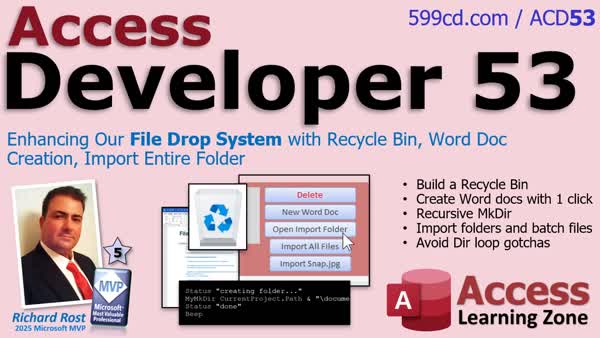
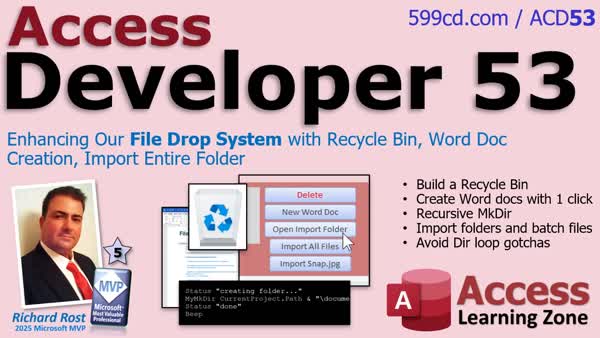
Access Developer 53File Drop System: Recycle, Docs, Import, MakeDirIn Access Developer 53, we continue developing the file drop system for Microsoft Access started in previous lessons. We focus on improving error handling for Word and Excel automation, creating a recycle bin system for safer deletions, and adding a button to generate new Word documents stored in the correct customer folders. We'll discuss building a recursive function to ensure nested folders exist, and we will walk through implementing an import folder system to batch import multiple files at once into your database. Lessons
ResourcesNavigationLesson SummaryAccess Developer 53: Recycle, Docs, Import, MakeDir - In this class, lessons include sending files to the Windows Recycle bin with PowerShell, creating a one-click feature to generate and save Word documents directly from Access, building a recursive function for folder creation, and developing an import folder system to batch import files. This course continues from Developer 51 and 52.
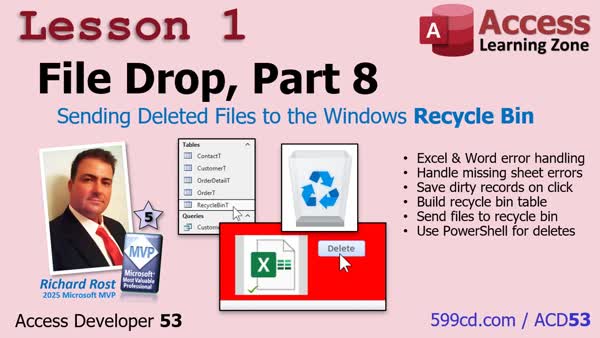
Lesson 1: Send Deleted Files to Windows Recycle Bin - In this lesson, we build a proper recycle bin system for a file drop database by adding error handling for Word and Excel automation, ensuring records are saved before files are opened, and using PowerShell to safely move both records and physical files to the recycle bin instead of permanently deleting them. We walk through handling errors in VBA, verifying records and files before deletion, creating a recycle table to store deleted records, and integrating a PowerShell script to send files to the Windows recycle bin. The lesson also explains how to restore files and discusses the differences from earlier approaches.
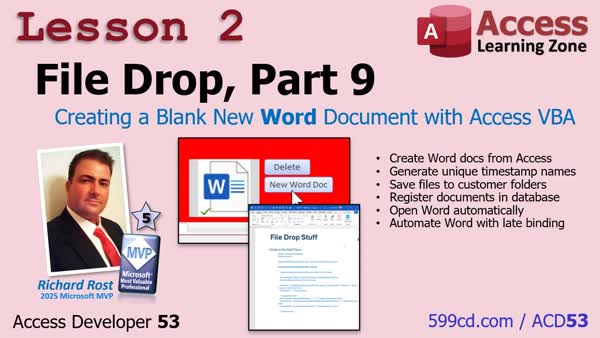
Lesson 2: 1-Click Word Doc: Save to Customer Folder - In this lesson, I will show you how to create a button in your Access database that generates a new blank Word document, automatically names it with a unique file name, saves it to the appropriate customer folder, registers it in your system, and opens it for editing with a single click. We will walk through the relevant VBA code, cover how to prompt the user for a description, handle file saving and registration, and demonstrate how the process integrates into your existing workflow. We'll also briefly discuss adapting this feature for Excel documents.
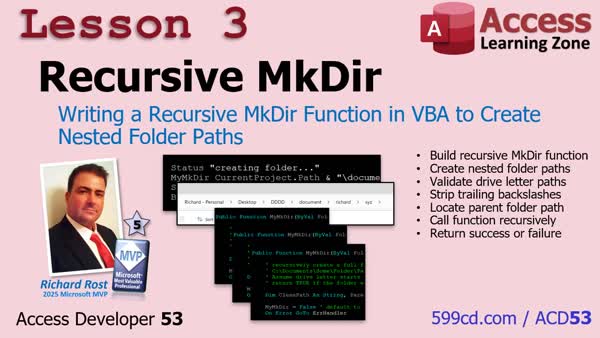
Lesson 3: Nested Folders w Recursive MkDir Function - In this lesson, we take a break from building the file drop system to create a recursive MakeDir function in VBA. I explain the concept of recursion and demonstrate how to write a function that ensures an entire nested folder path exists before it is used, including error handling and path validation. We walk through the code step by step and test the function to confirm it works, preparing us to integrate it into the file drop system in the next lesson. Recursion is discussed both generally and in the specific context of folder creation.
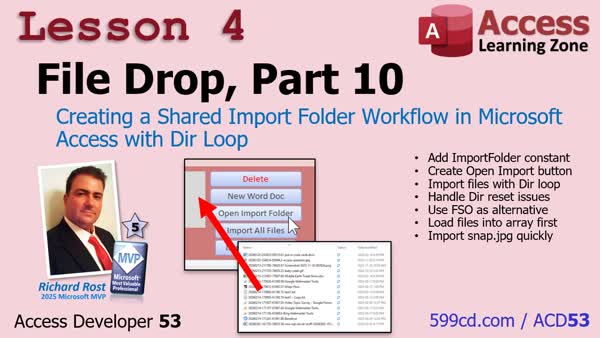
Lesson 4: Shared Import Folder Workflow Using Dir - In this lesson, we will walk through building an import folder system for your File Drop database. I show you how to define a shared import folder, set up database buttons to open that folder and batch import all files with one click, and handle importing a single file such as snap.jpg. We discuss potential pitfalls with the classic Dir loop method, along with safer alternatives like using FSO or arrays. We also prepare for the next lesson, where we will start building a search feature to index and search imported files.
Access Developer 53 Recap & What's Ahead in 54 - In this video, we review the key accomplishments from Access Developer 53, including building the recycle bin, recursive folder creation, and importing multiple files with drag and drop. We discuss plans for future lessons, including more work with class modules and more.
KeywordsAccess Developer, Access Developer 53, drag and drop file management, safe record deletion, external file management, image thumbnails, file type icons, Word automation, Excel automation, recycle bin system, recursive make-dir function, batch import files
More InformationTranscriptHey everyone, this is Richard Rost with Access Learning Zone. I just released Access Developer 53, and we're continuing to build out the file drop system that we started back in Developer 51. If you missed 51, that's where we started building the drag and drop file management system for Access. We put the core plumbing in place, created some helpful utility functions, handled safe record deletion inside loops, and laid the foundation for managing external files directly from your database. Then in Developer 52, we expanded that system with image thumbnails, file type icons, better previews, and support for launching files, folders, web links, and even other database files. We also automated Word and Excel, opening specific sheets inside a workbook or specific headers or running searches when a document loads. Lots of cool stuff in 52. By the end of this lesson, you had a pretty powerful file management interface living right inside your Access database. Now in Developer 53, we take it to the next level. We start by tightening up error handling for Word and Excel automation, so your code behaves like a professional application. Then we build a true recycle bin system that safely copies records to a recycle table and sends files to the Windows recycle bin instead of just deleting them. We add a one-click button to generate brand new Word documents, automatically name them, store them in the correct customer folder, and register them in the database. I use this one a lot because when I want to take notes, I want to drop everything into a Word document because you can put text in there, you can put images in there, you can put all kinds of stuff in there, and then save that in your Access folder. Then we build a reusable recursive make-dir function to guarantee your nested folder paths exist before you use them. So in one shot, you can create a whole directory hierarchy: Richard, desktop, documents, Richard, whatever, instead of having to make each one separately. Finally, we implement an import folder system so you can batch import files, all the files in a folder, with a single click and even import things like screenshots with a single click. I do this because I have multiple systems and a shared folder on my database server. I can just drop all kinds of files in there, and then with one click, I can import the entire folder into my database. That's all covered in Access Developer 53. You can find it on my website. There's the link right there. I'll put a link down below you can click on. If you have any questions, feel free to post them down below. Live long and prosper, my friends. I'll see you next time. IntroIn <B>Access Developer 53</B>, we continue developing the file drop system for Microsoft Access started in previous lessons. We focus on improving error handling for Word and Excel automation, creating a recycle bin system for safer deletions, and adding a button to generate new Word documents stored in the correct customer folders. We'll discuss building a recursive function to ensure nested folders exist, and we will walk through implementing an import folder system to batch import multiple files at once into your database. QuizQ1. What feature was initially built in Developer 51? A. Import folder system for batch importing files B. Integration with PowerPoint automation C. Drag and drop file management system for Access D. Advanced report generation Q2. Which of the following enhancements was NOT mentioned as part of Developer 52? A. Support for launching files and folders B. Image thumbnails and file type icons C. Recycle bin system D. Automating Word and Excel Q3. What was greatly improved in Developer 53 regarding Word and Excel automation? A. Multi-user document collaboration B. Tightened error handling for automation C. Data encryption in Word files D. Automating email sending Q4. What does the new recycle bin system in Developer 53 do when deleting a file? A. Deletes the file permanently B. Copies the record and sends the file to the Windows recycle bin C. Archives the file in the main Access table D. Compresses the file before deletion Q5. What does the new one-click button added in Developer 53 do? A. Launches a specific folder in Windows Explorer B. Generates a new Excel spreadsheet for each customer C. Creates and stores new Word documents in the correct customer folder D. Imports multiple PDF files at once Q6. What is the purpose of the reusable recursive make-dir function? A. To encrypt files before saving to disk B. To ensure all nested folder paths exist automatically C. To delete empty folders recursively D. To link database files to cloud storage Q7. What does the new import folder system allow in Developer 53? A. Batch import all files in a folder with one click B. Import database forms from another Access file C. Export tables to multiple folders D. Back up the entire database to a folder Answers: 1-C; 2-C; 3-B; 4-B; 5-C; 6-B; 7-A DISCLAIMER: Quiz questions are AI generated. If you find any that are wrong, don't make sense, or aren't related to the video topic at hand, then please post a comment and let me know. Thanks. SummaryToday's video from Access Learning Zone highlights the release of Access Developer 53, where we continue building on the file drop system that started back in Developer 51. If you missed Developer 51, that's where we first introduced the drag and drop file management feature for Access. In that lesson, we set up the essential structure, built helpful utility functions, learned how to handle safe record deletion processes within loops, and created the foundation for fully managing external files right from inside the Access database. Developer 52 expanded on these ideas by adding image thumbnails, file type icons, and improved previews. I also covered how to launch files, open folders, follow web links, and even work directly with other Access databases. Automation features were introduced for Word and Excel, making it possible to open specific sheets, jump to particular headers, or conduct searches automatically when a document opens. With all of these improvements, by the end of that lesson, you had a robust file management system built into Access. Now, Developer 53 takes things even further. We begin by refining error handling when automating Word and Excel, ensuring your code operates reliably and professionally. Next, I show you how to create a fully functional recycle bin system. Instead of simply deleting records and files, we now move records into a recycle table and send files to the Windows recycle bin, adding a layer of safety and allowing for recovery if something is deleted by mistake. I also demonstrate how to add a one-click button that instantly creates new Word documents, gives them automatic names, places them in the correct customer folder, and registers them in the database all at once. I rely on this myself for keeping notes, since Word documents support text, images, and a wide variety of content that can all be organized within your Access folders. Another improvement is the creation of a reusable recursive function to ensure that any nested folder paths you need are built before you use them. This means you can generate a complex directory structure with one action, instead of having to create each separate folder step by step. Finally, I introduce an import folder feature that lets you import every file in a folder at once, including things like screenshots, just with a single click. This is especially useful if you work across multiple systems and keep a shared folder on your database server. You can quickly collect all the files you need and batch import them into your database. Everything I've covered here is included in Access Developer 53, and you can find a complete video tutorial with full step-by-step instructions on everything discussed here on my website at the link below. Live long and prosper, my friends. Topic ListTightening error handling for Word automation Tightening error handling for Excel automation Building a recycle bin system for records Sending files to the Windows recycle bin Implementing a one-click button to create Word documents Auto-naming and storing Word documents in customer folders Registering new Word documents in the database Creating a recursive make-dir function for folder paths Batch importing all files from a folder Importing screenshots and other files with one click Primary TopicsAccess file management, error handling, Word and Excel automation, recycle bin system, document generation, recursive directory creation, batch folder import Secondary Topicssafe record deletion, utility functions, database registration, customer folder organization |
||||||||||||||||||||||
|
| |||
| Keywords: Access Developer, Access Developer 53, drag and drop file management, safe record deletion, external file management, image thumbnails, file type icons, Word automation, Excel automation, recycle bin system, recursive make-dir function, batch import files Page Tag: whatsnew PermaLink How To Build a Recycle Bin, Batch Import, and Automate Word Docs in Microsoft Access |