Compact on Close
By Richard Rost

 15 months ago
Why I Don't Use Compact on Close in MS Access
In this Microsoft Access tutorial, I will show you why I do not recommend using Compact on Close in Access databases. We will learn what Compact and Repair does, when it is safe to use Compact on Close, the risks involved with multi-user and split databases, and discuss best practices for maintaining and backing up your Access files.
Sienna from Syracuse, New York (a Platinum Member) asks: Hi Richard, I've been using Compact on Close in my Access database for years without any issues. It keeps the file small and tidy, and I don't have to think about it. But I've heard you mention in a few videos that you don't recommend using it. Why is that?
Prerequisites
Links
Recommended Courses
Keywords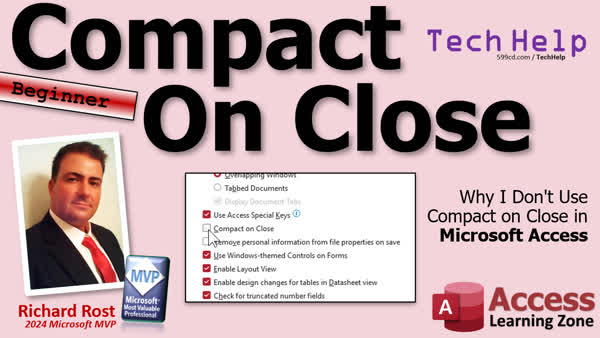
TechHelp Access, compact on close, compact and repair, split database, multi-user database, front end back end, database corruption, network database, compact with VBA, schedule compact, automatic compact, database backup, backup template, compactor template, push front end updates, temp tables, command line compact
More InformationTranscript Welcome to another TechHelp video brought to you by AccessLearningZone.com. I'm your instructor, Richard Rost.
Today, we are going to talk about why I don't use Compact on Close in Microsoft Access. Today's question comes from Sienna in Syracuse, New York, one of my platinum members. She says, "Hi, Richard. I've been using Compact on Close in my Access database for years without any issues. It keeps the file small and tidy and I don't have to think about it. But I've heard you mention in a few videos that you don't recommend using it. Why is that?"
First of all, for everybody else, if you don't know what Compact and Repair is, go watch this video. It is one of my first TechHelp videos I ever made. We just crossed a thousand, by the way. Compacting and Repairing is something you can do on a regular basis. It reclaims unused space from your database. It rebuilds all the internal structures. It can reduce the file size dramatically, and it can fix any minor corruption or bloating problems before they get bad.
So it's good to do on a regular basis. I just like to do it manually.
Now, you can find Compact on Close in your database options. Go to File, Options, Current Database, and right there you'll see Compact on Close. Mine is turned off.
Let's talk about when it's safe and when you shouldn't use it.
When it's OK to use Compact on Close:
You have a simple, single-user, unsplit database. In other words, it's sitting on your computer, you are the only one that uses it. It's for small office use, personal project databases. I have a bunch of these sitting on my desktop too, a little project, and I started a new calendar rewrite, that kind of stuff. That's fine. You want to compact those on close? That's OK. It's for local use only, not if you are sharing it across a network, and you certainly do not want to compact and repair across the network. That can be troublesome too.
Now, where can Compact on Close cause problems?
Well, multi-user environments, split databases, and any database running over a network.
If you have a multi-user environment and you have multiple people using the database, they should each have their own copy of the front end database on their local machine. If you are not familiar with split databases, go watch this video. Every user gets their own front end and that connects to your access back end, or whatever server you might have, SQL Server, whatever it is.
If the users have Compact on Close set for their local front end databases, that's OK because it is really only affecting them and it's on their front end PC. But really, most of the data is kept in the back end. Unless you've got a lot of temporary tables and stuff like that, then it is OK. But every time you push out an update and then give them a new front end, it's not going to matter if it's compacted or not, so that's really up to you.
If you do read and write a lot of temporary data, temp tables, that kind of stuff, you can use Compact on Close. But don't put Compact on Close on the back end.
You want to compact and repair your database, but you want to make sure you do it at a time when no one else is in the database. If you go to the server and open this up on a Thursday at 3pm and you have 15 people in your database, it might cause problems. It could cause corruption. It could lock a bunch of files. It's just a bad idea.
That's why I suggest doing this either manually when you know no one else is in the database or schedule it for a time when you know no one is in the office, like Sunday at 4am.
Never compact on close a shared back end. In multi-user environments, it can interfere with other users if people are in the databases. It forces a write lock when closing, increasing the risk of corruption. It introduces delays if you are constantly opening and closing the database. If it fails during compact, your database might be left in an unstable state. It could corrupt the file if multiple front ends are connected during the compact.
If someone just forgets to log off and you compact the back end, that's probably not going to cause any problems. If someone leaves for the day and just stays logged on their database, and of course there are ways in VBA to prevent that, but if you compact the database and no one is actually using it at that moment, you should be OK. But if you have people actively trying to use the database when the back end is compacting, I have seen that cause problems, so you want to make sure everybody is out.
In fact, what I used to do years ago was make a copy of the back end database file or files, compact those, make sure they were backed up, delete the originals, and then replace the copied compacts. That made sure that nobody was in it while I was trying to do my compacting.
Best practices:
Front end - it's OK to compact manually or on close if you use a lot of temp objects in your front ends.
Back end - you, the admin, should compact it regularly. Weekly is fine for most cases. If you have a database that is being used all the time, monthly if not. But you should do that. Don't trust your users to do that.
You can automate scheduling compacting during off hours. We'll talk more about that in a moment.
I think it's better to push updated front ends to the users on a regular basis rather than worrying about compacting their front ends. If you push a fresh copy, then you don't have to worry about it.
One more thought: sometimes users might mistake compacting for backing up the database, and they are not the same, obviously. Make sure you have a good backup plan.
If the users just have front ends and there is no real data in those, they don't have to worry about backing up their database, but you should have a good backup copy.
If you want to learn how to properly back up your database, watch this video.
This video will teach you how to compact the database from the command line so you can make yourself a little batch file or a shortcut that will handle all the compacting for you.
This video will teach you how to compact with VBA so you can compact the back end from your front end, but I do recommend doing this from the machine that it's actually on. Compacting over the network means all of the traffic and your entire database file has to go completely over the network. Run this from a front end on your server or whatever machine you are calling your server.
I do have some templates available on my website. I have an access compactor template where you tell it what your database folder is and it will compact all of the databases it finds in that folder. I have my database split up into like 10 different back ends and I have mine scheduled to run at 4 a.m. every Sunday and it just compacts everything and I don't have to worry about it.
It will keep a nice little log file for you so you can just check it whenever you think about it and make sure everything is working.
I've got a backup template that does the same thing but it makes backups. I have mine so that it runs every day at 4 a.m. and it copies all of my database files up to my Google Drive folder that I have mapped to my G drive. This way, I always have an off-site copy on a day-to-day basis of all of my database files. Then you can run the compactor after you do the backup.
I recommend backing up first before you compact and repair because if any problems occur during the compact phase, you have a backup of your last known good database. I have seen compact and repair corrupt a database before. It does not happen often, but it's possible.
Make backups, make multiple backups, keep off-site backups - all kinds of good stuff you should do.
Finally, I've got this template available on my website. This is for pushing front end updates. So if you have your server with your back end on it and your admin/developer machine and you make a few changes to your front end and want to push it out to all your users, you click one button, it sends it to the server, and then the server reboots all these machines and says you have to have an update now or it will do it whenever you want it to. You program in when you want it to run.
You can pop up a message and say there is an update, do you want to install it now, or you can make it so that it just does it when they start the database, or you can put it on a timer loop, whatever you want to do. It's up to you. This is just a template that gets you going and it copies all the stuff for you.
That is why I don't use Compact on Close. I think I've made a pretty good point. Again, if it is just a personal Access database, you have it on your desktop, or it's sitting in a folder on your machine and you're the only one that uses it, that's fine. Make sure you have a good backup.
Don't run Access databases out of file sharing folders like Google Drive or Dropbox. I have to keep repeating that because I see so many people do it. Those cause problems. Don't use it; put it on your C drive.
Yes, I have a Google Drive G, but I don't run my Access databases out of it.
But that's going to be your TechHelp video for today. Hope you learned something. Live long and prosper, my friends. I'll see you next time.
TOPICS:
Explanation of Compact and Repair in Access
Finding and setting Compact on Close option
Situations where Compact on Close is safe
Risks of using Compact on Close in multi-user databases
Why not to compact back end databases on close
How Compact on Close can cause corruption
Manual compacting recommendations
Automating compacting using command line
Automating compacting using VBA
Best practices for front end compacting
Best practices for back end compacting
Scheduling compact and repair operations
Importance of backing up before compacting
Recommended backup strategies
Using templates to schedule compact and repair
Using templates to automate database backups
Dangers of running Access databases from cloud drives
Pushing front end updates to users automatically
COMMERCIAL:
In today's video, we're going to discuss why I do not recommend using Compact on Close in Microsoft Access. You'll learn what Compact and Repair is, when it's safe to use Compact on Close, and situations where it can actually cause problems, especially with multi-user and split databases. I will show you the best practices for compacting your front and back ends, how to automate the process, and why backing up your database is always important before compacting. Plus, I'll mention some handy templates for automating your backups and database compacts. You'll find the complete video on my YouTube channel and on my website at the link shown. Live long and prosper my friends. Intro In this video, we talk about why I do not recommend using the Compact on Close feature in Microsoft Access. You'll learn what Compact and Repair does, how to set Compact on Close, when it is safe to use, and where it can cause issues such as database corruption in multi-user or split setups. I go over best practices for compacting front end and back end databases, ways to automate compacting with command line and VBA, and why regular backups are essential before compacting. I also share some tips for avoiding problems with cloud drives and updating front ends automatically. Quiz Q1. What is the primary purpose of using the Compact and Repair feature in Microsoft Access?
A. To reclaim unused space and fix minor corruption issues
B. To upgrade Access to the latest version
C. To install security updates
D. To organize forms and reports automatically
Q2. According to the video, when is it generally safe to use the "Compact on Close" option?
A. In a multi-user, split database environment over a network
B. In a simple, single-user, unsplit database used locally
C. On the back end of a split database while others are using it
D. On any shared database stored on Google Drive or Dropbox
Q3. Why should you avoid using "Compact on Close" in multi-user or split database environments?
A. It can slow down queries
B. It forces file locks and can cause corruption if other users are connected
C. It deletes user accounts
D. It automatically compresses attachments, losing quality
Q4. What is the recommended practice for compacting a back end database in Access?
A. Schedule compacts when no one is using the database, such as late at night
B. Enable "Compact on Close" for all users
C. Run compacts randomly during peak hours
D. Never compact the back end database
Q5. What is one main risk of compacting and repairing a database while users are still connected?
A. The database might permanently lock out all users
B. The database can be left in an unstable or corrupted state
C. It doubles the database size
D. It makes the database read-only permanently
Q6. In split database setups, what is the recommended approach for distributing front end updates to users?
A. Manually copy the file to every user's machine
B. Use a deployment template or utility for pushing updates efficiently
C. Send email instructions to users to download it themselves
D. Store the front end in a shared Dropbox folder
Q7. Why should you not run an Access database directly out of synchronized folders like Google Drive or Dropbox?
A. It increases the Access licensing fees
B. It can cause data integrity issues and database corruption
C. It makes it impossible to back up the file
D. Access databases run faster in shared folders
Q8. What is the relationship between compacting a database and backing up a database?
A. Compacting is the same as backing up
B. Backups should always be made before compacting to prevent data loss if compaction fails
C. You only need to compact if you have a backup
D. You should never perform backups if you compact regularly
Q9. For Access front end databases with a significant number of temporary tables, which action is appropriate?
A. Enable "Compact on Close" for the front end
B. Disable all compacting features
C. Only compact monthly, regardless of usage
D. Set up daily compacts for the back end only
Q10. What is one major benefit of scheduling database compaction during off-hours?
A. It ensures all database objects are renamed
B. It avoids interfering with user activity, reducing the risk of errors or corruption
C. It lets you bypass user passwords
D. It allows Access to automatically create backups
Q11. According to the video, what is a good backup strategy for Access databases?
A. Make frequent backups and store at least one off-site or in the cloud
B. Only back up after a compact operation
C. Use "Compact on Close" as your sole backup method
D. Never back up if using Google Drive
Q12. What is one advantage mentioned for pushing updated front ends to users frequently?
A. It eliminates the need for users to compact their front end databases
B. It increases file size each time
C. It makes users responsible for all repairs
D. It requires users to learn VBA
Answers: 1-A; 2-B; 3-B; 4-A; 5-B; 6-B; 7-B; 8-B; 9-A; 10-B; 11-A; 12-A
DISCLAIMER: Quiz questions are AI generated. If you find any that are wrong, don't make sense, or aren't related to the video topic at hand, then please post a comment and let me know. Thanks. Summary Today's TechHelp tutorial from Access Learning Zone is focused on why I do not recommend using the Compact on Close feature in Microsoft Access.
Compacting and repairing your Access database is a process that reclaims unused space, rebuilds the internal structure, reduces file size, and can fix minor corruption or bloating issues. This is a good maintenance habit to keep your database healthy, but I prefer performing it manually rather than relying on Compact on Close.
Let me explain where you can find the Compact on Close setting. In your Access database, go to the database options, look under File, then Options, then Current Database, and you will see an option for Compact on Close. Personally, I leave this setting turned off, and I want to explain when it is appropriate to use and when to avoid it.
Compact on Close is generally safe to use if you have a simple, single-user, unsplit database. If your database is sitting on your own computer for personal use or for a small project and you are the only one who uses it, then enabling Compact on Close is fine. I do this with several project databases on my own desktop. Just make sure the file is not being shared across a network, because compacting and repairing files over a network can lead to trouble.
Potential issues with Compact on Close come into play in multi-user environments, split databases, or whenever a database is running over a network. In these situations, each user should have their own copy of the front end database on their local machine, all connected to the back end which holds the data. If individual users have Compact on Close turned on for their local front ends, that is typically fine, especially if temporary tables and data are being created and destroyed regularly. However, since updates to front ends are often pushed out to users, compacting is not particularly meaningful in this scenario.
Where problems really begin is with Compact on Close on the back end database. Compacting the back end while users are connected, or over a network, can cause file locks, corruption, and severe delays. Multiple users actively working in the database during a compact process can easily result in data corruption or a damaged file. Therefore, you should never use Compact on Close for a shared back end database.
My recommendation is to compact shared databases manually or automate the process to run at a scheduled time when you are certain no one else is using the database, typically during off hours like early Sunday morning. Make sure everyone is logged out before you perform compact and repair operations. In the past, I would make a backup copy of the back end, compact that copy, and then replace the original only when I was sure no one was connected, to avoid any risk of corruption.
Best practices for compacting are straightforward. For front end databases, you can compact manually or use Compact on Close if you frequently create temporary objects. For back end databases, the administrator should compact regularly - weekly is adequate for most cases, with less frequent compacting for lightly-used files. Do not rely on users to perform this maintenance.
Moreover, automating the process is possible. I have tools and templates that schedule compacting to happen during off hours. For instance, you can create batch files or shortcuts to handle compacting automatically from the command line, or use VBA to compact the back end from a front end database as long as you are running the process on the machine where the back end actually resides. Never attempt this over a network connection since it involves moving the entire database file, which is risky and slows down the process.
I have templates that allow you to compact every database file in a given folder on a schedule. Personally, I have my databases scheduled to compact early every Sunday morning. The process creates a log file too, so I can easily verify that everything completed successfully. I also offer a backup template that copies all of your database files to an off-site location, such as your Google Drive, so you always have a recent backup. I strongly recommend backing up your files before compacting and repairing them, because on rare occasions the compact process itself can corrupt a database. Always keep several backups and store copies off site.
Additionally, I have a template for efficiently pushing out front end updates to your users. You can configure it to distribute updated front ends to all user machines with flexibility regarding timing and user prompts.
In summary, Compact on Close is perfectly safe for single-user, non-networked databases. Make sure you always have good backups in place. Never run Access databases out of cloud storage sharing folders like Google Drive or Dropbox; always work from your local drive. Using cloud folders to store live databases causes a host of problems. I keep my database backups in Google Drive, but I do not run them directly from there.
If you would like more detail on any of these methods, including fully automated compacting, backup, and update solutions, a complete video tutorial is available on my website at the link below, where you will find step-by-step instructions. Live long and prosper, my friends. Topic List Explanation of Compact and Repair in Access
Finding and setting Compact on Close option
Situations where Compact on Close is safe
Risks of using Compact on Close in multi-user databases
Why not to compact back end databases on close
How Compact on Close can cause corruption
Manual compacting recommendations
Automating compacting using command line
Automating compacting using VBA
Best practices for front end compacting
Best practices for back end compacting
Scheduling compact and repair operations
Importance of backing up before compacting
Recommended backup strategies
Using templates to schedule compact and repair
Using templates to automate database backups
Dangers of running Access databases from cloud drives
Pushing front end updates to users automatically Primary Topics Compact and Repair, Compact on Close, Access split databases, multi-user databases, manual compacting, scheduling compact, automating compact and repair, backup strategies Secondary Topics template tools, command line compacting, VBA automation, front end updates, dangers of cloud storage |





