ReCalc & OnActivate
By Richard Rost

 10 months ago
Update Form Calculations Using ReCalc & OnActivate
In this Microsoft Access tutorial, I will show you how to automatically update data on a form when switching between multiple open forms, using the Recalc command and the On Activate event. We will discuss different ways to refresh or recalculate form values, compare Refresh, Requery, and Recalc, and I will provide step-by-step instructions for using VBA code to automate these updates. This tutorial is aimed at users who want their forms to display the most up-to-date information without having to manually refresh them.
Melanie from San Mateo, California (a Platinum Member) asks: How can I get my Access form to refresh automatically when I return to it? I use it to track jobs and invoices for my landscaping business, but I have to close and reopen the form to update things like customer credit after making changes in other screens. Is there a way to make it recalculate on its own without hitting F5 every time?
Members
There is no extended cut, but here is the file download:
Silver Members and up get access to view Extended Cut videos, when available. Gold Members can download the files from class plus get access to the Code Vault. If you're not a member, Join Today!
Prerequisites
Links
Recommended Courses
Keywords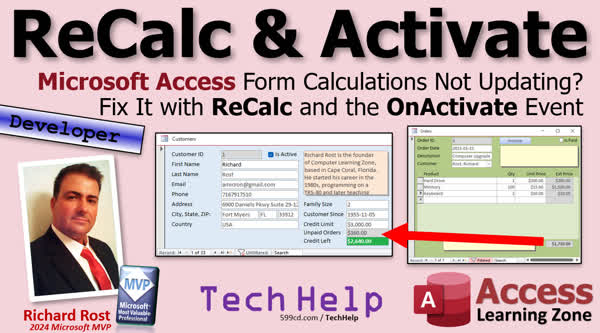
TechHelp Access, Recalc, On Activate event, refresh form automatically, VBA code for refresh, customer credit limit update, On Close event, IsLoaded function, error handling VBA, After Update event, Requery vs Refresh, Me.Recalc, updating calculations, event-driven update, DSUM recalc, global events
More InformationTranscript You have a problem with your form not updating. You have two forms open side by side, maybe Customers and Orders. You change the order information and you want the total over here on the Customer form to update.
Today, I am going to show you how to do that using Recalc and the On Activate event.
Today's question comes from Melanie in San Mateo, California, a Platinum member. Melanie says, "How can I get my Access form to refresh automatically when I return to it? I use it to track jobs and invoices for my landscaping business, but I have to close and reopen the form to update things like customer credit after making changes in other screens. Is there a way to make it recalculate on its own without hitting F5 every time?"
Sometimes I get a bunch of questions from yesterday's video, today's video, and tomorrow's video and I string them all together. We talked about this a little bit yesterday. In yesterday's video, "Over Credit Limit," I showed you how to calculate this credit limit here. But if you have the Customer form open and you go over to the Order form and change something, when you come back here, this does not update on its own unless you manually hit refresh.
That is what I am going to show you how to do today.
Now, this is going to be a Developer-level video. What does that mean? It is going to require a tiny little bit of VBA code, but do not panic. If you are new to VBA or you are afraid of VBA, go watch this video first. It is about 20 minutes long and teaches you everything you need to know to get started.
In the last video, I showed the expert users how to calculate that credit left right there. If we go in here and make a change—let's say this becomes 10 of those instead—when we come back here, this does not update.
There are a couple of things you can do. You can hit F5. You can go up here and hit Refresh or Refresh All, but we do not want to have to do that manually. We want the code to do that for us. That is why we learn how to become programmers—to automate simple stuff like that.
There are a couple of ways you could do it. You could do it in the Order form when this guy closes. That is one way to do it. I am going to show you that real quick, just in case you do not know. There is nothing wrong with this method. Go to Events, go to either On Close or Unload. I will use On Close. In here, we would just say: Forms!CustomerF.Refresh like that. Or you could use .Recalc, which we are going to talk about more in a minute.
Close that, close that, close this, and come in here. Change this to, let's say, one, and then close it. Oh, wait, it is not paid, so let's make it not paid. There we go. Now you can see it worked. Go into Orders, let's say he pays this, and now it updates automatically for you. That is one way to do it.
But you run into this problem too. See? I cannot find the form because we closed the Customer form. There are a couple of ways you can handle that. You can just throw in some simple error handling: On Error Resume Next, which in this case is fine. I am okay with that if it is just something simple like this where you know it is going to throw an error. If that form is not open and you do not care, just ignore it.
Or you can use my IsLoaded function. IsLoaded is in my Code Vault and checks if a form is loaded. Real simple. There it is. This is the kind of stuff you find in the Code Vault—Gold members, good stuff. Lots of stuff in here. I generally only use IsLoaded if I care about whether it's open or not because I'm going to do something different if it is open versus closed in a particular case.
But in this particular case, I do not care if it is open or not. If it is open, go ahead and refresh it. If not, it does not matter, just do not do anything.
But I think a better place to put it is in the Customer form itself. Let's get rid of that code, come back over here, save this, and we are going to put it in this guy, so whenever you switch back to it from the Order form or anywhere else, it will recalculate these fields.
This would be good if you are switching back and forth between forms. Let me move this over here so you can see it. Let's say this guy becomes 100,000 or whatever, so this value changes. As soon as you come back over here, you want this to update at that point, especially if you switch between forms a lot.
How do we do this? This form has events also. If you look in here, there is an On Got Focus event and there is also an On Activate event. Be careful, because On Got Focus will only run if this guy has no controls. I talk about this in my Requery vs Refresh video, because technically the control gets the focus, not the form.
So what you want to use is the On Activate event. This happens anytime you switch back to this form. Come in here, and all we are going to say is Me.Recalc. You could use Refresh. You could use Requery if you want to requery the whole set. Refresh refreshes all of the data, pulls a fresh copy of the record from the table. Recalc just recalculates the equations and the formulas like DSUM.
In fact, someone the other day asked me, "Why don't you ever use Recalc?" I do occasionally. I almost never use it, but once in a while I will, especially if you've got a big set of records. If you do not want to pull a ton of fields in and you are working over a network, Me.Recalc just says keep the data you have in the form but recalculate all the equations, which would be sufficient for this particular example.
Let's debug, compile, close it, save it, save it again, close it, open it, all that good stuff.
Here is that. Let's go back to Orders. Now let's fix this. Let's make it one. Go off of this record so this updates. Now if I click over here, that updates.
If you do not leave this record and you are sitting right there, this still will not update because this has not updated yet. I show you how to do events inside like the After Update event. You could do a refresh in the After Update event of that field, which I often do with Order form type stuff because you want this to update. Right now it is kind of confusing because I go to here, and this still has not updated yet.
So I will put an After Update event in each one of the fields that this calculation relies on. Put a refresh in here, put a refresh in here, and then this will always update every time this gets changed.
As it is now, the way the database is, it does not do that. If I click over here, it now updates, and you can see the On Activate fires when I leave this form and come back to this one—that recalculates this stuff. Pretty cool stuff.
In the next video, I am going to show you how to pop up a warning message if the user's over their credit limit. That is easy to do. But what if you are going to add a bunch of different orders for this customer? You have to add two or three orders and you do not want to be bothered with that every time. Now watch, the second time I click it, it does not bother me. Look at that.
I will show you how to do something like that with global events. For example, let's say you have an import routine that you run every morning. The first time you run it, it will do it, the second time you run it, the third time it is going to say you have already done this, so you know you already did it. We will talk about that and I will show you how to do all that stuff in tomorrow's video.
That is going to do it. That is your TechHelp video for today. I hope you learned something. Live long and prosper, my friends. I will see you tomorrow for some more. Intro In this video, we will talk about how to automatically update totals and calculated fields between forms in Microsoft Access using the Recalc method and the On Activate event. You will see how to refresh data on one form after making changes in another, learn the difference between Refresh, Recalc, and Requery, and get tips for using form events and simple VBA code to keep your data accurate without manual updates. This tutorial answers a real-world question about keeping customer information current after editing related records in a separate form. Quiz Q1. What is the main problem discussed in the video?
A. Troubleshooting Access form design layouts
B. Ensuring a form updates automatically when returning to it after changes in another form
C. Creating relationships between tables in Access
D. Setting up password protection for Access forms
Q2. Which built-in Microsoft Access function can update calculated values on a form without reloading data from the table?
A. Refresh
B. Recalc
C. SaveRecord
D. Compact
Q3. What event on the form is recommended for triggering the recalculation when switching focus back to it?
A. On Close
B. On Load
C. On Activate
D. On Got Focus
Q4. Why is the On Activate event preferred over the On Got Focus event for recalculating form fields?
A. On Got Focus only triggers if the form has no controls
B. On Activate runs only when the database is restarted
C. On Got Focus refreshes all subforms automatically
D. On Activate is only available for reports, not forms
Q5. What VBA code would you use in the Customer form to recalculate calculated values when the form becomes active?
A. Me.Refresh
B. Me.Recalc
C. Me.Close
D. Me.Save
Q6. If you want the data on the form to be updated from the underlying table, which command should you use instead of Recalc?
A. Me.Print
B. Me.Requery
C. Me.Select
D. Me.Maximize
Q7. What is the main difference between Refresh and Recalc in Access forms?
A. Refresh clears all form data, Recalc saves it to the table
B. Refresh recalculates only formulas, Recalc fetches new data
C. Refresh fetches new data from the table, Recalc updates calculated controls
D. Refresh and Recalc do exactly the same thing
Q8. What should you do if you want to handle the situation where the target form might not be open when trying to refresh it?
A. Only use Refresh as it checks automatically
B. Use On Error Resume Next or the IsLoaded function
C. Always close and reopen the form
D. Use the DoCmd.DropTable method
Q9. In which form event would you typically place code to refresh or recalculate related data whenever a user updates certain fields?
A. On Open
B. After Update
C. On Resize
D. On Timer
Q10. What is a scenario where using Me.Recalc is more efficient than Me.Refresh?
A. When needing to log user logins
B. When working with large datasets over a network and only recalculating formulas
C. When deleting records based on a query
D. When importing data from Excel
Answers: 1-B; 2-B; 3-C; 4-A; 5-B; 6-B; 7-C; 8-B; 9-B; 10-B
DISCLAIMER: Quiz questions are AI generated. If you find any that are wrong, don't make sense, or aren't related to the video topic at hand, then please post a comment and let me know. Thanks. Summary Today's TechHelp tutorial from Access Learning Zone focuses on resolving a common problem with Microsoft Access forms not updating as expected. If you have two forms open side by side, such as Customers and Orders, and you update order details, you might notice that the totals or related data on the Customer form do not automatically update. I will walk you through how to trigger a refresh automatically, using the Recalc command and the On Activate event.
Melanie, a Platinum member from San Mateo, wrote in explaining that she uses a form to track jobs and invoices for her landscaping business. When she updates information in other screens, she has to close and reopen the original form to see changes like the updated customer credit amount. She wants to know if there is a way for the form to recalculate itself whenever she returns to it, instead of having to hit F5 or manually refresh each time.
Yesterday, I talked about calculating a credit limit in a related video. If the Customer form is open while you make changes on the Order form, the totals on the Customer form do not automatically reflect those changes. Unless you manually refresh the form, the data remains static. This is the challenge we are addressing in this lesson.
It's important to note that this solution involves a bit of VBA programming. If you are new to VBA or find it intimidating, I recommend watching my beginner-level VBA video. It is about 20 minutes long and covers all of the foundational concepts you need to know.
To recap, in our previous video I showed advanced users how to calculate a customer's remaining credit. But after making changes in an Order form, that figure does not update on the Customer form unless you force a manual refresh.
There are several ways to automate this. A simple method is to add code to the Order form so that, when it closes, it sends a command to refresh the Customer form. You can do this by adding an event handler to the Order form's On Close or On Unload event that refreshes or recalculates the Customer form. Either the Refresh or Recalc command can be used here.
After adding this code, when you make changes in the Order form and then close it, the Customer form updates automatically. However, if the Customer form is not open, Access will show an error. To handle this, you can add basic error handling to your code, such as "On Error Resume Next", which tells Access to ignore the error if the form cannot be found. For more robust checking, you can use my IsLoaded function, which tells you if a particular form is open. However, for this situation, just ignoring the error is usually sufficient.
While refreshing from the Order form works, a more effective solution is to handle the update from within the Customer form itself. That way, whenever the user switches back to the Customer form from another form, the data recalculates and you always see up-to-date information.
To do this, you use events that belong to the form. The two events that are relevant here are On Got Focus and On Activate. Of the two, On Activate is the one you want. On Got Focus only triggers when no controls within the form receive the focus, which is rare since controls nearly always have focus. I discuss the difference between these events further in my "Requery vs Refresh" video.
Setting the On Activate event to run a simple Recalc command instructs Access to recalculate all calculated controls and formulas on the form whenever the form becomes active again. Unlike Refresh or Requery, which pull new data from the table, Recalc simply recalculates existing data on the form, which is quicker and less resource-intensive. For a form that does not need to reload all of its records, this is usually sufficient.
After applying this technique, whenever you switch back to the Customer form from another one (such as the Order form), the numbers and calculations you rely on, like the updated credit, refresh automatically.
There is one more caveat: if you do not leave the current record in the Order form, the Customer form may still display outdated information. To resolve this, you should put a refresh or recalc command in the After Update event of the fields that affect your calculations. This guarantees that whenever you change a relevant field, the calculations update as expected. If several fields affect the total, it is a good practice to add the appropriate event handler to each one.
As things stand now, the On Activate event keeps calculated values up to date as you move between forms, so your Customer form always displays accurate information when you return to it.
In my next video, I will show you how to pop up a warning message if a user exceeds their credit limit, including ideas for making the warning display only as needed. I will also demonstrate how to control such alerts when multiple records or operations are involved, and how to use global variables to manage repeated actions within the same session.
For a complete video tutorial with step-by-step instructions covering all these topics, visit my website at the link below. Live long and prosper, my friends. Topic List Updating Access forms automatically using VBA
Using the Recalc method in form events
Refreshing a form from another open form
Using the On Activate event to trigger updates
Difference between Recalc, Refresh, and Requery
Adding error handling for refreshing closed forms
Implementing form updates in the On Close event
Using After Update events for immediate field refresh
Applying Me.Recalc to recalculate calculated controls
Discussing limitations of the On Got Focus event
Handling scenarios with multiple open forms Article If you are working with Microsoft Access and you have multiple forms open, such as a Customer form and an Orders form, you might encounter a common issue: you update information in one form but the changes are not immediately reflected in the other form. For example, you may update an order and expect the customer's total or credit information on the Customer form to update automatically, but it does not. Instead, you have to manually refresh the form or even close and reopen it to see the new data.
This is a frustration for many users, especially when tracking jobs, invoices, or credit balances across forms that are open at the same time. Fortunately, you can automate the process so Access updates the information as soon as you return to a form, making your workflow much smoother.
The solution relies on a little bit of VBA and a key event in Access forms called the On Activate event. When you switch from one form to another in Access, the On Activate event of the form you return to will run. You can take advantage of this by putting a single line of VBA code in this event that will recalculate the values on your form every time you come back to it.
Let's walk through a typical example. Imagine you have a Customer form that displays each customer's total outstanding orders, credit information, or similar calculated fields. You also have an Orders form where you can add or edit orders for your customers. If you change an order or mark one as paid in the Orders form, you want the Customer form to immediately show the updated totals without having to refresh manually.
First, let's look at a method you might consider but is not the most robust: putting refresh code in the Orders form's On Close event. In the Orders form, open the property sheet, go to the Events tab, and find the On Close event. In its code window, you might add the following line:
Forms!CustomerF.Refresh
With this code, when you close the Orders form, the Customer form will refresh and update its data. Alternatively, you could use:
Forms!CustomerF.Recalc
The difference is that Refresh pulls a fresh copy of the underlying record from the table and updates everything on the form, while Recalc just recalculates formulas and expression-based fields, such as those using DSUM. If you only need calculated controls to update, Recalc is faster and simpler.
Now, what if the Customer form is not open when you close the Orders form? The code will generate an error because Access cannot refresh a form that is not open. To avoid this, you can add a line at the top of your code:
On Error Resume Next
This tells Access to ignore the error and continue. Since refreshing a form that is not open does not matter in this context, this is an acceptable solution. If you want to do something more advanced, you can create a function to check if a form is open (such as an IsLoaded function), but for this case, simple error handling is enough.
A better approach is to trigger recalculation when you return to the Customer form, regardless of how or when changes happened elsewhere. By handling this in the Customer form itself, you do not rely on any other form to call your refresh code, and it will work whether you switch from another form, a report, or anywhere else.
To do this, open the Customer form in Design View, open its property sheet, and go to the Events tab. Find the On Activate event. This event runs every time you switch back to that form window. Click the build button (…) and add one line of code:
Me.Recalc
This will trigger Access to recalculate all calculated controls in your Customer form whenever you activate it (that is, switch focus to it from another form or window). If you want to fully reload the record, you can use Me.Refresh, but for recalculating expressions and totals, Recalc is usually preferable and more efficient.
Keep in mind that there is another event called On Got Focus, but this only fires if the form itself—not any of its controls—receives focus, which does not happen often. The On Activate event is generally a better and more reliable choice for this use case.
Now, when you edit data in the Orders form, such as marking an order as paid or changing quantities, and then return to the Customer form, the calculated totals will immediately update. This provides a seamless experience and reflects the latest data without having to refresh manually.
One small caveat: if you are editing a record or field in the Orders form and do not leave that record or trigger its After Update event, the updated value might not yet be written to the underlying table, so the Customer form might not reflect it until you move off that record or otherwise save the change. If you want absolutely real-time updates, consider putting a Requery or Refresh in the After Update event of the relevant controls in the Orders form as well.
To recap, automating updates between related forms in Access is very doable with a small amount of VBA in form events, specifically the On Activate event and the Me.Recalc command. This lets you keep your data in sync and eliminates the need for manual refreshing, improving your workflow and saving you time. Primary Topics Access forms, automatic refreshing, On Activate event, Recalc method, VBA coding, form event handling, cross-form updates
Secondary Topics error handling, IsLoaded function, Refresh vs Recalc vs Requery, After Update event, developer tips
|






