Fitness 61
By Richard Rost

 11 months ago
How to Load Template Data For Records in MS Access
In this Microsoft Access tutorial, I will show you how to load template data into your fitness database by building a Load Template button and writing the code to transfer records from a saved template table back into your daily food log. We will cover recordset loops, updating specific fields like FoodDateTime and HasEaten, and using DLookup to check for existing data before loading. This lesson focuses on efficiently reusing daily data and making small changes, saving you time entering repeated items. This is part 61.
Members
In the extended cut, we will build a combo box to allow saving and loading multiple templates, such as for different workout or schedule types, and I will show you how to future-proof your recordset code so it automatically handles new fields by looping through the table's fields instead of specifying each one.
Silver Members and up get access to view Extended Cut videos, when available. Gold Members can download the files from class plus get access to the Code Vault. If you're not a member, Join Today!
Prerequisites
Links
Recommended Courses
Up Next
Keywords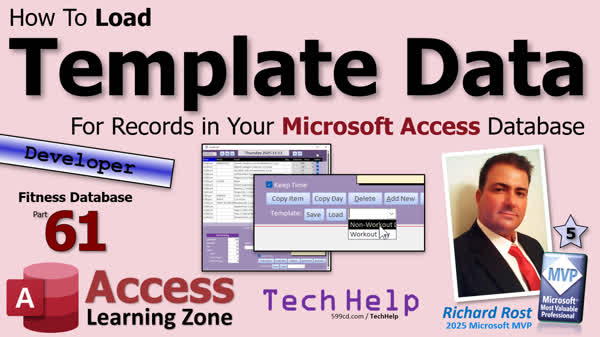
TechHelp Access, fitness database, load template data, save template data, template table, food log, copy button, recordset loop, delete food log data, LogDate, FoodDateTime, HasEaten, FoodID, MealDescription, FoodDescription, Calories, Fat, Carbs, Protein, DLookup, Nz function, combo box, multiple templates, future-proof recordset
 Subscribe to Fitness 61
Get notifications when this page is updated
More InformationTranscript Today is part 61 of my fitness database series.
Today I am going to teach you how to load the template data that we saved in yesterday's video. Do you have to watch the whole series? No. Should you watch part 60, yesterday's video? Yeah, so you know how to save the template data. And like I said yesterday, the template data does not matter if you are doing fitness stuff, or if you are doing orders, or if you are doing scheduling, or if you are doing underwater basket weaving instructions, it is all the same stuff.
So yesterday we learned how to take a day's worth of data and save it to a template table. Now today we are going to load that back up so you can go to tomorrow and load it, go to the next day and load it, and then just make little tweaks and changes.
It is like in Word when you have templates that you use for Word documents. I have my business one and I have my personal one. Depending on what I am writing in Word, I load up that template and then I just save it. It is the same thing here.
So yesterday we saved our data into a template table. Today we are going to load it back up again. We are going to go to a different day and then we will hit a load button and all the stuff comes back.
Let's make a button. Come down here. Copy this button. Copy-paste. We are going to call it Load. Get rid of the extra space that Access always throws in there.
Name the button. What do we call this one? We will call this one our Save Template. We will call this one Load Template Button. Should you keep your names consistent? Yeah. Do not call it George. Call it something that is meaningful.
Right-click. Build event back in here.
I am going to put the Load button or the Save button right here. I am going to put this next to the Load button. So, let's take the empty load code. I know Access tries to put this stuff in here alphabetically, but I like to keep stuff that is similar next to each other. There we go. Because we are going to do some of the similar stuff.
For example, we are going to make sure they really want to do this because we are going to delete anything that is in the table at that date. So make sure, we will just change the prompt in here. We are going to say "This will delete any food log data for this date, the date shown. Are you sure?" We will make this one Load Template.
Then we are going to delete the current day's data. It is going to be similar to this one, but we are deleting from the current table, from the food log table, not the template table. So delete current day's data.
They have said yes. So now it is CurrentDB.Execute. We are going to delete from the food log table where, and it is going to be the same WHERE condition that we had down here. So just copy this WHERE. This is the date shown. We do not have to retype all that. Just do that. See? I like to put my WHERE conditions on the next line. It is just a matter of structure and form.
So delete from the food log table where the date shown, same stuff we did yesterday.
So now we have an empty blank form in front of us. Now we can read in the template data, but we've got to make a few changes.
Now for this, we are going to use recordset loops. If you are not familiar with the recordsets, if you have not watched the whole series, I have done a ton of recordsets in the series. If not, then watch my recordset TechHelp video. I will put a link to it down below.
So we are going to Dim rsIn as a recordset and rsOut as a recordset. We are going to read records in from one table and out to another table.
I like to set up the outline. I like to set up the shell of this. It is like give me the outer dough of the doughnut first and then we will put the creamy jelly filling inside. So, let's set up the doughnut.
We are going to Set rsIn = CurrentDB. Actually, we are going to have two database objects open, and when I do that, I like to make a db object, to Dim db As Database.
So, first we are going to say Set db = CurrentDB. Now, Set rsIn = db.OpenRecordset. Where are we getting the data from? It is just all of the records in the food log template.
We do not need a SELECT statement in here. So it is just FoodLogTemplateT. What is rsOut going to be? Well, we are just adding records to the FoodLogT. So again, we do not need a SELECT statement. Set rsOut = db.OpenRecordset("FoodLogT").
Now I set up my loop. Let's worry about the rsIn first. It is going to be While Not rsIn.EOF, do some stuff, rsIn.MoveNext, Wend the While loop, and then rsIn.Close, Set rsIn = Nothing.
Then when we are all done with everything here, Set db = Nothing. Then we will say Status Done and then a Beep. We need to requery the records on the current screen, so maybe before the Beep, we will do Me.Requery so it updates the form and shows us all the records.
So, there is our outer loop with the rsIn stuff. Now in the middle here, this is where we are going to add a new record.
So, let's put the creamy jelly filling in. In here, is it creamy and jelly or is it just the jelly filling and the creamy filling would be like Boston cream? Anyway, rsOut.AddNew, we are adding a new record.
Do not forget, I always forget this step: when you are done, rsOut.Update.
This one is kind of like onions, it has got multiple layers. It has got a creamy and then a jelly filling inside the creamy filling.
Now in here, you do not have to end then here, but I like to. This is where I put all the field work, all the fields that we are adding. It is not technically like a loop or anything, but I just think it makes it more easily readable.
Now, most of the fields we are just copying from one table to another. For example, let's take a look at the field terms and move that off to the side. If we look at the fields in the food log and the food log template, most of them are the same. We have FoodLogID, which will be ignored, the UserID, the FoodID, the FoodDateTime, and the FoodTimeText. We are going to have to change those to the current date, but everything else is exactly the same.
Actually, we will set HasEaten to False for all these new records. That is why we are loading it into the template, assuming it is a new day. Quantity is the same, MealDescription is the same, FoodDescription is the same, Calories, Fat, all that stuff, all these other fields are the same. We just have to change a couple of them.
So what do we have to do here? Let's just work on the fields we have to change.
The FoodDateTime. So, rsOut!FoodDateTime =. We want to take the current date that is shown, which in this case is this field that is LogDate. So I am going to take LogDate and I am going to add to that just the time portion of the FoodDateTime from the rsIn table. So it is going to be TimeValue(rsIn!FoodDateTime). See, that is why it was okay to save the whole DateTime in the log table or in the template table. Do not really care, I like to care about set time, and here is where I will update it.
So if the template was saved January 1 and today it is November 15, we are going to read it in and just change the date portion to today's date and then add that time back on so we get 11 a.m. or whatever it was.
Now for the FoodTimeText, that is the displayed value for those of you who have not watched the whole series. So it is going to be rsOut!FoodTimeText =. We have our own function for this. It is FormatFoodLogTime(rsIn!FoodDateTime) and what that does, all that does is it takes the date and it just formats it as a string in this format here so we can see that on the form. It is h:n AM/PM, that is all that does, nothing fancy with that guy.
The only other field we are going to change is rsOut!HasEaten is always going to be False.
Now every other field that we need, we just get from the other table. I am not going to type them all in, I already did. I have them in my notes. I am just going to copy and paste them. There are all the rest of the fields: FoodID, Quantity, FoodLogNotes, MealDescription, FoodDescription. These are all the fields: Calories, Fat, Carbs, Protein, all that stuff.
Make sure you do not copy over the ID field, even though it is in the table, because it will generate an error message.
When you are all done with this, that should just about do it. Save it. Debug. Compile once in a while. Yes, I have that on a T-shirt and a mouse pad. You can get that in my store. Close it and open it, and let's give it a test.
Let's go to tomorrow, which is blank. I am going to hit Load. "This will delete any food log data for this date. Are you sure?" Boom. There it is. Now I can copy it, and then I can, my breakfast is always the same, lunch, I just change, add whatever new stuff I need to, dinner, I just change how far I walked, those kinds of things, and I just make tweaks instead of having to go back to the previous day and then copy in all the items individually. That will save me some time right there every day.
One more little tweak you can make for yourself. Let me go to tomorrow. Let me delete all these days. If you want to make yourself a delete button, you can for the whole day. I just think it is fast enough to just do this because I do not really delete whole days that often. I think I have done it, aside from teaching you guys, I think I have actually done it like once. So I do not really need to make a Delete All the Whole Day button, but it would not be that hard to do. If you guys want to see how to do it, let me know. Post it in the comments down below and I will include it in a future video.
One thing that would be another time saver is when I hit Load, only pop this up if there is data up here. If not, do not bother the user. Just do it. I am going to cancel.
How would you do that? Come in here and in the load button, right here, only show this "Are you sure" box if there is data for this day already. Why do you not take a minute, pause the video, see if you can figure out how to do it on your own first, and then come back and I will show you my solution.
Did it, did it, did it, did it, did it, did it, did it, did it, did it, did we not rejoin our program already in progress?
How many of you remember back in the day, I am old, I am fifty-three, back in the day when something would get preempted by either the news, like a breaking news bulletin, or sports, and then they would say, "We now rejoin the program already in progress" and it was like that week's new episode of Star Trek Next Generation or something, and I was like, "No," because we could not find it online like we can today, like there was no way that we would watch it unless you got lucky and they played it as a rerun in the off season. Oh, so many times that made me mad.
Anyway, did you get a good solution? Did you get it working? What I am going to do, all I am going to do is just DLookup and try to see if there is any record on the day in question. If so, then show the message, if not, do not.
So we are going to Dim id as Long. id = Nz(DLookup("FoodLogID", "FoodLogT", "FoodDateTime = #" & LogDate & "#"), 0).
So DLookup a FoodLogID from the Food Log table where the FoodDateTime is the day in question, the date that is currently visible on the screen. If one exists, it will return the ID. If not, Nz will convert that to a zero. So if id is not zero, then do that. Otherwise, do not bother the user, just do it.
Remember that video with Shia LaBeouf? "Just do it."
Debug. Compile. Save it. Close it. Save it. Open it.
Let's go to a blank day, hit Load, boom, and there is your stuff. No prompt required.
If I hit Load again, it says, "Are you sure?" No.
That is pretty cool. Now that I am doing this a bunch of times, I kind of want the delete button, but in practical use, I never use it.
Now some of you astute viewers might have noticed that in the intro slide, I have a little dropdown box, or little combo box. So in the extended cut for the members, we are going to build this guy so you could save multiple templates so you can have multiple days, like I have a workout day and a non-workout day.
If you are doing orders, you can have the Christmas special, the Fourth of July special, you just click that and it loads all those items in. If you are doing schedules, a Monday schedule, a Tuesday schedule, a Wednesday schedule, if it is a Wednesday, blow that schedule in.
So we are going to do multiple templates and we are going to future-proof our recordset. What does that mean? That means instead of listing all of these fields in here, I am going to show you how to just loop through the fields in the table and just add them all. This way, if you add a field in the future, you do not have to worry about adding it to all your code everywhere. You just add it to the source table, add it to the destination table, and then your code automatically just sees it there.
That will all be covered in today's extended cut for the members, so that the Silver members and up get access to all of my extended cuts, all of them, lots of them. Gold members can download these databases and you get access to the code vault, and everybody gets a free class every month, and everybody is happy. So click that blue Join button right now, and you can be happy too.
But that is going to do it for your TechHelp video for today. Post a comment down below, let me know what you thought. I hope you learned something. Live long and prosper, my friends. I will see you next time.
If you enjoyed this video, hit that thumbs up button right now and give me a like. Also be sure to subscribe to my channel, which is completely free, and make sure you click that bell icon and select all to receive notifications whenever I post a new video.
Do you need help with your Microsoft Access project? Whether you need a tutor, a consultant, or a developer to build something for you, check out my Access Developer Network. It is a directory I put together personally of Access Experts who can help with your project. Visit my website to learn more.
Any links or other resources that I mentioned in the video can be found in the description text below the video. Just click on that "Show More" link right there. YouTube is pretty good about hiding that, but it is there, just look for it.
If you have not yet tried my free Access Level 1 course, check it out now. It covers all the basics of Microsoft Access, including building forms, queries, reports, tables, all that stuff. It is over four hours long. You can find it on my website or my YouTube channel. I will include a link below you can click on and did I mention it is completely free? If you like Level 1, Level 2 is just one dollar. That is it. It is free for members of my YouTube channel at any level.
Speaking of memberships, if you are interested in joining my channel, you get all kinds of awesome perks. Silver members get access to all of my extended cut TechHelp videos and there are hundreds of them by now. They also get one free beginner class each month. Yes, those are from my full courses.
Gold members get the previous perks plus access to download all the sample databases that I build in my TechHelp videos. Plus you get access to my code vault where I keep tons of different functions and all kinds of source code that I use. Gold members get one free expert class every month after completing the beginner series.
Platinum members get all of the previous perks plus they get all of my beginner courses, all of them from every subject. You get one free advanced or developer class every month after finishing the expert series. You can become a diamond sponsor and have your name listed on the sponsor page on my website.
So that is it. Once again, my name is Richard Rost. Thank you for watching this video. Brought to you by AccessLearningZone.com. I hope you enjoyed. I hope you learned something today. Live long and prosper, my friends. I will see you next time. Intro In this video, we continue building our Microsoft Access fitness database by learning how to load previously saved template data into your daily food log. I'll show you how to create a "Load Template" button, use recordsets to copy records from your template table to your log table, adjust fields like dates and status, and streamline your process so you can quickly set up each new day. We'll also cover how to prompt the user only when existing data needs to be overwritten, making the workflow more efficient. This is part 61. Quiz Q1. What is the main purpose of the Load Template button in the context of the fitness database?
A. To delete unused records in the template table
B. To load template data into the current day's food log
C. To save daily food log data into a template
D. To back up all food log data to an external source
Q2. Why is it important to prompt the user with "This will delete any food log data for this date, are you sure?" before loading the template?
A. Because loading data could crash the database
B. To prevent accidental overwriting of existing data for that date
C. So the user knows that the template has been updated
D. To confirm the user wants to save a new template
Q3. What method is used in this video to copy records from the template table to the food log table?
A. A query with a simple INSERT INTO statement
B. Manually copying data field by field
C. Using recordset loops to read in from one table and write out to another
D. Exporting and importing CSV files
Q4. When loading template records into the food log table, which fields are specifically changed or updated?
A. Only the FoodID and HasEaten fields
B. All fields are copied exactly without changes
C. Only the FoodDateTime, FoodTimeText, and HasEaten fields
D. Only the Quantity and Calories fields
Q5. What value is HasEaten set to when loading template records into a new day's food log?
A. True
B. Null
C. 1
D. False
Q6. Why should you avoid copying over the ID field (such as FoodLogID) when inserting new records from the template?
A. It will create duplicate IDs in the destination table
B. The ID field contains sensitive information
C. The ID field format is different in each table
D. The ID field is too large to copy
Q7. What is one proposed improvement to the Load Template function mentioned at the end of the video?
A. To always display a confirmation message regardless of circumstance
B. To only prompt the user if there is already data for the current day
C. To add an auto-save feature after loading
D. To reload the form twice for accuracy
Q8. What does the Nz function accomplish in the code involving DLookup when checking for existing food log entries?
A. It sums the values found in the table
B. It converts Null results from DLookup to zero
C. It deletes all records with Null values
D. It formats the date for display
Q9. Why is it recommended to use meaningful names for buttons and code elements (like LoadTemplateButton)?
A. It ensures compatibility with Access updates
B. It improves the readability and maintenance of the database
C. It allows for more colors in the design
D. It reduces the memory usage of the form
Q10. What is a suggested method for future-proofing your template loading code when more fields are added to your tables?
A. Manually update all the code every time you add a field
B. Use a single static query for all future data
C. Loop through all the fields programmatically when copying records
D. Remove all extra fields from the tables
Q11. According to the video, what is the benefit of saving and loading daily data with templates, especially for repeating tasks or schedules?
A. It avoids any need for manual entry ever again
B. It allows for automated backups of all user data
C. It saves time by reusing common patterns and only requiring tweaks for each day
D. It makes the database smaller by deleting unused days automatically
Q12. What is the purpose of the Me.Requery method after loading template data?
A. To clear all records from the form
B. To update the screen and show the newly loaded records
C. To save the form's design changes
D. To close the database connection
Q13. What analogy is used in the video to describe setting up the program structure for copying records?
A. Building a house before decorating
B. Baking a cake and adding frosting
C. Preparing doughnuts before adding creamy or jelly filling
D. Assembling a puzzle from the edges in
Q14. What is the next step after using rsOut.AddNew in the recordset loop?
A. Immediately run rsIn.MoveNext
B. Enter data into the fields and run rsOut.Update
C. Run Me.Requery on the form
D. Close the database connection
Q15. Why does the presenter suggest not creating a delete button for an entire day by default?
A. Because deleting a whole day is rarely needed in practical use
B. Because Access does not support delete buttons
C. Because deleting is not allowed for templates
D. Because it would crash the application
Answers: 1-B; 2-B; 3-C; 4-C; 5-D; 6-A; 7-B; 8-B; 9-B; 10-C; 11-C; 12-B; 13-C; 14-B; 15-A
DISCLAIMER: Quiz questions are AI generated. If you find any that are wrong, don't make sense, or aren't related to the video topic at hand, then please post a comment and let me know. Thanks. Summary Today's TechHelp tutorial from Access Learning Zone focuses on part 61 of the ongoing fitness database series. In this lesson, I'll show you how to load template data that we saved in the previous video. If you haven't seen part 60, I strongly recommend you watch it first, since it covers how to save the template data you'll need for this lesson. The process of saving and loading template data is the same regardless of what kind of application you are building, whether it's fitness tracking, order management, scheduling, or anything else. The concept is universal.
Yesterday, the lesson was all about saving a day's data to a template table so you can easily reuse it. Now it's time to bring that data back. The goal is to switch to a different day in your application and then, by loading the template, quickly populate it with a set of records. This lets you make minor adjustments rather than re-entering information from scratch every time. Think of it like working with templates in Microsoft Word: you pick the right template, fill in your changes, and you are done.
To get started, after making sure our template has been saved, you add a new button for loading templates. It's a good idea to remain consistent with button names and not use something meaningless. For example, instead of giving your button a random name, call it Load Template Button so you and others know exactly what it does.
After setting up the button, the next step is to handle its event code. I like to keep related pieces of code together, such as the code for saving and loading templates, just to make things easier to manage.
When loading data from a template, you want to make sure the user is aware that any existing data for that day will be deleted. So a confirmation prompt is issued, warning the user that any food log information for the chosen date will be removed. Only after confirmation will the existing records for that day be deleted from the food log table—not from the template.
At this point, you've got a blank slate for that day and can now read in the template data. For this, you'll need to work with recordset loops in VBA. If you haven't used recordsets before, I have plenty of other TechHelp videos and previous lessons in this series that go over the concept. Essentially, you open up two recordsets: one for reading from the template table and one for adding records to the main food log table.
The process starts by getting your database object (using CurrentDB), then opening a recordset to read all records from the template table. No need for a fancy SELECT query here. You also open another recordset for your food log table, since you'll be adding new records there.
For each record in your template, you loop through and, for every entry, add a new record to the food log table. There are a few key fields where you need to make changes. The main one is FoodDateTime, where you want to use the current date being displayed, combined with the time from the template record. That allows template times to transfer appropriately, regardless of the day loaded. This is done by grabbing just the time value from the template and adding it to the LogDate value currently shown on the form.
Next, the FoodTimeText field is set using a custom function that formats the time nicely for display. Another essential field, HasEaten, is always set to False since loading a template implies starting fresh for the new day. All other fields, like FoodID, Quantity, MealDescription, FoodDescription, Calories, Fat, and so on, are copied directly from the template. Make sure not to copy over primary key fields like FoodLogID, as Access will manage those automatically.
As always, remember to debug and compile your code to catch any potential issues. After saving your changes, test the button. For example, move to a day that has no records, use the Load Template button, confirm the deletion if prompted, and you should see all template items populate the new date. This makes it much quicker to set up recurring entries, such as breakfast, lunch, and dinner routines—just tweak them as needed each day.
If you want an additional feature, such as a Delete All button to clear a whole day's records at once, that's also possible but may not be needed often. If enough people want to see that, let me know and I can cover it in a future lesson.
There's another time-saving enhancement you can add. Only show the confirmation prompt when loading a template if there are already existing records for that day. Otherwise, just load the data silently. This is easily done by performing a DLookup to check for any existing records on the day in question. If records exist, show the confirmation prompt. If not, skip the prompt and load the data right away.
If you test this out, you'll see that when loading a template on a blank day, everything appears instantly without interruption. If records are already present, you get a warning first.
Now, some of you might have noticed in the preview slide a combo box for choosing a template. In today's Extended Cut for members, I'll show you how to set up this feature, allowing you to save and pick between multiple templates—useful for different types of days, like workout and non-workout days. This can easily be adapted for other uses, such as different order bundles or schedule templates for each day of the week. I'll also teach you how to future-proof your recordset manipulation so that you can loop through all fields automatically, making your import routine more flexible if your tables change later.
That's it for today's lesson. If you have feedback or requests, please leave a comment and let me know what you think. You can find a complete video tutorial with step-by-step instructions on everything discussed here on my website at the link below.
Live long and prosper, my friends. Topic List Creating a Load Template button in Access
Naming and organizing form controls consistently
Deleting records from a table for a specified date
Prompting users before deleting data for a selected day
Using recordset loops to copy data between tables
Dim and setting Recordset and Database objects
Reading data from a template table
Writing new records to a log table
Copying most fields directly, updating date-specific fields
Updating FoodDateTime to match the selected log date
Formatting FoodTimeText with a custom function
Setting HasEaten field to False when loading data
Avoiding copying AutoNumber ID fields
Requerying a form after importing data
Using DLookup to check for existing records before confirmation
Skipping deletion prompt if no data exists for a selected date Article In this tutorial, I am going to walk you through the process of loading template data back into your main table in Microsoft Access, using VBA. While my example is built around a fitness database and food logs, the technique applies to any scenario where you use templates: whether you are tracking orders, scheduling, or something entirely different. The idea is to have a saved 'template' of records for a typical day (or process), and then quickly 'load' those records into your main table for any new date, so you only need to tweak things as necessary. This is similar to opening a template document in Word: you start with a standard structure and customize it for the current use.
To begin, you should have already set up a way to save daily data from your main table (like FoodLogT) into a template table (such as FoodLogTemplateT). Now, I'll show you how to bring that template back for use on a different day.
First, create a button on your form called Load Template. This button will trigger the VBA code that handles the process. Make sure to give your button a meaningful name (like LoadTemplateButton), so your code stays organized and easy to maintain.
When you click this button, the first step is to check if there are any existing records for the current date in your main table. If there is data, you should prompt the user with a confirmation, warning that any existing data for this date will be deleted. If there are no records for the current date, you can proceed silently.
To check for existing data, you can use a DLookup function. For example, if your main table is FoodLogT and you want to check by FoodDateTime for the date stored in LogDate (a field on your form), you can use the following code:
Dim id As Long
id = Nz(DLookup("FoodLogID", "FoodLogT", "FoodDateTime = #" & LogDate & "#"), 0)
If id <> 0 Then
If MsgBox("This will delete any food log data for this date, the date shown. Are you sure?", vbYesNo + vbQuestion, "Load Template") = vbNo Then Exit Sub
End If
This code looks for an existing FoodLogID in FoodLogT for the given date. If it finds one, it prompts the user for confirmation before proceeding. If not, it just continues.
Once you have your confirmation, or if there is no data, the next step is to delete any existing records for the current date from FoodLogT. You can do this with:
CurrentDb.Execute "DELETE FROM FoodLogT WHERE FoodDateTime = #" & LogDate & "#"
After clearing the current day's data, you are ready to load the records from your template. To do this, you will use two recordsets: one to read from FoodLogTemplateT (the template table), and one to add records to FoodLogT (your main table). You will loop through each template record, and for each one, insert a new record in FoodLogT, making sure to adjust the fields as needed for the new day.
Declare your variables and open your database and recordsets as follows:
Dim db As Database
Dim rsIn As Recordset
Dim rsOut As Recordset
Set db = CurrentDb
Set rsIn = db.OpenRecordset("FoodLogTemplateT")
Set rsOut = db.OpenRecordset("FoodLogT")
Now set up your loop:
While Not rsIn.EOF
rsOut.AddNew
' For fields that need to be changed
rsOut!FoodDateTime = LogDate + TimeValue(rsIn!FoodDateTime)
rsOut!FoodTimeText = FormatFoodLogTime(rsIn!FoodDateTime)
rsOut!HasEaten = False ' assume starting fresh
' Copy other fields directly
rsOut!FoodID = rsIn!FoodID
rsOut!Quantity = rsIn!Quantity
rsOut!FoodLogNotes = rsIn!FoodLogNotes
rsOut!MealDescription = rsIn!MealDescription
rsOut!FoodDescription = rsIn!FoodDescription
rsOut!Calories = rsIn!Calories
rsOut!Fat = rsIn!Fat
rsOut!Carbs = rsIn!Carbs
rsOut!Protein = rsIn!Protein
' Add any additional fields as needed, but do not copy the ID field
rsOut.Update
rsIn.MoveNext
Wend
rsIn.Close
Set rsIn = Nothing
Set rsOut = Nothing
Set db = Nothing
' Refresh the form to show new data
Me.Requery
Beep
This code ensures that every record in your template gets added to the main FoodLogT table, with the date set to your chosen date (LogDate), the time preserved from the template, and the HasEaten flag reset to False for a fresh day. The other fields carry over as they are.
A couple of things to watch out for: never copy the ID field from your template to your main table. The ID should auto-increment. Only copy over the fields your destination table expects. If you add new fields to your tables in the future, remember to update your code so those fields are also copied across. In advanced versions, you could loop through the Fields collection instead of listing each field manually, to future-proof your code, but for most uses, listing the fields you need is clear and reliable.
Now, after you have finished and saved your changes, you can use the Load Template button whenever you want to start a new day (or new record set) based on your template. You will only need to make small adjustments, rather than inputting everything from scratch.
As a handy improvement, the deletion confirmation only appears if there is already data for that day. If the data is blank, loading the template is quick and silent. If for your application you ever want to add a 'Delete all data for this day' button, you can use the same deletion code above. It is not hard to add if your workflow needs it.
Lastly, remember to compile and debug your VBA code regularly, and save your work. Keeping your code organized and meaningful will make your database easier to maintain and scale as your needs grow.
By following this pattern, you can streamline workflows where templates are helpful, saving time and reducing errors by quickly loading standard data whenever needed. This technique is not only useful for fitness logs, but for a wide variety of Access applications. Primary Topics Access VBA, template data loading, recordsets, event-driven forms, deleting and inserting records, workflow automation, conditional prompt logic, maintaining data structure
Secondary Topics user interface design, button naming conventions, future-proofing code, DLookup usage, none
|




