Self Cleaning Log
By Richard Rost

 9 months ago
A Self-Cleaning Log That Auto-Deletes Old Records
In this video, we will talk about how to automatically clean up old log records in a Microsoft Access database to prevent log tables from growing too large and slowing down performance. I will show you a simple method using a few lines of code to remove log entries based on age, so you do not have to manually delete them or remember to do regular maintenance. We will cover how to set up the cleanup routine, some tips on date formatting for SQL, and considerations for where to place the code in your database.
Allison from Madison, Wisconsin (a Platinum Member) asks: I watched your earlier video about logging activity in an Access database, and I set that up years ago at work. It's been doing its job, but I just noticed the log table is absolutely massive now. I opened it up the other day and it just kept scrolling and scrolling. I use this database every day to track customer calls and orders, and lately it feels slower than it used to be, so I'm guessing this log has something to do with it. I don't really want to keep going in there every few months and deleting old stuff by hand, because I know I'll forget. Is there a simple way to have Access automatically clean out old log entries after a certain amount of time, like keeping the last 30 or 60 days only, without a lot of extra setup?
Members
In the extended cut, we will learn how to create a LogIt function that can be used anywhere in your database to centralize all logging logic, track various events such as log ons, log offs, and form openings, automatically create the log table if it is missing, and implement proper error handling.
Silver Members and up get access to view Extended Cut videos, when available. Gold Members can download the files from class plus get access to the Code Vault. If you're not a member, Join Today!
Prerequisites
Links
Recommended Courses
Note on Date Format
- Quick note about dates and international settings: When working with dates inside Access SQL statements, things can get tricky depending on your regional date format. Even though ISO dates look universal, Access still internally expects month and day order when using date literals inside SQL. If you ever run into issues with date criteria not behaving correctly, the safest approach is to format the date explicitly as mm/dd/yyyy before injecting it into SQL, or better yet use a parameter query. I kept the example in this video simple on purpose, but I wanted to mention this in case you are working outside the US or see unexpected results.
Keywords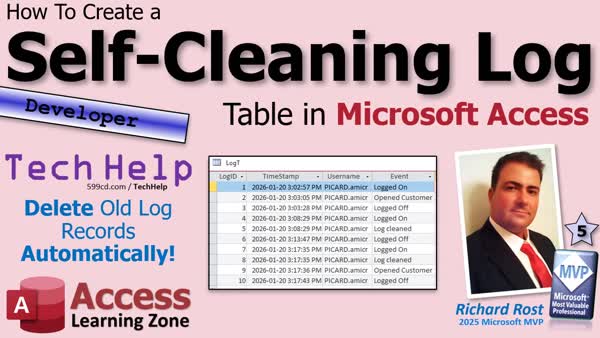
TechHelp Access, automatically clean up old log records, delete old log entries, compact and repair, backup database, log table performance, SQL delete command, archive logs, ISO date format, Format function yyyymmdd, CurrentDB Execute, user activity tracking, On Load event, error handling, create log table, LogIt function, extended cut members
More InformationTranscript Today we are going to talk about how to automatically clean up old log records in your Access Database so your log tables do not grow forever and quietly drag down database performance. I will show you a simple way to remove old entries based on age without having to remember to manually delete anything or babysit your database.
Today's question comes from Allison in Madison, Wisconsin, one of my Platinum members. Allison says: I watched your earlier video about logging activity in an Access Database and I set that up years ago at work. It has been doing its job, but I just noticed the log table is absolutely massive now. I opened it up the other day and it just kept scrolling and scrolling. I use this database every day to track customer calls and orders and lately it feels slower than it used to be, so I am guessing this log has something to do with it.
I do not really want to keep going in there every few months and deleting stuff by hand because I know I will forget. Yeah, you will forget to use a button even if it is on your main menu. Is there a simple way to have Access automatically clean out old log entries after a certain amount of time, like keeping the last 30 or 60 days only, without a ton of extra setup?
Yep, we can do this with just a couple lines of code. For everybody else who does not know which video she is talking about, it is this one where I show you how to track the user log on and log off. You can also use it to track any kind of activity inside your database. In fact, I have this slightly older database that teaches you how to do that based on the different fields and stuff. I did not save the database for this one because it is old, before I started doing that. I am going to use this database since I saved it for the Gold members.
Since I am a Gold member on my own website, I am going to go right here and grab this template. Here it is. This is an older version of the TechHelp template, this is like four years old and it gets the current username. Let's take a look at the code for that.
Let's go into Design View. Then the form opens up and in our On Load event, right there, we get the username right from the environment, the computer name and the username, and then we just use a simple line of SQL to insert that into the log table. Then, when the form closes, we mention that they logged off, and that is pretty much it.
Now, the real problem is that this guy - this log table - you can see I have not used this since 2021, so this is five years old. If you are tracking, this is just tracking log off and log on. If you are using this to track other stuff, because you could track other things in your database too like the other video shows, this thing can get pretty big. I had an office once that only had like five or six users, but they wanted to track everything, and this thing would quickly approach the two gigabyte limit. So I ended up writing them a little routine that kept it clean.
You can delete these records if you want. I usually do not have a problem deleting log stuff. If you are one of those offices that is paranoid and you do not want to delete it, you can always drop it into an archive table. Of course, I have videos on all that stuff about not deleting data, like important data - customer data, order information - but if you do not, you know, if you want to keep logs, I get it. If you are one of those offices that wants to keep track of what your people are doing, this video will teach you how to archive records, so instead of deleting these log entries you can just archive them into a different table. We are going to delete them today because we are going to keep it simple.
Alright, so what are we going to do? Let's go back to our code and again, this is just here in the form Load event of the main menu. What you can do here, either before or after that happens, is just issue a command to delete any records that are older than however many days you want.
It is going to be: CurrentDB.Execute "DELETE FROM LogT WHERE" - now we have a timestamp in that log. What is that field named? Let's go take a peek. Alright, it is "TimeStamp" - so WHERE TimeStamp is less than (earlier than) and then it is going to be a date. You can do Date() minus 30, minus 60, minus 90. If you want it to be an actual calendar year, you can use DateAdd. There are all kinds of ways you can do this. I am just going to say 30 days, and that is it. There you go. This will run once every time this form loads. You can put it anywhere you want in your database. If you only want one user to be the one who does the cleaning, just set the username to be equal to whomever, and it will only run on that machine.
Do not forget to do a compact and repair every now and then, which you should be doing anyway, and of course backing up your data. I have all kinds of videos on all that stuff.
Now, a couple things with this: if you are injecting a date into an SQL statement like this, you might have problems if you are not using the USA standard date/time format or ISO dates. That is why I suggest ISO dates for everything. It is a universal format, it works everywhere in the world. It is year-month-day, which is the most logical date format. The problem is that SQL really wants month and day to be in that order, so it does not matter if you are doing month-day-year like the US does or year-month-day. That is just how SQL was built. If you are in a country that uses day-month-year, which I will give you is more logical than month-day-year, you want to format this using the format function. You can format this whole thing as Format(expression, "yyyymmdd") or something like that because you are converting it to a string inside of this SQL statement, because that is what SQL wants.
I am putting mine back to just that because I use ISO in all my databases.
Let's give it a run. Save it, debug, compile. Let's close the code editor. I am going to close this. Let's open it back up again. Now, let's take a peek in the log table and look, all those old 2021 records are gone. Now every time you open this form up, it will run that cleanup routine.
One other thing I am going to mention: if you are using this database, if you go to Design View right here, you get an error message. It says the expression you entered refers to an object that is closed or does not exist. You debug it, it comes right to here, because this SQL statement is trying to insert based on these values and those values do not exist once you go into Design View. Basically, if it closed, Username is a field on the form, and you cannot reference that once the field is closed. On Load runs after the form is technically closed, so this is just an "On Error Resume Next." There is no reason to try to trap that error. If it fails, it fails, and it will only happen if you go into Design View. You should only be able to go into Design View if you are the developer, because you do not give your end users a version of the database that they can go into Design View with. You make an ACCDE file for that. That is a whole different video.
I will make sure that I do save this template for the Gold members, and that is about it.
Now, in today's extended cut for the members, we are going to make a LogIt function. We are going to make a function you can use anywhere in your database so you can track log ons, log offs, when people open up forms, when people type in the wrong phone number and get you all mad because they forgot the area code. We are going to centralize all the logging logic in the function. We will create the log table automatically. This way you can just take the module and drop it in your database, and if the log table is not there, it will make it for you. That is pretty cool. We will throw in some proper error handling and lots more. This is for the members extended cut. Silver members and up get access to all of my extended cut videos. Gold members can download these databases, and I have been saving the database, all of them, pretty much since 2023. Some of the older videos, like the one I showed you earlier, I did not save because I was not doing it back then. Now I am doing it with every one of these TechHelp videos. I save the video, Gold members can download them, and all this code is in the Code Vault, almost all of it is. Click that blue Join button for more information.
So today we learned how to keep a Microsoft Access log table from quietly growing out of control by automatically removing old records based on age. This keeps your database lean, helps maintain performance over time, and saves you from having to remember manual cleanup tasks. If you are logging user activity or other events in your database, this is a simple step that can make a big difference.
If you found this helpful, post a comment down below and let me know how you like today's video. Tell me what you are logging in your own databases.
That is going to do it, folks. That is going to be your TechHelp video for today, brought to you by AccessLearningZone.com. I hope you learned something. Live long and prosper, my friends. I will see you next time. Members, I will see you in the extended cut. Intro In this video, we will talk about how to automatically clean up old log records in a Microsoft Access database to prevent log tables from growing too large and slowing down performance. I will show you a simple method using a few lines of code to remove log entries based on age, so you do not have to manually delete them or remember to do regular maintenance. We will cover how to set up the cleanup routine, some tips on date formatting for SQL, and considerations for where to place the code in your database. Quiz Q1. What is the primary reason for automatically cleaning up old log records in an Access database?
A. To prevent the log tables from growing too large and slowing down database performance
B. To make more space for new user accounts
C. To allow more users to log in simultaneously
D. To make backups take longer
Q2. What is the simple method suggested to remove old entries from a log table in Access?
A. Manually deleting entries every few months
B. Using a SQL DELETE statement triggered by a form event
C. Exporting data to Excel before deletion
D. Replacing the log table regularly
Q3. Where is the recommended place to put the automatic cleanup code in the Access database?
A. In the After Update event of a data entry form
B. In the On Load event of the main menu form
C. In a module that runs once per year
D. In the table setup procedure
Q4. What SQL code example is provided to delete log records older than 30 days?
A. DELETE * FROM LogT WHERE TimeStamp < Date() + 30
B. DELETE FROM LogT WHERE TimeStamp > Date() - 30
C. DELETE FROM LogT WHERE TimeStamp < Date() - 30
D. DELETE FROM LogT WHERE TimeStamp = Date() - 30
Q5. Why is it important to pay attention to date formatting when injecting a date into an SQL statement in Access?
A. Because SQL never accepts date values
B. Because SQL expects dates to be in a specific format, which can cause errors with different regional settings
C. Because SQL only works with US dollars
D. Because SQL automatically converts all dates to ISO format
Q6. What is a suggested alternative if you do not want to delete log entries permanently?
A. Hide them from all users
B. Export them to a PDF file
C. Archive them into a different table
D. Rename them to 'Archived'
Q7. What additional maintenance task is recommended after deleting records in your database?
A. Defragment your hard drive
B. Compact and repair the database
C. Reinstall Microsoft Access
D. Create new user accounts
Q8. What programming technique is advised to handle possible errors when accessing controls that may not exist in Design View?
A. Do nothing, let the error stop the process
B. Use On Error Resume Next
C. Use InputBox to get values
D. Display a message box for each error
Q9. What benefit does automatically cleaning log tables provide for ongoing database operation?
A. It allows simultaneous editing by multiple users
B. It keeps the database lean and maintains performance over time
C. It prevents all data entry errors
D. It automates creating user accounts
Q10. What is described as a more advanced approach in the extended cut for members?
A. Creating a LogIt function that centralizes logging logic and can create the log table automatically if not present
B. Scheduling manual log reviews
C. Only deleting entries older than 10 years
D. Using Excel to manage all logs
Answers: 1-A; 2-B; 3-B; 4-C; 5-B; 6-C; 7-B; 8-B; 9-B; 10-A
DISCLAIMER: Quiz questions are AI generated. If you find any that are wrong, don't make sense, or aren't related to the video topic at hand, then please post a comment and let me know. Thanks. Summary Today's video from Access Learning Zone covers how to automatically clean up old log records in your Access database, which helps prevent your log tables from growing without limit and impacting database performance. I will show you a straightforward way to remove outdated entries according to their age, allowing you to keep only the most recent records—such as the past 30 or 60 days—without any need for manual intervention or maintenance.
The inspiration for this lesson comes from a question about persistent log tables in an Access database. After setting up activity logging as shown in a previous video, Allison began to notice that her database had slowed down over time, likely due to the ever-growing size of her log table. She did not want the hassle of manually deleting old records every so often, knowing that it is easy to forget, even when there is a button available on the main menu. She wanted a simple, automatic solution for removing log records that are past a certain age.
This can be accomplished with just a few lines of VBA code. For those not already familiar with activity tracking in Access, I have earlier tutorials that cover logging user events like log ons and log offs, and those same techniques can be used to record many types of activity. In this case, I used an older TechHelp template which includes logic for acquiring the current username, inserting a record into the log table upon form load, and noting log offs when the form closes.
Over time, though, the log table in a busy database can grow very large—especially if you are tracking detailed user actions and have several users working at once. The table can eventually reach Access's two-gigabyte file size limit. In that situation, you need an automated method for deleting older entries.
The approach is direct: right in the On Load event of your main form, you can add a command that deletes any log records older than a specified number of days. For example, you can set it up to remove all entries where the timestamp is more than 30 days old. This command will execute each time the designated form opens, ensuring that old log entries never build up unchecked. If you want only a particular user or computer to perform the cleanup, you can fine-tune your code to only run for that user.
It is best practice to run a compact and repair on your Access databases regularly and maintain a backup schedule, as I have discussed in other videos. One additional point regarding date formats: when injecting dates into SQL statements, be cautious about your regional date settings. Using the ISO date format (year-month-day) is ideal since it is internationally consistent and reduces errors from regional formatting differences.
To see the process in action, compile your code, then reopen your form. Old log records will be cleared out according to your criteria, and the cleanup will repeat automatically any time the form loads in the future.
There is a minor issue you might encounter if you open the form in Design View. You may see an error because some values referenced in your code do not exist once the form is closed or in design mode. This type of error only affects developers, not end users. Users should only have access to a compiled ACCDE file, which prevents them from entering Design View, so this is not something they will experience. For developers, you can ignore this with a simple error handler.
For members interested in more advanced logging, today's Extended Cut will walk through building a LogIt function. This utility will centralize all logging logic, allowing you to record user logons, logoffs, opened forms, or any tracked event. The function will automatically create the log table if it does not exist, making it easy to implement in any database. We will cover advanced error handling and other improvements. Silver members and higher get access to all extended cut videos, and Gold members can download all my database templates. Every new TechHelp video includes a downloadable copy for Gold members, and all the code goes into the Code Vault for easy access.
To sum up, we have reviewed how to automatically prevent your Access log table from becoming too large by deleting old entries based on their age. This simple automation keeps your system efficient and saves you the time and hassle of manual maintenance, making it a practical upgrade for any database that tracks activity or events.
If you found this lesson helpful, I encourage you to post your feedback below and share what types of logging you are doing in your own databases.
You can find a complete video tutorial with step-by-step instructions on everything discussed here on my website at the link below. Live long and prosper, my friends. Topic List Explaining why log tables can slow Access databases
Demonstrating how to view and identify large log tables
Writing a SQL query to delete old log records by age
Inserting the deletion routine in a form's Load event
Using Date functions to specify record age for deletion
Discussing alternate methods such as archiving log data
Addressing date formatting issues in SQL statements
Explaining how to limit automatic log cleanup to certain users
Demonstrating the cleanup process and verifying results
Handling error messages when opening forms in Design View
Implementing On Error Resume Next for development scenarios Article If you are tracking user activity or logging various events in your Access database, your log tables may quietly grow over time and eventually slow down your system. Regularly deleting old log records by hand is tedious and easy to forget, so it is best to automate the cleanup. Fortunately, Microsoft Access makes this process straightforward with a simple bit of VBA code.
Let me explain the approach and walk you through how to set up automatic log cleanup. Imagine you already have a table called LogT where you record each event, perhaps tracking when users log on and off, or other important actions. Over the years, this table can become massive, especially if your users are active and logging everything from customer calls to orders. That huge volume of old data can make opening and running the database much slower, given Access's file size and performance limits.
The solution is to automatically delete log entries that are older than a certain age, like 30, 60, or 90 days, so only recent records are kept. Here is how you do it.
Open your database and go to the main form that people use to enter or view data. Switch to Design View. Locate the Form_Load event in the code window for that form. The Load event is perfect because you know the form will run frequently, so your cleanup code will execute regularly. Inside that event, you just need one line of code to delete the old log records.
For example, suppose your log table is named LogT and you have a date field in it called TimeStamp that records when each log entry was created. This line will delete all records where the TimeStamp is older than 30 days:
CurrentDb.Execute "DELETE FROM LogT WHERE TimeStamp < Date() - 30"
You can adjust the number 30 to however many days you want to keep. Put this code at the very beginning or end of the Form_Load event. Each time you or a user opens the form, Access will remove log records older than your chosen time window. That way, your database stays fast and you never have to remember to clean up by hand.
If you only want a specific user or workstation to perform the cleanup, you can add a check for the username or computer name—just have the deletion code run conditionally based on a value you retrieve from the environment.
Keep in mind, if your business or organization has strict requirements to keep logs for a certain period, you might prefer to archive logs rather than delete them. Archiving involves moving old records to a different table before deleting or truncating the main log table. But for most people tracking routine activity, simple deletion is fine and keeps your workflow much simpler.
As a quick tip, whenever you do deletions like this, it is a good idea to regularly perform a Compact and Repair operation on your Access database. Compact and Repair both keeps the database efficient and protects against corruption. And always keep backups, especially if your data is of consequence.
Date formats can cause issues depending on your region settings. Access SQL expects US-style month-day-year or the ISO format of year-month-day. If you are outside the US or want to future-proof your database, you can explicitly format the date inside the SQL statement. For example, you could use Format(Date() - 30, "yyyy-mm-dd") in your code to make sure the date works everywhere. But for most US installations, the line above will work as shown.
Be aware that if you enter Design View while running this code, you might hit errors if your form tries to reference controls that are not present. This typically only affects you as the developer, not end users, especially if you distribute your database as an ACCDE file that users cannot edit. To fortify against this, you can wrap the cleanup code in an error handler, but for this simple routine, you might simply use "On Error Resume Next" at the start of your Form_Load event.
In summary, by adding a single line of VBA code to your form's load event, you can keep your Access log tables trim and high-performing without any manual effort. Automatic log cleanup is one of those small improvements that has outsized benefits in maintaining speed and reliability, especially as your database grows over the years. Be sure to give this technique a try the next time you notice your logs filling up—or even better, set it up now so you never have to worry about it in the future. Primary Topics Access log table cleanup, VBA automation, deleting records by age, maintaining database performance, SQL date handling, error handling in forms, compact and repair advice Secondary Topics logging user activity, archiving vs deleting logs, template usage, member content, database deployment practices |







