Form Controls
By Richard Rost

 5 months ago
Using Form Controls as Query Criteria (Search Form) In this video, we will walk through how to build a simple search form in Microsoft Access using form controls as query criteria. I will show you how to set up text boxes for first and last name searches (including partial matches), use a combo box for selecting state, and add a check box to filter by active or inactive customers, all without requiring programming. We will connect these controls to a query, demonstrate how to base forms and reports on the search results, and briefly discuss how a small amount of VBA can further enhance your search capabilities. Sabrina from Columbus, Ohio (a Silver Member) asks: I need to be able to look up customers by first and last name (often partials), filter by what state they're from, and usually I only want to see active customers, but sometimes I need to look for inactive ones instead. Is there a simple way to build a search form that lets me do all of that without getting into a lot of complicated code? Oh, and it has to be easy too, since a lot of my company's users aren't very computer adept. MembersIn the extended cut, we will build advanced search functionality using VBA and SQL, remove the need for a saved query, add a visible SQL editor that updates in real time, allow user-selectable AND/OR search conditions, use a triple-state checkbox for filtering active, inactive, or both customer statuses, enable typing custom SQL, saving custom search queries, and modify the combo box to dynamically display unique state values from the table. I will show you how to implement all of these features to create a more powerful and flexible search form. Silver Members and up get access to view Extended Cut videos, when available. Gold Members can download the files from class plus get access to the Code Vault. If you're not a member, Join Today!
PrerequisitesLinksRecommended Courses
Keywords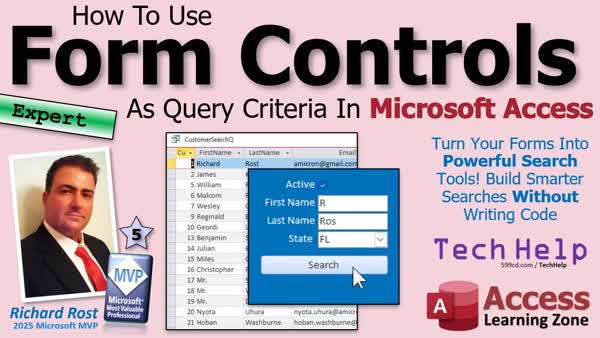 TechHelp Access, form controls as query criteria, search form, text box query, combo box query, check box criteria, wildcard search, Like operator, value list combo box, unbound form, forms!mainmenuf!lastname search, and/or condition, customer search query, active inactive filter, state search, command button, openform, openreport, enter parameter value error
 Subscribe to Form Controls
Get notifications when this page is updated
More InformationTranscript Ever wish you could just type a few things into a form and instantly find the records you're looking for?
Welcome to another TechHelp video brought to you by AccessLearningZone.com. I'm your instructor, Richard Rost.
Today we're going to talk about how to use form controls as query criteria in Microsoft Access. We'll build a simple search form using a text box, a combo box, and a check box, and you can filter your data without writing any code. In fact, we're going to use two text boxes.
I consider this an expert level video. What does that mean? Well, to me, expert means intermediate. It's sandwiched between beginner and developer, which is for VBA stuff.
Everything we're going to do in this video doesn't require a shred of programming, although I'm going to sneak a line in just to show you how easy VBA is. But let's take a look at the question for today's video.
Sabrina from Columbus, Ohio, one of my platinum members, wrote to me and said, I need to be able to look up customers by first and last name, often partials, filtered by what state they're from, and usually I only want to see active customers, but sometimes I need to look for inactive ones instead. Is there a simple way to build a search form that lets me do all of that without getting into a lot of complicated code? Oh, and it has to be easy too since a lot of my company's users aren't very computer adept.
That's the whole point of your job as an Access developer - to make it easy for your users. So, I'm going to make it easy for you to build this search form.
Now, I've done quite a few videos over the years on searching in Microsoft Access, including building simple search forms and some more advanced techniques. A lot of these either lean way toward the beginner side or start getting into more complex SQL and VBA. So in this video, I want to hit that sweet spot right in the middle for the intermediate users.
We're going to build a nice, simple search form using a few different types of form controls: text box, combo box, and check box. No programming required, but it's still powerful enough to use in a real database.
One thing I've learned over the years is you really can't have too many different ways to search your database, because, let's be honest, that's why we build databases. That's why we're aboard her. Start Trek show up there. Anyways, we build databases to store information, but more importantly to find the information we need. So having lots of different videos and lots of different search techniques just gives you more tools for your toolboxes. I'm just showing you how to put the Legos together differently.
So, for prerequisites for today, just make sure you've watched my Access Beginner 1. You know how to build tables and queries and forms. Oh my. I'm going to be using the TechHelp free template that I use in most of my videos. If you want to see how that was built, go watch this blank template video.
You should know how to use command buttons, specifically to open up a query. Not that hard. You will need to know how to get a value from an open form. You should know how to do a wildcard search using the Like keyword. That's how we're going to do the partial search that Sabrina is looking for. You should know how to build a value list combo box. It's a combo box with a bunch of items in it that you can pick. Now, these are all free videos. They're on my website. They're on my YouTube channel. Go watch any of those that you need to, and then come on back.
Alrighty.
So here I am in my TechHelp free template. This is a free database you can download off my website if you want to. Normally I'd go ahead and just build a separate search form. You could use just a normal blank form and make a search form out of it. I'm just going to put what we need right on the main menu here. In fact, this is actually how I have my personal database. I've got search fields on my main menu because I use them constantly. I'm always trying to look up a customer by their customer ID or their last name or their email address. So we're just going to put some right on here.
Let's just go into design view. I'm going to shrink this guy up just a little bit, and we're going to make this our search button instead of hello world. We'll just call that Search for now. I've already got a text box on here; let's repurpose this guy. Let's do the last name search first, so let's change this label and say Last Name.
This box here, this just displays the date, so it's got the date in the control source. Now, the control source is where a text box gets its value from. Right now, having a control source equals date means you're always going to have today's date in there. You can't put anything else in there. It won't let you change it. So let's just get rid of that. I'm also going to get rid of that format that says Short Date. Get rid of that too. Because this is going to be repurposed. And we're going to call this LastNameSearch. Just like that, all one word, no spaces: LastNameSearch.
Now, this is an unbound text box, which means it doesn't have any data in it. It's not linked to a table. This is an unbound form. Most menu forms are unbound. They're not linked to a table or query. There's no data in there. It doesn't save anything.
So, this is just a search form, which is basically our menu form.
Now, as a review, this box's full name is Forms!MainMenuF!LastNameSearch. That's how you refer to a text box from somewhere else that's not on this form. So we're going to make a query in a minute. That query needs to know its full name: Forms!MainMenuF!LastNameSearch.
As a reminder, that's what it looks like: Forms!MainMenuF!LastNameSearch. That was in that value from another form video that I told you to watch earlier.
Now if I save this, close it, open it, if I put something in here - I'll put just an ROS, for example. My name is Rost. Now I want to make a query that looks at that field and uses that as the criteria.
So let's create a query: Create > Query Design. We don't need this. Let's bring in the customer table from the Add Tables. Now we can close that. Now I'm going to bring in the star so we have all the fields down here. If I just run it now, I get all the records, all the fields.
Back to design view. Now let's bring in the last name, but I don't want two copies of last name floating around. Because if I run this now, I'm going to get CustomerT.LastName, and then way over here at the end, I'm getting Field0, because it's duplicated. So we're just going to turn off that Show right there so we don't see two copies of it. But I need this second copy to put a criteria down here.
Now, the criteria I'm going to put in here is what I just had on the screen a second ago. I'm going to zoom in (Shift+F2). Equals Forms!MainMenuF!LastNameSearch.
Now hit OK; that goes right there. Let's save this query as my - let's call it the CustomerSearchQ. No spaces again: CustomerSearchQ.
If I run it now, I'm not seeing any records. Why am I not seeing any records? What's going on here? Let's close this. ROS, OK. Run the CustomerSearchQ again. Still not seeing any records.
Anybody figure it out? Take a look. That's an exact search. That's an exact search. We're not doing a wildcard search. So in other words, if I put ROST in here, make sure I hit Tab, and then run it now, now I'll see it. See, because it's an exact search. But we don't want an exact; we want a wildcard search.
Let's go back into that query. Click Design View. In here, we're going to use that Like keyword, Like. Then we want an asterisk & (ampersand) in the concatenation, and at the end of it, another asterisk. That says give me any number of characters here, then whatever the user typed in, and then any number of characters after it.
Hit OK, save it, close it. Now, I should be able to just put in here, let's put in RO. All right, RO, and now we'll run it. There we go. How about just an R? Let's see what we got. R, and then we'll run it. I guess I'm the only last name with an R in it. So I'll backspace.
Now remember, if you run it now while still editing this field, it's not going to change anything. That's something a lot of people get stuck on. So you have to make sure you hit Tab at least to leave that field and then run it. There you go. There's the ROs.
But that is something you're never going to really do because we're going to use this button. Let's use this button to open up that query. So the user types in the value and then clicks the button, and then they get the query.
Now, we could just repurpose this button if you want to use just one line of code, but I promise no code, so I'm going to show you how to do it real quick without VBA.
We're just going to use a command button right there, drop a command button right there. Go to Miscellaneous > Run Query, Next: Which query do you want? The CustomerSearchQ. Next, whatever you want on here: Run Query, or just put in here Search. Next. Give it a name: SearchBtn, and then Finish. There's your search button.
Now save it, close it, open it, click Search. Put something in here - for a while here, here's the beautiful thing: if you don't put anything in here, the wildcard is going to give you all the records. Watch: hit Search, boom, and there it goes.
But I can come in here and just put in RO and hit Search and see it works now because the focus leaves that box when you click the button.
Now I also said I was going to show you one line of VBA code. Here it is. I'm going to get rid of that button, and I'm going to use this guy as a button I had around here. Right-click and go to Build Event. Now it brings up the VBA code editor. Yes, I'm in dark mode, don't panic. Right here is that button, it's the Hello World button. Instead of Status Hello, I'm just going to say DoCmd.OpenQuery "CustomerSearchQ". That's it. That's all you need - one line of code. See, that was easier than running through the command button wizard, wasn't it? Once you learn a little tiny bit of VBA, your databases get a whole lot more powerful.
Save it, close it, close it, open it, and the same thing happens. See that in that Q.
And hey, do me a quick favor. If you're enjoying this video, if you're having fun, if you're learning something, give me a like. Make sure you subscribe to my channel and you'll get notified whenever I release new videos.
Let's get back to it.
So, we got Last Name. Let's add First Name. Right-click Design View. Let's copy this guy, Copy, Paste (Ctrl+C, Ctrl+V), we'll make this First Name. It's just weird having First Name below Last Name, so let's move it up here, then we'll grab them both and slide them on down. Let's give this guy a good name. Let's call it FirstNameSearch, no spaces.
Let's go to our query, right-click Design View. Let's add in First Name, and I'm just going to copy and paste this one. Watch: Copy, Right Arrow, Paste. See that? Now we just edit this, Shift+F2. FirstNameSearch. That's it. That's how you add more fields. Again, we got the Like in there, so everything is good.
Now, here's one thing you have to ask yourself. How do you want this to work? Do you want this to be an AND condition or an OR condition? Remember, AND across, OR down. So if you want this to be an OR condition, move this down one row to there. This way it'll match last name has to match criteria, OR first name has to match criteria, so they can match either the first name or the second name.
I personally prefer an AND condition. I'm going to make it an AND condition, AND across. It's got to match first name AND last name. The user should be able to select that - do you want an AND or an OR condition? We're going to cover that in the extended cut for the members. A little more complicated, requires a little bit more finesse.
But we're going to stick with an AND condition. Save it. By the way, you could make two buttons too. You can make an AND search or an OR search and just run two different queries if that's how you want to do it. That's the easy non-programming method.
In my beginner and in my expert classes, I spend a lot of time trying to do cool things without requiring code, as I know a lot of you don't want to be programmers. I get lots of feedback from people that are like, this is cool, but I really don't have any desire to be a programmer. That's okay.
So, let's close it, open it, let's put in here "R" and "O" and hit the search button and there I am.
Now, let's say you're just searching for first names. Let's say you're searching for "JA" and there's no last name. Get rid of that one and hit Search. There's James, Benjamin, and Jane. Let's throw an O in there for the last name and now we got just them. See? Look what happened there. I got a CustomerT.FirstName in O.I. Because I forgot to do that.
How about active or inactive customers?
In my database here, if you go to the customer form, you see this little check box: active or inactive. When you cover this in the video and in my Access Beginner 1, I do it and in my TechHelp free template video. This just means whether this customer is active and how the customer dies or moves out of your area or is no longer a customer, you can make them inactive so they don't show up in everything. So we want to be able to filter for that as well.
Let's put a check box on here. I'll put it on top; it just seems like it makes the most logical sense. Go to Form Design, grab a check box. Again, it's unbound, so we'll stick it right there. The label comes in over here. First thing I'm going to do is make it white so we can actually see it (standard colors preferred). Then we're going to grab this little box and slide it over to this side so they all line up the same. We'll change this to "Active."
The box itself, we're going to give it a name: IsActiveSearch. IsActiveSearch is the name of the field, so we're going to keep this the same so we're consistent.
Save it, close it, open it. Now, when you look at it, it's got a little dash in there. What does that mean? Well, unbound check boxes can have a third value: checked (on), unchecked (off), and null, which is a third value. You can even get there by checking it unless you make it a triple-state checkbox. I got a whole separate video on triple-state checkboxes.
Essentially, when this thing starts, it's in that null state, and you're going to get neither True nor False if it's null. So we're going to make sure we give it a value. Go to Data > Default Value. Let's default it to Yes or True, so that normally, when we're searching, we're searching for active customers.
Can you search for both inactive and active? Yes, you can use that null state. Again, we'll cover that in the extended cut.
Save it, close it, open it. Now we're starting off active. Let's add this to our query: CustomerSearchQ, Design View, find IsActive right there. Turn it off, so we don't see two of them for the criteria. Let me zoom in again. This is going to be an exact search: = Forms!MainMenuF!IsActiveSearch. That's our actual box. We don't use a Like for this one.
Save it, close it, close it. We can just use this box. Hit Search, boom. There's your 20 active people. Slide all the way to the end here; you can see they're all active. Let's check for inactive people. Search. There's 13 inactive people.
Let's do an inactive search for the P last name. So we'll put P in here and Search. There's all your inactive P's. See? It's looking pretty good.
We got one more to go. Let's do a search for State. Now in our customer form, we got different states right there. Florida, for example. So let's use a value list combo box, where we can just list the states that we want to search for.
In the extended cut, I'm going to show you a more advanced way where we can actually build an aggregate query to get a list of unique states for the customers that are actually in our customer table, so you'll see all of them. But for now, we'll just keep it simple and do a list of the ones we want to search for.
Let's come in here. Let's find a combo box. Drop it down here; it's going to run the combo box wizard. This is a good wizard. I like this guy.
We're going to type in the values that we want. Let's say we want to be able to search for California, Florida, New York, and Texas. Or whatever other one you want to put in here, go ahead and put it in there. We don't need the column to be that wide. Hit Next.
What label do you want? State. Finish.
Now one of my pet peeves about the combo box wizard: it doesn't give you the ability to give the combo box a name, but we'll give it our own name right here. Let's open it up, and we're going to call this guy - slide up at the top - we'll call this guy StateSearch. Let's make this white. I'm just going to format paint right over State. There we go.
Now, let's add StateSearch to our query. Now, StateSearch the way it is, if you look at the Data tab, it's literally just text. I'm also going to use a wildcard search for this, because then it will show you everything if the user doesn't pick a state or leaves that box blank. You'll see all the values.
If you got something in here that's part of something else, that shouldn't happen with states, but if you add other things like provinces and such, you might get more records. It's normally not a problem if it's just a list of states, provided, of course, all your states are the simple two-character state abbreviations.
CustomerSearchQ, Design View, add State, hide it. Again, this will be a Like. So I'm going to borrow one of these guys. Copy and paste. Whoops. What happened there? Copy. Paste. There it goes. Shift+F2. StateSearch. Hit OK. Save it, close it, close it, close it, save it, open it.
Let's start off by just searching for the Floridian. So I'm going to get active Floridian, Search. Boom, there we go: the Floridian. Let's try inactive. We got one. Let's try New York. The beauty of this being a value list combo box is you can type in here whatever you want. You want to type in PA, you can, because it's a value list box. I don't think I have any from PA in here. Let's see. Nope. So let's try a different one. Let's try Iowa. I know Jimmy Kirk is from Iowa. Search, and there he is.
Those mouths are Bryan. All of a sudden.
So there you go. We got a check box, two text boxes, and a combo box. Once this is built, you don't have to use this to launch a query. You can have it open a form too and have that form based on the query. For example, here I have a customer list.
Let's say this customer list is using, I think, just the customer table. Yep, CustomerT.
If I change this CustomerT so instead it's getting its data from the CustomerSearchQ, then this form will run that query when it opens and give you that set of data. The downside is this has to be open so it can get its criteria.
If I open up that form right now, CustomerList, it's showing me just the active people from Iowa because those are the criteria in this form. If the main menu is not open and you try to open that CustomerList form, you're going to get this thing: Enter Parameter Value. One of the most common questions I get from people: what's this Enter Parameter Value mean?
That means that Access can't find what you're looking for. Either the form isn't open or you typed in something wrong. It's usually a typo. I got a whole separate video on Enter Parameter Value. Search for it; you'll find it.
In this case, I'll hit Cancel. If your main menu is open and you open up the CustomerList now, there you go. Now we only have the active people in here. Notice there's only 16 instead of 30-something.
Or, if I put in here "R" and do a search, open the CustomerList, I see all the R's.
The beautiful thing also about this is, you can use this for reports too. I think I have a customer report here. Let's go to Print Preview. Yes, this just shows you all the customers. Let's double check: Design. Yep, CustomerT. Again, we can make this based on the CustomerSearchQ.
Save it, close it. Now, if I try to open it: CustomerReport, Print Preview. Now, notice I've got just the R's in here, and there's only one page of people. Well, let's see, there's a couple pages of people.
Who's in here? Richard, Reginald, yep, it's just the R's. Jordy, and also got Christopher, Mr. Spock. But it should be the same people that come up if I open up the search query. Yep, there they are, all the R's, all the active R's.
See, you can use this to open up a form or report. And again, with a little tiny bit of programming, you don't have to use the command button wizard all the time. You can open up the search, let's say, Show Customer Form.
We'll make this the CustomerForm button. Right-click, Build Event. Instead of DoCmd.OpenQuery, it's going to be DoCmd.OpenForm "CustomerListF". We'll copy this, paste, and then we'll put in here just Report: CustomerReport.
I'll do it like this, see, you know, it's like part of that guy. Right-click, Build Event. This is a little more complicated. This is going to be DoCmd.OpenReport "CustomerR", but you gotta make sure you go , acViewPreview because if you don't pick preview, it's going to send it right to your printer. You don't want that. I got, again, I have whole separate videos on OpenForm and OpenReport. With just a little bit of VBA - see, one line of code - you can do all kinds of cool stuff.
And now look what you got: you can put your R in here, you can set your criteria, you hit your CustomerForm, there they are. Let's print that stuff out now. And there you go, there's the report that's got just those people on it.
See, how cool? Isn't this cool stuff?
Now, if you want even more cool stuff, in the extended cut for the members, we're going to do a whole bunch more stuff with this. We're going to write the search code in VBA and SQL. We're going to get rid of having a need for a query for it. We're going to have a visible SQL editor that will change on the fly, so when you make changes over here, you'll see this update in real time.
We'll have user-selectable AND/OR, so you can change the AND/OR condition. We're going to use a triple-state checkbox here for Active, so you can see the active people, the inactive people, or both. That's what a triple-state does. You can type in your own SQL here. If you got a field, for example, that's not over here, just type it in. It'll run when you click the form button, it'll run when you click the report button, and you can save your own custom queries.
So here, here's a sample. I could change just the OR and watch the OR is changed. I could change the Active. See, look at that. Active or active. Let's make it active. Let's put first name as R. See, it goes right there. State, Florida, it goes right there. Type in your own, whatever you want in here. Let's see, you want to add or credit limit is less than 500. We can save this: CustomersCreditLimit500, whatever you want to put in there. Hit OK, saves it. Now it's in this list, you can reload active customers, load them up. The one we just made, load it up, there it is again. Run it, there they are. Click the report, there's the report.
Want to get rid of part of this, you can do this, you can edit it manually, you can do all kinds of stuff. That's covered in the extended cut for the members.
Silver members and up get access to all of my extended cut videos. Gold members can download these databases that I build in the TechHelp videos and everybody gets some free training and everybody's happy and everybody's learning new cool stuff.
Oh, and I forgot one more thing. This little combo box here - it's no longer just a fixed list of values, it actually gets the list of states from the table, so you can pick any state that you want. It's in the database. I almost forgot to mention that one. Didn't put it over here too, so it's in there.
If you really want to learn all of the ins and outs of all the different ways you can search in a database, I got this thing called the Search Seminar. It's over nine hours long, covers all kinds of stuff: natural language search, searches as you type, you name it. It's in there; it's like that spaghetti sauce; it's in there. So check it out; there's a link, I'll put it down below.
But there you go, that was a good one today. That's going to do it for your TechHelp video for today. Now you know how to turn your forms into powerful search tools, just like it says over here. Build smarter searches without writing code. You can do all the things I just showed you without any code, although a little bit of code will make your forms really cool. But that's going to do it.
I hope you learned something. Live long and prosper, my friends. I will see you next time. And members, I'll see you in the extended cut.
If you enjoyed this video, hit that thumbs up button right now and give me a like. Also be sure to subscribe to my channel, which is completely free, and make sure you click that bell icon and select All to receive notifications whenever I post a new video.
Do you need help with your Microsoft Access project? Whether you need a tutor, a consultant, or a developer to build something for you, check out my Access Developer Network. It's a directory I put together personally of Access experts who can help with your project. Visit my website to learn more.
Any links or other resources that I mentioned in the video can be found in the description text below the video. Just click on that Show More link right there. YouTube's pretty good about hiding that, but it's there, just look for it.
Now, if you have not yet tried my free Access Level 1 course, check it out. Now, it covers all the basics of Microsoft Access, including building forms, queries, reports, tables, all that stuff. It's over four hours long. You can find it on my website or my YouTube channel. I'll include a link below you can click on, and did I mention it's completely free?
And if you like Level 1, Level 2 is just $1. That's it. And it's free for members of my YouTube channel at any level.
Speaking of memberships, if you're interested in joining my channel, you get all kinds of awesome perks. Silver members get access to all of my extended cut TechHelp videos, and there's hundreds of them by now. They also get one free beginner class each month. And yes, those are from my full courses.
Gold members get the previous perks plus access to download all of the sample databases that I build in my TechHelp videos. Plus you get access to my Code Vault where I keep tons of different functions and all kinds of source code that I use. Gold members get one free expert class every month after completing the beginner series.
Platinum members get all of the previous perks plus all of my beginner courses from every subject, and you get one free advanced or developer class every month after finishing the expert series. You can become a diamond sponsor and have your name listed on the sponsor page on my website.
So that's it. Once again, my name is Richard Rost. Thank you for watching this video brought to you by AccessLearningZone.com. I hope you enjoyed. I hope you learned something today. Live long and prosper, my friends. I'll see you next time. Intro In this video, we will walk through how to build a simple search form in Microsoft Access using form controls as query criteria. I will show you how to set up text boxes for first and last name searches (including partial matches), use a combo box for selecting state, and add a check box to filter by active or inactive customers, all without requiring programming. We will connect these controls to a query, demonstrate how to base forms and reports on the search results, and briefly discuss how a small amount of VBA can further enhance your search capabilities. Quiz Q1. What is the main purpose of the search form discussed in the video?
A. To allow users to add new records to a table
B. To enable users to find records quickly using form controls as query criteria
C. To generate reports from multiple tables at once
D. To automatically update and delete records without user input
Q2. Which of the following form controls are incorporated into the search form as criteria?
A. Only text boxes and list boxes
B. Text boxes, a combo box, and a check box
C. Only combo boxes and option groups
D. Only check boxes and subforms
Q3. What is meant by an "unbound" text box in Access?
A. It is connected to a specific field in a table
B. It does not store data and is not linked to any table or query
C. It only allows numeric values
D. It is used solely for displaying calculated values
Q4. How do you refer to a text box on a form from within an Access query?
A. By its caption only
B. Using the syntax Forms!FormName!ControlName
C. By writing the control name in square brackets
D. It is not possible to reference form controls within queries
Q5. Why is using the "Like" keyword important in the context of the search form?
A. It enables searching for exact matches only
B. It makes the query run faster
C. It allows for wildcard searches, enabling partial match results
D. It filters out all records that don't contain a numeric value
Q6. When adding multiple search boxes for first and last names, what does arranging criteria on the same row signify?
A. OR condition
B. AND condition
C. NOT condition
D. XOR condition
Q7. What is the benefit of using a value list combo box for the State field?
A. It restricts the user to select only one option
B. It allows users to pick from a predefined list of states and type their own values if needed
C. It only displays states that start with "N"
D. It automatically filters based on user permissions
Q8. What does the null state of an unbound check box signify?
A. Checked/on
B. Unchecked/off
C. Neither checked nor unchecked (unknown or undefined)
D. It disables the check box
Q9. To default the search to show only active customers, what should you set in the check box control?
A. Default Value = No or False
B. Default Value = Yes or True
C. Default Value = Null
D. Do not set any default value
Q10. Which of the following statements about running the query using a command button is true?
A. It always requires VBA code
B. You can use the command button wizard to run a query with no VBA required
C. The only way to do it is manually from the query window
D. The query must be written in SQL Server Management Studio
Q11. What will happen if you open a form or report based on a query that references values from a form that is not open?
A. The operation will succeed without error
B. Access will prompt for parameter values
C. The form or report will use default values
D. Access will close automatically
Q12. If both the first name and last name fields are left blank, using the "Like '*'" approach, what will the search return?
A. No records
B. Only records matching "blank" fields
C. All records
D. Only inactive records
Q13. What is the typical benefit of combining simple form controls with little or no VBA code, as discussed in the video?
A. Provides a good balance of ease of use and search power for non-programmers
B. Limits the database to only advanced users
C. Prevents multiple users from accessing the data
D. Disables all editing features for users
Q14. What feature or function is available only in the extended cut for members, according to the video?
A. Setting up a simple search form with text boxes
B. Building an aggregate query to get a unique list of states from the customer table
C. Using the "Like" keyword in queries
D. Adding new fields to a table
Q15. How can you expand the search functionality beyond just queries, as shown in the video?
A. By deleting all form controls
B. By using the query as the record source for forms and reports
C. By exporting queries to Excel only
D. By changing the database file type
Answers: 1-B; 2-B; 3-B; 4-B; 5-C; 6-B; 7-B; 8-C; 9-B; 10-B; 11-B; 12-C; 13-A; 14-B; 15-B
DISCLAIMER: Quiz questions are AI generated. If you find any that are wrong, don't make sense, or aren't related to the video topic at hand, then please post a comment and let me know. Thanks. Summary Today's video from Access Learning Zone focuses on how to use form controls as query criteria in Microsoft Access, turning your forms into powerful search tools. My goal is to show you how to build a user-friendly search form using text boxes, a combo box, and a check box, all without writing any code. Although this technique is considered an expert-level topic, it sits neatly between beginner and full-scale VBA developer work. Everything in this lesson can be accomplished without programming, though I will sneak in one line of VBA code to illustrate its simplicity.
A question from a student inspired this tutorial: she needed a way to search for customers by partial first and last names, filter by state, and easily toggle between active and inactive customers. Most of her company's users are not particularly tech-savvy, so the solution had to be straightforward and easy to use. As an Access developer, your job is to make your database hassle-free, and that's exactly what we'll accomplish today.
Over the years, I have created many videos tackling different search methods in Access, from beginner basics to advanced techniques involving SQL and VBA. This time, I want to cover a method that sits squarely in the middle, aimed at intermediate users who don't want to write code but still need robust search tools.
Searching is the heart of most databases - for retrieving the information you need, when you need it. A database with flexible search options is much more useful, and that's what we're going to construct here using different types of form controls. You should already be comfortable building tables, queries, and forms, know how to use command buttons, perform wildcard searches using the Like keyword, and build a value list combo box. If you need a refresher, I have free videos on my website and YouTube channel that cover these.
This walkthrough uses my TechHelp free template, which you can download from my site if you don't already have it. While you might want to create a separate search form, I prefer putting search fields right on the main menu, which mirrors how I use my database daily. Adding search fields right where they're needed makes looking up customers quick and convenient.
After switching to design view, the first step is to create a text box to search by last name. This text box is unbound and does not store data - it's only for inputting your search criteria. You access it in queries using its full reference like Forms!MainMenuF!LastNameSearch. This is essential since our query needs to know which box to pull the search value from.
Next, you'll create a query based on the Customer table. Instead of doing an exact match - which would require users to type full names exactly - you set up the query to perform a wildcard search using the Like keyword. This allows the query to match any last name that includes the typed string, making partial searches easy.
To initiate the search, you can use a command button that runs the query. Without touching VBA, the Button Wizard will let you link the button to your search query. If the search box is left blank, the query returns all records, so it works flexibly for broad searches. For those interested, adding just a single line of VBA makes the process even sleeker and more versatile.
Expanding on this, we add a text box for First Name to allow multi-criteria searches. You decide whether the search should require both fields to match (AND condition) or either one (OR condition). This demonstration focuses on the more common AND approach, but I discuss building user-selectable AND/OR conditions in the Extended Cut for members.
The next control to add is a check box for filtering based on whether customers are active. By default, it starts checked (True), so you're only seeing active customers unless you deliberately uncheck it. This check box also remains unbound and, if left in its null state, effectively selects both active and inactive customers - a technique I explore more deeply in the Extended Cut.
For searching by state, you'll use a combo box with a list of desired state abbreviations. While the simple value list method works well for most scenarios, you can set up a combo box that dynamically lists all unique states in your data - a feature covered in more advanced lessons and the Extended Cut. Again, using the Like keyword in the query ensures you can leave the field blank to see all results, or specify a state to narrow it down.
Once your form is set up with these controls, you have a fully functioning search form. Users can search by first and last names, filter by active status, and pick a state. The search form can do more than just run a query - it can also open forms and reports based on your search criteria. For example, you can tie your customer list form or customer report to the search query, so they display exactly the results you want.
Keep in mind that the form containing your search controls needs to remain open so your queries, forms, and reports can retrieve values from it. If it's not open, you'll encounter Access's Enter Parameter Value prompt, which means Access cannot locate the value it needs. Typos or closed forms are the most common culprits for this issue - I have a dedicated video explaining this if you need more details.
Adding a bit of VBA makes things even easier and more dynamic, letting you launch forms or reports with custom code. Just a single line of code attached to a button can open a form or report filtered by your search query, making your application more streamlined and user-friendly.
In today's Extended Cut for members, we go even further. We'll build the entire search logic in VBA and SQL, eliminate the need for a dedicated query, and introduce an on-form SQL editor that updates in real time. This includes features like user-selectable AND/OR logic, a triple-state check box for active/inactive/both customer views, and the ability to save and reload custom queries. Additionally, the combo box will be dynamic, automatically listing all states from your customer table instead of relying on a static list. You can even type your own custom SQL criteria to tailor searches further.
If you want to master all the different search techniques in Access, my Search Seminar covers everything from natural language searches to live searches as you type, and it runs for over nine hours. There's a link to it on my website.
With these lessons, you now know how to use form controls as query criteria in Microsoft Access, creating search tools that are both simple and powerful. All the functionality demonstrated here works without any coding, though a bit of VBA can unlock even more possibilities.
You can find a complete video tutorial with step-by-step instructions on everything discussed here on my website at the link below. Live long and prosper, my friends. Topic List Creating unbound text boxes on a form for search criteria
Setting up text boxes for partial last name search
Using form control values as query criteria
Building a wildcard search using the Like keyword
Designing a query that reads criteria from form controls
Hiding duplicate fields in query results
Creating AND vs OR conditions in query criteria
Adding a command button to run a query from a form
Defaulting checkbox values for active/inactive search
Using unbound check boxes for filtering
Filtering records by active/inactive status
Adding a combo box with a value list for state search
Configuring the combo box to accept typed values
Using combo box values in query criteria
Connecting search form filters to forms and reports
Applying a parameter query to limit records in forms
Applying a parameter query as the source for reports
Basic integration of single-line VBA for query or form opening Article Have you ever wished you could type a few things into a form and instantly find the records you're looking for in Microsoft Access? Today we're going to learn how to build a simple yet powerful search form in Access using just form controls - no programming required. We will use text boxes, a combo box, and a check box, so you and your users can filter data quickly and easily. Along the way, you'll also see how to use the results in queries, forms, and reports.
Let's tackle a common request: Sabrina from Columbus, Ohio needs to search for customers by first or last name, even by a partial match, filter by their state, and usually just see active customers. Occasionally, she needs to see inactive ones too. Most importantly, the solution must be user-friendly for a team that isn't very tech-savvy.
Let's walk through building this search tool step by step. Start out by opening your database. You can use any unbound form, but if you have a main menu form or a similar dashboard, you can add your search controls directly to it for easy access.
First, create a text box for searching by last name. In Design View, find a spot on your form and add a text box. Remove any control source - you want this to be unbound so that it doesn't overwrite or require data from a table. Rename this text box to LastNameSearch. This field will just hold the search term the user types in.
In Access, to get the value from a specific control on a specific form, you use the syntax: Forms!FormName!ControlName. For our "main menu" form, if it's named MainMenuF, the full reference would be Forms!MainMenuF!LastNameSearch.
Next, create a query to display the search results. Go to Create > Query Design, add your customer table, and include the fields you want to see. To set up the search, add the LastName field a second time to the grid just for criteria (uncheck Show so you don't see it twice). In the Criteria row, enter:
Like "*" & Forms!MainMenuF!LastNameSearch & "*"
This tells Access to look for any record where the last name contains whatever the user has typed - so partial searches work too. Save this as CustomerSearchQ.
If you run the query with "Smith" in the form's LastNameSearch box, you'll see only customers whose last name includes "Smith." If you leave the box empty, the criteria becomes Like "**", which finds all records.
Now, let's wire up a search button. On your form, add a Command Button. When prompted, choose Miscellaneous > Run Query, and pick CustomerSearchQ. (In reality, the wizard will walk you through naming and formatting the button.) Now, when a user types in a partial or full last name and clicks Search, the query opens showing matching records.
Next, let's add the ability to search by first name as well. Copy the LastNameSearch text box, paste it, rename it to FirstNameSearch, and adjust the label. In your CustomerSearchQ query, add the FirstName field to the grid (again: you can bring it in just for criteria and uncheck Show). For the criteria, use a similar expression:
Like "*" & Forms!MainMenuF!FirstNameSearch & "*"
Now, consider whether you want your search to match both fields (AND) or either one (OR). If you want only customers where both the first and last name match what the user typed, put both criteria on the same row (AND). If you want to find customers matching either, put the criteria for FirstName on the next row down (OR). Most of the time, you'll use AND to really narrow things down.
What about filtering customers by their "Active" status? On your form, add a check box control. Set its name to IsActiveSearch and its label to Active. By default, Access check boxes have three states: checked (True), unchecked (False), or null. To avoid confusion, set the Default Value property of this check box to True (in the property sheet under Data), so by default it looks for active customers.
In your search query, bring in the IsActive field and add a criteria:
= Forms!MainMenuF!IsActiveSearch
This links the form's check box to the query, showing only active customers when checked.
Now, to search by State, add a combo box control to your form. The Combo Box Wizard will let you define a value list - for example, "CA", "FL", "NY", "TX" - so users can choose a state from the dropdown. Name the control StateSearch. In your query, bring in the State field and add this criteria:
Like "*" & Forms!MainMenuF!StateSearch & "*"
This lets the user filter by state, and if they leave the combo box blank, all records appear.
With these four controls - text boxes for first and last names, a check box for active status, and a combo box for state - on your menu or search form, you have a flexible search interface. Clicking your Search button will open the query filtered as the user requested.
If you want a little boost in power and ease, you can instead use a bit of VBA. For the Search button, instead of using the Command Button Wizard, open its Click event in the VBA editor and simply enter this line:
DoCmd.OpenQuery "CustomerSearchQ"
That's all it takes - one line of code. It opens your filtered query when the button is pressed.
You're not limited to launching queries. You might have a list form or a report based on the CustomerSearchQ query. In the form or report's Record Source property, change it from your customer table to CustomerSearchQ. Now, when the user clicks your Search button, you could open a form like so in VBA:
DoCmd.OpenForm "CustomerListF"
Or a report with:
DoCmd.OpenReport "CustomerR", acViewPreview
These forms and reports automatically use the criteria from your open search form. Just make sure the search form is open, or else users will see an "Enter Parameter Value" dialog. That means Access can't find the search controls and needs you to type a value.
At this point, you have a search form that lets you look up records by first or last name (with partial match), state, and active/inactive status - all without writing code, except for the optional one-line VBA shortcut. You can control whether the filters are required or optional just by how users fill in the controls: leave any one blank to skip filtering on that field.
If you want even more features, such as using a triple-state check box for "Active or Inactive or Both," dynamically populating States from the actual table data, or letting users choose AND/OR logic at runtime, you can extend this form further with some more VBA and advanced query building - but everything covered so far requires very little or no code and can be done entirely in Access's design interface.
In summary, using simple controls on an unbound Access form as criteria for your queries is an easy and user-friendly way to turn your forms into powerful search tools. Just wire up your controls, link them to your queries using the Forms!FormName!ControlName syntax, and let your users enjoy quick data filtering without ever touching a complicated search screen or writing SQL. This approach is perfect for intermediate Access users and can be expanded with just a few lines of code when you're ready. Primary Topics Access search forms, query criteria from form controls, unbound form controls, text boxes for partial search, combo boxes for filtering, check boxes for active/inactive filtering, wildcard searching, basic query design
Secondary Topics minimal VBA introduction, form/report integration, triple-state check boxes (mentioned for advanced), parameter value errors
|




