|
||||||
|
||||||
|
||||||
|
||||||
Access Developer 56Dark Mode, Bubble Sort, In-Memory ADO RecordsetsIn Access Developer 56, we continue building the dark mode system for Microsoft Access by integrating it with Windows settings, allowing your database to read and set the Windows dark mode. We will walk through cleaning up the background form using Windows API, syncing your theme with Windows, and letting Access control the system theme. We will also discuss sorting techniques, including implementing a bubble sort in VBA, using DAO record sets with temp tables, and moving to a more efficient disconnected ADO record set. By the end, you will have practical new tools for your Access development projects. Lessons
Lesson SummaryAccess Developer 56: Sync w Windows, Bubble, ADO - Welcome to Microsoft Access Developer Level 56. We will continue refining our dark mode system by properly controlling the background form using Windows API calls and ensuring it behaves correctly within Access. We will walk through how to sync the database's theme with the Windows system theme using registry settings and VBA. Additionally, we will take a practical look at the bubble sort algorithm in pure VBA, and then compare that to more efficient data sorting and handling with DAO and in-memory ADO record sets. This lesson requires familiarity with prior dark mode classes.
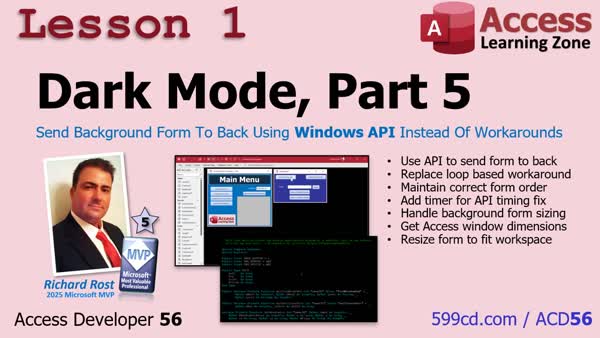
Lesson 1: Windows API Form Position & Sizing - In Lesson 1, we improve the dark mode system for Access by handling the background form using a Windows API call (SetWindowPos) instead of looping through open forms. I show you how to ensure the background form stays behind other windows reliably and how to size it to fit the Access window neatly, eliminating unwanted scroll bars. We discuss how to use proper API declarations, the timing required to send the form to the back, converting window dimensions, and the differences between Me.Move and DoCmd.MoveSize. Limitations and alternative approaches for resizing are also addressed.
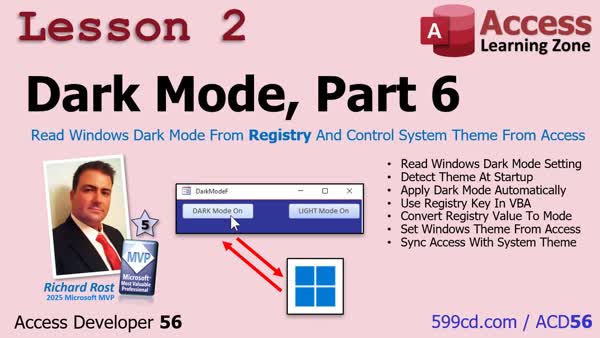
Lesson 2: Dark Mode To & From Windows - In lesson two, we will walk through how to read the Windows Dark Mode setting from the registry and use it to automatically control your Access database's theme when it loads. We will discuss locating the correct registry key, reading its value using VBA, and applying the corresponding theme within Access. I will show you how to set the Windows theme from inside Access using VBA code, so Access and Windows dark modes stay in sync. Error handling and the limitations of automatic updates while Access is open are also addressed. Additional optional ideas are discussed for further automation.
Lesson 3: Bubble Sort Arrays in VBA - In lesson three, we focus on the bubble sort algorithm, explaining how it works and why you might use it in Access VBA instead of relying on .NET dependencies. I walk through a step-by-step demonstration and code example of bubble sort, loading form names into an array and sorting them for use in a combo box. We'll talk about related compatibility issues, why avoiding external dependencies is important, and preview upcoming lessons where we will explore more efficient methods using DAO and ADO recordsets. This lesson provides a practical introduction to both bubble sort and key programming concepts within Access.
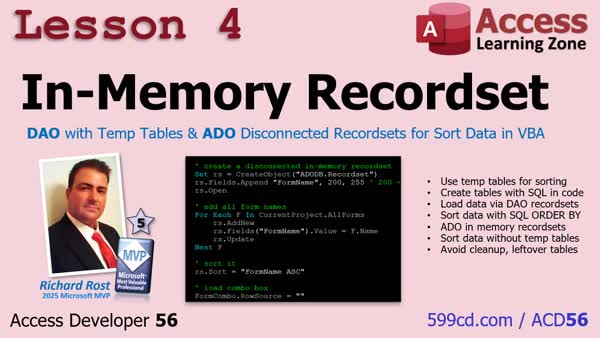
Lesson 4: DAO & ADO Disconnected Recordsets - In lesson four, we will focus on using an in-memory recordset to sort and manage data more efficiently in Microsoft Access. First, we will discuss using a temporary table combined with SQL and a DAO recordset to handle sorting and loading form names. Then, I will show you how to use a disconnected in-memory ADO recordset, eliminating the need for any temporary table and making the process cleaner and safer, particularly for use with SQL Server. We'll compare these practical approaches to what you learned in the previous bubble sort lesson.
Up Next: Review & Next Steps for Developer 57 - In this lesson, we review techniques you learned in Access Developer 56, such as working with the background form and discussing how these skills, while not always immediately needed, can be useful in future projects. We also talk about concepts like the disconnected ADO recordset and touch on VB.net dependencies. Looking ahead, I discuss what is next in Developer 57, where I will show you how to enable Office dark mode, discuss related challenges with different Office installations, and mention plans to build a complete dark mode system for Access, alongside integrating the VB editor.
NavigationKeywordsAccess Developer, Access Developer 56, dark mode system, Windows dark mode, tie to Windows, VBA techniques, sort data, Windows API, background form, read Windows theme, Windows registry, control Windows theme, bubble sort VBA, DAO record set, temp tables,
More InformationTranscriptHey folks, this is Richard Rost with Access Learning Zone. I just released Access Developer 56. In this course, we are continuing to build our dark mode system for Microsoft Access. We are going to tie it directly into Windows so you can read and set the Windows dark mode as well. Then we are going to learn some powerful VBA techniques for sorting data, cleanly and reliably. In case you missed Developer 55, we started building the dark mode system itself with forms and basic switching. Now in Developer 56, we are continuing to work on our dark mode system and we are doing some additional cool stuff. First, we clean up the background form using a Windows API so it stays in the back where it belongs and fits the Access window perfectly without those ugly scroll bars. Then we read the Windows theme from the registry so your database automatically matches your system, and then we take it a step further letting Access control the Windows theme itself. After that, we take a quick detour into some actual computer science stuff and build a bubble sort in pure VBA to give you a better understanding of how sorting works. Finally, we bring it back to real world Access development by sorting data the better way using a DAO record set with temp tables, and then I show you an even better way than that, moving to a disconnected ADO record set that runs entirely in memory. No temp tables required. So by the end of this class, you have got a cleaner dark mode system and some solid practical techniques you can use in your own databases right away. For more information, visit my website. I will put a link down below or drop a comment down below if you have got any questions. Live long and prosper my friends, I will see you in class. IntroIn Access <B>Developer 56</B>, we continue building the dark mode system for Microsoft Access by integrating it with Windows settings, allowing your database to read and set the Windows dark mode. We will walk through cleaning up the background form using Windows API, syncing your theme with Windows, and letting Access control the system theme. We will also discuss sorting techniques, including implementing a bubble sort in VBA, using DAO record sets with temp tables, and moving to a more efficient disconnected ADO record set. By the end, you will have practical new tools for your Access development projects. QuizQ1. What is the main focus of Access Developer 56? A. Building an invoicing system in Access B. Continuing to develop the dark mode system for Microsoft Access C. Creating automated email reports in Access D. Designing advanced queries in Access Q2. How does the updated dark mode system interact with Windows? A. It only changes Access's appearance, not Windows B. It can read and set the Windows dark mode theme C. It is independent of the Windows theme D. It uses Excel to control the theme Q3. What tool is used to ensure the background form stays behind other objects in Access? A. Access macros B. Autoexec macros C. Windows API D. Form events only Q4. What is used to synchronize Access's theme with Windows? A. Custom VBA code only B. SQL Server integration C. Reading the Windows theme from the registry D. Linked Excel sheets Q5. What advanced VBA concept is introduced in this course as a detour? A. Hash tables B. Bubble sort algorithm C. Pivot tables D. Event-driven programming Q6. Which method is demonstrated for sorting data without using temp tables? A. DAO recordset with temp tables B. Manual sort using Excel C. Disconnected ADO recordset in memory D. Access query sorting only Q7. What is described as the "better way" for sorting data in Access, after learning bubble sort? A. Using filter by form B. Sorting manually in datasheet view C. Sorting with DAO recordset and temp tables D. Using Access macros Q8. What practical outcome is highlighted at the end of the class? A. A completed sales reporting tool B. A functioning invoicing form C. A cleaner dark mode system and solid VBA sorting techniques D. A full-featured inventory management system Answers: 1-B; 2-B; 3-C; 4-C; 5-B; 6-C; 7-C; 8-C DISCLAIMER: Quiz questions are AI generated. If you find any that are wrong, don't make sense, or aren't related to the video topic at hand, then please post a comment and let me know. Thanks. SummaryToday's video from Access Learning Zone covers the release of Access Developer 56. In this course, I continue building on the dark mode system for Microsoft Access that we started in Developer 55. This time, I focus on integrating the system more tightly with Windows, which means you will be able to both read the Windows dark mode setting and control it directly from Access. In the previous course, we worked on creating the dark mode system itself, with forms and the basic tools for switching between modes. Now, in Developer 56, we enhance those features and add new capabilities. One of the first things we tackle is cleaning up the background form using a Windows API. This ensures that the background form stays behind other windows where it belongs, fits perfectly in the Access window, and avoids those unsightly scroll bars. Next, I show you how to read the Windows theme directly from the system registry. With this feature, your Access database can automatically match the appearance of your system's dark or light mode. We do not stop there - I also demonstrate how to give Access the ability to control the Windows theme setting itself. After those improvements, we step aside for a moment to cover some core computer science principles. I show you how to build a bubble sort using pure VBA, which will help you gain a deeper understanding of how sorting algorithms function. Once you have a handle on that, we move back to practical Access development. I teach you a more effective approach to sorting data by using a DAO recordset along with temporary tables. After that, I introduce an even better technique by switching to a disconnected ADO recordset that operates entirely in memory, meaning no temporary tables are needed. By the end of this class, you will have a more efficient and cleaner dark mode system, along with valuable skills for sorting data in various ways. These techniques are ready to use in your own projects immediately. For a full video tutorial with step-by-step instructions on everything I covered here, visit my website at the link below. Live long and prosper, my friends. Topic ListCleaning up the background form with Windows API Making the background form fit the Access window Removing scroll bars from the background form Reading the Windows theme from the registry Synchronizing Access dark mode with Windows dark mode Setting the Windows dark mode from Access Building a bubble sort algorithm in VBA Sorting data with a DAO recordset and temp tables Sorting data with a disconnected ADO recordset Primary Topics
Access dark mode integration, Windows API usage, Windows registry interaction, VBA bubble sort, DAO recordset sorting, ADO disconnected recordsets Secondary Topics
background form management, form design |
||
|
| |||
| Keywords: Access Developer, Access Developer 56, dark mode system, Windows dark mode, tie to Windows, VBA techniques, sort data, Windows API, background form, read Windows theme, Windows registry, control Windows theme, bubble sort VBA, DAO record set, temp tables, Page Tag: whatsnew PermaLink More Dark Mode, Bubble Sort, Temp Tables, Disconnected ADO Recordsets in Microsoft Access |