|
||||||
|
||||||
|
||||||
|
||||||
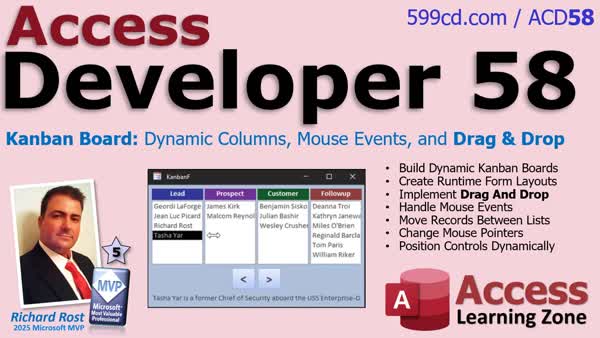
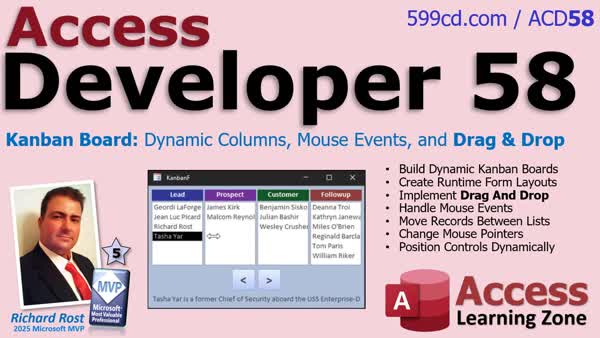
Access Developer 58Build a Dynamic Kanban Board With Drag and DropIn Access Developer 58 we will learn how to turn a basic Kanban board into a dynamic, developer-quality Microsoft Access application. We will cover building configurable layouts, storing and adjusting control positions using VBA, and enhancing the user interface with column tracking, automatic centering, and resizing. We will discuss using mouse events and coordinate math to support true drag-and-drop functionality, including moving items between list boxes and updating the form at runtime. By the end, you will know how to build a professional interface that supports dynamic rearrangement and real-time user interaction in your own projects. Lessons
ResourcesNavigationLesson SummaryWelcome! Dynamic Kanban Board with Drag & Drop - Welcome to Microsoft Access Developer Level 58. In this course we will build a dynamic Kanban board system in Microsoft Access, transforming a fixed board into a flexible, developer-level project with configurable columns, runtime control layouts, stored coordinates, and drag and drop behavior. We will discuss techniques for moving and resizing controls in VBA, adapting forms at runtime, and designing a more interactive interface. We will also review recommended prerequisites, video navigation, and how to ask questions for each lesson. The course includes storing and managing dynamic layouts, handling mouse events, and providing a polished user experience with real-time feedback.
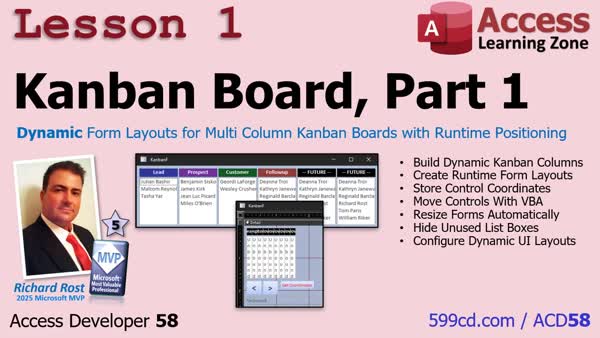
Lesson 1: Dynamic Multi-Column Kanban Board Setup - In lesson one we begin constructing a dynamic Kanban board system in Microsoft Access with runtime-configurable form layouts and columns. We will walk through storing control positions in a table, automatically resizing and rearranging the form, and displaying only the necessary list boxes based on user configuration. The lesson covers setting up the necessary fields and logic to support dynamic Kanban columns and demonstrates how to save and restore layout parameters for each box on the form, providing the foundation for a customizable Kanban board interface.
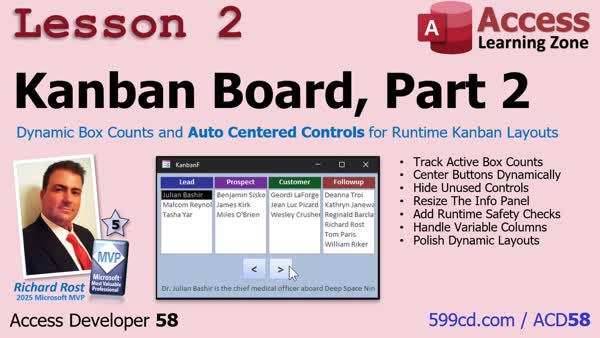
Lesson 2: Box Counts & Auto-Centered Controls - In lesson two, we continue enhancing our Kanban Board by refining the dynamic layout. We will walk through tracking the active box count for future use, automatically centering controls based on the number of columns, and cleaning up unused list boxes at runtime. We will also discuss adding safety checks to ensure valid status options and polish the interface to respond correctly as the visible columns change. Finally, we will talk about ways to handle some potential user and design issues as the application grows.
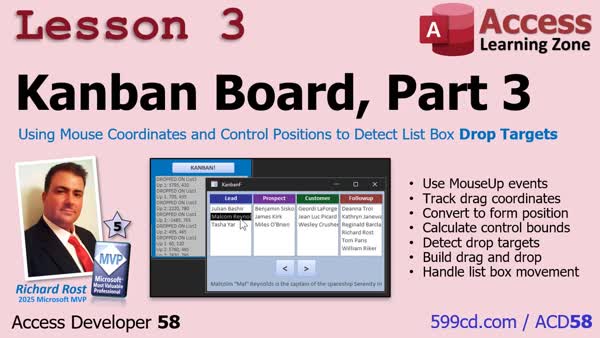
Lesson 3: Detect Drop Targets with MouseUp - In lesson three of the Kanban Board tutorial series, we will walk through implementing real drag-and-drop functionality for your Kanban board using mouse up events and coordinate math. I will show you how to detect where the mouse is released, convert those coordinates to the form's positioning system, and determine which list box receives the dropped item. We'll also discuss handling form centering issues after resizing and use code examples to track the drop location, allowing records to be moved between stages. This lesson focuses on making true drag-and-drop between list boxes possible for your Kanban Board project.
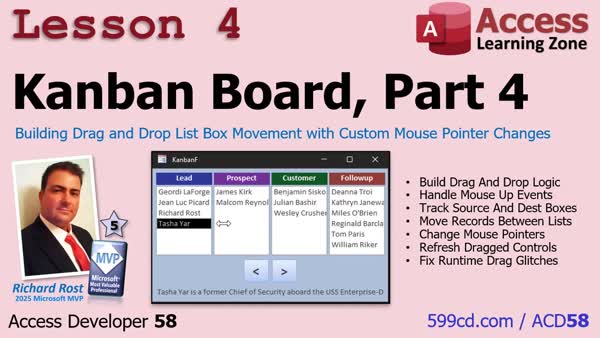
Lesson 4: Drag & Drop, Custom Mouse Pointer - In lesson 4 of the Kanban Board series, we complete the Kanban board system by implementing full drag and drop behavior in Microsoft Access, including dynamic mouse pointer changes. I will show you how to track source and destination list boxes, move records accordingly, handle minor glitches related to drag and drop, and add an admin tool for fixing control positions. We will also discuss best practices for keeping the mouse pointer and button actions consistent and troubleshooting some quirks users may encounter during operation.
Up Next: Review & What's Coming Up... - In this lesson, we wrap up Access Developer 58 by summarizing how to build a dynamic Kanban board in Microsoft Access, featuring configurable columns, runtime layouts, and true drag and drop behavior using mouse events and VBA. We discuss how these techniques can be applied to other Access projects, not just Kanban boards. I also share updates on what is next, including upcoming lessons about recordset clones and bookmarks in future videos. Remember to take the class survey or post a comment to share your feedback on what you have learned and how you plan to use these techniques.
KeywordsAccess Developer, Kanban board, drag and drop, VBA dynamic layout, configurable columns, runtime positioning, mouse events, list box, coordinate math, resize controls, hide controls, track active columns, auto centering, refresh interface, safety checks
More InformationTranscriptHey folks, this is Richard Rost with Access Learning Zone. I just released Access Developer 58. In this course, we are taking the Kanban board we built in the TechHelp series and transforming it into a fully dynamic, developer-quality application with configurable layouts, runtime positioning, mouse events, and true drag-and-drop functionality. You can drag and drop items between the different list boxes. We will start by replacing the fixed layout with a dynamic one. You will learn how to build configurable columns, store control positions in a table, and move, resize, show, and hide controls entirely with VBA. Next, we will polish the interface by tracking active columns, automatically centering controls, hiding unused list boxes, resizing the form, and adding safety checks so everything adjusts itself cleanly at runtime. Then we will build the brains behind the drag-and-drop. You will use mouse events and coordinate math (do not worry, not a ton of math) to determine exactly which list box the user drops a record onto, even with a dynamically changing layout. Finally, we will finish the drag-and-drop system by moving records between the list boxes, changing the mouse pointer while dragging, refreshing the interface, and cleaning up some of Access's little quirks along the way. By the end of this course, you will know how to build a professional Microsoft Access interface that dynamically rearranges the controls and supports real drag-and-drop behavior, techniques you can use in all kinds of your own projects. For more information, visit my website or drop a comment down below if you have any questions. Live long and prosper, my friends. I will see you in class. IntroIn <B>Access Developer 58</B> we will learn how to turn a basic Kanban board into a dynamic, developer-quality Microsoft Access application. We will cover building configurable layouts, storing and adjusting control positions using VBA, and enhancing the user interface with column tracking, automatic centering, and resizing. We will discuss using mouse events and coordinate math to support true drag-and-drop functionality, including moving items between list boxes and updating the form at runtime. By the end, you will know how to build a professional interface that supports dynamic rearrangement and real-time user interaction in your own projects. QuizNo quiz available. SummaryToday's video from Access Learning Zone covers the release of Access Developer 58. In this course, I take the Kanban board that we created together in the TechHelp series and turn it into a fully dynamic, developer-level application. This version features configurable layouts, flexible positioning at runtime, support for mouse events, and true drag-and-drop functionality so you can actually move items between different list boxes right inside Access. We start by replacing the old, fixed layout with one that is completely dynamic. I show you how to build columns that you can configure yourself, and then store the position of each control in a table. You will be able to move and resize these controls, as well as show or hide them as needed, all through VBA code. As we move forward, we refine the user interface by keeping track of which columns are currently active and automatically centering controls as you work. We take care to hide any unused list boxes, adjust the size of the form to fit just right, and add important safety checks so the entire interface reorganizes itself smoothly while the application is running. After that, we put together the logic for the drag-and-drop system. Using mouse events and some simple coordinate calculations (and do not worry, the math stays pretty light), I show you how to determine exactly which list box receives a record as it's dropped, even while the layout is constantly changing. We wrap up by completing the drag-and-drop process. You will see how to move records from one list to another, change the mouse pointer as you drag items, refresh the display, and work around some small quirks that Access sometimes introduces. By finishing this course, you will have the skills to build a professional Access interface that can automatically rearrange its controls and allows users to drag and drop items between lists. These methods are tools you will be able to use in a wide variety of your own projects. You can find a complete video tutorial with step-by-step instructions on everything discussed here on my website at the link below. Live long and prosper, my friends. Topic ListBuilding a dynamic Kanban board in Access Replacing fixed layout with dynamic layout Creating configurable columns in Kanban board Storing control positions in a table Moving and resizing controls with VBA Showing and hiding controls with VBA Tracking active columns in the interface Automatically centering controls Hiding unused list boxes dynamically Resizing the form at runtime Adding safety checks for clean adjustments Implementing mouse events for drag-and-drop Using coordinate math to detect drop targets Handling dynamic layout during drag-and-drop Moving records between list boxes on drop Changing mouse pointer during drag operations Refreshing interface after drag-and-drop Addressing Access quirks during UI updates Primary Topicsdynamic form layout, drag-and-drop in Access, VBA control manipulation, configurable layouts, mouse event handling, runtime positioning, Kanban board design Secondary Topicsaccess interface polish, safety checks, mouse coordinate math |
||||||||||||||
|
| |||
| Keywords: Access Developer, Kanban board, drag and drop, VBA dynamic layout, configurable columns, runtime positioning, mouse events, list box, coordinate math, resize controls, hide controls, track active columns, auto centering, refresh interface, safety checks Page Tag: whatsnew PermaLink How To Build a Dynamic Kanban Board With Drag and Drop and Configurable Layouts in Microsoft Access |