Open Form Module
By Richard Rost

 35 hours ago
Quick Access Toolbar Opens Current Form VBA Module In this lesson, I will show you how to create an Open Form Module shortcut that uses Screen.ActiveForm to identify the active form and open its VBA code module. We will create a public function, run it from a macro using the RunCode action, and add that macro to the Quick Access Toolbar so you can access the current form's code without switching to Design View. Malcolm from Colorado Springs, Colorado (a Platinum Member) asks: I'm often working in an Access form that's already filtered and positioned on the record I need, and then I need to edit that form's VBA code. I hate disrupting the form just to get to its code, especially when events might run again. Is there a quicker way to jump straight to the code for the form I'm using? MembersThere is no extended cut, but here is the file download: Silver Members and up get access to view Extended Cut videos, when available. Gold Members can download the files from class plus get access to the Code Vault. If you're not a member, Join Today!
PrerequisitesLinksRecommended Courses
Keywords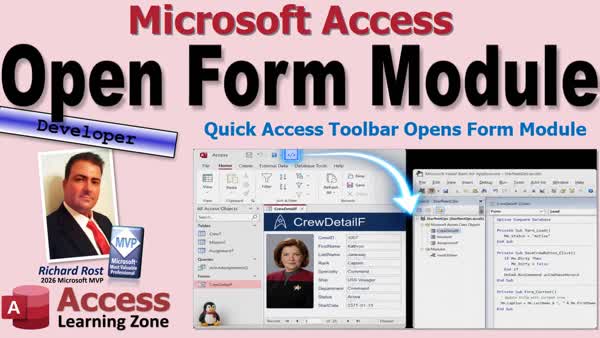 TechHelp Access, Access Quick Access Toolbar macro, open active form VBA module, Screen.ActiveForm, DoCmd.OpenModule, RunCode macro action, form code behind shortcut, open form module from Form View, View Code disabled Form View, VBA developer toolbar button
More InformationTranscript Are you working on a form that's already open exactly where you want it, and then you need to get into its VBA code without interrupting everything?
A few extra clicks isn't the end of the world, but after about the 50th time, it gets old.
Welcome to another TechHelp video brought to you by Access Learning Zone. I'm your instructor, Richard Rost.
Today, I'm going to show you a small developer customization that puts a shortcut right on your Quick Access Toolbar so that, when you're working with a live form, you can jump straight to the code behind that form without having to go to Design View first.
Now, it's not the only way to get into the Visual Basic Editor, but it's a handy little time-saver. And if you develop Access databases on a regular basis, you're going to like this one.
Today's question comes from Malcolm in Colorado Springs, Colorado, one of my Platinum members.
Malcolm says, "I'm often working in an Access form that's already filtered and positioned on the record that I need. And then I need to edit that form's VBA code. I hate disrupting the form just to get to its code, especially when the events might all run again. Is there a quicker way to jump straight to the code for the form I'm using?"
Yes, there is, absolutely.
I've had a little shortcut in my databases for years that does this, and I'm surprised I've never shown you guys how to do this in a video. So let's set it up.
First of all, this is a developer-level video. So if you've never done any VBA programming before, go watch this video first. It's about 20 minutes long. It teaches you everything you need to know to get started in programming with VBA for Microsoft Access.
We're also going to use the Screen.ActiveForm property. So if you've never used that before, go watch this video first.
You should know what the Quick Access Toolbar is. This is beginner stuff, but go watch this.
And you should also know some macro basics. Now, I know a lot of advanced VBA developers, they kind of look the other way when it comes to macros. Myself included a lot of the time, to be honest. But there are some things you can only do with macros, and launching events like this off of the Quick Access Toolbar can only be done with a macro.
So go watch my macros video. These are all free videos. They're on my YouTube channel. They're on my website. Go watch them and then come on back. I'll wait for you. I'll stop holding up the class. Go on, get out of here.
All right. Before we get to it, a little setup first.
I use this all the time. You've got a form open, you're in Form View, maybe you've navigated to a specific record. Maybe you've got some filters on, a sort, whatever. You've got the form positioned exactly where you need it. You've got the right record. And then you think, "I need to get to the VBA code behind this form."
Normally, this means changing views, finding the right command, or otherwise interrupting what you're doing.
Now, I've covered other videos before where I've showed you how to put different buttons up here. There is a button you can put right there. It's one of the stock buttons that allows you to open the Visual Basic Editor. But it opens to wherever. It could be the last module you were in. Or, for me, I use a lot of library files, so it'll open to a library file first, usually. It's not on the form that I want.
So then you have to come in here and you have to dig around and find where you want. "Okay, it's this form." And then go into here. And you've got to find what you're looking for. So that's not good.
There's another button here you can add as well called View Code. But as you can see, View Code is disabled if you're in Form View. So you've got to switch over to Design View first. Then you lose all that stuff I just talked about. And now you can hit that, and it brings you right to that guy.
What I want is another button.
Let me open up a different form or whatever, Customer Form. I want a different button that I can click on that takes me right to the code for that form. See, I'm right in the Customer Form.
How do we do it?
This is a copy of my TechHelp free template. You can grab a copy of this database off my website if you want to, or you can just put this in whatever database you want.
So let's go to one of our public modules. We're going to put this in a public, like a global module out here, so that we can call this from anywhere.
We don't need that. I'm going to resize this a little bit. We don't need the Immediate Window. And yes, I'm in dark mode. I prefer dark mode. It's easier on the eyes.
We're going to make a public function. Yes, make it a function, even though it's not returning a value, because we can use it in different places.
OpenCurrentFormModule.
Now in here, we're going to Dim F As Form. And what are we going to set it equal to? Well, I want to set F equal to whatever the currently open form is.
So, Set F = Screen.ActiveForm.
Just like that.
In case you don't have an active form open, if there is no active form, that will throw an error. So we're going to temporarily ignore that error message.
We're going to say:
On Error Resume Next
And then we're going to say:
On Error GoTo 0
That turns error handling back on.
Now we're going to check to see if we actually got something in that F. So we're going to say:
If F Is Nothing Then Exit Function
In other words, don't do anything.
You could put a message box up there if you want to. You could do something like this:
MsgBox "No active form."
Tell the user why you didn't do anything.
Now here's the big one. What I want to do is I want to open a module.
And there's a DoCmd. We know DoCmd.OpenForm. We know DoCmd.OpenReport. There's OpenTable. I want OpenModule.
Now, OpenModule takes two parameters: the module name and a procedure name. You can open any module you want, and inside that module, you can optionally jump to a specific procedure. That's pretty cool.
Let's say I want to open up this WindowPositionMod.
Let's go back to the Immediate Window. Watch this:
DoCmd.OpenModule "WindowPositionMod"
You ready? Press Enter. Boop. It opens up that module.
And let's say down here at the bottom, I've got Public Sub SomeSub. And I hope it's a ham and cheese sub.
So there's some sub in there. I'm going to save that. Remember SomeSub. I'll copy it.
Now I'm going to close this module. I'm back on the global module.
Now watch this. I can go comma, SomeSub, and watch what happens. Boop. See? Look at that. It opens that module and goes right to that procedure.
So that's pretty cool. That's not even the focus of today's video. I just thought that was pretty cool.
So let's get rid of that. We're going to leave SomeSub in there because you might be hungry later.
I'm going to close this.
So what do I want to do now? Well, I want to open up the module for this form, for F's module.
Now, how do I refer to that? It's not showing up here.
Well, guess what? Go to View and then go to the Project Explorer. And look at all these guys in here.
Form_MainMenuF. What's that? Well, that's the procedure behind the module behind the Main Menu form. Or the Order Detail form.
Reports also have them.
Now, these ones have two underscores there because I named mine with an underscore. These are like my template forms.
But let's say you want to open up Form_CustomerF. Well, all you do is - whoops, I closed it. I went too far. Sorry. Let's go back to the global module.
Let's come in here and let's say that I want to open up the module name. What's the module name?
It's going to be "Form_" and then F.Name. The name of whatever form happens to be this active form.
I'm going to send it Form_CustomerF, or CustomerListF, or MainMenuF, or whatever.
And if you want to beep, you can put a beep in there, if you like being annoyed.
Save it. Debug Compile once in a while. Close it.
And let's try it right now. We've got an active form right here.
Oh, wait a minute. I need a way to trigger it. I need a way to call that subroutine or that function.
Now, you could put a button on this form, and I've done that before. You could put a button right in here: "Open My Module."
And you can put it right inside this button. Let it say "Hello World." You could say:
OpenCurrentFormModule
Just like that.
And get rid of those.
Now, if you come back and go into this guy here and hit the button, boom, there's this module.
But I don't want to have to put a button on every single form. So that's where this guy comes in.
Now, I've already put this guy up here because this is my database, and I've got this system-wide. I'm going to add this ourselves.
So I'm going to take a moment. I'm just going to remove this guy, and I'll show you how I did it in a minute.
So we need to create a macro that runs that bit of code that we just created, because you can't put VBA code on your Quick Access Toolbar. I wish you could, but you can't. You've got to have a macro for this.
So yes, this means you've got to drop this little bit of code and this macro into any database that you want to use this in.
I have like four databases that I work with all day long, back and forth between them. So I just dropped the module, and once I put this in a library function so it's shared between my different databases. And then I put a button up top here.
So let's make the macro next.
Create. Where are my macros? I don't use that often, so I've got to find it now.
Create. Where's Macros? That's right there.
Yeah, I'm macro-blind. I never see this guy because I always look for the module.
Create a macro.
And we're going to come over here, and for the action, we're going to pick RunCode.
And if you don't see RunCode, you might have to turn Show All Actions on because it hides some of them sometimes. I'm pretty sure this is one that you don't need it for, though.
And then, in the Function Name, put in the function that you just created. It's going to be OpenCurrentFormModule.
This guy.
Now, it starts off with one open parenthesis like that. Don't just get rid of it. You need to have them there, even if they're empty. Weird, I know. Macros are weird.
We're going to save this. This will be the OpenCurrentForm macro.
So we've got a macro now.
And if you run the macro by itself, let's see here. I haven't tried this yet. Oh, look at that. It goes right into the thing.
So it sees this as the open form. We'll go into this one, run it, and there we go. Yeah, there's the Customer Form.
So now we can assign this up here.
I can't click and drag it. I wish you could click and drag it. Hey, Access team, get on that one. Click and drag a macro up to the Quick Access Toolbar. That'd be pretty cool.
Drop it down. Come down to More Commands. Drop this guy down. Find Macros. There it is right there. Add it.
And I'm going to move it down. I'm going to put it down past my other ones. I like to leave the other ones on there.
This one just opens up the VB Editor. This one shows the code if you're in Design View. This guy is going to show the module for the form that is open in front of your face.
This one still works with reports and stuff too. I almost never use reports. I spend all day in forms.
And you can modify it, and you can change the picture. I actually kind of like that little picture for the code. That works.
Open Current Form Module.
So you see what's with the control tip text.
And there it is right there.
And now there you go. You're working on this guy, or in the Contact Form, and, "Oh, I've got to get to this guy's VBA code." Hit the button. There it is.
Pretty sweet. I use this all the time. And I've had this little guy on my toolbar for a long time.
I don't always have it here on my recording machine, but on my developer machine that I actually use to do my work, that's been under forever. And now it's on my training recording PC.
So there you go.
So, to wrap it up, we created a public function in a standard module that checks Screen.ActiveForm to find the form we're currently working with.
And if there isn't an active form, it exits safely or gives you an error message, which I would let you choose.
And if there is a form, we look for a module named "Form_" plus that form's name.
We create a macro with the RunCode action that runs our little function that we created.
And we add that macro to the Quick Access Toolbar.
And that's it.
It's not some life-changing Access hack, but it's a small convenience. I've often found that the best developer tools are the little things that just remove friction from the tasks that you perform all day long.
How many times can you click on this? Design View. And it's just, here's a button. Boom.
If it saves you a few seconds several times a day, it's worth it.
But there you go. That's going to be your TechHelp video for today. I hope you learned something.
Live long and prosper, my friends. I'll see you next time. Intro In this lesson, I will show you how to create an Open Form Module shortcut that uses Screen.ActiveForm to identify the active form and open its VBA code module. We will create a public function, run it from a macro using the RunCode action, and add that macro to the Quick Access Toolbar so you can access the current form's code without switching to Design View. Quiz Q1. What is the main purpose of the customization demonstrated in the video?
A. Open the VBA code module for the currently active form without switching to Design View
B. Automatically create VBA code for every form
C. Convert a form into a report
D. Open the database Navigation Pane
Q2. Which property is used to identify the form that is currently active?
A. Forms.CurrentForm
B. Screen.ActiveForm
C. Application.ActiveObject
D. DoCmd.CurrentForm
Q3. Why is error handling used before assigning Screen.ActiveForm to the form variable?
A. The active form might not have any records
B. The form might be filtered
C. There might not be an active form, which would otherwise cause an error
D. The form might be open in Design View
Q4. What does this line do?
If F Is Nothing Then Exit Function
A. Closes the currently active form
B. Exits safely if no active form was found
C. Deletes the form variable
D. Opens the form's code module
Q5. Why is the procedure created as a Public Function instead of a Sub?
A. Functions can be called by a macro RunCode action
B. Functions always run faster than Subs
C. Functions automatically open the Visual Basic Editor
D. Functions do not need to be stored in a module
Q6. What naming pattern does Access use for the code module behind a form named CustomerF?
A. CustomerF_Module
B. Module_CustomerF
C. Form_CustomerF
D. CustomerF_Code
Q7. Which command is used to open a VBA module from code?
A. DoCmd.OpenForm
B. DoCmd.OpenCode
C. DoCmd.OpenModule
D. Application.OpenEditor
Q8. What optional second argument can be supplied to DoCmd.OpenModule?
A. The database password
B. The name of a specific procedure to jump to
C. The name of the active form
D. The name of a macro group
Q9. What macro action is used to run the public VBA function from a macro?
A. RunCommand
B. OpenModule
C. RunCode
D. ExecuteQuery
Q10. Why are parentheses included after the function name in the macro RunCode action?
A. They are required by the macro syntax, even when the function has no arguments
B. They tell Access to open the form in Design View
C. They indicate that the function returns a recordset
D. They prevent the function from displaying a message box
Q11. Where can the macro be added so it is available as a shortcut button while working in forms?
A. The Navigation Pane
B. The Quick Access Toolbar
C. The Record Navigation Bar
D. The Status Bar
Q12. What is a key benefit of using this shortcut while working with a filtered or positioned form?
A. It automatically saves the current record
B. It removes all filters before opening code
C. It lets you access the form's code without disrupting the current form view and context
D. It converts the form's events into macros
Answers: 1-A; 2-B; 3-C; 4-B; 5-A; 6-C; 7-C; 8-B; 9-C; 10-A; 11-B; 12-C
DISCLAIMER: Quiz questions are AI generated. If you find any that are wrong, don't make sense, or aren't related to the video topic at hand, then please post a comment and let me know. Thanks. Summary Today's video from Access Learning Zone shows you how to add a useful shortcut to the Quick Access Toolbar that opens the VBA code module for the form you are currently working with.
This is a handy developer customization for anyone who spends a lot of time building and maintaining Microsoft Access databases. If you are working in a form that is already filtered, sorted, and positioned on the exact record you need, you may not want to switch the form into Design View just to get to its VBA code. Changing views can disrupt your workflow, reset filters or navigation, and sometimes cause form events to run again.
Access does provide a few built-in ways to open the Visual Basic Editor. You can add a button that opens the VBA editor, but it may open the last module you worked on rather than the module for the form currently in front of you. Access also has a View Code command, but that command is only available when the form is in Design View. That means you still have to interrupt what you are doing and change views first.
The goal is to create a Quick Access Toolbar button that works while a form is open in Form View. When you press that button, Access will open the VBA editor directly to the module behind the active form.
This is a developer-level customization, so you should already have some familiarity with VBA programming, standard modules, the Quick Access Toolbar, and basic Access macros. We will also use the Screen.ActiveForm property, which identifies the form that currently has the focus.
The first step is to create a public function in a standard module. A standard module is important because the function needs to be available from anywhere in the database.
The function will determine which form is currently active by using Screen.ActiveForm. Since there may not always be an active form, such as when a table, query, report, or the Navigation Pane has the focus, the function should include basic error handling. Temporarily ignoring errors while attempting to retrieve the active form prevents Access from displaying an error if there is no active form.
After attempting to set a form variable equal to Screen.ActiveForm, the function should check whether a form was successfully found. If no form is active, the function can simply exit. If you prefer, you can display a message informing the user that there is no active form to work with.
Once you have an active form reference, the next step is to open that form's code module.
Access stores form modules with a predictable naming convention. The module behind a form is named Form_ followed by the name of the form. For example, if the form is named CustomerF, its module is named Form_CustomerF. If the active form is named OrderF, its module is named Form_OrderF.
The function can build the appropriate module name by combining Form_ with the Name property of the active form. It can then use DoCmd.OpenModule to open that module in the Visual Basic Editor.
DoCmd.OpenModule can open a specified module and can optionally move directly to a particular procedure within that module. In this case, we only need to open the module itself. Once the module opens, you can immediately begin editing the form's event procedures, helper routines, or other VBA code.
After creating the function, it is a good idea to save the module and compile the VBA project. Compiling regularly helps catch syntax errors and other problems before they become more difficult to track down.
At this point, you could place a command button on an individual form and have that button run the function. However, that would require adding the same button to every form where you might want this feature. A better approach is to use a macro and place that macro on the Quick Access Toolbar.
Access does not allow you to assign VBA code directly to a Quick Access Toolbar button. Instead, you need to create a macro that uses the RunCode action to call the public function.
Create a new macro and add the RunCode action. In the Function Name property, enter the name of the public function you created, including the parentheses. Even though the function does not require any parameters, the empty parentheses are still required when you run it through a macro.
Save the macro with a meaningful name, such as OpenCurrentForm. You can test the macro while a form is open to confirm that it opens the correct form module in the Visual Basic Editor.
Once the macro is working, add it to the Quick Access Toolbar. Open the Quick Access Toolbar customization options and select Macros from the list of available commands. Locate the macro you created and add it to the toolbar.
You can move the new button into whatever position you prefer. You can also change its icon, display name, and ScreenTip text so it is easy to identify. A name such as Open Current Form Module clearly explains what the button does.
Now, whenever you are working in a live form, you can press that Quick Access Toolbar button and go directly to the VBA module behind the form. You do not need to switch to Design View, lose your current position, or search through the Project Explorer for the correct module.
This is a small improvement, but those little workflow improvements add up when you develop Access databases regularly. If you find yourself repeatedly opening forms, switching views, locating modules, and then returning to the form, this shortcut can save you time throughout the day.
You can find a complete video tutorial with step-by-step instructions on everything discussed here on my website at the link below.
Live long and prosper, my friends. Topic List Quick Access Toolbar shortcut for form VBA code
Using Screen.ActiveForm to identify the active form
Creating a public function to open a form module
Handling cases with no active form
Using DoCmd.OpenModule with form module names
Creating a RunCode macro to call a VBA function
Adding a macro to the Quick Access Toolbar Article When you are working in a form that is already filtered, sorted, and positioned on the exact record you need, switching to Design View just to open the form's VBA module can be inconvenient. It may interrupt your workflow, reset the form's state, or cause events to run again when you return to Form View.
A useful solution is to create a custom Quick Access Toolbar button that opens the VBA module behind the currently active form. Once configured, you can click the button while working in any open form and immediately jump to that form's code module.
The key is to create a public function in a standard VBA module. This function should determine which form is currently active by checking Access's active form reference. Because there may not always be an active form, such as when you are in the Navigation Pane or another Access object, the function should handle that situation safely. It can simply exit without doing anything, or it can display a message explaining that no active form is open.
If an active form is found, the function should identify the name of that form and use Access's standard naming convention for form modules. Form code modules are named by combining the word Form_ with the form's name. For example, if the active form is named CustomerF, its code module is typically named Form_CustomerF.
The function then opens that module in the Visual Basic Editor. Access can open a module directly by name, which means you do not need to change the form to Design View first. The form can remain open in Form View, with its current record, filters, sorting, and position preserved.
To make the function available from the Quick Access Toolbar, create a macro that uses the RunCode action. The RunCode action should call the public function you created. Even though the function does not need to return a value, using a public function is necessary because RunCode is designed to call functions.
Save the macro with a meaningful name, such as OpenCurrentFormModule. You can test it by running the macro while a form is open. If everything is configured correctly, Access should open the Visual Basic Editor directly to the code module for that form.
Next, add the macro to the Quick Access Toolbar. Open the Quick Access Toolbar customization options, choose Macros from the list of available commands, select your macro, and add it to the toolbar. You can rename the toolbar button, change its icon, and set descriptive tooltip text if desired.
After this is set up, the workflow becomes much simpler. Open any form, navigate to the record you are working with, and click your custom toolbar button whenever you need to edit that form's code. Access opens the correct form module immediately, without requiring you to switch views or search through the Project Explorer.
This is a small customization, but it can save time if you regularly develop Access applications. It is especially useful when you work with forms that have filters, complex navigation, or event-driven behavior that you do not want to disrupt just to reach the VBA editor. Primary Topics Microsoft Access form VBA modules, Quick Access Toolbar customization, Screen.ActiveForm, DoCmd.OpenModule, standard public modules, Access macros, RunCode macro action Secondary Topics error handling with On Error Resume Next, checking object references with Is Nothing, form module naming convention, VBA Project Explorer, debugging and compiling |






