Login Form
By Richard Rost

 10 minutes ago Build a Multi-User Login System in Microsoft Access
In this lesson, we will walk through building a Microsoft Access login form with usernames, passwords, missing-information checks, and a three-attempt limit that closes the database after repeated failures. We will also discuss setting the login form as the startup form, storing user credentials in a table, and the limits of application-level security, including front-end restrictions, ACCDE files, database encryption, Windows permissions, audit tracking, and when SQL Server may be appropriate.
Tyler from Temecula, California (a Gold Member) asks: Several employees use our Microsoft Access database, and I want each person to sign in before they can get to the main menu. I'd also like to limit what different people can do and stop someone from simply bypassing the login screen. Can I set up usernames and passwords for this?
Members
There is no extended cut, but here is the file download:
Silver Members and up get access to view Extended Cut videos, when available. Gold Members can download the files from class plus get access to the Code Vault. If you're not a member, Join Today!
Prerequisites
Links
Recommended Courses
Keywords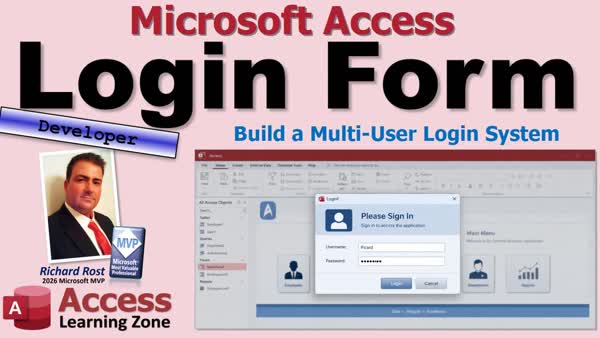
TechHelp Access, Access login form, multi-user login, username password form, VBA DLookup login, login attempt limit, startup form, application-level security, ACCDE security, split database security, Access user permissions, TempVars user tracking, SQL Server backend security
 Subscribe to Login Form
Get notifications when this page is updated
More InformationTranscript Do you have several people using the same Microsoft Access database, but you want each person to sign in before they get to the main menu?
Maybe you want a simple way to keep everyone in the parts of the application they're supposed to use?
Well, welcome to another TechHelp video brought to you by Access Learning Zone. I'm your instructor, Richard Rost.
In this video, we're going to build a practical multi-user log-on form for Microsoft Access. We'll have individual usernames and passwords, a few chances to get them right before Access shuts down, and a clean path into your application once the log-on succeeds.
We'll talk about the important part that often gets overlooked: what a custom Access log-on can control, what it can't protect by itself, and how to choose the right level of security for your particular business.
Today's question comes from Tyler in Temecula, California, one of my Gold members. Tyler says several employees use our Microsoft Access database, and I want each person to sign in before they can get to the main menu. I'd also like to limit what different people can do and stop someone from simply bypassing the log-on screen. Can I set up usernames and passwords for this?
Yes, you can build a useful multi-user log-on system in Access to control the normal application experience. Let's build one first, then we'll talk about what it can protect and where you may need stronger security.
Before we get started, this is a developer-level video, which means there's going to be a little bit of VBA involved. If you've never done any VBA programming before, go watch this video. It'll teach you everything you need to know to get started in about 20 minutes.
VBA isn't scary, and as soon as you learn just a little bit of it, it'll take your databases to a whole other level.
You will also need to learn how to use If-Then statements. We're going to use DLookup to look up a value from a table or query, specifically our passwords and usernames.
If you've got a multi-user database, I strongly recommend that you split it first. That's where every user gets their own copy of the front end, and they'll connect to a back end with the tables in it on your server. If you don't know how to do this, go watch this first. You shouldn't have multiple people working out of the same front end database.
These are all free videos. They're on my YouTube channel. They're on my website. Go watch those, and then come on back.
Today, we're going to build a working multi-user login system for Microsoft Access. We're going to create a username and password form, check those credentials against a table, and then open the main menu of the database when the login succeeds. After three bad attempts, it will close Access.
Quick disclaimer before we dive in. This is application-level security. It's useful for controlling normal application behavior, which is basically keeping users in the forms that you built and customizing what different people can see.
But by itself, it does not independently protect the underlying tables from someone who can get directly into the database file.
Now, we'll talk a lot more about security and what Access security can and cannot do by itself after the walkthrough. But you came here for a login form, so let's build a login form first.
All right, here I am in my TechHelp free template. This is a free database. You can grab a copy off my website if you want to. And there's a whole series of videos that explains how this was built.
Here's a simple main menu. We've got a customer list. We've got customer forms. We've got order forms, all this stuff. And it's all covered in my free TechHelp videos.
Now, normally in this database, I use an AutoExec macro. There's two ways that you can have a startup form in Access. One is with an AutoExec macro, which is actually the old-school method. Another way is if you go up to File and then Options, under Current Database, you can specify a login display form here.
So we're going to use this in a minute. But let me get rid of this AutoExec macro.
The reason why I have this is, if you take a quick look at it, go to Design View. You can see I've got this If CurrentProject.IsTrusted line here. This basically checks to make sure that this database is running from a trusted location, a trusted folder.
If it's not, it gives you this form. It gives you a warning message. And that takes you to this page to explain what a trusted folder is.
If your database isn't running out of a trusted folder, then none of the VBA code in it will work. And this video explains that in detail.
But that's why I have this in this database, because a lot of people would download my databases and then they'd post in my forum saying, "Why isn't it working?" Well, this is why it's not working. You've got to put it in a trusted folder.
So likewise, your database, if you're going to run this VBA code, has to be in a trusted folder. Go watch that video so you'll understand how to do that.
But for now, I'm just going to delete this AutoExec macro, and we're going to use a log-on form. That's going to kick in before we even get to the main menu.
Now, before we build a main menu, we need a table to store our user information. So let's create a table. Create Table Design.
We're going to have a UserID. There we go. AutoNumber.
And we're going to have a UserName. That'll be Short Text. And also a UserPassword. That'll also be Short Text.
Now, for the UserName, I'm going to come down here and pick Indexed: Yes (No Duplicates). This one, because we don't want duplicated usernames in our database.
Again, I've got a whole separate video on indexing and how that works.
Let's save this as my UserT, my user table. Do we want a primary key? Absolutely. Say yes. And that'll make our UserID our primary key.
Let's put some sample users and passwords in here. I'll put myself in here. How about Rick? And I'll do 123ABC.
I'll do President Scroob with a password of 12345. That's amazing. I got the same combination on my luggage.
We'll do Kirk with a 1701. And we'll do Getty with 2112.
Obviously, put strong passwords in here. You understand.
Save it. Close it.
Now we're ready to make our login form.
I'm just going to copy my main menu form because it has a lot of the features that I already want. It's unbound, so there's no data behind it. I don't need navigation buttons or record selectors or any of that stuff. So I've already got all the formatting already set.
And yes, my database just jumped.
Let's copy this guy. Copy, paste, and let's call this the Login Form.
Now I'm just going to open this guy up. We can change this guy a little bit. We can make this say "Login."
That's it. We need one of the buttons, but I'll get rid of some of these buttons here. We'll get rid of this stuff. We'll get rid of this. We'll keep this because we'll need a username and password.
We'll change this to say "Username."
We'll change this box here. This will be our username, and get rid of the control source and the format if it's in there. This used to be a date field.
We'll make this a little bit bigger.
Let's copy this guy. Copy, paste. This will be the password.
So we'll put Password over here. And what do we name this guy? This guy is UserName. This guy will be just Password.
Now, to keep it so that you can't see when you're typing in the password, we'll set up an input mask. That'll be on the Data tab, and then right here under Input Mask, you can just type in Password.
If you can't remember that, just click the little dot-dot-dot builder button in there, and you'll see it's right there: Password.
I'm going to hit Cancel.
Now we've got buttons.
The first thing I'm going to do is, there is some code behind this form, so I'm just going to go into any one of the buttons here. Go to Build Event. That opens up my Code Builder, my VBA builder.
Yes, I'm in dark mode. I like my VBA editor in dark mode.
I'm just going to delete everything under Option Explicit. Just click and drag and delete. We don't need any of that stuff that's in there.
Now we can go back to Access, and we'll change this to the Submit button. Then, under Other, we'll make this Default: Yes.
That means when I press Enter on the keyboard, it's going to push that Submit button.
You want a Cancel button also? Copy, paste. This will be the Cancel button. Cancel.
We'll just make this guy, under Other, Cancel: Yes.
Now let's get these guys' names. This will be the Cancel button. CancelBtn is fine. This will be the Submit button. SubmitBtn.
While we're at it, let's make everything nice and symmetrical here.
We'll do that. That's fine. That's good enough. Just slightly, so it's not the same exact thing as my other form. Let's do that. There we go.
If I close this and open it up, there we go.
Let's put this as the first item in the tab order so that it starts here. Notice when I open this up, the tab order started on that Submit button. If I hit Tab, it was right down there.
Let's go back into here. Let's go to Tab Order, and then Auto Order should do it. Yep. Username, then Password, then Submit button. Perfect.
Another thing is the form caption. It's these little things. Let's go to Format, and we'll change this to "Log On" or "Log In." Is it log in or log on? Which do you guys prefer? Post in the comments down below. What do you guys like better, log in or log on? I've always used log in, but I say log on. I don't know why.
Our code for the Cancel button is the easiest. We'll do that first.
Right-click, Build Event. Quit. That's all you need.
You can do DoCmd.Quit and then, like, acQuitSaveNone or all that. Just Quit. Quit's good. Shuts the database down.
I've got a button up here that I click on, and that opens up my main menu, but we're going to have the database open up to the log-on form first.
Good job.
Quick interruption. Well, I've got your attention, or should I say intermission?
If this video is helping you out, if you like it, hit the Like button and hit Subscribe and click the bell so you know when I release new stuff. Share it and tell your friends and tell your neighbors and tell your grandma. If your grandma uses Access, then that'd be really cool.
Like and subscribe. Do it. It helps more people find my videos, and it helps me out. It lets me make more videos for you, so it helps you out too.
Back to the video.
Next, we get to code up our Submit button. The first thing we're going to do is check to make sure the user typed in something in both Username and Password.
So let's go into Submit, Build Event.
Let's make two variables to store those. So, Dim UN As String and PW As String.
We're going to take those values from those boxes and bring them into the local variables. It's just easier to work with.
So we're going to say:
UN = Nz(UserName, "")
Let's trim that whole thing too. Trim. That gets rid of leading and trailing spaces.
What does Nz do? Nz takes a Null value and converts it to zero or a zero-length string. That way, if they didn't type it in, we don't have to deal with Nulls anymore.
We'll do the same thing with the password.
So now our username and password variables in here have the values from the form. If they're empty, we can check now.
So now we can say:
If UN = "" Or PW = "" Then
MsgBox "Missing Info"
Exit Sub
End If
They won't even get it.
You can give them a separate message box for each one: missing the username or missing the password, whichever one you want to do. That's fine.
Now, how you handle the rest of this depends on how friendly you want to be to the user if they type in bad information.
I like to check to see if the user exists first. If they type in any username that doesn't exist, I'll tell them username doesn't exist. You might not want to do that. If you want more security, you can get the username and password, check them in the table, and just say "Invalid Log On." That's up to you.
So we have the slightly more user-friendly method first.
First, I'm going to look up the UserID. So, UserID As Long goes over here.
Look up UserID.
The UserID equals Nz, DLookup. What are we looking up? We're looking up a UserID from the UserT where the UserName in that table equals whatever the user typed in in that box, which is now in UN. But I've got to put it inside quotes.
So it's going to be quote, quote, quote, and UN, and quote, quote, quote, quote, quote, quote, like that. So it's comma zero.
This means we have to have a quote inside the string, and there's the close quotes inside the string.
Obviously, this means that you can't have usernames that have double quotes in them. I would prevent that when the user is creating their password or their username. That's a whole different video.
I've got videos to cover all this stuff. Look for my double-double-quote video. I'll put a link down below.
Now, this DLookup is going to bring back a UserID from the UserT where the UserName equals what they typed in. If it doesn't find that user, it's going to return a zero. That's what that Nz is. If this is Null, that gives me a zero.
So:
If UserID = 0 Then
MsgBox "User Not Found"
Exit Sub
End If
If it gets here, that means we do have a valid UserID. Now we can compare the passwords to what they typed in.
Let's put up in here, let's call it TablePassword As String.
Get password.
So the TablePassword equals Nz, DLookup UserPassword from the table where the UserID equals the UserID we just found, comma, empty string.
You can allow users to not have a password if you want to. That's up to you. But as long as this is going to match what they typed in, then they're golden. If not, then you kick them out.
How do you kick them out? We'll kick them out in a second.
For now, we'll just say if the TablePassword equals the password they typed in, then their logon is good.
So we're going to DoCmd.OpenForm "MainMenuF".
We can close the Login form. So:
DoCmd.Close acForm, "LoginF", acSaveYes
Your end user won't be able to save the table design changes because you're giving them an ACCDE file. Remember that whole thing. If you don't know what an ACCDE file is, I've got a whole separate video on it. Find the link down below.
We opened up the main menu. We close the log-on form. Otherwise, they typed in the wrong password.
MsgBox "Invalid Password."
You can Exit Sub here, but this is basically the end of it, so we'll just End If here, and then that's the end of the subroutine.
We'll deal with the three strikes and you're out in just a second.
But let's test what we've got here so far.
Save it. Debug Compile once in a while. We're going to close it. Close it.
Let me refresh my memory on these passwords here.
I'm going to copy these to my clipboard just so I've got them and put them in Notepad. Where's my Notepad?
There's my Notepad. I've got them. Slide them over here.
Notepad is an Access developer's best friend.
Let's go to the log-on form. I'll just hit Submit. Missing Info. Good.
I'll type in Rick, and then I'll hit Enter. Missing Info. Good, I'm missing my password.
You could do friendly things here too by saying, you could say, "Missing Password," and then put the focus right there on the Password field form. You can use conditional formatting to make these highlight in yellow. There's all kinds of little things you can do.
I could spend hours and hours going over all these little embellishments. I have, trust me. I've got all kinds of videos to cover this stuff.
But let's type in just a bunch of gibberish here and press Enter. It says Invalid Password. That doesn't match what's in the table.
What is in the table? I believe that is 123ABC, baby, you and me. Enter. There we go.
It closed the log-on form. Perfect.
Let's try someone else. Let's try Kirk and 1701. Boom, and I'm in. Beautiful.
Let's try an unknown user. Let's try Jimmy and 123. User Not Found. Perfect.
Now, three strikes and you're out.
I'm going to give them three chances. So I'm going to declare a form-level variable. Let's go into the code. Come way up top here, right after Option Explicit, outside of every subroutine. I'm going to say:
Dim Attempts As Long
I've got a variable called Attempts now.
Now we have to initialize it somewhere. Where are we going to initialize it? Let's initialize that when the form loads.
I'm going to come up here and go to Form, and the default is Load. Look at that.
I'm going to say:
Attempts = 0
They haven't tried yet to log in.
Now, every time they click that Submit button, I need to increment this guy.
So right here:
Attempts = Attempts + 1
Now, how many attempts do you want to give them?
Let's copy that. Come down here. Invalid Password. I'll say:
If Attempts > 3 Then
Quit
End If
That's it. Then it just shuts down.
Let's test it. Save it. Close it. Close it. Let's open it up.
I'm just going to put some garbage in here. Hit Submit. I'll put my actual name in here and a one. Submit.
You can give them a count here too if you want to. If you want to add that, say, "Oh, you've got two attempts left."
I put a different password in. Invalid Password. Try it again. Submit. Invalid Password.
I just clicked OK, and it shut the database down. So that's working perfectly. Awesome.
Now we need to make it our startup form.
File, Options, Current Database. Drop this down and pick your Login Form.
Now, when you close the database, when you open it up, the first thing you should see is your Login Form.
Now, we still have the Navigation Pane over here. We haven't locked this database down at all. If you want to lock your database down more, you're going to watch my simple security video. That's where I show you how to hide sensitive tables and forms, disable the Navigation Pane, limit access to the Ribbon, and save your database as an ACCDE file to prevent users from making design changes.
ACCDE file. That locks it down. Another video you might want to watch is my case sensitivity video in case you want to make sure that the user's password is actually checked against case sensitivity. If you want to get that strong with your password, so uppercase A isn't the same as lowercase A, there's a different function you can use for that.
But there you go. There's your basic login form. It's not that hard to set up. What did it take us, 15 minutes to set that up? That's not bad.
Now that we've built the login system, let's talk about what it actually accomplishes.
The form identifies someone to the application. Once Access knows that the current application user is Kirk, for example, we can decide what Kirk is allowed to see inside our application.
Maybe Kirk gets a manager menu. Picard gets a sales menu. Janeway can run a report but not delete customer records. And that's all useful stuff. It helps guide people through the application and prevents plenty of ordinary mistakes.
Keep in mind, though, that this doesn't independently protect the data.
This login doesn't automatically turn Picard into an independently authenticated Windows user or a database server user. If someone has direct access to the data file, the back-end file with your tables, our login form doesn't magically stop them from trying another route to the tables.
My favorite analogy here is a backyard fence. The fence tells your neighbors, "Hey, this is my yard. Stay out. Please don't wander in."
Most normal people respect that boundary. The fence prevents accidental trespassing, casual snooping, and the neighbor's dog from deciding he wants to leave a do-do in your backyard.
But a determined burglar can still climb over an ordinary fence. Like my grandpa used to say, locks are for honest people. It's like a lock on a screen door.
Many Access application-level security techniques, like I showed you today, work the same way. They keep honest people out of places where they shouldn't be.
In a small, trusted office, for example, that might be completely appropriate. Your real goal is simply to prevent employees from accidentally opening tables, editing a form design, or browsing information unrelated to their job.
But if you must prevent determined unauthorized access to sensitive data, you need stronger boundaries than just an Access log-on form.
So before you secure anything, ask yourself a very important question: What are you actually trying to protect against?
Maybe you want a receptionist to use a customer form instead of opening the customer table directly. That's one problem.
Maybe you want to stop employees from accidentally changing the design of a form. That's a different problem.
Maybe you need to stop unauthorized people from opening the entire database file. Again, a different problem.
Or maybe accounting employees can see payroll, sales employees cannot, and both groups work with the same overall system, just in different areas. Again, a different problem.
There isn't one magic Access checkbox labeled "Make This Database Secure." So the rest of this lesson is really a practical map of the tools that are available and which job each one is designed to do.
One layer is protecting the Access front end, meaning the part of the database that the users interact with.
You can hide the Navigation Pane, control which form opens at startup like we just did, restrict certain menus or shortcut menus, and provide buttons that guide people through the tasks that they're supposed to perform.
This is good application design. Users should generally work with the forms and reports that you built, not go poking around in tables like they're exploring Grand Moff Tarkin.
There are also techniques for restricting special keys, startup bypass behavior, and access to design features. Again, I cover a lot of this in that simple security video that I mentioned earlier, and I have a complete security seminar that I'll talk about at the end of the video.
As a developer, you normally keep your original ACCDB file. That's your editable master with the forms, reports, queries, macros, and VBA code that you can change.
For ordinary users, when you give them their front-end file on their machines, I would suggest distributing it as an ACCDE file. That compiles the VBA project and prevents users from opening your code as editable source. It also restricts various design changes to forms and reports, which is useful. It protects your application design from routine tinkering and snooping.
Compilation like this is not encryption. An ACCDE file does not automatically make every table invisible, every query secure, or every stored value unreadable. It does not create true individual authorization.
So keep your ACCDB file safe and distribute an ACCDE file when it makes sense. Don't confuse the two.
And don't lose your ACCDB file, because once you delete that guy, that's it. It's almost impossible to go backwards.
Access also has built-in database encryption with a database password. This protects the ACCDB file itself from being opened without the correct password. This is very different from the login form that we built.
Our login form can identify the user, Kirk, Picard, Getty, separately. But a database password is normally one shared password protecting the whole file.
Once someone opens that encrypted file with the correct database password, Access does not automatically know who they are, if they're a manager, salesperson, or whatever, because of that password. So it's one password for the whole file.
Applying or removing encryption normally requires exclusive access to the database, so make sure you keep a reliable backup on hand, and make sure you have a secure recovery procedure.
For the actual process of how this works, I have a database password video. Again, I'll talk about that more at the end of the video.
If multiple people are using your Access database, you should normally split it. The backend contains the shared tables and data. Each person gets their own local front end containing their forms, reports, queries, VBA, and linked tables pointing to the backend.
This is good architecture. It improves multi-user operation, makes front-end updates easier, and keeps each user's application copy local to their computer.
Splitting by itself is not security. A linked table is a connection, not a permission system. If someone can access the backend file, simply hiding a link doesn't make that data inaccessible.
If splitting is new to you, watch my split database video before deploying a multi-user split application.
Here's a point that confuses a lot of people. Kirk might log on to your application with one username and password. Picard might use another, but both may ultimately connect to the same encrypted backend file using the same backend database password.
The backend doesn't automatically understand your custom Access usernames. It only knows whether the connection has the credentials needed to open that file.
So your application can supply the backend password programmatically, so users don't need to type in or know it, but that creates its own concern.
If the front end contains reusable connection credentials, those credentials can be recoverable by someone with enough access, information, and determination.
Again, useful layer, not a magic force field.
Another technique is dynamic table linking. Instead of distributing a front end with permanent links to every table, you can start with no links to any tables. You validate the application log-on and then create the necessary links programmatically in your VBA before you even open up the main menu. Then, when the user exits normally, the application removes those links again.
I have a video called "Security Flaw," which is a two-part series that talks about related advanced techniques like this. I'll give you links to those later on.
Suppose you have sales data and confidential accounting data, including payroll information. One approach is to use separate backend database files. That way, your sales employees use a front end linked to the sales backend, and accounting employees can use a front end linked to the accounting backend. Perhaps there's some shared data in there, like customer information.
But the important part is simply leaving the accounting tables unlinked in the sales front end doesn't secure the accounting file.
If a sales employee can browse to that backend file and open it, then your missing link doesn't accomplish much.
The real restriction comes from Windows file and folder permissions. Access can work with multiple backend files just fine. So if you want to separate the data, put them in separate backend files and use Windows permissions to keep people out of those folders.
I cover this in my split database seminar. Windows permissions are where that departmental restriction becomes real.
There are share permissions and NTFS file and folder permissions, and depending on your network setup, you might have both.
The point is that Windows can deny user access to a backend file before Access even gets the chance to open it.
With a shared Access backend, you also have to account for the Access lock file. Authorized users need appropriate rights to work with the database normally and create or update the lock file as needed.
Don't solve permissions by granting everyone Full Control. That's like fixing a squeaky door by removing the entire wall around it.
Configure permissions using the intended Windows accounts and groups, and then test with authorized and unauthorized accounts.
Our log-on form becomes especially useful when we use it to control application behavior inside of Access.
After a successful log-on, you can store the current user's ID in a system variable or a TempVar. Then individual forms themselves and code can decide whether to show an admin button, allow edits, allow deletions, display manager-only reports, or let the user take out a shuttlecraft whenever they want.
A sales employee might be able to add customers but not delete them. A manager might see additional administrative functions.
That's often called user-level security. Access actually used to have this kind of thing built into it back in 2003 and earlier, and they removed it in 2007 for some reason.
Again, for more information on this, see my user-level security videos.
Another excellent reason to have a log-on system is activity tracking.
Once you know who the current application user is, you can record who logged in, who created a customer record, who changed an order, and when those things happen.
That can be something as simple as a CreatedBy or ModifiedBy field in a table, or a separate activity history table. You could have an audit tracking system. These are good for accountability. Who deleted this record? That kind of thing. Troubleshooting. Figuring out who changed the shipping address right before the customer called to complain.
But remember the limitation: if someone has access to your backend tables, they may be able to alter the ordinary activity logs themselves if they're smart enough.
Again, it's the burglar climbing over the fence. Application logging is valuable, but it's not automatically a tamper-proof audit system in Microsoft Access by itself.
I cover this in my Track Logon and Track Changes lessons, which I'll talk about again. I've got a lot of videos to talk about at the end of the video. I cover a lot of this stuff in more detail later on.
Sometimes, you might not even need a custom log-on. You can retrieve the values from the system environment. There's a username and computer name Windows environment variable that you can read. You can use these values to personalize the log-on screen when the user opens up the database. You can give them their username without having to make them type it in all the time.
But again, don't treat environment strings as strong authentication. It's not a substitute for Windows permissions or Active Directory or any of that stuff because these can be easily changed by someone who knows what they're doing.
It's helpful context, not a badge from Mission Impossible.
My Track Logon lesson includes this technique.
That password box that we used in the log-on form, that Input Mask property displays asterisks while the user types. That's useful because someone standing nearby can't casually read the password over their shoulder.
But the asterisks don't encrypt or alter the underlying value. They only change how the value is displayed.
The same idea applies if you display only the last four characters of a confidential account number or something like that. That may reduce unnecessary exposure for ordinary users while the full value remains stored elsewhere.
Keep in mind, though, that masking is a presentation technique, and it can be very useful. But if someone can directly open the table containing the data, the mask on the form doesn't protect the stored value.
When it comes to hiding your data in plain sight, there are different levels of protection you can use to keep your data from being easily read.
At the most basic level, we have something called obfuscation. This could be as simple as just substituting letters, rearranging characters, or using some other technique to make the information difficult to read at a glance. For some applications, that might be all you need.
The next level is encryption, which is where we use cryptographic algorithms and encryption keys to protect the information. To read that data again, you need access to the appropriate key to decrypt it. Of course, you also have to think about where you're storing that key and who has access to it.
Which technique you use, if you decide to use one at all, depends on how sensitive your information is and how much protection it requires.
Remember, you can protect how information is displayed on the screen and how it's stored in your tables, or both.
In the example we just built, we're storing our passwords as plain text in the UserT. That's fine for a simple demonstration.
But if you want to add another layer of protection to your login system, you can use a technique called password hashing.
A nice thing about hashing is that you don't actually need to store the original password. When someone creates a password, the system generates a hash using that password and a random value called a salt. When the user logs on again, the system uses the same process to verify the password that they entered.
Unlike encryption, where we can decrypt the information with the appropriate key, password hashing is designed to work in one direction.
It's another tool available to you when you're building a more sophisticated login system. How far you want to take it depends on the needs of your application and the sensitivity of your data.
Like I mentioned earlier, you might find older Access tutorials, including some of my own, that talk about users and groups and workgroup files and object-level permissions inside of Access itself.
Those tutorials are usually discussing the older MDB format and its workgroup-based user-level security model. Modern ACCDB files don't support that legacy mechanism. Creating a user table and a login form doesn't bring that back, unfortunately.
We can design application-level identities and application-level rules, which can be very useful, but it's not the same thing as that older workgroup-based security.
I don't recommend moving a modern Access application back to an MDB file just to chase an old security model.
Use the current Access architecture, the appropriate front-end controls, Windows permissions where needed, encryption where appropriate, and a database server when you require more enforced permission.
That brings us to SQL Server.
When data is sensitive and you need real independently enforced permissions within shared data, SQL Server is often the right backend.
SQL Server can authenticate connections and enforce permissions on objects and operations. So, depending on your needs, it can support more granular controls, including role-level security.
The good news is that you don't have to abandon Access. Access can remain your front end. Your users can still continue to use Access forms, reports, queries, and VBA.
But when Access sends a request to SQL Server, the server itself decides whether that request is allowed. That's fundamentally stronger than hiding a button based on a name stored in a TempVar.
If SQL Server sounds intimidating, don't worry. I have a free SQL Server for Access Users Level One course specifically designed to help Access developers make that transition.
Check it out. It's completely free. It's on my website. It's on my YouTube channel.
But one important warning: simply moving your tables to SQL Server doesn't automatically solve everything. If every Access front end connects using the same broadly privileged SQL Server account, then SQL Server sees every request as the same account.
Your custom Access username doesn't automatically become the server identity.
To get meaningful individual restrictions, the authentication and authorization architecture must be configured correctly.
In many environments, Windows authentication and carefully managed Windows groups are excellent choices.
Don't hand everybody the keys to the whole building because one person needs access to the break room.
My SQL Server course covers these concepts in much more depth.
So, which level of security is right for you?
For a trusted small office, a log-on form plus sensible front-end restrictions might be exactly what you need. It can prevent mistakes, discourage browsing, and keep users in the proper workflow.
If you need to protect an entire database file from unauthorized opening, database password encryption addresses that requirement.
If sales and accounting should not access each other's backend files, then separate backend databases plus properly configured Windows permissions can provide real file-level restrictions.
If you need different permissions inside the same shared data set, especially for sensitive business data, then SQL Server is usually the better direction.
These tools aren't mutually exclusive. A good application often uses several layers, each solving a different problem.
To wrap this up, today we built a working Microsoft Access log-on form with individual usernames, passwords, a three-attempt exit rule, and a transition to the main menu.
That's a very useful starting point for a multi-user application.
Just remember what it is. It's an application-level gate. It can control forms, buttons, menus, tracking, and normal user behavior. It doesn't independently secure the underlying data file.
From here, you can add application permissions, TempVars, activity tracking, database encryption, separate backend files with Windows permissions, or even SQL Server when your data requires more enforced authorization.
Build the simple example first, get it working, and then choose the additional safeguards that make sense for your particular business.
That's always the most important thing. Use the right tool for the job.
To learn more, I've got a lot of other videos to recommend for you.
My simple security video goes through the additional steps you can take to protect your Access databases. I talk about how to hide sensitive tables and forms, disable the Navigation Pane, limit access to the Ribbon, save an ACCDE file, and lots more.
This video teaches you how to set up a database password.
This video shows you how to make your passwords case-sensitive.
In this video, I show you how to add basic user-level security to your Access databases.
In part two, we go through some additional security checks once the user's inside the database.
This video shows you how to track a user's log-on and log-off times.
Once we know what user is logged on, we can track what they change in your database with an audit table.
In this Security Flaw video, we talk about that Access problem where a password-protected backend can still allow unauthorized users to import data through the front end. Check this one out.
Once again, if you want to learn more about SQL Server, check out my free SQL Server Level One course.
If you want to learn how to build a secure Access database from the ground up, focusing on internal user security, login forms, user groups, workflow management, controlling access to forms and fields, sending email notifications, creating system logs to monitor user activity, and encrypting your database, then check out my security seminar.
You'll find links to all that stuff down below.
If you have any questions or comments, please feel free to post them. I'll read them and answer them if I have time.
There you go. That is how to build a Microsoft Access log-on form. We talked a whole lot about different types of security and what is best for your business.
That's going to do it. That's going to be your TechHelp video for today. I hope you learned something.
Live long and prosper, my friends. I'll see you next time.
If you enjoyed this video, hit that thumbs-up button right now and give me a like. Also, be sure to subscribe to my channel, which is completely free, and make sure you click that bell icon and select All to receive notifications whenever I post a new video.
If you're new to Microsoft Access, check out my Access Beginner Level One course. It's over four hours long, and it covers all the basics, like tables, queries, forms, and reports. It's a great place to start, and it's also completely free.
Members of my channel get extended-cut videos, sample databases, access to my code vault, and full training classes every month. Click the Join button for details.
Thanks for watching. I'm Richard Rost with accesslearningzone.com.
Live long and prosper, my friends. I'll see you next time. Intro In this lesson, we will walk through building a Microsoft Access login form with usernames, passwords, missing-information checks, and a three-attempt limit that closes the database after repeated failures. We will also discuss setting the login form as the startup form, storing user credentials in a table, and the limits of application-level security, including front-end restrictions, ACCDE files, database encryption, Windows permissions, audit tracking, and when SQL Server may be appropriate. Quiz Q1. What is the primary purpose of the custom login form built in the video?
A. Control normal application behavior and identify the current application user
B. Encrypt every table in the database automatically
C. Replace Windows user accounts
D. Prevent all possible access to the database file
Q2. Why is it recommended to split a multi-user Access database?
A. It automatically encrypts all passwords
B. Each user can have a local front end connected to shared backend tables
C. It prevents users from ever opening tables
D. It eliminates the need for backups
Q3. What information is stored in the UserT table in the example?
A. UserID, UserName, and UserPassword
B. ComputerName, IPAddress, and UserRole
C. EmployeeName, Department, and Salary
D. LoginDate, LogoutDate, and AttemptCount
Q4. Why should the UserName field be indexed with no duplicates?
A. To make usernames unique
B. To encrypt usernames
C. To allow users to share the same username
D. To automatically assign permissions
Q5. What does the Password input mask do on the login form?
A. Encrypts the password before it is stored
B. Displays asterisks while the user types the password
C. Prevents passwords from being copied
D. Makes passwords case-sensitive
Q6. What is the purpose of setting the Submit button's Default property to Yes?
A. It makes the button appear first on the form
B. It causes the button to run when the user presses Enter
C. It disables the Cancel button
D. It automatically validates the username
Q7. What is the purpose of setting the Cancel button's Cancel property to Yes?
A. It allows the Escape key to activate the Cancel button
B. It clears all records from the UserT table
C. It saves the current user's password
D. It opens the main menu
Q8. What does Nz(UserName, "") accomplish in the login code?
A. Converts a Null username value into an empty string
B. Encrypts the username value
C. Converts the username to uppercase
D. Removes all spaces from the username
Q9. Why is the Trim function used when reading the username and password values?
A. To remove leading and trailing spaces
B. To convert passwords to encrypted values
C. To limit the password to a fixed number of characters
D. To make the password case-sensitive
Q10. What is DLookup used for in the login process?
A. To retrieve a value from a table based on criteria
B. To permanently delete invalid users
C. To encrypt a table
D. To create a Windows account
Q11. In the example, what happens when the username cannot be found?
A. The user is told that the username was not found
B. Access automatically creates the new user
C. The main menu opens with limited permissions
D. The backend database is encrypted
Q12. After a valid username is found, what does the code compare?
A. The entered password against the password stored for that user
B. The entered username against the computer name
C. The UserID against the current date
D. The password against a Windows account password
Q13. What should happen after a successful login?
A. Open the main menu and close the login form
B. Open the UserT table for editing
C. Delete the password from the login form
D. Close the backend database
Q14. Where should a form-level variable such as Attempts be declared?
A. At the top of the form's code module, outside all procedures
B. Inside the Submit button Click event only
C. Inside the UserT table
D. In the Access Options dialog box
Q15. Why is the Attempts variable initialized in the form's Load event?
A. To start the failed login count at zero when the form opens
B. To assign every user an ID number
C. To encrypt the login form
D. To open the main menu automatically
Q16. What is the purpose of setting the login form as the Display Form in Current Database options?
A. It makes the login form open when the database starts
B. It makes the login form the only editable form
C. It encrypts the database at startup
D. It disables all VBA code
Q17. What does an ACCDE file help protect?
A. The design and VBA source of the front-end application
B. The backend tables from all direct access
C. Windows folder permissions
D. SQL Server user accounts
Q18. Which statement about an ACCDE file is correct?
A. It is useful for restricting design changes, but it is not a complete data security solution
B. It encrypts every value in every table
C. It automatically prevents users from copying the backend file
D. It replaces the need for Windows permissions
Q19. What does Access database encryption with a database password protect?
A. The database file from being opened without the correct database password
B. Each user's individual application permissions
C. Every button and menu on every form
D. The user's Windows account
Q20. Why is a database password different from the custom login form?
A. A database password is generally one shared password for the file, while a login form can identify individual application users
B. A database password only works with reports, while a login form only works with tables
C. A login form encrypts data, while a database password cannot
D. They are exactly the same security feature
Q21. Why does splitting a database not provide security by itself?
A. A linked table is a connection, not a permission system
B. Split databases cannot use passwords
C. Users cannot open forms in a split database
D. Backend tables are automatically hidden from everyone
Q22. What provides real file-level restrictions for backend files stored on a network?
A. Properly configured Windows file and folder permissions
B. Hiding the Navigation Pane
C. Setting a form's AllowEdits property to No
D. Using an input mask on a password textbox
Q23. What is a useful purpose of storing the current logged-in user's ID in a TempVar or similar variable?
A. Control which forms, buttons, reports, and actions the user can access
B. Encrypt the backend database automatically
C. Replace all linked tables with local tables
D. Change the user's Windows password
Q24. What is one benefit of tracking the current application user?
A. You can record who created or changed records
B. You can permanently prevent anyone from editing tables
C. You can remove the need for backups
D. You can automatically create Windows groups
Q25. Why should activity tracking in an Access application not be considered tamper-proof by itself?
A. Someone with direct access to backend tables may be able to alter ordinary logs
B. Access cannot store dates and times
C. Audit tables cannot contain usernames
D. Login forms cannot use VBA
Q26. Why should Windows environment username values not be treated as strong authentication?
A. They can be changed or spoofed by someone with sufficient knowledge
B. They are always encrypted with a shared key
C. They only work when the database is offline
D. They cannot be read by Access
Q27. What is password hashing designed to do?
A. Store a one-way derived value instead of storing the original password
B. Display passwords as asterisks on a form
C. Allow users to recover forgotten passwords without resetting them
D. Make all text fields in a table unreadable
Q28. What is a salt in password hashing?
A. A random value used along with the password when generating the hash
B. A database password shared by every user
C. A special Access form property
D. A type of table index
Q29. What is the main limitation of hiding the Navigation Pane, Ribbon, and tables in the front end?
A. These controls guide normal users but do not independently secure accessible backend data
B. They automatically create SQL Server permissions
C. They permanently encrypt all data
D. They prevent database administrators from accessing the file
Q30. When is SQL Server often a better backend choice than a shared Access backend?
A. When sensitive shared data requires independently enforced permissions
B. When users need a simple startup form
C. When the database has fewer than ten records
D. When no users need to sign in
Q31. Why does moving tables to SQL Server not automatically create individual user security?
A. The authentication and authorization architecture must still be configured correctly
B. SQL Server cannot store usernames
C. Access forms cannot connect to SQL Server
D. SQL Server does not support permissions
Q32. Which combination is appropriate when sales and accounting should be prevented from opening each other's backend data files?
A. Separate backend files with properly configured Windows permissions
B. A hidden Navigation Pane and a password input mask
C. One shared front end with all tables unlinked
D. An ACCDE file without any Windows permissions
Answers: 1-A; 2-B; 3-A; 4-A; 5-B; 6-B; 7-A; 8-A; 9-A; 10-A; 11-A; 12-A; 13-A; 14-A; 15-A; 16-A; 17-A; 18-A; 19-A; 20-A; 21-A; 22-A; 23-A; 24-A; 25-A; 26-A; 27-A; 28-A; 29-A; 30-A; 31-A; 32-A
DISCLAIMER: Quiz questions are AI generated. If you find any that are wrong, don't make sense, or aren't related to the video topic at hand, then please post a comment and let me know. Thanks. Summary Today's video from Access Learning Zone covers how to build a practical multi-user logon system for Microsoft Access.
If several people use the same Access application, you may want each person to sign in before they reach the main menu. A custom logon form can identify the current user, control which forms and features they can access, track their activity, and help keep users working within the parts of the application intended for their job.
In this lesson, I will show you how to create a basic username and password form, verify those credentials against a user table, allow a limited number of failed attempts, and then open the main menu after a successful logon. I will also explain an important distinction: a custom Access logon form is useful application-level security, but it is not by itself a complete security system for protecting the underlying data.
Before building a logon system like this, you should be comfortable with a little VBA. You will need to understand basic variables, If-Then statements, and the DLookup function. DLookup allows you to retrieve a value from a table or query, which is how we will verify the username and password entered on the form.
If your database will be used by more than one person, I strongly recommend splitting it before deploying it. In a split database, the tables are stored in a shared back-end database, while each user has a separate copy of the front end on their own computer. The front end contains forms, reports, queries, VBA code, and linked tables connected to the shared back end. This is much better than having multiple users working from one shared front-end file.
You should also make sure the database is running from a trusted folder. Access does not allow VBA code to run normally unless the database is trusted. If your login form relies on VBA, and it will, then the database must be stored in a trusted location.
The first step is creating a table to store user information. I use a table named UserT. It contains a UserID field, which is an AutoNumber primary key, a UserName field, and a UserPassword field.
The UserName field should be indexed with no duplicates allowed. This prevents more than one person from having the same username. For a simple demonstration, you can enter sample usernames and passwords directly into the table.
For a real application, passwords should not be simple values like "12345." Later in this article, I will discuss password hashing and other stronger methods for handling passwords.
Next, create an unbound login form. Since this form does not need to display data from a table, it should not have a Record Source. An unbound form is ideal for a login screen because it simply collects information from the user and performs actions through VBA.
The form should include a text box for the username and a text box for the password. Give these controls meaningful names, such as UserName and Password. The password control should use the Password input mask so that Access displays asterisks instead of the characters the user types.
Remember that a password input mask only hides the password on the screen. It does not encrypt the value. The password is still available to VBA code and can still be stored in plain text unless you take additional security measures.
Add a Submit button and a Cancel button to the form. Set the Submit button as the form's default button. This allows the user to press Enter after typing a username and password instead of having to select the button manually.
Set the Cancel button as the form's cancel button. This allows the user to press Escape to cancel the logon process.
The Cancel button is simple. Its job is to close Access. In VBA, the button can use the DoCmd.Quit command. If someone chooses not to log in, the application closes rather than allowing them to continue into the database.
The Submit button contains the main login logic.
When the user presses Submit, I first retrieve the username and password values from the form and place them into local VBA variables. I use the Nz function so that blank fields are treated as empty strings instead of Null values. I also use Trim to remove extra spaces before or after the username and password.
This is important because users may accidentally type a space before or after their name. Trimming the values avoids unnecessary login failures caused by stray spaces.
Before checking the user table, the code verifies that both the username and password fields contain something. If either field is blank, the user receives a message indicating that information is missing, and the procedure stops.
You can make this more user-friendly if you want. For example, you can display separate messages for a missing username and a missing password. You can also place the cursor back into the field that needs attention or use conditional formatting to highlight the missing field.
Once both values are present, the code checks whether the username exists in UserT.
One approach is to use DLookup to search for the UserID associated with the username entered on the login form. If DLookup does not find a matching record, it returns Null. By wrapping DLookup in Nz, the code can treat a missing value as zero.
If the UserID is zero, then the username was not found. At that point, you can display a message such as "User Not Found" and stop the login process.
This is a slightly friendlier method because it tells the user whether the problem is the username or password. However, it also gives an unauthorized person more information. Someone trying to guess usernames learns whether a particular username exists.
For a more security-conscious approach, you can avoid telling users whether the username or password was incorrect. Instead, check both values together and display a generic message such as "Invalid Logon." The right approach depends on your business needs.
If the username exists, the next step is to retrieve the password stored in the user table. Again, DLookup can retrieve the UserPassword value associated with the UserID found in the previous step.
The code then compares the password entered on the login form with the password stored in the table. If they match, the user has successfully logged in.
After a successful login, the application opens the main menu form and closes the login form. The user now proceeds into the normal application interface.
If the passwords do not match, the user receives an invalid password message.
At this point, the basic login form is complete. It checks for missing information, verifies that the username exists, compares the password, opens the main menu when the login succeeds, and prevents access when the login fails.
The next feature is limiting failed login attempts.
To do this, I use a form-level variable named Attempts. A form-level variable is declared at the top of the form's VBA module, outside of any individual procedure. This allows the variable to remain available while the form is open.
When the form loads, the Attempts variable is initialized to zero.
Each time the user presses the Submit button, the Attempts counter increases by one. If the user enters the wrong password too many times, the application shuts down.
For example, if you allow three failed attempts, the code can close Access after the third bad password. You can decide whether you want the user to get exactly three tries or whether you want the application to close after the counter exceeds three. The difference depends on where you place the comparison in your code.
You can also improve the experience by telling users how many attempts remain. For example, after the first failed attempt, you might tell them that they have two tries left. This is not required, but it can reduce frustration for legitimate users.
Once the login form works, set it as the startup form for the database. In Access Options, under Current Database, choose your login form as the Display Form.
The next time the database opens, Access will display the login form before the user reaches the main menu.
At this point, many people assume the database is secure. It is not, at least not in the strongest sense of the word.
A custom Access logon form is application-level security. It is useful for controlling how people normally use your application. It can keep users in the forms you designed, limit access to buttons and features, and personalize the user experience.
For example, after someone logs in, you can identify them as a salesperson, manager, administrator, or accounting employee. You can use that information to decide which menu they see, which forms they can open, whether they can edit records, whether they can delete records, and which reports they can run.
That is valuable functionality. It can prevent accidental mistakes, discourage casual snooping, and make the application easier to use.
However, a custom login form does not independently protect your data from someone who has direct access to the database file.
If someone can open the back-end database file directly, browse to it on the network, copy it, or use another Access file to link to its tables, your login form does not automatically stop them.
I often compare this to a backyard fence. A fence establishes a boundary. It keeps out casual visitors, prevents accidental wandering, and discourages ordinary people from entering a space they should not enter. But someone determined to get over the fence may still be able to do so.
Application-level Access security works similarly. It is often enough for a small trusted office where the main concern is keeping users in the correct forms and preventing them from accidentally changing something. It is not enough if you need strong protection against someone who is intentionally trying to access confidential data.
Before deciding how much security you need, ask what you are trying to protect against.
Maybe you want a receptionist to use customer forms instead of opening tables directly. That is an application design problem.
Maybe you want to prevent employees from changing form designs or editing VBA code. That is a front-end protection problem.
Maybe you need to prevent unauthorized people from opening the database file at all. That is a file-level protection problem.
Maybe accounting staff should be able to see payroll while sales staff cannot. That is a permissions and data-access problem.
These are different problems, and each one requires different tools.
To protect the Access front end, you can hide the Navigation Pane, hide or restrict the Ribbon, disable shortcut menus, restrict special keys, control startup behavior, and make sure users work through forms and reports rather than directly through tables.
You can also distribute the front end as an ACCDE file instead of an ACCDB file.
Your original ACCDB file should remain your master development copy. It contains the editable forms, reports, queries, macros, and VBA code. Keep this file safe and backed up.
An ACCDE file is a compiled version of the application. It prevents ordinary users from opening VBA source code and making many design changes to forms and reports. It is an excellent way to distribute a front end to users.
However, an ACCDE file is not encryption. It does not automatically make all tables invisible, make data unreadable, or provide true individual authorization. It protects your application design from routine editing, but it does not solve every security problem.
Access also supports database encryption with a database password. This is different from the custom username and password system built in this lesson.
A database password encrypts the entire Access database file. Without the password, the file cannot be opened normally. This can provide meaningful protection for the file itself.
However, a database password is generally one shared password for the entire file. It does not automatically identify whether the person opening the file is a manager, salesperson, administrator, or accountant.
Your custom login form can identify individuals inside the application. The database password protects access to the file as a whole. These are different tools that solve different problems.
When applying or removing database encryption, make sure you have a reliable backup and a secure recovery process. Changes to database encryption normally require exclusive access to the file.
If your database is split, remember that splitting improves multi-user performance and maintainability, but it does not by itself secure the back end.
A linked table is simply a connection to data. If someone can access the back-end file directly, hiding the linked table in the front end does not prevent them from opening the data through another method.
You can use database passwords on a back-end file and have your front end connect to it programmatically. This prevents users from having to type the password themselves. However, if the front end contains reusable connection information, someone with enough determination may be able to recover those credentials.
Again, this can be a useful layer of protection, but it is not a complete force field around your data.
Some developers use dynamic table linking. In this approach, the front end begins with no permanent links to the back-end tables. After a user successfully logs in, VBA code creates the necessary table links. When the user exits the application normally, the code removes those links.
This can discourage casual users from browsing linked tables, but it still does not replace real file permissions. If a person can access the back-end database file directly, they may still be able to create their own links or otherwise access the data.
If different departments need access to different information, you can separate sensitive data into different back-end files.
For example, you might store sales information in one back end, accounting and payroll information in another back end, and shared customer information in a third back end.
Sales users can receive a front end connected to the sales and customer data. Accounting users can receive a front end connected to accounting, payroll, and customer data.
But simply leaving the accounting tables unlinked in the sales front end does not secure the accounting data. The real protection comes from Windows file and folder permissions.
Windows permissions can prevent a user from opening, copying, modifying, or deleting a back-end file before Access ever has the opportunity to open it. This is where departmental restrictions become meaningful.
You may need to consider both network share permissions and NTFS file and folder permissions, depending on how your network is configured.
Do not solve the problem by giving everyone Full Control. Authorized users need appropriate permissions to use the database, including the ability to work with the Access lock file that is created when multiple people use a shared database. But permissions should be assigned carefully through the appropriate Windows user accounts and security groups.
Always test permissions using real authorized and unauthorized user accounts.
The login form becomes especially useful once you use it to control behavior within your application.
After a successful login, you can store the current UserID in a TempVar or another system-wide variable. Forms and reports can then use that value to determine what the current user is allowed to do.
For example, a sales employee might be allowed to add customer records but not delete them. A manager might see administrative buttons that ordinary employees do not see. An accounting user might be allowed to run financial reports that sales staff cannot open.
This is commonly called user-level security in the broad sense, although it is important to understand that modern ACCDB files do not include the old built-in workgroup security model that existed in older MDB databases.
Older Access versions supported users, groups, workgroup files, and object-level permissions. Modern ACCDB databases do not support that legacy security system.
Creating a UserT table and login form does not restore the old workgroup model. What you are creating is a custom application-level identity and permission system. This can be very useful, but it is different from the old built-in Access security model.
I do not recommend moving a modern Access application back to the MDB format simply to use the old workgroup security system. Instead, use current tools that match your needs: front-end restrictions, ACCDE distribution, database encryption, Windows permissions, separate back-end files, and SQL Server when stronger permissions are required.
Another excellent reason to use a custom login system is activity tracking.
Once you know who is logged in, you can record who created a customer, modified an order, changed an address, deleted a record, or logged in and out of the system.
You can add fields such as CreatedBy, CreatedOn, ModifiedBy, and ModifiedOn to important tables. You can also create a separate activity log table to record actions throughout the application.
This is useful for accountability and troubleshooting. If a customer calls because their shipping address changed, you can determine who made the change and when it happened.
However, ordinary Access audit logging is not automatically tamper-proof. If someone has direct access to the back-end tables, they may be able to alter or delete the activity logs. The tracking system is useful, but it should not be treated as an unbreakable forensic audit system unless it is protected by stronger infrastructure.
You can also retrieve information from the Windows environment, such as the current Windows username or computer name. This can be useful for personalizing the application or filling in information automatically.
For example, you might display the Windows username on the login form, use it as a suggested username, or record it in an activity log.
However, environment variables should not be treated as strong authentication. Someone with sufficient knowledge may be able to change or spoof these values. They are useful context, but not a replacement for Windows authentication, Windows permissions, Active Directory, or server-level security.
When you create a password field on a form, remember that the Password input mask only changes how the value is displayed. It prevents someone nearby from easily reading the password over the user's shoulder, but it does not encrypt the stored password.
The same concept applies to masking sensitive information such as account numbers, Social Security numbers, or credit card numbers. Displaying only the last four digits can reduce casual exposure on a form, but the full value may still exist in the table.
Masking is a presentation technique. It can be helpful, but it is not the same as security for stored data.
There are several different levels of protecting sensitive information.
The simplest level is obfuscation. This means altering or rearranging information so it is not immediately readable. For some low-risk applications, that may be enough.
A stronger level is encryption. Encryption uses a cryptographic algorithm and a key to protect information. The data can be decrypted only with the proper key.
If you decide to encrypt data stored in a table, you must think carefully about where the encryption key is stored and who can access it. If the key is easily available in the front end, then someone with enough access may be able to recover it.
In the simple login example, passwords are stored in plain text in the user table. That is acceptable for demonstration purposes, but it is not ideal for a more serious system.
A stronger approach is password hashing.
With password hashing, you do not store the actual password. Instead, when a user creates a password, the application generates a hash value based on that password and a random salt value.
When the user logs in later, the application hashes the password they entered using the same process and compares the result with the stored hash. If the values match, the password is correct.
Hashing is designed to be one-way. Unlike encryption, it is not intended to allow you to retrieve the original password from the stored value.
Password hashing is a more advanced technique, but it is worth considering when you are building a serious login system and want to avoid storing readable passwords in your user table.
If your data is sensitive and you require real independently enforced permissions, SQL Server is often the right back end.
You do not have to abandon Access if you move to SQL Server. Access can remain the front end. Your users can still work with Access forms, reports, queries, and VBA code.
The difference is that SQL Server can authenticate connections and enforce permissions at the server level. When Access requests data from SQL Server, SQL Server decides whether the request is allowed.
That is fundamentally stronger than simply hiding a button based on a username stored in a TempVar.
SQL Server can support role-based permissions, object-level permissions, and other types of controls that are enforced by the server itself.
However, moving tables to SQL Server does not automatically solve every security problem. If every Access front end connects to SQL Server using the same broadly privileged account, then SQL Server sees every user as the same account.
Your custom Access username does not automatically become the SQL Server identity.
To get meaningful individual restrictions, you need to configure authentication and authorization properly. In many environments, Windows authentication and carefully managed Windows security groups are excellent choices.
Do not give every user broad permissions simply because one person needs access to a particular area. Use the principle of least privilege. Give people the permissions they need to do their job, and no more.
For a small trusted office, a custom login form combined with sensible front-end restrictions may be exactly what you need. It can prevent accidental changes, discourage casual browsing, guide people through the correct workflow, and provide a useful foundation for activity tracking.
If you need to protect an entire Access database file from unauthorized opening, database password encryption may be appropriate.
If sales and accounting staff should not be able to open each other's back-end files, use separate back-end databases and properly configured Windows permissions.
If you need different people to have different permissions within the same shared data set, especially when the information is sensitive, SQL Server is usually the better solution.
These techniques are not mutually exclusive. A well-designed application may use several layers at the same time.
You might distribute an ACCDE front end, hide the Navigation Pane, use a custom login form, store the back-end data in separate files, protect those files with Windows permissions, encrypt the back end with a database password, track user activity, and eventually move sensitive tables to SQL Server.
Each layer addresses a different risk.
The login form built in this lesson is a useful starting point. It gives each user an individual username and password, limits failed attempts, closes Access after too many bad logins, and opens the main menu after a successful login.
From there, you can add user groups, permission levels, TempVars, activity tracking, case-sensitive passwords, password hashing, data encryption, Windows permissions, and SQL Server integration as needed.
The important thing is to choose the level of protection that fits your actual business requirements. Use simple application-level controls when they are appropriate, and use stronger file-level or server-level security when the data requires it.
You can find a complete video tutorial with step-by-step instructions on everything discussed here on my website at the link below. Live long and prosper, my friends. Topic List Creating a user table for login credentials
Enforcing unique usernames with an index
Building an unbound login form
Adding username and password input controls
Masking password entry with an input mask
Setting default and cancel command buttons
Setting the login form tab order
Closing Access with a Cancel button
Validating missing username and password entries
Using Nz and Trim with form values
Using DLookup to find a user record
Checking usernames before validating passwords
Opening the main menu after successful login
Closing the login form after authentication
Counting failed login attempts
Closing Access after three failed attempts
Setting the login form as the startup form
Application-level security limitations
Using ACCDE files to restrict design changes
Database password encryption versus login forms
Split databases and backend security
Windows permissions for backend database files
Using login identities for application permissions
Tracking user activity and record changes
Password masking, obfuscation, encryption, and hashing
When SQL Server is needed for real permissions Article A custom logon form in Microsoft Access can provide a useful application-level way to identify users, control which parts of the application they can use, and keep users from casually opening forms or tables that are not part of their normal workflow.
This type of logon system is appropriate when you want users to sign in before reaching the main menu, give different employees different menus or permissions, track who created or changed records, and reduce accidental changes to the database design. It is not, by itself, a complete security system for protecting sensitive data from someone who can directly access the database files.
For a multi-user database, begin by splitting the database. Each user should have a local copy of the front end containing forms, reports, queries, and VBA. The shared tables should be stored in a backend database file on a network location. The front end links to the backend tables. This arrangement improves reliability, makes updates easier, and prevents several people from using the same front-end file at the same time.
Create a user table in the backend database to store the application users. It should include a numeric primary key, a username field, and a password-related field. Make the username field unique so that no two users can have the same username. For a simple demonstration, you can store passwords as text, but that is not recommended for sensitive systems. A more advanced implementation should store password hashes rather than the original passwords.
Next, create an unbound logon form. An unbound form is useful because it is not directly tied to a table or query. Add a text box for the username, a text box for the password, a Submit button, and a Cancel button. Configure the password text box to display masking characters while the user types so that the password is not easily visible to someone nearby.
The Submit button should perform several tasks. First, it should read the username and password entered on the form and remove unnecessary spaces from the beginning and end of each value. It should make sure that both fields contain a value before checking the user table. If either field is blank, display a message explaining that the user must enter both a username and password.
After validating that both fields have values, the application should search the user table for the entered username. You can decide whether to tell the user that the username was not found or simply display a generic message such as "Invalid username or password." A generic message is generally better if you want to avoid revealing which usernames exist in the system.
If the username exists, the application should compare the entered password with the stored password information. If the password is correct, the application should open the main menu form and close the logon form. At that point, the user has successfully entered the application.
The Cancel button can simply close Access. This gives the user a clear way to exit rather than forcing them to close the database through the Access window.
You can also limit failed logon attempts. Store a temporary attempt count for the current logon form session. Each time the user submits invalid credentials, increase that count. When the user reaches the maximum number of failed attempts you have chosen, close Access. If you want three attempts, make sure the application closes after the third failed password attempt, not after a fourth one. Do not count attempts where the user left the username or password blank unless that is specifically the behavior you want.
Set the logon form as the startup form in Access options so it opens automatically whenever the database starts. This replaces the normal startup path to the main menu. You should also make sure the database is stored in a trusted location if it uses VBA, because Access may disable code from untrusted folders.
Once you know who has logged on, you can store that user's ID in a temporary application variable for the rest of the session. Forms and reports can use that value to control what the user sees and what they can do. For example, one user might be allowed to add new customers but not delete them. A manager might see administrative buttons that ordinary employees cannot see. A salesperson might see sales reports but not payroll information.
The current user value is also useful for tracking activity. Tables can include fields such as CreatedBy, CreatedDate, ModifiedBy, and ModifiedDate. You can also create an activity log table that records when users log in, log out, add records, edit records, or delete records. This can help with accountability and troubleshooting.
It is important to understand the limits of this approach. A custom Access logon form controls normal use of your application. It can hide buttons, prevent forms from opening, restrict menus, and guide users into the correct workflow. However, it does not independently secure the backend tables from someone who can browse to and open the backend database file.
For ordinary users in a trusted office, application-level controls may be sufficient. You can hide the Navigation Pane, limit ribbon options, disable shortcut menus, restrict startup bypass methods, distribute the front end as an ACCDE file, and provide forms and buttons for the tasks users should perform. These steps discourage casual browsing and help prevent accidental design changes.
An ACCDE file is useful for distributing a front end because it prevents users from editing VBA source code and restricts many form and report design changes. Keep your original ACCDB file in a safe location because that is the editable development copy. An ACCDE file is not encryption, and it does not make the data itself inaccessible to someone who can open the backend file.
If your goal is to prevent unauthorized people from opening the database file at all, database encryption with a database password can help. This protects the file with a shared password. It is different from the custom logon form because the database password does not identify individual users or automatically assign different permissions. Anyone who knows the shared database password can open the encrypted file.
For stronger file-level protection, use Windows folder and file permissions. If sales staff should not access accounting data, keep sales and accounting tables in separate backend files and store those files in folders with appropriate Windows permissions. The important protection comes from Windows denying access to the file before Access can open it. Simply leaving a table unlinked in a front end does not secure the table if the user can still locate and open the backend file.
Authorized users also need appropriate permission to work with the Access lock file that is created while the backend is in use. Avoid granting everyone full control over the shared data folder. Instead, assign only the permissions required for normal database operation and test the setup with both authorized and unauthorized user accounts.
Dynamic table linking can add another layer of application control. Instead of permanently linking every backend table in the front end, the application can validate the user's logon first and then create only the necessary links. When the user exits, the application can remove those links. This can make casual access more difficult, but it is still not a substitute for proper Windows permissions or server-based security.
If your data is sensitive and you need independently enforced permissions within the same shared dataset, consider using SQL Server as the backend. Access can remain the front end, so users can still work with Access forms, reports, queries, and VBA. The difference is that SQL Server can authenticate connections and enforce permissions at the server level. The server, rather than the Access form, decides whether a user is allowed to read, edit, or delete particular data.
Moving tables to SQL Server is not enough on its own. If every user connects with the same highly privileged account, then the server sees all users as that same account. For meaningful individual permissions, configure authentication and roles properly, often using Windows accounts and Windows groups.
The password masking on a logon form is also worth understanding. Masking prevents people nearby from easily reading a password on the screen, but it does not encrypt the value. Similarly, hiding part of an account number on a form may reduce casual exposure, but it does not protect the full value if someone can open the table directly.
For a basic small-office system, a custom logon form, a split database, a local ACCDE front end for each user, and sensible application restrictions can be a practical solution. For stronger protection, combine application controls with database encryption, Windows permissions, separate backend files for separate departments, or a server-based backend that can enforce individual permissions.
The key is to match the security method to the problem you are trying to solve. A logon form is excellent for managing the normal application experience, assigning internal roles, and tracking activity. It should not be treated as the only safeguard for confidential data. Primary Topics Access login form, user table design, VBA credential validation, DLookup authentication, failed login attempt limit, startup form configuration, application-level security limitations, multi-user database security architecture Secondary Topics password masking, form-level variables, TempVars, ACCDE deployment, split databases, database encryption, Windows permissions, dynamic table linking, audit tracking, password hashing, SQL Server backend security |