|
Free Lessons Courses Seminars |
TechHelp Fast Tips Templates |
Topic Index Forum ABCD |
|
||||||
|
|
Sliders By Richard Rost 
 5 years ago
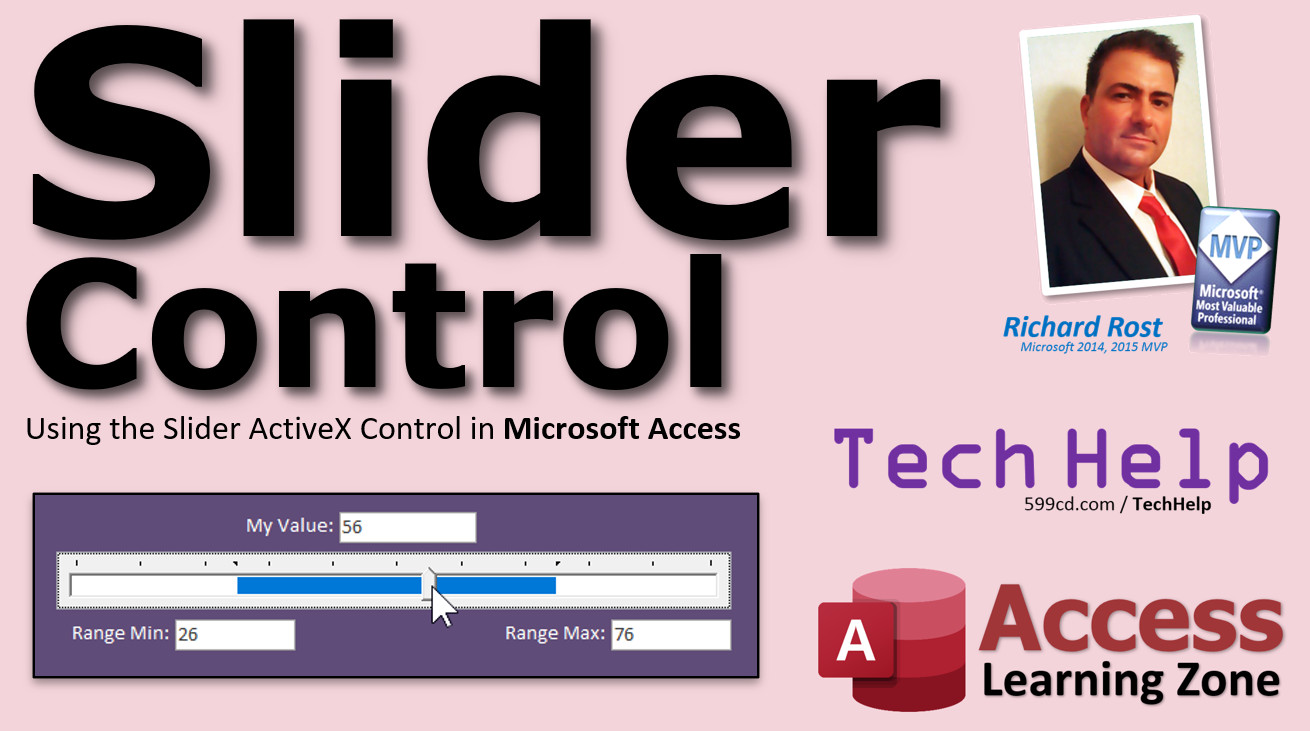
Using the Slider ActiveX Control in Microsoft Access In this video, I will show you how to use the Slider ActiveX Control in a Microsoft Access form to set a value for a field. James from Pelham, Georgia (a Gold Member) asks: is there any way to set a value on a form using a slider? MembersMembers will learn how to use the Slider Control to set a range of values.
Silver Members and up get access to view Extended Cut videos, when available. Gold Members can download the files from class plus get access to the Code Vault. If you're not a member, Join Today!
Links
Keywordsmicrosoft access, ms access, ms access tutorial, #msaccess, #microsoftaccess, #help, #howto, #tutorial, #learn, #lesson, #training, #database, slider control, microsoft access slider control, native slider, Slider Bar, Slide Bar, Slide Control SlidersLearn more about Sliders here:
IntroIn this video, I will show you how to add and use the ActiveX slider control in Microsoft Access. We will talk about placing the slider on your form, how to configure its properties such as minimum and maximum values, how to use VBA to set a field value with the slider, and important compatibility warnings about ActiveX controls in Access. I will also demonstrate linking the slider to a specific value on a customer form and how to synchronize the slider and field values using form events.TranscriptWelcome to another TechHelp video brought to you by AccessLearningZone.com. I am your instructor, Richard Rost. In today's video, I am going to show you how to use the ActiveX slider control in Microsoft Access.Today's question comes from James in Pelham, Florida, one of my Gold members. This question was actually posted in the forums on my website. James wants to know if there is any way to set a value on a form using a slider. Yes, you can. Let me show you how. First, you will need to know a little bit of VBA to do this because the slider control cannot be bound to a field like other controls can, so you need one line of VBA code in order to set a value on your form from the slider control. I will show you how to do it, but I recommend you watch my Intro to VBA video first if you have never done any VBA programming. It is not hard. Do not be intimidated. Go watch this video. It is free. It is on my website and it is on my YouTube channel. I will put a link in the link section down below the video. Next warning, I particularly do not like ActiveX controls. I find them unreliable, especially if you are switching between different versions of Access. If you are sharing your database on your network and people might have different versions of Access, either the version number or the business, 32 bit or 64 bit, or they have different versions of Windows installed, everything has to be identical on your system for this to work on another system. If you set it up on yours and you give it to someone else who has a slightly different configuration, the ActiveX control might not work. You have to have the same version of Access and the same version of the ActiveX control. It is basically a control that is outside of Access. It is not one of the built-in Access controls. While I have it on the Evil Access stuff page, it is down here under "Frown upon" - ActiveX objects because they are unreliable. It may work, it may not. If it works for you, great. If not, so be it. If you are the only user of your database and it works for you and you want to use it, great. If you want a slider control: beautiful. Perfect. But be aware that if you upgrade Access in the future, it may not work. If you give your database to someone else, it may not work. Just be aware of that. Here I am in my TechHelp Free template. This is a free download from my website. You can grab a copy if you want to. Again, I will put a link down below in the link section. I am just going to put a slider control on here to set some value. I will go to Design View and make this a little bit bigger so we have some room to work with. I am going to put a big slider right here. Now, the slider control is found in the ActiveX objects in your form design controls toolbox. Right down here, ActiveX controls. Click on that. It is a whole long list of ActiveX controls. These are all outside of Access. They work in Excel and the other Office applications, but they are not part of Access. Scroll down this list and see if you can find the Microsoft Slider Control version 6.0. Again, that is something that might be different. You might have version 5.0 or a different version of the slider control. I have covered the progress bar control in here before too so you can show progress going across the bottom. Click on that, hit OK. That puts a control right there. We are going to resize it and make it nice and big. You can change the height and width just like any other control. If you save this now, close your form, and reopen it, there you go. There is your slider control. Right now it is set zero to ten. You can change a lot of options by right clicking and opening Design View. First thing I am going to do is give it a name. You cannot double click to bring up the properties, you have to right click and pick Properties. There you go. There are some weird idiosyncrasies with it. Go to "All." I do not want "Slider6;" I will just call it "MySlider." There are a bunch of properties on here. I am not going to explain what they are, like this Class property. Do not worry about it, you will never have to change it. You will notice under Data, there is no Control Source. You cannot just bind this to a field on the form or a field in the underlying table like you can with a text box. See, text box has a Control Source, so whatever you put in here is going to be the value in there, or you can bind it to a field in a table. You cannot do that with a slider control. We need to use an event to populate some other box with the value as it is changed on here. Before we do that, let's take a look at some of the properties we can change. Here is a little bug I have noticed. Watch: If I click on this, and it is already highlighted, I get a little ghosted image of it up here. It just does not really exist, it is just there. These things are weird. The third-party ActiveX controls are weird. I say third party because you can get them from other people too. I guess Microsoft would not technically be a third party, but they are not built into Access. That is what I mean. Most of the properties you are going to want are on the Other tab. The Other tab has stuff that is pretty much specific to the slider. Do you want it to be a tab stop, tab index, all that stuff. Control-Tip Text. Down here you have Large Change and Small Change. The Small Change is 1, Large Change is 5. The Small Change is when you go from one unit to another, you want it to go up in increments of one. Max down here would be the maximum value, Min would be the minimum value. If your minimum value is one, put one in there. Maximum would be 100. Now, save that and let's take a look at what that does. Now you can slide this and drag it like that. Small Change is if you click on this and drag it one at a time, you get one-at-a-time changes. The Large Change is if you click out here in the bar. You cannot really see the values, but it is going up five at a time. That is what Large Change is, or down five at a time, or you can click and drag. Right click, Design View, and come back in here, Other tab. Orientation, you can go horizontal or vertical. You can make a vertical one too. You have to resize this, but it works the same. Select Range lets you pick a range of values, a maximum and a minimum value. I will cover that in the extended cut for the members, but that is pretty neat too. Do not worry about "SelStart" and "SelLength"; that has to do with the range. Tick Style - what do you want the ticks to look like? Top left? Both? Bottom? No ticks? I am going to go top left. Tick Frequency: you might not want to see one every one, maybe every five. There is one tick every five. You could change the mouse pointer. What do you want it to look like when you hover over it? You can make it look like an hourglass, for example. It will look odd, but watch: when you hover over it now, you get the hourglass. It used to be called the hourglass because in older versions of Windows, it actually looked like an hourglass. Now it is a circle. I almost never play with that, so I am going to put this back to the default. You can use the scroll wheel for this thing too. If you have a mouse scroll wheel, just click on it, and then scroll up and down. I am using my scroll wheel. That is kind of neat. You can also use the keyboard left and right. That is a small change. There are some formatting things you can change if you go to the Format tab, like the special effect "Flat." I like to go with either "Raised" or "Sunken," or even "Shadowed." You can change how that looks. See the little shadowed effect or raised effect. The border: Transparent. Here is something odd: you can change the border and the border color. You can make it red, but you cannot change the background color. You cannot make the whole slider red or pink or whatever. There is no option for it. There is border color, but no back color. You cannot even change it in VBA. I think that is not a good choice, personally. You can change the padding inside here, how much extra space you want, all that stuff. Now, how do we get the value from this into a field on our form? Let's use this field here. I am going to call this a text box bound to a table. If you want to do something like a customer value, I will just call this guy "MyValue," and there will be no control source. This text box is not bound, but you can make it bound if you want to. Put a value in here like Credit Limit or whatever. So the name of the box is "MyValue." Let me turn that red off. That is annoying me. Back to black. We need to use an event to put the value from the slider when it is changed into this box. Kind of like an AfterUpdate event. If you have never watched my AfterUpdate event video, go watch that. When you make a change in one field, it will run an event to do something else. If you look in the events for MySlider, you have Enter and Exit (that is when you go into a field and out of it), and then GotFocus and LostFocus (same thing, when you click on it or click off it). And then there is OnUpdated. You would think that OnUpdated would fire when you update this value. I am going to click the ellipsis (...). Here is my code builder. Let me just resize this a little bit. Where are we? We are down here. MySlider_Updated. I am going to just type in here: MsgBox "Hi there." So that should run when the slider value is updated. Watch: Come out here, click, open it back up again. Ready? Make a change...and nothing is happening. The event does not work. You would think that is what it would do, but it does not do anything. So we do not want to use the Updated event. We want to use another event which does not appear in the property window, which is going to be MySlider. Make sure you are on MySlider over here, drop this down and go to "Change." You want to use the Change event for MySlider. So I will take this and move it up in here now. Now we can get rid of the Updated event. Updated is something different, which I am not going to go into right now. But now I want to change this: MsgBox "Hi there." So the Change event means that the slider has been changed. Now we can grab that value and put it up in here. So all we have to say is right here: MyValue = MySlider You could say "MyValue.Value = MySlider.Value," but the ".Value" property is assumed, so you do not need it. Just like "Me" is assumed; you do not have to say "Me." or "Me!" before something. So, MyValue = MySlider Let's see if it works. Look at that. You set your value: 7, 16, 38, whatever. There you go. Now you set the maximum value, 100, and the value is 1. Put this on your customer form, then just set the Control Source in this guy to whatever the field is, and there you go. That is how you set the value. One more demonstration. Let's copy this control. Copy that control and go to the customer control. CustomerF. Here we are. Right click, Design View. Let's see if anyone uses "FamilySize." I will put Family Size there. I am going to paste that slider control that I brought over. Let's say I want to use this to control the family size. Let me rearrange these a little bit so it is a little more obvious what I am doing here. Put you guys up there, and I will put Family Size there. Now, family size 1 to 100 is kind of silly. Go to the Other tab. Set minimum family size to 1, maximum family size to 20. That is more reasonable. Large change 5, that is good. Now in our events, we have to get to the event somehow. So click the ellipsis (...), and then just come up here and change this to the Change event. Right here: FamilySize = MySlider Save it. Get rid of this (delete it). Close that. Then we will come back into the main menu, go to the customer form, and now watch this. See? I am changing the family size. Now you need one more event if you want to load the value from FamilySize into the slider when the record opens. We will put that in the OnCurrent event. Go to the form's properties, go to Events, go to OnCurrent. OnCurrent event runs when the form is opened or when you move from record to record. Now we are going to say: MySlider = FamilySize Just going backward. Save it and then close it. Now when I open the customer form, look, that value is in there now: 14, 1, 4. See how it is moving? 1. Let me say Will Riker's family size is 20. Come back over here, it goes back to 1. Go back to Will Riker and it is 20. That is how you can set the value and then read the value back again. If you want to learn more about the slider control, in the extended cut for members, I show you how to also store a minimum and a maximum range value. That is covered in the extended cut for members. Silver members and up get access to all of my extended cut videos, and Gold members can download this stuff. How do you become a member? Click the Join button below the video. After you click the Join button, you will see a list of all the different types of membership levels that are available. Silver members and up will get access to all of the extended cut TechHelp videos, live video and chat sessions, and more. Gold members get access to a download folder containing all the sample databases that I build in my TechHelp videos, plus my code vault where I keep tons of different functions that I use. Platinum members get all the previous perks plus access to my full beginner courses and some of my expert courses. These are the full-length courses found on my website and not just for Access. I also teach Word, Excel, Visual Basic, ASP, and lots more. But do not worry, these free TechHelp videos are going to keep coming. As long as you keep watching them, I will keep making more. If you liked this video, please give me a thumbs up and feel free to post any comments that you have. I do read them all. Make sure you subscribe to my channel, which is completely free, and click the bell icon and select "All" to receive notifications when new videos are posted. Click on the Show More link below the video to find additional resources and links. You will see a list of other videos, additional information related to the current topic, free lessons, and lots more. YouTube no longer sends out email notifications when new videos are posted, so if you would like to get an email every time I post a new video, click on the link to join my mailing list. If you have not yet tried my free Access Level 1 course, check it out now. It covers all the basics of building databases with Access. It is over three hours long, and you can find it on my website or on my YouTube channel. If you like Level 1, Level 2 is just one dollar, and it is also free for all members of my YouTube channel at any level. Want to have your question answered in a video like this one? Visit my TechHelp page and you can send me your question there. Click here to watch my free Access Beginner Level 1 course, more of my TechHelp videos, or to subscribe to my channel. Thanks for watching this video from AccessLearningZone.com. QuizQ1. Why do you need VBA to set a value from the ActiveX slider control in an Access form?A. Because the slider control cannot be directly bound to a field B. Because VBA is the only way to create forms in Access C. Because Access does not support controls D. Because slider controls can only be used in Excel Q2. What is a primary reliability issue with using ActiveX controls, such as the slider, in Access databases shared across multiple users and systems? A. They require constant internet access B. ActiveX controls are unpredictable unless all systems use identical Access and Windows versions C. ActiveX controls only work with cloud databases D. They can only be used in macros, not forms Q3. Where do you find the slider control in the Access form designer? A. In the Insert tab under "Charts" B. Under the standard Controls toolbox C. In the ActiveX controls section of the toolbox D. In the Macros menu Q4. If you want to change the minimum or maximum value for the slider, which property would you modify? A. Class B. Orientation C. Min and Max D. Control Source Q5. What is the difference between "Small Change" and "Large Change" properties of the slider control? A. Small Change sets the minimum value; Large Change sets the maximum B. Small Change is for dragging the slider; Large Change is for double-clicking it C. Small Change adjusts increments for small movements; Large Change adjusts increments for larger jumps when clicking the slider bar D. Small Change is for formatting; Large Change is for color settings Q6. Why can you not bind a slider control directly to a table field? A. It is only possible in Excel B. It is not an Access control and lacks a Control Source property C. You can, but it requires macros D. The Control Source property is hidden Q7. Which event should you use in VBA to update another control when the slider value changes? A. OnUpdated event B. OnClick event C. Change event D. OnOpen event Q8. Why is the OnUpdated event not recommended for detecting changes in the slider control? A. It causes the form to close B. It does not actually fire when the slider value changes C. It only works with bound controls D. It only works with button controls Q9. If you want the slider to display vertically, which property should you modify? A. Tick Frequency B. Orientation C. Class D. Special Effect Q10. What happens if you use your scroll wheel while the slider has focus? A. Nothing B. The form closes C. The slider value changes D. The color of the slider changes Q11. In order to display a value from a table field to the slider when the record loads, in which event should you set the slider's value? A. Form's OnCurrent event B. Slider's OnClick event C. Field's AfterUpdate event D. Slider's OnUpdated event Q12. Which formatting option CANNOT be changed for the slider control? A. Border color B. Tick style C. Background color D. Special effect (Raised, Sunken, etc.) Q13. Which member benefit includes access to downloadable sample databases used in the videos? A. Silver membership B. Gold membership C. Basic (free) membership D. Platinum membership Q14. When using a slider to update a field (like FamilySize), what additional step should you take to ensure the slider reflects the correct value when changing records? A. Reinsert the control B. Set the slider value from the table field in the OnCurrent event C. Rebuild the database D. Set the Max property to 0 Answers: 1-A; 2-B; 3-C; 4-C; 5-C; 6-B; 7-C; 8-B; 9-B; 10-C; 11-A; 12-C; 13-B; 14-B DISCLAIMER: Quiz questions are AI generated. If you find any that are wrong, don't make sense, or aren't related to the video topic at hand, then please post a comment and let me know. Thanks. SummaryToday's video from Access Learning Zone focuses on how to use the ActiveX slider control in Microsoft Access. I'm your instructor, Richard Rost.Recently, a student asked whether it's possible to set a value on a form using a slider control. The short answer is yes, and I'll walk you through how to set this up. However, you'll need to write a small amount of VBA since the slider control can't be directly bound to a database field like a typical text box. All it takes is a single line of VBA, but if you're new to programming, I strongly suggest reviewing my Intro to VBA lesson first. It's freely available on my website and YouTube channel. Before getting started with the ActiveX slider, let me give a bit of a warning. I'm not a major fan of ActiveX controls because they can be unreliable—especially in environments where users have different versions of Access or Windows installed, or a mix of 32-bit and 64-bit software. Everything needs to match precisely between you and anyone else using the database, or the ActiveX control might not work at all. The slider control isn't included by default in Access—it's one of those controls that lives outside the Access environment, so compatibility can be a problem if you share your database or upgrade your Access installation later. If you're working alone and everything works as expected for your setup, then the slider control can be a nice addition. Just realize its limitations if you think you might deploy your database elsewhere in the future. Now, let's look at how to add a slider control. I'm using my TechHelp Free template here, which you can download from my website. To get started, open your form in Design View and make some space. Then, in the toolbox, locate ActiveX controls. From the list you'll find a few different options, including various versions of the Microsoft Slider Control—it might be version 6.0 or something else, depending on your system. Once added, you can resize the control like any other and save your form. At this point, you'll have a slider on your form. By default, it ranges from zero to ten, but you can adjust this and other settings by using the Properties sheet. You'll likely want to rename your slider for clarity—something like "MySlider." Since this control can't be bound directly to a data field (unlike a text box), you'll need to use an event to update the value elsewhere on your form as the slider is moved. As you review the control's properties, you'll find options like Large Change and Small Change. Small Change controls how much the value changes with each minor movement, while Large Change makes bigger jumps—for example, when clicking further along the track. You can set minimum and maximum ranges, and choose horizontal or vertical orientation, as well as whether the slider displays ticks and at what intervals. You can also set the mouse pointer style or allow the control to respond to the scroll wheel. There are some formatting choices, such as special effects for the visual appearance and border color, but you won't be able to change the background color of the slider itself. Now, if you want to display the slider's value in a text box on the form, set up a text box (bound or unbound as needed) and give it a name, such as "MyValue." The key is to update this box whenever the slider changes. To do that, use an event on the slider control to copy its value to your text box. Don't use the Updated event—it doesn't actually fire when the slider moves. Instead, use the Change event (which you'll find in the code window, not the Properties window). In your VBA code, set your text box's value equal to the slider. Now, as you move the slider, the text box updates automatically. For a practical example, you might want to use a slider to set a customer's family size. In that case, copy the slider control to your customer form, adjust its minimum and maximum values (for example, 1 to 20 for family size), and wire up the Change event to update the FamilySize field as the slider moves. If you want the slider's position to reflect the record's stored value when you navigate to it, place code in the form's OnCurrent event. This will set the slider's value based on the current record's FamilySize, so the control remains in sync as you browse records. For more advanced use, such as storing both a minimum and maximum value with the slider (for a range), I cover that in detail in the Extended Cut video for members. Silver members and above get access to all Extended Cut TechHelp videos as well as additional live sessions and content. Gold members can also download all my sample databases and access a code vault filled with useful functions. Platinum members benefit from the previous perks plus access to my complete library of beginner and some expert courses—not just for Access, but also for other applications like Word, Excel, and ASP. Even if you aren't a member, my free TechHelp videos will continue as long as you keep watching and sending in questions. If you found this video useful, I appreciate thumbs up and comments. Subscribing to my YouTube channel is completely free and will help you stay informed as new content is published. For additional resources, you can visit the links below the video to watch more lessons or join my mailing list for email notifications. Don't forget to check out my free Access Level 1 course if you're just getting started. This comprehensive course is available on my website and YouTube channel, and if you find it useful, Level 2 is just one dollar or free for all channel members. Feel free to send in your questions on my TechHelp page for a chance to have them answered in an upcoming video. You can find a complete video tutorial with step-by-step instructions on everything discussed here on my website at the link below. Live long and prosper, my friends. Topic ListAdding the Microsoft Slider ActiveX control to an Access formConfiguring slider control properties (min, max, small/large change) Renaming the slider control Adjusting slider control orientation (horizontal and vertical) Configuring tick styles and tick frequency Customizing mouse pointer for the slider control Formatting the slider control (border, padding, special effects) Using the scroll wheel and keyboard to manipulate the slider control Writing VBA to update a text box from the slider control value Choosing the correct event (Change event) for the slider control in VBA Synchronizing slider and form field values on record navigation (OnCurrent event) Copying and reusing the slider control on other forms Setting up the slider to set specific field (e.g. Family Size) values |
||||||||||||||||
|
| |||
| Keywords: TechHelp Access slider control, microsoft access slider control, native slider, Slider Bar, Slide Bar, Slide Control PermaLink Sliders in Microsoft Access |