|
||||||
Access Database CloudEasily Share Your Microsoft Access Database Online This is Richard Rost from Access Learning Zone. I've recently teamed up with Access Database Cloud to provide a fantastic way for you to share your Access database online, over the internet, with your team with almost zero setup work. In the following videos, I will explain how it works, why this is a great solution for most people, and what you need to do to get started. I'll also show you how to set up your database and get up and running. Videos
Free Live Demo
Links
Sharing OptionsOne of the questions I get asked all the time, almost daily, is "how can I share my Microsoft Access database with my co-workers over the Internet?" Well, there are a lot of different solutions available. I generally recommend a solution based on your needs. First of all, a lot of people tell me they are trying to share their Access database using Google Drive, OneDrive, or Dropbox. Do not do this! That's a big no no! Access databases will not work reliably over these file sharing services. You will corrupt your database. Very bad. I love Google drive. I use it all the time myself, but don't use it for an Access database. If your team is already online using SharePoint, then you can migrate your tables over to SharePoint lists. However, this method does involve significant setup work to get your tables transferred over, and you may have to make significant modifications to your database front-end to get it to work right. I've got an hour-long SharePoint Seminar that covers how to do this, but again, I only recommend it for organizations who are already setup and using SharePoint. Another option is to upgrade your back-end tables to SQL Server. This is a great solution for anyone who wants to have a public-facing database. If you want to distribute a locked-down front-end to your suppliers or customers, or even attach your database to a web site, SQL Server is your best bet. However, this solution also requires a significant amount of time and a steep learning curve. Again, I've got a 4-hour seminar dedicated to this. If you want to be able to use your Access database remotely without making any changes to it, and you don't mind leaving your office computer running 24/7, then you can use a remote desktop solution to log in to your computer remotely. I personally prefer Google's Chrome Remote Desktop. I use this myself when I'm travelling. I've got a free lesson that explains how to set it up. However, this is really only good for one user at a time. You can't share the database unless it's already shared on your office network, and even in that case all of those users would need to leave their PCs running. This is fine for a single user remote solution. However, if you've got a whole team of people that need to share an Access database, there's a better way. Access Database CloudIntroducing... Access Database Cloud. This is an online service specifically tailored to Microsoft Access users who want to set up a shared solution so that your entire team can work with your database remotely, 24/7, from anywhere in the world. As long as you've got an internet connection, you can share your Access database.
Why am I recommending Access Database Cloud? As I mentioned earlier, I get asked for help with this all the time. Especially with the global pandemic, more and more people are working from home. The need for a way to use an Access database remotely has never been greater. There are other solutions available, such as Sharepoint or SQL Server, but these solutions involve a lot of work. People have been bugging me and bugging me to find an easy solution that requires little to no setup. Well... I found one. Access Database Cloud is the easiest solution that I've found for someone who wants to just take their database, put it online, and get to work without spending weeks migrating to another platform. Now, if you've been one of my students for any length of time, you know that there have been very few products or services that I have recommended over the past 20 years since I've been online. Something has to really impress me to get my endorsement. So when I was initially looking for a solution, I contacted the folks over at Access Database Cloud, told them what I was looking for, and they set me up with a free trial account so I could play with it. I spent about 2 weeks setting up a shared database, running it through the ringer. I was actually trying to break things and see if I could bypass security. Nope. My database ran great. I had zero problems during my two week trial. Their customer service people were very helpful anytime I had a question. I was very impressed. So, I decided to offer this as a solution to my students.
You can use your database on any device. I was really impressed with how well their interface worked in my web browser. You can use it on a laptop, desktop, tablet, or even your phone. It works on Windows, Android, and, yes, even Apple devices. I've got lessons to show you how to redesign your interface to fit any screen. All of your employees can use your Access database simultaneously, just as if you were all working together in the same physical office. I tested this myself. It works perfectly. As I mentioned before, this is the best solution available for someone who wants to share a database online and not have to make any changes to it. Yes, all you have to do is copy the database file up to a shared folder and everyone can start working with it right away. Of course, there are some "best practices" things that I recommend you do, such as splitting your database into a front-end/back-end solution and properly securing everything (and I have classes to show you how to do that). But using Access Database Cloud is just as easy as sharing your database on an in-house, local area network. Much easier than setting up SharePoint or SQL Server. The folks at Access Database Cloud were kind enough to give me a free demo to set it up and test their service so I could see how well it works for myself. I even got an email from the founder and CEO, Joe Richardson. Now I thought they were doing this for me because they know that I'm a big shot YouTube Access superstar. Imagine how surprised I was to find out they do that for everyone. And here I thought I was special. Ha ha. But seriously... Schedule a free live demo for yourself. You'll see just how easy it is to set up a database. I'm putting together a step-by-step tutorial on exactly what you need to do to set your database up on Access Database Cloud. Look for that on my web site at the link shown. Now when you set up your account, there are a few ways they can configure your cloud computer. You can either get it set up "barebones" with no extra software besides Windows, or they can set it up for you with the free Access Runtime Edition, which is fine for using your database online, or they can set it up with the full Microsoft Office. You will have to provide your license for Office when you open it for the first time. I recommend getting your account set up with Access Runtime. This way everyone can use your database without paying for extra copies of Access. If you want to make changes to the design of your database, you just do that locally on your PC and then upload the new front-end. If you're not familiar with how to use Runtime, check out my free video on it. A lot of people are concerned that their database will run a lot slower online. In fact, in my experience, the opposite was true. My database actually runs faster over Access Database Cloud than it does even in my own office. That's because when you use a shared database on a local file server, all your data has to travel over the wire from your server through the LAN to your PC. Access has to crunch through all the information. If you want to see all of your customers from Florida, Access has to pull all of your customers over the wire and then your local database query figures out which records to show you. With Access Database Cloud, the virtual PC does all the work very fast and just transmits the updated screen to you. It's quick.
One thing that surprised me is that they also include nightly backups with your monthly fee. A lot of other server providers charge extra for this. If you've been a student of mine for any length of time you know my mantra is backup, backup, and backup again. So this is nice. They have 20 geographically separated tier 3 data centers. Basically that means if one of their data centers gets hit by a giant meteor, your data is still backed up off-site. Access Database Cloud offers a 99.95% uptime. They have an impressive list of security stuff, firewalls, fully redundant fiber optic network, and all that jazz that you don't have to worry about. They take care of all that stuff for you. But trust me, they’re secure and reliable. I had zero problems using their service. They also have a ton of certifications including HIPPA and CSA STAR. Another nice feature on Access desktop cloud is the screen share. Let's say a manager wants to train a new employee on how to do something in the database remotely. All you have to do is click on the screen share option and you can see the other person's screen and walk them through anything you'd like. Great for remote training or help. If you need any other apps installed on your remote desktop, such as Office 365 (Word, Excel, PowerPoint, etc.) or pretty much any other application, they can install and set it up for you. That's kinda cool. I personally only use Access remotely, but if you want to share Excel files, have a custom accounting package you need, or anything like that, they can accommodate you.
As of August 2025, they charge $50 per month for the entire account, and then $48 per month per user. So if you have 3 users the cost would be (50+(48*3))=$194 per month. There are no long-term contracts. You can cancel any time. This is the easiest, most cost effective way for you to share your database with your employees. As I mentioned earlier, once I realized how Access database cloud would be a perfect fit for a lot of my students, I decided to team up with them to offer this service. So yes, full disclosure, I signed up for their affiliate program. I will get a small commission for every customer that signs up for an account with them. However, I have recommended very few products over the past 20 years, and I never endorse anything that I haven't fully tested myself. And this is one of the best services I've come across in recent years. In fact, I like their service so much that I'm planning to put together additional video tutorials on how to set up your Access database on their service to get the most out of it. I'm fully committed to this solution.
Make sure you use promo code ROST and if you do decide to continue with a full account, you’ll get 10% off your first month. And be sure to let me know what you think of their service as well. I want to make sure my clients are happy with any service I recommend to them. So that's it. Access Database Cloud is the easiest, fastest, fully affordable solution for sharing your Microsoft Access database online. Most importantly, it's fully endorsed by Yours Truly. If you have any questions, feel free to contact me. Thanks for watching. FAQsSomeone asked me how much storage space your Cloud PC comes with. 50 GB comes standard per account divided amongst your users. Additional space starts at 45 cents per GB. My entire site (599cd) runs on about 10 GB total, so 50 GB is plenty for most applications. Remember the max size of a single Access ACCDB file is 2 GB.
More InformationTranscriptDo you want to share your Microsoft Access Database online? This is Richard Rost with AccessLearningZone.com. I've recently teamed up with Access Database Cloud to provide a fantastic way for you to share your Access Database online over the Internet with your team, with almost zero setup work. Allow me to explain how this works, why it's a great solution for most people, and what you need to do to get started. One of the questions I get asked all the time, almost daily, is, how can I share my Access Database with my coworkers over the Internet? There are a lot of different solutions available. I generally recommend a solution based on your needs. First of all, lots of people tell me they are trying to share their Access Database using Google Drive, OneDrive, or Dropbox. Do not do this. It's a big no-no. Access Databases will not work reliably over these file sharing services. You will corrupt your database. Very bad. I love Google Drive, I use it all the time myself, but don't use it to share an Access Database. If your team is already online using SharePoint, you can migrate your Access tables over to SharePoint lists. However, this method does involve a significant setup. You have to migrate your Access tables over to SharePoint lists, and you might have to make significant modifications to your database front end to get it to work right. I've got a seminar that explains how to do this, but again, I only recommend this for organizations who are already set up and using SharePoint. Another option is to use SQL Server. You can upgrade your backend tables and load them up to an SQL Server on the Web. This is a great solution for anyone who wants to have a public-facing database. If you want to distribute a locked-down front end to your suppliers or your customers, or even attach your database to a website, then SQL Server is your best bet for that. However, this solution also requires a significant amount of time and a steep learning curve. Again, I've got a four-hour seminar dedicated to explaining how to do this, but it's not for everyone. So if you want to be able to use your Access Database online without making any changes to it, and you don't mind leaving your office computer running 24-7, then you can use a remote desktop solution to log into your computer remotely. This way, you see exactly what's running on your computer at the office, just the screens are transmitted over the Internet. I personally use Google's Chrome Remote Desktop. It's free, I use it myself when traveling. I've got a free lesson that explains how to set this up. However, this is really only good for one user at a time. You can share a database if it's already set up and shared in your office network, but in that case, all of those other users also have to leave their PCs running 24-7 so they can log on as well. So this is fine for a single user remote solution, but if you've got a whole team of people that need to share an Access Database remotely, there is a much better way. Introducing Access Database Cloud. This is an online service specifically tailored to Microsoft Access users who want to set up a shared solution so your entire team can work with your database remotely 24-7 from anywhere in the world. As long as you've got an Internet connection, you can share your Access Database. Access Database Cloud is essentially a remote virtual PC that is set up for you and your team. Each person will get their own unique virtual desktop. You simply copy your Access Database up to the remote PC and it runs right in your web browser. If you've got a database you want to share with multiple users, you just split the database, split the backend file into the shared folder, give each user a copy of the frontend file, and it's that simple. Then you are all sharing the same database remotely from anywhere using your web browser. This also means you can use almost any device too: cell phones, tablets, laptops, you name it. Now why am I recommending Access Database Cloud? As I mentioned earlier, I get asked for help with this all the time. Especially with the global pandemic, more and more people are working from home. The need for a way to use an Access Database remotely has never been greater. As I mentioned earlier, there are other solutions available. You can use SharePoint or SQL Server, but those solutions involve a lot of work. People have been bugging me and bugging me to find an easy solution that requires little to no setup. Well, I found one. This database cloud is the easiest solution that I have found for someone who just wants to take their database, put it online, and get it to work without spending weeks migrating to another platform. Now, if you have been one of my students for any length of time, you know that there have been very few products or services that I have recommended over the past 20 years since I've been doing this online. Something has to really impress me to get my endorsement. So when I was looking for a solution, I contacted the folks over at Access Database Cloud. I told them what I was looking for, they set me up with a free trial account so I could play with it. I spent about two weeks setting up a shared database, running it through the ringer. I was actually trying to break things and see if I could bypass security. But nope, my database ran great. I had no problems during my trial period. Their customer service people were very helpful anytime I did have a question. I was very impressed, so I decided to offer this as a solution to my students. Now let me tell you a little bit more about Access Database Cloud and their service. I'm going to steal, I mean borrow, some stuff from their website. So as I mentioned, you can use this service anywhere: your office, home, job site, traveling, or at the beach. As long as you have Internet service, you can use your database. You can use any device. I was really impressed with how well their interface worked in my web browser. You can use it on a laptop, desktop, tablet, or your phone. It works on Windows, Android, and yes, even you Apple users. I've got lessons to show you how to redesign your Access interface to fit any screen. All of your employees can use your Access Database simultaneously, just as if you were all working together in the same physical office. I tested this myself. It works perfectly. As I mentioned before, this is the best solution I have found for someone who wants to share a database online and not have to make any changes to it. Yes, you could just copy your database file up to the shared folder and everyone can start working with it right away. No changes. Now of course, there are some best practices, some things I recommend you do, such as splitting your database into a front and back end and properly securing everything. I've got classes that show you how to do all that, but using Access Database Cloud is just as easy as sharing your database on an in-house local area network. It's much easier than setting up SharePoint or SQL Server. The folks over at Access Database Cloud were kind enough to give me a free demo to set it up and test their service so I could see how well it works for myself. I even got an email from the founder and CEO, Joe Richardson. Now I thought they were doing this for me because they know that I am a big shot YouTube Access superstar. So imagine how surprised I was to find out that they do that for everyone. Here I thought I was special. But seriously, they offer everyone a free 30-minute live demo of their service so they can show you all the features. After that, if you'd like a trial account, they will set one up for you so you can test it out for yourself. But take it from me, it works beautifully. Now when you set up your account, there are a few ways they can configure your cloud computer. You can either set it up bare bones with no extra software besides Windows, or they can set it up with the free Access Run Time Edition, which is fine for using your database online, or they can install the full Office 365 for you if you want the full version of Access, but you'll have to provide your own license key. I recommend getting your account set up with the Access Run Time. This way, everyone can use your database without paying for extra copies of Access. If you want to make changes to the design of your database, you just do that locally on your PC and then upload the new front end. It's really quick. If you're not familiar with how to do that or how to use the run time, check out my free videos on that. Now, a lot of people are concerned that their database will run slower online. In fact, in my experience, the opposite was true. My database actually runs faster over Access Database Cloud than it does even in my own office. That's because when you use a shared database on a local file server, all of your data has to travel over the wire from your server through your LAN to your PC, so Access has to crunch through all that information. If you want to see all your customers from Florida, for example, Access has to pull all of your customers over the wire and then your local database query figures out which records to display. With Access Database Cloud, the virtual PC, on their end, does all the work very fast and just transmits the updated screen to you. It's very quick. Now, this is one of my favorite things. They set up the virtual workstations for you. They manage them. They deal with the updates. They deal with the security and all that stuff. All you have to worry about is your database. I used to love running my own servers when I was younger. I was always a nerd, so that kind of stuff always fascinated me. I used to run my own local Windows server, maintain my own web server, all that stuff. But over the years, as things got more and more technical, and after I got hacked a few times, I decided that letting the experts manage my servers was the way to go. I'm not a Windows Server expert. I'm not a Web Server expert. I'm an Access Database expert. That's my forte. That's what I want to spend my time on. I don't want to waste my time managing servers. Access Database Cloud manages everything for me. They maintain all the updates, and all you have to do is worry about your database. One thing that surprised me is they also include nightly backups with your monthly fee. A lot of other service providers charge extra for this. If you have been a student of mine for any length of time, you know my mantra is backup, backup, and then backup again. So this is nice. They have 20 tier 3 data centers worldwide. Your nightly backups are stored in two different data centers, geographically distant from your home data center. Basically, that means if the data center that's hosting your database gets hit by a giant meteor, your data is still backed up off-site in two other locations. That's pretty cool. Access Database Cloud offers 99.95 percent uptime, which is good. They have an impressive list of security stuff: firewalls, a fully redundant fiber optic network, and all that jazz that you don't have to worry about. They take care of all that stuff for you. But trust me, they are secure and reliable. I had zero problems using their service. They've also got a ton of certifications, including HIPAA and CSA Star. Another nice feature they have is screen share. Let's say a manager wants to train a new employee on how to do something in the database remotely. All you have to do is click on the screen share option, and you can see the other person's screen, walk them through anything you'd like. It's great for remote training or assistance. If you need any other apps installed on your remote desktop, such as Office 365, Word, Excel, PowerPoint, that stuff, or pretty much any other application, they can install and set it up for you. That's kind of cool. I personally only use Access Run Time myself, but if you want to share Excel files or you have a custom accounting package you need installed, anything like that, they can accommodate you. I've seen some virtual PC services cost upwards of $100 a month, depending on configurations, whether or not you want to share data with other users, some charge extra for bandwidth or storage. With Access Database Cloud, it's very affordable at just over $1 a day per user. That's nothing for fully managed high-speed shared connectivity for your database. As of right now, and it's March 2022, they charge $37 per month per user plus a small monthly maintenance fee. There are no long-term contracts, you can cancel anytime, and this is the easiest, most cost-effective way for you to share your database with your employees. Now as I mentioned earlier, once I realized how Access Database Cloud would be the perfect fit for a lot of my students, I decided to team up with them to offer this service to you. So yes, full disclosure, I signed up for their affiliate program. I will get a small commission for every customer that signs up for an account with them. However, I have recommended very few products over the last 20 years, and I never endorse anything that I have not fully tested myself. This is one of the best services that I've come across in recent years. In fact, I like their service so much that I'm planning to put together additional video tutorials on how to set up your Access Database using their service and how to get the most out of it. I'm fully committed to this as a solution. So if you're interested in setting up a free live demo so you can check out their service, just visit the website shown. I'll put a link down below that you can click on. Make sure you use promo code Rost, R O S T, that's my last name, and you'll get 10 percent off your first month if you do decide to sign up for service. Also, be sure to let me know what you think of their service as well. I want to make sure that my clients are happy with any service that I recommend and endorse. So that's it. Access Database Cloud. It's the easiest, fastest, most affordable solution for sharing your Microsoft Access Database online. Most importantly, it's fully endorsed by yours truly. If you have any questions, feel free to contact me. Thanks for watching. IntroIn this video, we'll talk about how to share your Microsoft Access Database online with your team using Access Database Cloud. I'll explain the common pitfalls with trying to use services like Google Drive or Dropbox for sharing Access files, discuss other options like SharePoint and SQL Server, and show you why Access Database Cloud is a simple and reliable solution for remote multi-user access from any device. You'll learn about setup options, performance, security features, and the steps to get started sharing your database online with minimal hassle. QuizQ1. What is the main advantage of using Access Database Cloud for sharing a Microsoft Access Database online? A. It allows you to share your database with your team with almost zero setup work. B. It requires complex migration to SharePoint. C. It is only suitable for single users. D. It is the only way to backup your data. Q2. Why is it not recommended to use Google Drive, OneDrive, or Dropbox to share an Access Database file? A. They are too expensive for file sharing. B. Access Databases will not work reliably and may become corrupted. C. They require converting Access files to different formats. D. They only support read-only access. Q3. What is one of the main drawbacks of migrating an Access Database to SharePoint? A. It cannot be used on Windows computers. B. It is only available for small teams. C. It requires significant setup and modifications to your database front end. D. SharePoint does not support simultaneous users. Q4. For what scenarios is SQL Server the most appropriate backend solution, according to the video? A. Managing private employee payroll data only. B. When you want to distribute a database to suppliers or attach it to a website. C. Only for local area networks. D. When you need a solution without any learning curve. Q5. What is a limitation of using Chrome Remote Desktop to access your Access Database remotely? A. It is not compatible with Microsoft Access. B. It is only suitable for one user at a time. C. It requires Windows Server 2019. D. It only works from office networks. Q6. Which of the following is NOT a required step when using Access Database Cloud with multiple users? A. Split your database into front and back ends. B. Install Access Run Time or full Access on the virtual PCs. C. Buy dedicated servers for each user. D. Place the backend in a shared folder. Q7. What platform compatibility does Access Database Cloud offer for accessing your database? A. Only Windows desktops. B. Windows, Android, and Apple devices. C. Only Android tablets. D. Only Apple Macs. Q8. What is a key benefit of Access Database Cloud regarding database performance? A. It is slower than running the database locally. B. It only runs on LAN connections. C. It can be faster because all processing happens on the virtual PC and only the screen is transmitted. D. It requires third-party plugins for speed. Q9. What is one of the responsibilities that Access Database Cloud handles for you? A. Creating custom Access tables. B. Maintaining server updates and security. C. Entering data for all employees. D. Building forms in your database. Q10. How does Access Database Cloud ensure the safety of your nightly backups? A. By storing them on your personal computer. B. Storing backups in two geographically distant data centers. C. Only keeping a single backup on the main server. D. Charging extra fees for backup services. Q11. Which of the following is included in the Access Database Cloud monthly fee? A. Unlimited tech support for Access development. B. Nightly backups with no extra charge. C. Licenses for every Office 365 application. D. Free physical hardware upgrades. Q12. If a user wishes to use the full version of Access (not Run Time) on their virtual PC, what do they need to provide? A. Nothing, it is included automatically. B. A license key for Office 365. C. A monthly backup plan. D. An external hard drive. Q13. What unique feature does Access Database Cloud offer for remote training or assistance? A. Built-in video tutorials for all users. B. Screen share option to view another user's desktop. C. Only text-based guidance. D. Automated email support only. Q14. What type of contract does Access Database Cloud require? A. 2-year lock-in. B. Monthly contract with no long-term commitment. C. 6-month minimum payment. D. Upfront annual payment only. Q15. According to the video, why can Access Database Cloud be more affordable than many other virtual PC services? A. It charges only for the software and not the users. B. It is just over $1 a day per user with no extra bandwidth or storage fees. C. It requires owning your own server hardware. D. It provides free cloud storage for unlimited databases. Answer Key: 1-A; 2-B; 3-C; 4-B; 5-B; 6-C; 7-B; 8-C; 9-B; 10-B; 11-B; 12-B; 13-B; 14-B; 15-B DISCLAIMER: Quiz questions are AI generated. If you find any that are wrong, don't make sense, or aren't related to the video topic at hand, then please post a comment and let me know. Thanks. SummaryToday's video from Access Learning Zone covers how to share your Microsoft Access database online. Over the years, one of the most common questions I get from students is how to share their Access database with team members over the Internet. There are a lot of different options available, and the right choice generally depends on your specific needs. First, I want to caution you against using popular file-sharing services like Google Drive, OneDrive, or Dropbox for sharing Access databases. These platforms do not provide reliable support for Access files, and using them could lead to database corruption. Even though I personally use Google Drive for many things, I do not recommend it for database sharing. If your organization already utilizes SharePoint, it is possible to migrate your Access tables to SharePoint lists. This approach does require a considerable amount of setup, including migrating tables and making adjustments to your front end. I go into detail about this process in one of my seminars, but only recommend it for groups already working with SharePoint. Another advanced solution is SQL Server, where you upgrade your backend tables and migrate them to an online SQL Server solution. This makes sense if you need a public-facing database or want to give controlled access to external partners through a secured front end. However, this too is complicated and requires a significant investment of time and effort. I have a full seminar on moving your Access backend to SQL Server, but it is not the right choice for everyone. If you are looking for a way to use your Access database online with no changes and are okay with leaving your office computer running around the clock, you can access it with a remote desktop connection. Personally, I use Chrome Remote Desktop because it is free and straightforward. This works well for single users, but if multiple team members need to work simultaneously, every user would have to leave their PC on at all times to facilitate access, which is not ideal. For people who want team-based, always-on, shared database access, there is a better solution. I am excited to introduce Access Database Cloud. This is a hosted service made specifically for Microsoft Access users who want a shared, easy-to-use remote solution. With this service, your entire team can access the database from anywhere, as long as they have an Internet connection. Access Database Cloud operates by providing each team member with their own virtual desktop on a remote server. All you need to do is upload your database to this server, and then you can run your database right in your browser. If you already have your database split into a front end and back end, you simply place the backend in a shared folder on the remote server and give each user a copy of the front end. It is just that simple. Everyone connects and works on the same database from anywhere in the world, and you are not limited to desktops - you can use laptops, tablets, or even smartphones. What makes Access Database Cloud stand out is how little setup is required compared to alternatives like SharePoint and SQL Server. With the increased demand for remote work, especially during and after the global pandemic, the need for reliable online database sharing has never been more critical. Many people have asked me for a quick solution that does not involve complex migrations or a steep learning curve, and this cloud option is the best answer I have found. Over the past two decades I have rarely recommended products or services. I only endorse something if it meets my high standards through thorough testing. Before recommending Access Database Cloud, I contacted their team and they gave me a trial account. I spent two weeks pushing the system to its limits, even attempting to break or bypass security features. My database performed flawlessly throughout and customer service was excellent anytime I had questions. More about how their service works: you can access your database from anywhere and from any device regardless of platform. I was impressed with how smoothly everything functioned in the browser, whether on Windows, Android, or Apple hardware. I also have resources for modifying Access interfaces to fit different screen sizes, in case you want to optimize your database for tablets or phones. Your team can work simultaneously in the same database just as if you were in the same office. There is no need for complicated modifications. If you follow best practices, such as splitting your Access database into front- and back-end files and properly securing them, working with Access Database Cloud is as straightforward as using a database on a local area network. It is much less complex than setting up SharePoint or SQL Server. During my evaluation, the founder personally reached out to me, but I learned that they offer the same high level of support to all customers, not just me. They provide a free 30-minute live demonstration of their system to show new users around. After the demo, if you want to try it for yourself, they are happy to set up a trial account. When you sign up, you can choose different configurations for your cloud computer. It can come with just Windows, or with the free Access Run Time if you do not need to make design changes. Alternatively, they can set up the full Office 365 suite if you provide your own license. I usually suggest starting with the Access Run Time, so your team does not need to pay extra for full Access licenses. For making database design changes, just edit your copy locally and upload the updated frontend. There is often concern about whether the database will run more slowly online, but in my experience, the opposite was true. Access Database Cloud is actually faster than my own office network because, instead of sending lots of data back and forth, the database runs on the remote server and only the screen is transmitted to your device. Another major benefit is that they handle all the technical details for you, like software updates, OS patches, and security. When I was younger, I enjoyed running my own servers, but as technology evolved and after experiencing hacking issues, I prefer leaving server management to the experts. This allows me to focus on Access database development instead of IT maintenance. Access Database Cloud includes nightly backups as part of the basic monthly fee. If you follow my work, you know that regular backups are essential. Their system stores backups in two geographically separate data centers for additional security. If a disaster occurs at one data center, your data is still safe in the others. They also maintain a strong uptime record and robust security practices. The service boasts 99.95 percent uptime and implements multiple security layers like firewalls and redundant fiber optic networks. The platform also has several important certifications for data protection, which is comforting if you deal with sensitive information. Screen sharing is another useful feature included in the service. It is ideal for training new employees since you can see their screen to walk them through database tasks. If you need other applications, such as Office 365 apps, Word, Excel, PowerPoint, or even custom software, they can accommodate those as well. Pricing is also quite reasonable. Many virtual PC services charge upwards of one hundred dollars per user each month, but Access Database Cloud is much more affordable, currently priced a little above one dollar per day per user (as of March 2022, the rate is 37 dollars per user per month, plus a small maintenance fee). There are no long-term contracts, and you can cancel at any time. After fully testing the service, I was confident enough to become an affiliate, so I do receive a small commission if you sign up using my link. As always, I only recommend products that I have rigorously tested and genuinely believe in. I am so enthusiastic about Access Database Cloud that I am planning further tutorials to help you maximize its use for your Access projects. If you want to schedule a free demo to see the service in action, I have provided a link on my website. Also, you can use promo code "Rost" to get ten percent off your first month. If you decide to try Access Database Cloud, I would love to hear your feedback to make sure I am continuing to recommend products that meet your needs. In short, Access Database Cloud is the easiest, fastest, and most affordable way to share your Microsoft Access database online, and it has earned my enthusiastic recommendation. For a complete video tutorial with step-by-step instructions on everything discussed here, visit my website at the link below. Live long and prosper, my friends. Topic ListThis is an informational video introducing and recommending Access Database Cloud as a solution for sharing Microsoft Access databases online with teams, discussing available options, setup considerations, and benefits. Primary Topicssharing Access databases online, Access Database Cloud, remote access solutions, database splitting, online collaboration, database security, cloud desktops, backup and uptime guarantees Secondary TopicsSharePoint and Access, SQL Server hosting, remote desktop alternatives, user device compatibility, pricing and demo offers, affiliate disclosure, screen sharing, app installations |
||||||||||||||||||||||||||||||
|
| |||
| Keywords: access database cloud access online PermaLink Share Your Microsoft Access Database Online with Access Database Cloud |


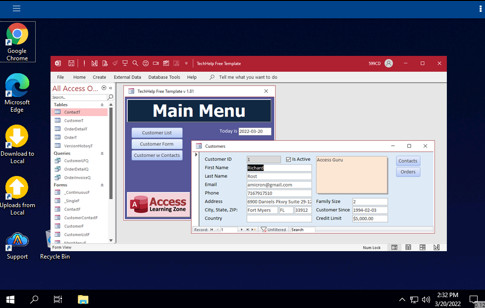 Access Database Cloud is essentially a remote virtual PC that is set up for you and your team. Each person will get their own unique virtual desktop. You simply copy your Access database up to the remote PC and it will run right in your web browser. If you've got a database that you want to share with multiple users, you just split the database, put the back-end file in a shared folder, and give each user a copy of the front-end file. It’s that simple. Then you're all sharing the same database, remotely, from anywhere, using your web browser. This also means you can use almost any device too: cell phones, tablets, laptops, you name it.
 Now let me tell you a little bit more about Access Database Cloud and their service. I'm going to steal - I mean - borrow - Some stuff from their web site. First, as I mentioned, you can use this service anywhere. The office, home, job site, travelling, even at the beach. As long as you have Internet service, you can use your database.
 This is one of my favorite things: they set up the virtual workstations for you. They manage them. They deal with updates and security and all that stuff. All you have to worry about is your database. I used to love running my own servers. I've always been a nerd so that stuff always fascinated me. I used to run my own Windows server locally, maintained my own web server, all that. But over the years as things got more technical, and after getting hacked a few times, I decided that letting the experts manage my servers was the way to go. I'm not a Windows Server expert. I'm not a web server expert. I'm an Access Database expert. That's my forte. That's what I want to spend my time on. So, Access Database Cloud will manage and maintain everything for you, so all you have to worry about is your database.
 Now I've seen remote virtual PC services cost upwards of $100 per month, depending on configurations, and whether or not you wanted to share data with other users. Some charge extra for bandwidth or storage.


