Named Arguments
By Richard Rost

 3 years ago
Named Arguments in Microsoft Access VBA In this Microsoft Access tutorial, we're going to learn how to use named arguments in our VBA procedure calls for increased flexibility and readability, and to prevent having to smash the comma key so many times to get to the end of the parameter list. Bryce from Apex, North Carolina (a Platinum Member) asks: I wrote a function that I call CreateCustomer and I use it in several places in my code to create a new customer record based on a lead. The function accepts a whole bunch of parameters, including name, address, phone number, and so on, but sometimes I only want to specify name and phone number, and I've got to enter a million commas to get to the end of the parameter list to enter the phone number. Is there an easier and shorter way to write that function call? PrerequisitesLinksRecommended Courses
Keywords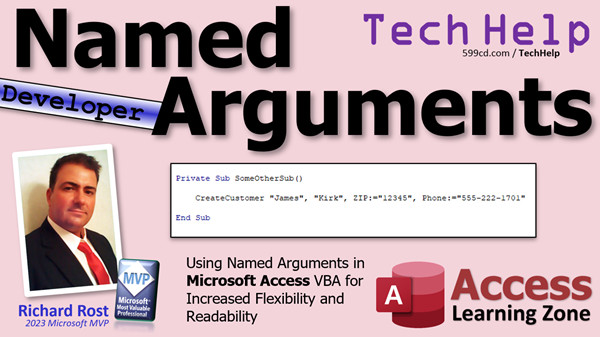 TechHelp Access 2016, Access 2019, Access 2021, Access 365, Microsoft Access, MS Access, MS Access Tutorial, #msaccess, #microsoftaccess, #help, #howto, #tutorial, #learn, #lesson, #training, #database, named arguments, Access VBA, readability improvement, CreateCustomer function, specifying parameters, calling functions, efficient coding, best practices, refactoring code, optional parameters, optimizing functions, maintainable code, user-defined functions, arguments in functions, developer productivity, form automation, VBA tricks, function parameters.
More InformationTranscript Welcome to another TechHelp video brought to you by AccessLearningZone.com. I'm your instructor, Richard Rost.
Today we are going to learn about named arguments in your Microsoft Access VBA code. We're going to learn how to use them for our procedure calls for increased flexibility and readability, and to prevent having to smash that comma key so many times to get to the end of the parameter list.
Today's question comes from Bryce in Apex, North Carolina, one of my Platinum members. Bryce says:
I wrote a function that I call CreateCustomer, and I use it in several places in my code to create a new customer record. You think that's what CreateCustomer does. Sorry. Based on a lead, the function accepts a whole bunch of parameters, including name, address, phone number, and so on. But sometimes I only want to specify name and phone number, and I've got to enter a million commas to get to the end of the parameter list to enter the phone number. Is there an easier and shorter way to write that function call?
Well, yes, we can do that with something called named arguments, and let me show you how it works.
First, this is a developer-level video, which means you are going to need some VBA code experience under your belt. If you've never done any VBA programming before, go watch this. It's free. It's on my website. It's on my YouTube channel. It covers everything you need to know about VBA to get started.
Here's a sub I've created called CreateCustomer, and it takes a bunch of parameters: first name, last name, address, city, state, zip, and phone number. You send all those things to the sub, and the code inside here will add that record to the table. How you do that is a topic for another video. You could use an SQL statement, you could use a recordset. There are a lot of ways to do it.
If you don't know how to make your own custom sub or function, go watch this video: Create Function.
Now, if you want to be able to only specify some of these things, let's say maybe sometimes you only get first name, last name, and phone number, and you don't want to bother with all the address stuff, in that case you have to use optional parameters. Here's another video that explains these. You put the Optional keyword in front of the stuff that is optional. In this case, first name and last name are required, so you have to send those parameters, and then the rest of these are optional. You can send whatever you want. If you don't specify anything, you'll get an empty string.
Once you start an optional parameter, all the rest of them have to be optional. You can't put a required parameter after an optional one.
When you call that sub from somewhere else, you say CreateCustomer and then list the parameters. Now, the way that Bryce has it right now, if he only has first name, last name, and the phone number, he's got to go comma, comma, comma, comma. You've probably heard me joke in some of my other videos like OpenForm. It's DoCmd.OpenForm form name, comma, comma, comma, and then you put the WhereCondition. It's the same kind of thing here. You can use these named arguments with the built-in Access functions too.
Not only is this difficult to write, it's also difficult to read. Here, phone number is optional. You can tell just by looking at it that it's phone number, but if you just had a bunch of numeric parameters in here and you didn't know which one was which, you would have to click on it, hit the space bar, and then IntelliSense would show up to tell you what field it is. It's just not easy to read.
This is where named arguments are nice. You specify your required ones first. You don't have to specify a name for those, and then you put the name of the field - the exact name of the field as it appears in your parameter list in your declarations - then a colon equals (you have to have the colon equals) and then your value.
So you can say first name, last name, and then the phone number is that, and you don't have to type in all those commas. Anyone who comes across this and is reading it, it makes it much more intelligible. Sometimes you'll see code posted online where they use that for all the fields, and you can if you want to just to describe exactly what that field value is.
Once you start with a named argument, the rest of them have to also be named. You can have your unnamed ones up front if you want, that's fine, but as soon as you name one, the rest of them have to be named as well. So this is not correct, but this is correct: here I have two unnamed ones, and then named zip, then named phone number, then named whatever else you want.
That's it. It's that simple. That's how you use named arguments.
If you like this stuff, if you like learning VBA with me, come check out my website. I've got tons of developer lessons available to teach you everything to know about VBA to build some awesome databases. There's the link right there. Scan the QR code and come and visit.
But that is going to be your TechHelp video for today. I hope you learned something, my friends. Live long and prosper. I'll see you next time. Intro In this video, we talk about using named arguments in your Microsoft Access VBA code. I will explain how named arguments can make your procedure calls shorter and more readable, especially when dealing with functions or subs that have many optional parameters. You will learn the syntax for named arguments, when and how to use them, and the benefits they offer in avoiding long strings of commas. This video is aimed at viewers with some VBA experience and answers a real-world question about improving code flexibility and clarity in Microsoft Access. Quiz Q1. What is the main advantage of using named arguments in VBA procedure calls?
A. It increases code readability and flexibility in specifying parameters
B. It reduces the amount of code you need to write, regardless of parameter order
C. It eliminates the need for declaring variables
D. It allows the use of more than 10 parameters in a function
Q2. In the context of the CreateCustomer subroutine, when would using named arguments be most beneficial?
A. When you always use every single parameter in the correct order
B. When you often specify only a few optional parameters and want to avoid many commas
C. When you have only required parameters and no optional ones
D. When your parameters are always integers
Q3. What keyword is required to define a parameter in a VBA sub or function as not mandatory to specify?
A. Optional
B. Nullable
C. Default
D. Variable
Q4. When defining procedures, where must required parameters be placed if you have optional parameters?
A. All required parameters must come before any optional ones
B. Required parameters must come after optional ones
C. Required and optional parameters can be mixed in any order
D. It does not matter
Q5. Which of the following is the correct syntax for using named arguments in a VBA procedure call?
A. ParameterName == Value
B. ParameterName: Value
C. ParameterName := Value
D. ParameterName = Value
Q6. What must you do once you begin using named arguments in a procedure call?
A. All subsequent parameters must also be named
B. You can go back to using positional (unnamed) arguments
C. You must start the call over
D. None of the parameters should be named after that point
Q7. In VBA, what happens if you use a required parameter after an optional one in your procedure declaration?
A. You get a compile-time error
B. VBA ignores the parameter order
C. Only the required parameter will work
D. This is allowed if you specify named arguments
Q8. According to the video, what is a common problem when calling functions with many parameters, especially if many are optional?
A. You end up typing too many unwanted commas to skip parameters
B. The code runs slower
C. Parameters are automatically assigned default values you cannot change
D. VBA crashes when too many parameters are specified
Q9. Why might using named arguments improve the readability of your code?
A. It clearly shows which value is being assigned to which parameter
B. It shortens the length of the code to only one line
C. It automatically comments your code
D. It lets you use numbers instead of text for parameter names
Q10. Where else can named arguments be used besides custom procedures, according to the video?
A. In built-in Access functions, like DoCmd.OpenForm
B. Only in user-defined subs
C. Only in macros
D. Only in global modules
Answers: 1-A; 2-B; 3-A; 4-A; 5-C; 6-A; 7-A; 8-A; 9-A; 10-A
DISCLAIMER: Quiz questions are AI generated. If you find any that are wrong, don't make sense, or aren't related to the video topic at hand, then please post a comment and let me know. Thanks. Summary Today's TechHelp tutorial from Access Learning Zone focuses on the use of named arguments in Microsoft Access VBA procedure calls. I'm your instructor, Richard Rost.
The question for today's lesson deals with enhancing both the flexibility and readability of your VBA code by using named arguments, particularly when you have procedures with many parameters. This can save you from the annoyance of repeatedly entering commas just to reach a later parameter in the list.
Let me share a scenario you might encounter. Suppose you have created a procedure called CreateCustomer, which you use throughout your database to add new customer records. This procedure takes several parameters such as first name, last name, address, city, state, zip, and phone number. While the function works well when all the information is provided, there are times when you might only have a subset of that data, like just first name, last name, and a phone number. Normally, you would need to type out several commas to skip over the parameters you do not want to specify, which is tedious and leads to less readable code.
This is where named arguments can make your life easier. Before diving into the specifics, remember that today's lesson assumes you are comfortable with developer-level topics and that you already have some experience with VBA. If you are brand new to programming in VBA, I recommend checking out my introductory VBA lessons on my website or YouTube channel to get you started.
When creating the CreateCustomer procedure, you define parameters for all of the customer details. Inside this procedure, you would write the code needed to add a new record to your table. The specific steps for inserting the record can be done in multiple ways, such as using an SQL statement or a recordset, but those techniques are beyond the scope of today's session.
If you are not sure how to set up your own subroutines or functions, I also have another video dedicated to creating functions in VBA.
Now, if you want to be able to omit some parameters when calling your procedure, such as skipping the address details, you will need to declare those as optional parameters in your function definition. You achieve this by using the Optional keyword. Required parameters like first name and last name must be listed first, after which you can have as many optional parameters as necessary. Any parameter following the first optional one also has to be optional; you cannot return to having required parameters after optional ones.
The typical method of calling such a procedure would involve typing CreateCustomer and listing out the parameters one after the other, separated by commas. If you have to leave out a number of parameters in the middle, this leads to a string of consecutive commas. This approach becomes difficult to write, and even harder to read, especially if you are not sure which parameter each value is intended for. Even though IntelliSense can help identify parameter names, it is still not an optimal solution for clarity.
Named arguments solve this problem neatly. You begin by passing your required parameters as usual. After that, you specify the parameter you want to assign by using the parameter name as it appears in your procedure, followed by a colon and an equal sign, and then the value you wish to assign. For example, after entering the first and last name, you can directly assign a value to phone number or any other optional parameter, without having to enter multiple commas to skip the ones in between.
This approach leads to much more readable code, making it easier for anyone - including yourself, months later - to see what the procedure call does at a glance. In fact, for clarity, you can use named arguments for all parameters, required or optional, which makes each parameter's purpose clear in the code.
One important rule with named arguments: once you specify a named parameter in your call, all subsequent parameters in that call also have to be named. You must list any unnamed (positional) arguments first, then follow with named arguments. Mixing the two after specifying a named argument will generate an error.
That is the essence of working with named arguments in Microsoft Access VBA. It is an incredibly simple feature, but it has a big impact on the clarity and maintainability of your code.
If you are interested in further expanding your VBA knowledge, I offer a wide range of developer lessons on my website, where you can learn everything you need to become proficient in building powerful Access databases.
You can find a complete video tutorial with step-by-step instructions on everything discussed here on my website at the link below. Live long and prosper, my friends. Topic List Using named arguments in VBA procedure calls
Reducing commas in long parameter lists
Specifying optional parameters with the Optional keyword
Rules for ordering required and optional parameters
Syntax for named arguments using colon equals
Mixing positional and named arguments in VBA
Improving code readability with named arguments Primary Topics Access VBA, named arguments, procedure calls, optional parameters, code readability Secondary Topics OpenForm function, IntelliSense, developer best practices |





