Weather API
By Richard Rost

 2 years ago
Using Weather API in Microsoft Access for Current Data
In this Microsoft Access tutorial, I will show you how to use a web-based weather API to pull current weather data into your database. We will cover API basics, obtaining and using an API key, and importing weather data into AAccess
from (a Member) asks: I'm taking your Microsoft Access Expert 24 class, and in there you give a link to an RSS weather feed from WeatherUnderground. That feed no longer exists. Are there any other sites that you can recommend that still work?
Prerequisites
Links
Recommended Courses
Up Next
Keywords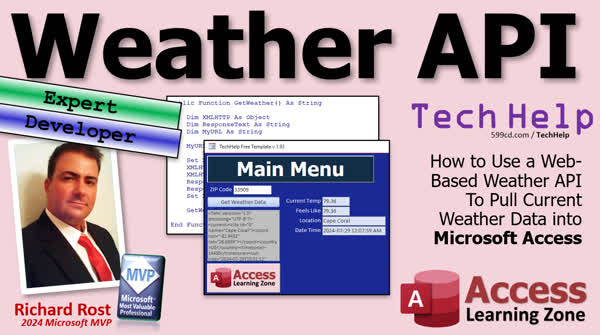
TechHelp Access, web-based weather API, current weather data, Microsoft Access VBA, weather conditions Access, OpenWeatherMap API, Access API call, API key setup, retrieve weather Access, XML weather data Access, JSON to XML Access, Access weather import, temperature data Access, wind speed Access, humidity data Access, parse XML Access
 Subscribe to Weather API
Get notifications when this page is updated
More InformationTranscript In today's video, we're going to talk about how to use a web-based weather API to pull current weather data into your Microsoft Access database. This is going to be both an expert and a developer video. I'm going to show you a developer method using an API call that is a lot more powerful, and you can get data results like this very easily.
What is an API? It's an application programming interface. That's simply a fancy way of saying you can ask somebody else to do something for you. Like a WinAPI, you can ask Windows to do something or give you some information. A web-based API is a web server that you can say, hey, give me some information, like what's the current temperature. So that's really all an API does, and there's tons of them, there's millions of them.
All right, today's question comes from Jeffrey in Linwood, Washington, one of my Silver members and an Access Expert student. Jeffrey says, I'm taking your Access Expert 24 class and in there you give a link to an RSS weather feed from Weather Underground. That feed no longer exists. Are there any other sites that you can recommend that still work?
Yes, Jeffrey, unfortunately, that class is about seven years old, and as always when dealing with websites, they come and go, they change things. So unfortunately, Weather Underground's API doesn't work anymore, but a quick little Google search shows AccuWeather has an API, and you just send it your zip code and it will tell you the weather conditions. You can do pretty much exactly what I show in that video.
Let me walk you through it real quick. Take any database, this is my TechHelp free template, you can grab a copy of this off my website if you want to. Copy that URL that I gave you to your clipboard. This guy. Yeah, it's a PowerPoint slide. Let me copy that. Copy, control C. Now in Access, we're going to go to External Data, New Data, From File, and then pick XML file. I know it's a URL, it's not a file, but just pick XML file. Now you're going to paste that URL in here. Change your zip code obviously to whatever you want. If you're out of the US, I'm not exactly sure what you do, there's instructions on their website. Hit OK. Now it's going to go out, it's going to find this table with some other stuff in it. You want to make sure you import the structure and the data. Hit OK. All right. Save the import steps if you want. I've got whole separate videos on saving import steps and doing imports in general.
All right. Now you're going to get some tables imported over here. There's channel, there's image, what you're looking for is item right here. And there's your data. All right. There are some links in here to give you direct links to that stuff. There's a description right here. All right so you can pull this stuff out of this table just like you would any normal data. So if you want to learn more about this I cover it in a lot more detail in my Access Expert level 24 class. It's all the same from this point it's just the URL is different from the one that I use in this class. I also cover other things like setting up an SQL server database online. There's all kinds of cool stuff covered in this. I'll put a link to it down below.
Now this is the lesson for those of you who aren't programmers and don't want to learn VBA, but there's a more powerful method if you use a little bit of VBA. Now if you've never done any VBA programming before and you want to learn, this video will get you started. It's about 20 minutes long. It teaches you everything you need to know. After that, go watch my Web API video. This teaches you how the code works that can have Access, go out to the internet, connect to an API server, and bring back some information.
In this particular video, I show you how to get the current date and time from an internet time server. And it'll just bring back the current date and time, and that will prevent your users from, like, changing the system clock on their computer to act like they logged in to work an hour earlier. Okay? Okay. So go watch this. And also go watch my Find Between video. I build something called the Find Between function. Basically, when these internet servers give you data, they're going to give you a whole bunch of stuff. All kinds of stuff formatted really weird, and we can use my Find Between function to very easily pull out a bit of information. Like right here, we can very easily pull out the timestamp or the date using the Find Between. So go watch these. These are all free videos. They're on my website. They're on my YouTube channel. Go watch those and then come on back.
Okay, now on my website I am going to use the database that we built in the Web API video because it's got all the code that we need to connect to the web API service. We just have to change the URL. Instead of getting the current date and time, we're going to grab the weather from the Open Weather Map website. So, I'm going to come down here on the member section. I happen to be a gold member on my own website, so I can download this. All right, so here's that database. It's pretty simple. You hit Get Current Time and it gets the current time. It goes out to the web server. Now this one is pretty straightforward. Here's a get time mod that we built in the other video. OK, get UTC time. And it just literally goes to this web page and pulls in the information. Here's all the code that you need. OK, now the weather API from OpenWeatherMap is a little more involved, and you have to get something called an API key. Basically, you have to register. It's free, don't panic. But you have to sign up with your name and email address to request information. And they do that to prevent abuse. I think they give you like a thousand free calls a day, which is more than generous. There are, what, 1440 minutes in a day? So you could make a call every two minutes and be fine. Let's go sign up for that first. Let me show you how to do that. Their website is at openweathermap.org. Here's their signup page and I'll put links to all this stuff down below. Put in a username, email, password, repeat the password, all this stuff. You got to be 16 years or older, agree to their terms, hit the little thing here and then go create account. Once you verify your email address and all that good stuff you're going to log in, sign in successfully, then come over here and go to My API Keys.
When you create an account, you'll be given a default API key. You can also create your own. I created one called Weather. You just type in a name over here like I typed in Weather, hit Create or Generate, and it will give you a new key. It's not a super long code here. And yes, I blacked mine out. You cannot have mine. Make your own. They're free. Once you get an API key, copy it to your clipboard. We'll use it in just a few minutes. Now I will say that it took about 10 to 15 minutes between the time that I signed up and got my API key until it worked on their server. So it's not immediate, but it doesn't take long. So just wait a few minutes and it'll start working. All right. So paste your API key into Notepad and here's an example of the URL that you have to use to get data. I'm going to paste that in there as well.
It looks like this. I'm going to make it a little bit bigger. Here's what the URL looks like that you have to go to. And you can just put this in your browser. I'll put a copy of this down below so you can just copy and paste it. Here's the URL right out to about there. The question mark says here's where the parameters start. So I've got Q equals Cape Coral, Florida, USA, that's your location. It's pretty good about a wide variety of location formats. Then I specified at units equals imperial because the default for temperature is Kelvin. How very science-y of them. You can also switch it to Celsius. I'm in America, so we're still using the Fahrenheit, so that's imperial. And then app ID equals, this is where your application, your API key goes you put that right there don't use mine. Okay now you could take this whole thing and copy this and paste it right into your web browser and you'll get something that looks like this. Now this is a JSON response. JSON is a particular data format that's increasingly becoming the standard on the web. JSON can be a little difficult to parse information out of. I personally prefer XML if it's available, and with this particular API it is available. So I'm going to come back in here, and I'm going to add at mode equals XML, if you want. That's up to you. So again, now I'm going to copy this whole thing, drop it in my web browser. And now you get this guy. This is an XML formatted version of the same stuff.
This is just easier to pull data out of because now if you look at this you can see here's the temperature value equals so really what we're looking for is this. I want to find everything between everything between temperature value equals quote and then the next quote and we can use my find between function to very easily do this. We're going to get this information into Access and then just use find between we can also pull out the feels like values right there the humidity the pressure the wind speed all this stuff right what's the location name just to make sure you got the right spot right all right so now we know where to get the data from we've got our account set up we got our API key we can get the data in the web browser.
In tomorrow's video now, we're going to put it all together and use the API code that we built in the web API video to get that information, put it inside of our database, parse all the information out, and your end result will look something like this. We'll do that in tomorrow's class. So tune in tomorrow. Same bad time, same bad channel. You know the drill. If you remember, you can watch it right now because I'm gonna keep recording right now. But that's going to be your TechHelp video for today. I hope you learned something. Live long and prosper my friends. I'll see you tomorrow for part 2.
A special thank you and shout out to our diamond sponsor Juan Soto with Access Experts Software Solutions. They're manufacturing experts specializing in Microsoft Access and SQL Server. Juan is a 13-time Microsoft Access MVP. Check him out at accessexperts.com.
TOPICS:
Using a web-based weather API
Understanding what an API is
Recommendation of AccuWeather API
Accessing External Data in Access
Importing XML data into Access
Extracting data from imported tables
Getting XML data from a weather API
Signing up for an OpenWeatherMap API key
Using the OpenWeatherMap API
Constructing a URL for API calls
Parsing JSON vs XML data
Using Find Between function for data parsing
Incorporating API data into Access database
Setting parameters for location in API call
Switching temperature units in API call
COMMERCIAL:
In today's video, I'll show you how to pull current weather data into your Microsoft Access database using a web-based weather API. First, we'll explore what an API is and find a suitable weather service, like AccuWeather. I'll walk you through setting up Access to import data from a weather API by pasting a URL and adjusting it for your location. We'll cover the process step by step, including signing up for an OpenWeatherMap API key and formatting the data to integrate seamlessly into your database. You'll learn how to bring in temperature, humidity, and more. You'll find the complete video on my YouTube channel and on my website at the link shown. Live long and prosper my friends. Intro In this video, we'll talk about how to use a web-based weather API to bring current weather data into your Microsoft Access database. We'll discuss what an API is, how to find and use the OpenWeatherMap API, and the steps for signing up for a free API key. I'll show you how to import weather data into Access using a URL, import XML data, and extract information like temperature and humidity from the imported tables. We'll also compare JSON and XML data formats and how to use the Find Between function to pull out weather details. This is part 1. Quiz Q1. What is an API?
A. A type of web server
B. A database management system
C. An application programming interface
D. A type of software license
Q2. Why do APIs require an API key?
A. To personalize the experience
B. To prevent abuse and limit the number of requests
C. To increase the response time
D. To reduce server costs
Q3. Which format is becoming the standard on the web for data responses, according to the video?
A. XML
B. CSV
C. JSON
D. HTML
Q4. What should users do in the Access interface when fetching data from an API, according to the video?
A. Import HTML file
B. Import JSON file
C. Import XML file
D. Import text file
Q5. What function is mentioned in the video to extract specific data from API responses?
A. Split function
B. Find Between function
C. Extract function
D. Substring function
Q6. What task is demonstrated in the video using VBA programming in Access?
A. Fetching stock market data
B. Fetching the current weather
C. Fetching user emails
D. Fetching social media posts
Q7. What is the advantage of XML over JSON for the video's API task?
A. XML is faster
B. XML is easier to parse
C. XML is more secure
D. XML is more compact
Q8. Which website provided a working alternative to Weather Underground's discontinued API in the video?
A. Google Weather
B. OpenWeatherMap
C. Weather Channel
D. Yahoo Weather
Q9. What information must be customized in the URL when pulling weather data via the AccuWeather API?
A. Country name
B. Zip code
C. Street address
D. City name
Q10. How often can free users make API calls in a day with OpenWeatherMap's service?
A. 100 calls per day
B. 500 calls per day
C. 1,440 calls per day
D. 1,000 calls per day
Q11. What piece of information is manually inputted into the generated URL to fetch weather data?
A. User ID
B. Timestamp
C. Location
D. File path
Q12. What should users do if they need to fetch weather data for a location outside the U.S. according to the video?
A. Change the API key
B. Refer to the API provider's documentation
C. Install additional software
D. Use a different API entirely
Answers: 1-C; 2-B; 3-C; 4-C; 5-B; 6-B; 7-B; 8-B; 9-B; 10-D; 11-C; 12-B
DISCLAIMER: Quiz questions are AI generated. If you find any that are wrong, don't make sense, or aren't related to the video topic at hand, then please post a comment and let me know. Thanks. Summary Today's TechHelp tutorial from Access Learning Zone focuses on how to bring live weather data into your Microsoft Access database using a web-based weather API. This lesson is aimed at both Access experts and developers, and I'll show you a couple of methods for getting up-to-date weather conditions directly into your application.
Let me begin by explaining what an API is. API stands for application programming interface. This term refers to a system where one program can request information or an action from another - think of it as a way to ask another computer, service, or the Windows operating system to do something for you. Web-based APIs are offered by millions of websites. With the right API, you can ask a web server for information like the current weather, and it will respond with the data you need.
Recently, one of my students reached out and pointed out that a particular RSS weather feed I used to recommend in an earlier course is no longer available. This highlights a constant reality on the web - APIs and data feeds come and go, so sometimes you need to find alternatives when a source disappears.
Fortunately, after a quick search, I found that AccuWeather and other services still offer APIs where you can retrieve weather information just by sending a request with your zip code or city. To demonstrate, you can use any Access database, such as my free TechHelp template, and start bringing in data by importing XML from a URL. Even though it prompts you to choose a file for import, you can paste in a URL instead and Access will treat it as XML data. Just remember to adjust the URL for your specific location. Once you've finished the import, you will see new tables in your database, including ones where the weather data is stored. From there, you can extract the temperature, conditions, and so on, just as you would with any table in Access.
If you want a deeper dive into this method, I go into further detail in my Access Expert Level 24 class. The core process is very similar - only the source URL will change if you use a different provider.
Now, if you are a developer and want more flexibility, or if you want to automate retrieving and updating your data, VBA programming opens up even more possibilities. If you're new to VBA, I recommend starting with my beginner-level video tutorial, which covers everything you need to know to get started. After that, you should check out my Web API video, where I demonstrate how to create code in Access that reaches out to the internet, connects to an API, and collects whatever information you require.
In that tutorial, I show how to retrieve the current date and time from an internet time server and store it in your database. This approach can be used for many types of data, including weather data. Web APIs often return large, complex data sets, usually in JSON or XML formats. To simplify extracting the specific bits of data you want, I suggest using my custom Find Between function, which lets you target and isolate values like temperature or humidity from the larger results.
For this weather API example, I demonstrate the setup using the OpenWeatherMap service. Signing up for an account at their site is free. After you register and confirm your email, you are assigned an API key which you will use in your requests. This key helps them monitor usage and prevents abuse. Typically, there might be a short delay of 10 or 15 minutes before your new key works. Copy and save it for use in your API calls.
The URL you send to OpenWeatherMap needs several parameters – your location, the units you prefer (imperial, metric, or Kelvin), and your API key. You can paste this URL into a browser to see the data as it arrives. By default, the response is in JSON format, but you can add a parameter to the URL to request XML instead, which I find easier to parse with VBA.
With this XML response, you can clearly identify values like temperature, humidity, and pressure in the markup. Using the Find Between function, you can extract each value that you need for your database. You can also confirm the location returned to make sure your API settings are correct.
Once you have your API key and know how to construct the correct URL, you are ready to retrieve current weather information right into Access. In practice, this means your Access application can automatically retrieve, store, and display updated conditions for any location you specify.
In the follow-up lesson, I will show you exactly how to take the API and VBA techniques discussed, plug them into your database, and fully automate the weather data retrieval and parsing. So stay tuned for the hands-on demonstration, or if you are a member, you may already have access to the next video.
You can find a complete video tutorial with step-by-step instructions on everything discussed here on my website at the link below. Live long and prosper, my friends. Topic List Using a web-based weather API with Access
Understanding what an API is
Importing XML data from a URL into Access
Extracting current weather data into Access tables
Identifying relevant data in imported tables
Signing up for an OpenWeatherMap API key
Constructing URLs for OpenWeatherMap API calls
Setting location parameters in weather API URLs
Setting temperature units in API calls
Requesting XML vs JSON data formats from the API
Extracting temperature, humidity, and other values
Using the Find Between function to parse XML
Copying API keys and inserting them into API requests Primary Topics web-based weather API, Microsoft Access database, API key registration, importing XML data, parsing JSON and XML, OpenWeatherMap API, URL construction for APIs, data extraction in Access
Secondary Topics use of VBA for automation, use of Find Between function for parsing, AccuWeather API mention, handling API parameters, switching units in API
|




