Subform Goto First Field 2
By Richard Rost

 2 years ago
Navigate Form Sections & Set Focus in Subform Part 2
In this Microsoft Access tutorial, I will show you how to navigate between form sections and set focus on the first field of the first record in a subform. Learn techniques such as using the key down event to handle keyboard navigation without relying on the F6 key. This is part 2.
Members
In the extended cut, I will show you how to go from the end of the subform back up to the top of the parent form. We will learn how to write the necessary code to achieve this navigation, offering a more seamless user experience. This will be part of the extra content available to Silver members and above.
Silver Members and up get access to view Extended Cut videos, when available. Gold Members can download the files from class plus get access to the Code Vault. If you're not a member, Join Today!
Prerequisites
Links
Recommended Courses
Keywords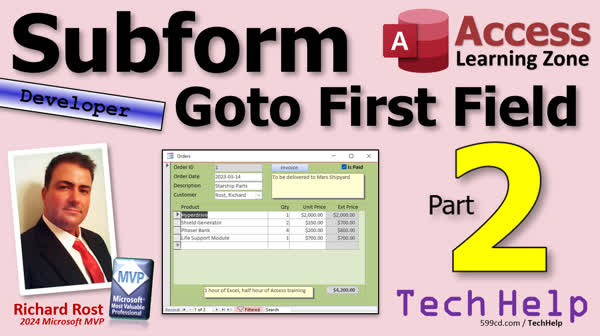
TechHelp Access, navigate form sections Access, set focus subform Access, key down event Access, jump control Access VBA, keystroke interception Access, DoCmd.GoToControl Access, Access VBA events, Access subform navigation, Access VBA key code, Access continuous form movement, Access header footer navigation
More InformationTranscript Welcome to another TechHelp video brought to you by Access LearningZone.com. I am your instructor, Richard Rost. Today's part two, where I'm teaching you how to jump around between the different parts of the subform and the form and the header and the footer and all that stuff. If you haven't watched part one yet, go watch part one because I really don't want to explain what we're doing again.
In part one, we covered the beginner stuff, which is using the F6 key to jump around between the different sections, but we're done with that. So let's get rid of the beginner label up here. Where are you? Get rid of that guy and I can slide developer up here like that and make it bigger. Oh, I can make my head bigger now too. Check this out. Yes, this is PowerPoint. Oh, just a bit too big. Little things like that bother.
All right, there we go. Perfect. All right, you guys ready? Here we go.
Yesterday we did this so that if we're up here, I'm going to go tab, tab, tab, tab, tab. It puts us in the first field of the header of the detail section, or excuse me, of the header of the subform instead of putting us in the detail section. Now, I'm stuck here. I can't get to the detail section unless I know to hit F6. There we go. And that'll move me out of the next section. But again, we don't necessarily want to have to remember that F6 every time. So it'd be nice if when we're in this field, if there's an easy way to get down to here, all we have to do to do that is to intercept the keystroke when the user hits a key, right? If they just hit the tab key, jump down to here. Okay?
All right, how do we do that? Well, there's an event called the key down event. And I've had a couple of videos before where I've covered the key down event. Here's one of them. I show you how to move up and down in a continuous form, just like, just like Excel using the arrow keys. You just intercept the keystrokes. And if it's an up arrow, you go to the previous record. If it's a down arrow, you go to the next one. And so on.
We can do the same trick here. A lot of Access, a lot of learning Access, is just learning how to take the Legos I've already given you and just put them together in different orders. So what we're going to do is we're going to go to the notes field, make sure you're in the notes field. Remember, that's two clicks. If you're up here and you click once there, you're on the subform object, you have to click a second time to go to the notes field, all right? That throws beginners a lot. All right? So now I can double click on this guy, go to the events tab. We're going to look for the key down event, which is right. Dot, dot, dot.
Now I have to know in here if the user has hit the tab key on the keyboard. OK? Now the key down event gets two bits of information. I've talked about this before, the key code, which is like the ASCII key number value of whatever key was pressed. And the shift is whether or not the shift controller alt keys have been pressed. I just really want to know what tab key is, but I don't really want to go look it up. So I'm just going to have Access tell me what key was pressed. How do I do that? Well, message box, the key code, all right? Oh, that's, forget looking stuff up and online. No, I'm just going to have Access do it for me. So save that, come back out here, all right? Save it, close it, close it, whatever.
Now I'm going to click in here. And if I hit like the A key on the keyboard, hit A, burm, that's 65. OK, that's good. And then it processes that, all right? What are that backspace? Err, backspace is an eight. And then it processes that. OK, what's a tab key? Tab is nine. I just hit the tab key. So tab is nine. It's also, I think, VB tab is the constant for it, but I never use those.
Now that I know that, I can go back to my code, and I can say right in here, if key code equals nine, then, and I always want to remind future me what this is. Tab key. Even though I put the nine in there, I'm looking at this five years from now, I'm not going to remember what nine is. So tell you, commenting is for you. I wish 20-year-ago me would have commented my database that I'm still using today. Because I look at it and I'm like, what was I thinking?
All right, so if the user does press the tab key, what are we going to do? We're just going to jump to the product name field. And it's in the same form. So all I need is DoCmd.GoToControl ProductName. And that's it. Can I make that one line? Yeah, I could. This is more readable. I got my tab key thing there too. Whatever you like. There are your Legos. You build them however you want. You don't need an end if for this. You could just do the same thing in one line. But I like this.
OK, save it. Debug compile once in a while. And then come over here. And I'm going to go tab tab. OK, there we go. Intercepted it. Right. Click in here. That jumps down there. Now, it's jumping down. If you want it to force it to jump to the first record, you can throw a go to record in there as well. Because if I'm down here and I go up here and I go tab, that's up to you. That's just one more control. You can go to product name and then DoCmd.GoToRecord , , acFirst. If that's what you want, if that's the behavior you desire, come up here. Tab. So that's up to you. I think I kind of don't like that because if I'm down here and I want to edit the notes, I don't want it to jump to a different record. So that's up to me. I'll leave this line in here if you want. All right, I'm going to rem it out though.
Now that leaves one more section that we have to deal with. And that's if you get to the end of this because watch if you go tab, tab, tab, tab, tab, all the way to the end. When you get to the last line down here, it just cycles between that. OK. Now if you want it to jump somewhere else when you get to the end here, maybe, maybe jump back up to the top and you get to try the whole thing over again, you could certainly do that with a little bit more code. And I'm going to show how to do that in the extended cut for the members. I'm going to show you how to go from the end of the subform back up to the top of the parent form. A little bit trickier. I'm going to do a little bit more work, but it's not, it's not super hard. We'll cover that in the extended cut for the members. Silver members and up get access to all of my extended cut videos. There's hundreds of them folks. I've been doing these for what? Almost five years now. I've been doing these TechHelps with the extended cuts. I think that's sure. I had to look it up. It's been four years, March of 2020 was my first one. So we're coming up on five years. Almost we're getting there. This is the very first TechHelp video. So if you want to go watch it, there it is. Anyways, I haven't counted the extended cuts, but there's a lot of them. I've been trying to do at least one a week and it's been five years. So you do the math. OK, but we're going to cover this in the extended cut and I hope to see you there.
And don't forget, if you like learning with me and you want to continue your VBA exploration journey, I've got tons of developer lessons on my website. There's a link. Check it out. That's going to do it. That's your TechHelp video for today. Hope you learned something. Live long and prosper my friends. I'll see you next time.
TOPICS:
Using the key down event in Access
Intercepting keystrokes in Access forms
Navigating subforms using key events
Identifying key codes with VBA
Using message box to display key codes
Jumping to a specific control with DoCmd.GoToControl
Conditional navigation using key codes
Customizing tab behavior in Access forms
Navigating to first record programmatically
Handling end-of-subform navigation
COMMERCIAL:
In today's video, we're continuing with part two of our series on efficiently navigating between the different parts of a subform. If you missed part one, make sure to check it out first. We're moving beyond basic F6 navigation and learning how to use the key down event to intercept keystrokes, allowing easy transitions throughout your forms. Discover how to automatically jump to specific fields and use the TAB key to enhance your workflow seamlessly. Plus, I'll share valuable tips for coding practices like using comments to make your code more understandable. Stay tuned for the extended cut where I'll show you even more advanced techniques. You'll find the complete video on my YouTube channel and on my website at the link shown. Live long and prosper my friends. Intro In this video, we'll continue working with Microsoft Access forms by showing how to control navigation between different parts of a subform using the key down event. You'll learn how to intercept keystrokes like the TAB key, identify key codes with VBA, and set up code to automatically move the cursor to a specific control within your form. We'll also talk about using message boxes to display key codes and share tips for commenting your code. This is part 2. Quiz Q1. What key can you use to jump between different sections of a form without additional code?
A. F6
B. Tab
C. Enter
D. Shift
Q2. Which event is used to detect if a key is pressed in Access?
A. KeyPress
B. KeyDown
C. KeyUp
D. OnClick
Q3. What is the ASCII key number value for the 'Tab' key?
A. 9
B. 65
C. 8
D. 13
Q4. Which method is used to navigate to a specific control within a form?
A. DoCmd.GoToRecord
B. Me.Refresh
C. DoCmd.GoToControl
D. Options.Compile
Q5. What does the KeyDown event provide that helps determine which key was pressed?
A. KeyInput and ShiftPress
B. KeyPress and ControlCode
C. KeyCode and Shift
D. KeyStroke and AltPress
Q6. What should you do to ensure future understanding of code, according to Richard Rost?
A. Print the code for reference
B. Avoid adding comments to keep the code clean
C. Add comments to the code for future reference
D. Write a separate documentation file
Q7. In the context of the video, what is a recommended practice after writing code?
A. Share the code with others
B. Print the code for future use
C. Save and debug compile the code
D. Immediately test the code in a live environment
Q8. What feature does Richard mention will be covered in the extended cut of the tutorial?
A. Creating a new form with VBA
B. Jumping from the end of the subform back to the top of the parent form
C. Integrating SQL queries in forms
D. Setting up security for Access databases
Answers: 1-A; 2-B; 3-A; 4-C; 5-C; 6-C; 7-C; 8-B.
DISCLAIMER: Quiz questions are AI generated. If you find any that are wrong, don't make sense, or aren't related to the video topic at hand, then please post a comment and let me know. Thanks. Summary Today's TechHelp tutorial from Access Learning Zone continues our exploration of navigating between different sections in Microsoft Access forms. I'm your instructor, Richard Rost. In this session, we'll be discussing how to seamlessly move between parts of a subform, the main form, the header, and the footer. It's a good idea to watch part one first if you haven't already, as we covered the basics there.
In part one, we learned how to use the F6 key to switch between different sections, but now it's time to advance beyond that. Let's update our workspace by removing any unnecessary labels and adjusting the layout. Pay attention to the layout changes as we go through this tutorial.
Previously, when navigating in the header of a subform, we ended up stuck there unless we remembered to hit F6. While it is a viable solution, it would be more convenient to provide a streamlined experience for users by enabling an automatic switch to the next section. We can achieve this by intercepting keystrokes, specifically when the user presses the Tab key.
To handle this task, we'll use the key down event in Access. I've talked about this event in previous videos. It allows us to detect specific keys being pressed and customize navigation within a form. By setting up this event, we can detect arrow keys to navigate through records similarly to Excel and achieve other navigation goals.
Let's apply this method to jump from one field to another on our form. Start by selecting the notes field—make sure you've clicked to get precisely there as it can be tricky for beginners. We'll move to the events tab and focus on the key down event.
Here, we'll detect if the Tab key is pressed. The key down event provides key code information, which corresponds to the ASCII value of the key pressed, and whether any shift, control, or alt keys were involved. While we want to recognize the Tab key which corresponds to the key code 9, instead of looking it up, we can use Access to identify it for us through a message box display.
Once we have determined the Tab key code, we can set up our logic to move focus to the ProductName field when the Tab key is used. This is done by issuing a command to switch control, offering a straightforward user experience. Remember to include helpful comments in your code to remind your future self of the purpose behind each line.
If you're interested, you can also set up code to force navigation to the first record when tabbing, but that's optional based on your requirements. I personally prefer maintaining the ability to edit notes within the same record, but you can configure it whichever way suits your workflow.
Finally, there's an additional navigation scenario to consider—what happens when a user reaches the last field in a section and attempts to tab further. Currently, it cycles through fields within that section. For a more advanced approach, consider using additional code to perhaps cycle back to the top. I'll provide guidance on managing this in an extended tutorial available for members.
I've been creating these TechHelp videos for several years, and there is a substantial library of extended cut tutorials available for Silver members and above. These extended sessions offer deeper dives into more complex topics.
If you enjoy these tutorials and wish to continue expanding your VBA skills, feel free to explore the developer lessons available on my website. That's all for today's TechHelp session. I hope you found it informative. Live long and prosper, my friends. For a complete video tutorial with step-by-step instructions on everything discussed here, visit my website at the link below. Topic List Using the key down event in Access
Intercepting keystrokes in Access forms
Navigating subforms using key events
Identifying key codes with VBA
Using message box to display key codes
Jumping to a specific control with DoCmd.GoToControl
Conditional navigation using key codes
Customizing tab behavior in Access forms
Navigating to first record programmatically
Handling end-of-subform navigation Primary Topics Access forms navigation, key down event, intercepting keystrokes, VBA event handling, customizing tab behavior, DoCmd.GoToControl, subform navigation, conditional logic in VBA
Secondary Topics identifying key codes, use of message box in VBA, code commenting best practices
|







