|
||||||
|
||||||
|
||||||
|
||||||
Access Developer 55Build a Custom Dark Mode for Forms & ControlsIn Access Developer 55, we build a complete dark mode system for Microsoft Access databases. We start by designing a table to store color settings for forms, sections, and controls, and use an array list to organize your forms. I will show you how to create an engine that reads and saves form properties, allowing you to capture your layout efficiently. We then implement switching between light and dark modes across your database, ensure the Access workspace background matches, and review additional features such as event handler shortcuts and button gradients. Lessons
Lesson SummaryAccess Developer 55: Dark Mode Theme System - In this class, we introduce the process of building a complete dark mode system for Microsoft Access, starting with the creation of a flexible settings table to store color palettes for forms, sections, and controls. We will discuss techniques such as using array lists to manage objects, looping through forms and controls with reusable code, and capturing and applying appearance settings across an application. We will also talk about updating both open and new forms with the selected theme, controlling the Access workspace's appearance, and setting up a theming system that can be customized further.
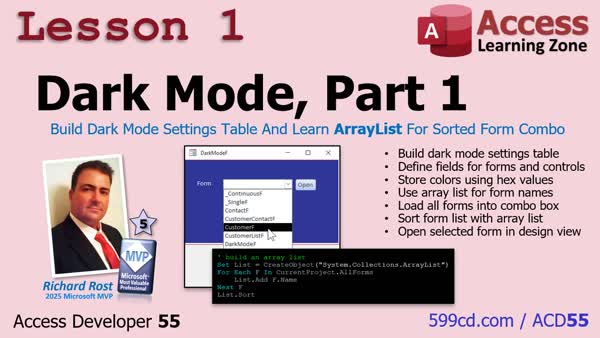
Lesson 1: Dark Mode Table, Sorted ArrayList - In Lesson 1, we begin building a dark mode system for Microsoft Access. I show how to set up a table to store color settings for each form and control, and introduce the use of an array list to load, sort, and display all forms in a combo box. We discuss techniques for working with form properties, share a prototype for toggling light and dark modes, and walk through the initial setup steps that will allow us to start customizing and saving dark mode color settings for database forms.
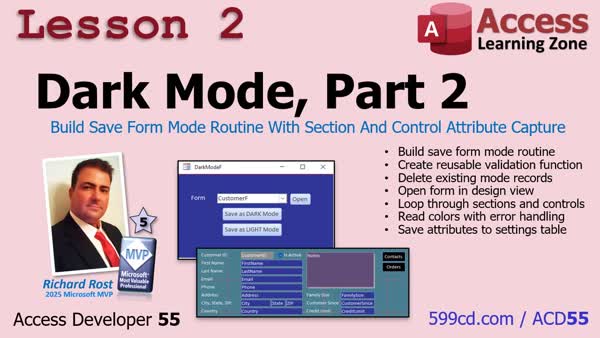
Lesson 2: Save Form Section & Control Attributes - In Lesson 2, we build the routine that reads all sections and controls on a form and saves their color settings to a table, supporting both light and dark mode options. We walk through the creation of button events, organizing reusable code in modules, and handling user confirmations. The video demonstrates looping through form sections and controls, safely capturing their color properties, converting them to hex values, and storing them using a recordset. We also discuss error handling for controls without color properties and consider how this routine could be extended for other attributes.
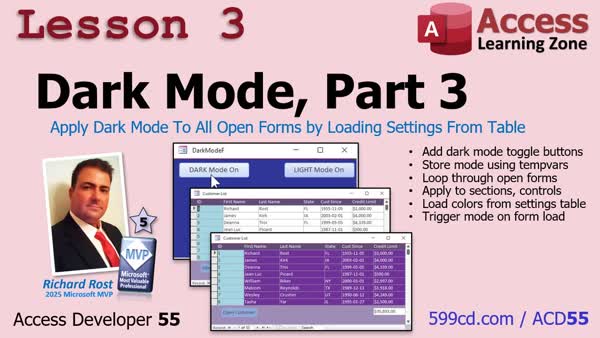
Lesson 3: Enable/Disable Dark Mode on Open Forms - In lesson 3, we will build the system that lets you switch all your open forms between Light Mode and Dark Mode in Microsoft Access. We will store and remember the current mode, create buttons to toggle modes, walk through updating all open forms instantly, and add code so that new forms open in the correct mode. I will show you how to update each form's design to be mode-aware and discuss some considerations for error handling, limitations with reports, and possible future improvements like reading the Windows dark mode setting. Next, we will address updating the application's background.
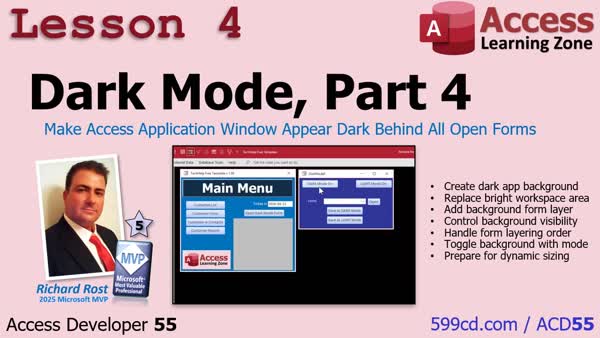
Lesson 4: Darken App Window Behind Forms - In lesson 4, we will walk through how to set a custom dark background for the Access workspace behind your forms, making it match your dark mode setup. I will show you how to use a full-screen, borderless form as the background and update its behavior so it stays behind other forms. We will also discuss some viewer tips, such as calling your dark mode function directly from a form event handler and restoring button gradients.
What's Next: Review & Next Steps - In this video, we reviewed building a complete dark mode system for your Access database, discussed the benefits of controlling form appearance without relying on Office themes, and previewed upcoming features for future lessons including using an API call to manage form order, resizing the background form to fit the application window, detecting Windows dark mode status via the registry, and storing forms' size and position. We also considered the possibility of supporting multiple color palettes and briefly mentioned ideas for integrating AI into Access in future courses.
NavigationKeywordsAccess Developer, Access Developer 55, dark mode system, database color settings, form theme control, array list forms, save form properties, loop controls sections, switch light dark mode, update open forms, theme automation, event handler shortcuts, res
More InformationTranscriptHi, this is Richard Rost with Access Learning Zone. I just released Access Developer 55. In this course, we build a complete dark mode system for your Microsoft Access database, so you can control the look and feel of every form, and give your apps a much more modern, professional appearance. We start by building a table to store color settings for forms, sections, and controls. I show you how to generate a full list of your forms using an array list so everything stays organized and easy to manage. Then we build the engine that reads all of those properties and saves them, looping through every control and every section, so you can capture your entire form layout with just a couple of clicks. Next, we bring it all together by switching between light mode and dark mode across your whole database, updating all open forms and making sure new forms follow the current theme automatically. Finally, we tackle that bright Access workspace in the background to make it match your dark mode setup, plus a couple of nice finishing touches like event handler shortcuts and restoring button gradients. So if you want a powerful, professional dark mode system built right into your Access database, this class shows you exactly how to do it. For more information, visit my website, or drop a comment down below if you have any questions. Live long and prosper, my friends. I'll see you in class. IntroIn Access <B>Developer 55</B>, we build a complete dark mode system for Microsoft Access databases. We start by designing a table to store color settings for forms, sections, and controls, and use an array list to organize your forms. I will show you how to create an engine that reads and saves form properties, allowing you to capture your layout efficiently. We then implement switching between light and dark modes across your database, ensure the Access workspace background matches, and review additional features such as event handler shortcuts and button gradients. QuizQ1. What is the primary feature built in Access Developer 55? A. A login verification system B. A complete dark mode system for Access databases C. A report generation module D. A mail merge utility Q2. What is the first step in the process described in the video? A. Building a macro to open forms B. Building a table to store color settings C. Creating a web-based interface D. Converting forms to PDFs Q3. How are the list of forms generated for organizing the color settings? A. Manually entering each form's name B. Importing from an Excel file C. Using an array list D. Copying from another database Q4. What does the engine built in the course do with the form properties? A. It deletes all existing forms B. It ignores the properties and sets defaults only C. It reads and saves properties for forms, controls, and sections D. It only saves colors for the background Q5. What major user interface switch is implemented in the course? A. Switching between multiple languages B. Switching between different databases C. Switching between light mode and dark mode D. Switching between compact and expanded views Q6. When switching modes, what is updated to reflect the current theme? A. Only the main form B. All open forms and future new forms C. Only the controls on one form D. Only report layouts Q7. What additional area is modified to match the dark mode setup? A. The Access workspace background B. The Access Ribbon menu C. The taskbar in Windows D. The desktop wallpaper Q8. What are some of the finishing touches mentioned in the video? A. Exporting forms to PowerPoint B. Event handler shortcuts and restoring button gradients C. Adding a calendar control D. Setting up cloud synchronization Answers: 1-B; 2-B; 3-C; 4-C; 5-C; 6-B; 7-A; 8-B DISCLAIMER: Quiz questions are AI generated. If you find any that are wrong, don't make sense, or aren't related to the video topic at hand, then please post a comment and let me know. Thanks. SummaryToday's video from Access Learning Zone introduces Access Developer 55, a course where I walk you through building a complete dark mode system for your Microsoft Access database. This feature allows you to fully customize the appearance of your forms, enabling a modern and professional look for your applications. We begin by creating a table designed to store customizable color settings for every form, section, and control in your database. I explain how to generate and organize a comprehensive list of your forms using an array list, which keeps everything structured and easy to manage. After that, we develop the core engine that reads these property settings and saves them efficiently. I teach you how the system loops through every control and section, so you can quickly capture your entire form layout with just a couple of clicks. Next, I demonstrate how to make your entire database adaptable by seamlessly switching between light and dark modes. This includes updating all open forms at once and ensuring that any new forms automatically adopt the current theme. We also deal with the Access workspace itself, matching its appearance to your chosen dark mode setup for a more unified look. I include some helpful finishing touches such as event handler shortcuts and the ability to restore button gradients to maintain a polished interface. If you are interested in integrating a powerful and professional dark mode system directly into your Access database, this course will guide you through every step. You can find a complete video tutorial with step-by-step instructions for everything discussed here on my website at the link below. Live long and prosper, my friends. Topic ListBuilding a table to store form color settings Storing color settings for sections and controls Generating a list of forms using an array list Organizing and managing form appearance settings Creating an engine to read and save property values Looping through every control and section on forms Capturing and saving entire form layouts Switching between light and dark mode Updating all open forms to the current theme Ensuring new forms use the selected theme automatically Customizing the Access workspace background for dark mode Adding event handler shortcuts for theme management Restoring button gradients in themed forms Primary Topics
Microsoft Access, dark mode implementation, color theme management, form design, user interface customization Secondary Topics
event handling, button styling, workspace appearance |
||||||||||||||
|
| |||
| Keywords: Access Developer, Access Developer 55, dark mode system, database color settings, form theme control, array list forms, save form properties, loop controls sections, switch light dark mode, update open forms, theme automation, event handler shortcuts, res Page Tag: whatsnew PermaLink How To Build a Complete Custom Dark Mode System for Forms and Controls in Microsoft Access |