DSum
By Richard Rost

 4 years ago
DSum with Multiple Criteria in Microsoft Access
In this Microsoft Access tutorial, I will show you how to calculate the previous 30 days of paid and unpaid orders using the DSum function. We'll learn how to use it with multiple criteria as well.
Pre-Requisite
Recommended Course
Links
Usage
- DSum("OrderTotal","OrderT","OrderDate>=Date()-30")
- DSum("OrderTotal","OrderT","OrderDate>=#" & Date()-30 & "#")
- DSum("OrderTotal","OrderT","OrderDate>=#" & Date()-30 & "# AND IsPaid=TRUE")
Keywords
access 2016, access 2019, access 2021, access 365, microsoft access, ms access, ms access tutorial, #msaccess, #microsoftaccess, #help, #howto, #tutorial, #learn, #lesson, #training, #database, #fasttips, DSum Function, DSum(), ms access dsum multiple criteria, dsum function ms access, ms access vba sum function
 Subscribe to DSum
Get notifications when this page is updated
More InformationTranscript Welcome to another Fast Tips video brought to you by AccessLearningZone.com. I am your instructor, Richard Rost.
In today's video, I'm going to show you how to use the D-Sum function in Microsoft Access to calculate the previous 30 days' sales totals. Of course, using the same technique and the same function, you can calculate whatever range of sales totals you want. So let's see how it works.
Before we get started with D-Sum, I want you to know how to use the D-Lookup function. D-Sum is the cousin of D-Lookup. They're all very similar, but D-Lookup is the easiest one to learn first if you've never done any of the D functions. There's D-Lookup, D-Sum, D-Max, D-Min, a whole bunch of them. Go watch D-Lookup if you've never used D-Lookup before. This free video is on my website, it's on my YouTube channel, there's the link, go watch it.
So here I am in a slightly modified version of my TechHelp free template. This is a free database you can download, copy off my website. I made a little bit of a change, though. For those of you who know this database, I added an order total field right here. Normally, we have OrderT, we have order details, we have all the line items for each order, and you add these up to get your order total. But to make this less and simpler, I just simply added an order total field, pretend this exists.
So here's a list of each of my orders, the customer who placed that order, and here's the order date. Now today is September 13, 2022. So the last 30 days should be everything from this order on.
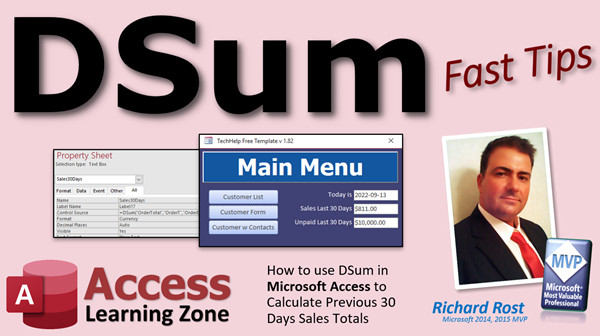
I like it as a barometer of my sales. Whenever I log onto my database, the first thing I see right here is a little summary field showing me, "Hey, what are our sales for the last 30 days? How are we doing?" So let's put that in a text box right here on our main menu.
Now, before we do that, let's get a little bit of information here. I'm going to pop up my notepad. I love using my notepad as a programmer. As an Access developer, I use notepad constantly.
Now D-Sum is just like D-Lookup. If you watched the D-Lookup video, D-Sum takes three parameters, three bits of information, just like D-Lookup takes. It takes what field you're looking up, where is it coming from - the table or the query - and then the how, the criteria. How are you getting your information?
So we need to know the field. In this case, we're looking up order total, the table is OrderT, and the criteria is the order date. Thirty days ago, it would be greater than or equal to the current date minus 30. That's how you figure that out. If you don't know how to use date criteria in your queries or in your functions like this, go watch this video on date criteria.
So now I can set this notepad aside. I'm just going to move it off to the side over here, off the window, so you can't see it. We can close this now. Let's put a text box right there. All right, design view, I just copy this guy, copy and paste, change the label, last 30 days sales, and then the text box itself, let's give it a name, sales30days. Okay, let's make the format as currency. Then, the control source is where the function is going to go.
I'm going to hit Shift+F2 to zoom in, so you can see it better. Let's get rid of that date function out of there. That's why I have my notepad handy, now I can see what these are going to be for my D-Sum.
Okay, so it's going to be =DSum(). Now, just like, well, it doesn't matter if you capitalize it or not; it's not case sensitive.
All right, the first bit of information is what am I looking up? What field? I'm looking up the order total. In other words, sum all of the order total fields. Actually, technically, it's sum the order total field from all of the records that match this criteria, if you really want to be technical about it.
Where are we getting our data from? OrderT. You could use a query if you wanted to. What's the criteria? The order date is going to be greater than or equal to Date()-30, just like that. Hit OK.
Let's save it (Control+S), close it, and open the form back up again. I always hit close and reopen my forms. There we go. And it works. It looks good.
A couple of minor things, though. The first thing I want to mention is, although this is technically correct and this will work, it doesn't always work to put functions like that inside the criteria string. So I don't like writing it like this, because later on, especially when you get into VB programming, sometimes that doesn't work.
So I'm going to take that Date()-30 and move it outside of the string like this. Watch this. I'm going to put it here. I'm going to start off with a pound sign, because if you're going to put an actual exact date in here, you have to put it inside pound signs, like #2022-10-23# for example. That's the way that you reference actual dates inside your function. So we have to have those.
Again, I'm going to get rid of this and put closed quotes, an ampersand, Date()-30, and then open quotes again. So it's going to take the Date()-30, put that date in there, and put that whole thing inside the string. See how that works? This is a little more confusing, but this is guaranteed to work in every situation. Putting the Date function inside the criteria doesn't always work.
This little bit here with the ampersands in there, that's called string concatenation. That's just putting multiple things together in the same string. If you want to learn more about that, there's a video for you. These are all free videos on my website and my YouTube channel. Feel free to watch them whenever you want.
So now I can hit OK, save it, Control+S, close it, open it back up again. You can see it's still working, but again, this is just my preferred way of writing that function.
Now one thing you'll notice is that sales figure is kind of high. I've been waiting on that one sale to come in. It's not paid yet. Look at that. That $10,000 sale from September 10 isn't paid yet. That would be nice to know. I don't want to reflect that in my actual sales totals. So how do we specify multiple criteria in here?
Let's go back to our function. Right at the end here, we're going to say space and put another criteria: IsPaid=True. You can put as many criteria as you want in there, pretty much as much as would be within reason. I've never run into the limit. I'm sure there is one.
Let's hit OK. Let's save it again, close it. Open it up, and that's a more realistic number.
While we're at it, it would be handy to see how many unpaid sales we have. Get our accounting department on these people, start rounding up some accounts. So last 30 days sales, let's go. How about unpaid 30 days sales? Let's change this to unpaid 30 days. This is just a minor modification to our function we already have here. This is going to be IsPaid=False. We can see what we still have to collect some money for. Save it, close it, and let's open it back up.
I just have little buttons up here, by the way, on my quick launch toolbar to run the different forms that I have. I explain how to do that in my blank database video, which is where I show you how to build this TechHelp free template. You'll find links to all of this stuff, by the way, down below in the description below the video if you want to find where all this stuff is.
But there you can see my unpaid 30 days sales is showing up right there. Now I know I've got to get on the phone and call that person and find out, "Hey, where's your check?"
Now let's say his check does come in the mail the next day. Let's mark that paid in the order table. Now this isn't going to automatically update itself. It'll refresh whenever you close and reopen the form. If you want to refresh, you can click on the Refresh All button up here, or you can press F5 on your keyboard—that'll also refresh it—or you can make yourself a little refresh button. I have different videos on that.
Essentially, now I'm seeing blank there. I don't like blanks. I like zeros, because if I want to do other calculations based on that field, that's a null value. That's hard to deal with. So let's make sure that if this value is null, we stick a zero in there.
To do that, we're going to use the NZ function. If you've never used the NZ function, here's a video on it. I've got a video on pretty much everything. NZ is just a cool little function we use to wrap around other functions and say, "Hey, if this is a null, put a zero there," or whatever other value you want.
So, NZ and then parentheses around this whole thing, comma zero. So if that D-Sum evaluates to null, put a zero there. This is very handy in financial functions, especially for both of these. Just in case you have no sales in this period, you don't want to see a null value there, comma zero, do that. You can use it for date values too. You could say if a date returns a null value, you can set it to some older date like January 1, 1990, or something like that. String values, you can set equal to empty strings—all kinds of things you can do. NZ is one of my favorite functions.
Now I get a zero there.
So that is pretty much, in a nutshell, how you use the D-Sum function. I cover it in a lot more detail in my Access Expert Level 11 class. Here it is on my website, Access Expert Level 11. You'll find a link to this down below; all kinds of stuff is covered in this one. Tons and tons of stuff. Lots and lots of stuff. Lots and lots of tons of stuff.
One thing I also cover in this class is aggregate queries. Now, I generally recommend you try to keep your D-Sum and D-Lookup and D-Max and all those kinds of functions in single forms or in reports. Because if you use them inside of queries or continuous forms where there's lots and lots of records, the D-Sum function or the D-Lookup function or whatever it is has to run for each record that's displayed. So it tends to slow your database down a lot.
If this is something you're doing for a bunch of records at a time, I recommend using something called an aggregate query. That is covered in Access Expert 11, of course. It's also covered in this free TechHelp video.
I have lots and lots of free videos and I have my full tutorials you can come and watch if you want to learn more. My full lessons cover everything in a lot more depth, of course, and you don't have to bounce around between all kinds of different videos. It's step one, step two, step three, step four, and so on.
While I'm at it, I do have another TechHelp video that might be of interest to you. This one's called Making Dashboard Forms. It's basically the same thing that I just showed you, using some D-Sum functions and some other ones. I show you how to build a dashboard with some charts and stuff on your main menu to show your annual sales, your monthly sales, and a bunch of other figures. Check this one out as well as the free video. It's on my YouTube channel and it's on my website.
That is your fast tip for today. I hope you learned something. I'll see you next time.
How do you become a member? Click on the Join button below the video. After you click the Join button, you'll see a list of all the different membership levels that are available, each with its own special perks.
Silver members and up will get access to all of my extended cut TechHelp videos, one free beginner class each month, and more.
Gold members get access to download all of the sample databases that I build in my TechHelp videos, plus my Code Vault where I keep tons of different functions that I use. You'll also get a higher priority if you decide to submit any TechHelp questions to me, and you'll get one free Expert class each month after you've finished the Beginner series.
Platinum members get all the previous perks, plus even higher priority for TechHelp questions, access to all of my full beginner courses for every subject, and one free Developer class each month after you finish the Expert classes. These are the full-length courses found on my website, not just for Access, too. I also teach Word, Excel, Visual Basic, and lots more.
You can now become a Diamond sponsor and have your name or company name listed on a sponsors page that will be shown in each video as long as you're a sponsor. You'll get a shout out in the video and a link to your website or product in the text below the video and on my website.
Don't worry, these free TechHelp videos are going to keep coming. As long as you keep watching them, I'll keep making more, and they'll always be free. Intro In this video, I will show you how to use the DSum function in Microsoft Access to calculate sales totals for the previous 30 days, display these figures on your main menu, add multiple criteria like unpaid orders, and ensure your totals always show zero instead of blank when there are no results. You'll learn the differences between placing functions inside the criteria string versus using concatenation with dates, and how to use the NZ function to handle null values. We'll also talk about when to use DSum versus aggregate queries for best performance in your Access databases. Quiz Q1. What is the primary function discussed in the video?
A. D-Lookup
B. D-Sum
C. D-Max
D. D-Count
Q2. Which three pieces of information does the D-Sum function require?
A. Table name, report name, form name
B. Field to sum, table or query name, criteria
C. Field to count, sort order, filter expression
D. Table to append, data source type, join condition
Q3. In the context of calculating 30 days sales totals, which field is typically summed?
A. Customer ID
B. Order Total
C. Order Date
D. Product Name
Q4. What would the criteria expression look like to get sales from the last 30 days?
A. "OrderDate < Date()-30"
B. "OrderDate >= Date()-30"
C. "OrderDate = Date()"
D. "OrderDate <= Date()+30"
Q5. Why does the instructor use string concatenation with ampersands when putting Date()-30 into the D-Sum criteria?
A. To ensure the Date function is not misinterpreted as a string
B. To prevent errors in numeric calculations
C. To change the column being summed
D. To automatically sort the results
Q6. How does the instructor specify multiple criteria in the D-Sum function?
A. Using commas to separate each criterion
B. Nesting multiple D-Sum functions
C. Typing all criteria in the string with spaces and "And"
D. Creating a separate query for each criterion
Q7. What technique does the instructor use to avoid null values appearing in the summary field?
A. The IFERROR function
B. The ISNULL query modifier
C. The NZ function
D. The DEFAULT keyword
Q8. What is the advantage of using the NZ function in financial calculations?
A. Converts numbers to percentages automatically
B. Ensures null values are displayed as zeros
C. Rounds numbers to the nearest whole
D. Highlights negative values
Q9. Where does the instructor recommend using D-Sum and similar domain aggregate functions for best performance?
A. In append queries exclusively
B. Only in forms and reports with single records
C. In every field of every query
D. In continuous forms with hundreds of records
Q10. What alternative does the instructor suggest when aggregate calculations are needed across many records?
A. A subform with checkboxes
B. A calculated control in the footer
C. An aggregate query
D. A calculated table
Q11. What is the proper way to reference actual date values in Access criteria strings?
A. In double quotes
B. In curly braces
C. In square brackets
D. In pound signs
Q12. How can you manually refresh a form to see updated calculations after data changes?
A. Press F5 or click the Refresh All button
B. Open a new query
C. Click Save As
D. Print the form
Answers: 1-B; 2-B; 3-B; 4-B; 5-A; 6-C; 7-C; 8-B; 9-B; 10-C; 11-D; 12-A
DISCLAIMER: Quiz questions are AI generated. If you find any that are wrong, don't make sense, or aren't related to the video topic at hand, then please post a comment and let me know. Thanks. Summary Today's video from Access Learning Zone demonstrates how to use the DSum function in Microsoft Access to calculate sales totals for the previous 30 days. This approach is useful any time you need to sum data based on a specific date range, so you can easily adapt this method for other time periods as needed.
Before jumping into DSum, I want to highlight the importance of understanding the DLookup function. DSum is closely related to DLookup, and both are part of a family of domain aggregate functions, including DMax, DMin, and others. I strongly suggest that if you are not already comfortable with DLookup, you review my free tutorial on that function first, as it is a great foundation.
For this example, I am using a slightly modified version of my TechHelp free template, which you can download from my website. For demonstration purposes, I have added an Order Total field right in the main orders table. Normally, the database calculates the total from the line items in Order Details, but to keep things simple, let's pretend we have a field that already holds the final total for each order.
The orders table lists each order, the customer, and the date it was placed. Let's say today is September 13, 2022. To see how my recent sales compare, I want a summary that always shows my sales from the last 30 days each time I log in. I find this kind of barometer very useful right on the main menu of my database.
The DSum function, like DLookup, requires three pieces of information: the field you want to sum (for us, this is OrderTotal), the table or query the data comes from (OrderT), and criteria to determine which records to include (in this case, OrderDate greater than or equal to Date() minus 30 days). If you are unsure about using date criteria, check out my video on that topic for a thorough explanation.
Once you know what you need, you can create a text box on your form to display the calculated value. Give the control an appropriate name, such as sales30days, and set the format to Currency. In the Control Source, you will write the DSum expression. The typical format is DSum("OrderTotal", "OrderT", "OrderDate>=Date()-30").
There is an important technical detail to remember. Sometimes, if you put a function like Date() directly inside your criteria string, it does not work in every situation, especially once you start using more advanced VBA programming. To avoid issues, I recommend moving the date calculation outside the string and concatenating it in. When writing a date directly in a criteria string, you have to wrap it in pound signs, for example, #2022-09-13#. Using string concatenation lets you build the criteria so it always evaluates properly, even as your database grows more complex. This is a little more complicated, but it is a safer way to ensure your function works everywhere.
If you want to add more criteria, simply add them on with "and" in your string. For example, if you want to include only paid sales, add IsPaid=True to your criteria. You can also reverse this to find unpaid sales by setting IsPaid=False. This is handy if you want to see how much money you are still waiting to collect. You can create multiple summary fields, one for total sales and another for unpaid sales over the last 30 days.
When checking for unpaid sales, it makes sense to follow up with customers, so having this field right on your dashboard keeps you on top of outstanding accounts.
Once you mark an unpaid sale as paid, you will need to refresh your form to update the totals. This can be done by closing and reopening the form, pressing F5, or using a refresh button if you have one.
One last improvement I recommend is to use the NZ function to handle null values. Sometimes, if there are no records that meet your criteria, DSum returns Null, which can cause issues in further calculations or display blank fields. The NZ function lets you replace Null with zero, or any value you choose. For financial summaries, seeing a zero is much clearer and more reliable than a blank or Null.
To wrap up, this is a concise overview of using the DSum function to summarize sales totals or any other numerical data over a rolling time period in Microsoft Access. I provide more details, and cover related topics like aggregate queries (which are much better for summarizing data across a large number of records), in my Access Expert Level 11 class. Aggregate queries are more efficient because D functions like DSum and DLookup are best used for single values on forms and reports, and can slow things down if you need them for many records at once.
If you are interested in building dashboards or summary forms using D functions, I have additional free videos demonstrating how to add elements like charts and monthly totals to your main menu.
For those looking to learn even more, I offer various membership options with extra perks such as extended video lessons, downloadable sample databases, and access to my entire library of course materials for Access and other programs like Word and Excel.
You can find a complete video tutorial with step-by-step instructions on everything discussed here on my website at the link below. Live long and prosper, my friends. Topic List Using DSum to calculate sales for the previous 30 days
Difference between DSum and DLookup functions
Understanding the three parameters of DSum
Writing criteria for date ranges in DSum
Placing DSum in a text box control source
Formatting DSum output as currency
Advantages of building criteria strings using concatenation
Handling multiple criteria in DSum, such as IsPaid=True
Creating additional DSum calculations for unpaid sales
Refreshing form data to update calculated values
Using the NZ function to handle null DSum results Primary Topics DSum function, sales totals calculation, Access forms, date criteria, string concatenation, null handling with NZ, multiple criteria in D functions Secondary Topics dashboard design, DLookup, aggregate queries, performance considerations, template database usage |




