Form Auto Resize
By Richard Rost

 5 years ago
How to Use the AutoSize Form Property
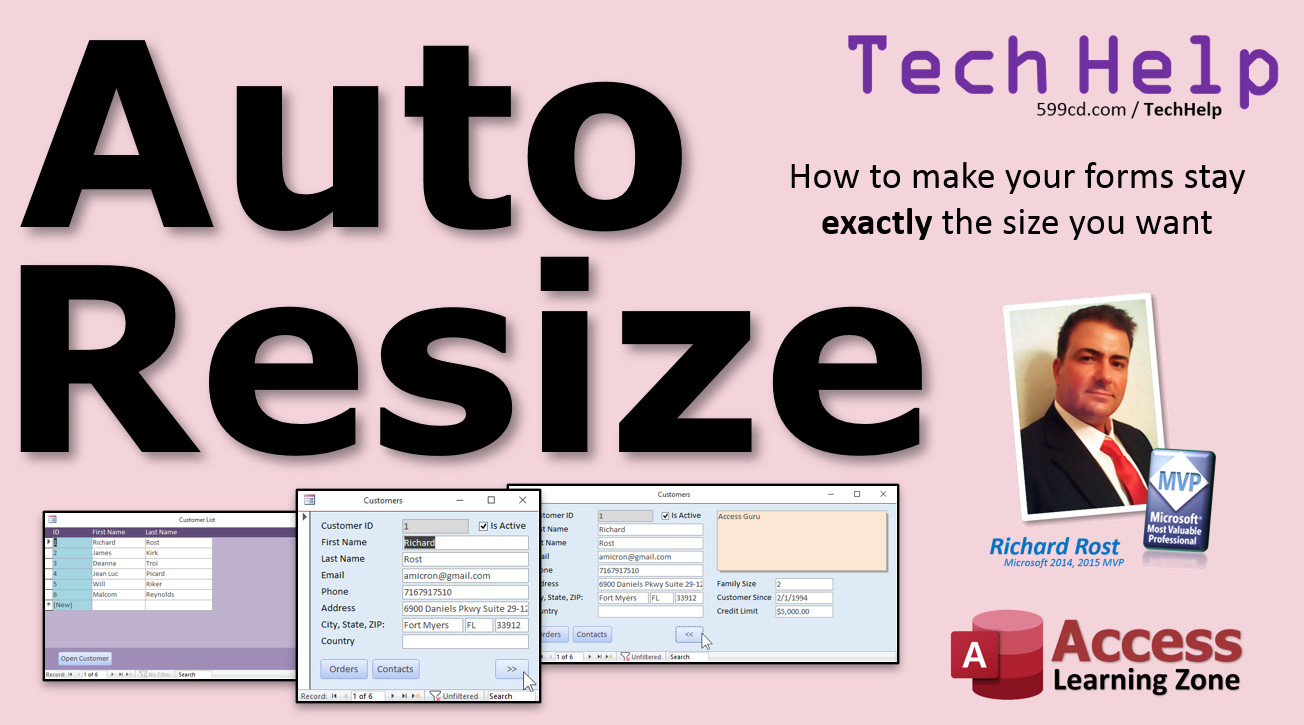
In this lesson I will show you how to make your Microsoft Access forms stay exactly the size you want when you save them.
Javier from Campinas, Brazil (a Platinum Member) asks: I know you can position a form by moving it in form view and then saving it with CTRL-S. However, is there any way to get it to stay sized to the demensions I want as well? It seems every time I save, close, and reopen it, Access resizes it on me.
Members
I'll show you how to add a little button to resize your forms larger and smaller. This will allow you to "slide" the forms open and closed to show more details.
Silver Members and up get access to view Extended Cut videos, when available. Gold Members can download the files from class plus get access to the Code Vault. If you're not a member, Join Today!
 Links Links
Overlapping Windows: https://599cd.com/OverlappingWindows
Continuous Forms: https://599cd.com/Continuous
ABCD Database: https://599cd.com/ABCD
More InformationTranscript Welcome to another TechHelp video brought to you by AccessLearningZone.com. I am your instructor, Richard Rost.
In today's video, we're going to talk about the Auto Resize Property in forms. I'm going to show you how to make your forms stay exactly the size you want them to.
Today's question comes from Javier from Campinas, Brazil, one of my platinum members. Javier asks: I know you can position a form by moving it in form view and then saving it with Control+S. However, is there any way to get it to stay sized to the same dimensions I want as well? It seems every time I save, close, and reopen it, Access resizes it on me.
Well, yes Javier, that is Access's default behavior when it comes to forms. It'll save the position, but it'll automatically resize it, and you can change that with one setting. Let me show you where it is.
Here I am in a copy of my TechHelp free template. You can grab a copy of this yourself. It's a free download from my website. I'll put a link down below in the description.
Now by default, whenever you move a form in form view, move it over here and save it with Control+S. I just saved it. Now when I close this form and reopen it again, there's the main menu, it keeps that spot. So I can slide it over here, save it, close it, and then when I open it up, there it is.
Same thing with the customer list. Go to the customer list to open right there next to the main menu, save it there, close it, and then when I reopen it again, it pops up there. So you can position the forms to appear wherever you want. This is one of the reasons why I like the overlapping windows.
By default, when you create a new database, Access puts you in that tab view where every form takes up the full screen. I don't like that. I never have. I'm a little old school. I like the overlapping windows. You have more control over where stuff goes on the screen too.
I show you how to make that change in the free blank database video where I show you how to make this template. I show you how to make that setting too. There's a link to that video down below in the link section as well.
So what about sizing this? If I size this window like that, let's say I want it to be that big. If I save it and close it and open it back up again, Access resizes it. Why?
Go to design view. Basically, the size is going to be based on the width of the form this way. You can size it vertically for continuous forms. If I take this form and resize it like that and hit save and close it and open it back up again, vertically it will keep that setting for a continuous form. Not for a single form though, like the customer form is a single form.
If I resize this guy like that and save it and close it and reopen it, that doesn't keep the setting, but continuous forms will. If you don't know what continuous forms are, I have videos on that. I'll put a link down below.
If you want Access to stop automatically resizing your forms altogether, go to the form properties right there, double click or that little box. You'll find some settings over here. Go to the Format tab and you'll see Auto Resize. It's set to Yes right now. All you have to do is set that to No.
Now Access will remember and keep whatever sizes you want for each of your forms. If I open up customer list and I resize it to that high and that wide, save it, close it, reopen it again, and there you go. Access will keep the last size that you saved it at.
If I save it and close it and reopen it again, it still has the last size. You have to remember to save it. So resize it like that, maybe bring it in just a little bit. Save it, Control+S. Close it, reopen it. There you go.
That one setting, you have to do that for each of your forms that you want to turn off auto resize in. I want that to be right there and that size and close it and then reopen it. That's it.
Want to learn more in the extended cut for members? I'll show you how to manually resize that window with a button. For example, here's your customer form. You can see just the important stuff when it normally opens. If you want to see the extended stuff, you click this little button here and then the window opens up like that and you can see additional information. That's covered in the extended cut for members.
As a reminder, Silver members and up get access to all of my extended cut videos. How do you become a member? Click the Join button below the video. After you click the Join button, you'll see a list of all the different types of membership levels that are available.
Silver members and up will get access to all of the extended cut TechHelp videos, live video and chat sessions, and more. Gold members get access to a download folder containing all the sample databases that I build in my TechHelp videos plus my code vault where I keep tons of different functions that I use.
Platinum members get all the previous perks plus access to my full beginner courses and some of my expert courses. These are the full length courses found on my website and not just for Access. I also teach Word, Excel, Visual Basic, ASP, and lots more.
But don't worry, these free TechHelp videos are going to keep coming. As long as you keep watching them, I'll keep making more.
If you liked this video, please give me a thumbs up and feel free to post any comments that you have. I do read them all. Make sure you subscribe to my channel, which is completely free, and click the bell icon and select All to receive notifications when new videos are posted.
Click on the Show More link below the video to find additional resources and links. You'll see a list of other videos, additional information related to the current topic, free lessons, and lots more.
YouTube no longer sends out email notifications when new videos are posted, so if you'd like to get an email every time I post a new video, click on the link to join my mailing list.
If you have not yet tried my free Access Level One course, check it out now. It covers all the basics of building databases with Access. It's over three hours long. You can find it on my website or on my YouTube channel. If you like Level One, Level Two is just one dollar. And it's also free for all members of my YouTube channel at any level.
Want to have your question answered in a video just like this one? Visit my TechHelp page and you can send me your question there.
Click here to watch my free Access Beginner Level One course, more of my TechHelp videos, or to subscribe to my channel.
Thanks for watching this video from AccessLearningZone.com. Intro In this video, we'll talk about the Auto Resize property for forms in Microsoft Access. I'll show you how to control form window sizes, so your forms stay exactly the way you set them each time you open them. We'll cover why Access resizes forms by default, the difference between overlapping windows and tabbed view, and how to change the Auto Resize setting in form properties to make Access remember your preferred dimensions. Quiz Q1. What is the purpose of the Auto Resize property in Access forms?
A. It controls whether Access automatically resizes a form window upon opening.
B. It changes the background color of the form.
C. It limits the number of records shown in a form.
D. It sets the default font for form controls.
Q2. What will Access remember by default when you move a form in Form View and save it with Control+S?
A. The position of the form window on the screen.
B. The color settings of the form.
C. The data entered in fields.
D. The filter applied to the form.
Q3. Which view does Richard recommend over tabbed windows for greater control over form placement?
A. Overlapping windows
B. Split view
C. Datasheet view
D. Print preview
Q4. What happens when you size a continuous form vertically and save it?
A. Access will remember the vertical sizing.
B. Access will ignore your size changes.
C. The form will always return to full screen.
D. The form will open hidden.
Q5. For which type of form will Access NOT remember the vertical size after closing and reopening, by default?
A. Single forms
B. Continuous forms
C. Datasheet forms
D. Subforms
Q6. Where can you change the Auto Resize property for a form?
A. In the form's property sheet under the Format tab
B. In the ribbon under Home
C. In Layout view only
D. In the database options menu
Q7. What is the result of setting the Auto Resize property to No and then saving the form?
A. Access will retain the window size that you set for that form
B. The form will always open minimized
C. The form's width will be doubled automatically
D. Access will forget the form's last position
Q8. What must you remember to do after resizing a form if you want Access to keep that size for next time?
A. Save the form
B. Close and reopen the database file
C. Delete any existing macros
D. Compact and repair the database
Q9. If you want to turn off auto resize for multiple forms, what do you need to do?
A. Change the Auto Resize property to No individually for each form
B. Change a global database setting
C. Restart Access
D. Set the tab view to default
Q10. What feature is mentioned as available in the extended cut for members, not shown in the free video?
A. Resizing a form window with a button to show extended information
B. Changing the default font for a form
C. Importing data from Excel
D. Printing all forms at once
Answers: 1-A; 2-A; 3-A; 4-A; 5-A; 6-A; 7-A; 8-A; 9-A; 10-A
DISCLAIMER: Quiz questions are AI generated. If you find any that are wrong, don't make sense, or aren't related to the video topic at hand, then please post a comment and let me know. Thanks. Summary Today's video from Access Learning Zone covers the Auto Resize property in Microsoft Access forms, focusing on how you can ensure your forms stay exactly the size you prefer instead of being automatically resized by Access.
The question we are addressing comes from one of my students, who asks whether it is possible to get a form to retain its exact dimensions instead of just its position. By default, Access does remember where you place a form on the screen when you move it in form view and save it, but the size will often revert to Access's own settings once the form is reopened.
This is a common behavior in Access. Whenever you move a form and save it, Access keeps the spot, but not necessarily the size. The form tends to resize itself automatically unless you change a specific property. Many users, including myself, prefer more control over form placement and dimensions, which is one of the reasons I recommend using overlapping windows rather than the default tabbed documents view. Overlapping windows allow you to control exactly where your forms appear and what size they are.
To change this setting, you need to find the Auto Resize property. Open your form in design view and locate the property sheet. On the Format tab of the property sheet, you will see an option called Auto Resize. By default, this is set to Yes. When Auto Resize is enabled, Access determines the window size each time the form opens. To have Access remember your specific form size, simply set Auto Resize to No. Once you do this, Access will keep the size you specify, as long as you save the form after resizing it.
It is important to note that you need to do this for each form you want to control. After resizing the form to the desired dimensions, remember to save it before closing. The next time you open the form, it should appear exactly where you left it, with the dimensions you prefer. For continuous forms, Access is more likely to maintain vertical size settings, but for single forms, you may notice it does not always remember the vertical dimension unless Auto Resize is disabled.
If you would like to learn more advanced techniques, in today's extended cut for members, I show how to manually resize a form window with a button. For instance, you might want your customer form to open at a compact size showing only the essential fields. Then, with the click of a button, you can have the form expand to reveal more details. This is one of several customization tips covered in the extended lesson for members.
Silver members and higher can view all extended cut TechHelp videos, participate in live sessions, and enjoy additional perks like access to my sample databases and code vault. Gold and Platinum members get even more, including downloadable resources and full access to my in-depth courses on Access and other Microsoft Office applications.
These free TechHelp videos will continue to be available, so keep watching for more tips. Feel free to leave any comments or questions, and make sure you subscribe to the channel for updates. If you want to receive email updates when new videos are published, be sure to join my mailing list since YouTube no longer sends out email notifications.
If you have not checked out my free Access Level One course yet, I highly recommend starting there if you're new to Access. It has over three hours of foundational material and is available both on my website and my YouTube channel. Level Two is only a dollar and is free for any channel member.
If you would like your own question answered, visit my TechHelp page and submit your query.
You can find a complete video tutorial with step-by-step instructions on everything discussed here on my website at the link below.
Live long and prosper, my friends. Topic List Access Auto Resize form property overview
Saving form position in Microsoft Access
Default behavior of Access form sizing
Difference between single form and continuous form sizing
How to disable Auto Resize in form properties
Steps to keep form size consistent after reopening
Effect of Auto Resize on form width and height
Applying Auto Resize setting to multiple forms Primary Topics Microsoft Access, forms, Auto Resize property, form sizing, form properties, overlapping windows Secondary Topics continuous forms, form design view, member video benefits, single forms |







