|
||||||
MarkupBy Richard Rost
 5 years ago
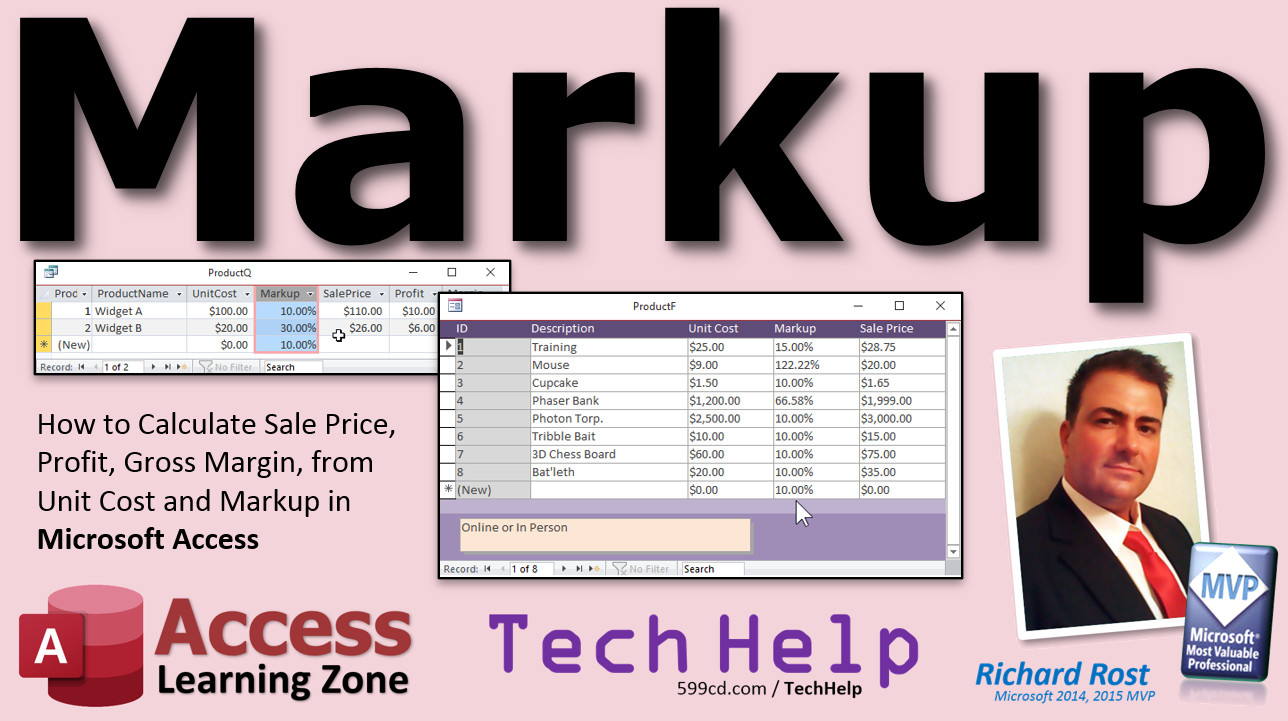
Calculate Price, Profit, Gross Margin from Markup Learn how to take unit cost and your set markup and calculate the sale price of an item, your profit, and what your gross margin is. Angelo from Salem, Oregon (a Platinum Member) asks: How can I have Access markup my products by a set percent for each product. For example, if I buy a widget A for $10 and I want to mark it up 20%, the sale price should be $12. However widget B might cost $20 and I want to mark it up only 10%. Can Access do this automatically, or do I have to pull out my calculator every time I update pricing. MembersMembers will learn how to reverse the equation, and calculate the markup based on a set sale price. Both will be stored in the product table. We'll use VBA event programming on a ProductF form to run the calculations and store the updated pricing.
Silver Members and up get access to view Extended Cut videos, when available. Gold Members can download the files from class plus get access to the Code Vault. If you're not a member, Join Today!
Links
Keywordsmicrosoft access, ms access, #msaccess, #microsoftaccess, #help, #howto, #tutorial, #instruction, #learn, #lesson, #training, #database, markup, sale price, unit cost, gross margin, profit, unit cost, unit price, percentage, calculate markup, calculate margin
More InformationTranscriptWelcome to another TechHelp video brought to you by AccessLearningZone.com. I am Richard Rost, your instructor in this video. I am going to show you how to calculate sale price, profit, and gross margin from your unit cost and a set markup in Microsoft Access. Today's question comes from Angelo from Salem, Oregon, one of my platinum members. Angelo says, how can I have Access mark up my products by a set percent for each product, for example? If I buy widget A for $10 and I want to mark it up 20%, the sale price should be set to $12. However, widget B might cost $20 and I want to mark it up only 10%. Can Access do this automatically, or do I have to pull out my calculator every time I update pricing? No, Angelo, Access can do this for you. The key is to save the markup percentage in your product table so that each product has its own markup. Then you can use a calculated query field to calculate your sale price on the fly. Let me show you how. Before we get started, if you do not know what a calculated field is in a query, then watch my Calculated Fields video first. I will put a link down below in the links section. Click on that and then come back here. Here we are in my TechHelp free template. This does have invoicing in it. If you go to the customer form, then you have the order system here. Watch my free invoicing video if you have not watched it yet. But this one does not have a product table in it at all. The members version does have a product table where you can pick a product, click add, and it adds that product to the invoice. But let's make a quick product table so we have something to work with in this database. Members, I will be doing something special with your database in the extended cut. Let's go to Create and then Table Design. Real simple product table: ProductID, AutoNumber; ProductName, Short Text (do not use Name, Name is a reserved word). Now, we are going to have a UnitCost. That is what you pay for it from your vendor. You buy it from your vendor for your UnitCost (Currency). Okay, and you are going to specify a markup. That is going to be a number. I am going to make that a Double if it has to do with floating points, make it a Double. Pretty much almost always use Long Integer for counting numbers and Doubles for any kind of decimal type number. I am going to use Double. I have a video coming up on why you should stick with Double. Do not use Decimal, do not use Single. This will be a percent. I am going to set the default value to 0.1. 10% markup is my default. That is all we need. Do we need to save the unit price here? No, we do not need to. The deal is that you are going to calculate the unit price based on your unit cost. So, you buy it for a hundred bucks, you are marking it up 10%. You are selling it for a hundred and ten. Access can do that calculation on the fly. So, let's save this: ProductT (product table). Primary key, yes. Go ahead and close it. Open it back up again. Put a couple of things in here if you want. All right, we have widget A. Let's say that is a hundred bucks, 10% markup, and widget B, 20 bucks, and 30% markup. Save that. Now we are going to make a query to calculate that sale price. Create Query Design. Bring in the product table. You can close Add Tables. You can bring down the star to show all fields. Now, calculated field: SalePrice: (UnitCost + (UnitCost * Markup)). Shift F2 to zoom in. SalePrice: what is it? It is the unit cost plus the unit cost times the markup. So you take your unit cost, multiply it by the markup (10%, whatever), then add that to the unit cost. So, it is UnitCost + (UnitCost * Markup). Yes, I know, strictly by order of operations, you do not need the parentheses. UnitCost * Markup will go first, then add UnitCost. But it is just clearer math this way. The object of programming and of math is not to try to trick someone. If it is written like this, it is nice and clear, clean for anyone else who is going to read it to see what it is. Run that real quick. There is your sale price. 10% markup is 10 bucks. 30% of 20 would be 6. 10% of 20 would be 2, so 30% is 6, 10% is 2, and 20 plus 6 is 26. Math is good. Now, knowing that value there, we can calculate two more things. The next thing we are going to calculate is our profit. Profit: SalePrice - UnitCost. That is an easy one. That is just simple math. Now, there is the other thing called gross margin. Markup is a function of the cost. Margin is a function of the sale price. You will see those two terms. Sometimes people incorrectly use them interchangeably, but your margin and your markup are two different things. Your margin is your profit divided by your sale price. Save this now as ProductQ, and run it. The margin might show as E-02, which means scientific notation. If so, just format this as a percentage in the properties. Format: Percent. Maybe go to two decimal places. Save that, close it, and then run it. That looks a lot better. So you can see here that the margin and the markup are slightly different. Markup is a function of the unit cost, whereas margin is a function of the sale price - how much profit you are making based on your sale price. It is a 9% margin, gross margin. Now, you would just take this and use this to pull your sale price into your product combo box or your order form, wherever you are doing it. For example, this is the member database. Here we have our orders, and the products show up right there. You pick a product, then you hit add, and it adds it to the invoice. This product list comes from the product table, where I have it based on unit price. Instead, you would just base this on ProductQ and pull that unit price in. You would have the unit cost and the markup stored in here. All right, that is the extended cut members edition database. At this point, people always ask me, what if I want to just specify a sale price? I know my unit cost and want to just type in a sale price. I do not want to have to calculate the markup to get to the sale price. If I know I want to sell this for $119, I want to just type in $119, and then have Access calculate the markup. Can you do that? Yes, you can. You have to store that data in your product table. Put a UnitPrice field in here. The problem is now you are not going to be able to use a calculated value in the query. Now you are going to have to use event programming because you are going to have to have After Update events in a form that say, if I change this, update the unit price based on the markup. If I change the markup, update the unit price based on these two values. If I change the unit price, now I have to update the markup. So, it has to be a lot smarter than just one simple calculated field. I will show you how to do that in the extended cut. Want to learn more? In the extended cut for members, we are going to create a product form to go with our product table. We are going to save the sale price in the product table, but that means we will need event programming to handle any changes. If the unit cost is changed, we will calculate the new sale price based on the markup. If the markup is changed, we will calculate the new sale price based on the unit cost. If the sale price is changed, then we will calculate what the new markup is. For example, if you buy it for $25 and you want to make sure you sell it for $29, it will calculate what the new markup is. Then I will teach you about the old value property, so you can say, if the unit cost goes up, increase the sale price. If the unit cost goes down, you might want to change your markup so you can keep that profit. All that is covered in the extended cut for members. Silver members and up get access to all of my extended cut videos - there are over 150 of them by now - and gold members can download my templates. How do you become a member? Click the Join button below the video. After you click the Join button, you will see a list of all the different types of membership levels that are available. Silver members and up will get access to all of the extended cut TechHelp videos, live video and chat sessions, and more. Gold members get access to a download folder containing all the sample databases that I build in my TechHelp videos, plus my Code Vault where I keep tons of different functions that I use. Platinum members get all the previous perks plus access to my full beginner courses and some of my expert courses. These are the full-length courses found on my website and not just for Access. I also teach Word, Excel, Visual Basic, ASP, and lots more. But do not worry, these free TechHelp videos are going to keep coming. As long as you keep watching them, I will keep making more. If you liked this video, please give me a thumbs up and feel free to post any comments that you have. I do read them all. Make sure you subscribe to my channel, which is completely free, and click the bell icon and select All to receive notifications when new videos are posted. Click on the Show More link below the video to find additional resources and links. You will see a list of other videos, additional information related to the current topic, free lessons, and lots more. YouTube no longer sends out email notifications when new videos are posted, so if you would like to get an email every time I post a new video, click on the link to join my mailing list. If you have not yet tried my free Access Level 1 course, check it out now. It covers all the basics of building databases with Access. It is over three hours long. You can find it on my website or on my YouTube channel. If you like Level 1, Level 2 is just one dollar, and it is also free for all members of my YouTube channel at any level. Want to have your question answered in a video just like this one? Visit my TechHelp page and you can send me your question there. Click here to watch my free Access Beginner Level 1 course, more of my TechHelp videos, or to subscribe to my channel. Thanks for watching this video from AccessLearningZone.com. IntroIn this video, I will show you how to calculate sale price, profit, and gross margin for your products based on unit cost and individual markup percentages in Microsoft Access. You will learn how to design a product table that stores markup rates, set up a calculated field in a query to automatically determine sale prices, and distinguish the difference between markup and gross margin. I will demonstrate each step using a simple example database so you can see how to set up and use these calculations for your own products. QuizQ1. What is the key requirement for Access to automatically calculate a product's sale price based on markup? A. Storing the markup percentage in each record of the product table B. Creating a new table for every product C. Manually entering the sale price every time D. Using a calculator outside of Access Q2. Which field type is recommended for the Markup field in the product table to allow for decimal values? A. Long Integer B. Single C. Double D. Text Q3. What is the formula provided in the video to calculate Sale Price in the query? A. (UnitCost * Markup) - UnitCost B. UnitCost + (UnitCost * Markup) C. UnitCost - (UnitCost * Markup) D. (UnitCost / Markup) + UnitCost Q4. Why does the video suggest including the parentheses in the formula UnitCost + (UnitCost * Markup), even though they are not needed by order of operations? A. To trick users B. To make the calculation less efficient C. For clarity and easier understanding D. To change the order of operations Q5. How is Profit calculated based on the fields discussed? A. Markup * UnitCost B. SalePrice + UnitCost C. SalePrice / UnitCost D. SalePrice - UnitCost Q6. What is the distinction between markup and margin according to the video? A. Markup is based on sale price, margin is based on cost B. Markup is a function of the sale price, margin is a function of the cost C. Markup is a function of the cost, margin is a function of the sale price D. Both are exactly the same in calculation Q7. How is gross margin calculated in the video? A. UnitCost / SalePrice B. Profit / SalePrice C. SalePrice / Profit D. Markup / Profit Q8. What does the video recommend if you want to manually specify a sale price and have Access calculate the markup? A. Only use calculated fields in queries B. Use event programming in forms C. Do it outside of Access D. It is not possible Q9. What must you add to your product table if you want to directly input a sale price and update markup automatically? A. A UnitPrice field B. Another table C. A calculated query only D. An order form Q10. What property is mentioned in the extended cut that helps track if the unit cost changes so you can respond appropriately? A. Value property B. New value property C. Old value property D. Default value property Q11. Which field does NOT need to be saved (stored) in the product table according to the standard approach outlined in the video? A. Markup B. UnitCost C. Sale Price D. ProductName Q12. If you change the markup on a form, what should happen according to the event programming logic explained? A. The unit price should be recalculated B. The product name should be deleted C. The markup should be cleared D. Nothing should change Q13. How should the Margin field be formatted for easier viewing according to the video? A. Date format B. General Number format C. Currency format D. Percent format with two decimal places Answers: 1-A; 2-C; 3-B; 4-C; 5-D; 6-C; 7-B; 8-B; 9-A; 10-C; 11-C; 12-A; 13-D DISCLAIMER: Quiz questions are AI generated. If you find any that are wrong, don't make sense, or aren't related to the video topic at hand, then please post a comment and let me know. Thanks. SummaryToday's video from Access Learning Zone focuses on calculating sale price, profit, and gross margin from your unit cost and a specific markup percentage in Microsoft Access. I received a question from a student asking whether Access can automatically mark up products by a set percentage for each product. For example, if you buy widget A for $10 and want a 20% markup, the sale price should become $12. However, widget B might cost $20, but you only want a 10% markup on that one. The question is, does Access have a way to handle this for each product, or do you need to manually calculate and enter these amounts every time you update pricing? The good news is, Access can definitely do this. The important thing is to store the markup percentage for each individual product right in your product table. That way, you can use a calculated field in your queries that works out the sale price automatically whenever you need it. If you are not yet familiar with calculated fields in queries, I recommend watching my Calculated Fields video first to get a solid understanding. It is linked on my website for your reference. To demonstrate the process, I use my free TechHelp template, which comes with an invoicing system. However, the base version does not include a product table, so I show how to create a simple one. In the members version, a product table already exists, and we go a little further in the extended cut. I start by creating a product table with just a few fields: ProductID (as an AutoNumber), ProductName (as Short Text), UnitCost (the price you pay your vendor, set as Currency), and Markup (a Number field defined as Double to support decimal places). Setting the data type to Double is important for decimal values, and I recommend always using Long Integer for counts and Double for decimal numbers, never Single or Decimal. I set a default value for Markup at 0.1, which means a 10% markup by default. At this stage, I do not save the unit price directly in the table because it will be calculated based on the unit cost and markup. If, for example, you pay $100 and apply a 10% markup, your sale price is $110. Access can make this calculation automatically whenever you need it, without storing the result. After saving the table as ProductT, I enter some sample data: widget A with a cost of $100 and a 10% markup, and widget B with a cost of $20 and a 30% markup. Next, I create a query to calculate the sale price. Pull the product table into the query, and create a calculated field for SalePrice using the formula UnitCost plus UnitCost times Markup. This formula takes your unit cost, multiplies it by your markup percentage, and adds it back to the unit cost resulting in your intended sale price. While you technically do not need the parentheses because of the order of operations, adding them makes the calculation easier to read. When you run the query, you will see the sale price calculated for each item based on its cost and markup percentage. For example, a 10% markup on $100 gives $110; a 30% markup on $20 yields $26. With the sale price in place, it is easy to calculate profit as the difference between SalePrice and UnitCost. For gross margin, which is different from markup, you calculate your profit divided by the sale price. Margin is calculated from the sale price, while markup uses the unit cost as its base. Many people use these terms interchangeably, but they are not the same. Markup is based on what you pay, while margin is based on what you sell for. Format the margin as a percentage in the query's properties for a clearer display. This will help you directly see that margin and markup will produce slightly different values, emphasizing the distinction between the two. Once you have this query set up, you can use it as the basis for product lookup fields or order forms. In my member database, when creating orders, you select a product and it pulls in the sale price from the query. You would just adjust the lookup to use your query instead of the product table so the information is always accurate based on your most current data. A common follow-up question is what to do if you want to manually enter a sale price, rather than always having it calculated from cost and markup. Suppose you know the unit cost and simply want to assign a specific sale price. In this scenario, you need to add a UnitPrice field to your product table. However, you cannot just use a calculated value in your query anymore. Now you need event programming. In your form, you will have to add logic so that if you update the unit cost or the markup, it recalculates the sale price. If you update the sale price directly, it should recalculate the markup. This requires some extra coding in your form's After Update events, but it is entirely doable. In the extended cut for members, I go through creating a product form linked to the product table and demonstrate how to use event programming to keep sale price and markup values in sync. For example, if you update the unit cost, the system will recalculate the sale price based on the markup. If you change the markup, it recalculates from the unit cost. If you update the sale price, it figures out the new markup. I also explain how to use the OldValue property so that you can decide whether to adjust the sale price or markup when costs change, helping you maintain desired profit levels. All of this is available in the extended cut for members. Silver members and above can watch all extended cut TechHelp videos, and gold members get access to my downloadable template databases and the Code Vault. Platinum members can see all of this plus my full collection of beginner and some expert courses, covering not just Access but also Word, Excel, Visual Basic, and more. Remember, these free TechHelp videos will keep coming as long as you keep watching and sending in your questions. If you enjoyed this lesson, please give it a thumbs up and share your comments. I read and appreciate every one. Subscribing to my channel is free, and clicking the bell will notify you about new uploads. Check the Show More link below each video for further resources, extra videos, free lessons, and related links. If you prefer email updates since YouTube has discontinued those notifications, join my mailing list on the website. If you have not yet tried my free Access Level 1 course, it is available to everyone and covers all the basics of Access in over three hours of lessons. If you enjoy Level 1, Level 2 is only one dollar, or free for all YouTube members. If you would like to have your question answered in a future video, use my TechHelp page to submit it. If you want to watch my other Access courses and videos, or subscribe to the channel, everything is available on my website. You can find a complete video tutorial with step-by-step instructions on everything discussed here on my website at the link below. Live long and prosper, my friends. Topic ListCreating a product table in Microsoft Access Setting up fields for unit cost and markup percentage Choosing the correct data type for markup (Double) Assigning default values to fields in a table Entering sample product records with different markups Designing a query to calculate sale price Writing a calculated field for sale price in a query Calculating profit from sale price and unit cost Explaining the difference between markup and margin Adding a calculated field to determine gross margin Formatting calculated fields as percentages Using the query to display products with calculated pricing information Linking the product query to forms for order entry Primary Topicscalculated fields, markup percentage, sale price calculation, profit calculation, gross margin, Access queries, product table design Secondary Topicsformatting query results, default values, database normalization, event programming (previewed), user forms |
||||
|
| |||
| Keywords: TechHelp Access markup, sale price, unit cost, gross margin, profit, unit cost, unit price, percentage, calculate markup, calculate margin PermaLink Markup in Microsoft Access |