|
||||||

|
|
||||||
|
Stock PortfolioBy Richard Rost
 5 years ago
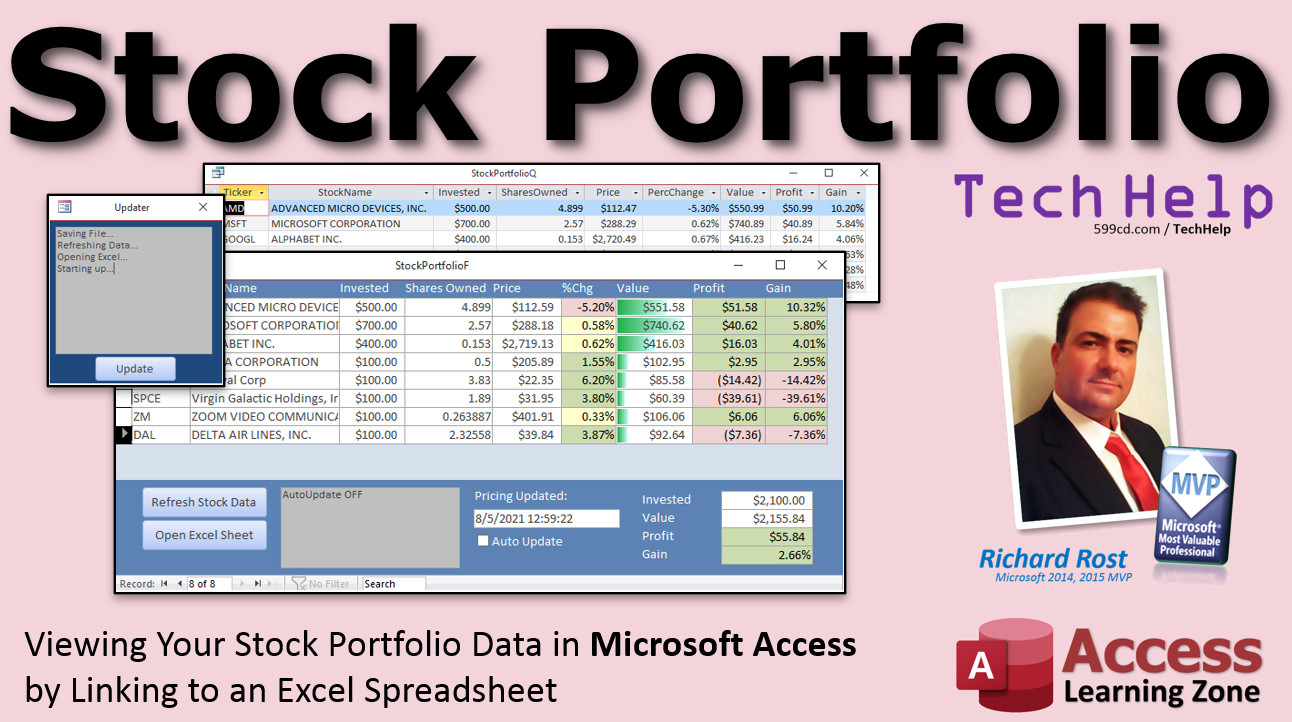
Viewing Your Stock Portfolio Data in Access In this video, I'm going to teach you how to take your stock portfolio data from Excel and view it in Microsoft Access by linking to the workbook file, cleaning up the unnecessary data, and adding calculations where needed. Spencer from Las Vegas, Nevada (a Platinum Member) asks: I watched your Stock Portfolio for Excel video last night. Very informative and helpful. Thank you. Is there any way I can pull that data into Access? I know how to import Excel files into Access but the names of the stock are missing and I get a ton of blank lines and garbage where the calculations are. Help? MembersMembers will see how to make a nice pretty interface in Access, including conditional formatting, just like we had in Excel. I will also show you how to use VBA to refresh the data in the Excel sheet and get update stock prices on demand without having to open the sheet. We will then use a timer event to refresh the data automatically at whatever interval you choose. We'll also make a button to open the Excel sheet in case you want to make changes (you buy or sell stock, etc.) And by popular demand we'll do something cool with TempVars that everyone keeps asking me about.
Silver Members and up get access to view Extended Cut videos, when available. Gold Members can download the files from class plus get access to the Code Vault. If you're not a member, Join Today!
Links
Keywordsmicrosoft access, ms access, #msaccess, #microsoftaccess, #help, #howto, #tutorial, #instruction, #learn, #lesson, #training, #database, tracking stocks in access, get latest stock data in access, stock portfolio, stock dashboard, pull live stock data, track your portfolio, investment portfolio tracker template, stock prices in access, stock quotes, control excel from access, link excel to access, link access to excel
More InformationTranscriptWelcome to another TechHelp video brought to you by AccessLearningZone.com. I am your instructor, Richard Rost. In today's video, I am going to show you how to take the stock portfolio that we built in our Microsoft Excel portfolio video, which gets automatically updated prices from the Internet, and pull that data into Access using a linked table to show up-to-date information in Access. Today's question comes from Spencer in Las Vegas, Nevada, one of my Platinum members. Spencer says, I watched your stock portfolio for Excel video last night, very informative and helpful. Thank you. Is there any way I can pull that data into Access? I know how to import Excel files into Access, but the names of the stocks are missing, and I get a ton of blank lines and garbage where the calculations are. Help. Yes, Spencer, let me show you how this will work when you pull this data into Access. Of course, prerequisite, folks, if you have not watched the Excel stock portfolio video yet, go watch it because I am going to use that same sheet in this video. I think this is the first time in Access TechHelp has had an Excel TechHelp as the prerequisite. But anyway, go watch that first so you understand what is going on here. I will put a link down below in the link section. Go find it. So here is the spreadsheet as I left it at the end of the extended cut for the members. I basically added some conditional formatting, these data bars here, and this button here, which we can click on to refresh. Let's see how the stocks are doing. About the same. Now, what I am going to do is, instead of importing this sheet into Access, which is a one-time deal, I am going to link Access to my Excel sheet. I am going to create an active link. What that means is, anytime this sheet is updated, it updates in Access automatically. That is the difference between importing and linking. If you have never done this stuff before - importing and linking between Excel and Access - I cover this in my Access Expert Level 20 class. I cover importing data from Excel, linking live to the Excel spreadsheet data, and so on. That is Access Expert Level 20. I will put a link down below in case you want to learn more. Here I am in my TechHelp free template. This is a free download up on my website. You can grab a copy if you want to, or you can just use a blank database. It does not matter for this example. Let's go ahead and link to that Excel spreadsheet. I am going to go to External Data, and then under Import and Link, click New Data Source, From File, Excel. We are going to browse to where our spreadsheet file is. I have mine sitting on my desktop, so go to Desktop, and I just saw it. Where is it? Right there, Stockportfolio.xlsm. It is "m" because there is a macro in it. I created a macro to make that button where I can refresh the stock data in the extended cut. But yours might be xlsx. Hit Open. Then come down here and click on Link to the Data Source by creating a linked table. This will make a table over here that will connect right to that Excel sheet, so anytime you update the sheet, it updates in Access automatically. Hit OK. First thing you'll notice: the stock name is missing. We will have to address that in just a minute. That is one of those active data fields in Excel which does not import into Access. Then we have some blank rows, and then we have these calculations. Everything from row 7 down really is not Access-friendly. We will have to see how to make Access ignore that in just a minute. But let's finish this up. We are going to redo it in a second. The "Sheet1" is fine because we are going to delete it. I just want to see what you get if you just do this. Ready? Open it up. There you go. These rows down here are not friendly for a database. The stock name is missing, so I have no idea which stock is what. That is easy. That is just a formatting problem. I could fix that later too. That is just a really small gain. So, let's fix this. First, let's put the stock name and the ticker in the data so we know what we are dealing with. I am going to show you how to do that. Close that. Save changes? No. Let's delete this sheet. Right-click, delete. We will do it again. OK. Let's go back over to Excel. Now, how can I put the name of the company and the ticker in the sheet? Let's go over to the end here. Click over here. Hit this guy. Let's find "Name." There it is. Boom. It adds it as a field. Now that will import with our data into Access. One more - let's find the ticker. "Ticker symbol." Boom. There you go. Save your sheet. I just saved it. Let's go back over to Access. I am going to do this import one more time. Here we are. Ready? External Data. Import and Link. New Data Source. From File. Excel. Browse. There it is. Open. Link. OK. Now, it does not look like much, but watch this. Scroll over to the right. Look at that. There is the name. I do not think it is coming in right, but it is there. Sometimes, scrolling leaves artifacts on the screen. That was kind of weird. I do not know if it is my video recording software or whatever, but the data is there if you do that. But now we at least have this data in our table. We can ignore this. Let's just continue on. I'll show you how to fix this stuff. Ready? Next. Let's give it a good name. Let's call this "mystockportfoliot." Finish linking. Open it up. There we go. We have the name and the ticker symbol. That's all good. Now, let's fix the rest of it. Let's, first of all, ignore "stock name." We do not need to see that. We are going to have to fix some of these table or field names because "shares owned" - I do not like that. I do not like anything in Access where there are spaces in my names. This "change" percentage - that is not good. "Name" is a reserved word. So, let's go fix those field names too. And we will ignore any row where there is not a ticker symbol, so it will just ignore all the stuff on the bottom because we can redo these calculations. How do we do all this? We do it with a query. So, close this. Save changes? Sure, whatever. Create - Query Design. Bring in your "mystockportfoliot" (it is under "Links"). Now, let's do some work here. Let's make this bigger. Let's bring in the ticker symbol, the name, and then I want the amount invested, shares owned, the price, and the change. Value, profit, gain I can calculate here in Access. But let's fix these names first. I do not like "Ticker symbol" because it has a space in it. So: ticker: [Ticker symbol] - this will make an alias. I do not like "Name." So let's call this stock name: [Name]. "Invested" is fine. "Shares owned" - now, you could go and fix these in Excel, but the point is, I am trying to show you how if you are linking to someone else's sheet, for example, and you cannot control that, or you have that sheet set up permanently and you do not want to change it. Shares owned: [Shares owned]. "Price" is fine. "Change" - I am going to call this percent change: [Change]. Let's save this as "mystockportfolioq." Let's see what it looks like now. Much better. Our field names are Access-friendly. We are seeing just the data I want up here. Let's get rid of the stuff down here that we do not want. Anything where the ticker symbol is null - so come over here and say, Criteria: Is Not Null, right there. Now when I run it, look at that. That is nice and sharp. Save it. Let's put our calculations in here now. Our value is going to be the shares owned times the price, which I am calling just "price." Run it now. There is our value. You could try formatting that as currency in the properties for that field. Sometimes it works, sometimes it does not. Sometimes in calculated fields it does not work and you have to use a function. Let's see. Okay, it works in this case. And you can format percent change - we can format this as percent, properties, format: percent, maybe two decimal places. Save it. I cover all this in my Access Beginner class, by the way, this formatting stuff. Let's do profit. Come out over here. Profit is going to be the value minus the amount that we were invested, so what did I call it? Just "invested," yes. Right-click, properties, format: currency. Save it. If it does not work - by the way, in some queries, it will not work if the query is calculated - you can use the FORMAT function (format as currency). I cover that in one of my other videos. There is our profit. And one more - we can add our gain. The other one is percent change. So we will call this one "gain," and that is our profit divided by our amount invested. That is going to be a percentage. So, right-click, properties, format: percent, and we will make - let's see here... yes. That is good. Close that, save it and run it. There we go. Perfect. Now, let's say the information is updated in Excel. So, let's take AMD - for example, right now the price is 113.45. Let me close this. Let's go back over here to AMD. Refresh the data. Now we are down to 112-something. That is good. You have to save the sheet. It is saved. Now, if you go back over to Access and open up your portfolio query, look at that. AMD went down to 112. The key is you have to make sure that you update it in Excel and save it. Is there a way to have Access automatically update the Excel spreadsheet? Yes, there certainly is, but it involves some VBA coding because you have to have Access open up that Excel spreadsheet in the background, do a refresh, and then reload this query. I will show how to do that in the extended cut for the members. In addition, we will pull this data into a form, add the conditional formatting like we had in the spreadsheet, put the calculations down below, and I will make you a timer so you can have it sit there open and every maybe 5, 10 minutes, or whatever you want, it will refresh the data in Access. We will do that in the extended cut. Want to learn more in the extended cut for the members? It is almost an hour long. I had a lot of fun with this one. This was a lot of fun recording. We will use VBA to update the pricing, so we will make a button here that says "refresh the stock data." It will actually open up a little update form. What this entails is, we actually have to load a copy of Excel in the background. You do not see it, but it all happens in VBA. We will load a copy of Excel, right? It opens up the sheet, refreshes it with that macro, closes Excel, and then updates the stock portfolio data in Access. It is really pretty cool. Then we will do an auto-update right down here. If you check this box on, then this form will refresh itself at whatever interval you want to specify. I did five seconds for class just so you could see it working, but you could set it to once an hour or once every 15 minutes, whatever you want. It will update and then refresh and you can see what is going on throughout the day as you have this open. Then we will do some conditional formatting - all the same stuff we did in Excel - we will just do it in Access, including the data bars like these guys here. Then I will make you a button to open up your Excel sheet. If you want to make any changes over there, just click on this. This will shut and it will open up the Excel spreadsheet for you. You can make changes, add stuff, whatever. That is all covered in the extended cut. This video alone, if you are into stocks, this video alone is worth the cost of membership. Silver membership is cheap. Silver members get access to all of my extended cut videos - not just this one, all of them. There are, what, 100-some of them? Well, close to 200 by now. If you are in Access and you are not a member, you see all the stuff on my YouTube channel. What are you waiting for? Of course, Gold members can download a copy of this database. How do you become a member? Click the Join button below the video. After you click the Join button, you will see a list of all the different types of membership levels that are available. Silver members and up will get access to all of the extended cut TechHelp videos, live video and chat sessions, and more. Gold members get access to a download folder containing all the sample databases that I build in my TechHelp videos, plus my Code Vault where I keep tons of different functions that I use. Platinum members get all the previous perks plus access to my full beginner courses and some of my expert courses. These are the full-length courses found on my website and not just for Access. I also teach Word, Excel, Visual Basic, ASP and lots more. But do not worry, these free TechHelp videos are going to keep coming. As long as you keep watching them, I will keep making more. If you liked this video, please give me a thumbs up and feel free to post any comments that you have. I do read them all. Make sure you subscribe to my channel, which is completely free, and click the bell icon and select "All" to receive notifications when new videos are posted. Click on the "Show More" link below the video to find additional resources and links. You will see a list of other videos, additional information related to the community, the current topic, free lessons, and lots more. YouTube no longer sends out email notifications when new videos are posted. If you would like to get an email every time I post a new video, click on the link to join my mailing list. If you have not yet tried my free Access Level 1 course, check it out now. It covers all the basics of building databases with Access. It is over three hours long. You can find it on my website or on my YouTube channel. If you like Level 1, Level 2 is just one dollar. It is also free for all members of my YouTube channel at any level. Want to have your question answered in a video just like this one? Visit my TechHelp page and you can send me your question there. Click here to watch my free Access Beginner Level 1 course, more of my TechHelp videos, or to subscribe to my channel. Thanks for watching this video from AccessLearningZone.com. Thanks for watching. IntroIn this video, I will show you how to link your Microsoft Excel stock portfolio spreadsheet to Microsoft Access so you can view live, up-to-date stock information directly in Access. We will cover the difference between importing and linking data, how to fix issues with missing fields and formatting, how to adjust field and table names for better use in Access, and how to create queries to calculate values like profit and gain. You will also see how changes in your Excel sheet automatically update in Access for real-time tracking of your stock data. QuizQ1. What is the primary difference between importing and linking an Excel sheet into Access? A. Importing copies data once; linking provides a live connection that updates automatically B. Importing provides a live connection; linking copies data once C. Both import and link copy the data once D. There is no difference between importing and linking Q2. Why was the stock name initially missing when linking the Excel spreadsheet into Access? A. Because it was a calculation that Access does not recognize directly B. Because Access cannot read .xlsm files C. Because the macro was not enabled in Excel D. Because Access always ignores the first column Q3. What step must you take in Excel to ensure the stock name and ticker symbol import into Access? A. Add the stock name and ticker symbol fields to the data in Excel B. Change the Excel file type to .xlsx C. Remove all formatting before importing D. Use the Find and Replace function on the Excel sheet Q4. When linking an Excel spreadsheet with blank lines and calculation rows into Access, what is a recommended way to ignore unwanted rows? A. Filter out rows where the ticker symbol is null in a query B. Delete all blank lines in Excel before linking C. Hide the rows in Excel D. Use a macro in Access to delete them after import Q5. What was recommended regarding field names that have spaces or reserved words when creating queries in Access? A. Use aliases to give friendly, unique field names B. Always rename the fields in Excel C. Accept the default names as-is D. Use underscores for every field name Q6. How can you perform calculations like "value," "profit," or "gain" when pulling data from Excel into Access? A. Create calculated fields in an Access query B. Only perform these calculations in Excel before linking C. Use macros in Excel to export the calculated fields D. Create a calculated table in Access Q7. What needs to happen in Excel for Access to reflect the latest price updates in the linked table? A. The Excel sheet must be refreshed and saved B. The Access database must be reopened C. The Excel file must be converted to CSV D. The table in Access must be deleted and relinked Q8. What does the "extended cut" of the lesson include? A. VBA to refresh Excel data from Access, conditional formatting in forms, and timed auto-refresh B. A full beginner course on Access C. How to import CSV files into Access D. An introduction to PowerPoint integration Q9. What is the benefit of using a query with criteria like "Is Not Null" on the ticker symbol field? A. To filter out unwanted rows and keep only valid stock data B. To highlight the stocks with the highest value C. To automatically delete all data with null values D. To create a report Q10. If you want to automate the refresh of data in Access from an Excel sheet, what technology or feature is needed as described in the video? A. VBA code to open Excel, refresh the sheet, and reload the query B. Access Macros only C. Scheduled Tasks in Windows D. Excel Add-ins Q11. Why is it a good practice to avoid using spaces or reserved words in field names in Access? A. It can cause problems in queries, VBA, and general database design B. It makes the database look less professional C. Access cannot process any fields with spaces D. It is not important; just for aesthetics Q12. What membership level gives you access to all extended cut TechHelp videos? A. Silver membership and higher B. Gold membership only C. Platinum membership only D. Free subscription Q13. Can you make Access push updates automatically to refresh the content from Excel without using VBA? A. No, VBA is required to automate refreshing and updating B. Yes, Access does this natively on opening C. Only if using an .xlsx file D. Yes, using Access macros Q14. What additional feature was added to the Access form in the extended cut to mimic Excel's presentation? A. Conditional formatting and data bars B. Embedded charts only C. Dynamic hyperlinks D. PivotTables Q15. What is the first recommended step before attempting to follow along with this Access video tutorial? A. Watch the previous Excel stock portfolio video B. Download the sample database C. Sign up for a free trial D. Refresh your Excel sheet Answers: 1-A; 2-A; 3-A; 4-A; 5-A; 6-A; 7-A; 8-A; 9-A; 10-A; 11-A; 12-A; 13-A; 14-A; 15-A DISCLAIMER: Quiz questions are AI generated. If you find any that are wrong, don't make sense, or aren't related to the video topic at hand, then please post a comment and let me know. Thanks. SummaryToday's video from Access Learning Zone focuses on integrating Microsoft Excel and Access to manage a stock portfolio with real-time updates. In this lesson, I explain how to link an Excel stock portfolio sheet into Access, allowing you to display up-to-date stock information directly in your Access database. The inspiration for this video comes from a question about transferring stock data from an Excel sheet into Access. While importing Excel files is a common technique, it often leads to problems like missing field names, blank lines, and incompatible calculated fields. Here, I demonstrate a better approach: linking Access directly to the Excel sheet. This way, updates to the Excel file are reflected in Access automatically, which is especially helpful for stock portfolios that need real-time data. To follow along successfully, it is important that you have already set up the stock portfolio in Excel as shown in my previous Excel video. If you haven't seen that one yet, I recommend watching it first so you're familiar with the spreadsheet we'll be using. The spreadsheet I use in this demonstration includes some enhancements like conditional formatting and a refresh button, which were added during the extended cut of the Excel video. With the setup complete, the next step is to establish a live link between Access and the Excel workbook. Linking allows Access to show the most current data, unlike importing which creates a static snapshot. If you are unfamiliar with importing and linking between Excel and Access, these concepts are covered in depth in my Access Expert Level 20 class. Feel free to explore that class if you want more background. For this demonstration, I use my free TechHelp Access template (available on my website) but you can work with any blank database. To link to your spreadsheet, you initiate the connection using Access's External Data tools, pointing to your Excel file and selecting to create a linked table. As soon as the data appears in Access, you may notice that some fields are missing, such as the stock names, and there may be extra rows or calculations that do not translate well into Access. To ensure this information appears correctly, you need to modify the Excel sheet to include the stock name and ticker as columns in the data section. Once these fields are available, you repeat the linking process in Access. Now, the linked table will include essential information like names and tickers, though you will likely still see some fields or rows that need further cleanup. The next part of the process involves improving how the data appears and functions within Access. Some field names imported from Excel may contain spaces or reserved words, which can cause problems in Access. Using a query, you can create aliases for these fields, giving them Access-friendly names without spaces or reserved words. For example, you can rename "Ticker symbol" as "ticker" and "Name" as "stock name." You can also calculate additional fields like value, profit, and gain within the query, using Access expressions. To make sure you only see relevant rows in your query, set criteria so that only records with valid ticker symbols are displayed. Formatting options are available within Access to make numeric data display as currency or percentages, as appropriate. If you encounter formatting issues in calculated fields, you can use Access's built-in formatting functions. As stocks are updated in your Excel file, you refresh the data and save the file. When you reopen the linked query in Access, you will see the updated values, so long as the Excel sheet has been saved with the new data. This approach allows you to manage your stock portfolio in Excel but display dynamic information in Access. For those interested in more advanced features, the extended cut offers a range of enhancements. In the extended cut, I show how to automate the updating of the Excel data from within Access using VBA, even opening and refreshing Excel in the background and then updating the Access data after the refresh. We also pull the data into a form, replicate the conditional formatting and data bars from Excel in Access, set up summary calculations, and create a timer to refresh the data at custom intervals, such as every few minutes or once an hour. There is also a demonstration of a button to open the Excel file directly from within Access. Members who join at the Silver level and above get access to all extended cut videos, live sessions, and more. Gold members can download completed databases and code samples, and Platinum members have access to full-length courses for Access and other titles like Word, Excel, and Visual Basic. Membership is not required to watch the free TechHelp videos; I will continue adding new free content as long as there is interest. If you found today's video useful, please consider liking and commenting to let me know what you think. Subscribing to my channel is free, and turning on notifications ensures you will be alerted to new videos. Additional resources and relevant links for today's topic, free lessons, and more can be found on my website. If you are new to Access, try my free Access Level 1 course, available both on my website and YouTube channel. Level 2 is just one dollar or free to members at any level. If you would like your own question answered, visit my TechHelp page to submit your inquiry. You can find a complete video tutorial with step-by-step instructions on everything discussed here on my website at the link below. Live long and prosper, my friends. Topic ListLinking an Excel stock portfolio to Access Differences between importing and linking data Addressing missing fields in linked Excel tables Adding stock names and tickers to Excel data Refreshing linked tables in Access Renaming field names with query aliases in Access Filtering out unwanted Excel rows in Access queries Creating calculated fields in Access queries Formatting calculated fields as currency or percent Calculating value, profit, and gain in Access Ensuring Access reflects updated Excel data Primary Topicslinking Excel to Access, live Excel data in Access, linked tables, query design, field name cleanup, stock portfolio tracking, calculated fields, data formatting in queries Secondary Topicsconditional formatting, using macros in Excel, member-only VBA features |
||||||||||||||||||||||||||||
|
| |||
| Keywords: TechHelp Access tracking stocks in access, get latest stock data in access, stock portfolio, stock dashboard, pull live stock data, track your portfolio, investment portfolio tracker template, stock prices in access, stock quotes, control excel from acces PermaLink Stock Portfolio in Microsoft Access |