|
||||||

|
|
||||||
|
System DefaultsBy Richard Rost
 4 years ago
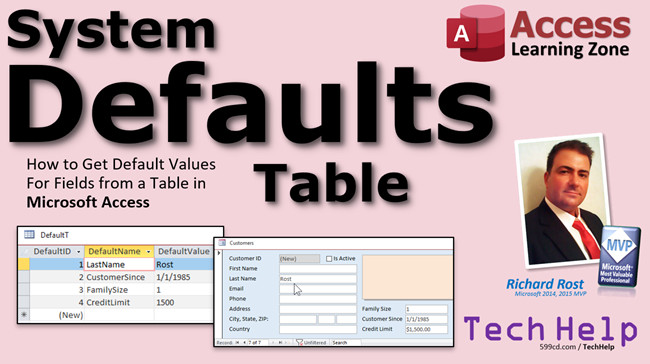
System Defaults Table for Default Values in Access In this video, I'm going to show you how to create a System Defaults table that you can use to provide default values for fields in your database that may change from time to time. This way you don't have to make design changes to your tables. Santos from Casa Grande, Arizona (a Platinum Member) asks: I have to change the default values for some of our fields on a regular basis. For example, we have different loan rates that change from time to time. When we go to enter loans, we have to keep constantly looking up the rates. I've been manually going into the table and changing the default value, but that's annoying to constantly make design changes. Is there a way we could just store this value in a table and look it up? And this is just one value. I've got a bunch of them I need to change regularly. MembersMembers will learn how to make a custom function to supply a default value for something that's not as simple as a lookup, for example giving a default discount rate for customers based on how many years they've been a client.
Silver Members and up get access to view Extended Cut videos, when available. Gold Members can download the files from class plus get access to the Code Vault. If you're not a member, Join Today!
Discount For ItemsYou can also calculate a discount percentage for each line item as well. Perhaps services are 50% off but products only 20%. This is a little more complex, and I cover it in Access Expert 9. Links
Keywordsmicrosoft access, ms access, ms access tutorial, #msaccess, #microsoftaccess, #help, #howto, #tutorial, #learn, #lesson, #training, #database, default value from record, default value based on another field, default value from table, system settings, system values, system defaults, default settings table
More InformationTranscriptWelcome to another TechHelp video brought to you by AccessLearningZone.com. I am your instructor, Richard Rost. In today's video, I am going to show you how to get default values for fields from a table in your Access database. We are going to create what is called a system defaults table. Today's question comes from Santos in Casa Grande, Arizona, one of my Platinum members. Santos says, I have to change the default values for some of our fields on a regular basis. For example, we have different loan rates that change from time to time. When we go to enter loans, we have to constantly look up the rates. I have been manually going into the table and changing the default value, but that is annoying to constantly have to make design changes to the table. I get that. Is there a way we could just store this value in a table and look it up? And this is just one value. I have a bunch of them that I need to change regularly. Yes, Santos, what we could do is create what is called a system defaults table. It will be a table with some values in it, and we will just use DLookup to pull those in as default values for the records in your database. So let me show you how to do it. Before we get started, prerequisite: go watch my DLookup video if you have not already. If you do not know how to use DLookup, which is basically what this entire video is based on, go watch that first. Pause this video, go watch DLookup. It is free, on my website, or it is on my YouTube channel. Go watch that now and then come back. Also watch Double, Double Quotes where I show you how to do double, double quotes inside a quotes - a little confusing. Go watch that video. It will explain why. You will see what those are in just a minute. Here I am in my TechHelp free template. This is a free download from my website. Go get yourself a copy. You will find links down below the video in that description box. There is a link section - you will find all kinds of free stuff down there on the videos, including this, my free template. So what we are going to do is create yourself a defaults table. Create table design, because you do not want to have to keep constantly going into the design of the database. You could change it with a table. DefaultID, that will be an AutoNumber, and then a DefaultValue. We will leave that as Short Text. It does not really matter what this data type is because Access is pretty good about doing a conversion. I will show you in just a second. Save this as DefaultT. That is my defaults table. Now, let us put some data in it. Let us just put one thing in here for now. DefaultT. Let us say our last name is going to be Rost, my last name. Let us say I am doing a genealogy database and 90 percent of the people that I type in are Rosts. It does not matter. You can just do this to any field. We will do a couple more in a minute. So save that. Now notice DefaultID 1 is Rost. What I am going to do is go to the customer form. Now, this will only work in the form. You cannot put this in the customerT's default value. I am going to close this guy first. You cannot put this in the customerT's last name default value. It will not work down here. In fact, one of my students on my website in the forums found that out because I told them how to do this with a DLookup. He put it in. He is like, it is not working. It will not work in the table. You have to do it at the form level. If you have this field in multiple forms, you have to put it in multiple times. Go to design view. Go to last name. Under data, find the default value. Now I am going to zoom in so you can see it better. Zoom in. This is going to be =DLookup. What are we looking up? We are looking up the DefaultValue from the DefaultT table. The DefaultID equals 1. Just go get DefaultID 1. That is going to be our last name. Throw it in there. Hit OK. Close it. Save changes. Now when I go to the customer form, if I go to add a new record, look at that. Last name pops in there as Rost. If in a day or two from now, you change that value in the DefaultT table, let us say now it is Picard, your loan rate changes, Santos, you can take this default table and make it a form just like I did all the rest of this. You can make a form for it. You put your default values in here, make it nice and pretty so anybody can edit it. Now when I go to the customer form again, go to add a new customer, boom. It is Picard. That is how that works. It is basically a DLookup from a system default table. Now let us add a little spice to this. Here in Arizona, you guys like spice down there. Design view. Instead of just DefaultValue and looking up an ID, that can get kind of confusing. In the table, I am looking up ID equals 1, then you have to go to the table and figure out what that is. Let us have a DefaultName in here too. DefaultName. I am going to put the name in front of value. So we have name/value pairs. So I can have LastName and then Rost. I can have CustomerSince and then a date. I can have FamilySize and then a number. Now when I save this and look at it, DefaultName: LastName. We could do CustomerSince and put a date in here, 1/1/1970. We could do FamilySize and do 3 as a DefaultValue. What else do I have in the table here? That is from customerT. Let us see what other values we can do. DefaultState, maybe. DefaultState. You are in Arizona, so put AZ. What else? Let us do CreditLimit. CreditLimit, maybe default today is 500. Now, let us go and fix the default value in here. It is a little more complicated now because instead of looking at just a number one, we have to find that value LastName. But here is the thing: in here, LastName is actually a string, so it has to be inside of quotes. If you put quotes inside of a string, you have to use double, double quotes. That is why I wanted you to go watch that other video. That is double, double quote here, and then inside of here, double, double quote there. So that will say look up the DefaultValue from the DefaultT where the DefaultName is, in quotes, LastName. So I have converted to a single double quote and this will get converted to a single double quote. Go watch that Double, Double Quotes video if you want more information on how this whole thing works. It is a little confusing. I get it. You can use single quotes in here, but I do not like to because you find situations where there is a single quote inside of the string, like my dance's last name is D'Angelo with an apostrophe in it, so you cannot do that. I like to use double, double quotes. Hit OK. Close it. Open it back up again. There you go. This is Picard. Now we just copy that formula to the other fields. Go to LastName again. We are going to copy. We have the State right here. Default value, paste it in there. Change this to State. Save it. Close it. There you go. There is your DefaultState. Do the same thing for FamilySize. Copy, should still be on the clipboard, FamilySize. Paste that in there. Write in CreditLimit, paste it in there. We will just change them now. CreditLimit. I do not think there is an easy way to get this from that, because you think the control source is right there, but you have no way of grabbing that control source, so you just have to copy and paste. So we got CreditLimit, CustomerSince, and FamilySize. Close it up. Open it up. Go to a new record. There are all your default values. Now, if you have to change some of this stuff, tomorrow you have something different, you are going to be entering 500 new records and every one is from New York. Just change it to New York. You want to give a $1,200 credit limit, default FamilySize is 1, CustomerSince defaults to 1985, and the LastName is going to be Spock. Close it up. Go back to the customer form, add a new record, boom. There are your default values. That is how you do it. Now you can make yourself a nice little form based on the DefaultT. Put this in a form, put a button on it. If you need to know how to do all that, go watch my linked database template where I show how to make a continuous form, which basically is the same thing. If you want to learn more, in the extended cut for members, I am going to show you how to calculate a default value that is not necessarily based on just some value that you can stick in a table. For example, what if that loan rate that you talked about, Santos, is based on a number of different variables? This times this plus this. For example, in the extended cut, we will calculate a discount rate for a customer based on how long they have been a customer. You have been a customer for one year, you get a 5 percent discount. You have been a customer for two years, you get a 10 percent discount, and so on. We will make a bit of custom function; we will call it CalculateDiscountRate. Then we will throw DiscountRate on our order form. That will be based on the CustomerSince field from that customer. We will use a little function to calculate what their discount rate should be. Then we will figure out the discount on the order, and put it on the invoice. That is all covered in the extended cut for members. Silver members and up get access to all of the extended cut videos, over 200 of them. Gold members can download these databases. How do you become a member? Click on the join button below the video. After you click the join button, you will see a list of all the different membership levels that are available, each with its own special perks. Silver members and up will get access to all of my extended cut TechHelp videos, one free beginner class each month, and more. Gold members get access to download all of the sample databases that I build in my TechHelp videos, plus my Code Vault where I keep tons of different functions that I use. You will also get a higher priority if you decide to submit any TechHelp questions to me, and you will get one free expert class each month after you have finished the beginner series. Platinum members get all the previous perks, plus even higher priority for TechHelp questions, access to all of my full beginner courses for every subject, and one free developer class each month after you have finished the expert classes. These are the full-length courses found on my website, not just for Access, too. I also teach Word, Excel, Visual Basic, and lots more. You can now become a Diamond sponsor and have your name or company name listed on a sponsors page that will be shown in each video as long as you are a sponsor. You will get a shout out in the video and a link to your website or product in the text below the video and on my website. But do not worry, these free TechHelp videos are going to keep coming. As long as you keep watching them, I will keep making more, and they will always be free. IntroIn this video, I will show you how to set up a system defaults table in Microsoft Access to make managing default field values easier. We will create a dedicated table to store your default values, use DLookup to retrieve them, and set up your forms to pull these values automatically instead of manually updating table defaults. I will also walk you through managing multiple defaults using name-value pairs, handling different data types, and updating defaults quickly as your needs change. QuizQ1. What is the main problem Santos from Casa Grande is trying to solve in Access? A. Storing form layouts separately B. Frequently updating default field values without changing table design C. Printing reports efficiently D. Importing data from Excel Q2. What solution does Richard suggest to avoid constantly changing field default values in table design? A. Use macros to update table defaults B. Store default values in a separate system defaults table and use DLookup C. Write VBA code for each form D. Use calculated fields in the table Q3. What function is primarily used to pull default values from the defaults table? A. DSUM B. DMIN C. DLOOKUP D. DCOUNT Q4. Where should the DLookup formula be placed to set default values dynamically? A. In the table's field properties B. In the form's Default Value property of the control C. In the table's control source D. In a query expression Q5. What issue occurs if you attempt to use DLookup as a default value in the field's table definition? A. The database will crash B. The default value will not update C. The function will not work; it only works at the form level D. The table will not save Q6. Why does Richard recommend using a pair of DefaultName and DefaultValue fields in the defaults table? A. It helps to avoid duplicate data B. It makes it easier to identify and update default values by name C. It optimizes query performance D. It supports multiple users Q7. When using a string in your DLookup criteria in Access, what must you be careful about? A. Using single quotes for all strings B. Handling double, double quotes inside your criteria string C. Avoiding any kind of quotes D. Using a semicolon at the end Q8. If you want default values, such as state or credit limit, to change for all new records, what should you do? A. Redesign the customerT table B. Edit the values directly in the DefaultT table or its related form C. Change the values in every form using VBA D. Delete and recreate all forms Q9. What limitation does Richard highlight about copying DefaultValue formulas between controls? A. You must retype the formula every time B. You cannot copy at all C. You have to manually change the DefaultName in each formula after pasting D. Only works in continuous forms Q10. Why does Richard prefer using double, double quotes instead of single quotes inside the criteria for DLookup? A. Double quotes are easier to type B. Single quotes do not work with numeric values C. Single quotes can cause errors if your data contains apostrophes D. Double quotes are required by Access syntax for all fields Q11. What does the extended cut video for members cover? A. Importing data from Excel B. Calculating dynamic default values with custom functions C. Setting up user security D. Multi-user networking setup Q12. According to Richard, how can you make it easier for users to update system defaults? A. By giving them table design access B. By making a form bound to the DefaultT table C. By using parameter queries D. By setting up macros for each field Answers: 1-B; 2-B; 3-C; 4-B; 5-C; 6-B; 7-B; 8-B; 9-C; 10-C; 11-B; 12-B DISCLAIMER: Quiz questions are AI generated. If you find any that are wrong, don't make sense, or aren't related to the video topic at hand, then please post a comment and let me know. Thanks. SummaryToday's video from Access Learning Zone focuses on how to set up default values for your fields in Microsoft Access using a system defaults table. This is helpful in situations where you have information that changes often, such as loan rates or other regularly updated settings, and you do not want to repeatedly go into your table's design just to make changes. The basic idea here is to store your default values in a separate table, then use DLookup to pull those values into your forms as the defaults for your fields. This way, whenever you want to update a default, you simply change the record in your defaults table, and the new value will appear automatically throughout your database where that default is used. Before you try this technique, you should be comfortable with how DLookup works in Access. I recommend reviewing my DLookup tutorial if you need a refresher since this method relies on it. Additionally, you might want to take a look at my video about handling quotes inside DLookup expressions. This will become important when dealing with string values. To begin, create a new table in your database's design view. This table will store your default values. You might call it DefaultT. For fields, start with a DefaultID as an AutoNumber and a DefaultValue as Short Text. The data type for DefaultValue is not too important since Access can handle conversions fairly well. Once the table is set up, enter some default values. For initial testing, you can put in something simple, such as a common last name or other frequently used data point. Open your form where you want to use this default. Note that you cannot set this up in a table's default property; this must be done at the form level. In the form's design view, select the control for the field you want to have a dynamic default. Go to its Data tab and find the Default Value property. Here, you will use DLookup to retrieve the default from your DefaultT table (for example, looking up the value where DefaultID is 1). Now, whenever you add a new record through this form, the default value will be automatically pulled in. If you need to update the default in the future, simply change the value in the DefaultT table. You could even build a user-friendly form for managing these defaults. To make this process clearer and more flexible, expand your defaults table to include a field for DefaultName in addition to DefaultValue. This allows you to store multiple defaults, each identified by a name (for example: LastName, State, CreditLimit). Populating this table with named defaults makes it easy to reference each by name, rather than by arbitrary ID numbers. After making these changes, you'll need to adjust your DLookup expressions to look up the default by name (for example, finding the record where DefaultName equals "LastName"). Remember, when you reference strings inside your DLookup expression, you need to use double double quotes to ensure Access handles them correctly. This can be confusing if you are not used to it, so my Double, Double Quotes video can help clarify this method. Using double double quotes is a best practice, especially if your data includes names with apostrophes or other special characters. Now, you can copy your DLookup formula to any field's Default Value property where you want a dynamic default. Just change the DefaultName reference as needed. Whenever you want to update a default, all you have to do is edit the value in your DefaultT table. You might also consider creating a form to make editing your default values easier. For more on creating continuous forms, see my linked database template video. In today's Extended Cut, we will go beyond static values and explore how to calculate a default based on business logic. For example, you may want to set a customer's discount rate depending on how long they have been a customer. I will show you how to write a custom function to calculate the discount based on the CustomerSince field and display that calculation on your order form and invoices. To access extended cut lessons, you can become a member at various levels, each offering different benefits. Silver members gain access to all extended cut TechHelp videos and other bonuses. Gold members can download all sample databases and get exclusive functions in the Code Vault, plus higher priority for TechHelp questions. Platinum members enjoy all previous perks plus full access to all beginner courses and one free developer class each month across multiple subjects. Even if you do not join as a member, you can continue to enjoy these free TechHelp videos. As always, you can find a complete video tutorial with step-by-step instructions on everything discussed here on my website at the link below. Live long and prosper, my friends. Topic ListCreating a system defaults table in Access Using DLookup to pull default values from a table Designing a defaults table with AutoNumber and text fields Entering default values into a system defaults table Applying default values to form fields using DLookup Understanding why table default values can't use DLookup Modifying form control default values to use DLookup Adding multiple default values using name-value pairs Expanding the defaults table with descriptive field names Formatting the DLookup function for string criteria Using double double quotes with DLookup in expressions Updating default values and seeing changes reflected in forms Applying defaults to multiple fields (LastName, State, etc.) Copying and modifying the DLookup formula for other controls Editing default values easily through the defaults table Building a simple form to edit default values for users Primary Topicssystem defaults table, Access forms, dynamic default values, DLookup function, DefaultT table, name-value pairs, default field values Secondary Topicstable design, data types, double double quotes syntax, updating defaults via forms |
||||||||||||||||
|
| |||
| Keywords: TechHelp Access default value from record, default value based on another field, default value from table, system settings, system values, system defaults, default settings table PermaLink System Defaults in Microsoft Access |