|
||||||

|
|
||||||
|
Yes/No FieldsBy Richard Rost
 4 years ago
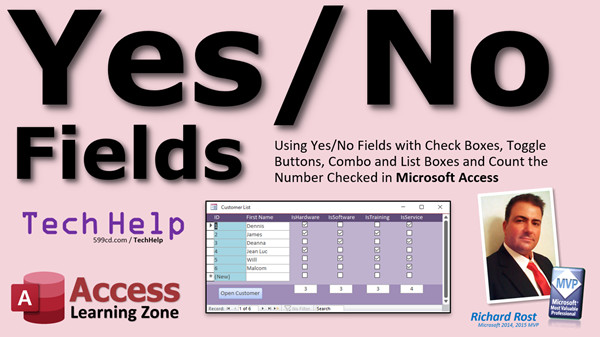
Yes/No Fields, Check Boxes, Toggle, Count Totals In this video, I will show you how to properly use yes/no fields in your Microsoft Access databases. We will set up the table fields, and work with them in our forms. We will see how to use check boxes, toggle buttons, combo boxes, list boxes, and text boxes with yes/no values. We will then learn how to set up a query to show the total of all of the YES values. Paige from Rockport, Texas (a Gold Member) asks: For each of my customers, we have six different products they might be interested in. I have these set up as six separate yes/no fields in my customer table with check boxes on my customer form. Can these be drop-down boxes instead? Also, how can I get a count of how many customers are interested in each product? MembersMembers will learn how to change the caption and color properties of a toggle button so it shows that it's on or off more clearly. We will also learn how to properly use a separate related table to store customer groupings instead of using yes/no fields in the customer table. We will then take the improperly built customer table with the yes/no fields and convert over to the new system with action queries.
Silver Members and up get access to view Extended Cut videos, when available. Gold Members can download the files from class plus get access to the Code Vault. If you're not a member, Join Today!
Links
Suggested Course
Keywordsmicrosoft access, ms access, ms access tutorial, #msaccess, #microsoftaccess, #help, #howto, #tutorial, #learn, #lesson, #training, #database, yes/no, true/false, on/off, boolean, Add a check box control to show Yes/No values, Format a Yes/No data type, How do you create a Yes No field in Access, How do you show yes or no in Access, What data type is yes no in Access, counting yes/no values, How to Display Yes or No for Yes/No Data Type Field,
More InformationTranscriptWelcome to another TechHelp video brought to you by AccessLearningZone.com. I am your instructor Richard Rost. In today's video, I am going to show you how to use Yes No Fields: True False, Yes No, On Off, Boolean Fields with checkboxes, toggle buttons, combo and list boxes, and also count up the number of checked items in your Microsoft Access databases. Today's question comes from Paige in Rockport, Texas, one of my Gold members. Paige says, "For each of my customers, we have six different products they might be interested in. I have these set up as six separate Yes No fields in my customer table with checkboxes on my customer form. Can these be drop down boxes instead? Also, how can I get a count of how many customers are interested in each product?" A couple of things, Paige. First of all, I want to stress that setting up the different products that a customer is interested in as different checkboxes - Yes No fields in the customer table - is not good relational database design. You should use a separate related table for that, and I'll go over that a little bit more in the extended cut. Since you're a Gold member, you can watch that. But I do see a lot of people set up their databases just the way you have it right there. For example, I used to sell computers, so I would have customers in different categories: this one's a hardware-only customer, this one's a service customer, this one's a training customer, and so on. I see a lot of people build their databases that way. So, with the assumption that you've got your database built this way and you really do not want to make major changes to it, I will show you how to change it in this video. However, watch the extended cut and I'll show you how to properly set it up with relationships. Also, a lot of people do not like using checkboxes - and I am one of them. Yes, I'll show you how you can use combo boxes. I call them drop down boxes, but in Access they are called combo boxes. Drop down is web pages and Excel, it's something else, but you call them drop down boxes. Yes, getting a count of how many customers - that's pretty easy. We can do that with a query. So, let's see how this works. OK, so here I am in my TechHelp free template. This is a free database download off my website. You can go grab a copy if you want. There's a link in the link section down below the video in the description. You have to go down and click on that thing, and you can find a copy of this. Now, I've got a customer form and I have already got an Is Active checkbox in there. Let's add checkboxes in the customer table just the way Paige has them. Let's do the example that I mentioned earlier. Let's say I want to track my different customers and put them into categories. So, this one is hardware. Is this a hardware customer? Is software? Yes No value. Is training? And training. Q. Nope, training. Q does training, doesn't he? And is service, let's say. We'll do four of them. Again, I strongly recommend you make a separate category table to track this information, but that's going to be in the extended cut. This is not considered good normal database design, because you have to make major changes to the design of the database to add another topic. What happens if later on you decide you want to do seminars, and you want to add in an is seminar customer, and track that for all your clients? Now you've got to change the table, you have to change all the related queries, you have to change the forms, you have to change the reports. Whereas if you just had to add a record to a category table, then that's simple to do, and you don't have to have design access to the database. Now a few things about Yes No values. There is a format down here. You can change this if you want to. They can either be Yes No, True False, On Off. It's all the same thing. It does not matter, Access does not care. Yes No is the default. You can put a default value down here of No or Yes, whichever you want it to be. Another reason why I like to try to avoid Yes No values is because they don't offer a null option. It's either Yes or No. So what if you have data that you don't know the answer to? For example, let's do sex: someone's sex. Male or female, or you might not know. If it is a new client and you get their information by email and the name is Chris, you do not know if it is male or female. So you have to pick one or the other, but you do not know the data. I actually try to avoid Yes No fields for a lot of things if possible. I use a number value. You can do one, zero, or null. Now here's something interesting. If you go over to the Lookup tab down here, you can actually change the display control. The default is checkbox. You could change it to a text box or a combo box. I don't like doing this at the table level. I like to leave these alone. If you want to display this with a combo box or a text box, do it in the form, but I like to leave the table alone at checkbox. Trust me, you do not want these kinds of definitions in your tables. That's just my preference. So, we're going to leave this as checkbox here. Save this, control S, close it down. Now if we go to our customer form, right click, Design View, let's open up the form design up here, add existing fields. Let's make some room for these. Let's just get rid of notes for now. We don't need that. I'm going to click on Is - we already have Is Active - click on Is Hardware, Shift click on Is Service, and then click drag and drop them all there. So now I've got checkboxes for these guys. Save that, close it, open it up, and there's your four checkboxes. You can change the labels if you want. You can come in here and get rid of these. I like to start all my Yes No values off with "Is." That just tells me that it is a Yes No value. Now we can, of course, use format painter and make you guys match. Double click, click, click, click, click. Let's take a peek. See what we got. Looks good. I go to the next record, check, check. Now, there are a couple of different ways you can display these very easily. Hardware, for example, right click on it, go to Change To, there's Toggle Button and Option Button. Toggle buttons look like this. That does not look very good. We've got to come over here. We can drag it like this. Take the word "hardware" here to that label, and you can put the label right on it as a caption. Just click on it and go "hardware" like this. You can do the same thing with software. Delete the label, right click, change to Toggle Button. I don't know why it comes in like that. That looks ugly. I also don't like these themes. This blue with the swirly, I don't know, it's just me, I'm old school. There's hardware, there's software, and you can arrange these as toggle buttons. I'm not a big fan of toggle buttons either to be honest with you. It's hard to tell which one is pushed on and which one is not. Now, in the extended cut, I'm going to show you a trick as well. When you click on it, we can have it say something like invoice and quotation, change the caption there. You can say "hardware yes" or "hardware no," change the font color. I like using the old school buttons though. If you open up the properties for this guy, go to where it says "Use Theme" and change that to "No," I like these old school looking buttons myself. Save that, close it, open it back up. These look like they're pushed out. There you can tell more easily, hardware, software. The other one, Option Group. Right click, change to Option Button requires an option group. That's where you can have a few different options visible and you can pick from them. You do not use it with the Yes No values. Usually I'll use that if there's an option that's like three or more values, like you're picking a shipping type: FedEx, UPS, US mail, that kind of thing. I'm going to do a separate TechHelp video on option buttons, because a couple of people have asked me questions about that. If you want to learn about option groups right now, I cover them in Access Expert Level. Lots of stuff in here. These things, these are toggle buttons. This is an option group. We've got list box. I'm going to show you a list box in a second. Yes, in the extended cut, I'll show you how to change this a little bit more to make it more obvious that this button's pushed down. That's all you can pretty much get to with the right click, change to, but you can display these in a text box or a list box or a combo box as well. Let's delete these guys. Get rid of these. Let's put this here as a text box. I'm just going to copy one of the other ones. I'm going to copy Family Size, copy, paste. Slide it up here. Change the control source over here to Is Hardware. Copy, paste that in the name as well. Change the label, Hardware. Now when you save it and close it and reopen it, you'll get a False in there. You can change the format too. The format right here, True False. There are the same options: True False, Yes No, On Off. Set it to Yes No. You can also get fancy with the format. Check this out. You can do something like this. We can use a semicolon, Yes, and then in brackets, blue, semicolon, No, and then in brackets, red, like that. It's right there in the format. Save it, close it. That's cool. You can change the format based on what's in there. Now, you have to type in a value like that. Yes will change to blue, see that? No. You can put it in the format. I cover those different formattings in - let me look it up - Access Expert 28, it looks like. Usually, I don't like to leave that as something you can type values into, so let's change this. Right click. Let's change it to a list box. Now the problem with the list box is if you save it, close it, open it up, you don't have any value items in there. Instead of doing it that way, we're going to delete this guy and we're going to create our own list box. Here's the list box; drop it right there. For this one, we're going to type in the values that I want. Next. I want two columns. The first column is going to be the hidden column, the value, the actual value that gets stored in the table. Here's an interesting thing to know about Yes No values. In the table, what's actually stored for a Yes is negative one, and for No, it's zero. Why it's negative one is the topic for a whole different video. It has to do with bitwise operations. You have to be careful because some other database applications like SQL Server store it in a bit value, which is just one or zero, not negative one. So if you're going between Access and SQL Server, you have to do a little conversion, which drives me nuts sometimes. So let's go negative one, and then Yes, or On, or whatever value you want to put there, and zero for No. Then we can shrink that up so we don't have to see that value. Next, that's the bound value. If you've never done list boxes before, go watch my combo boxes and list boxes videos. I'll put links down below in the link section. Next, we're going to store that value in the Hardware field. Is Hardware, right there. Next, what label do you want? Hardware. Finish. There's our list box. It's going to be too big, but let's take a peek at it. Not bad: Yes, No. If you want a bunch of list boxes, make it that big. Easier to see. Let's see what those values in the table look like. Let's come back over here. Here's our Yes No values. You can see the actual negative ones and zeros in here if you use a query. A query is how we're going to add these guys up. Let's just make a quick query real quick. Go Create, Query Design. Bring in the Customer table, Customer ID, and bring in Hardware, Training, Software, Service, all these guys. Let's save this as My Customer Q and take a look at it. Now they come in as checkboxes. If you want to see the actual values that are stored in there, watch this. Come into Design View. Let's get rid of this. Pick one of these fields. Change the Lookup to Text Box. Under General, change the format to zero. That forces a number in there. Do the same thing with Software. We'll just do two of them. Lookup, it's going to be Text Box. General, Format is zero. Now you'll see the actual values in here. See? You'll sometimes see this if you use these Yes No values in calculations and calculated query fields. You can see there's negative one stored for Yes and zero stored for No. If you change any of these to any other value, like four, it will turn into negative one. It's either zero or not zero. In fact, when you are checking for any values that are True False, Yes No - they're also called Boolean values, by the way - in VBA, you'll hear them called Boolean, right, dim x as a Boolean value. But Boolean value should always check for either zero or not zero. You can check for True and False too, but I like zero and not zero. Now that we know that these are negative one values, we can actually add up that whole column by just adding up the negative ones and multiplying by negative one. But we'll get to that in a minute. Let's go back to the form. Let's change this to a combo box. I like combo boxes better than list boxes, unless it's like you're just picking one thing. But it's an easy change. Click, Change To, Combo Box. The only difference between a combo box and a list box is that a combo box closes up, whereas a list box is always open. With a combo box, you can't have the option to type in new values, which we can't do here. In fact, make sure that's not allowed under data; Limit To List is Yes and Allow Value List Edits is No. They can't make changes to it. Notice the name is List36. I don't like that. I change that whenever possible. We'll just change that to IsHardwareCombo. I like the "Combo" in the catalog box. Save that guy. There we go. There's our Yes No values: Yes and No. Now Paige wants to know how to also add these guys up. In our customer query that we have here, we've got a bunch of negative ones and zeros. If I switch this query over to an aggregate query, watch this: Design View. Do a total query. Instead of Group By, we're going to make these all Sum. We're going to add up these values. I have a whole separate video on aggregate queries. Go watch that if you haven't watched it before, and you want to know what an aggregate query is. Now when I add them together, you can see I got that. We're going to get rid of the Customer ID like that. Now it'll give us the total of each column. You have to multiply that by negative one, though. So you could come in here and say, IsHardware times negative one, and then you'll get a positive two in there. That's one way to do it. Another way to do it is if you have a continuous form like this guy. Let's take this continuous form. Actually, we can use the Customer List form. We've got this guy already set up. Let's come in here, Design View. Let's get rid of all of these fields. We don't need them. Let's put our checkbox fields in here. Our Yes No. So add existing fields. These guys, drop them right there. I'll chop off the labels and put them up top. So we got Hardware, Software, Training, Service, just like that. Let's format these so we can stack them. We'll put the checkboxes below. So there's Hardware, Software, Training, Service. Now, this is going to look like this. You can go down here and check these off easily. If you want a total on the bottom, we can use the Sum function and sum those up. I covered this in my Form Footer Totals video. I'll put a link to that down below as well. We'll need a text box for this. I'll just drop that down here and slide it up underneath Hardware. This guy is going to be for the control source: =Sum([IsHardware]*-1). We'll change the name to SumHardware. Let's take a peek. All right, let me change it. You have to leave the record for it to update. If I just check that, it does not update. As soon as I leave the record, the Form Footer totals will update. You could put a manual refresh in the After Update event or the On Click event for these boxes, but that's usually going to be able to save a one, two. So you just copy this, paste it a couple times. You'll change what's in there. So this will be IsSoftware, SumSoftware, SumTraining, and SumService. I know you can't see this easily. Let me zoom in. There it is: SumService. I have no spaces in my field names. No space. It's not "Is Service." It's not "Is_Service." It's not "Is-Service." Don't use any special characters in your field names, table names, or query names except letters and maybe numbers, but even I try to avoid that. Don't have Group1, Group2, Group3, Group4 as field names. If it goes beyond three of something, it should be in a separate table. But don't use spaces in there. Access will automatically put these brackets around sometimes, but you do not need them. Trust me, I go over this in Access Beginner 1. You will save yourself a lot of headaches if you don't put spaces in your field names. People always argue with me and it turns out I'm right. Especially once you get into programming and developer level stuff and SQL, those spaces, those underscores, those dashes, those question marks... I went to another Access training site and they had a field in there that was "W2?" as the field name for the customer - if they've collected the W2 or not. It was "W-2?" as the field name. No, you don't do that. I could tell whoever was teaching that had not spent a lot of time with real world databases. There's a lot of pain in that field name. We're going to center all these guys, save it, close it, open it back up. There you go: there's all your totals. That's how you add up the totals. I hope you learned something. I hope this was useful to you. A lot of people set up their databases this way. Paige, don't feel bad. I see this all the time, especially with insurance salesmen. I have seen them do a lot of these: "IsBroker," "IsThis," "IsThat," they have separate products. You might have, like, your business might be these four things and it almost never changes - it might not change in ten years. When it does, look at all the stuff you have to change. You have to change all the tables. You have to change all the queries. You have to change all the forms, all the reports. In the extended cut, I will show you how to make these groups as a separate table and how to store that properly with a form and a subform relationship. I'll go one step further. I will show you how to take this database, Paige, and fix it so that we will take all this existing data and make the new records for it in the properly related tables. So we will fix it. I've done something similar to this in a past video. I had this groups video where I did cover something similar to this. So we will take it one step further. I'll show you how to unmess this database up and do it right without using these checkboxes. So, that's it. If you want to learn more, in the extended cut for the members, I am going to show you how to change button properties for these guys: where it says "No Hardware," click on it, hardware, change a font, make it blue, see how they work. That's pretty cool. It'll work when you go from record to record. Then we will set up proper groups and convert the Yes No values over to the grouping system. The proper way to handle this kind of setup is relationships. So I can say, "OK, hardware." Now, if you want to add new stuff, like advertising or internet service, it's very easy to go to your group table and just add another group in here, and now that will show up in your combo boxes instead of dealing with these Yes No buttons. Otherwise, you have to modify tables and queries and all the forms and all the reports and everything. No, don't put the Yes No values in your customer table like that. Then I'll show you how to use some query action to take the data you already have over in your customer table and create those groups for the tens of thousands of customers you already have in the database. You do not have to go through and do that all by hand. That is all covered in the extended cut for members. Silver members and up get access to all of my extended cut videos. We have around 230 of them now. I have been doing this for almost two years. Gold members can download these databases that I have built in these TechHelp videos. There are lots of those too, all on my website. You get the code vault, extra courses, and all kinds of extra perks. If you are curious, click on that join button and learn more. How do you become a member? Click on the join button below the video. After you click the join button, you will see a list of all the different membership levels that are available, each with its own special perks. Silver members and up will get access to all of my extended cut TechHelp videos, one free beginner class each month, and more. Gold members get access to download all of the sample databases that I have built in my TechHelp videos, plus my code vault where I keep tons of different functions that I use. You will also get a higher priority if you decide to submit any TechHelp questions to me, and you will get one free expert class each month after you have finished the beginner series. Platinum members get all the previous perks plus even higher priority for TechHelp questions, access to all of my full beginner courses for every subject, and one free developer class each month after you have finished the expert classes. These are the full-length courses found on my website, not just for Access - I also teach Word, Excel, Visual Basic, and lots more. You can now become a Diamond sponsor and have your name or company name listed on a sponsors page that will be shown in each video as long as you are a sponsor. You will get a shout out in the video and a link to your website or product in the text below the video and on my website. But don't worry, these free TechHelp videos are going to keep coming. As long as you keep watching them, I'll keep making more and they will always be free. IntroIn this video, I will show you how to work with Yes No fields in Microsoft Access, including using checkboxes, toggle buttons, combo boxes (drop down boxes), and list boxes to display True/False values on your forms. We will look at how these Boolean fields store their data, discuss some pros and cons of different display options, and I'll show you how to count the number of checked items for each category in your database using queries and form footer totals. QuizQ1. What is considered good relational database design for tracking which products a customer is interested in? A. Using a separate related table for product interests B. Creating one Yes No field for each product in the customer table C. Using only text fields in the customer table D. Storing all interests in a single long text field Q2. What is a main disadvantage of using Yes No fields for multiple product interests in the customer table? A. It allows null values B. It requires changing the database structure whenever a new product is added C. It is more secure than using separate tables D. It improves performance for large databases Q3. Which visual control does Microsoft Access use by default with Yes No fields on forms? A. Check box B. Combo box C. Text box D. List box Q4. What are the three major display options for Yes No fields in Access? A. Yes No, True False, On Off B. Up Down, Left Right, Open Close C. Open Shut, Active Inactive, Filled Empty D. Start Stop, Red Blue, Enabled Disabled Q5. What value does Access actually store for Yes in a Yes No field? A. -1 B. 0 C. 1 D. Null Q6. Why is using spaces or special characters in field names discouraged in Access? A. It can cause problems with programming and SQL queries B. It makes the database run faster C. It is required for macro functionality D. It hides the field from most users Q7. What is a key reason to avoid Yes No fields when the real-world value may be unknown, such as a person's sex? A. Yes No fields do not allow for a null (unknown) value B. Yes No fields are too slow to use C. They use too much storage space D. They cannot be displayed on forms Q8. When displaying Yes No field values in a table, which of the following can you use besides checkboxes? A. Text box or combo box B. Label or image C. Tab control or chart D. Button or hyperlink Q9. What does the "Limit To List" property on a combo box prevent? A. Users from entering values not in the list B. Users from changing the width of the combo box C. Users from copying the combo box to another form D. Users from viewing more than 10 options Q10. If you want to count how many customers are interested in each product using Yes No fields, which Access tool is most appropriate? A. Aggregate (Totals) query B. Macro C. Form wizard D. Input mask Q11. In an aggregate query summing Yes No fields, why must you multiply the total by -1? A. Because Access stores Yes as -1 and No as 0 B. Because the sum function does not work on Boolean fields C. To filter out null values D. To match the visual style of the database Q12. Which control allows users to pick from two or more visible options but generally should not be used with Yes No fields? A. Option group (radio buttons) B. Simple label C. Command button D. Hyperlink control Q13. What is a toggle button in Access? A. A button that switches between two states (on/off) B. A drop-down menu C. A control for entering dates D. A navigation control to switch forms Q14. What is the risk of setting up product categories as separate Yes No fields if your business adds new categories in the future? A. You must modify table structure, all queries, forms, and reports to support the new categories B. The database will automatically update without changes C. Old categories will be automatically deleted D. It makes the database unsearchable Q15. According to the video, what membership level allows you to download sample databases? A. Gold B. Silver C. Bronze D. Free Q16. What is the recommended naming convention for Yes No fields in Access, according to the video? A. Start field names with "Is" B. Use spaces to separate words C. Always include numbers D. Add question marks at the end Q17. Why is it a bad idea to put Yes No values directly in your customer table for each product or interest? A. It makes future changes hard and breaks normalization B. It improves performance significantly C. It enhances the look and feel of forms D. It enables multi-user editing Q18. Which of the following is NOT true about Boolean (Yes No) fields in Access? A. They do not naturally allow nulls B. They are best used for data with only two clear possibilities C. They can store text values like "Maybe" D. Their default format is Yes No Q19. What is the extended cut of the video intended to cover? A. How to set up proper relationship tables for categories and convert data B. How to build macros for Yes No fields C. How to use hyperlinks in reports D. How to design forms with multiple subdatasheets Q20. When using a continuous form to show multiple records, how can you display a sum of Yes No fields at the bottom? A. Use the Sum function in a form footer text box B. Use a parameter query C. Insert a pie chart D. Change the default view to PivotTable Answers: 1-A; 2-B; 3-A; 4-A; 5-A; 6-A; 7-A; 8-A; 9-A; 10-A; 11-A; 12-A; 13-A; 14-A; 15-A; 16-A; 17-A; 18-C; 19-A; 20-A DISCLAIMER: Quiz questions are AI generated. If you find any that are wrong, don't make sense, or aren't related to the video topic at hand, then please post a comment and let me know. Thanks. SummaryToday's video from Access Learning Zone focuses on how to work with Yes No fields in Microsoft Access. Specifically, I will show you the different ways to handle True False, Yes No, and On Off fields, which are often called Boolean fields. We will look at how to work with checkboxes, toggle buttons, combo boxes, and list boxes, and I will also explain how to count the number of checked items in your Access databases. The question today is about managing product interest tracking for customers. The scenario is that for every customer, there are six products they might be interested in, which are currently being tracked as six separate Yes No fields in the customer table, using checkboxes on a customer form. The question is whether it is possible to use drop down boxes instead of checkboxes, and how to calculate the number of customers interested in each product. First, it is important to address the database structure. Setting up individual product interest as separate Yes No fields in your customer table is not good relational database design. Ideally, you should create a separate related table to track which products interest each customer. I will cover this better approach in the Extended Cut, so take a look at that if you are a Gold member. However, I recognize that many people use the approach described here, so I will show you how to work with the setup as it is. For example, when I used to sell computers, I categorized customers as hardware, service, or training customers using similar checkboxes, so this scenario is relatable to a lot of businesses. If you do not want to redesign your tables, today I will show you how to make adjustments like using combo boxes or calculating totals with queries. For those who want to learn the proper way to redesign the database, make sure to watch the Extended Cut. While a lot of people use checkboxes, not everyone likes them. I personally prefer using combo boxes in forms, which in Access terminology are not called drop down boxes but combo boxes. If you are switching from Excel or web forms where this terminology is different, just keep in mind that combo box is the term used in Access. Calculating counts for customers is also not difficult, and we can do that using queries. In my demonstration database, I use the TechHelp free template, which you can download for free from my website. To mimic the scenario, I add multiple Yes No fields to a customer table, one for each product type (for example, Hardware, Software, Training, and Service), all formatted as checkboxes. I do want to emphasize one more time that this is not the ideal database design. If you ever want to add another product or category in the future, you have to modify the table structure and every related object (queries, forms, reports) each time. If you use a related categories table, it is much easier to add new product types. Yes No fields in Access have a format setting. You can set the display so it shows as Yes/No, True/False, or On/Off, but these are all just different representations of the same Boolean value, and the database does not care which terminology you use. You can also assign a default value if you want. One limitation of Yes No fields is that they cannot be left blank. There is no null value possible; the field is always set to either Yes or No. If there is a situation where you might not have the information (for example, if you do not know a customer's sex), you might want to use a number field and allow for null or unknown values rather than a strict Yes No field. When you look at the Lookup properties for a Yes No field in Access, you can technically change the way the data is displayed at the table level, but I do not recommend modifying this setting here. For best results and fewer complications in the future, keep the checkbox display at the table level, and then use forms to present the information differently as needed (such as using a combo box or text box). In the form design, you can add these new Yes No fields as checkboxes simply by adding them from the field list. I personally start the names of all my Yes No fields with "Is" (for example, IsHardware, IsSoftware) for clarity. You can use the format painter tool to keep the design consistent. Access allows you to change the display of these fields from checkbox to toggle button or option button by changing their control type. Toggle buttons can be used as an alternative visual option, but I am generally not a fan because it is not always clear which state is active. You can improve their visibility by adjusting properties like Use Theme and updating captions or font colors, but in most cases, I find classic checkboxes or buttons clearer. Option buttons require being part of an option group, which is more useful for fields where the user must choose one of several choices instead of a simple Yes No. Common examples include picking a shipping carrier or another mutually exclusive set of options. For Yes No fields, option buttons are not the best fit. If you prefer, you can display Yes No fields in a text box instead of a checkbox. When you do, the actual data ("True" or "False", or "Yes" or "No") will appear in the box. You can set custom formatting so that, for example, "Yes" appears blue and "No" appears red, just by adjusting the format property. However, keep in mind the user would have to type values into the text box, which is not ideal in most cases. Using list boxes or combo boxes for Yes No fields is certainly possible and might be the preferred choice for some situations. Access stores Yes No data as negative one (for Yes) and zero (for No). This is important to know, especially if you will do calculations or migrate data to other database systems like SQL Server, which typically use zero and one. When creating your list box or combo box, make sure to set up your value list using these values so that the stored data matches what Access expects. For queries, you can display the underlying negative one and zero values by changing the display format, which also helps when you want to calculate how many customers have a particular interest. You just need to sum up the negative one values and multiply by negative one to get a positive count. When you use a continuous form to display all customers, you can easily add totals to your form's footer by adding a text box with a Sum function that multiplies the Yes No value by negative one. This approach lets you show the total number of customers interested in each product right in your form. A key point in Access database design is to avoid using spaces or special characters in your field names. Field names like "Is Service" or "W-2?" might work at first, but will eventually cause headaches when you start scripting, working with SQL, or integrating with other tools. Stick to simple alphanumeric names without spaces or symbols for best practice. All in all, setting up Yes No fields the way described is common, but it can create maintenance issues if you ever need to add more product types or categories. If your business offerings are static and unlikely to change, you might not run into trouble; however, with any business expansion, you will need to make several changes throughout your database. In today's Extended Cut, I will show you how to properly set up a related categories table and use forms with subforms to track product interests the right way, along with details on migrating your current data. We will also make extra enhancements like customizing button properties and converting your current Yes No field data to use a more relational approach, all with step-by-step instructions. If you are interested in additional content, Silver members and above get access to all of my Extended Cut TechHelp videos, extra courses, and other perks. Gold members can download the sample databases used in these lessons, as well as my code vault and other resources. Platinum membership offers even more, including all full beginner courses and free developer classes each month. You can find a complete video tutorial with step-by-step instructions on everything discussed here on my website at the link below. Live long and prosper, my friends. Topic ListAdding Yes No fields to a Microsoft Access table Formatting Yes No fields as checkboxes Understanding Yes No, True False, and On Off formats Setting default values for Yes No fields Limitations of Yes No fields (no null option) Changing display control of Yes No fields in tables Adding Yes No checkboxes to forms Customizing labels for Yes No checkboxes Using Toggle Buttons instead of checkboxes Adjusting button appearance with Use Theme property Displaying Yes No fields as text boxes Applying custom formats to Yes No text box values Creating list boxes for Yes No fields Entering value pairs for Yes No in list boxes Understanding stored values for Yes No fields (0 and -1) Switching display controls between checkbox, list box, and combo box Setting up combo boxes for Yes No fields Restricting combo box value list edits Creating queries to view Yes No fields Formatting Yes No query outputs to show stored values Adding up Yes No fields in queries using aggregate functions Using SUM function to total Yes No fields in continuous forms Placing total checkboxes in the form footer Renaming controls and field names for best practice Avoiding spaces and special characters in Access field names Primary TopicsAccess Yes/No fields, Boolean fields, checkboxes, toggle buttons, combo boxes, list boxes, counting Yes/No values, poor vs. proper relational design, customer product interests, form and query design Secondary Topicsfield formatting, default values, form footer totals, negative one/zero storage, avoiding nulls, field naming conventions |
||||||||||||||||||||||||||||||||||||
|
| |||
| Keywords: TechHelp Access yes/no, true/false, on/off, boolean, Add a check box control to show Yes/No values, Format a Yes/No data type, How do you create a Yes No field in Access, How do you show yes or no in Access, What data type is yes no in Access count yes no PermaLink Yes/No Fields in Microsoft Access |