Value List Combo
By Richard Rost

 4 years ago
Create a Value List Combo Box in Microsoft Access
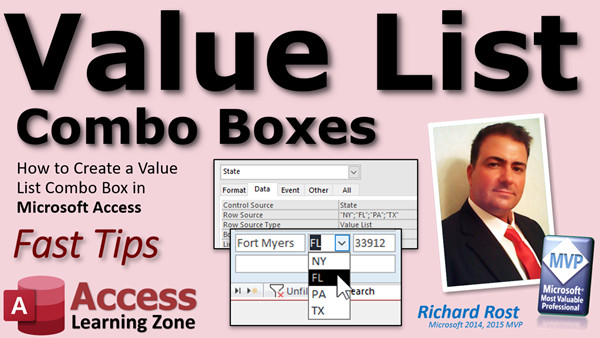
In this Microsoft Access tutorial, I'll teach you how to create a value list combo box. This is a combo box where you specify a list of options to select from. I'll also show you an example of where a value list combo box is actually better than a relational combo box for the particular situation.
Recommended Course
Links
 Keywords Keywords
access 2016, access 2019, access 2021, access 365, microsoft access, ms access, ms access tutorial, #msaccess, #microsoftaccess, #help, #howto, #tutorial, #learn, #lesson, #training, #database, #fasttips, what is a value list combo box, How do you create a value list in Access, limit to list, allow value list edits, row source type, Populate a combo box with a list of values
More InformationTranscript Welcome to another Fast Tips video brought to you by accesslearningzone.com. I am your instructor Richard Rost.
In today's video, I'm going to teach you how to create a value list combo box in Microsoft Access. So what is a value list combo box and how is it different from a relational combo box? Well, a value list combo box has a list of options that are stored in the box itself. You usually set this list of options at design time when you build the combo box.
The pros are the user can type in options that are not in the box, if you allow it, and I'll show you how to allow it or not allow it in just a minute, or even edit the list in place if you again allow them to. No separate tables are required, so it does not have to get this list from a table. This is good for storing simple text values or values where the user might type something unexpected. You want to give them a list of options to pick from, but they are still free to type in whatever they want. That is why a combo box can be a good mixture. It is a combination between a list box and a text box.
Some examples you can do are state, payment type, delivery method, and contact type. I will explain that in a few minutes. The con is if you use a value list combo box, that data is stored in the combo box itself. You have to maintain multiple lists if you are going to keep the same list on multiple forms. Use it in one spot only.
A relational combo box is the one that you see most of the time in a database. It gets its list of values from another table or query. The list of options is generated on the fly based on the data from another table. If you use this box on multiple forms, you do not have to keep updating the list. This is good for storing related record information. For example, the picture that you see here, we are picking a customer for our order form. You might have that customer list in multiple different places in your database, on the order form, the shipping form, everywhere you want to pick a customer. You do not want to have to update that list in multiple places.
The downside to this is it takes a lot more work to update the list, but it is not that hard. You can set up something called a list items edit form. I am going to add something I just thought of. You generally cannot freely enter text. If you allow the user to type in something into that box, then you have to know how to use some VBA to add that to the list. That is a lot more complicated using something called a not-in-list event. For most databases, you generally make this something we have to pick from an existing list of items. Of course, it is Access. There are ways around everything.
I have a whole separate video on building relational combo boxes. Go watch this video if you want to learn about those.
In this video, we are going to focus on the value list combo boxes. Let's go make a couple.
Here I have my TechHelp free template. You can go grab a copy of this if you want to. You can go to the website and I will put a link down below.
Let's make a real simple one. Here is the example that I like to use for a simple value list combo box. Let's say you want to be able to pick the state from a list of states. You do not have to go ahead and type in all 50 of them up front if you do not want to. Let's say you only do business in three states. That is a nice easy example. The user can still type in other states if they want to, for example, if you get someone from out of state. You want to give them that list of three main states to pick from.
Let's go into design view. Let's delete the state field that is here. Goodbye. That is just a text box.
We are going to need a little bit more room. I am going to shrink up city just a hair. Let's go up to our toolbox and find the combo box - that guy right there. We are going to drop it right there. That is a spot.
The wizard starts up. I am going to type in the values that I want. Next. One column is fine for now. Let's put in here New York, Florida, and Texas. Those are the three states that we normally deal with, but you might have others so you can still type in. Next.
Now we are going to store that value in what field? We are still typing in text and we are saving it in the state field. We are not dealing with IDs at all here. It is a blessing and a curse. There are pros and cons to both ways. Next.
What label would you want? Doesn't matter. We are going to delete it in a second anyway. It is finished.
Let's delete that label. It's right over there. We'll slide this guy into place. Do a little bit of that, do a little bit of this, and there it is.
Let's save it, close it, and open it back up again. And there we go.
Now, if there is text already in one of these fields, you will see it in there. But you can pick from a list now. And if you do have someone who is from a different state, let's say Washington, you can still type in WA and press Tab.
Now look at that, it goes to the next record. Why is it going to the next record? Well, because I just added this guy in last, so he is last in the tab order. If you do not know what tab order is, I have got a different video on that. I am going to Tab Order video, and I will put a link to that down below as well. You can find it down under the video in the link section.
We fix that right there. Click on Tab Order. Oh, here is the other thing. It's combo 30. Whenever you create a new combo box using the wizard, it gets a name like combo 30. I do not like that.
We will change that to - well, let's move this up underneath city, so when we hit the Tab key, it is going to go phone, address, city, state, zip. Let's hit OK.
Let's rename this guy. Double click on it to bring up the property sheet. I do not like combo 30. What is combo 30? It is meaningless. The wizard should ask you for a name instead of a label.
State. Now, when I am working with most combo boxes, usually I like to end them in combo, but since this is only a value list, I am just going to leave it as state. Because it is not treated like a relational combo box where I want to know that it has an ID in it.
Save that. Let's close this. Now we should be good. If I type in this here, it will tab-tab. I can either pick Florida and hit Tab, or I can type something in here like Georgia.
Now, you might not want your users to be able to type in anything they want. You might want to force them to have to pick from this list. If that is the case, right click, design view. Open up that property sheet again, double click, go to the Data tab.
Now, there are a couple of things in here. Limit to List. It is default set to No, which means you are not limited to that list. You can type in anything you want. If you change that and set it to Yes, that means the user has to pick from this list. However, the next setting here says Allow Value List Edits, which means they can edit the list.
So, if you want to make it so they have to pick from these three states, you have to turn both of these things off so they cannot change the list and they have to pick from that list. But let's leave this one on for a second. Let me say that. Let me show you what that looks like.
If you want to just type in any old thing here, for example, if I type in PA, and it is not on the list, and you have Limit To List set to On, then it says "Do you want to edit the items in the list?" Say yes and this guy comes up. It will put what you typed in at the bottom of the list. You can set a default value if you want to. That is kind of nice. If most of your business is in Florida, for example, then hit OK.
Now look at that - Pennsylvania's on the list. That little button there that is kind of visible is the same thing. If you click that, that opens up this guy. This is also something you can use in relational combo boxes to add items to a table that this might be based on. That is called a List Items Edit Form. That is this guy. Again, got a video for it. Go watch that video.
So if you want to prevent them from doing that, you can come in here and set Allow Value List Edits to No. Limit To List is Yes. Allow Value List Edits is No. Save that.
Close it. And look real quick. Let me show you. See what it did there? It adds that to the list up here. This Row Source is simply the data that is in the box. Each item is inside quotes and they are separated with semicolons. You can add more on here if you want to, just like that. Make sure you end it with a semicolon.
The downside to this again is if you want to put this somewhere else, like on your order form or on a vendor form, you have to keep updating this list. That is why, if this is a list that you want to get and use in multiple places, make a table for it. Store this information in a table and that would be a relational combo box.
So this is all fine and dandy, but honestly, most things like this that I can think of, they generally work better as relational combo boxes. Anyway, I tend to use this example in my beginner classes because it is easy to understand, but I try to use value list combo boxes in places where I want to give the user a list of popular, common options, but still give them the option to type in pretty much whatever they want to type in.
Here is a good example of this - the contacts form. In my database, I have a contacts form. Basically, a contact is any time you talk to a customer, have an appointment with the customer, or do anything for the customer, like a phone call. Down here in the bottom, you can type in, for example, "We talked about blah, blah, blah," whatever. The following day, another phone call came in. Then the following day, you have an appointment.
Down here is where you are going to type in the specifics, but up here, you keep repeating the same things over and over again. Phone call, phone call. Called about this, called about that. This is the perfect candidate for a value list. It is only used in one spot right here. You want to save text in the underlying table. You are not going to pick this from a list of other options, but you want to give the user the ability to type in whatever they want here. This is perfect for a value list.
Design view. Let's get rid of description here. Drop this down. Combo box. Put it there. Type in the values that you want and your list of popular things, for example, "Called in," or "Called out to," "Appointment," "Mailed package," whatever your popular, common things are that you type in here. I am sure those of you who make phone calls all day or have contacts with customers all day, you have certain things that you do over and over and over again for different customers.
Make that as big as you want it to be. Next, we are going to save that in description. Next. The label is going away. We will delete that. Close that. Slide this up into place where the other one was. Change its name to description. I will just copy this one. Copy, Ctrl-C, paste.
Tab order should be okay because there are only two fields in the detail section. Save that now. Close it.
You can see I got all the same data there. But if I have another contact here, I can just pick - I did not put phone call in here today. Well, there is called in, called out to, called out to, and then down here, type in your notes. The next day, I have got an appointment for something else.
But, I am still free to type in whatever I want. So, this is the perfect use right here for a value list combo box because this is not a list that I want to save anywhere on a table.
Whereas some things like this, this is a list of customers and I might use this in different places and I do not want to just type in something random in here.
Do you understand the difference in the two types of combo boxes now? That is when you use a value list combo box as opposed to a relational combo box.
If you want to learn more about value list combo boxes, I cover them in more detail in my Access Beginner Level 8 class. I cover all kinds of stuff in here with multi-column combo boxes. You can do multiple columns in there, combo boxes, the search records, list boxes, some of those other properties I am talking about, and a lot more, so check it out.
So, that is your Fast Tip for today. I hope you learned something and we will see you next time.
How do you become a member? Click on the Join button below the video. After you click the Join button, you will see a list of all the different membership levels that are available, each with its own special perks.
Silver members and up will get access to all of my extended cut TechHelp videos, one free beginner class each month, and more.
Gold members get access to download all of the sample databases that I build in my TechHelp videos, plus my code vault where I keep tons of different functions that I use. You'll also get a higher priority if you decide to submit any TechHelp questions to me and you will get one free expert class each month after you finish the beginner series.
Platinum members get all the previous perks plus even higher priority for TechHelp questions, access to all of my full beginner courses for every subject, and one free developer class each month after you finish the expert classes. These are the full length courses found on my website, not just for Access. I also teach Word, Excel, Visual Basic, and lots more.
You can now become a Diamond sponsor and have your name or company name listed on a sponsors page that will be shown in each video as long as you are a sponsor. You will get a shout out in the video and a link to your website or product in the text below the video and on my website.
But do not worry, these free TechHelp videos are going to keep coming. As long as you keep watching them, I will keep making more and they will always be free. Intro In this video, I will show you how to create a value list combo box in Microsoft Access. We will talk about the differences between value list and relational combo boxes, look at the pros and cons of each type, and walk through step-by-step examples of setting up value list combos for commonly used fields like State and Contact Type. You'll learn how to control whether users can type in their own entries or are limited to your list, and see practical tips for customizing the combo box properties and tab order. Quiz Q1. What is a value list combo box in Microsoft Access?
A. A combo box with options stored inside the combo box itself, set at design time
B. A combo box that gets its list of options only from another table
C. A text box combined with a command button
D. A list box with multiple columns linked to another table
Q2. Which of the following is a benefit of using a value list combo box?
A. The user can type in options not in the list if allowed
B. The list automatically updates from changes in a related table
C. It is the only way to enforce referential integrity
D. It requires less storage space than other controls
Q3. What is a major con of using a value list combo box?
A. Data in the combo box must be managed in each place it is used
B. Users cannot type their own values
C. Only number fields are supported
D. It cannot be used in design view
Q4. In which scenario is a value list combo box most appropriate?
A. When the list is short and used in only one form
B. When the list is large and shared between multiple forms
C. When pulling data from an external database
D. When you need complex relationships between data
Q5. How is a relational combo box different from a value list combo box?
A. It gets its options from another table or query
B. It stores all options in the combo box properties
C. It cannot be edited after creation
D. It only displays numbers
Q6. Why might you choose a relational combo box over a value list combo box for customer names?
A. Customer lists are usually used in multiple forms and need to stay in sync
B. You want free-form text entry for customer names everywhere
C. You want to limit users to only three customers
D. The database cannot handle large tables
Q7. What does the "Limit to List" property in a combo box control?
A. Whether users can enter a value that is not in the list
B. The number of records a form can display
C. The maximum text length in the field
D. The number of columns in the combo box
Q8. What effect does setting "Allow Value List Edits" to Yes have?
A. Users can edit the items in the value list
B. The combo box will become read-only
C. Users will be prevented from editing data anywhere in the form
D. The list will be updated automatically from a table
Q9. What happens if "Limit to List" is Yes and "Allow Value List Edits" is No?
A. Users must pick from the existing options and cannot modify the list
B. Users can enter new values that will be saved to the list
C. The combo box will be hidden
D. Only administrators can use the form
Q10. What is the main limitation of using a value list combo box if you want to use the same list in many places?
A. Each value list must be updated separately on every form
B. The values cannot be seen by any users
C. It does not work with numbers
D. It cannot display more than three options
Q11. Which of the following is NOT a recommended use for a value list combo box?
A. Storing a list of commonly used contact types in a single form
B. Allowing a user to pick from a few shipping methods in one order form
C. Selecting customers in many forms throughout a database
D. Giving users a list of payment types on a single form
Q12. In the provided description, what property should you change if you want your users to only be able to pick from the provided list of states and not enter a new one?
A. Set Limit to List to Yes
B. Set Allow Value List Edits to Yes
C. Set Row Source Type to Query
D. Set Default Value to Florida
Q13. When using a value list combo box, how are the items stored within the control?
A. As a semicolon-separated list of quoted items in the Row Source property
B. As records in a related table
C. As fields in another database
D. As comma-separated values inside the Data property
Q14. What is a good example of text that is commonly entered with a value list combo box for contacts?
A. Phone call, appointment, mailed package
B. Address, email, phone number
C. Invoice number, quantity, unit price
D. Customer ID, order total, ship date
Q15. What does adjusting the tab order in a form control?
A. The order in which fields receive focus when pressing the Tab key
B. The alphabetical order fields appear in the table
C. The way records are sorted in a report
D. The default values assigned to fields
Answers: 1-A; 2-A; 3-A; 4-A; 5-A; 6-A; 7-A; 8-A; 9-A; 10-A; 11-C; 12-A; 13-A; 14-A; 15-A
DISCLAIMER: Quiz questions are AI generated. If you find any that are wrong, don't make sense, or aren't related to the video topic at hand, then please post a comment and let me know. Thanks. Summary Today's video from Access Learning Zone focuses on teaching you how to create a value list combo box in Microsoft Access. I want to clarify what makes a value list combo box different from a relational combo box. With a value list combo box, the options you provide are built into the combo box itself. You define this list at the time you design it.
One of the advantages of a value list combo box is that, if you choose, users can type in entries that are not in the box, or even edit the list on the fly. I will show you how to set these options. Since there is no need for a separate table to store these choices, it is ideal for storing straightforward values or when it is possible that users might enter something you have not anticipated. This control strikes a balance between a list box and a text box: you give people a short list to pick from, but still allow them the freedom to enter something else if it comes up.
Some typical uses for value list combo boxes include things like state selection, payment type, delivery method, or contact type. For instance, maybe your business operates in just three states, but you still want the flexibility to type in a different state if needed. In this scenario, you give your users the three main choices but let them type an alternative if one comes up. The drawback is that the list of options is stored directly in the combo box, so if you use the same list in multiple spots, you would need to update each one individually. For that reason, these work best when you only need them on a single form.
Most of the time in Access databases, though, you will see relational combo boxes. These get their lists from another table or a query, so any updates to the list only need to be made in one place and they show up everywhere in your application. This is great for things like customer or product selection, which you might need in many forms and places. The tradeoff is that it is more complicated to let users type in new values, and you would need to use VBA to handle adding new items to the list. For most cases, you are meant to just pick from what is already in the table.
If you want more detail on relational combo boxes, I have a separate video that covers them. Today, I am going to concentrate on value list combo boxes.
As an example, I am going to show you how to make a simple one for selecting a state. Suppose your company does business in only three states: New York, Florida, and Texas. You can simply list those in the combo box, and users can either pick one or type in something different, like Washington, if needed.
The process is straightforward. First, open your form in design view and remove any existing text box for the state field. Make some room, then insert a combo box. Choose to enter your own values for the combo box and enter your states - for this example: New York, Florida, and Texas. When prompted, configure the combo box to store its value in the state field. You are saving text directly - there are no IDs or related tables in play here.
Once the combo box is added, tidy up the form as needed by moving or renaming controls. By default, the combo box is set up so that users can either select from your list or type in their own entry. If you are not happy with the automatically generated control names like "Combo 30," it is a good idea to rename it to something more meaningful like "State."
If you want to restrict users so they can only pick from the list you provide, open the property sheet for the combo box and set "Limit to List" to Yes. If you leave "Allow Value List Edits" turned on, users can still edit the options shown in the combo box right through the interface. If you want to prevent this as well, set "Allow Value List Edits" to No.
It is worth pointing out that the data in a value list combo box is stored right inside the Row Source property as a semicolon-separated list. If you put the same combo box on another form, you will need to remember to update that list everywhere it is used.
While value list combo boxes work well in some cases, often it is better to use a relational combo box, especially when the same list appears in several places throughout your application. That way, you manage the options in just one place.
A great example where a value list combo box is the right choice is on a contacts form, where you might want to track the type of interaction with a customer. Since you are only using the list in this one spot, and you want to save the actual text, a value list combo box is ideal. You can set up typical actions like "Called in," "Called out to," "Appointment," or "Mailed package" as your options, but still leave it open for users to enter something uncommon if needed.
So, to sum up, value list combo boxes are best for single-use scenarios where you need a built-in set of choices but want to retain flexibility. Relational combo boxes are preferable when you need to maintain consistency and efficiency across multiple forms or places in your database.
If you would like to explore value list combo boxes in more depth, including advanced features like multi-column options and additional properties, I cover these in my Access Beginner Level 8 class.
That wraps up today's Fast Tips lesson. For a complete video tutorial with step-by-step instructions on everything covered here, visit my website at the link below.
Live long and prosper, my friends. Topic List Difference between value list and relational combo boxes
Pros and cons of value list combo boxes
Creating a value list combo box using the wizard
Adding options to a value list combo box
Storing values in a table field from a value list combo box
Allowing users to type values not in the list
Configuring Limit To List property
Configuring Allow Value List Edits property
Editing the items in a value list combo box
Setting a default value in a value list combo box
Understanding and managing the Row Source property
Changing the tab order of form fields
Renaming a combo box control
When to use value list combo boxes vs relational combo boxes
Use case example: states selection as a value list
Use case example: contact type selection as a value list Primary Topics value list combo box, combo box design, Access form controls, Limit to List property, Allow Value List Edits, relational combo box, data entry options
Secondary Topics tab order, naming controls, use cases for combo boxes, list items edit form
|





