Requery Subform
By Richard Rost

 4 years ago
Requery Records in a Subform Based on Parent Data
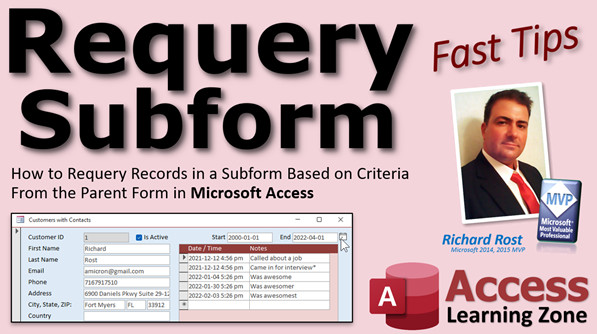
In this Microsoft Access tutorial, I'll teach you how to requery records in a subform based on values from the parent form. For example, we'll requery a list of contacts for a specific customer between two dates specified on the customer form.
Pre-Requisites
Recommended Courses
Links
Keywords
access 2016, access 2019, access 2021, access 365, microsoft access, ms access, ms access tutorial, #msaccess, #microsoftaccess, #help, #howto, #tutorial, #learn, #lesson, #training, #database, #fasttips, requery subform, filter subform, between dates, value from a subform, Fields on a subform, Forms!ParentFormName!SubFormName.Form!FieldName, recordsource query to SQL statement, SubForm.Requery, Requery a subform from another form, Refresh the contents of a subform, subform requery with update on main form
More InformationTranscript Welcome to another Fast Tips video brought to you by AccessLearningZone.com. I am your instructor, Richard Rost.
In today's video, I'm going to show you how to requery records in a subform based on criteria from the parent form in your Microsoft Access databases. This is a case, for example, where we have our customer form, and here's a subform containing the contacts for that customer. Every time I contact the customer, I put a note here in a log. After a while, you're going to get lots and lots of these. So what if you want to filter this list based on a start date and an end date? Well, that's what this video is going to show you how to do.
Before we get started, some prerequisites. First, if you haven't watched my Customer Contacts video, go watch this. It's free. It's on my YouTube channel. It's on my website. There's a link. I'll put a link down below you can click on as well. I show you how to build the database we're going to be using in today's video.
You will also need to know how to get a value from an open form. You have one form over here. You have another form over here. This guy's got to get a value from this guy. How do you do that? Well, this video explains that.
You're going to need a little tiny bit of VBA. Don't be scared if you've never done any programming before. That's okay. It's real easy. Go watch this video, Intro to VBA, 20 minutes long. It teaches all the basics, everything you need to know to get started. We're literally only going to need one line of code in today's class, but you have to know the right spot to put that line of code, so that's what I teach you in today's video. But first, go watch this so you have some background if you've never done any VBA programming before.
After that, go watch my After Update video. I want you to know how to program an After Update event. It's real easy. Basically, when one field gets changed or updated, it runs an event. Go watch this, too.
Got all that under your belt? Awesome. Here we go.
I'm in my TechHelp free template Free database. You can download a copy from my website. Here's my customer with contacts form. I'm going to put some extra records in here so we have some stuff to work with.
I put three extra records in. I changed the dates on these. So I have two records from 2021 and three records from 2022. Yes, I'm using ISO dates. That way, they're standard around the world. Everybody knows what's the month and what's the day. If you want to learn more about that, there's a video.
The first thing I'm going to do is add a start date and an end date field, text boxes up here on the parent form. Now, I've already got a date field. Where is it right there? My customer since is the date field. I'm going to copy and paste that. Ctrl-C, Ctrl-V. I'll put you up here.
We'll call this the start. Start. I'll slide that guy over like that. Maybe align that to the right.
Open up this guy, the properties. Let's change this. Let's get rid of the control source. This is going to be unbound. In other words, this text box is not bound to a table field. Look, the rest of these guys are. They just can be values you can type in, and literally all they do is affect the records down here.
Go to the Alt-Tab here. We're going to change this to start date. That's the name of that guy. How about a default value on the data tab? Let's go to default value. We want the widest range possible so we get all the records when the form loads. Let's say our business was started in 2000. I'll go 2000.11. That's January 1st, 2000.
Now let's make an end date field right next to it. That probably can be a little bit smaller. Copy and then paste. I clicked on the background before I hit paste because, watch this, if you don't, this happened to me earlier. If I go copy and paste, you don't see it. Why? It's hiding under the subform object. You have to move things all around to get it back there. So just be careful. Subforms will usually hide fields behind them. It's weird. It's a big quirk.
But this guy will be the end date. Click on that. Let's change this to something way in the future, like 2100 or 2050, however long you plan on using this database.
Go to the Alt tab, scroll to the top, change this to end date. So we have two fields: start date and end date.
If you're sure, by the way, that all your contacts in here are less than today's date, you could make this =Date(), because you could put today's date in there. But I know a lot of people, myself included, where I put future contacts in here to track appointments, so if I want to follow up with this guy next Thursday, I'll put next Thursday's date in there. I don't always want to do that. But again, that's up to you. That's why you build your own database. That's why you don't rely on someone else's software. You can make Access do whatever you want it to do. That's the beauty of Access.
Close this, make sure you save your changes, and open it back up again. I have to resize the form a little bit here. Let me go save that. Sometimes when you make a design change and you save it, and you open it back up again, it keeps the form's width and height, whatever you save it as.
Now these don't do anything yet because we haven't told Access to do anything with them. They're just date values that are sitting there. And I'm noticing if I click on them, I'm not getting little date pickers, a little calendar box that pops up. Why is that? Let's take a look.
Go to the Format tab. Notice there's nothing in the Format tab. So that guy, I'm going to hold down the Control key and click on that guy. Might as well get this guy while we're at it, click on the customer since. Change the Format in here to Short Date. That will use whatever your system's short date is set in Windows. Save it, close it, pop it back open again. It's doing the same thing again. Sometimes when you make a design change, you have to go into Design View, save it out like this, close it, and now open it up, and now it opens up correctly. That's another quirk with Access. You'll see that happen from time to time.
People always ask me, why is my form opening like that? Because you save it that way in Design View. So you have to open it up and then save it.
The next thing I have to do is tell this form to get its data based on the values in these two fields. We're going to use these as criteria. Now, the form as of right now, if you open up this form's properties, notice you have to click on it once to get the subform object, and then a second time, it's not quite a double click. You have to click once and then click a second time to get in here. Then you can double click on that guy to get the property sheet for this form.
On the Data tab, you'll see that it's getting its data from ContactT. We're going to change this to a query. Then we can use query criteria to get the values from this form. You should know how to work with query criteria because this is a prerequisite from the other video I asked you to watch. I can get a value from a form, so make sure you watch all these videos.
A lot of people say, why do you give us all these videos with different ones to jump around and watch? Well, that's how the TechHelp and the Fast Tip videos work. You have to know the stuff that I've covered in these other videos. If you want to learn stuff in the proper order, take my full course. Start with Beginner 1, Beginner 2, Beginner 3, and work your way up, and you don't have to jump around like this. But for these Fast Tip videos, sometimes you need a little bit over here, sometimes you need a little bit over there, and I put it all together for you. There's a reason why I tell people in my full courses, don't skip around because I cover things in the proper order.
So we know how to use query criteria. We need to use a query with some criteria, so this guy can get its values from that query. Close this down.
Let's create a query: Create - Query Design. Bring in the Contact table. That's all we need. Don't need any customer stuff. Bring in the star ( * ), which says give me all the fields. Then I need to bring in the contact date, but I don't want to see it a second time. If I run this guy now, I see two of them: ContactT.ContactDate and Field0. I don't want them both. So I'm going to hide that one so I don't have to see two of them. Now I just get the one, but I need it in here to use its criteria.
So this is why I said we're going to get a value from another form. What's this going to be? We're going to zoom in, Shift+F2. Zoom in. This date needs to be greater than or equal to Forms!CustomerContactF!StartDate and less than Forms!CustomerContactF!EndDate.
We're going to save this query as the ContactQ (Contact Query). If you run this now, you get Enter Parameter Value. Why is that? It's trying to find this form, and it can't find it. Enter Parameter Value usually means it can't find the form you're looking for. It can also mean a spelling mistake or you typed something in wrong. If you get Enter Parameter Value and you're not expecting it, those are the two reasons why: you spelled something wrong, or it's looking for a form that's not open. Go ahead and cancel that.
Another thing people always ask me at this point is why I use greater than or equal to and less than, instead of using BETWEEN. Because BETWEEN doesn't include any time values on this end. If I say BETWEEN January 1st and December 1st, I'll get between January 1st at midnight (which is all day January 1st) and up to December 1st at midnight. So it won't include December 1st at 3pm because time values are to the second. There's another video about that. People ask me all the time, I got BETWEEN start date and end date, why isn't it showing me all the values from the end date? Because you have times on them and these values do. These contacts have times on them. If you just have a table with dates without times, you're okay. You can use BETWEEN. You can't say BETWEEN EndDate + 1 because then you're going to get midnight on the day after the date that you want. In this particular case, this is really the best solution.
We've got our query all set. Save it, close it.
Now open up the form. It's still pulling off the table. But run the query manually now and you'll see there's all your records. You're seeing all the customers. That's okay. The subform object handles that. The subform object will filter it based on what customer you're on.
Let's go over here and change the date now. Let's say I want to see from 2000 up to 2022-01-01. Now when I run this, you'll see only those dates.
Now we're ready to tell this form, hey, don't get your data from the table, get your data from the query. Design View. Come in here, double click on this, come to ContactQ. It's going to put some filter in here. Get rid of that filter. Don't worry about that. Save it, close it, open it. Everybody's in there.
Now let's do the same thing we just did a second ago. Come over here. I'm going to change this to 2022 and then press Tab. The first thing that happens is, since this is the last field that I dropped on this form, when I hit Tab, it jumped to the next record because it's the last control in the tab order. I hate that. Don't know what the tab order or the tab cycle is? Go watch this video about the tab order.
I'm going to come in here first and go to the form properties for the parent form. Go to Other, and I'm going to change Cycle to Current Record, so when I tab past the last control, it just goes back to the first one and stays on this record. The only time I want to go from record to record is if I'm on a continuous form, or if I build a form specifically to do that. Usually, when I'm on this record here, I only want to go down here to go to the next record. So if I come over here and hit Tab, it jumps back to the first field.
Let's do this again now. Change this to 2022. 2000. No, not 20,000. No, 2022. Hit Tab. Nothing happened again. Why is that? We didn't tell this subform to requery itself. Now, watch this: If I move to a different record and come back again, look at that, the records did filter themselves because when you move from record to record on the parent form, the subform requeries each time. So that does work, but I don't want to have the user go to the different record and then come back again. That's kind of silly. I want to just requery this subform every time either one of these values is changed. This is where our After Update event comes in. I told you to watch the After Update video before, at the top of the class.
Open up the start form here, go to Events, After Update... Code Builder. All we need is Me.Requery. That's it, Me.Requery. We need that in both the start date and the end date's After Update event. That says, after the user updates this field and changes the value, requery the form.
Now you're going to see another problem in a second. I like to show you a little bit at a time, but I like to throw in mistakes sometimes too. I do that in my full classes too. I'll throw in an intentional mistake or two just so I can teach you what's happening, because I'm showing you the stuff that people have had happen in my classes over the last 30 years. I've been doing this, so trust me, there's a method to my madness.
Change this: 2022. Whoops, I have it in the wrong thing. 2022, hit Tab. Beautiful. It worked. Perfect.
Now let's go to somebody else. Let's go to a different customer. Let's go to this one. Let's filter this for 2020. Change this to 2020. Change this... Oh, what happened? As soon as this one updated, it ran the After Update and it jumped back to Richard Rost. Why is that?
Let's take a look at our code. Me.Requery. What is Me? Me is the form you're on. So in this case, if this guy says Me.Requery, it's requiring the parent form, not the subform. The parent form is going to requery; it's going to drop it back to the first record. So what we want to do is to requery the subform, not Me, but this guy. How do we refer to this guy?
It's not Me, it's our contact form. We want the name of the control. The control is this thing, the whole box, not the form inside of it, it's this, the control box. Now, it's usually named the same as the form itself, but you can change it, so just be aware of that. What I want to requery is ContactF. So it's just going to be ContactF.Requery like that. Sometimes you might even see it as ContactF.Form.Requery, but just ContactF.Requery.
Save that. Come back out here, close that. Here we go. Now we'll come over here, change this to 2022, Tab. Look at that, it requiried the subform. That's pretty much all you have to do. Go to a different record now. It will keep these as you move from record to record because they're unbound.
Let's say I wanted to see just records from 2020 here. Change this to 2020, change this one to 2020-12-31. There you go. That's how it works.
There's your Fast Tip for today. Now, I've gotten some email and some people in the forum, comments, and people have said, the Fast Tips, they're not that fast anymore. We're already at like 16 minutes today. I know. Sometimes when I look at something I go, okay, that's pretty quick to explain, I'll make it a Fast Tip, try to keep them under five minutes, but then as I get going and I start explaining and we start having some fun, yeah, I know they draw out a little bit. I'm sorry. Whether it's a Fast Tip or a TechHelp, it's all the same stuff. The TechHelps usually have extended cuts because I've got a little bit to show you and then I have a lot more to show you in the extended cut.
But you know what we're going to do today? Just because I'm in a good mood today, I'm having fun doing this, this is one of those things where there's lots more to cover, and I do cover a lot more with this in my full courses. But let's do a bonus round. Are you ready for a bonus round? Let's do a bonus round.
What I'm going to show you now is the kind of stuff that I normally do in my extended cut videos and in my full developer classes. I'm going to give you a taste. Let's have some fun.
Pretend we're going to pretend everyone's a member. Then this will be an extended cut. What we're going to do is--there are two things I'm going to show you, the kind of crazy stuff I like to do sometimes.
The first thing I'm going to show you is: What if we want to put these parameters in the subform instead of being on the parent form? Maybe you want to use this subform on other parent forms. Then in order to do that, you'd need to have these in here instead of up here, because now this form has to be open in order for this guy to get its values. Later on in this extended cut, I'm going to show you how to do this without having to use a query because I don't like my database filling up with all these simple useful queries. Well, not useless, but if you have 500 queries in there that all just do slightly different things, that's a bit of a pain. What I like to do is take this and get rid of the query and put the stuff right here. We're going to do both of those things in this pretend extended cut, this bonus round.
So I'm trying to entice some of you that are on the fence to become members and show you some of the cool stuff we do in the extended cuts.
The first thing we're going to do is move these into here. I'm going to just cut them out, Ctrl-X, snip. We're going to make this a little bigger so I have some room to work here. Come down in here, click on this form header. We're going to slide that detail section down and then just move these labels down here, then click and then paste. Bring those guys in there.
Let's make these guys white so I can actually see them. Only the format painter, like that. Oh, but now they're lining up to the left. So click, click, click and Shift-Click to get them both, and then right-justify them there. I'll probably slide this up a little bit. So, we've moved these from there down to here, and I'll slide that up so we have more room now. Save it, close it, and open up the form.
I'm just getting nothing now, not even an enter parameter value. The query is looking for these fields here in the parent form, though. By running the query by itself, I get no records. That's interesting. So Forms!CustomerContactF!StartDate and they don't exist anymore, because we moved them into here.
So how do we refer to the subform object instead of those fields being on the parent object? The nomenclature is a little bit different because we have to go to Forms, then the parent form, then the subform, then the field. What does that look like? Back in the value from an open form video that I asked you to watch, I actually cover this in the extended cut for this guy. Right down here in the member section. It says, "Members will also learn how to reference a value in a subform." So as you can see, another reason to become a member right there, you get all this cool stuff in the extended cuts.
But here's the syntax right down here. I did put it on the page for everybody, because people always ask me. In fact, one of the reasons I'm covering that in this video is because everybody always asks me this. "I got a value on a subform. How do I get the value?" There it is.
It's not that I'm trying to hold back information. Obviously, it's all free information online, you can Google it and find it, whatever. But it's complicated. This is a lot more complicated for a beginner, so when I make the free TechHelp video, sometimes I'm trying to keep it simple for beginners, or not necessarily experts in Access yet.
But this is the format that we have to use: Forms!ParentFormName!SubformName.Form!FieldName. So it's a little weird with this .Form in there.
Let's see how this works in our database. Go to the query, right-click, Design View. Zoom into this here. This is going to be Forms!CustomerContactF!ContactF.Form!StartDate. That works. Then the same thing down here, I'm just going to copy this and replace that with EndDate. That's the proper syntax right there.
But wait, it's going to get weirder in just a minute. This is, again, the kind of weird stuff that we cover in the extended cuts.
Now hit OK. Save it. Close it. Open up the form. You still get no records. I'm going to explain why in just a second, but watch this now: If I open up the query, I get records. What's going on? How come the query can find those fields, but the form itself can't? If I change this to 2022, like we've been doing, and then I open this up, it's working. I have all 2021 records.
There's some weird reason why the form can't get those parameters, but the query can. What's going on? This is the crazy developer-level stuff that we sometimes go into in the advanced classes. What happens is, when you load up a form with the subform, the subform records actually try to load first. I don't know why the guys at Microsoft designed it this way, but this is how it works. These records attempt to load first before everything else, but these records can't load yet because these unbound controls up here haven't loaded up yet. So these are trying to load, don't find the parameters, and you get nothing. It's weird. Then the parent form loads around it. It's just a matter of weird timing.
Watch this. If I move to a different record, there are some records. If I come back to it again, there they are. See, that's crazy. That's just a matter of timing.
How do you fix that? Essentially what we have to do is, when this form opens or loads—either one, the Open or Load event—we have to let this load, let this load, then when the parent form is done loading, we have to say, requery the subform just once and everything will work perfectly.
How do we do that? Right-click, Design View. We're going to find the parent's On Load event. Go to the form properties here. Go to On Load (or On Open should work too, but I usually use On Load). We're just going to say right here: ContactF.Requery. It's going to load the parent form up (which loads the subform). The subform records try to load, can't find their parameters. The parent form finishes loading and then it requeries the subform at the end of all that whole chain of events. Save it.
Ready? Close it. Open it back up again. Boom, there are your records.
I know, I know. It's these weird, crazy things like this. I've been doing this for 30 years. This is the stuff that I used to stay up until 3 in the morning working out a project and I couldn't figure out why this subform wasn't working. So I'm sharing that knowledge with you. Yes, it's crazy. Maybe Microsoft will change that. I've gotten dozens of emails from people about that. Which is funny because it works if the parameters are in the parent form, but as soon as you move the parameters into the subform, it doesn't work.
Alright, so part two of our bonus round—bonus round, part two. Are you ready for it? This one is easy. Again, just to show you the fun, wacky, crazy stuff we do in the extended cuts: I don't want to have to have this query here. So what we're going to do is, let's go into Design View on this guy. Now, every query has this pretty interface here—the query by design, the graphical way to build a query. But behind every query is an SQL view that looks like that.
What we're going to do is (and I do this often, because I'm lazy sometimes, I don't feel like writing SQL—I know it, it's just easier to build it with a graphical thing—sometimes I'll even do it here and then copy it over to SQL). Copy that to your clipboard, go into this form, open up the properties for this form (not the subform object, but this form object, the dot there). Go to Data (not Mr. Data, Data, the Data tab). So here's ContactT. Delete that, and paste in the SQL statement. If you want to see the whole thing, Shift + F2 to zoom in, there it is. These line breaks don't matter, you can leave those or you can get rid of them if you want to, if you think it's easier to read. I don't, but that's fine.
So that's basically what was inside this query, and we just put it inside the record source. OK. Save it.
Save it, close it. Now delete the query—oh yeah, delete the query, delete, delete, delete. Will it work? Let's find out. Tell her what she's won, Johnny! Boom, there it is. See, we don't need that query because the SQL is in this form, and it still works if I go... Bam. Oh, hang on. Oh, look what's happening. Oh, that's a good point, I forgot about this. I totally forgot about this. The After Update event. See, this happens when I goof around in the extended cuts. I run into problems. I didn't foresee this. I never tried it.
Those After Update events don't come with the controls. They're sitting over here in the parent form. Now, you can cut them and paste them over there, but you still have to rebind them. Watch this trick: Select all these. This is the end date after update, the start date after update. Let me show you first: If you go in here, go into Design View, pull up this guy's properties, notice there's no event in here. If you go to your After Update event, there's nothing in there.
So, I could easily put the start date out, I can put the thing in here. Let's go back over to the parent form. Now, I could use the Project Explorer over here. If you don't see this thing, go to View and then Project Explorer. This is a nice, easy way to switch back and forth between your different form modules. We're going to go over to our CustomerContact form, which should be before, cut that out, come back over to the Contact form, and then just replace that with this. Save it.
The form itself might not pick up on it, so if you click on this guy, it picked up on it this time. In older versions of Access, especially, these forms didn't pick up on that event procedure until you actually literally went into it like this. You can copy this around, but you have to make sure the form sees it, which, usually, it does in the new version.
Now we can save it, close it, close it, open it back up again, and now I should be able to change this and hit Tab. Oh, variable not defined. Oh, what happened? Why is it not working now? Can anybody take a look and see? Figure it out? Take a look at that. Let me not highlight that, I'm just giving it away.
Well, we're not requiring ContactF anymore because this guy doesn't have a control on it called ContactF. This is ContactF. This naming stuff is all about where you are and what you're trying to reference. This form is going to require Me. Right, it's going to require itself. That I did catch. I didn't catch the overall thing, but I did catch this when I was doing it.
Close it. Save changes, yes. Open it back up again. Boom, there we go.
Yes, this happens a lot in the extended cuts because a lot of times I prepare the free version—the simple version, the TechHelp—but I don't always prepare the extended cuts. It's a lot of me just playing around and, oh, let's try this, let's go around here. In so doing, we all learn stuff. I learn new stuff every week, and I've been doing this for 30 years.
So there's your bonuses. I hope you learned something with that. I hope you had some fun. That's the kind of crazy stuff we do in the extended cuts. That for today is your not-quite-so-fast tip. Fast doesn't necessarily mean it's going to be a short video. Fast just means it… well, yeah, I could do this fast if I had to. A lot of times, I'll sit down and I'll be like, yeah, I could do that in two seconds. And then explaining it takes 20 or 30 minutes.
But there you go. There's your Fast Tip for today. I hope you learned something. Sign up now. Become a member. You'll thank me for it later. It's cheap. It's not that expensive at all. I have puppies to feed. If you want more videos like this, sign up. Become a member.
We'll see you next time.
How do you become a member? Click on the Join button below the video. After you click the join button, you'll see a list of all the different membership levels that are available, each with its own special perks.
Silver members and up will get access to all of my extended cut TechHelp videos, one free beginner class each month, and more.
Gold members get access to download all of the sample databases that I build in my TechHelp videos, plus my code vault where I keep tons of different functions that I use. You'll also get a higher priority if you decide to submit any TechHelp questions to me. You'll get one free expert class each month after you've finished the beginner series.
Platinum members get all the previous perks, plus even higher priority for TechHelp questions, access to all of my full beginner courses for every subject, and one free developer class each month after you finish the expert classes. These are the full length courses found on my website, not just for Access, too. I also teach Word, Excel, Visual Basic, and lots more.
You can now become a Diamond sponsor and have your name or company name listed on a sponsors page that will be shown in each video as long as you're a sponsor. You'll get a shout out in the video and a link to your website or product in the text below the video and on my website.
Don't worry. These free TechHelp videos are going to keep coming. As long as you keep watching them, I'll keep making more, and they'll always be free. Intro In this video, I will show you how to requery records in a subform in Microsoft Access based on criteria entered in the parent form, such as filtering customer contact logs by a specific start and end date. We will set up unbound date fields on the parent form, use query criteria to display matching records in the subform, and add a little bit of VBA to trigger the requery when the dates change. Along the way, I will address common form design quirks and show you best practices for managing data sources and control events in Access. Quiz Q1. What is the main objective of the video tutorial?
A. To show how to print reports from Access
B. To demonstrate how to link Access with Excel
C. To teach how to requery records in a subform based on criteria from the parent form
D. To show how to merge duplicate records in Access
Q2. What is an example scenario presented in the video where this technique is useful?
A. Filtering invoices by amount
B. Filtering a list of customer contacts by start and end date
C. Sorting products by category
D. Calculating average sales
Q3. Before implementing the solution shown in the video, what does the instructor recommend watching first?
A. How to export Access data
B. Customer Contacts video and Intro to VBA
C. How to build macros
D. Data types in Access
Q4. What is necessary to add to the parent form to enable filtering by date?
A. Checkbox controls
B. Combo boxes for status
C. Two unbound text boxes for start date and end date
D. Navigation buttons
Q5. What must you set for the Format property of the date text boxes to enable a date picker/calendar?
A. Currency
B. Long Date
C. Short Date
D. General Number
Q6. Why is it recommended to use "greater than or equal to" and "less than" instead of BETWEEN in query criteria when filtering dates with times?
A. BETWEEN works better with times
B. BETWEEN does not include time values on the end date
C. You can't use BETWEEN in Access
D. "Greater than" excludes the first value
Q7. If you try running a query but receive an "Enter Parameter Value" prompt, what are likely causes according to the video?
A. Incorrect data types
B. Circular reference
C. Misspelled field or form names, or the referenced form is not open
D. Too many joins
Q8. How does the tutorial suggest requerying the subform when the filter criteria are changed?
A. By closing and reopening the form
B. By clicking a manual refresh button
C. By using the After Update event of the date text boxes to call ContactF.Requery
D. By refreshing the parent form
Q9. What problem arises if you use Me.Requery in the After Update event of the parent form's controls?
A. It only refreshes the subform
B. It causes a runtime error
C. It requeries the parent form, resetting to the first record
D. It highlights the field in red
Q10. In the bonus section, if the filter controls are moved into the subform, what is the new syntax to reference their values from a query?
A. Forms!SubFormName!FieldName
B. Subforms!ParentFormName!FieldName
C. Forms!ParentFormName!SubformName.Form!FieldName
D. Forms!FieldName!SubformName
Q11. Why do no records appear when the filter controls are moved into the subform and the form is first opened?
A. A filter expression is missing
B. The table is empty
C. The subform's controls have not initialized when the subform's records load
D. The query syntax is incorrect
Q12. How is the above problem (Q11) fixed in the bonus section?
A. By removing all filter criteria
B. By refreshing only the parent form
C. By adding a requery of the subform in the parent form's On Load event
D. By deleting the subform
Q13. What does the instructor show as an alternative to having a separate query object for the subform's data source?
A. Removing all queries and using tables only
B. Building macros for filtering
C. Embedding the SQL statement directly in the subform's RecordSource property
D. Creating a report
Q14. After transferring the After Update code to the subform, what needs to be updated in the VBA code for it to work correctly?
A. Change ContactF.Requery to Me.Requery
B. Change Me.Requery to DoCmd.OpenForm
C. Add a filter to the parent form
D. Add a macro to the table
Q15. Why might the After Update events not work automatically after moving controls and code to the subform in earlier versions of Access?
A. Access disables events by default
B. The events need to be manually bound to the new controls
C. There is a limit on the number of events per form
D. Macros override events
Q16. What is the main benefit of using unbound controls for filter criteria according to the video?
A. They are stored in the database for every record
B. They make queries run faster automatically
C. They let you filter the subform independently without saving the filter values to the table
D. They are easier to use in Macros
Answers: 1-C; 2-B; 3-B; 4-C; 5-C; 6-B; 7-C; 8-C; 9-C; 10-C; 11-C; 12-C; 13-C; 14-A; 15-B; 16-C
DISCLAIMER: Quiz questions are AI generated. If you find any that are wrong, don't make sense, or aren't related to the video topic at hand, then please post a comment and let me know. Thanks. Summary Today's video from Access Learning Zone covers how to refresh or requery records in a subform based on criteria set in the parent form in your Microsoft Access databases. For example, imagine you have a main customer form and a subform that lists each contact you've had with that customer. As you accumulate more contact notes over time, it can become useful to filter these records between a certain start date and end date. I'll walk you through the process of setting up this kind of filtered viewing using a combination of Access form controls, queries, and a bit of VBA.
There are a few things you need to know before following along. First, it's important to understand how to build a customer contacts database, which I explain in detail in my Customer Contacts video. If you haven't watched that yet, make sure you do, as it lays the groundwork for the example I'll be building from. Additionally, you will need to know how to retrieve a value from an open form in Access—how one form can refer to data that's entered on another form. Finally, you will need a very basic familiarity with VBA in Access. Don't worry if you haven't programmed before, my Intro to VBA video is just 20 minutes and covers the essentials. We'll only be using one line of code in this tutorial, but understanding how and where to apply it is important. Lastly, be sure you understand how to set up an After Update event in Access forms; this is a simple method that lets VBA code run automatically when a field's value changes.
Once you have all these basics, we can get started. In my demonstration, I'm using my free TechHelp template database, which you can download from my website. Let's open up the customer form that contains the contacts subform. To work through this example, I added three more contact records so that we have data spread across a couple of years. I'm using ISO date formatting (YYYY-MM-DD) for clarity and consistency.
The first change we'll make is adding two unbound textboxes on the main (parent) form, labeled start date and end date. These fields let a user pick any date range they want to use for filtering the contacts listed below. To create these, I copied an existing date field, removed its control source (making it unbound), and renamed it StartDate. For StartDate, I also assigned a default value early enough to ensure all records will show when the form first loads, such as January 1st, 2000. Then, using a similar process, I made an EndDate box and set its default far out in the future, like the year 2100.
These are unbound controls, which means they are not linked to fields in the underlying table. They simply hold on to whatever values you type into them and are used as criteria for filtering. It's good practice to assign these textboxes a date format (like Short Date) so they work smoothly and show the date pickers.
At this stage, the start and end date fields are on the form but do not affect anything yet. Next, we tell the subform to filter its records based on these criteria. With the subform selected, look at its properties. You'll notice the Record Source setting is currently the ContactT table. We need to change this to use a query. Build a new query that draws from the contacts table, and in the ContactDate field, set the criteria so it only shows records where ContactDate is greater than or equal to the StartDate from the form and less than the EndDate. Reference the controls on the parent form with an expression like: Forms!CustomerContactF!StartDate. Save the query as ContactQ.
If you get a prompt for a parameter when you run your query, double-check that the form is open and that you've spelled all references correctly. Remember, I use greater than or equal to for the start and less than for the end, instead of BETWEEN, because BETWEEN won't include dates that have time values attached—for instance, a date field with a time of day after midnight might get excluded unintentionally.
Once the query is complete, set the subform's record source property to this query. Now the contacts shown in the subform will reflect the date range values entered on the parent form. As you update the start or end date fields, though, you may notice that the list of contacts does not refresh instantly. This is because the subform only requeries when the parent form itself navigates to a different record, not when you change those dates.
To automate this refresh, we use the After Update event in VBA: for both the StartDate and EndDate fields, add a simple command that requeries the subform when their values change. Be careful with references—in the parent form's code, you want to requery the subform by its control name (such as ContactF.Requery), not the whole parent form (Me.Requery), or else you'll jump to the first record each time.
At this point, you'll have a fully functioning dynamic filter. When you enter new start and end dates, the contacts shown for each customer are instantly updated accordingly, and you don't have to click around or move between records to see changes.
For those interested in going further, I included a bonus section at the end of the video—a kind of sneak peek into the extended cut and the kind of developer content I usually cover for members. In this bonus section, I demonstrate how to shift the start and end date controls from the parent form into the subform itself. This allows for more flexible use of the subform, especially if you want to drop it onto various parent forms in the future. However, once you do this, you must also update the way you reference these controls in your query. The correct syntax for accessing values from within a subform is: Forms!ParentFormName!SubformControlName.Form!FieldName. The addition of .Form is necessary for subform references.
There is a quirk to be aware of: When a form with a subform loads, Access tries to populate the subform's records before it has loaded the unbound controls. This can result in no records being displayed at first, even though everything is set up properly. The solution is to trigger a requery of the subform in the parent form's On Load event. This ensures that once the whole form is open, the subform displays the correct filtered records.
Another advanced trick shown is to avoid creating extra saved queries for each scenario. Instead, take the SQL generated by your query and paste it directly into the subform's Record Source property. That way, you keep your database organized without accumulating single-use queries. If you do this, remember to move your After Update event code for the date fields into the subform as well, since the controls now live there.
Throughout this process, naming is important. The context (whether you're in the parent form or subform) determines whether you use Me, the name of the subform control, or another variant, so always pay attention to how you're referring to objects in your VBA code.
I hope you enjoyed this not-so-quick Fast Tip. Sometimes these tips take a little longer to explain because I want you to understand the reasons behind the techniques and how to handle the hurdles that come with real-world Access development. The kind of advanced problem-solving shown today is typical of what you'll find in my extended cut and full course videos.
To see a full video tutorial with step-by-step instructions on this and everything discussed here, visit my website at the link below.
Live long and prosper, my friends. Topic List Requerying a subform based on parent form criteria
Adding unbound start date and end date fields to a form
Formatting text boxes as short dates in Access
Setting default values for unbound date fields
Copying and pasting controls without hiding them behind subforms
Applying query criteria using form field values
Building a query to filter records by date range
Using greater than or equal to and less than operators vs BETWEEN
Setting query criteria to reference fields on an open form
Changing a subform's record source from a table to a query
Adjusting form tab order and cycle settings
Creating After Update event procedures in VBA
Adding VBA code to requery a subform after criteria change
Identifying and correcting issues with Me.Requery vs Subform.Requery
Navigating control and form property sheets in Access
Referencing subform controls from parent form VBA
Testing and troubleshooting subform requery behavior
Filtering subform records by date criteria entered in parent form Primary Topics Access subforms, filtering records, parent/subform interaction, unbound controls, VBA After Update event, query criteria from forms, requery methods, SQL in form record source
Secondary Topics tab order, date formatting in Access, referencing subform controls, timing issues with form loading, moving query logic to form, troubleshooting
|





