Association 1
By Richard Rost

 3 years ago
Microsoft Access Association Database, Part 1
In this series of videos, we will be building a database for tracking association members in Microsoft Access. This database will be suitable for a wide range of organizations, including churches, educational institutions, social clubs, and more. If there are specific features or types of databases that you would like to see, please let me know in the comments.
Pre-Requisites
Links
What's Next?
Keywords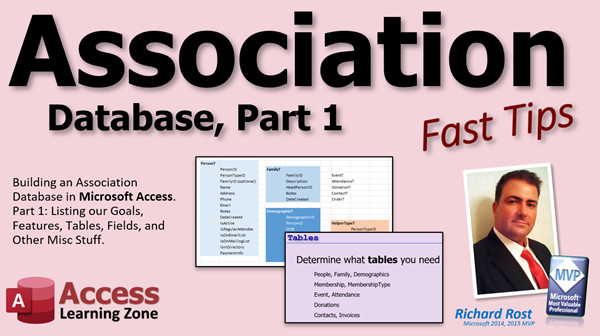
access 2016, access 2019, access 2021, access 365, microsoft access, ms access, ms access tutorial, #msaccess, #microsoftaccess, #help, #howto, #tutorial, #learn, #lesson, #training, #database, associations, groups, schools, memberships, churches, temples, donations
 Subscribe to Association 1
Get notifications when this page is updated
More InformationTranscript Welcome to another Fast Tips video brought to you by AccessLearningZone.com. I am your instructor Richard Rost.
This is going to be another Fast Tips series, just like I did with the follow-up series earlier. We are going to build a new type of database for tracking association members, whether you are dealing with a golf club, an educational institution, or a church. This will be a database for you.
I decided to do another database in steps. In other words, I will show you step one, step two, step three as a series of videos. I did something similar a couple of weeks ago with my follow-ups database. If you remember watching this, I added follow-ups to my TechHelp free template with the customers and the contacts and all that. It was a seven-part series. It got lots of positive feedback, and tons of people emailed me asking if I could build something similar.
So I am going to do another one of these series where I am going to build a database step by step, give you a little bit of time, and then we will add more based on your feedback.
Lots of people ask me to show more of my process for building new databases. In my Access Beginner Level 1 class, which is free, I give you a brief overview of how to get started building a database. But I really want to get the new user right into building with Access.
We talk about a couple of things for how to set up your tables and your fields, but we really just want to get into building your customer database fast. In this database, I want to show you more of my process for how I lay out the different tables and fields and the relationships before we even start building the database.
Based on the tons of emails I get, I have decided to do an association database. What does that mean? I tried to come up with a nice generic term for any kind of membership database. It could be a homeowner's association, a country club, a boat club, a golf club, or whatever kind of club you are in. Church membership database. Lots of people ask me if I have anything for building a church membership database. That is a big one. Any kind of social club, gaming group, educational institutions, if you want to track student enrollment, rec centers, all kinds of stuff. Any kind of membership database, whether it is for pay or for a donation basis, like a church, this database will be able to handle it.
Most of this database is going to be absolutely free. Feel free to build along with me at home or just watch and enjoy. I know I am super entertaining. There will be some extended cuts for members where I add some cool nifty features or things that are heavily involved with VBA programming. There are going to be some extra bells and whistles, but the core of the database will work just fine and it will be free. You are going to have to build it yourself, but Gold Members can download the databases that I build from my website.
I do, however, recommend you build it yourself if you want to learn what I am doing. The best way you can learn is to do it and make some mistakes. Try it yourself. Do not just download my copy and work with that.
When we are all done and finished with this, it will be available for purchase as a template on my website in case you do not want to become a member but you want to copy the database and get the version that I build with all my extra bells and whistles.
But the big takeaway is that this database is going to be driven by your feedback. I am going to release a couple of pieces here and there over the next couple of weeks, and each time I do, I am going to read your comments and your feedback and what you are talking about. If there is a feature that you want to see me add, post it in the comments, and if enough people are interested and I think it is a good idea, then I will go ahead and add it. Some of you post some crazy requests. I am not even going to get into that.
Also, let me know if there are any other types of databases that you want to see me build in the future. If this series is popular and a lot of people watch it and comment on it, then I will do more of this kind of stuff.
Let's get started. The first thing that you need to do whenever you are sitting down to build any database, before you even touch the computer, before your hands are even on your mouse, is make a list of what features you want the database to have.
I think very generically in broad terms. For example, I am making an association database. What features? Well, I want to track people, and people can be part of families. I want to track demographic information about each person. Then I want to have different memberships. Now, even if you are not a membership-based organization, for example, let us say you are a church and you do not really have memberships, you can use memberships to track different groups if you have different outreach groups or something. So a membership is just a generic term for a group or something within the organization that you want to be able to put people in different categories. But you can also have that for your membership dues. You can track your membership fees there.
We also want to have events and track attendance. You want to know who is there at your different events. We are going to show you some cool tricks for automating that. Then, of course, tracking dues, whether or not you have them. Again, you can have people in different membership groups that are not necessarily being charged a membership fee, but you also want to be able to track donations that they give. We will be able to track those donations into different funds. Maybe you have got a building fund or an outreach fund, something like that.
Now that you know what features your database is going to have, what generic things you are going to be tracking, now it is time to start making a specific list of the tables that you think you will need. Try to list them all if you can. Run through your brain; get all the tables. It is easier if you have a good roadmap up front of all the tables you need. You are going to add some later, or you might decide you do not need some and get rid of some you started with.
Like, I was going to do a different group table, and then I thought to myself, well, instead of having memberships and then having groups, you could just have a membership where you do not charge, with a zero dues being charged, for example, and that would just be a group. There is no sense in reinventing the wheel if something can fit into more than one thing.
For example, I have seen some people build databases like this. Let us take a church database, for example, where you have got the members of the church, you have got the administrators, people who work in the office, you have got the clergy, pastors and whatever. There is no need to make three separate tables to store that. They are all people. They are all the same kind of thing, so we will have one person table. Then in that person table, we will have a person type; what type of person are they? Are they a member, clergy, group leader, or whatever?
Membership type - we get different types of memberships, whereas the actual membership table will track the specific membership information for that person. We have got events and attendance, different tables, a donations table. We are going to do contacts and invoices.
We are going to piggyback this database on my existing TechHelp template because a lot of the groundwork is already done as far as formatting the forms and things like that. We will use the contacts for just tracking notes with the person; we can also use it for correspondence. We are going to use the invoicing system that I have already built to send their monthly dues or whatever they have due, or to send them a receipt for a donation.
If you have not watched any of my other TechHelp videos yet and this is your first time with me, welcome. Make sure you go watch my blank template video. This shows you how I build my basic template that I start all of my databases with. It has all my options and stuff that I have in there. Then go watch my customer contacts database. This is where I actually track the contacts for each customer, and there is some good information about using subforms and continuous forms and things you should know. We are going to do a lot in this database with this subform concept. You will see what I mean as we get to it.
Eventually, go watch this invoicing database. We are going to get to this in a while; we are not going to start off with it right away. But as we get to the membership and the donations tracking, we want to be able to send out bills or invoices or receipts. We are going to use this stuff, so go watch this too.
Now that you know what tables your database is going to need, I like to determine what fields each table needs next. Just a general idea of what is going to be stored in each table. I really like to use Excel for this. Excel is perfect for laying out your tables and getting an idea of your relationships.
Let's switch over to Excel. Excel is just great for laying stuff out. I used this when we got a new house recently and I used Excel to do the floor plan for how I wanted to lay the furniture out. You just do this, shrink this down so it is a square, and now you have basically graph paper. I use Excel for all kinds of things, none of which are really for storing data. That is what Access is for. Unless it is something small. You can start off small projects in Excel and then graduate them to Access. It gives you an idea of what kind of stuff you are going to need later on.
The first thing we need is our person table: PersonT. I like to keep all my table names and my field names singular if I can. There are some exceptions like notes. I have been using notes forever and note does not really do it for me.
Pretty much every table is going to have an autonumber primary key ID field, so PersonID, and if I forget to put one down in the future, it is going to have it. When we get to building the table, you will know that. Each person can be assigned to a person type. Whether you want to do this as a one-to-many relationship or a many-to-many relationship is up to you. In other words, do you have people that fall into multiple types in your organization? Usually, for church, for example, and that is the example I am probably going to come back to a lot, you have got your clergy and you have got your members. Very seldom are they both the same thing. They might be.
I am going to start the database off assuming that each person can be assigned to one type, so it is a one-to-many relationship, much easier to set up. If you want to see me do it many-to-many where a person can be in multiple types, then that is up to you.
We are going to do memberships as many-to-many. We will talk about that in a minute. That way, a person can have multiple memberships or groups that they are in.
In addition to the primary key, we need a PersonTypeID. The person type is going to be in a different table, so we will move down here: PersonType table.
Now we need the person's name and address. When I am prototyping here in Excel, I know that name is going to involve first name, middle initial, last name, or whatever other parts you want. Those should be separate fields, just like address - we have got street address, city, state, zip code. But for the prototyping part in Excel, I know what this means. Just like I am going to put in here phone, so I do not forget phone. This does not have to be perfect. This does not have to be exactly like you are going to build it in Access. This is mostly just to give you a blueprint, so when we do get to Access, we know exactly what we have going on.
Unless I say otherwise, pretty much every table is going to get a notes field and a date created field. This is just interesting stuff to have. It is good stuff to have on all tables. Pretty much every table is going to have that and an ID field.
Now for people, for persons, there is a bunch of stuff that you can indicate that they are in or not. These are going to be Yes/No fields. I have got IsActive. Are they an active person? For example, when someone dies, you do not want to delete the record. You want to have their information to keep it for any accounting you might need in the future. So, you do not want to delete them. I have a whole video on not deleting data. I will put a link to that down below. If you mark them inactive, they are not going to show up on all your lists. When you are doing attendance, for example, you do not want to see people who are not active in that big list.
"IsRegularAttendee" is something I came up with. When we do our attendance for stuff, every group has people who are almost always there, like they are there every week. Then there are people who come like twice a year. This is just something for you to mark them as a regular attendee, because we are going to have a feature later where we can say, I want to just automatically add the regular attendees when I take attendance, and then I can mark off if one of them is missing or not. That is just a neat little thing I thought we would add.
The benefit of building your own Access database is you get to pick what features you want. If you do not think you will use that, do not put it in there. I do not care. It is your database. Put the Legos together however you want.
Now we have got address. Oh, email address. Do not forget email address. Let's put that up here too. I almost forgot about email. This brings up the age-old question. What about multiple email addresses? Multiple phone numbers? Multiple addresses? I have a whole video on these. We are going to keep it simple for now and just do one each. I think for most group-based databases, one email, one phone, one address. If you want to add more, add more. Again, I have a whole video on the subject of tracking multiples. I will put a link down below in the link section to my multiple phone numbers video. You can watch that if you want to add more than one.
So anyways, we have got their email address. We have got their regular address. We are going to have different mailing lists. You can set up a separate table just for mailing lists, but I think for most groups, we are going to have an IsOnEmailList and IsOnMailingList, and that will indicate you have people who you might want to send out your weekly email blast to, like "this is what we have coming up this week." Make sure you do not miss it. Then you might have your quarterly or annual, maybe your Christmas mailing list, whatever it is. Is this person going to actually get a physical thing in the mail?
In a minute, we are going to show you how we will do a family table too, and you might have multiple people grouped in a family, but only one of those people is on the mailing list. All five of them might be on the email list; you want to send an email blast to everybody in the family, sure. Why not? It does not cost anything. But only one person in that family might be on the actual physical mailing list.
Also, IsInDirectory. You might have people who do and do not want to be printed in your directory. I have a whole different video on doing a directory booklet, which we will talk about when we get to it.
Finally, I am just going to put in here PaymentInfo. Again, this falls into the one or many thing. If you are tracking dues or if they make donations on a regular basis, you could store whatever payment information you want: do they pay by check, PayPal, Venmo, or credit card number. That is up to you. I am just going to leave it as PaymentInfo for now. We will discuss that in more detail a little bit later on. Do not go too crazy about these, but I always find when I sit down to do this part of it, I think of extra things I want to add. I got the email list thing and the mailing list thing. I always come up with a million different things to add to the database while I am doing this part of it. Better to add this stuff now than when we start to actually build the forms.
I am going to do something different with this in just a minute, but for now, just think about what you want with this right here. We need just a list of what kind of person this is based on your group, your association. What are the different types of people you have? You might have members, mentors, leaders, moderators, admins, clergy, whatever yours is. Managers and non-managers. Does not matter. This is basically just going to be a list of things: an ID, so we have a PersonTypeID, maybe a description, and some notes. That is pretty much it.
Keep that in mind. We are going to come back to this in a minute. In fact, I like to take these things and color them. Bring this up here. I like to use the same style. People are blue. I am already going to have to zoom out a little bit. It is too small to see. Collapse that; need more space. So we have PersonTypeT just sitting there. Very simple, little tiny table, nothing really going on.
Next up from my list, what do we have? We covered people. Let's do the family table next. We have family, then demographics. I am going to put FamilyT here. Of course, we have a FamilyID, a description, and then I am going to put in here a HeadPersonID. What does this mean? This is a family table that a person may or may not belong to because you can have just individuals, but you might want to group them together to know who is all together in the same family. So that is what the FamilyT table is for. It has FamilyID, a description (the Smith family, whatever you want to call them), a HeadPerson indicating who the head of that household is, head of the group, head of the family, whatever.
Now we need a way to track what family each person is in, so that is going to go right in here. I like to keep all the IDs up top. Let me copy and paste here so we get the same style, and FamilyID. This is going to be optional. You do not necessarily have to be in a family, but if you are, there it is. This is to track people who are related together.
Now I am going to colorize this to keep the stuff that is related together the same color. We will go a little bit darker blue here. These are kind of related. If you want to draw little lines on here, you can. I do not usually. I just kind of know FamilyID, FamilyID. HeadPersonID is a PersonID.
Could you put just PersonID here? Sure, but then it gets kind of confusing. But again, it is up to you because you might want to add other people in the family later on, like a billing person. I do this with sales forces, for example. A company might have a billing contact, sales contact, and service contact. It is okay to name them differently. Just remember if the field is named differently, queries are not going to make those automatic ad hoc relationships for you. You have to make those yourself. That is not a big deal.
Next up is demographics. Actually, we forgot, just so we do not forget every time, we need notes and we need a date created for every table, almost every table. That is handy to have. You want to know when the family record is created.
Demographics: DemographicID, PersonID, so we know who this is talking about. DateOfBirth (DOB is fine). Now, I have a bunch of things I want to track, and again, this is completely dependent upon your organization. Some people want to track more, some people want to track less, some people do not want demographics at all. If that is the case, do not build this table. You might want to track their gender.
Now, gender, especially as of late, is something that is, you could be very old-school with this and have male and female, that is it. You might be more progressive and have other things like transgender or whatever you want. That is completely up to you, but I like to make gender a list of options. That tells me I need another table, so I need a GenderT with a GenderID, a description, and some notes.
Now we need a MaritalStatus, which again is a small list of options. Now we need a MaritalStatus table with a MaritalStatusID, a description, and some notes. You see what I am getting at here. We have got a ton of these little tables we are going to need for occupation, education level, ethnicity. Do I want six little tiny tables in my database that all they do is store a simple list of information with no other data? No.
That is why I invented something a while back called a Helper Table. If you have watched my other videos or you have seen my ABCD videos, I use the Helper Table a lot because it gets rid of a lot of unnecessary small tables. I have a whole video on it. If you want, watch this video before we start getting into the next couple of lessons so you get a better idea of how this works. I am going to go through it a little bit in this series, but go watch this. I will put a link to this down below as well. It is a very handy video.
So, we do not need all of these things; I am just going to make a list of what we need to put in the helper table. Let's get rid of this. I will put it over here. We need a HelperType table, which is basically going to be the stuff that we need over here. So we need our Person table, PersonType, gender, basically all this stuff here - copy and paste. That is all going in the Helper Table.
You can see how it cleans up the database a lot. These would all be IDs: OccupationID, EducationLevelID, EthnicityID, and those will all point to this table over here. PersonTypeID, GenderID. You are probably thinking I am crazy. You will see when we get to it. Watch the Helper Table video. Let's make this one. Demographics can be colored slightly differently.
We are already getting over 20 minutes. I am going to try to keep these to 10 to 15 minutes per part, per lesson. I do not want to go too long on each one, but I know there is a lot of setup and a lot of description in here. We still have more stuff to talk about. We will get to it in the next level.
We have to talk about the Event table, the Attendance table, the Donation table, the Contact table (which we already have built on the other database), the Order table, and some other related stuff there. Then we will get into actually starting to build these tables.
So, there you go. That is part one. We are going to be doing more with this in part two, and we are going to actually start building some of this stuff in Access. Go watch some of those other videos that I pointed to if you have not already. That is your homework.
Already, based on what you have seen, throw some ideas at me. Tell me what you want to see coming up in the next several parts. It is better to get these ideas now before I build too much of the database. The more ideas you have up front, the easier it is to build them in later as opposed to going back. It is like building a house; you want to get the foundation built right before you start putting stuff on top of it. If you have to go back and change the foundation, it is timely and costly, and computers are not that bad as far as that goes. You do not have to dig up concrete and stuff.
Tell me what you think, and I will see you soon with part two. Intro In this video, we will start building a membership tracking database in Microsoft Access, designed for associations, clubs, churches, and similar organizations. I will walk you through the initial planning process, including identifying the main features you need, creating lists of necessary tables and fields, and laying out a blueprint in Microsoft Excel. We will discuss tracking members, families, demographic details, memberships, events, attendance, and donations, as well as strategies for structuring your database efficiently to handle a wide variety of group types. This is part one. Quiz Q1. What is the main purpose of the video tutorial series discussed in the transcript?
A. To teach advanced Excel functions for financial tracking
B. To build an association membership database step-by-step in Access
C. To demonstrate website building using HTML and CSS
D. To review different types of database management systems
Q2. According to the video, what is the very first thing you should do before starting to build a database?
A. Create forms for data entry
B. Start adding tables in Access
C. Make a list of desired database features and requirements
D. Set up user permissions
Q3. The association database is intended for tracking members in what kinds of organizations?
A. Only country clubs
B. Only educational institutions
C. Any group or organization with members, like clubs, churches, or HOAs
D. Non-profit organizations only
Q4. Why does the instructor recommend building the database yourself rather than just downloading his copy?
A. Because downloaded databases have limited features
B. To ensure legal compliance
C. Building it yourself helps you understand and learn better
D. His databases are password protected
Q5. What is the instructor's main approach regarding table and field naming conventions?
A. Make all names plural for consistency
B. Use numbers instead of names for tables
C. Use singular names for tables and fields when possible
D. Only use abbreviations for all names
Q6. Why is Excel recommended at the early planning stage of database development?
A. To store large datasets permanently
B. For its advanced calculation features
C. To easily prototype and lay out tables, fields, and relationships
D. Because Access does not allow editing table structures later
Q7. What is the benefit of having a Yes/No field like IsActive in the Person table?
A. It helps track the date when someone joined
B. Prevents deletion of inactive members while hiding them from active lists
C. It summarizes donation totals
D. It automatically adds members to all groups
Q8. What is the "Helper Table" concept used for in the database design?
A. To backup all data tables
B. To store multiple types of lookup values, like gender or occupation, in one place
C. To store invoice records
D. To track deleted users
Q9. How does the instructor suggest handling fields like phone numbers and email addresses in the initial design?
A. Each person can only have one phone number and one email address by default
B. Require ten phone fields and ten email fields per person
C. Omit contact information from the database
D. Store all contact information in a single field
Q10. In the family structure, what is the purpose of the HeadPersonID field in the Family table?
A. To indicate the primary contact for the family/household
B. To store the address of the family
C. To list all family members
D. To handle payment records
Q11. What does the instructor say about unnecessary small tables for items like gender, occupation, or education level?
A. They are required for database normalization
B. They should not be used; instead, use a single helper table
C. They should be stored in the main Person table as text
D. They must each have a dedicated table with foreign keys
Q12. What should you do if you want to suggest a new feature for the database being built in this series?
A. Email the instructor privately
B. Post the suggestion in the comments/feedback section for the video
C. Only make suggestions at the end of the series
D. Modify the database yourself and submit it
Answers: 1-B; 2-C; 3-C; 4-C; 5-C; 6-C; 7-B; 8-B; 9-A; 10-A; 11-B; 12-B
DISCLAIMER: Quiz questions are AI generated. If you find any that are wrong, don't make sense, or aren't related to the video topic at hand, then please post a comment and let me know. Thanks. Summary Today's video from Access Learning Zone focuses on starting a new Fast Tips series where I guide you through building a membership association database in Microsoft Access. Whether you are part of a golf club, a church, an educational institution, or any type of organization that tracks members, this database will be useful for you.
After receiving a lot of positive feedback on my previous follow-up database series, I decided to take a similar step-by-step approach for this project. Each video will cover one piece at a time, allowing you to follow along, practice, and send in your feedback or suggestions for new features as the series progresses.
Many of you have asked to see more of my process when building a database from scratch. While my Access Beginner Level 1 class gives a quick overview, in this new series, I want to walk you through more of the planning and design steps before we even get to building tables and forms in Access.
The goal is to create a general-purpose database that can track information for all kinds of associations, from homeowner groups to sports clubs to churches. This also includes organizations that operate on a donation basis. It does not matter if your group charges dues or if it is more about tracking donations and attendance; the database we develop here will handle all of these types of needs.
Most of what I cover in these videos will be completely free, so feel free to build the database with me as we go. For those interested in additional features or more advanced programming with VBA, there will be extended cuts available for members, where I show off some more advanced concepts and special touches. Still, the main database will be entirely functional and free to build. If you want to save time, Gold Members can download the exact databases from my website—but I strongly recommend that you construct the database yourself if you want to truly understand how it works. There is no better way to learn than by doing and troubleshooting on your own.
Once the series is complete, the full database template will be available for purchase on my website for anyone who wants the finished database, complete with all the bells and whistles, but who does not want to become a member.
One of the unique aspects of this series is that I will be relying on your feedback to guide development. As I release each part, I will read your comments and suggestions. If enough people request a new feature and it fits the project, I will consider adding it into the design. If you have another type of database you want to see in the future, let me know as well. The more popular this series is, the more likely I will continue with others.
Let's talk about the very first step in database design: before doing anything in Access, sit down and write out a list of features you want your database to have. Think broadly at first. For a membership association, you will probably want to track people and group them into families. You might want to record demographic information, assign people to different membership categories, and keep track of attendance at various events. Tracking dues, membership fees, and donations is also common, and sometimes you will want to break donations up by fund, such as a building fund or outreach project.
When you know the types of information you want to store, the next step is to list the tables you will need. Try to brainstorm and get a solid initial list—this saves time later. You might realize later on that you need more tables, or that some can be combined, but starting with a roadmap is always helpful.
For example, in a church database, you may be tempted to create multiple tables for members, church staff, and clergy. But the best approach is to use just one people table, and then add a field to specify the type of person each record represents. Whether someone is a member, leader, admin, or clergy, they are still a person, and having them in one unified table keeps things simpler. For memberships, the actual membership table will hold each specific record of membership for a person.
Other important tables will include events and attendance, donations, contacts, invoices, and anything else related to your association's needs. In this project, I will use some components from my existing TechHelp template, which already includes forms for contacts and an invoicing system. This saves us time and lets us build on a solid foundation.
If you are new to my videos or templates, I recommend checking out some of my earlier tutorials. Watch the blank template video to understand my starting point for any database project. Then look at the customer contacts database to see how I handle tracking communications, and the invoicing database for more information about billing and receipts. The subform methods shown there are especially useful, as we will use subforms throughout this project.
Once you know your tables, the next step is to define the fields that belong in each table. Excel is a great tool for planning this out. I use Excel to sketch out layouts for everything from organization charts to even things like home floor plans. It is not about storing your data there, but it is about planning before you start actually building out your Access tables.
The first table we need is for people. Each record should have a unique ID (PersonID). Related fields will include PersonTypeID, which links to a table listing the different types of people (member, clergy, admin, etc.), and standard fields for name and address information. While planning in Excel, just note that items like "Name" or "Address" should be split into appropriate fields, such as First Name, Last Name, Street, City, and so on, when we move into Access. Other standard fields will be phone number, email address, notes, and the date the record was created.
Consider adding Yes/No fields like IsActive to track if someone is still active, rather than deleting records when people drop out or pass away. There might be a field like IsRegularAttendee for people who frequently come to meetings or events, which will make attendance tracking features more useful. And for communication, you might have IsOnEmailList and IsOnMailingList to help distinguish who should receive physical mailings versus digital messages. Also, consider a field like IsInDirectory to track whether someone wants to appear in a public directory.
When dealing with payment information, you may want to retain a simple PaymentInfo field, but depending on how complex your requirements are, this can be expanded in the future.
Another important table is the family table, which links individuals together into groups. Each family record has a unique FamilyID, a description (such as the family's last name), and a reference to the head of household. In your people table, you can include FamilyID to tie them to their family group.
For recording additional information about people, such as demographic data, you can set up a demographics table. Fields here might include date of birth, gender, marital status, occupation, education level, and ethnicity. Rather than creating many tiny tables for each list of possible values (like separate tables for gender or occupation), I use something called a Helper Table to store all these option lists in one place. This simplifies your database design significantly and makes maintenance easier.
So, instead of having half a dozen or more small lookup tables, you have one Helper Table that handles all these types. If this concept is new to you, check out my Helper Table video for a complete explanation before jumping into the next lessons, as I will use this model going forward in the series.
It is completely normal, during this planning stage, to think of new fields or features you want to add. It is better to add them now before you start building forms and entering data. For example, will you allow for multiple email addresses or phone numbers? For many organizations, a single phone and email per person is enough, but I have separate videos detailing options for tracking multiples, in case that is relevant to your situation.
All these broad steps help lay a solid foundation for your new database. It is much easier to add features early in planning than to rearrange everything later on.
We still have more tables to cover in upcoming videos, like events, attendance, donations, and some others. Soon, we will start actually building them in Access. Until then, review the other reference videos I mentioned to become familiar with the tools and techniques we will use.
Now is a great time for you to send in your suggestions and comments for features you would like to see included in this series. The earlier I have your feedback, the better I can adapt the design as we go. It is a bit like building a house: make sure the foundation is right before moving on, so you do not have to make major changes later.
Stay tuned for part two, where we get into building in Access. For complete step-by-step instructions on everything discussed here, you can find a full video tutorial on my website at the link below. Live long and prosper, my friends. Topic List Overview of building an association membership database
Identifying key features to include in the database
Listing and planning necessary database tables
Determining fields needed for each table
Using Excel to prototype database tables and relationships
Designing the Person table with core fields
Establishing person types in a separate table
Handling one-to-many and many-to-many relationships
Adding Yes/No fields for person status and preferences
Planning for single and multiple contact details
Creating a Family table for grouping related members
Linking people to families with optional fields
Using notes and date created fields in tables
Developing a Demographics table linked to Person table
Creating option lists for gender and marital status
Introducing the Helper Table concept for dropdown lists
Organizing demographic attributes using the Helper Table
Color-coding and organizing tables visually in Excel
Planning future tables: events, attendance, donations, contacts, orders
Setting up the database structure before building in Access Primary Topics access database design, membership tracking, table planning, field selection, relationships, member demographics, families, helper tables Secondary Topics process overview, subforms, form design, user customization, database templates, feedback-driven development, template reuse |




