Visible
By Richard Rost

 3 years ago
Show or Hide Fields Based on Another Field's Value
In this Microsoft Access tutorial I will show you how to show or hide fields based on another field's value using the visible property.
Links
Learn More
Also check out Mike Wolfe's article on safely hiding a field when there is the possibility that the field might have focus.
Keywords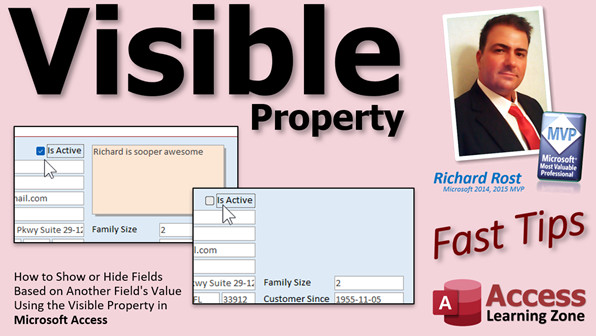
access 2016, access 2019, access 2021, access 365, microsoft access, ms access, ms access tutorial, #msaccess, #microsoftaccess, #help, #howto, #tutorial, #learn, #lesson, #training, #database, show hide fields based on another field, conditional visibility, visible property, dynamic field display, form field visibility, visibility rule for fields, Make fields visible, invisible, hide objects, How to Hide Fields in an Access form
 Subscribe to Visible
Get notifications when this page is updated
More InformationTranscript Welcome to another FAS Tips video brought to you by AccessLearningZone.com. I am your instructor Richard Rost.
In today's video, I'm going to show you how to hide fields or show them based on another field's value using the Visible property in Microsoft Access. The Visible property has all kinds of uses and you can use it whether you know programming or not.
For example, sometimes you might want to get a value from a form, but you don't want that value visible on the form, but it's got to be there. On my customer form, the customer ID is an AutoNumber, and it's handy, but I might not want it on the form. Maybe you don't want your user seeing it, but you have to have the value there for some other form to get it.
In that case, it's very simple. You just come in here, and I usually delete the label, then I'll take this guy and I'll make its property not visible. Go to Format, Visible is now set to No. What I tend to do is move it off to the side and put it somewhere where it's not in the way, and then I'll make it red. You only see this in Design View, but at least you know that that's a hidden field. The customer ID is still on this form, so if I save this and close it and open it up, you don't see it there, but other forms can still get that value.
How do you get a value from another form? I have a whole separate video on that. For example, if you want to get the order ID off the order form, you just use the Forms!FormName!FieldName notation, and this video explains how to do that. I'll put a link to this down below. That's the number one reason why I would use the Visible property without programming.
Once you learn a little bit of VBA programming, the Visible property really gets powerful. If you've never done any VBA programming before, go watch this video. It's about 20 minutes long and teaches you everything you need to know to get started. VBA is not scary. Once you learn a little bit of VBA, your databases become a whole lot more powerful.
In VBA, we can use something called the After Update event. This fires whenever you change the value of a field. For example, let's say I only want to collect notes for customers who are active. If this gets checked off, hide the notes field. You've seen this online where you take a survey, and it says "Did you enjoy today's dinner?" You check Yes, and then a text box pops up and says "Enter your reasons why." Maybe you don't want this visible at all if it's a non-active customer. You can hide buttons, you can hide other fields.
Let me show you how this works. Go to Design View, open up the properties for this check box. Go to Events, find After Update, click the dot dot dot button. This is all covered in my Intro to VBA class, by the way. That opens up your VBA editor. You are now in the IsActive_AfterUpdate event. This fires whenever that check box is clicked.
We're going to just say in here: Notes.Visible = IsActive. IsActive has a true or false value in it as a check box. That true or false value will determine the Visible property of the Notes text box. So if this is checked on, then Notes.Visible becomes true, and if it's checked off, Notes.Visible becomes false.
Save that, come back out here, close this, close everything down, reopen it. Check this box now. Off, on, off, on. The Visible property of that text box is controlled by the value of this box.
Unfortunately, that's not the whole story because if you noticed, when I first opened the form this was off. Close that, open it up, and you're still seeing it. Why? Because there's one other place we have to put that line of code. There's something called the On Current event. The On Current event runs when you move from record to record or when the first record loads up, and On Current is a form-level event.
We essentially have to say when we click on this check box, set that Notes field visible or not, but also it has to run when we move from record to record or when the form loads up. We can do that like this: right click Design View, go to the form's properties, go to Events, find the On Current event, same thing, and put that same line of code in there. I normally don't like duplicating code, and I talk about this in my VBA classes, but if it's just one line it's okay.
Save that, close it, close it, open it back up again, and now as I move through the records, notice that's also taking place. Turn some stuff off, go back to that record, turns on again. Close the form, open it, and you can see that that is now controlled by the status of that box both when you click on the box and when you move from record to record.
As you can see, the Visible property is useful by itself, but it really becomes powerful when you mix it with a little bit of VBA code. If you want to learn this fancy programming stuff, go check out my Intro to VBA class. If you like that and want to learn more, I've got tons of different developer-level lessons on my website. I think I'm up to Developer 42. There are hundreds of hours of programming lessons and stuff available, so check it out. If you have any questions, post them down below.
There you go, there's your fast tip for today. I hope you learned something, and I'll see you next time. Intro In this video, I will show you how to use the Visible property in Microsoft Access to hide or display fields on your forms based on another field's value. You'll learn how to set fields invisible without any programming and see how to control visibility dynamically using simple VBA code and form events like After Update and On Current. We'll cover common scenarios such as hiding IDs and conditionally showing fields depending on user choices, making your Access forms more dynamic and user-friendly. Quiz Q1. What is the main purpose of the Visible property in Microsoft Access forms?
A. To control whether a field is visible to the user on the form
B. To determine if a field is editable
C. To delete a field from the form
D. To rename a field on the form
Q2. Which of the following is a reason to keep a field on a form but make it invisible?
A. You need the value for another form or process, but do not want users to see it
B. You want to prevent the field from being saved in the database
C. You want to change the data type of the field
D. You want users to be able to edit the field directly
Q3. What is the common method to refer to a field's value from another form in Access?
A. Forms!FormName!FieldName
B. Tables!TableName!FieldName
C. Fields!FieldName!FormName
D. Queries!QueryName!FieldName
Q4. What event in VBA is triggered when the value in a control changes, such as checking a box?
A. After Update
B. On Open
C. On Click
D. Before Insert
Q5. In the video example, how does the value of a check box affect the visibility of the Notes text box?
A. When the check box is checked, Notes.Visible is set to True; when unchecked, it is set to False
B. When the check box is checked, Notes.Visible is set to False; when unchecked, it is set to True
C. The check box value does not impact the Notes field at all
D. When the check box is clicked, the Notes field is deleted
Q6. Why must the code controlling the Visible property also be placed in the On Current event?
A. Because On Current runs when moving between records or when the form loads, ensuring the field visibility is accurate each time
B. Because On Current only runs when the database starts up
C. Because On Current is the only place where VBA code can be used
D. Because it prevents users from editing the Notes field
Q7. What happens if you only put the visibility code in the After Update event for the check box?
A. The field visibility will not update when moving between records or when the form loads
B. The field will be permanently hidden
C. The form will not open
D. The Notes field will never be visible
Q8. What does the instructor recommend if you want to learn more about programming in Access?
A. Take the Intro to VBA class available on his website
B. Only use macros
C. Avoid using VBA altogether
D. Look for programming tutorials outside AccessLearningZone.com
Q9. When making a field invisible in Design View, what does the instructor suggest doing to help identify it later?
A. Move it off to the side and change its color to red
B. Rename the field to "Invisible"
C. Password protect the form
D. Delete the field temporarily
Answers: 1-A; 2-A; 3-A; 4-A; 5-A; 6-A; 7-A; 8-A; 9-A
DISCLAIMER: Quiz questions are AI generated. If you find any that are wrong, don't make sense, or aren't related to the video topic at hand, then please post a comment and let me know. Thanks. Summary Today's video from Access Learning Zone explores how to use the Visible property in Microsoft Access to show or hide fields on a form based on another field's value. The Visible property is incredibly flexible, and you can make use of it even if you have no programming background at all.
Consider a scenario where you need to work with a field like CustomerID, which is automatically generated (an AutoNumber) on your customer form. You might not want users to see this field, but you still need it to remain on the form so other objects or forms can reference its value. In this situation, you can simply remove the label associated with the field, set its Visible property to No, and perhaps move the text box off to the side. I like to color it red in Design View just to make it clear that it is hidden, though users will not see it when the form is open. The important point is that the data remains available for any referencing needs, even though it is invisible to users.
If you need to pull a value from a field that is hidden on another form, you can use the Forms!FormName!FieldName notation to retrieve it. I have a separate video that goes into detail on that process if you want to learn more.
Now, if you are comfortable with a bit of VBA programming, the Visible property becomes even more powerful. For those who have not worked with VBA before, I highly recommend checking out my introduction to VBA class, which provides a solid foundation in about 20 minutes.
In VBA, the After Update event is key. This event is triggered whenever you update the value of a control, such as a check box. Let's say you want to make a Notes field appear only for customers who are marked as active. You would handle this by using the After Update event on the IsActive check box. When the value changes, the event fires, and you can set the Visible property of the Notes text box accordingly. If the check box is checked, Notes becomes visible; if not, it stays hidden. This approach is similar to web surveys that reveal or hide follow-up questions depending on responses.
However, there is an additional step. When you open the form or move between records, you may notice that the visible status of the Notes field does not reflect the value in the IsActive check box right away. To address this, you need to use the On Current event of the form, which runs whenever you load a record or move to a new one. By putting the same logic in both the After Update event of the check box and the On Current event of the form, you ensure that the visibility of the Notes field stays synchronized with each record's status.
This solution allows the Notes field to show or hide dynamically, both as users interact with the check box and while browsing through records. Although repeating a line of code in two different places is not usually ideal practice, for simple scenarios like this it is perfectly acceptable.
Overall, the Visible property is a simple yet versatile feature in Microsoft Access. It allows you to control the user interface and keep your forms clean without losing access to critical data behind the scenes. And with even a small amount of VBA, you can customize your forms to a much greater degree.
If you want to start learning VBA or expand your development skills, take a look at my range of programming courses. You will find both introductory and advanced lessons available on my website. As always, you are welcome to post questions in the comments if you have any.
You can find a complete video tutorial with step-by-step instructions on everything discussed here on my website at the link below. Live long and prosper, my friends. Topic List Hiding fields on a form using the Visible property
Setting the Visible property in Design View
Using hidden fields for data retrieval between forms
Controlling field visibility based on another field's value
Using the After Update event to change field visibility
Writing VBA code to toggle the Visible property
Synchronizing field visibility when moving between records
Using the On Current event to update field visibility Primary Topics Access forms, Visible property, field visibility, VBA programming, After Update event, On Current event, conditional display
Secondary Topics hiding buttons, labels, form design considerations, referencing values across forms
|




