Can't Format Currency
By Richard Rost

 3 years ago
What To Do When a Value Won't Format as Currency
In this Microsoft Access tutorial I'm going to teach you how to take a value in a query that you want to format as a currency value but Access won't let you. We will use the CCur function to convert a text value to a currency value.
Natalie from Decatur, Illinois (a Platinum Member) writes: I'm trying to make a query showing the total orders for a customer using the DSum function however the number shows up correctly but it won't format as a currency.
Members
There is no extended cut, but here is the database file:
Silver Members and up get access to view Extended Cut videos, when available. Gold Members can download the files from class plus get access to the Code Vault. If you're not a member, Join Today!
Prerequisites
Links
Recommended Courses
Keywords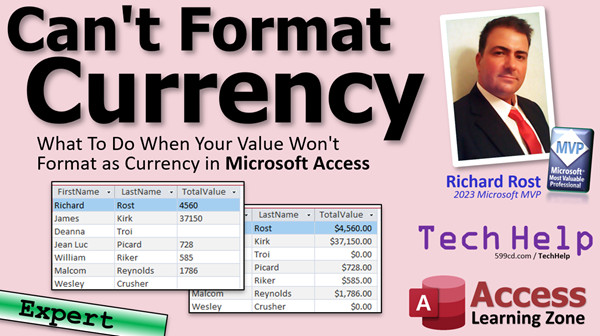
access 2016, access 2019, access 2021, access 365, microsoft access, ms access, ms access tutorial, #msaccess, #microsoftaccess, #help, #howto, #tutorial, #learn, #lesson, #training, #database, Ccur, convert currency, convert to currency, wont show as currency, query currency format, Formatting a Currency field as Currency, How do I insert a currency symbol, How do you format a query as Currency, How do I convert text to currency, Currency Format Doesn't Display in Report, Sum field not formatting as currency
More InformationTranscript Welcome to another TechHelp video brought to you by AccessLearningZone.com. I am your instructor, Richard Rost.
In today's video, we're going to talk about what to do when your value won't format as a currency in your Microsoft Access queries, forms, or reports. You did some kind of a calculation or something and you're expecting a currency value, but you get just numbers. I'm sure you would like to make it look like a currency value.
Now, this will be an expert-level video. Expert to me means it's between beginner and developer. So you have to know more than the basics, but you don't quite need to be a VBA developer. There will be no programming in today's video.
Today's question comes from Natalie in Decatur, Illinois, one of my Platinum members. But honestly, I've seen this question pop up in my forums and in the comments section a dozen times in the past month or two, so this is quite a popular question.
Natalie says, "I'm trying to make a query showing the total orders for a customer using the DSum function. However, the number shows up correctly, but it won't format as a currency."
This problem does tend to show up when you use some kind of an aggregate function like DSum or DLookup or even a form footer total that uses a Sum function.
So let me walk you through the problem, I'll show you what happens, and I'll show you how to fix it.
But first, some prerequisites. I'm going to use my invoicing database, which is a free database. You can download a copy from my website if you want to. Watch this video, it will explain how I built it.
You should know how to make calculated fields - calculated values in queries. We're going to use the DSum function to look up and add up a whole bunch of values from another table. This is just one of the culprits that causes the problem.
These are all free videos. They're on my website and on my YouTube channel. You'll find links down below in the description section under the video where you can go click on them and watch this stuff, then come on back.
Here I am in my TechHelp free template. This is a free database. You can download a copy from my website if you want to.
Let's start off with a simple calculation. Let's go to Create and then Query Design. I've got my Order table and my Order Details table, which you'd know if you watched the invoicing video. Order Detail has all of the line items in it. Let's say we want to make a simple calculation.
Let me close this real quick. We want to do unit price and quantity. We're going to multiply those two things together to get an extended price. I'll zoom in for you - Shift+F2.
It's going to be: Extended Price: [UnitPrice] * [Quantity]
Click OK. Run that query, and it shows up as a number. That's fine. We can come in here, right-click on that column, go to Properties, go to Format, drop that down, pick Currency. When we run it, we're good. It shows up as a currency, no problem. You can change the number of decimal points and all that. That's because Access sees that as a numeric value, so it gives you the options over here to put numeric formatting on it.
Let's close that down. Let's do something a little more complicated. Let's say we want to take our list of customers and next to each customer, I want to put a total for all of their orders. I want to know what each customer's order total value is.
We already have the Order Invoice Q, but the Order Invoice Q only shows information about the currently opened invoice. If I go to a customer and go to Orders, here's an order - order number one - and if I open up the query, it shows me just order number one.
Let's get rid of the criteria in here so we can see all of the orders. Come over here all the way to the right and just delete that column that has the OrderID criteria in it. Now when I run this, I see all of the orders - all the orders for all of the customers.
Now what I want to do is just sum up that Extended Price column, and that will allow me to get the customer's total value. We're going to ignore for now whether it's paid or not. Don't worry about that. We're just keeping it simple. You can add another criteria to check for paid orders.
Save that. Now we don't need that form open. We can get the customer's order total, which will be a DSum from the Order Invoice Q where the CustomerID is whatever customer we're on, and we want to sum up - what field? Extended Price. That'll be our DSum.
A lot of times I'll write this stuff down in Notepad before I even go to my query designer. I use Notepad all the time just to keep straight what's going on here. It's the Order Invoice Q, we want Extended Price, for the CustomerID.
Now I know my fields. I'm moving this off to the side, and I've got a noisy puppy in the background. Just ignore him. It's bring your puppy to work day. It's one of the problems when working from home.
We can close this now. Let's make a query: Create, Query Design. I'm going to bring in my Customer table. We don't need this over here, so close that.
Let's just bring in the CustomerID, FirstName, and LastName. That gives me a list of customers - easy so far. Over here, let's make a calculated value using the DSum function that shows us the total value of the customer.
Zoom in - Shift+F2. TotalValue: DSum("ExtendedPrice","OrderInvoiceQ","CustomerID=" & [CustomerID])
Click OK. Run it. There we go. There's our value. That's each customer's total value.
Notice already it's formatted as a number. The first thing I want to take care of, though, is to get rid of these nulls in here. We're going to use the NZ function to get rid of those. If you don't know how to use the NZ function, I have a video on it. I'll put a link down below.
Basically, we just take whatever is returned by this and wrap it inside of NZ, and specify a default of zero. So if this DSum returns a null value, meaning there are no orders for that particular customer, then convert that null value to a zero. That's all NZ does. It makes it easier for your calculations because nulls cause all kinds of problems.
I have a whole separate video on null values, IsNull, how to check for nulls, and all that stuff too. I'll put a link down below.
This total value here - the first thing you should notice is that the number is lining up on the left side of the field, the left side of the column. That tells me right off the bat that's a text value, because numeric values like IDs, integers, currency values, date values, Boolean values - those are all numeric values. Those will all line up on the right side of the cell, just like in Excel.
Go to Design View. Right-click on this field, go to Properties, and look in Format, drop that down. There are no options, because Access sees that as a text value, and you can only use text formats in here, like this stuff.
LastName, FirstName, same thing. No format options. If you go to CustomerID and drop that down, you'll see all the numeric formats because Access knows that's a long integer, an autonumber.
So how do we fix the problem? We fix the problem by telling Access that it is a currency value. We're going to convert that text field to a currency value.
Open it up again. One more time, we're going to wrap this whole thing inside the CCUR function - convert to currency. There are a whole bunch of different conversions - there's convert to text, convert to long, convert to date, whatever. This one we need: convert to currency, CCUR.
Click OK. Run it now. Look at that. We've told Access, "Hey, it's a currency value." It not only lines up to the right side, but you get your dollar sign there or whatever your local format is for your currency - pounds or euros, whatever you're using.
The same thing happens also in forms and text boxes, in reports, wherever else you see that problem happen.
Another thing I'll see people do, which technically isn't correct, is instead of converting to a currency, they'll use the Format function. I have a whole separate video on the Format function; I'll put a link to that down below. Format has its purposes, but this is not one of them, because watch what happens if I use Format. You'll have to say: Format([Field], "Currency"). Which normally is valid if you're doing it with a numeric field.
Watch what happens now. It looks like a currency value, but see what's different? It's lined up on the left side of the cell. So this technically is still text, but it's text formatted to look like a currency, but the value is still text.
Why is this a problem? Well, if you now use this value somewhere else - let's say you want to add sales tax to it or multiply it by three or whatever - any numeric operations you do to it are not going to work, because it's still a text value.
So the right thing to do is to use - I'm going to undo - Currency. CCUR. There you go. That looks good, and that is how you fix the problem.
Always keep in mind your data types. Is it a number? Is it a date? Is it text? Is it a Boolean value (yes/no)?
The best way to do something like I just showed you in that query is actually not to use DSum in a query. I try to avoid using the domain functions - DLookup, DSum, DCount, DMax, DMin. I try to avoid using those in queries if at all possible. If you're doing a bunch of records, like in a query, you're better off using an aggregate query. That's where you make a query that's got the customers and their order totals are all aggregated up. Then you can join that back into a full customer list.
If you want to see my aggregate query video for more information on how to do something like that, check my links.
But I know tons of you do it this way and there's nothing wrong with this. This is fine. It's just if you've got tens of thousands of records, this is going to be a lot slower than an aggregate query.
If you want to learn more about these type conversion functions, like I said, there's lots of them. There's CCur, CDate, CStr, CLng, CInt, and a bunch of others. I cover them in my Access Expert Level 26 class. It's part two of my comprehensive guide to Access functions, where I go over all - well, I'd say 99 percent of the functions in Access. There are some functions that I've never used that are like crazy unusual, but I cover them in depth in my Access Expert series. I'll put a link to this down below.
That is going to be your TechHelp video for today. I still have Fast Tips in my notes. I'm still going to bring back the Fast Tips here and there, but they're going to be truly fast tips.
Hope you learned something today. Live long and prosper, my friends. I'll see you next time. Intro In this video, we talk about how to fix the problem when values won't format as currency in your Microsoft Access queries, forms, or reports. I'll walk you through common scenarios where this issue happens, such as when using aggregate functions like DSum, and show you how to properly convert text or number results into currency format using the CCUR function. We'll discuss the differences between using Format and CCUR, why data types matter, and cover best practices for formatting calculated fields in Access. Quiz Q1. Why might a calculated field in an Access query not display as a currency value even if you expect it to?
A. Because the result is being interpreted as text, not a number or currency
B. Because Access does not support currency formatting in queries
C. Because the database needs to be restarted
D. Because the field uses the wrong font
Q2. What function does Natalie use to sum total orders for a customer in her query?
A. DCount
B. DSum
C. DLookup
D. DAvg
Q3. When Access sees a value as a text data type, how does it typically align the value in a datasheet column?
A. Centered
B. Left-aligned
C. Right-aligned
D. Justified
Q4. What is the purpose of the NZ function in Access queries?
A. To normalize numeric values
B. To replace null values with a default value
C. To convert a value to a string
D. To count the number of null fields
Q5. What is the best way to convert a text value to currency in an Access query?
A. Use the Currency format property in the table
B. Wrap the field in the CCUR function
C. Use the Format function with "Currency"
D. Simply multiply by 1
Q6. What is a potential issue with using the Format function to display a value as currency in Access?
A. It changes the data to a Date type
B. It leaves the value as text, which can cause errors in further numeric calculations
C. It deletes the original data
D. It changes all fields in the query to currency
Q7. After using the CCUR function, what will happen to the alignment and format of the value in the query?
A. The value will be left aligned and not show any currency symbol
B. The value will be centered with a percent sign
C. The value will be right aligned and display the appropriate currency symbol
D. The value will display as a date
Q8. Which function would you use in Access to convert a value to a string?
A. CStr
B. CInt
C. CCur
D. CDate
Q9. What is a downside of using domain aggregate functions like DSum in queries with lots of records?
A. They can corrupt your database
B. They make queries much slower than aggregate queries
C. They prevent formatting of values
D. They only work on numeric fields
Q10. What is recommended to do if you regularly need sums by groups (for example, customer order totals) in Access?
A. Use a domain aggregate function like DSum every time
B. Create an aggregate query grouped by the field of interest
C. Export the data to Excel
D. Format each individual record manually
Q11. Which of the following is NOT a reason why it is important to know your data types in Access?
A. It affects how values are aligned and displayed
B. It affects what operations you can perform on the values
C. It allows you to choose table colors
D. It helps prevent calculation errors
Q12. If you want to see the numeric format options in the properties for a query field, what must be true about the data type?
A. It must be a text field
B. It must be a numeric field
C. It can be any field
D. It must be a Yes/No field
Answers: 1-A; 2-B; 3-B; 4-B; 5-B; 6-B; 7-C; 8-A; 9-B; 10-B; 11-C; 12-B
DISCLAIMER: Quiz questions are AI generated. If you find any that are wrong, don't make sense, or aren't related to the video topic at hand, then please post a comment and let me know. Thanks. Summary Today's TechHelp tutorial from Access Learning Zone focuses on resolving the issue where currency formatting does not appear correctly in Microsoft Access queries, forms, or reports. This is a common problem, especially when you expect to see currency values, but instead end up with plain numbers that do not display as currency.
This topic is at the expert level. In my definition, expert is that stage between beginner and developer. You should already be comfortable with the basics of Access, but you do not need to be a VBA programmer to follow along. There is no programming involved in this lesson.
The question I am addressing today comes from a student who is using the DSum function in a query to total orders for a customer. The function returns the correct total, but it does not display as a currency amount, which is what most users would expect, particularly in financial or sales databases. This type of issue is not uncommon, especially when you use domain aggregate functions such as DSum, DLookup, or even built-in form footer totals using the Sum function.
To illustrate the issue and its solution, I am using my free Invoicing database. If you want to follow along with the example, you can download this database from my website.
Before we get started, make sure you are familiar with creating calculated fields in queries. In this tutorial, I demonstrate how to use DSum to total values from another table, as this is often where issues with formatting arise.
First, I show a basic calculation. For example, multiplying unit price by quantity gives us an extended price field in a query. When you run this query, the result appears as a number. To format it as currency, you simply select the field properties and assign it the currency format. Access recognizes the result as numeric, so you get the formatting options you need.
The problem begins when things get a bit more complex. Suppose you want to display a list of customers with the total value of all orders for each customer. To do this, you set up a query and use DSum to total the Extended Price for each customer. You get the correct totals, but sometimes, the results do not format as currency. Instead, you get plain numbers, and they often align to the left side of the field. This gives us a clue, because in Access, numeric fields align to the right while text fields align to the left.
Furthermore, when using DSum in calculated fields, especially if some customers have no orders, you might get nulls in your totals. Null values can cause calculation problems in Access, so I recommend using the NZ function, which replaces nulls with zero. That way, any customer without orders will show a total of zero instead of blank.
Next, I walk through the process of converting the calculated field to display as a currency value. The simplest and most effective method in Access is to use the CCUR function, which converts the field to the currency data type. Once you do this, Access recognizes the field as a currency value. The numbers align to the right, and the appropriate currency symbol is displayed.
Some users try to use the Format function to solve this problem by formatting the field as "Currency". While this does make the value look like currency, underneath it is still text. This can cause problems if you want to use the value in further calculations since numeric operations won't work correctly on text fields.
It is always important to keep data types in mind as you build your databases in Access. Numeric types, text types, dates, and Boolean values all behave differently, especially when it comes to formatting and calculations.
For large datasets, I mention that it is better to avoid domain aggregate functions like DSum in queries because they can slow things down, especially if you are dealing with a lot of records. Aggregate queries using the Totals function or Group By in a query tend to be more efficient in these circumstances. I have another tutorial that covers aggregate queries if you want to see examples of that approach.
Finally, if you are interested in learning more about type conversion functions in Access, such as CCur (currency), CDate (date), CStr (string), CLng (long integer), and CInt (integer), I cover these in detail in my Access Expert Level 26 class, which is part of my comprehensive guide to Access functions.
That wraps up this TechHelp article on fixing formatting problems with currency fields in Microsoft Access. Remember, you can always find a complete video tutorial with step-by-step instructions covering everything discussed here on my website at the link below.
Live long and prosper, my friends. Topic List Using DSum in a query to calculate totals
Formatting calculated fields as currency
Identifying and fixing text vs numeric data types
Using NZ to handle null values in calculations
Converting text to currency with CCUR
Explaining data alignment in datasheets for data types
Comparing CCUR and Format for currency display
Problems with using Format to display currency
Using type conversion functions in Access
Best practice of aggregate queries vs DSum for totals Primary Topics Microsoft Access, data types, calculated fields, DSum function, formatting outputs, CCUR function, NZ function
Secondary Topics Format function, aggregate queries, text vs numeric alignment, Access query design
|






