Image Map
By Richard Rost

 3 years ago
Use Transparent Buttons to Create an Image Map
In this Microsoft Access tutorial, I will show you how to use transparent buttons to create an image map. This way you can click on different areas of the image to take the user to different places in your database (open different forms, reports, etc.)
Members
There is no extended cut, but here is the database file:
Silver Members and up get access to view Extended Cut videos, when available. Gold Members can download the files from class plus get access to the Code Vault. If you're not a member, Join Today!
Prerequisites
Links
Recommended Courses
Keywords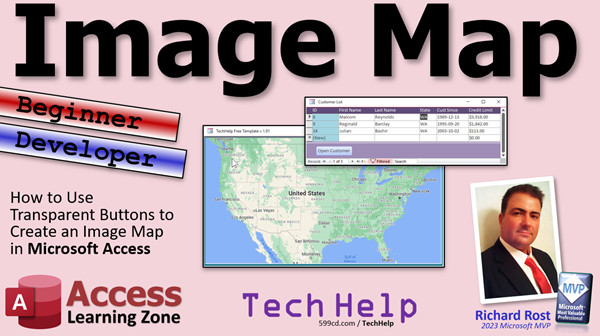
access 2016, access 2019, access 2021, access 365, microsoft access, ms access, ms access tutorial, #msaccess, #microsoftaccess, #help, #howto, #tutorial, #learn, #lesson, #training, #database, Image map, transparent buttons, openform, mousedown
 Subscribe to Image Map
Get notifications when this page is updated
More InformationTranscript Welcome to another TechHelp video brought to you by AccessLearningZone.com. I am your instructor, Richard Rost.
In today's video, I'm going to show you how to create an image map using transparent buttons in Microsoft Access. This is going to be both a beginner and a developer video. What do I mean by that? I'm going to show the beginners how to do this simply, and then after that, I'll show the developers how to do it with a little bit of code. Of course, the developer version is a lot more powerful and still pretty simple.
Access doesn't by itself support something called an image map. What's an image map? You've probably seen it on web pages where you can click on different parts of a picture, and it might take you different places. For example, you click over here, it takes you to Washington. You click over there, it takes you to Washington - the other one. Click here, it takes you to Kansas. Maybe it opens up a list of customers from that state, something like that. It's basically a response based on where you click in the image.
Access doesn't natively support that, but by putting transparent buttons over the different states, we can do something very similar. Let me show you how.
All right, so here I am in my TechHelp free template. This is a free database you can download on my website if you want to, but it doesn't matter for this example. We're just going to go to design view on my main menu here. I'm just going to delete everything on this form because we're not going to use it.
Now I'm going to put a picture here that I want to make my image map. How do you get the picture? Well, I'm just going to use something like Google Maps and grab a copy of the United States. Here's Google Maps. I'll zoom to about as big as I want that to be. That looks like a good size. I'll use my screen capture tool.
I'm using Hypercam. You can use Windows Snip and Sketch if you want. If you don't know how to take a screen capture, go watch this video. You'll find a link down below.
I'll use my Hypercam and I'll try to grab it as close as I can to the edges. It looks good. I'll try to get Miami in there. Okay, and snip.
I got that on my clipboard. Back to my database, click there, hit Paste (Ctrl+V), and there we go. Nice image on the form. We can save that now as Main Menu and close it. When I open it back up again, there we go. It's basically just an image on a form.
Now, what we're going to do is drop some command buttons on here. Up here, command button, drop it, let's say, for Oregon. I'll click and drag right where I want my button to go.
The wizard opens up. If you've never seen this wizard before, go watch my video on command buttons. I show you how the wizard works and all kinds of cool little tricks with it.
We're going to pick Form Operations, Open a Form. Next: what form do you want to open? Let's say the customer list form. Next.
Now here's the key and here's why this is much better with a little bit of programming. Because right now, without programming, the command button wizard has a way to find specific data, but you need to have a linked field on this form.
You're going to have to pick "Open the form and show all records," and then you're going to have to have a separate form set up for each state if you want to do it that way. Not very efficient. That's why this works better with a little bit of programming. But let me finish this and then I'll show you the better way in a minute.
Open the form, show all the records. We're going to basically delete the caption anyway. Just pick text. Next, give it a good name and hit Finish.
Now, here's my button right there. You can delete that caption if you want to - we're not going to see it anyway.
Click on the button itself. Now, this is a bit of a bug in Access. Watch this. If I click over here and then click on the button, I'm still not getting the button. That happens sometimes. What you have to do is right-click on the image, go to Position and then Send Back. That should send it behind the button.
Now I still can't click on it. Look at that. I still can't get it. Close, save changes. Let's open it back up again.
There's my button. Click and it opens.
Let's go back to design view and then click on the button. Now I can get the button. It's a bit of a glitch in Access. You're not alone if you have that problem. Sometimes you can send this to the back and then you can click on this, sometimes you can't, like you just watched happen to me. Attention Access team: fix that. There's also a problem with list boxes that happens too.
Now that we got the button, come over here. You could change the button's name. You can call it OregonButton or whatever you want to call it. There's the transparent property right there. Set that to Yes. Now all you'll see is the outline of that button.
Save it. Close it. Open it back up again. Now if I click on Oregon, there's my form. See?
Now you could put different buttons around this map to open up different forms. But again, as I said earlier, that's not very efficient. What you want to do is click on the button and maybe pass a parameter like what state you clicked on, and then open up that customer form and show just customers from that state. That's what you want to do, and that's why you need a little bit of programming - literally just a little tiny bit, one line of programming, but you have to know where to put it.
Now here comes the developer part of the video. Don't be frightened if you've never done any programming. Go watch this video - it's my intro to VBA. It's about 20 minutes long. It will teach you everything you need to know to get started with VBA. It's not hard. Once you learn a couple of commands, your Access database will go to a whole other level.
Go watch this and then come on back, and I'll show you how to do this image map properly.
Let's go back into design view. Just delete that button - get rid of it. Let's start over.
Button. Drop it there. Cancel the wizard. We don't like that wizard. Try to get the button over as much of the state as you can. Again, I'm going to delete that caption - we don't need it. Give it a good name.
That's why I didn't waste time putting a good name in it before because I knew I was deleting it. Set it to Transparent.
Now here's the key. We're going to right-click on the button and go to Build Event - that puts us in the on-click event for that button. In here is where you put your OpenForm command.
I'll slide this over so you can see it better. Here's what it's going to look like:
DoCmd.OpenForm "CustomerListF", , , "State='Oregon'"
That's my customer list form. It's a continuous form, you just saw it a minute ago. It's got all my customers in it. But I want to limit that list to just customers from Oregon.
There are two ways you can do it. You can do it with a filter or you can do it with a where condition. I personally prefer the where condition. That's just me.
So, I'm going to put in here: State equals 'Oregon' like that. But Oregon itself is a string, so it has to be inside quotes. In order to put quotes inside of a string, you need two double quotes like this. Some people use a single quote. I like to use the double-double quotes.
I have a whole other video on that topic. I'd use the double-double quotes, and I also have another video on why you should use the double-double quotes and not the single quote. Go watch these if you want to learn more.
Back to my code. We're going to basically open up the CustomerListF and show only the records where the state equals Oregon.
Save it. Back over here, close it. If you're wondering what this is, by the way, if you haven't watched any of my videos before, this is my quick launch toolbar. I simply put a button up here that opens up the main menu. That's all that does. Go watch my video where I show how to create the blank template. I'll put a link for that down below too.
Anyways, ready? Click. And nothing.
The reason is I don't have anybody from Oregon in my database. Let's open up the full customer list and we'll cheat. We'll just change a few people to Oregon.
Is it Oregon or Oregon? People that live in Oregon, how do you say it? I don't know.
I've just made two people from Oregon. Ready? Click. Boom. There they are. See?
If you move a form and save it (Ctrl+S), it usually locks in the position. That usually only works with forms. It doesn't work with queries or tables.
Let's do another one - let's do Washington. Design view.
Now that we already have one button, we can just copy and paste it. Ctrl+C, Ctrl+V. Then we'll slide this button up over Washington. Try not to overlap them, like that.
We'll call this one WA_BTN. You should be consistent. I know I typed in the full "Oregon" for this one, but probably a better name would be OR_BTN. But here's the thing: If you click on this one, if you change this - watch this - if you change this to OR_BTN, right-click, build event, you just unlinked it from the previous code. A lot of things in Access where if you rename a table and you've got forms or queries that are based on that table, Access will rename them for you. Usually. But VBA code does not work that way.
If you rename an object, any code under that object is usually unlinked. So I'm going to just cut that out and put it down here. It's good to stay consistent. If you're going to spell out the name of the state, do it for all of them, which I don't want to do.
So, we got the Washington button. Right-click, build event. And we can just copy the same code right here. Ctrl+C, Ctrl+V, and change this to Washington.
You more advanced users, if you want to make a function out of that, then you just pass it the state as a variable. You can do that too. I'll cover that in my full VBA course.
Anyways, save it. Close it. Open it back up again. Click on Washington. Boom. There are a couple of people in Washington.
Now, obviously, with some states like California, you're going to need multiple boxes. I'm not going to go through and do them all. You're going to have to have a box up top here, the top of the state. Put another one down below it, like that. Yes, it's okay if they overlap a little bit. Don't overlap another state, obviously.
Usually, what I tell people to do in this case is instead of trying to cover the whole state, just cover where the name of the state is. Usually, if you click on the name of the state, it makes it a lot easier than trying to make buttons that cover the entire outline. Our states are weird. Why do they have the shapes that they have? Who knows. Just try to get that over the name of the state.
If you want to do one box, let's say you're doing zones or you've got specific regions for your sales reps, and this is to pick a sales rep. Let's say you've got one sales rep that does both the Dakotas. You could do this and drag it down like that. Or, let's say you've got New England over here. Make this box over Maine, Vermont, and New Hampshire. Those three states are all in one region. So we'll make this the ME_VT_NH_BTN.
Right-click, build event. Now you have to change your criteria just slightly. Copy that. Paste it up here.
It's going to be state equals Maine, and then, or state equals Vermont, or state equals New Hampshire. Look at that. You can put multiple criteria in there.
You'd think that would be AND - you want to cover Maine and Vermont and New Hampshire. But you have to think how the computer thinks. The computer says, okay, I want to show all customers who are from Maine or Vermont or New Hampshire. No customer can be from Maine and Vermont and New Hampshire. See how that works? I know a lot of times you have to kind of think backwards.
Now if I save it, come back out here, close it, open it up, click. I don't have anybody from any of those states. Let's cheat.
I'll be from Maine. I love Maine. I used to vacation in Maine every year. And this one will be Vermont, and this one will be Vermont, and this one will be New Hampshire.
Ready? Click. There they are.
Now, for you advanced users: instead of using transparent buttons, you could actually use the Mouse Down event for the image itself to get the X Y coordinates where the person clicked on the map. It's a lot more complicated.
Let me delete these. Actually, I'm going to leave these buttons in here for you guys. I'll put this database up online for the gold members.
The image itself can tell you where you clicked on it - the X Y coordinates of that image. I'm not going to cover the full thing now, but I'll just show you briefly how to do it.
Let's name the image. I don't like OLEUnbound16. Let's call this Map_IMG.
Go to Events. Go to On Mouse Down. This happens when you click the mouse and the mouse button is pressed down.
You can get what button was pressed, whether or not the Shift, Control, or Alt keys were held down when the user was clicking. So you can get, like, a Shift-click. Then X and Y are the X and Y coordinates.
In here, I can say:
MsgBox X & " " & Y
You'll get the X Y coordinates where the user clicked.
Save that. Open it back up again. Now if I click here - boom, that is location 4725 by 2445. Click over here - boom, that's location 180 by 4470. That's from the left and top.
Now, using this data, you the developer could go and click on all the different spots on the map and make four corners or locations or even just click on the names themselves - however you want to do it. You could store these coordinates in a table and build your own image map if you wanted to.
If you really want to see how this is done, let me know. Post a comment down below and I will cover this in one of my Access developer classes. It's going to be a bit too advanced for a TechHelp video, but I'll put this in the next developer lesson if you guys want to see how to do it. Otherwise, I won't waste the time on it. But if you really want to see it, put a comment down below.
There you go. That's how you can basically build an image map using Microsoft Access and transparent buttons.
That is going to be your TechHelp video for today. I hope you learned something. Live long and prosper, my friends. I'll see you next time. Intro In this video, I will show you how to create an image map using transparent buttons in Microsoft Access. First, we'll walk through a simple method for beginners to place buttons over areas of an image, such as a map, allowing users to click on different regions and open related forms. Then, we'll step up to a more efficient developer approach using a bit of VBA code so you can filter records, like showing customers from a specific state. I'll also demonstrate how to capture click coordinates from the image itself for more advanced customization. Quiz Q1. What is an image map as described in the video?
A. An image that can be resized in Access forms
B. A picture with clickable areas that trigger different actions depending on where you click
C. A chart displaying data points geographically
D. A map showing images of all the states in the US
Q2. How does Access allow you to simulate an image map functionality?
A. By using built-in image map support
B. By drawing shapes on the form
C. By placing transparent command buttons over different regions on the image
D. By inserting hyperlinks onto images
Q3. What main limitation does the command button wizard present when creating an image map without code?
A. It only works for forms with single records
B. It requires a separate form for each clickable area or state
C. It only allows images in BMP format
D. It does not permit you to delete button captions
Q4. What key property must be set for a button to make it invisible but still able to receive clicks?
A. Visible = No
B. Enable = No
C. Caption = ""
D. Transparent = Yes
Q5. Why is a little bit of VBA code more efficient when building an image map in Access?
A. It lets you change the image at runtime
B. It allows you to use a single form and filter the records dynamically based on the button clicked
C. It prevents users from clicking on the image at all
D. It creates new tables automatically for each state
Q6. What is the basic VBA command used to open a form and filter by state?
A. OpenForm "CustomerListF", with "WHERE State = 'Oregon'"
B. DoCmd.OpenForm "CustomerListF", , , "State='Oregon'"
C. RunForm("CustomerListF", Filter: "Oregon")
D. Select * from CustomerListF where State = 'Oregon'
Q7. If you rename a button in Access from within the form designer, what must you remember about the associated VBA code?
A. The code will automatically update to the new name
B. The code is deleted automatically
C. Renaming the button unlinks the VBA code from the old name
D. No action is needed, as button renaming has no effect
Q8. When filtering records for buttons representing multiple states or regions, which logical operator should you use in your filter condition?
A. AND
B. XOR
C. OR
D. NOT
Q9. If no customers exist from a state you have made a button for, what will happen when you click the button?
A. The form will load showing all customers
B. The form will load but display no records
C. The application will crash
D. Access will create new customer records for that state
Q10. Why might you use several transparent buttons for a single large state like California?
A. Access cannot handle large images
B. It is more visually appealing
C. To make it easier to cover complex shapes or regions within the state
D. Access limits button size
Q11. What advanced alternative does the video mention for detecting exactly where the user clicked on the image?
A. Use the Mouse Down event of the form to detect the click
B. Create invisible textboxes for each state
C. Use the Mouse Down event of the image to capture X Y coordinates
D. Utilize web browser controls within the form
Q12. According to the video, what advantage does covering just the state name with a button provide when making an image map?
A. Makes the form load faster
B. Simplifies button placement and user interaction
C. Removes the need for VBA code
D. Enables color-coding by region automatically
Q13. If you want to use the Mouse Down event on an image, which information is directly available for use in VBA?
A. Only which mouse button was used
B. The X and Y coordinates of the click, mouse button used, and whether Shift, Control, or Alt were pressed
C. Only the image size
D. The names of all buttons overlapping the click
Q14. What is necessary to do when you want a clickable area to represent more than one state or region?
A. You must create a separate form for each region
B. Use multiple criteria with OR to filter the form for all relevant states
C. Combine all customers into one new record
D. Draw the button outside the image
Q15. Why might VBA solutions in Access require you to carefully manage naming and linking of objects and their events?
A. Access always overwrites event code on rename
B. Renaming objects can break links to event procedures, requiring manual reconnection
C. Access sorts event handlers alphabetically
D. Change in object names does not affect code running
Answers: 1-B; 2-C; 3-B; 4-D; 5-B; 6-B; 7-C; 8-C; 9-B; 10-C; 11-C; 12-B; 13-B; 14-B; 15-B
DISCLAIMER: Quiz questions are AI generated. If you find any that are wrong, don't make sense, or aren't related to the video topic at hand, then please post a comment and let me know. Thanks. Summary Today's TechHelp tutorial from Access Learning Zone focuses on how to create an image map in Microsoft Access by using transparent buttons. This lesson is designed for both beginners and developers, so regardless of your experience level, you will be able to follow along. I will first walk you through a simple method suitable for beginners and then show you a slightly more advanced approach that uses a small amount of VBA coding for better functionality.
Let me start by explaining the image map concept. On websites, you may have come across pictures where clicking different areas leads you to different destinations. For example, clicking various states on a map might bring up data related to each state, such as a list of customers. Access does not have a built-in image map feature, but we can replicate this functionality by layering transparent command buttons over specific areas of an image, such as different states on a US map.
First, let's start with a blank form in Access. I am using my free TechHelp template for this demonstration, but you are free to use any database you like. I clear out the form so we can work from a clean slate.
Next, find and add an image to the form. For this example, grab a map image however you prefer. I use a screen capture tool to take a screenshot of the United States from Google Maps, but you can use any method that works for you, such as the Windows Snip and Sketch tool. After capturing the image, simply paste it onto the form.
With your map in place, it's time to add command buttons to the image. These buttons will serve as invisible hot spots that users can click to trigger actions based on location. Add a new command button to the section of the map you want, such as over the state of Oregon. If the Command Button Wizard opens up, follow its prompts. You can set it up to open a specific form, like a customer list form.
If you use the Wizard and want to filter information by state without coding, you will be forced to set up a separate form or query for each state, which is inefficient. This is why a little programming is so helpful. Even if you complete the Wizard's steps for now, remember that we are going to improve it soon.
Once the button is placed, remove the caption so it does not display any text. To make the button truly invisible, change its 'Transparent' property to Yes. The outline might still appear in design view, but users won't see it on the live form.
Sometimes, Access can be quirky and you might have issues selecting the button or sending items to the front or back. If you find you cannot select your button after placing it, closing and reopening the form often resolves this. You are definitely not alone if you encounter this bug.
Now, here is where the developer approach comes in. To make this setup much more efficient, delete your existing button and add a new one, but this time, cancel the Command Button Wizard. Place the button exactly where you want it. Again, delete the caption and ensure it is transparent.
The key is to add VBA code to the button's On Click event. In the button's properties, build an event for the On Click action. Insert a command that will open the customer list form, but this time include a filter that restricts the records by state, such as showing only customers from Oregon. This only takes one line of code. When writing the filter condition, use double-double quotes around the state name to ensure proper syntax within VBA.
Once you have saved your changes, close and reopen the form. Try clicking on your new transparent button. If you have records from Oregon in your database, the filtered customer list will appear. If not, you can simply edit existing records in your customer list to set their state to Oregon as a test.
For additional states, copy and paste your existing transparent button, move it over the desired state, and update both the button's name and the state specified in the VBA code. If you want to be extra organized, use consistent naming conventions such as OR_BTN and WA_BTN for Oregon and Washington. Just remember, if you rename a button, you often need to re-link or move any associated VBA code, as Access does not automatically update code references following a name change.
For regions covering multiple states, you can use a larger transparent button that encompasses several areas. Adjust the filter condition with multiple OR statements, such as state equals Maine OR Vermont OR New Hampshire. It is important to remember that within this context, you use OR between criteria, not AND, because a record cannot belong to multiple states simultaneously.
If you're managing regional sales or want to track territories, this method allows you to set up buttons that cover multiple states at once. Just be careful not to let the buttons overlap states or regions you do not intend to include.
For developers seeking even more precision, you can use the Mouse Down event of the image itself to capture exact X and Y coordinates where a user clicks. With this method, you can precisely determine which area of the map was selected, and even store those coordinates in a table for more advanced mapping. Setting this up requires more VBA knowledge, and while I briefly explain the idea, it is best covered in more advanced developer courses. If there is enough interest, I will cover this topic in depth in a future lesson.
In summary, while Microsoft Access does not natively support image maps, you can effectively build one with a combination of transparent buttons and a little VBA coding. This method gives you the flexibility to create interactive forms where clicking on different parts of an image triggers specific actions or displays custom data.
You can find a complete video tutorial with step-by-step instructions on everything discussed here on my website at the link below. Live long and prosper, my friends. Topic List Adding an image to a Microsoft Access form
Positioning and resizing an image on a form
Using screen capture tools to obtain a map image
Placing transparent buttons on top of an image
Configuring command buttons to open forms
Setting button transparency property in Access
Naming buttons for clarity and consistency
Handling Access design view glitches with button selection
Opening forms with filters based on button clicks
Using the DoCmd.OpenForm command with where conditions
Passing parameters to forms using button events
Copying and adjusting buttons for multiple regions
Applying VBA to filter forms by specific state
Covering multi-state or regional areas with one button
Writing where conditions for multiple possible values
Understanding OR vs AND in query filters
Modifying customer records to test filter functionality
Using the Mouse Down event to get X Y coordinates
Displaying X Y mouse coordinates with a MsgBox on image
Naming images and accessing their event properties in Access Primary Topics image maps in Access, transparent command buttons, form design, button events, VBA OpenForm, filtering data by parameter, regional grouping, image coordinates Secondary Topics user interface quirks in Access, button layering, naming conventions, developer strategies, MouseDown event, X Y coordinate capture |




