Calculator 6
By Richard Rost

 3 years ago
Build an On-Screen Calculator in Access - Part 6
This is part 6 of my Microsoft Access on-screen calculator tutorial. We are continuing to build the calculator that we started in part 1. In today's video we're going to learn how to make the memory value persistent even if the calculator form closes and is reopened, or even if the database itself is closed and reopened. We'll look at variables and their scope, learn how to set up a public global variable, and then we'll use TempVars to store the persistent memory value. We'll learn how to bind that value to a table field. We'll also talk about tab cycle and we'll make a custom image for the background of our calculator form so it looks super cool.
Members
There is no extended cut, but here is the database file:
Silver Members and up get access to view Extended Cut videos, when available. Gold Members can download the files from class plus get access to the Code Vault. If you're not a member, Join Today!
Prerequisites
Next Video
Links
Recommended Courses
Keywords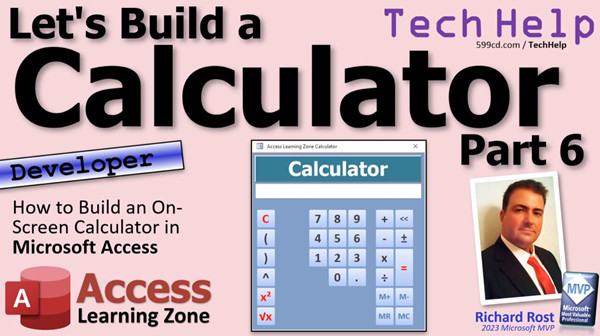
access 2016, access 2019, access 2021, access 365, microsoft access, ms access, ms access tutorial, #msaccess, #microsoftaccess, #help, #howto, #tutorial, #learn, #lesson, #training, #database, Onscreen calculator, calculator, on-screen calculator, local variables, global variables, public variables, variable scope, persistent values, tempvars, bind field to table, tab cycle, custom form background image
 Subscribe to Calculator 6
Get notifications when this page is updated
More InformationTranscript Welcome to another TechHelp video brought to you by AccessLearningZone.com. I am your instructor Richard Rost.
Today is part six of the Let's Build a Calendar series. We are continuing on. In the last class, in part five, we built these little handy memory buttons down here. In today's video, I am going to show you how to keep that value from the memory in memory even if you close the calendar. Close the calculator and reopen it. How do we do that? We will talk about that in a minute.
We built our fancy memory buttons. I could take a number like 25, store it in the memory, do other stuff, and then recall it later. But if I close this and open it back up again, it is gone. Why is that? Well, the value is only being stored here in a text box. This text box goes away, and whatever is in there is gone as soon as I close the form.
There are a lot of ways that you can take values and store them in the computer's memory. One is to make a variable. If we go into the code behind this, for example, if we were inside of a function here, I could say dim x as a string or whatever. That is declaring a variable. If you want to learn more about variables, go watch this video. I talk about them in depth, and I explain a lot more about them.
Variables can have different scopes. The scope is where you can use that variable. There is scope and there is visibility. For example, this right here is only usable inside this function. But I can take that out of there and I could put it out here outside of all of the functions and subs. The scope here is in this form. This form can use that variable. Any one of these subs or functions can use that variable.
But the problem still remains that it is only available to this form. When this form closes, this guy is gone. It gets cleared. There is something else we could do. We could take that and instead of putting it there, we could put it out here in a global module, in a database-wide module. We do that by going to create module and then just paste it there.
Now we have a variable outside here. Generally what you want to do is you want to call it a public variable, public x as a string. Anybody in the entire database can reference x. X is not a great name for a public variable because you want to give it something meaningful. X is something maybe used on a local level for a loop or something like that. If it is going to be out here, myBigValue or whatever you want to call it, systemY. Then again, go watch my scope video for a lot more information on that.
Now, global variables like this have their place, they are handy. Then you just basically save this. I usually save it and call it myGlobalM and put any values you want to have available for the entire database in there in your global module. But I am going to actually delete this.
But global variables do have one problem in that if there are any problems in your database, any errors or whatever, they can get cleared. I prefer using something called tempvars. Tempvars is a collection of variables and you can use them anytime you want. You can use them in VBA code. You can use them in your queries. You can use them in macros. They are very, very versatile, much more versatile than global variables are. They are part of a collection called the tempvars.
Just ask Adam about tempvars. He loves tempvars. I have got a whole developer lesson plan coming out on tempvars to go into all the ins and outs. But this is basically how you use them. When we add a value to that memory, at this point, memoryVal, which is a field on that form, has some value in it.
What we are going to also do here is stick that into a memory variable called a tempvar. We are going to say tempvars and give it a name. Call it the same thing if you want, memoryVal equals the value of the memoryVal text box. It is going to be memoryVal.value. You have to specify it that way. Otherwise, it tries to stick the whole control into the tempvars. You cannot do that.
Whenever we add something to the tempvars or to the memory, put it in the tempvars and also let me subtract the value. Do this calculation, figure that out, and then stick it in a tempvar, which you can think of as a temporary variable up in the system's memory that is usable throughout the entire database.
Now, when I come out here and I take a value like 25 and I add to the memory, I just stuck it in that text box and I just stuck it in a tempvar. Here is the thing. When I close this and open it back up again, it is not there. Why? We have to go see if there is something in the tempvar now when the form loads and put it back in that text box. Make sense?
Now, let's go to the form load event, on load or on open, either one will work. Here we will just go backwards. MemoryVal equals tempvars memoryVal dot value. Save it. Give it a quick debug compile as we should once in a while. Close it down. Open it back up again. There is my 25. Look at that. It came back. If we saved it last time and closed the form and go do a bunch of other stuff, open up the form, there it is.
Now, it will stay in there until you either clear it or you shut the database down. Now, what if you want that value to be in there even when you shut the database down and come back? Well, for that, fortunately, we are using a database, so we just have to make a table. That is the easiest thing in the world to do for an Access developer. We just create a table, make one field in it, and then put that in there. I will show you real quick.
We are not going to keep this, but just to show you what I mean. Create table design, call it tempMemoryValue, tempMemoryValue. Make that a short text. Save it. Do not make a primary key. So, tempMemoryValueT. Primary key, no. We are good. It has got one value. One value only is going to be in that field.
Now, this guy right here, actually, first let's bind this form to that table. So, go to data. Record source is going to be tempMemoryValueT. So, this form is now getting its data from that table. So, now I can just take this, copy, paste. I want to leave this guy alone because I do not want to mess with it. This one here, let's pretend that this one is the new guy. I will make that bold so you can see the difference.
And all you do now is come up here and make the control source that memoryValue set there. So, now instead of setting memoryValue, you use tempMemoryValue. Save it and close it. And now whenever you are doing your memory stuff, it will just put the value in here. Let's say it puts 56 in there.
Now, just form closes and opens back up again. There is your 56. It is basically a record in that table. See, 56. The user has no way of moving between records. You cannot arrow to a different record or something. Well, you could, you could tab to another record. If I hit tab, it technically at that point goes to the next record. So, make sure you set your record cycle. Go to the form's properties, go to other, change cycle to current record.
So, the tab cycle, when you have a normal form like a customer form, and you go tab, tab, tab, tab, tab, tab, tab off the end, it goes to the next record at the first field. So, that is what the cycle does. Go watch this video about the tab order, stop and cycle.
But that would be essentially how you would save a value now in a table that is bound to your form. All your memory calculations just save it into that. Now, if you close the database, open the database back up again, your tempvars are all cleared, but guess what? Your value there is bound to that table, so it saves it between values or between runs of the database, which is basically what databases do.
Now, I do not want that in here, so I am going to delete it, because that was just to show you how to do something, because people ask me that. I am like, how do you save that value once the database closes out? Put it in a table; that is what the database does. How do you not lose Joe Smith's information when you close the database? That is what a database does. We can get it in this guy too.
There you go. Whoops, see? Yep. Okay, so it is trying to still bind the form to the table. So, we have to come in here, do the data, and do you? Now, we can save it. Beautiful, but our memory thing will still work. Okay, close it. Open it. There you go.
So, yeah, that is tempvars. Pretty cool stuff. Let's do our obligatory change of wardrobe here. Let's go back. Purple. There. Yeah. There we go. Let's go darker purple. Yeah. Now, it is looking cool.
People always ask me, can you do like gradients and cool things back here? No, not with just the tools that are in Access. They give Word and PowerPoint and Excel all kinds of cool features, but the form design stuff is in here, but you can cheat. You can use Word or you can use PowerPoint. Here is PowerPoint. That is what I used for all my slides. It is just PowerPoint. I have a slide that is just a white box. And I can do stuff in this white box now.
For example, I can insert a shape and let's do a rectangle like this. Try to get it about the size of your calculator. Get it about the same. Close enough, maybe a little bit. Now, this guy, you can format. We can do a fill. We can do a gradient fill. Let's pick something like, I do not want to think, let's do this one. There we go. That is pretty cool. Maybe change this too. So, you get the point. We got a little background fill.
Now, use your screen capture tool and just grab a rectangle. Like that. I copied it to my clipboard. I will come back over to Access, paste that in here. Boom, like that. Resize it, like so. You are going to want to set the, where you at here, change from clip to stretch, and then right click and then position send to back. Look at that. Yeah, it is kind of cool.
Let's go, let's take this guy and go back to like that. We put a custom background behind that form. That is just an image. Save it, close it, open it. Looks neat. That is pretty cool. I did a video a little while back called Form Design Aesthetics, so you can create customized form field button appearances, backgrounds, all kinds of cool stuff. It is basically what I just did. Go into some other graphics editor, PowerPoint or Word, make your background.
This is all part of a background with the round things here, and then just slap that in the back of the form. There are all kinds of cool stuff you can do. Pretty cool stuff.
What do we have coming up next here? Let's see. Let's do some trig. We will do some trig in the next one. We got sine, cosine, tangent. We will do logarithm. I did not build it in my database. Maybe we will do a pi button. There will be pi in there. Not like apple pie, the pi 3.14 guy.
There you go. There is part six. Hope you learned something.
Live long and prosper. See you tomorrow. What is today? I am pre-recording all of these because I am having some dental work done tomorrow. I do not know if I am going to be able to talk for a couple days. Let's see. You are watching this; if you are watching it live, you are watching it on Wednesday, the 24th. So I had my dental work done a week ago on the 17th. So we will see how I feel.
All right, take care. Intro In this video, we continue the Let's Build a Calendar series by showing how to retain memory values in your Microsoft Access calculator form, even after closing and reopening it. You'll learn about variable scope, the benefits and limitations of global variables, and how to use tempvars to store data throughout your database session. We'll also cover how to save values permanently by binding your form to a table, and explore some tips for customizing your form's background using PowerPoint. This is part 6. Quiz Q1. Why does the value stored in the memory disappear when the calendar form is closed and reopened?
A. Because it is only stored in a text box on the form, which resets when closed
B. Because global variables always reset when a form is closed
C. Because Access automatically clears all form values on close
D. Because tempvars are used and are reset every time
Q2. What is a variable's "scope" in VBA?
A. The variable's current value
B. The range of code where the variable can be accessed
C. The data type assigned to the variable
D. The memory location where the variable is stored
Q3. Where should you declare a variable if you want all procedures in a single form to use it?
A. Inside one function only
B. Outside all functions and subs within the form
C. In a global module
D. Inside a query
Q4. Which statement best describes a global variable declared as "Public" in a module?
A. It can be accessed by any code in the entire database
B. It can only be accessed in the module where it is declared
C. It can only be accessed by subforms
D. It can only be used in SQL statements
Q5. What is one major drawback to using global variables in Access?
A. They make the database slower
B. They are permanently stored even after closing the application
C. They can be cleared if there are database errors
D. They cannot be used outside VBA code
Q6. What is the primary advantage of tempvars over global variables?
A. Tempvars can be used in forms only, but not in macros
B. Tempvars can be accessed in VBA, queries, and macros
C. Tempvars are stored permanently in tables
D. Tempvars are slower to access than global variables
Q7. If you want a value to persist across database restarts, what method should you use?
A. Store the value in a tempvar
B. Store the value in a global variable
C. Store the value in a text box
D. Store the value in a table
Q8. When the form is loaded, how do you ensure the text box shows the current value stored in a tempvar?
A. Assign the tempvar's value to the text box in the form Load event
B. Use Save As to keep the value
C. Store the value in a global variable
D. Create a new text box for each value
Q9. In form design, what property should be set to ensure the user cannot tab to a new record?
A. Set the form's Allow Additions property to No
B. Set the form's Cycle property to Current Record
C. Set the form's Default View to Single Form
D. Set the form's Allow Edits property to No
Q10. How can you add a custom gradient background to a form in Access, using only built-in Access tools?
A. Use Access's built-in gradient background feature
B. Use a calculated control with gradient values
C. You cannot create gradients with only Access; you need an external tool like PowerPoint
D. Change the theme color in Access
Q11. What must you do after creating a custom background image in PowerPoint before using it in Access?
A. Save the PowerPoint as a database file
B. Use a screen capture tool to copy the background and paste it into the Access form
C. Export the form to Word
D. Directly insert PowerPoint slides as Access forms
Q12. After pasting an image for a form background in Access, how should you adjust display and layering?
A. Set the image's display to Stretch and send it to the back
B. Leave the image as Clip and bring it to front
C. Set it as a form header
D. Use the Paint tool to draw over it
Q13. Which of the following is NOT a method to store values in Access for temporary or long-term use?
A. Text box controls on forms
B. Tempvars
C. Global variables in modules
D. Embedded macros in reports
Answers: 1-A; 2-B; 3-B; 4-A; 5-C; 6-B; 7-D; 8-A; 9-B; 10-C; 11-B; 12-A; 13-D
DISCLAIMER: Quiz questions are AI generated. If you find any that are wrong, don't make sense, or aren't related to the video topic at hand, then please post a comment and let me know. Thanks. Summary Today's TechHelp tutorial from Access Learning Zone continues our Let's Build a Calendar series in Microsoft Access. This is Part Six, where I focus on showing you how to preserve values in your calendar's memory function even after closing and reopening the calculator form.
In Part Five, we created memory buttons that let you store a value, carry out other tasks, and recall your saved value later. However, if you closed the calendar and opened it again, the memory wouldn't persist. The reason for this is simple: the value was only stored in a text box on the form. When you close the form, anything stored in controls like text boxes disappears.
There are several strategies for holding onto values in a computer's memory. One common tactic is using variables. In VBA, declaring a variable inside a function is straightforward, but that variable only exists as long as the function is running. If you declare a variable outside all functions but still inside the form's code module, every function or subroutine in that form can see it—but as soon as you close the form, it's gone.
To make a value accessible across your entire database, you can move the declaration to a standard module and make it a public variable. This lets any routine throughout the whole database reference it. However, naming is important. Use descriptive names for public variables so their purpose is clear. Despite their usefulness, global variables come with their own risk: if anything disrupts your database session, they might be unexpectedly cleared.
To avoid those pitfalls, I recommend using TempVars. TempVars—short for temporary variables—are special storage locations that you can access from VBA code, queries, and macros. They're extremely versatile since they persist as long as your database stays open. I'll be sharing a whole developer lesson series on TempVars, but for now, here's how it applies to our scenario.
When you add a value to the calculator's memory, you can also store it in a TempVar. For example, when your field named memoryVal receives its new value, simply copy that value into a TempVar. This approach ensures that the value sticks around as long as your database session remains open and lets you easily recall it anywhere in your application.
Still, if you want the value to persist even when you close and reopen the entire database, you'll need more than just TempVars or global variables. Since you're using Access, the obvious solution is to save the value in a table. Just create a table—maybe call it tempMemoryValueT—with a single short text field. There's no need for a primary key in this context since you'll only store one record.
You can then bind your form to this table and set the control source of your memory value text box to that field. Now, whenever a memory value is saved, it's written directly to the table. The value will remain in your database indefinitely, surviving not just form closures but entire database sessions. To avoid the user switching to other records, adjust the form's record cycle property to "current record," keeping the experience seamless.
If you'd rather not keep that persistent feature, simply delete the table and remove the form's binding to it. This demonstration simply illustrates how storing values in a table is how Access ensures data isn't lost between sessions, and is the standard solution when users want to keep data permanently.
TempVars are especially handy for values you want to be accessible anywhere in the database as long as it's open, while tables are your tool of choice for long-term storage.
On a different note, people often ask me about improving the look of forms in Access with gradients or advanced graphics. Access doesn't offer sophisticated design tools for backgrounds like PowerPoint or Word, but there's an easy workaround. You can design a background—like a gradient rectangle—in another application such as PowerPoint, then screen capture or export your design as an image. You simply paste that image into your Access form and place it behind your controls. You can get creative with this approach to give your forms a customized look even with Access's limited design tools.
If you'd like more on custom form aesthetics and design, I have a separate video about form design techniques that goes into greater depth on how to create polished, modern-looking forms using backgrounds and custom button images.
Looking ahead, the next part in this series will cover trigonometry operations such as sine, cosine, and tangent, and possibly add a logarithm or a pi button to the calculator for even more functionality.
This concludes Part Six of the Let's Build a Calendar series. You can find a complete video tutorial with step-by-step instructions on everything discussed here on my website at the link below.
Live long and prosper, my friends. Topic List Persisting memory button values after closing a form
Understanding variable scope in VBA forms
Using global variables in a module
Limitations of global variables in Access
Introduction to tempvars for cross-form variables
Storing and retrieving values in tempvars
Using tempvars in form load events to restore values
Comparing tempvars and table-based persistence
Creating a table to store persistent memory values
Binding a form to a single-field table
Setting form control sources for table binding
Using form properties to set record cycle to current record
Restoring original form data source after testing table binding
Adding custom form backgrounds with PowerPoint
Inserting and formatting gradient backgrounds in Access forms
Importing images as backgrounds in Access forms
Adjusting image layout and position in Access forms Primary Topics Access VBA, TempVars, variable scope, global variables, persisting form data, storing values in tables, form design, custom backgrounds Secondary Topics macros, queries, aesthetics, record navigation, control properties, scope visibility |




