Import Text
By Richard Rost

 3 years ago
Importing Text into a Microsoft Access Table
In this Microsoft Access tutorial, I'm going to teach you how to import data from a text file into your database. We will use the file that we exported in yesterday's video. For the advanced VBA users, I'll demonstrate how to accomplish this with a single-click solution. We will also work with a delete query and an append query, and include a 'Are you sure?' message box for user confirmation.
Members
Members will once again see how to use TransferText to import the data with more advanced options in VBA.
Silver Members and up get access to view Extended Cut videos, when available. Gold Members can download the files from class plus get access to the Code Vault. If you're not a member, Join Today!
Prerequisites
Links
Recommended Courses
Keywords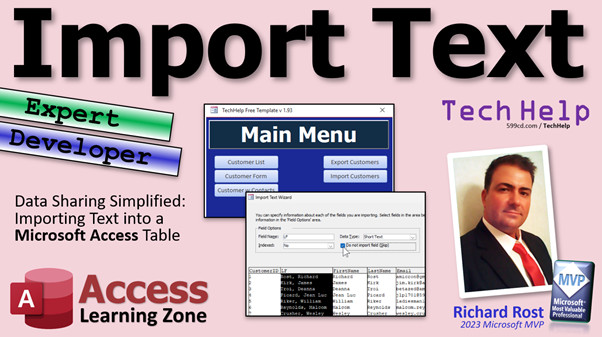
access 2016, access 2019, access 2021, access 365, microsoft access, ms access, ms access tutorial, #msaccess, #microsoftaccess, #help, #howto, #tutorial, #learn, #lesson, #training, #database, Import Text, TransferText, run-time error 3127, the insert into statement contains the following unknown field
 Subscribe to Import Text
Get notifications when this page is updated
More InformationTranscript In today's video, we're going to talk about importing a text file into your Microsoft Access database.
Yesterday, I showed you how to export data from your database, either a table or a query or whatever, as a text file. This is great if you want to send it to someone and you don't know what software they've got. They could have Excel, they could have Access, they could have a text editor, they could just have email. At least they could still work with the data.
So in today's video, we're going to learn how to import that data back in, or you can do this with any old text file that you happen to get. But I'm going to show you specifically how to handle the text file that we exported yesterday, which is a delimited text file where the first row has the field names and all that good stuff.
Let's talk about some prerequisites because there are a couple of things I want you to know before we get started today. Obviously, if you have not watched the export text video, go watch it first. Very important. I have also covered a lot of this before in my import data video, so watch it as well. This will give you a leg up on understanding how importing works in general. I cover importing from text and also from Excel in a couple of different formats.
Now again, I am going to show a non-programming expert method followed by a VBA method for the developer people. If you want to learn the developer method, go watch Intro to VBA. This will get you started learning how to program in about 20 minutes.
Now, I don't like importing data directly into whatever table you want to import it to. I like to bring it into a temporary table first. We are going to use a delete query to clear out that temporary table or to clear out the customer table once we verify the data is correct. So go watch the video on delete queries. Then we have to copy that data into the existing customer table. Go watch the video on append queries to append a set of data.
Finally, in the VBA solution, it's always nice to ask the user if they're sure before they commit to something that's potentially going to delete their customer tables. So go watch the message box video to learn how to make an "Are you sure?" prompt. I'm going to show you how to do it, but the video will give you more details.
These are all free videos. They are on my website and my YouTube channel. Go watch those and then come back.
In yesterday's video, we exported our customer table with a special query and created a text file. I actually created two of them. Here's the one from the extended cut. It's the same thing; I'll show it to you. It's the same data. I just did it a different way and showed them a different way to do it. But either one of these will work. It doesn't matter. I'll just delete one of these so we don't have to sit around here.
Let's pretend I'm the sales rep and you just sent me this customer text file and I want to get this into my copy of the database. The nice thing about this is you can make a copy of this, give it to your sales rep, and they can install the runtime edition of Access, which is perfectly free. They can run your database and import your data without having to buy their own copy of Access. Only the developers need their own purchased copy of Access. If they're just going to use your database, they don't need to purchase it.
Want to learn more about that? Go watch my Access runtime video. I'll explain all about it.
Let's open up the database. In here, we're going to run through almost a kind of reverse of what we did before to export it. We are going to go to External Data, and then in the Import and Link section, go to New Data Source - From File, and then pick Text File. Now we're going to browse to our file, which again, for me, is on my desktop, in my DB folder, and there's my customer text file. Open.
I'm assuming in this case, you're sending them a replacement for your customer data. They will want to eventually delete what they've got and import this. What I like to do in this case is to import the data into a temporary table. That way you can examine it, look at it, make sure everything is good, and then append that data into your customer table after you delete the existing customer records. I don't like to bring stuff straight into the customer table. That's just my method; you can do whatever you want.
Or, if you're adding records, let's say you're giving them new customers to import into their database, they can just do the append here. But what I'm going to do is import the data into a new table. We're going to create a new table to put this in.
Hit OK.
Delimited is correct. The comma delimiter - hit Next. The delimiter is the comma. The text qualifier is quotes; that's fine. The first row contains the field names. Make sure you click on that and hit Next.
Now, you can specify options for each one of these fields if you want to. You don't really have to because eventually we're going to take these and append them over into our actual customer table. For example, this will be turned into an autonumber. All these things will have their own formats associated with them with whatever you have specified in the customer table because we're not going to really use this temporary table much.
But if you want to come in here and skip fields, let's say you don't want to import the email. You can click on skip. I'm not going to do that just now. I'm going to show you something with this in just a few minutes.
Hit Next.
You can let Access add a primary key, in which case it will add an autonumber. You can choose your own. In this case, I'm just going to pick no primary key because again, we are going to be taking this data and throwing it into the customer table later, so that's going to get set up for us automatically.
Next.
But if you're planning on keeping this, if you're importing a new table and you're going to keep it around, sure, pick your own primary key. Make it the customer ID, whatever you want to do.
Hit Next.
Import to table, let's call it CustomerTempT.
Hit Finish.
Very important: click on Save Import Steps just like we did before. Let's change this to ImportCustomer with no hyphen in there. Get rid of that hyphen. Hyphens and spaces are bad.
Save import, and everything's fine.
If you want to look at it, go over here to Saved Imports and Saved Exports. These buttons go to the same place. That's the same thing. If you want to run this again, there it is. Click on it, hit Run just like last time.
Same stuff.
Let's go take a look at the data though. Here it is, CustomerTempT. It brought in all those fields from that text file. Notice that if you go to Design View, CustomerID is not an autonumber. That's OK. We're going to bring it into the customer table in a minute.
If you want to, you can make a button to import the data that will bring it into here. Then you can open up this table if you want to, give the user the opportunity to check everything over, and make sure it's OK. Then you can make a second button to erase the customer table and then append all this stuff into that table if you want.
I'm going to do it all in one step, but I like to show you this method because I like the multi-step approach. I don't like to immediately bring everything over into the customer table.
Let's make the button and ignore the spec button that was from the extended cut yesterday. Let's copy this one and paste it. This will be "Import Customers." "Import Button" is fine. Right click, Build Event.
Here's your command. You're ready. It's Docmd. Same thing as last time - RunSavedImportExport. What was the command? It was ImportCustomer. That was the specification. We just made that. It's called specification because it's not an Import/Export specification. That's what we covered in the extended cut. This is a saved import. Very important distinction.
Then again, "Status Import Complete" and then a beep. That's all right. Save it.
Now, if you run this again, this will just bring that data back into your CustomerTempT. If I come in here and delete all this, if I run it again, done. There it is; I just refreshed the temporary table.
So once you have that data in here, you want to delete whatever is in the customer table and then append the data from here into there. We're going to use two queries to do this: a delete query and an append query. Yes, you can do it straight with SQL without making queries, but I'm going to show you the query method first because I know a lot of you don't necessarily want to learn programming, so you can do it with queries if you want to manually with queries.
Create - Query Design. We'll make the delete query first.
Go to Delete, and then we're going to bring in the customer table. Bring down the star, and it says CustomerT from. So it's going to delete all the records from the customer table. Be very careful before you do this - back up your data. If you have not yet, go watch my backup video. Very important. Don't complain to me if you wipe out your customer table.
Save this as "MyCustomerDeleteQ."
Don't run it yet. You can run it if you want to. Next, make the append query to copy the temp data over into CustomerT.
Create - Query Design. Make an append query. We're appending into the customer table. Bring in CustomerTempT data and bring down the star. Or if you only want certain fields, you can pull in certain fields. Save it. This will be the "CustomerAppendQ."
Yes, if you're sharp, you noticed the problem already, which we're going to get to in a second.
Save that. Close it.
Here comes some more VBA. Let's put this in our same button. You can make a second button if you want to. If you want to open up the table and check it out and make sure everything's good, that's up to you. Here comes the second bit of VBA, if you don't want to run the queries manually.
The first thing I like to do before I run any of this is to tell the user: are you sure you want to do this? It's going to delete your existing customer list. That's why I had you watch the Are You Sure video before.
So, if MsgBox("This will delete your current customers. Are you sure?", vbYesNoCancel + vbCritical, "Import Customers") If the answer is anything but Yes, then exit. I like to give a Yes/No/Cancel, as I explain in the other video, because if somebody is not sure, they're likely to hit Cancel, which is fine. Only a response of Yes will continue the code.
Then we will run our import to import the data in. When you run these queries, it's going to throw off some warning messages. It will say, "You are about to delete so many records," or "You are about to append so many records." I like to turn those warnings off.
I have them turned off on my system in the general options because I don't like to see them ever. If you want to learn more about that, go watch the video on suppressing warnings. But if you give this database to someone else, they might not have those settings. So I like to turn the warnings off when I run this, in addition to having it in the settings. If I give the database to somebody else, it will not show them those warnings too.
Here, I'm going to throw in a DoCmd.SetWarnings False. Don't forget to turn them back on again when you're done, otherwise, they'll stay off. So, maybe right here, set it to True.
Then, we're going to run both of our queries. So, DoCmd.OpenQuery "CustomerDeleteQ", DoCmd.OpenQuery "CustomerAppendQ", and that's it. So, if they're sure, turn the warnings off, import the data, delete the existing customers, append the temp customers into the customer table, turn the warnings back on, and then let them know we're all done.
Save it. Close it. Let's re-open it again.
Hit the import button and "This will delete your current customers. Are you sure?" Yes.
Run-time error 3127: The INSERT INTO statement contains the following unknown field: LF. Make sure you type the name correctly and try the operation again.
What's an INSERT INTO statement? INSERT INTO is the SQL, the language under queries, for an append query. Something is wrong with our append query. It contains the following unknown field: LF. What does that mean? LF. Oh, LF is that calculated field we made that joins Last Name, First Name. That doesn't exist in the customer table. We created it in this query. So, we can't import it into the customer table if the field doesn't exist in the customer table.
There are a couple of things you can do. Hit End. You could go back and redo that specification so that you don't import that field, as I showed you before. Remember the option to not import the field? That's one way you could do it.
Or, you could go into the append query and, instead of bringing in the star (all the records), you could just bring in the individual fields that you want. That's another option.
Or, I'm going to take the quick third option. I'm just going to add LF to the customer table. No, I don't recommend doing this because LF is a calculated field and we wouldn't want that in the customer table under most circumstances. But just for the class, I'm going to do the simple thing.
I've shown you the two right ways you could fix it. Don't do what I just did. But I want to leave that in there because this happens a lot when we do append queries.
Let's go ahead and run that again. Import customers. "Are you sure?" Yes.
Done. This time it's done. We got through it.
Let's go take a look at the actual data in the customer table this time.
It looks all good. Let's scroll over to the right here and wait a minute. What happened? What happened? This stuff wasn't supposed to be in there. These are the fields that I specifically did not export.
If you look in the customer table, that stuff's not in there. I didn't want the sensitive financial data getting out. So, what happened? Well, we've got warnings turned off, and I wanted to bring up this point because if you do turn warnings off, you're not going to see any of the warnings.
Let's go explicitly turn those warnings back on. I'm bringing this up because this happens a lot, but I'm going to turn these on real quick just so you can see what's going on.
Let's run it now.
It's going to delete everybody. "Are you sure?" Yes.
Can't delete 15 records due to key violations. Zero records to lock files. That's fine.
What does that mean, "15 records due to key violations?" Why can't you delete records due to key violations?
Well, the problem is I have referential integrity on in this database. That's why this is an expert level video. Remember this thing? Expert.
What's referential integrity? In case you don't know, it's when you make a join between two tables at the database level and you say, "I'm going to enforce referential integrity." So you can't delete a customer if it has related records in another table.
In order for us to do what we want to do, we have to turn off referential integrity.
Database Tools - Relationships. Here's Customers to Orders. Open up the join properties for that relationship and turn off referential integrity. Now, this means you will be able to delete customers, even if they have orders in the system, which I don't recommend. I have separate videos on how to prevent people from deleting records. I like to use my own methods for that. I don't like to rely on referential integrity for this. But if you want to do an import where you delete these and then replace them, you can't have that on.
Once you're done with that, save it, close it, and now hit the import button.
Go ahead, and we're done. We're good.
Let's check out our customer table. Everyone looks good. Slide to the right over there. OK, beautiful. None of this stuff came in. That means those are the new records.
If you want to make sure, go to Design View. I like to put down here a LastUpdated field. Make that a Date/Time value. Make the default value in here be =Now(), just like that. Save it. Existing records won't have that value set because it doesn't affect existing records when you add a field instead of a default value. But if you import a new set of records and look, now you can see they all have an updated date of right now. That's correct; that's the current date and time.
Another thing I should mention is, because this table was empty, when I imported those records using an append query, it slid them all in here and kept their customer IDs. If you had other records in here, especially records that had the same IDs, that wouldn't have worked. That's a trick you can use to get an autonumber back too. I have a separate video on that.
If you use an append query and bring in an ID, it will slide into an autonumber. This works if you're sharing data with your sales reps and you've got customer ID 5 and they've got the same customer ID. You might have orders in the system too, and they still stay related. That's a good thing.
It doesn't always work that easily though. If you want to make sure you're importing records and related child records, like customers and orders and contacts and all that stuff, I have a separate video on how all that works, so go watch that too. But in this particular case, it worked fine for us because we're sharing the same list of customers.
So there you have it. That's how you import the customers that we exported yesterday.
In the extended cut for the members, we're going to use that TransferText again, and we're going to see how that works with our VBA code. We will use SQL only. I'll rewrite those queries - the append and delete queries - in SQL so we don't need to make any supplemental queries.
That's all coming up in the extended cut for the members. Silver members and up get access to all my extended cut videos.
And that will be your TechHelp video for today. I hope you learned something. Live long and prosper.
I'll see you next time. Intro In this video, we will talk about how to import a text file into your Microsoft Access database. I will show you a step-by-step method for bringing data into a temporary table, reviewing it, and then using delete and append queries to update your main customer table. We will also cover how to create import buttons with VBA, handle possible import errors, and discuss the importance of referential integrity when replacing data in related tables. This video focuses on practical approaches you can use without any programming, as well as basic VBA solutions. Quiz Q1. What is the recommended first step before importing data from a text file into the main customer table in Access?
A. Import data directly into the customer table
B. Import data into a temporary table first
C. Edit the text file manually
D. Run a backup on the database
Q2. Why is it suggested to use a temporary table when importing customer data?
A. To copy data to a text file for archiving
B. To allow examination and verification of the imported data before affecting main records
C. To create a permanent duplicate table
D. To make the import faster
Q3. What type of file is typically exported and imported in this workflow?
A. XML file
B. Delimited text file with first row as field names
C. Access database file
D. Excel file with formulas
Q4. When choosing how to import a text file into Access, which option specifies that the first row contains field names?
A. Unselect the delimiter
B. Click on "First Row Contains Field Names"
C. Choose "Import as Memo Field"
D. Adjust the primary key
Q5. What should you do if the imported text file contains fields not needed in the customer table?
A. Always import all fields, then manually delete unwanted ones
B. Skip those fields during the import process
C. Ignore any import errors
D. Add new fields to the customer table to match
Q6. In the import process, how is the option to handle primary keys usually set for a temporary table?
A. Let Access add a new primary key
B. Set the primary key to CustomerID always
C. Do not add a primary key since a temp table is used only briefly
D. Use a random number generator
Q7. What does the "Saved Import Steps" feature allow you to do in Access?
A. Import only one time
B. Remove past import attempts
C. Run the same import operation repeatedly without reconfiguring settings
D. Encrypt the imported data
Q8. After importing into a temporary table, what two query types are generally used to get data into the customer table?
A. Update and make-table queries
B. Delete and append queries
C. Crosstab and parameter queries
D. Union and summary queries
Q9. When running a delete query on the main customer table, what precaution is strongly suggested?
A. Export the data first
B. Copy the table structure only
C. Back up your database ahead of time
D. Run the query twice for safety
Q10. What is the likely cause of the error "The INSERT INTO statement contains the following unknown field: LF" when running an append query?
A. The customer table must be empty
B. The imported text file has a corrupted record
C. The append query includes a field that does not exist in the target table
D. SQL syntax is not supported in Access
Q11. How can you resolve the "unknown field" error during an append query?
A. Rerun the import without any changes
B. Delete all fields from the temporary table
C. Modify the append query to include only relevant fields or re-import without the problematic field
D. Add all missing fields to the customer table
Q12. What is the purpose of using MsgBox("This will delete your current customers. Are you sure?", vbYesNoCancel + vbCritical, "Import Customers") in the process?
A. To create a report
B. To warn the user and require confirmation before deleting data
C. To add a new record automatically
D. To suppress system warnings
Q13. Why is it important to use DoCmd.SetWarnings False followed by DoCmd.SetWarnings True in VBA?
A. To permanently turn off database warnings
B. To prevent warnings from ever appearing in Access
C. To temporarily suppress system warning messages during the import process and then turn them back on
D. To password-protect the database
Q14. What is "referential integrity" and why can it block deleting customer records?
A. It encrypts the database to prevent unauthorized access
B. It prevents deleting customers who have related records in another table, such as orders
C. It sets all fields to required status
D. It compresses the database for faster imports
Q15. What should you do if you get a "key violation" error when running a delete query on the customer table?
A. Add more fields to your join
B. Turn off referential integrity between customers and related tables
C. Delete related tables first
D. Export the data and try again
Q16. What is a common use for the LastUpdated field with a default value of =Now()?
A. To store the primary key value for each customer
B. To track when each record was most recently imported or modified
C. To prevent duplicate imports
D. To generate random dates for the data
Q17. When importing into a table with an existing autonumber primary key, what happens if you import customer records with the same IDs present in the table?
A. Autonumber IDs are automatically changed
B. Records are skipped or you may have key violations
C. The process always succeeds without issue
D. All IDs are set to zero
Q18. Which import technique allows a non-developer Access user to avoid writing programming code?
A. Importing using VBA only
B. Creating delete and append queries through the Access user interface and running them manually
C. Writing advanced SQL scripts only
D. Compiling an Access add-in
Q19. When distributing an Access database to sales reps who do not have a full Access license, what option is available?
A. They must purchase Access
B. Use the free Access runtime edition
C. Install Access on a virtual machine
D. Access is not required for distribution
Q20. What could happen if you leave warnings suppressed (DoCmd.SetWarnings False) and forget to re-enable them?
A. Access will display warning messages twice
B. No warning or error prompts will be shown for any subsequent operations, risking accidental data loss
C. The database will crash
D. The database will refuse to save any changes
Answers: 1-B; 2-B; 3-B; 4-B; 5-B; 6-C; 7-C; 8-B; 9-C; 10-C; 11-C; 12-B; 13-C; 14-B; 15-B; 16-B; 17-B; 18-B; 19-B; 20-B
DISCLAIMER: Quiz questions are AI generated. If you find any that are wrong, don't make sense, or aren't related to the video topic at hand, then please post a comment and let me know. Thanks. Summary Today's TechHelp tutorial from Access Learning Zone is all about importing a text file into your Microsoft Access database.
Previously, I demonstrated how to export data from your database as a text file. This is helpful when you need to share your data with someone whose software you do not know. They might have Excel, Access, or even just a simple text editor or email, but they can still view and use the data.
Now, the focus is on bringing that data back into Access or importing any properly formatted text file. I will be specifically working with the delimited text file that was exported in the previous lesson, where the first row lists the field names.
Before we begin, there are some prerequisite topics you should be familiar with. If you have not yet watched the previous video on exporting text files, do that first. It is also helpful to review my general import data video, where I discuss importing from both text and Excel files. This will provide a solid foundation for today's lesson.
Today's session will cover two methods: a straightforward approach using Access wizards and a VBA solution suited for developers. If you are interested in the programming side, make sure to check out my Intro to VBA video to get started with coding in Access.
It is important to note that I do not recommend importing data straight into your main tables. Instead, I suggest first importing into a temporary table. This extra step gives you a chance to review and verify data before it moves into your main tables. We will use a delete query to clear out tables as needed, and an append query to move data where it belongs. Make sure to review my videos on delete and append queries for more details.
If you are pursuing the VBA method, it is a good idea to prompt the user for confirmation before making major changes, like deleting all records from a table. My video on message boxes demonstrates how to create a confirmation prompt. These videos are all free and available on my website and YouTube channel.
In the previous session, we exported a customer table using a special query and created a text file. I have a couple of sample files from both the regular and extended cut versions of that lesson. Either one is fine for today's purposes.
Imagine you are a sales representative who has just received this customer data as a text file and need to get it into your own database. The benefit of sharing data in this way is that your team can use the free Access runtime version to run your database and import data without having to purchase Access. Only developers need to buy a full version. To learn more, my Access runtime video will provide additional explanations.
Let's get started with the import process. Once your database is open, you will essentially perform the reverse of the export process. Begin by going to External Data, selecting New Data Source, choosing From File, and picking Text File. Browse to your file and select it.
In this scenario, suppose you are sending a full replacement for your customer data. The best practice is to import the text file into a new temporary table so you can review and verify the records before deleting what you currently have and appending the new data into your customer table. If instead you are importing only new customers (not replacing existing data), you could just use an append query. For the purpose of this lesson, I will demonstrate importing into a new table.
Once you select the file and continue, ensure "Delimited" is chosen, with the comma as the delimiter and quote marks as text qualifiers. Confirm that the first row contains field names.
You have the option to customize the import specs for each field or choose to skip unnecessary fields. For instance, you can decide not to bring in certain data like email addresses at this stage if desired. However, since the plan is to later move this data into its proper place, I'll keep things simple for now.
When choosing keys, for this temporary table, I'll skip adding a primary key since the data will ultimately be transferred into a table where keys are already defined. If you were keeping this new table for the long term, setting your own primary key might make sense.
Name the table something clear, such as CustomerTempT, and finish the import process. It is important to save your import steps, and I highly recommend naming import specifications without hyphens or spaces—incidentally, I named it ImportCustomer.
Saved import steps can be rerun as needed from the same area in Access—helpful if you plan to automate or repeat imports in the future.
Now, review the data in your new temporary table. You can see that the fields were brought in as intended. If you switch to Design View, you may notice that CustomerID is not an autonumber, but this is fine since the final step will move the records into the main customer table, which handles numbering and data types.
If you like, you can set up buttons in your database forms to streamline this process for users. For example, one button could run the saved import, and another could check the data before finalizing the update to your customer records.
In this example, I'll show how to combine these operations using VBA to automate the whole process but do recommend the multi-step approach for validation and safety. Copy and modify an existing button for this purpose, and when building the event, use Docmd to run your saved import spec. After that, you can simply refresh your temporary table as needed by running the process again.
Once your temporary table is loaded, the next goal is to replace the existing customer data. Use a delete query to clear the customer table, and then an append query to move your imported records over. While this could be accomplished directly with SQL code, using saved queries first makes the process more approachable for those less comfortable with programming.
Start by creating a new delete query to remove all records from the customer table. Back up your data first—this is critical. If you lose records, you can't recover them without a backup, so refer to my backup video if needed.
Save your delete query and then create an append query that copies data from CustomerTempT to CustomerT. In the append query, you may run into a situation where fields from your source do not exist in your destination; if you attempt to append all fields (using the star), this will trigger an error. The correct approach is to either customize your import so as not to bring in calculated or unnecessary fields or specify only the required fields in the append query.
Once both queries are in place, you can automate running them via VBA. Add code to your button's event to prompt the user with a confirmation message explaining that this process will delete their current customers. Only proceed if the user selects "Yes." Turn warnings off in VBA to suppress pop-ups from Access during the deletion and append operations, but make sure to turn warnings back on afterwards to avoid hiding important alerts in future actions.
Now, when you run the import, the temporary customer data will overwrite what's in the main customer table.
Errors may occur if you attempt to append or delete fields that do not match between tables. For example, if an exported field does not exist in the customer table, Access will display an error message. The solution is either to adjust your import specs to skip the problematic field, edit the append query to select only the correct fields, or (only for demonstration purposes) momentarily add the field to the customer table.
Another issue you may encounter is key violations, especially if there is referential integrity enforced between your customer table and related tables such as orders. Referential integrity prevents deleting customer records that have related child records. To perform a complete replacement, you must temporarily disable this feature in the Relationships window by editing the join properties. For most situations, you should handle record deletion and integrity via your own methods, but it must be disabled for this kind of import.
After the process is complete, your customer table will display the imported records. To keep track of imported information, consider adding a "LastUpdated" Date/Time field with a default value of Now(). This will help you see which records were most recently imported. Existing records will not have this value applied, but newly added ones will.
Importing with an append query works smoothly if your table is empty. If the customer table already contains records with the same IDs as those you are importing, you may run into issues or duplicate data. This technique is especially useful when sharing identical lists of customers, as Access will keep customer IDs consistent.
For more complex imports involving tables with related data such as customers, orders, and contacts, additional steps are required to maintain those relationships. I cover these scenarios in other videos.
In summary, that is the process of importing customers from a text file exported in the previous lesson. In the extended cut for members, I will demonstrate using the TransferText method in VBA, and converting the append and delete operations to pure SQL, removing the need for separate saved queries. Silver members and higher will have access to all extended cut videos.
You can find a complete video tutorial with step-by-step instructions on everything discussed here on my website at the link below. Live long and prosper, my friends. Topic List Importing a delimited text file into Access
Creating a temporary table for data import
Using the External Data tab to start an import
Selecting and configuring a text file as the data source
Specifying comma as the delimiter and quotes as text qualifier
Setting first row as field names during import
Skipping fields during import process
Choosing to add or not add a primary key in the import
Naming and creating the import table as CustomerTempT
Saving import steps for reuse as a saved import specification
Running a saved import from the Saved Imports menu
Reviewing imported data in the temporary table
Building a button to trigger the saved import via VBA
Using DoCmd.RunSavedImportExport in VBA
Clearing the customer table before importing new data
Creating a delete query to remove all records from customer table
Creating an append query to transfer data from temporary to customer table
Handling errors from mismatched fields during append query
Troubleshooting unknown field errors in append queries
Adjusting the fields selected for append queries to fix mismatches
Explaining referential integrity issues during deletes
Temporarily turning off referential integrity to allow deletes
Using VBA to turn warnings on and off during automated queries
Prompting the user to confirm data deletion before import with MsgBox
Adding a LastUpdated DateTime field for tracking imports
Preserving autonumber fields when appending records
Understanding implications of importing related records with IDs Primary Topics importing text files, Microsoft Access, temporary tables, delete queries, append queries, import specifications, VBA automation, referential integrity, saved imports
Secondary Topics Access runtime edition, field mapping, error handling, setting default values
|




